What Is iPhone Switch Control
iPhone Switch Control is a feature that enables users to control their devices using an external switch. It was introduced with iOS 14 and is available on the iPad and iPod Touch.
Apple introduced Switch Control to help users who cannot use their hands as quickly as others get the most out of their devices. The tool allows users to perform several essential functions on their screen, including typing and clicking on tabs and buttons.
When using the Switch Control iPhone setting, you can scan sections of your screen before selecting your next steps. You can either choose to scan an area or use point scanning.
To use Switch Control on your iPhone, you must pair an external switch with your device.
How to Enable iPhone Switch Control
When using Switch Control on your iPhone, you must first switch on the feature. To do this, follow these instructions.
Step 1: Go into your iPhone’s Settings and tap Accessibility.


Step 2: Under Physical and Motor, click on Switch Control.
Step 3: At the top of the screen, turn the Switch Control button on so it appears green.


How to Add a New Switch
One of the cool things about Switch Control is that you can use more than one switch to control your iPhone. To add new switches, follow the steps below.
Step 1: Go into your iPhone’s Settings and tap Accessibility.
Step 2: Under Physical and Motor, click on Switch Control.
Step 3: Select the tab called Switches and tap Add New Switch.


Step 4: You’ll see four source choices in the next window. Review each one and customize it as necessary.
After picking the options, your selections should apply to your iPhone immediately.
How to Create New Switch Gestures
Creating gestures on your iPhone might make using Switch Control easier. It’s relatively straightforward; all you need to do is follow the steps below.
Step 1: In Switch Control, scroll to the bottom and select Saved Gestures.
Step 2: On the next window, choose Create New Gesture.


Step 3: Create your gesture by either tapping or swiping. Once you’ve finished, press Save.
Was this helpful?
Last updated on 17 August, 2024
Read Next
 How to Switch From HEIC to JPG on iPhone
Switch From HEIC to JPG Step 1: Go to iPhone Settings > Camera.
How to Switch From HEIC to JPG on iPhone
Switch From HEIC to JPG Step 1: Go to iPhone Settings > Camera.
 How to Switch Between Multiple Apple IDs on iPhone and iPad
Things to Know Before Switching Apple ID Firstly, it's important to note that you cannot use multiple Apple IDs simultaneously on one phone.
How to Switch Between Multiple Apple IDs on iPhone and iPad
Things to Know Before Switching Apple ID Firstly, it's important to note that you cannot use multiple Apple IDs simultaneously on one phone.
 How to Fix Silent Switch Not Working on iPhone
Fixes for Silent Button Not Working on iPhone Clean the area around the button: If there is dust and lint accumulation inside the region of the silent switch, it will
How to Fix Silent Switch Not Working on iPhone
Fixes for Silent Button Not Working on iPhone Clean the area around the button: If there is dust and lint accumulation inside the region of the silent switch, it will
 Turn On or Off Silent Mode on iPhone Without Switch or Action Button
https://youtu.be/4aTyKBjOvVY How to Enable & Disable Silent Mode on iPhone 15 Pro and Pro Max iPhone 15 Pro and 15 Pro Max not only have an Action Button instead of
Turn On or Off Silent Mode on iPhone Without Switch or Action Button
https://youtu.be/4aTyKBjOvVY How to Enable & Disable Silent Mode on iPhone 15 Pro and Pro Max iPhone 15 Pro and 15 Pro Max not only have an Action Button instead of
 6 Ways to Switch User Accounts in Windows 11
Method 1: Switch User Accounts From the Start Menu The most popular way to switch user accounts on a Windows computer is via the Start menu.
6 Ways to Switch User Accounts in Windows 11
Method 1: Switch User Accounts From the Start Menu The most popular way to switch user accounts on a Windows computer is via the Start menu.
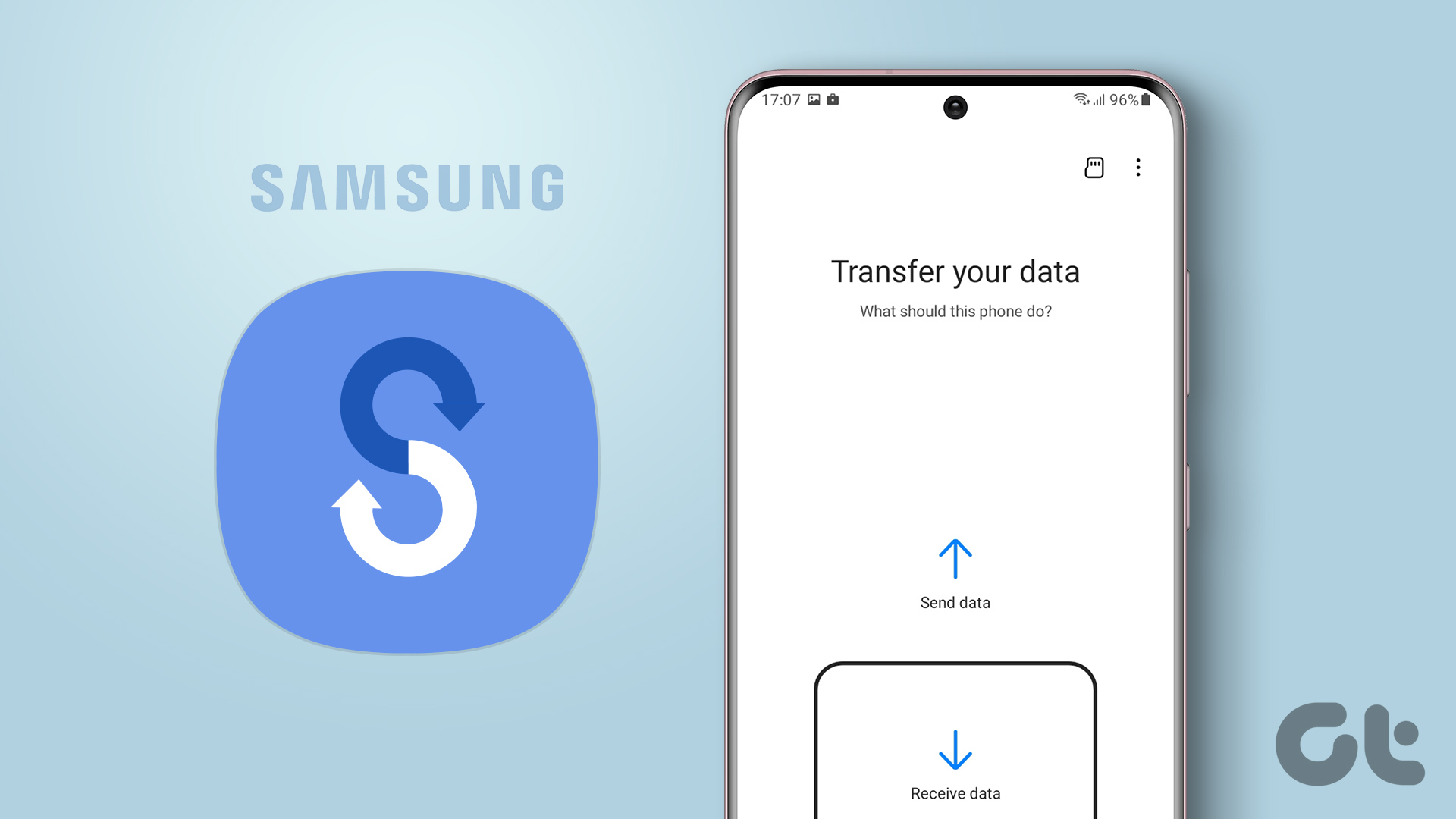 How to Use Samsung Smart Switch to Back Up and Transfer Data on Galaxy Phones
Buying a new phone and transferring data always seem to go hand in hand.
How to Use Samsung Smart Switch to Back Up and Transfer Data on Galaxy Phones
Buying a new phone and transferring data always seem to go hand in hand.
 How to Switch Between KM and Miles in Google Maps and Apple Maps
How to Change Kilometers to Miles in Apple Maps To change KM to Miles (or vice versa) on iPhone, iPad, and Mac, all you need to do is change your
How to Switch Between KM and Miles in Google Maps and Apple Maps
How to Change Kilometers to Miles in Apple Maps To change KM to Miles (or vice versa) on iPhone, iPad, and Mac, all you need to do is change your
 How to Fix “Switch User” Missing From Windows Login Screen
Fix 1: Enable Inactive Accounts If the other user accounts on your system are disabled, they won’t appear on the login screen.
How to Fix “Switch User” Missing From Windows Login Screen
Fix 1: Enable Inactive Accounts If the other user accounts on your system are disabled, they won’t appear on the login screen.
The article above may contain affiliate links which help support Guiding Tech. The content remains unbiased and authentic and will never affect our editorial integrity.