


When And Why To Use Google Security Code
If the 2-Step Verification is enabled, Google sends you a prompt on your device, asking you to confirm the login activity. So why use the security code feature? Well because the prompt is dependent on the internet.

If your device isn’t connected to the internet, you’ll not receive the prompt and hence you can’t log in. However, the security code feature works regardless of an internet connection. You can use it, whether your mobile device is online or offline.
Login to Google Using a Security Code From Android Device
When signing in from a different location than usual (say a different computer or browser), you can use your Android device to generate a security code to sign into Google.
However, to use this feature the following two conditions need to be fulfilled.
- The 2-Step Verification for your Google account should be enabled.
- The Android device must have the same Google account as you’re trying to log in with.
Step 1: Log in to your Google account as per usual. Enter the email address and password.
Step 2: On the 2-Step Verification page, select Try another way from the bottom.

Step 3: Here, select ‘Use your phone or tablet to get a security code (even if it’s offline)‘.

On the next page, you’ll be prompted to enter the security code from your Android device. Here’s how to get them.
Step 4: Open Settings app. Go to Google and tap Manage your Google Account.
Step 5: Here, select the Security tab from the top bar. Scroll down to ‘How you sign in to Google‘.


Step 6: Select Security Code from the options.
Step 7: Enter the security code into Google’s prompt and tap Next to sign into your account.

Bonus: Login To Google Account Without a Phone
So what happens when you don’t have access to your smartphone? Say, the battery died out or the phone is stolen, or your kid won’t return it to you. Or for whatever reason, you can’t sign into your Google Account with 2-Step Verification.
Well, for such scenarios Google has incorporated a contingency plan, dubbed as the backup codes. If you have generated these backup codes in advance, you can log in to your Google account without a phone.
Was this helpful?
Last updated on 28 August, 2024
Read Next
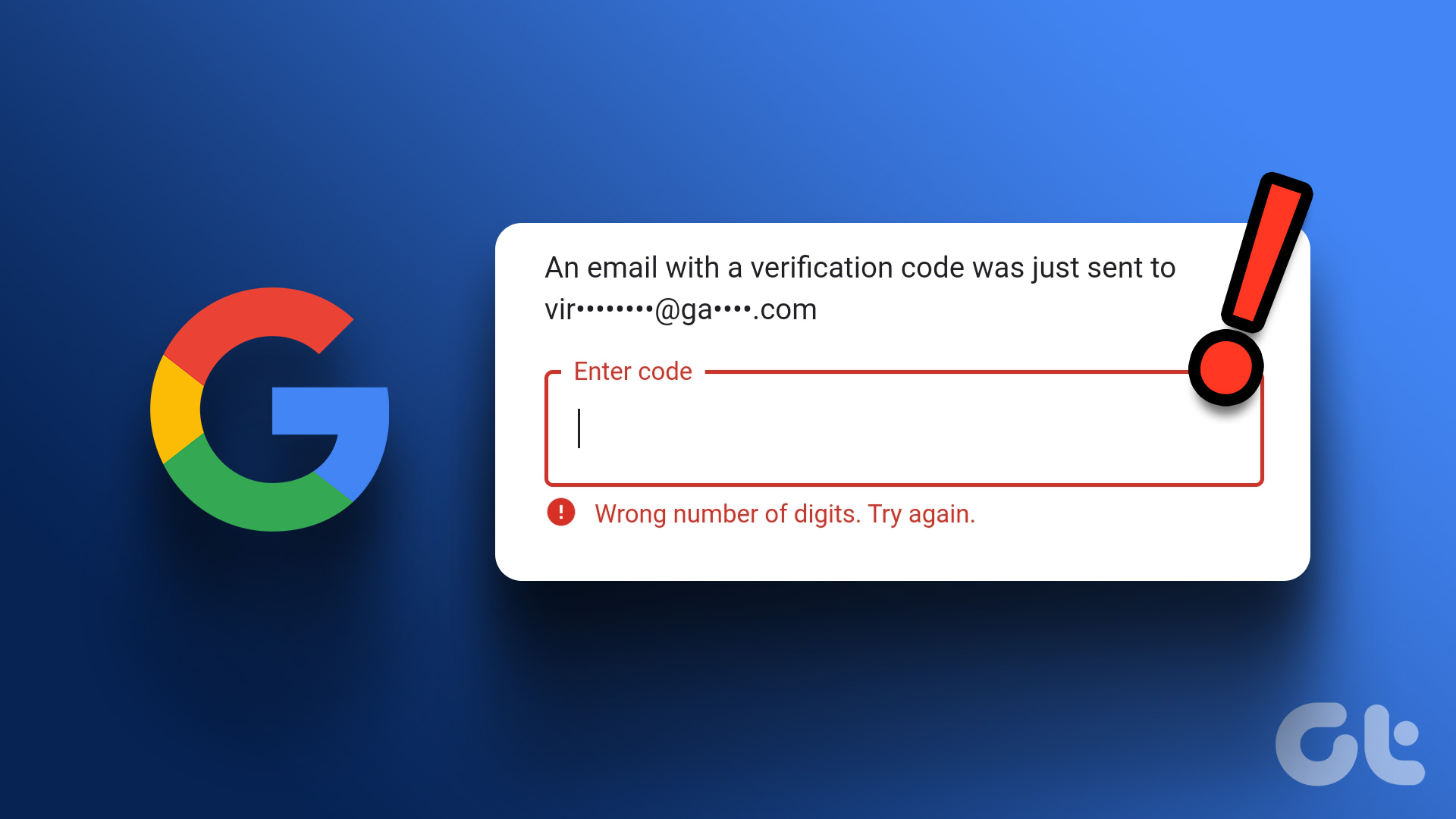 Top 4 Ways to Fix Google Not Sending a Security Code
Preliminary Fixes Check the Network Connection: A stable internet connection is essential for receiving security codes via email.
Top 4 Ways to Fix Google Not Sending a Security Code
Preliminary Fixes Check the Network Connection: A stable internet connection is essential for receiving security codes via email.
 Top 4 Ways to Fix Instagram Not Sending a Security Code
https://youtu.be/N1KvHzjClJA Preliminary Fixes Check the Network Connection: A weak or unstable internet connection can prevent Instagram from sending security codes.
Top 4 Ways to Fix Instagram Not Sending a Security Code
https://youtu.be/N1KvHzjClJA Preliminary Fixes Check the Network Connection: A weak or unstable internet connection can prevent Instagram from sending security codes.
 3 Ways to Fix Facebook Not Sending Security Code
Basic Fixes: Wait for some time: Due to a large number of user requests, Facebook servers might get jammed and delay sending a verification code.
3 Ways to Fix Facebook Not Sending Security Code
Basic Fixes: Wait for some time: Due to a large number of user requests, Facebook servers might get jammed and delay sending a verification code.
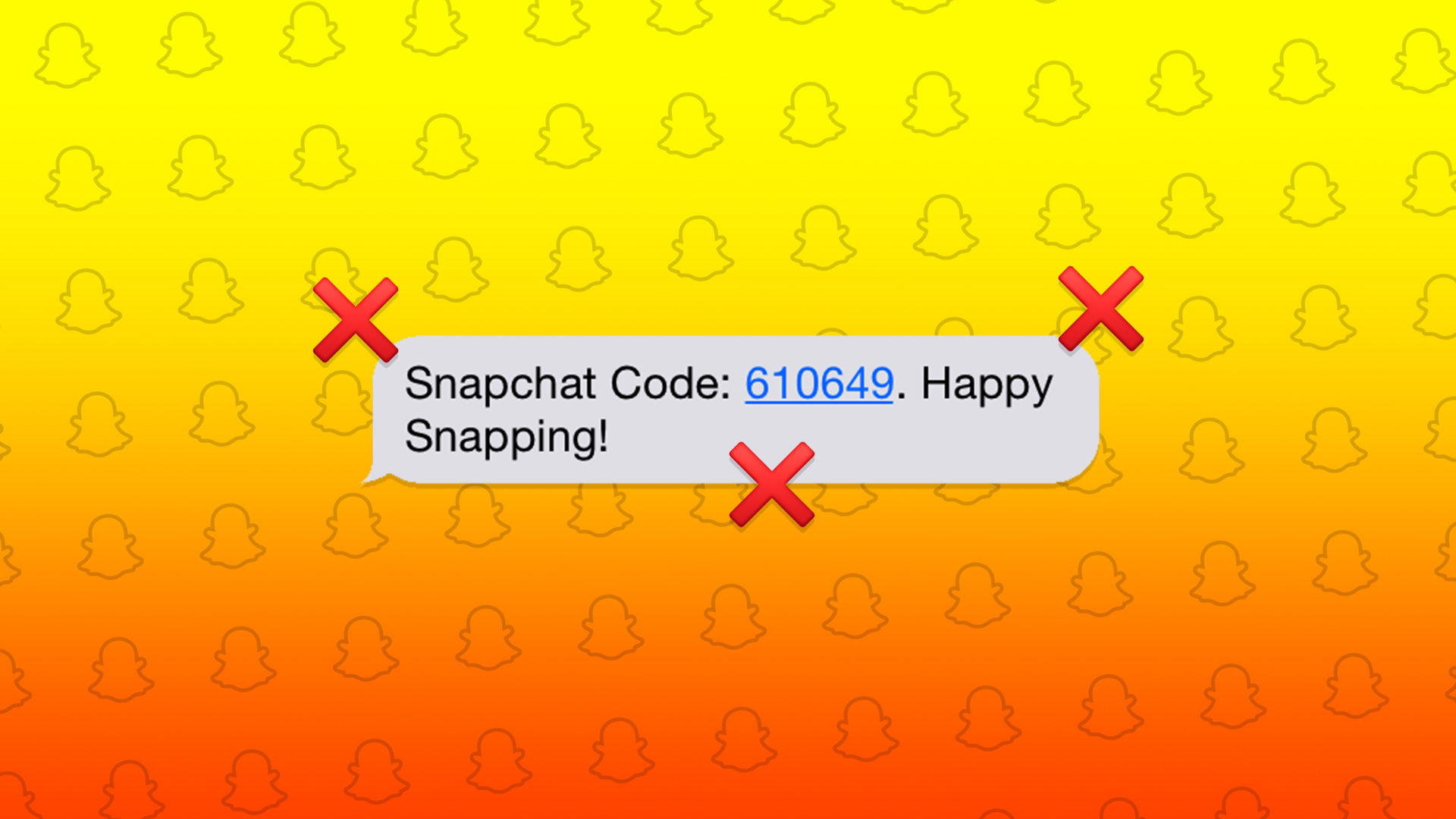 4 Ways to Fix Snapchat Not Sending a Security Code
Basic Fixes: Check Snapchat server status: If Snapchat's servers are not working properly, it can cause the security code not to come through.
4 Ways to Fix Snapchat Not Sending a Security Code
Basic Fixes: Check Snapchat server status: If Snapchat's servers are not working properly, it can cause the security code not to come through.
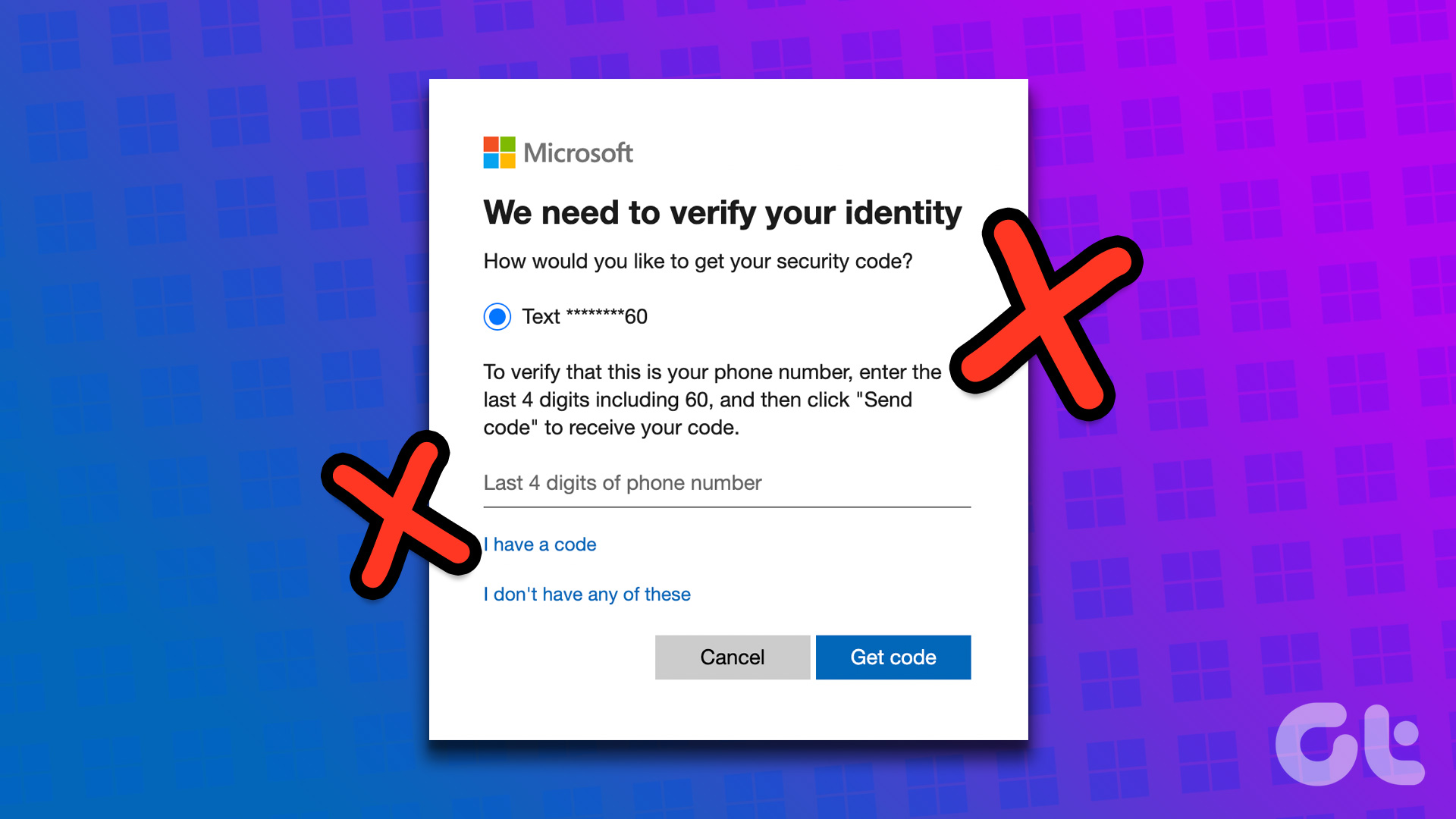 2 Ways to Fix Microsoft Not Sending a Security Code
Basic Fixes: Double-check contact information: If you haven't selected the correct country code for your number or are missing a digit, Microsoft can't send you the security code.
2 Ways to Fix Microsoft Not Sending a Security Code
Basic Fixes: Double-check contact information: If you haven't selected the correct country code for your number or are missing a digit, Microsoft can't send you the security code.
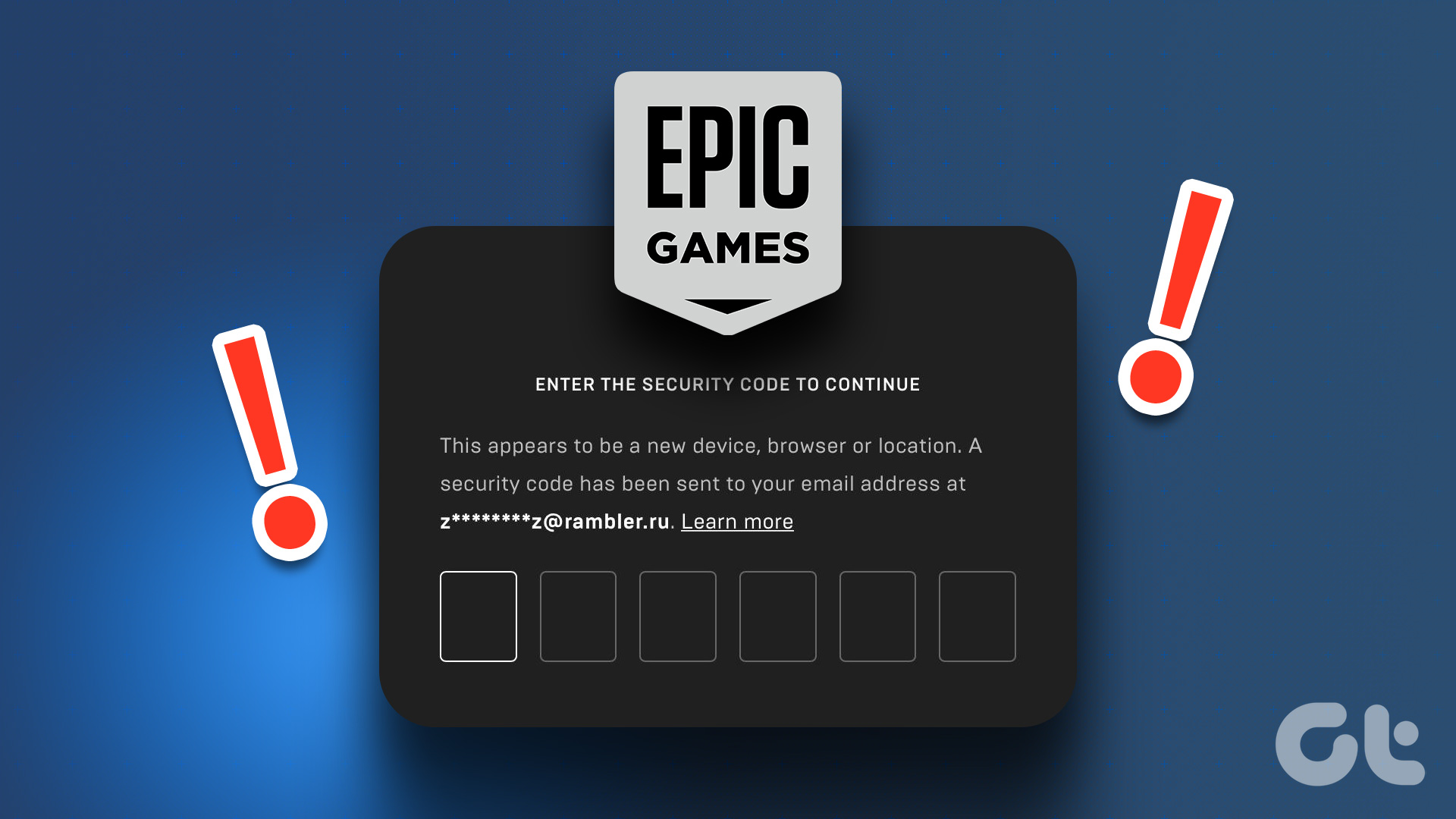 2 Ways to Fix Epic Games Not Sending a Security Code
Basic Fixes: Check network connection: If your phone has a spotty network connection, you may not receive a security code from Epic Games via email or SMS.
2 Ways to Fix Epic Games Not Sending a Security Code
Basic Fixes: Check network connection: If your phone has a spotty network connection, you may not receive a security code from Epic Games via email or SMS.
 2 Ways to Fix Discord Not Sending a Security Code
Basic Troubleshooting Double-check the number and country code: A silly mistake could be causing the issue.
2 Ways to Fix Discord Not Sending a Security Code
Basic Troubleshooting Double-check the number and country code: A silly mistake could be causing the issue.
 3 Ways to Fix PayPal Not Sending a Security Code
Before we talk about troubleshooting tricks, let’s understand why PayPal is asking for a security code in the first place: When you use a new device to use PayPal, it
3 Ways to Fix PayPal Not Sending a Security Code
Before we talk about troubleshooting tricks, let’s understand why PayPal is asking for a security code in the first place: When you use a new device to use PayPal, it
The article above may contain affiliate links which help support Guiding Tech. The content remains unbiased and authentic and will never affect our editorial integrity.

