Which iPhones Support 5G
Apple started rolling out 5G support for iPhone 12 and above. And though the high-frequency bands might vary, you can access 5G benefits when using any of the following devices.
- iPhone 12 Series
- iPhone 13 Series
- iPhone SE 2022
- iPhone 14 Series
- iPhone 15 Series
How to Turn On or Turn Off 5G on iPhone
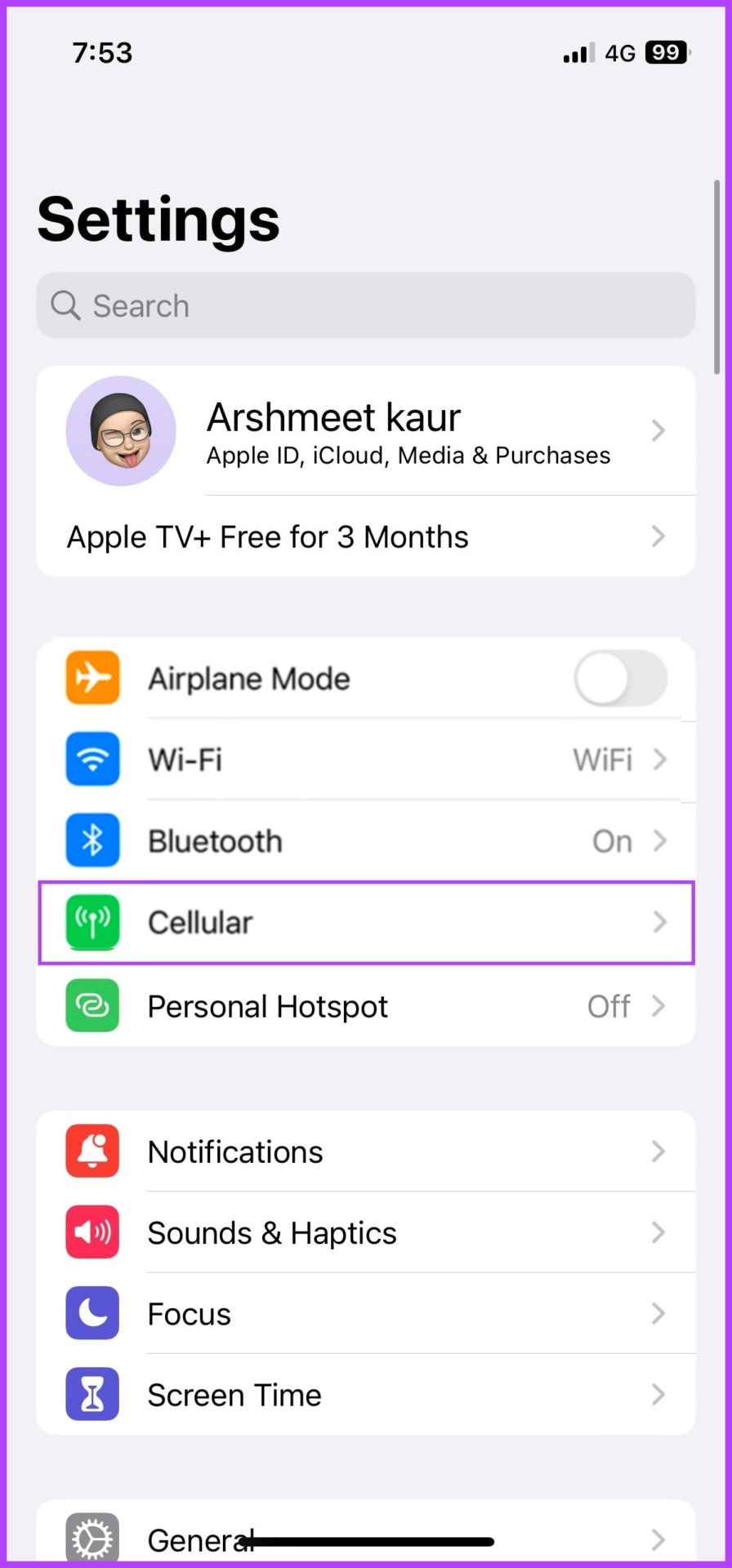
Step 1: Launch the Settings app and head to Cellular > Celluar Data Options.
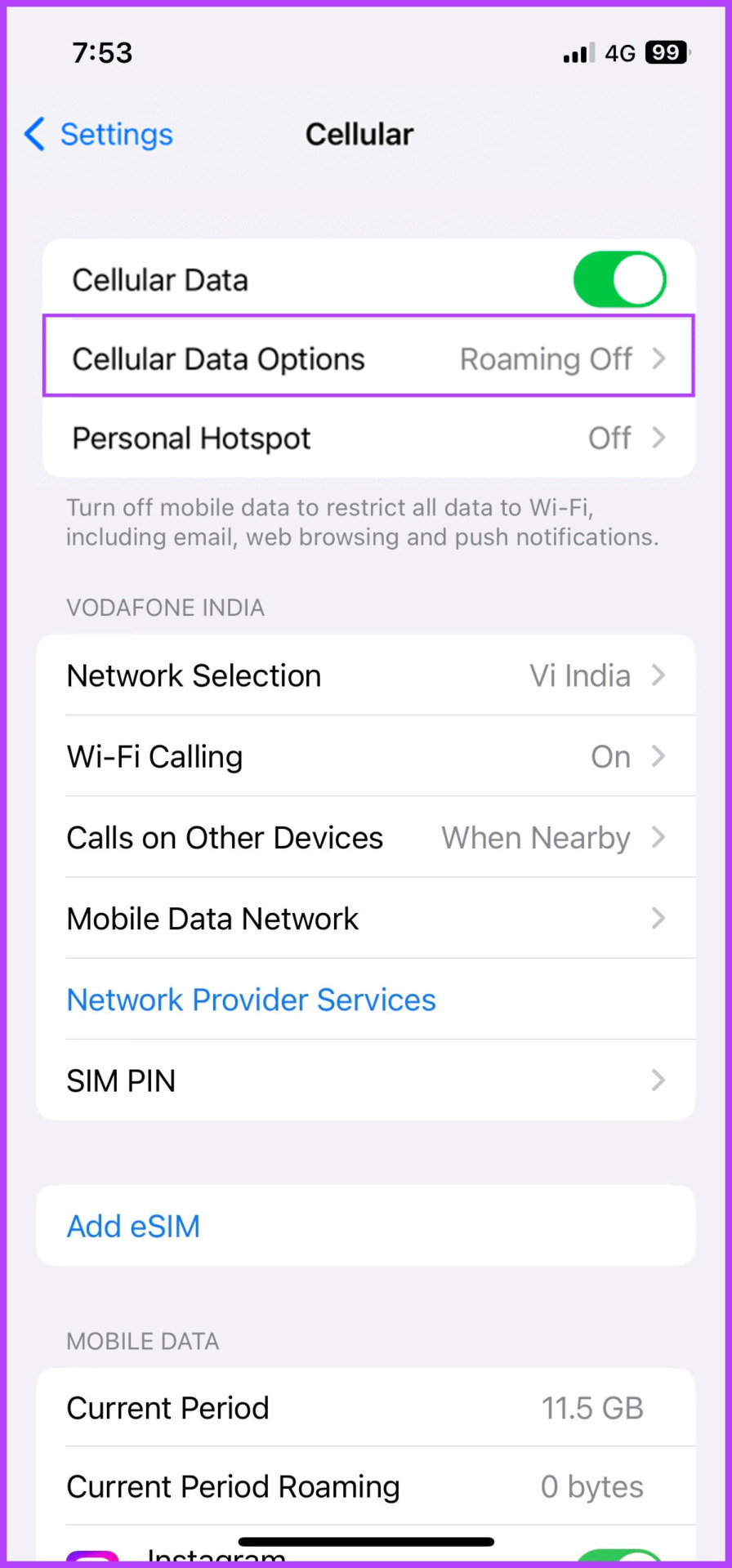
Step 2: Choose Voice & Data and select 5G On or 5G Auto to turn on the 5G network. If you want to disable 5G, select LTE/4G.


If you’re using a Dual SIM iPhone, launch Settings > Cellular > Cellular Data Options and choose the number you want to turn on or off 5G for.
Should You Turn Off 5G on Your iPhone?
Well, the answer is pretty simple — you should turn off 5G if you wish to save battery and data. Disabling 5G might be a key solution to the iPhone’s overnight battery drain. Although on paper, 5G should perform better in terms of battery life, the real-life scenario is a bit different. Due to comparatively poor network coverage, 5G consumes more battery life than 4G. Plus, 5G data plans are relatively expensive, so proper management is necessary.
How to Save Battery Life When Using 5G
When enabling 5G, you’ll notice three options to choose from. Here’s how each one works, so you can select the option that best balances performance and battery life:
- 5G On: iPhone uses the 5G network whenever available, although this might drain your battery quicker if the network is not stable.
- 5G Auto: Selected by default, it enables a Smart Data mode. The iPhone auto-switches to LTE when 5G isn’t performing well i.e. weak signal or slower speed. This helps save battery and provides a better overall experience.
- LTE: This will restrict your iPhone to only use the LTE network even when 5G is available.
How to Manage 5G Data Mode Options
Alongside battery-saving, Apple also offers data-saving options. Dubbed Data Mode, the setting allows you to save data while using the 5G network. Here’s how you can access these options.
Step 1: Launch the Settings app and head to Cellular > Celluar Data Options.
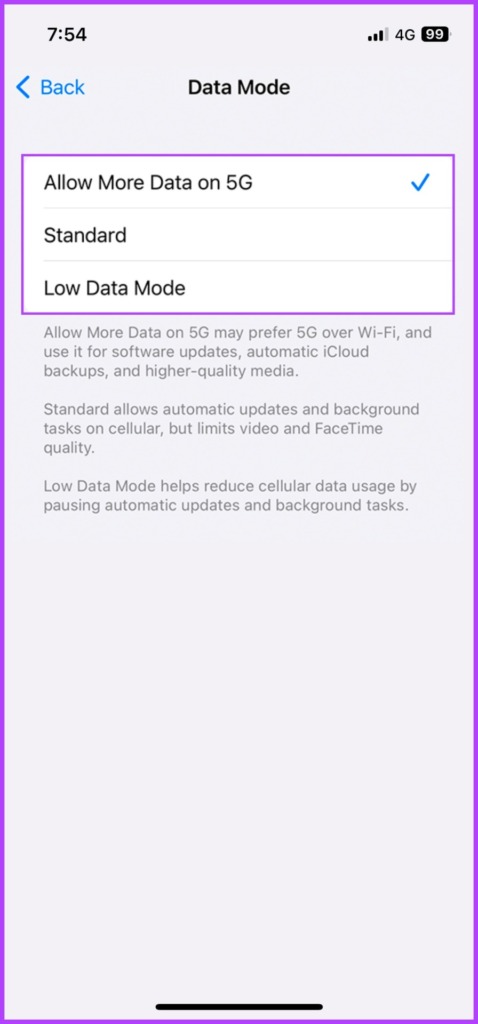
Step 2: Select Data Mode and select any one of these options:
- Allow More Data on 5G: As the name suggests, this one’s a no-holds-barred setting. Apps (native and third-party) and system tasks have access to higher data usage for an enhanced experience, from higher-quality video calls and high-definition content streaming to automatic iCloud backups.
- Standard: The default mode offers standard quality settings for streaming and FaceTime and allows for automatic updates and background tasks on cellular.
- Low Data Mode: The setting pauses automatic updates and background tasks reducing data usage for cellular networks and Wi-Fi.

Was this helpful?
Last updated on 05 September, 2024
Read Next
 6 Ways to Turn off Location on iPhone
Method 1: Disable Location on iPhone Using Settings Open the Settings app > go to Privacy > Location Services > turn it off.
6 Ways to Turn off Location on iPhone
Method 1: Disable Location on iPhone Using Settings Open the Settings app > go to Privacy > Location Services > turn it off.
 5 Ways to Turn off Dark Mode on iPhone and iPad
Basic Ways: Disable shortcuts: You can also look in the Apple Shortcuts app and see if any shortcut is set to enable Dark Mode on your iPhone.
5 Ways to Turn off Dark Mode on iPhone and iPad
Basic Ways: Disable shortcuts: You can also look in the Apple Shortcuts app and see if any shortcut is set to enable Dark Mode on your iPhone.
 How to Turn on Emergency Bypass on iPhone to Allow Specific Notifications in DND
What is Emergency Bypass on iPhone?
How to Turn on Emergency Bypass on iPhone to Allow Specific Notifications in DND
What is Emergency Bypass on iPhone?
 5 Ways to Turn Off Do Not Disturb on iPhone or iPad
Method 1.
5 Ways to Turn Off Do Not Disturb on iPhone or iPad
Method 1.
 3 Ways to Fix a Frozen iPhone That Won’t Turn Off
Fix 1: Force Restart iPhone You can force restart your iPhone to fix the issue.
3 Ways to Fix a Frozen iPhone That Won’t Turn Off
Fix 1: Force Restart iPhone You can force restart your iPhone to fix the issue.
 4 Ways to Turn on Grayscale on iPhone and iPad
Basic Ways: Use Siri: If your device has Siri enabled, you can also use the ‘Hey Siri’ command to wake up Siri and turn on the Black and White mode
4 Ways to Turn on Grayscale on iPhone and iPad
Basic Ways: Use Siri: If your device has Siri enabled, you can also use the ‘Hey Siri’ command to wake up Siri and turn on the Black and White mode
 How to Turn Off Sent Message Sound on iPhone and Android
Notifications and sounds tell you about new messages, but some sounds, like the one when you send a message from your phone, may be unnecessary.
How to Turn Off Sent Message Sound on iPhone and Android
Notifications and sounds tell you about new messages, but some sounds, like the one when you send a message from your phone, may be unnecessary.
 How to Turn Off AdBlock in Safari on iPhone, iPad, and Mac
While ads are an excellent way to keep resources free, they can take up too much space or spoil the browsing experience.
How to Turn Off AdBlock in Safari on iPhone, iPad, and Mac
While ads are an excellent way to keep resources free, they can take up too much space or spoil the browsing experience.
The article above may contain affiliate links which help support Guiding Tech. The content remains unbiased and authentic and will never affect our editorial integrity.