Method 1: From Quick Settings
Step 1: Click on the bottom right corner (on the time) of your Chromebook to open the Quick Settings panel.

Step 2: If you see the Dark theme tile, jump to step 3, otherwise, click on the dots at the bottom to see the other tiles.

Step 3: Click on the Dark theme tile to turn on dark mode on your Chromebook.
Note: Click on the same tile to turn off dark mode on Chromebook.

Also Read: how to lock your Chromebook screen
Method 2: From Home Screen
Step 1: Right-click anywhere on your Chromebook’s home screen.
Step 2: Click on Set wallpaper and style from the menu.

Step 3: Under Theme in the Wallpaper section, click on Dark.

Tip: You can also reach this screen from Chromebook Settings > Personalization > Set your wallpaper and style.
Method 3: Schedule Dark Mode to Activate Automatically
If you want the dark theme on your Chromebook to activate automatically at sunset and turn off at sunrise, use the Auto feature of dark mode.
Step 1: Right-click on the home screen of your Chromebook > select Set wallpaper and style.
Step 2: Click on Auto under Theme.

That’s it. From now on, the dark theme will turn on and off at sunset and sunrise, respectively.
Method 4: By Inverting Colors
The regular dark mode on ChromeOS makes only certain things black. To completely invert colors and make everything black on your Chromebook, use the Color Inversion accessibility setting. Follow the below steps.
Step 1: Open Settings on your ChromeOS device > go to Accessibility.
Step 2: Click on Display and magnification.

Step 3: Toggle on Color inversion to switch to dark mode on Chromebook.
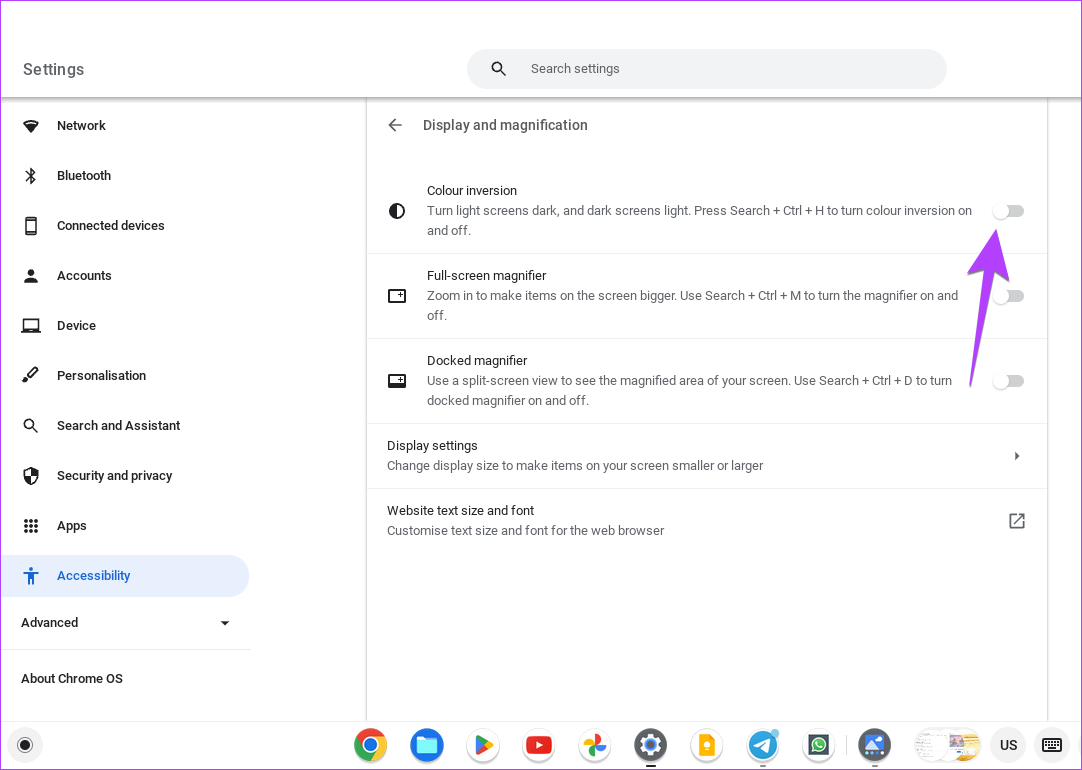
You can also use the Search + Ctrl + H keyboard shortcut to enable or disable the dark mode accessibility feature on Chromebook.
FAQs
Sadly, you cannot use the dark theme on Chromebook with the keyboard as there’s no keyboard shortcut yet.
Click on time at the bottom right of your Chromebook. Then, use the Brightness slider to adjust the screen brightness. Alternatively, use the brightness buttons in the top row of your Chromebook’s keyboard.
By enabling the dark theme on your Chromebook, your Chrome browser will turn black. However, you can change the background color of Chrome browser in other ways as well. Also, learn how to change the tab color in Chrome.
Was this helpful?
Last updated on 13 August, 2024
Read Next
 How to Enable Dark Mode in Microsoft Edge on Desktop and Mobile
How to Enable Dark Mode in Microsoft Edge on Desktop There are multiple ways to enable dark mode in Microsoft Edge.
How to Enable Dark Mode in Microsoft Edge on Desktop and Mobile
How to Enable Dark Mode in Microsoft Edge on Desktop There are multiple ways to enable dark mode in Microsoft Edge.
 How to Enable OneNote Dark Mode on Any Device
How to Change OneNote to Dark Mode in the Windows App To turn on Dark Mode on the OneNote Windows app, go to the account settings and change the app's
How to Enable OneNote Dark Mode on Any Device
How to Change OneNote to Dark Mode in the Windows App To turn on Dark Mode on the OneNote Windows app, go to the account settings and change the app's
 How to Disable Dark Mode in Windows 10, macOS, Android, and iOS
Disable Dark Mode in Windows 11 The system-level color scheme is customizable so that it can display darker tones on menus and backgrounds, making it easier on your eyes.
How to Disable Dark Mode in Windows 10, macOS, Android, and iOS
Disable Dark Mode in Windows 11 The system-level color scheme is customizable so that it can display darker tones on menus and backgrounds, making it easier on your eyes.
 5 Ways to Lock Your Chromebook Screen
Method 1: Using the Lock Button on the Keyboard On most Chromebook keyboards, you will find a lock button that lets you lock your Chromebook quickly without closing its lid.
5 Ways to Lock Your Chromebook Screen
Method 1: Using the Lock Button on the Keyboard On most Chromebook keyboards, you will find a lock button that lets you lock your Chromebook quickly without closing its lid.
 Top 10 Ways to Fix Chromebook Not Charging
Chromebooks remain the preferred choice for students and consumers on a tight budget.
Top 10 Ways to Fix Chromebook Not Charging
Chromebooks remain the preferred choice for students and consumers on a tight budget.
 Why Is My Chromebook Battery Light Blinking White: 4 Ways to Fix the Issue
Many Chromebook users noticed the LED near the power cord connector sometimes blinks white.
Why Is My Chromebook Battery Light Blinking White: 4 Ways to Fix the Issue
Many Chromebook users noticed the LED near the power cord connector sometimes blinks white.
 5 Ways to Turn off Dark Mode on iPhone and iPad
Basic Ways: Disable shortcuts: You can also look in the Apple Shortcuts app and see if any shortcut is set to enable Dark Mode on your iPhone.
5 Ways to Turn off Dark Mode on iPhone and iPad
Basic Ways: Disable shortcuts: You can also look in the Apple Shortcuts app and see if any shortcut is set to enable Dark Mode on your iPhone.
 Airplane Mode: What It Does and How to Enable or Disable It on Your Phone
What Is Airplane Mode?
Airplane Mode: What It Does and How to Enable or Disable It on Your Phone
What Is Airplane Mode?
The article above may contain affiliate links which help support Guiding Tech. The content remains unbiased and authentic and will never affect our editorial integrity.