


1. How to Turn Off Voice Guide on Samsung TV
One of the main reasons why Samsung TV keeps talking to you is because of the Voice Guide feature. Here are four ways to turn off Voice Guide on a Samsung TV.
Method 1: Remove Voice from Samsung TV Using Settings
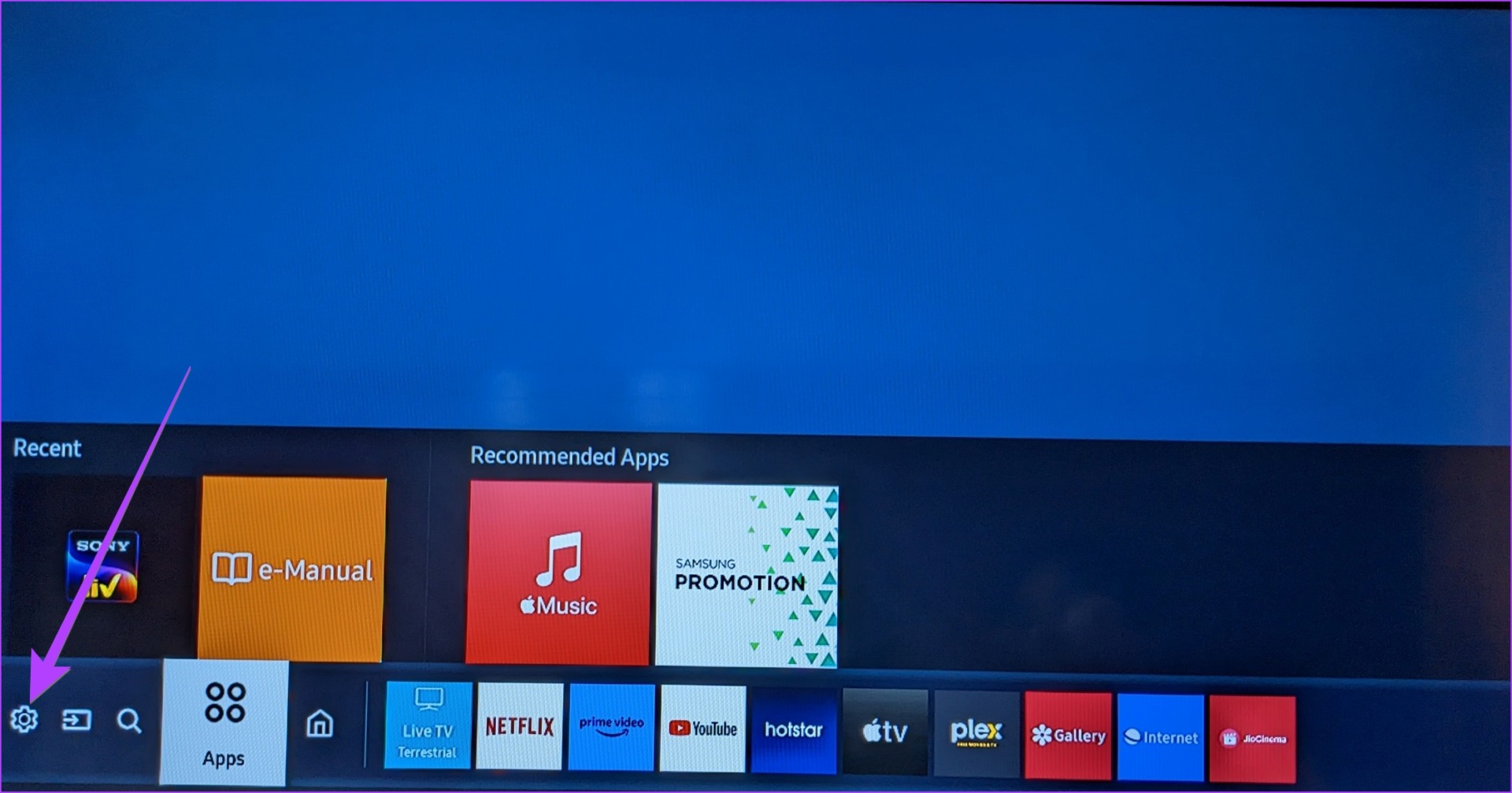
Step 1: Open Settings on your TV by navigating to the Settings option on the screen
Note: You can also use the Settings button on the remote.
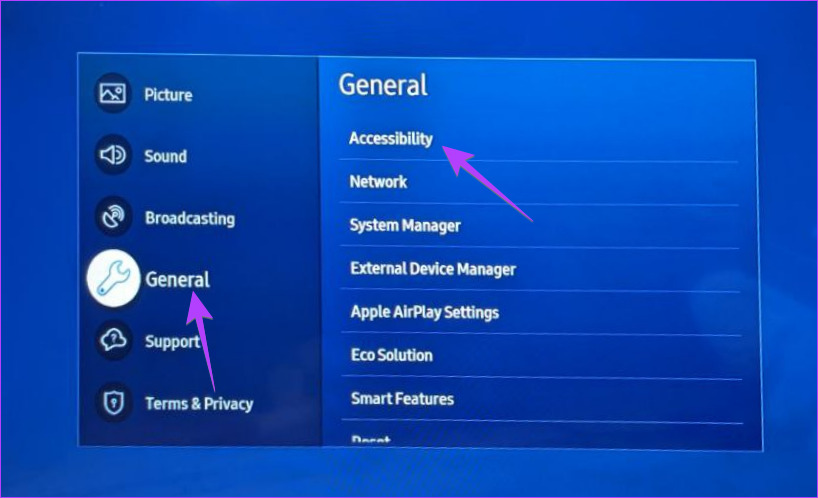
Step 2: Go to General > Accessibility.
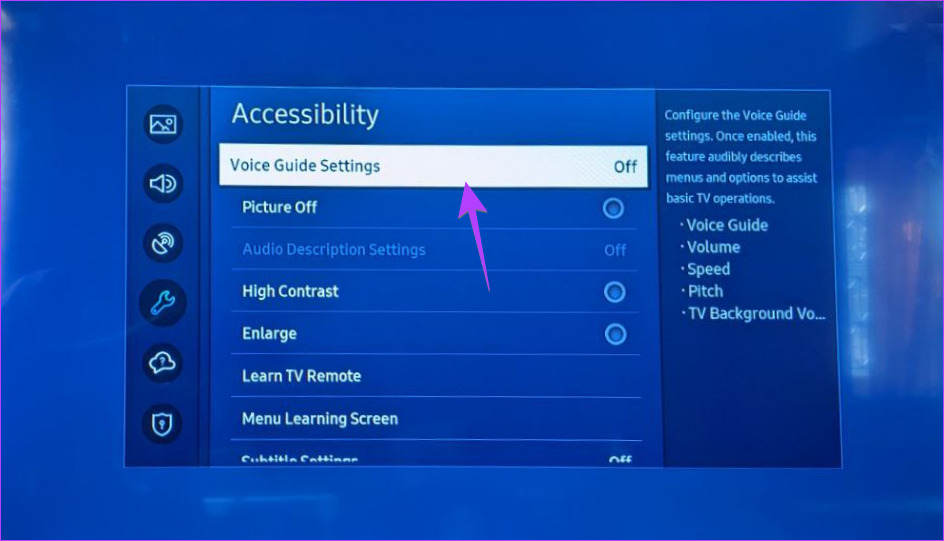
Step 3: Select Voice Guide Settings.
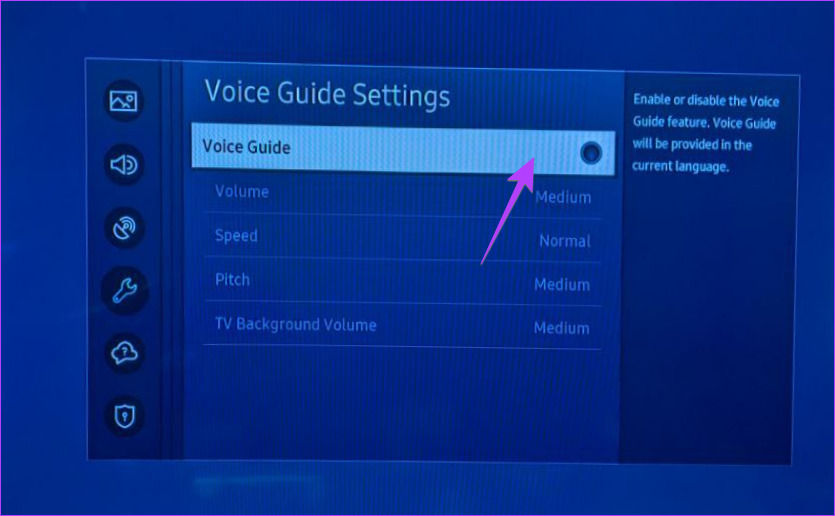
Step 4: Turn it off on the next screen by pressing the Select button on your remote.
Method 2: Turn off Voice Guide on Old Samsung TVs
If you have an old Samsung TV, you should try the following steps to turn off Voice Guide.
Step 1: Press the Menu button on your TV’s remote.
Step 2: Go to Settings or Menu > System.
Step 3: Select Accessibility > Voice Guide.
Step 4: Select Voice Guide again to turn it off.
2. How to Turn off Audio Description on Samsung TVs
If your TV is describing whatever is happening on the screen, then the Audio description feature might be enabled on your TV.
To turn off the Audio description on your Samsung TV, go to Settings > General > Accessibility > Audio description and turn it off. A faster way is to press the AD/SUBT button on the remote and turn off the Audio Description Settings.
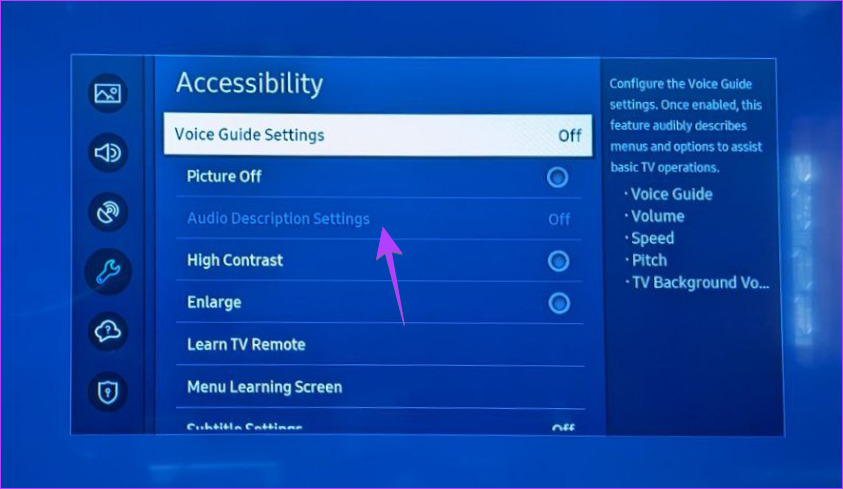
Tip: On other older TVs, press the Menu button on your TV remote and go to Sound > Broadcast > Audio language. If it says English AD, where AD means Audio description, change it to English to turn off audio description.
3. How to Turn Off Voice Assistant on Samsung TV
Samsung’s personal assistant, Bixby, can be used to change the volume, switch between channels, and open apps or movies on TV. But if the Bixby voice assistant keeps on getting activated automatically on your TV and interrupts whatever you are watching, it could be because of its voice wake-up feature.
To turn the Bixby voice wake-up feature off on Samsung TV, follow these steps:
Step 1: Go to Settings > General & Privacy > Voice.

Step 2: Select Bixby Voice Settings.

Step 3: Go to Voice Wake-Up and turn it Off.

Note: Turning off voice wake-up will not disable the voice assistant feature completely on your TV. You can still access it by pressing the Microphone button on the TV.
Alternatively, if you want to keep it enabled, select Wake-up Sensitivity: Low instead of Medium. That way, Bixby will not activate at medium or unnecessary sounds.

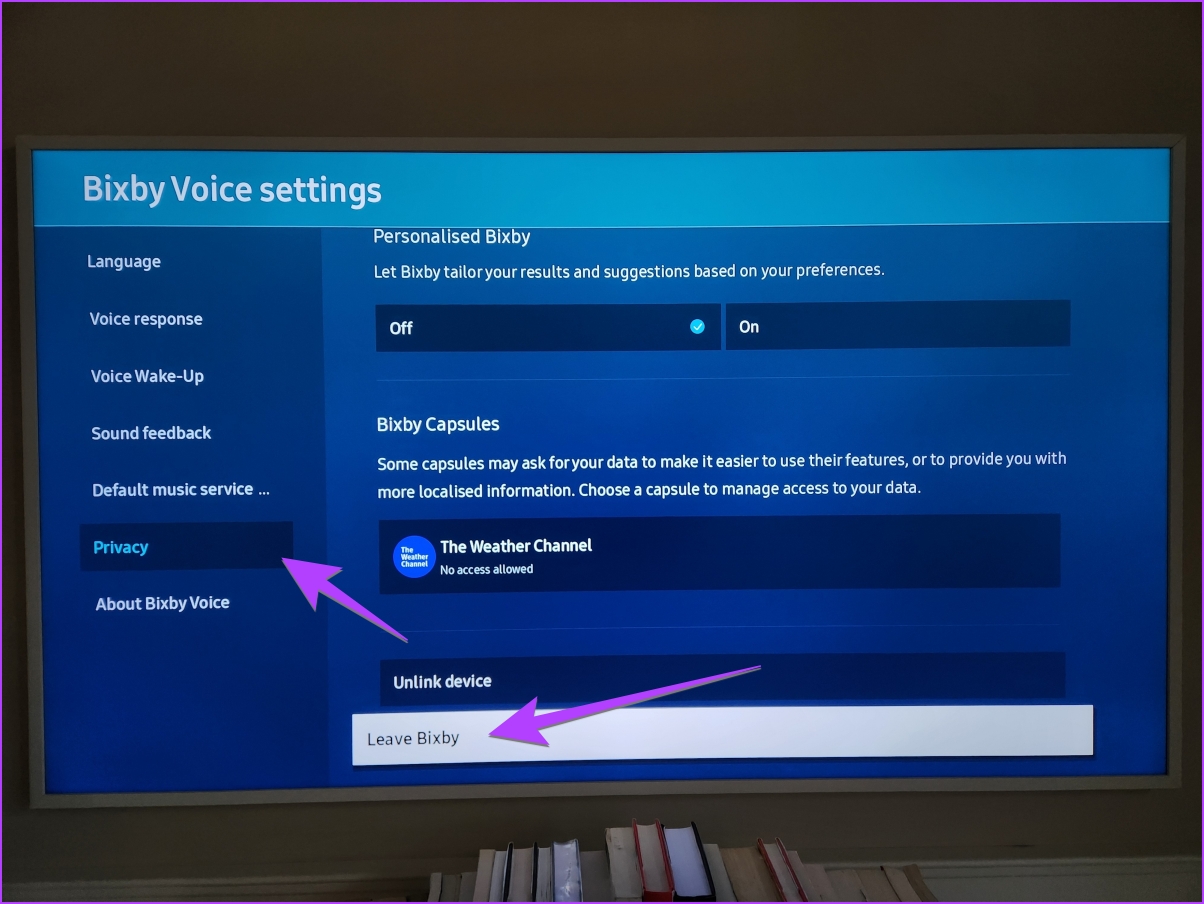
In case you don’t use Bixby, you can turn off voice control on your Samsung TV by going to Settings > General Voice > Bixby Voice Settings > Privacy > Leave Bixby.
4. Turn Off the Narrator on Connected Streaming Devices or Cable TV Box
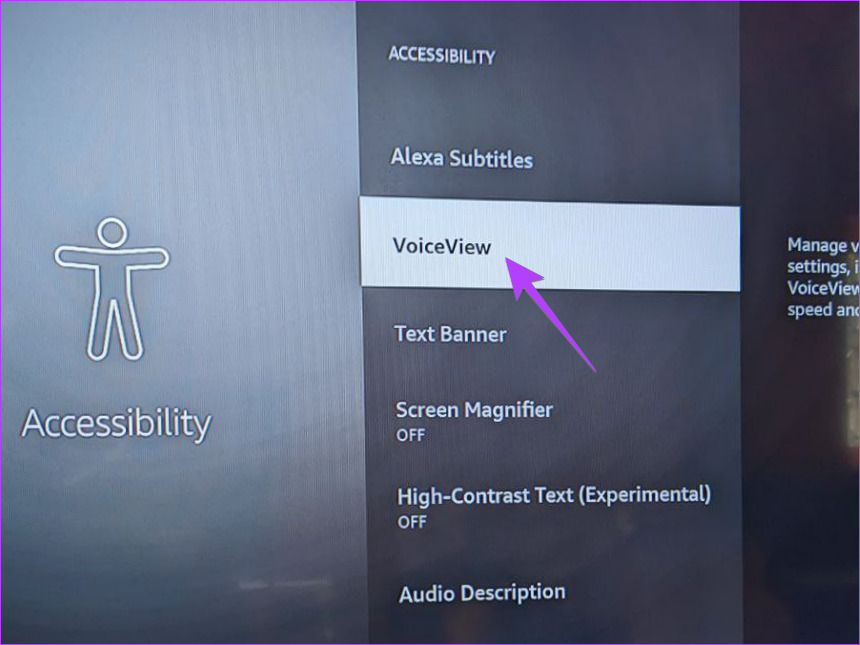
If your Samsung TV keeps talking even after turning off the above-mentioned settings, chances are that the narrator feature is enabled on the connected streaming device like Fire TV Stick or your cable TV box.
You must check its settings and turn off the audio description feature. The feature might have a different name based on different devices like voice guide, screen reader, narrator, audio description, or something similar.
For instance, go to Settings > Accessibility > Voice View on Fire TV Stick and turn it off on the next screen.
5. Turn Off Voice Guidance on Streaming Apps
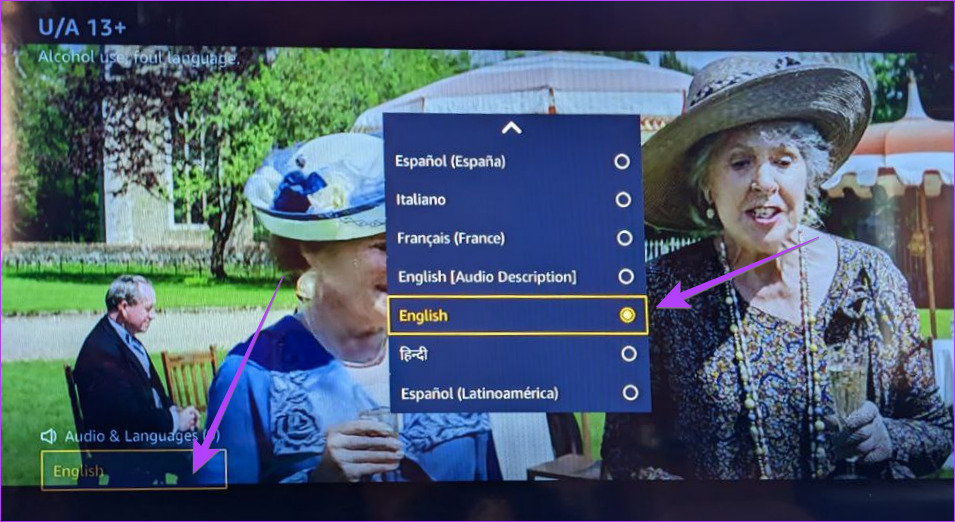
Similarly, if you hear your Samsung TV talking in one streaming app only, the audio description feature may be enabled in that app.
To turn audio description off in a particular streaming app, play a video from the app that keeps describing the scenes. Go to Audio & language. Select any language other than the one with an Audio description in brackets.
Tip: Learn how to delete or reinstall apps on Samsung TV
6. Reset Samsung TV
If nothing makes the voice go away on Samsung TV, you should try resetting your TV. Doing so will restore all the settings to their default values. Thus, turning off voice on your Samsung TV.
To reset Samsung TV, go to Settings > General > Reset.
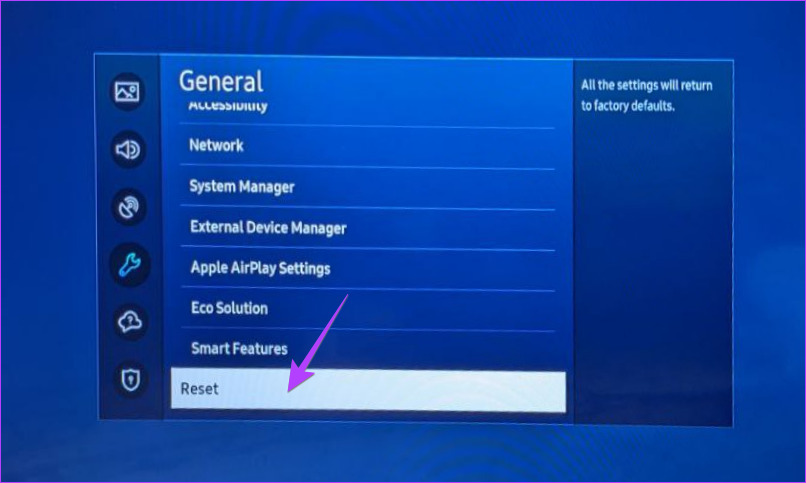
I hope you were able to turn off the voice on your Samsung TV. Once everything is back on track, learn how to connect your Samsung phone to your TV using the Smart View feature.
Was this helpful?
Last updated on 28 July, 2024
2 Comments
Leave a Reply
Read Next
 How to Use Voice Memos on iPhone: A Complete Guide
How to Record an Audio on iPhone Step 1: Click on the red button at the bottom to record the audio.
How to Use Voice Memos on iPhone: A Complete Guide
How to Record an Audio on iPhone Step 1: Click on the red button at the bottom to record the audio.
 How to Turn off Google Assistant Bill Reminders
How Does Google Assistant Know When Your Bills Are Due Before starting, you must be wondering how Google gets all that information regarding your flights, packages, and bills.
How to Turn off Google Assistant Bill Reminders
How Does Google Assistant Know When Your Bills Are Due Before starting, you must be wondering how Google gets all that information regarding your flights, packages, and bills.
 Top 9 Ways to Fix Google Assistant Not Working in Samsung Galaxy Phones
Bixby, Samsung's digital assistant, comes pre-loaded for Galaxy phones despite the popularity of Google Assistant.
Top 9 Ways to Fix Google Assistant Not Working in Samsung Galaxy Phones
Bixby, Samsung's digital assistant, comes pre-loaded for Galaxy phones despite the popularity of Google Assistant.
 How to Turn Off Voice Navigation in Google Maps for Android and iPhone
How to Turn Off Google Maps Voice Navigation From In-App Settings The most straightforward way to turn off or mute voice directions in Google Maps is from the in-app settings
How to Turn Off Voice Navigation in Google Maps for Android and iPhone
How to Turn Off Google Maps Voice Navigation From In-App Settings The most straightforward way to turn off or mute voice directions in Google Maps is from the in-app settings
 How to Open Google Assistant on Samsung and Other Android Phones
Google Assistant is designed to make our lives easy.
How to Open Google Assistant on Samsung and Other Android Phones
Google Assistant is designed to make our lives easy.
 How to Turn off Ads on Instagram: A Detailed Guide
Are you tired of annoying or irrelevant Instagram ads and want to eliminate them from your Instagram feed?
How to Turn off Ads on Instagram: A Detailed Guide
Are you tired of annoying or irrelevant Instagram ads and want to eliminate them from your Instagram feed?
 4 Fixes for Google Assistant Not Working on Android TV
Basic Fixes Check your internet connection: The Google Assistant will display search results using your internet connection.
4 Fixes for Google Assistant Not Working on Android TV
Basic Fixes Check your internet connection: The Google Assistant will display search results using your internet connection.
 5 Fixes for Voice Recorder App Not Working on Samsung Phones
Fix 1: Allow Voice Recorder App to Use Microphone Like any other app, Voice Recorder needs permission to use your Samsung Galaxy phone's microphone.
5 Fixes for Voice Recorder App Not Working on Samsung Phones
Fix 1: Allow Voice Recorder App to Use Microphone Like any other app, Voice Recorder needs permission to use your Samsung Galaxy phone's microphone.
The article above may contain affiliate links which help support Guiding Tech. The content remains unbiased and authentic and will never affect our editorial integrity.
Samsung smart TV general functions do not work. Unable to reset. Trying for months to delete voice Siri.
Fuck**g does not work. Go into a different business. You suck.