


How to Turn on Telegram’s Translation Feature
The Translate button needs to be enabled in the Telegram app to quickly translate messages in your chat.
Step 1: Open the Telegram app on your Android or iPhone and open Settings.
Step 2: Scroll down to the Language option under the Settings section and enable the toggle for Show Translate Button.


Step 3: Now, Telegram will make the second option visible. It says Do Not Translate and is set to English if the app’s default is English.
Step 4: To translate the messages you receive in a foreign language into another one, such as Dutch, you must change the app’s default language. Under the Language options in Settings, choose the available and supported languages – Dutch, French, German, Arabic, Belarusian, Catalan, etc.
How to Translate Individual Messages in Telegram
Telegram uses Google Translate to deliver the results. So, the translation may not be accurate. Hence, take it with a grain of salt. Also, the messages first travel to Google’s servers for interpretation, and then the translation appears in Telegram. So, avoid sending or conversing about sensitive information.
Step 1: In Telegram, open a chat that contains a message in a foreign language.
Step 2: Long-press the message > tap on Translate.


The translation will pop up at the bottom of the screen in the chosen language. You will also have the option of the Copy Translation and Change Translation Language.
Note: This option of translating individual Telegram messages is unavailable for desktop app users.
Translate Entire Conversation Using Real-time Translation
Real-time translation is possible only when you receive messages in a language not set as default in the Telegram app.
On Mobile
Step 1: Open Settings > select Language > enable the toggle for Translate Entire Chats.

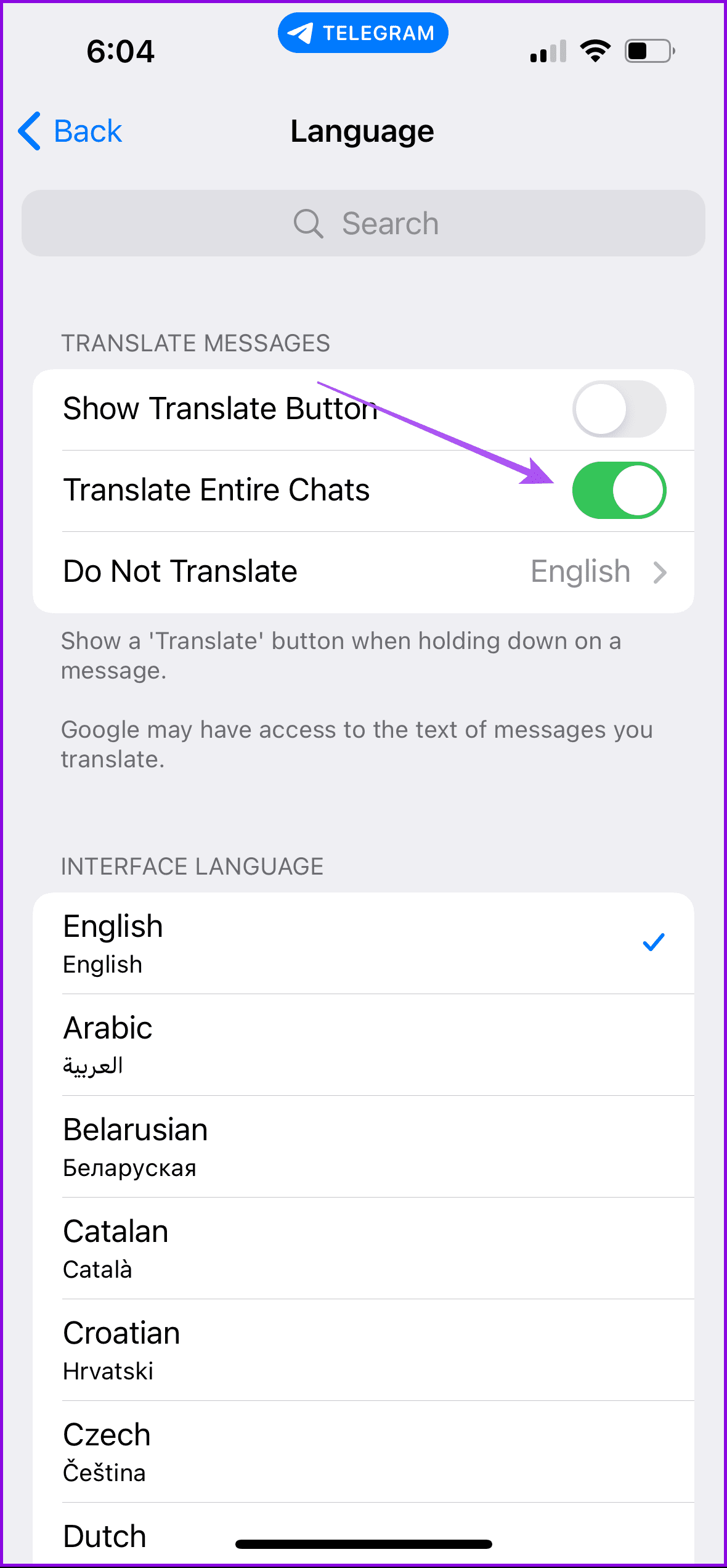
Step 2: You must also change the interface language to use this feature.
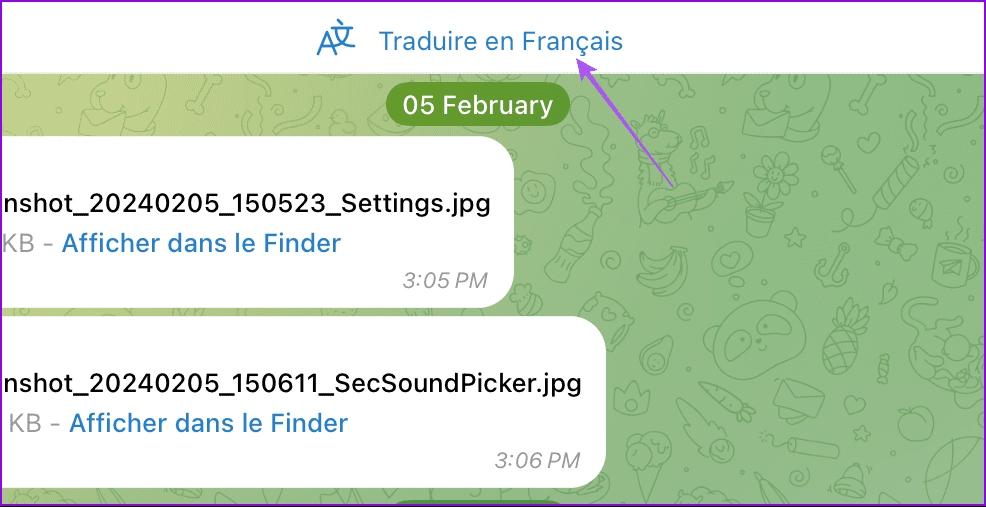
Step 3: Go back, open your chat, and tap the translate option at the top.
On Desktop
Step 1: Open the Telegram app > go to Settings.
Step 2: Click on Language from the left menu > enable Translate Entire Chats.

Step 3: Just like on mobile, you need to change the interface language for the desktop app.
Step 4: Once done, go back to your chat and click on translate at the top.
FAQs
Yes, you can. Just long-press on your message and select Translate.
Yes, the translation feature works for both individual and group chats.
Was this helpful?
Last updated on 06 June, 2024
2 Comments
Leave a Reply
Read Next
 How to Translate WhatsApp Messages on Android and iPhone
Method 1: Translate WhatsApp Messages Using Google Translate Using a translation app like Google Translate is the most basic way to translate your WhatsApp messages.
How to Translate WhatsApp Messages on Android and iPhone
Method 1: Translate WhatsApp Messages Using Google Translate Using a translation app like Google Translate is the most basic way to translate your WhatsApp messages.
 3 Apps That Translate Foreign Languages Instantly Using Camera App
Technology has made sci-fi fantasies come true.
3 Apps That Translate Foreign Languages Instantly Using Camera App
Technology has made sci-fi fantasies come true.
 4 Fixes For Google Lens Translate Feature Not Working
Basic Fixes Clear cache Google app: Go to Google App Info > Storage and cache > Clear cache.
4 Fixes For Google Lens Translate Feature Not Working
Basic Fixes Clear cache Google app: Go to Google App Info > Storage and cache > Clear cache.
 How to Stop Google Translate From Popping Up in Apps
Stop Live Translation on Android You can stop the Live Translation feature for a specific language or disable it entirely from popping up across different Android apps.
How to Stop Google Translate From Popping Up in Apps
Stop Live Translation on Android You can stop the Live Translation feature for a specific language or disable it entirely from popping up across different Android apps.
 3 Ways to Fix Telegram Not Sending Messages on Android and iPhone
Try Basic Fixes The contact may have blocked you: If the message not sending issue is limited to one or two people, the other person may have blocked you.
3 Ways to Fix Telegram Not Sending Messages on Android and iPhone
Try Basic Fixes The contact may have blocked you: If the message not sending issue is limited to one or two people, the other person may have blocked you.
 5 Best Ways to Fix Google Chrome Translate Not Working
https://youtu.be/OYo1Caq10A0 Preliminary Fixes Disable Extensions: Sometimes, browser extensions can interfere with the functionality of Google Chrome, including the translation feature.
5 Best Ways to Fix Google Chrome Translate Not Working
https://youtu.be/OYo1Caq10A0 Preliminary Fixes Disable Extensions: Sometimes, browser extensions can interfere with the functionality of Google Chrome, including the translation feature.
 3 Ways to Fix Translate Not Working on X (Twitter) App
Basic Fixes Check network connection: If there's a problem with your Wi-Fi or cellular connection, X may not be able to translate the post.
3 Ways to Fix Translate Not Working on X (Twitter) App
Basic Fixes Check network connection: If there's a problem with your Wi-Fi or cellular connection, X may not be able to translate the post.
 How to Use the Google Translate App on iPhone
Whether trying to learn a new language or traveling, knowing the local language can take time and effort.
How to Use the Google Translate App on iPhone
Whether trying to learn a new language or traveling, knowing the local language can take time and effort.
The article above may contain affiliate links which help support Guiding Tech. The content remains unbiased and authentic and will never affect our editorial integrity.

I don’t see the option for translate on the desktop version of Telegram.
Is it only for mobile?
On my Android phone, there is NO Translate button on the languages page . . why not?
Thanks,
Phil.