Method 1: Transfer iCloud Contacts During Android Phone Setup
When setting up a new Android phone, you are greeted with an option to transfer data from your existing phone. Select it and follow the steps below to start the iCloud contacts transfer process. Of course, this works best if your Android phone has a USB Type-C port.
Step 1: Use a Lightning/USB-C to USB-C cable to connect your iPhone to the Android phone. Tap on Trust on your iPhone for a smooth transfer process.
Step 2: Sign into your Google ID or create a new account if you don’t have one. Your Android phone asks you to select the type of data you want to transfer.
Step 3: Enable the checkmark beside Contacts and other required data types. Tap Copy. Using the same trick, you can transfer WhatsApp chat from iPhone to Android.
Method 2: Use the Web Version to Transfer iCloud Contacts to Android
Did you lose your iPhone? Did you skip the data transfer process while setting up the Android phone? You can always factory reset the phone and start from scratch, but it’s inconvenient. After all, no one prefers the hassle of installing and setting up all apps again.
Instead, you can use the iCloud web version to export all contacts and import them to your Android phone. Here’s what you need to do.
Step 1: Visit iCloud on the web. Log in with your Apple account details.
Step 2: Select Contacts.

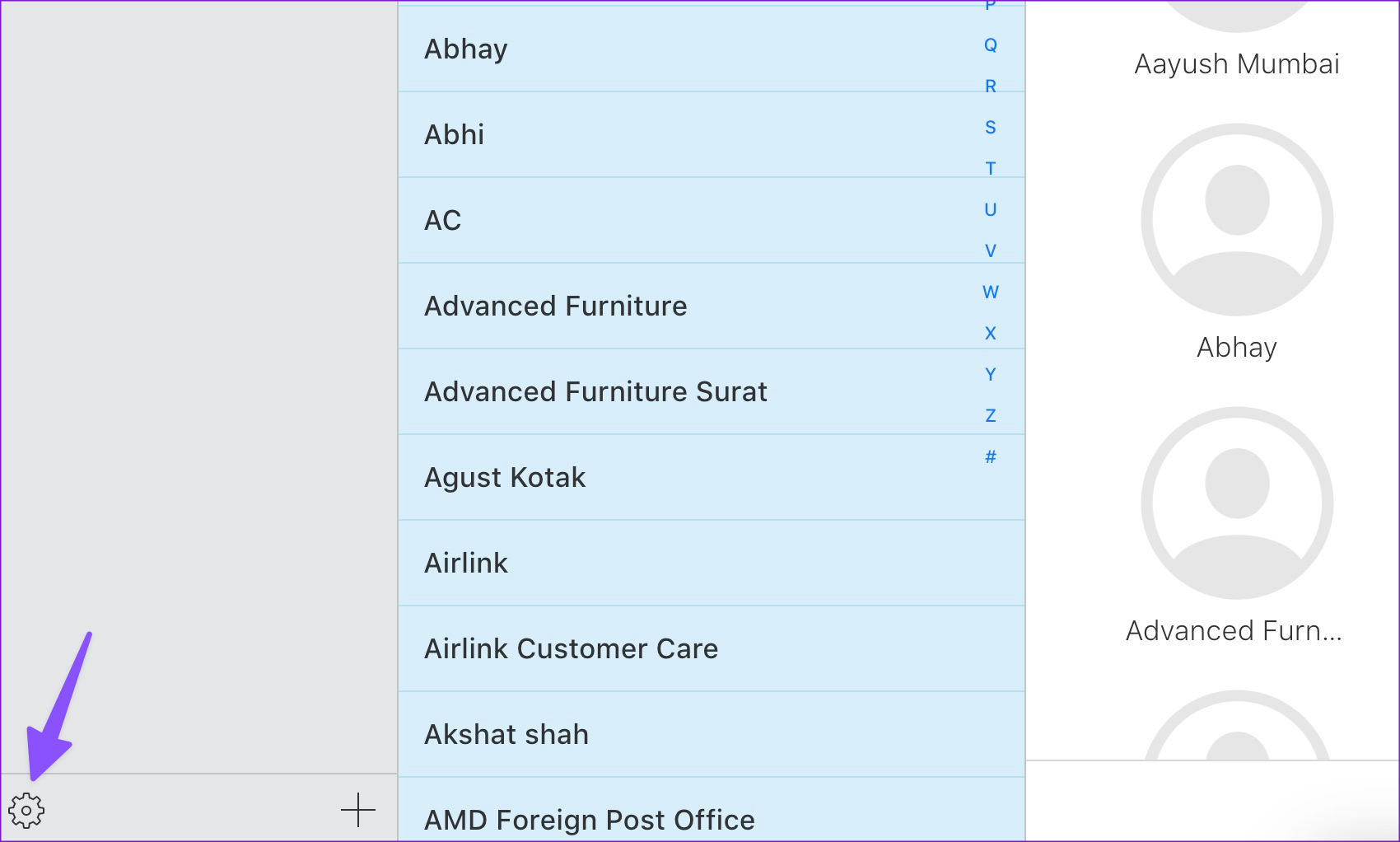
Step 3: Press Ctrl + A (Windows) or Command + A (Mac) to select all contacts. Click the Settings gear icon at the bottom-left corner.
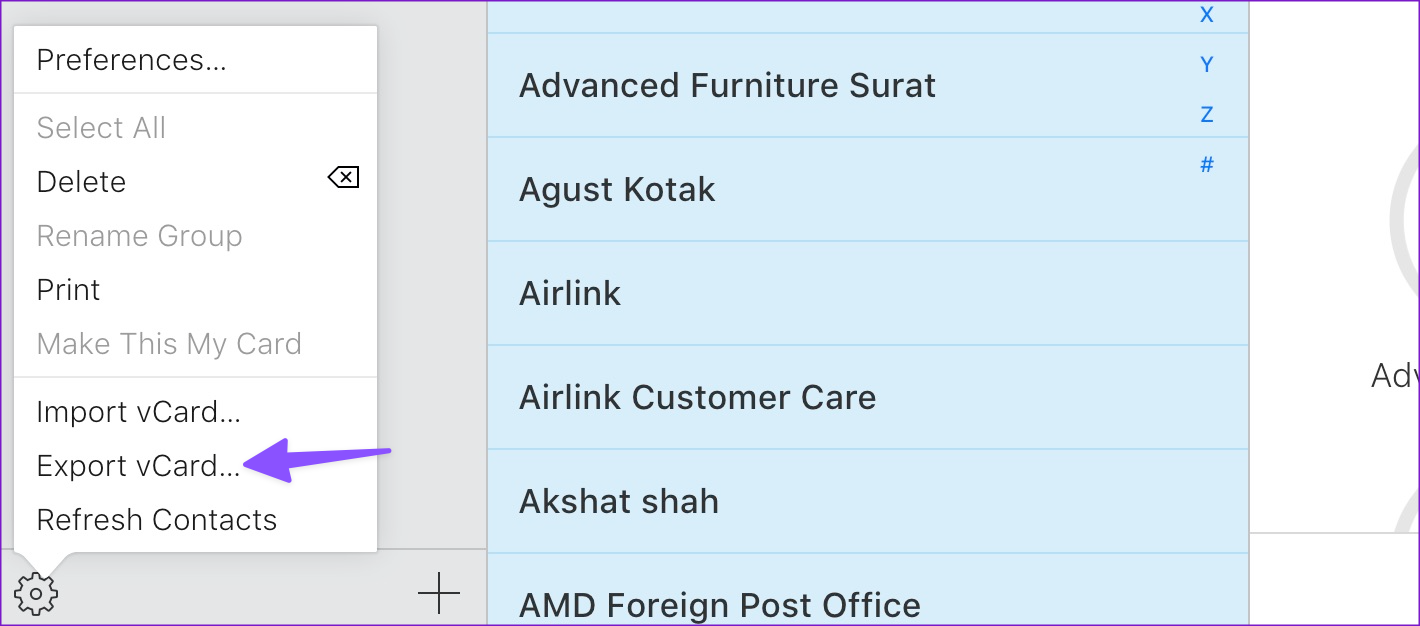
Step 4: Select Export vCard from the context menu that pops open. The browser will download a .VCF file with your iCloud contacts.
You can transfer or email the .VCF file to your Android phone.
Step 5: Open the received file with the Contacts app and select your Gmail account to save imported contacts.
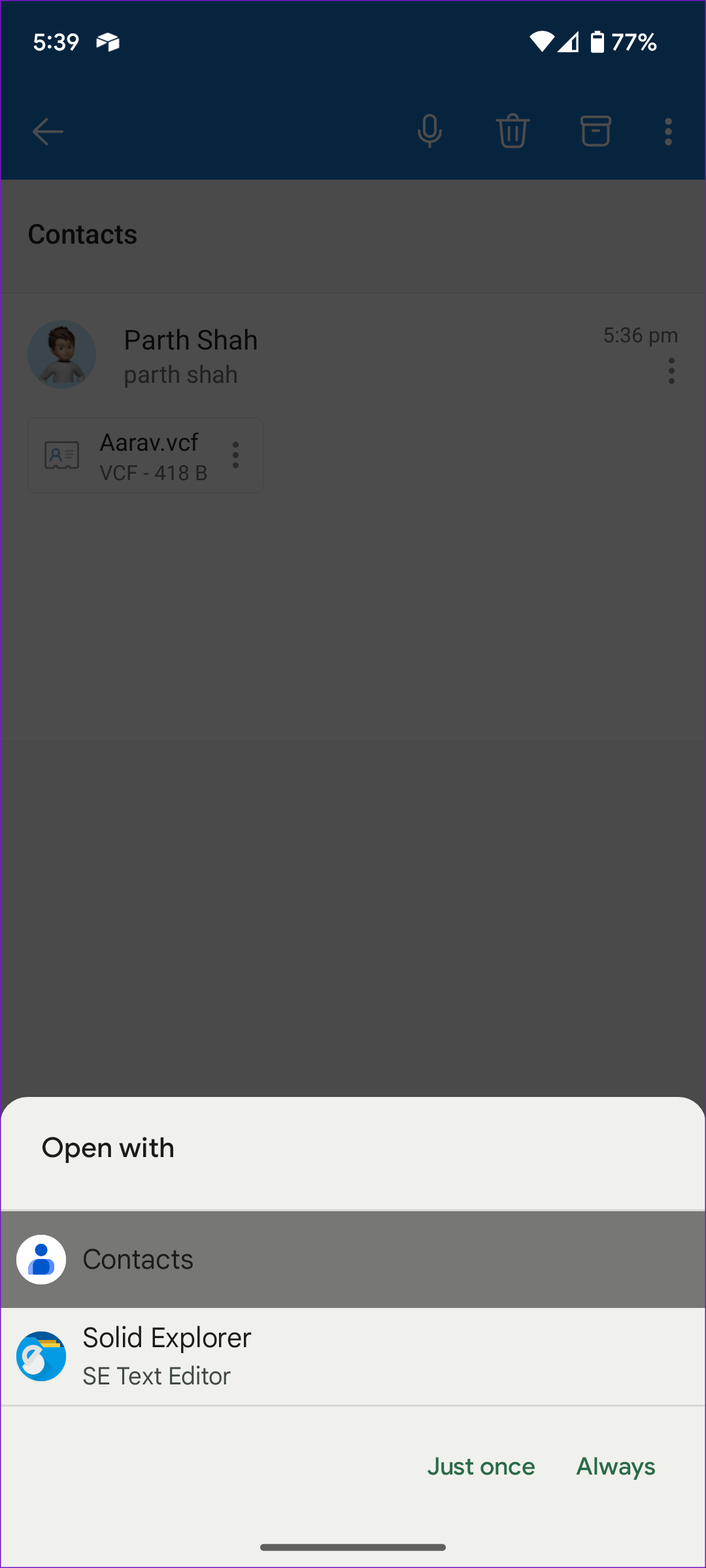

This is an effective way to sync iPhone contacts to your Google account. If you have added an Outlook account on Android, you can also save your iCloud contacts to Outlook.
Was this helpful?
Last updated on 23 July, 2024
Read Next
 iCloud Contacts vs Google Contacts: Where Should You Save Contacts on Your iPhone
When you are using an Android phone, one prefers using Google Contacts to store and manage contacts.
iCloud Contacts vs Google Contacts: Where Should You Save Contacts on Your iPhone
When you are using an Android phone, one prefers using Google Contacts to store and manage contacts.
 Google Contacts vs Samsung Contacts: Which App Is Best for Saving and Managing Contacts
Apart from phones running Stock Android, all other Android phones have their own set of basic apps.
Google Contacts vs Samsung Contacts: Which App Is Best for Saving and Managing Contacts
Apart from phones running Stock Android, all other Android phones have their own set of basic apps.
 Top 4 Ways to Transfer Contacts From Samsung Account to iPhone
Moving to a new phone is exciting until reality hits hard in the face.
Top 4 Ways to Transfer Contacts From Samsung Account to iPhone
Moving to a new phone is exciting until reality hits hard in the face.
 How to Transfer Contacts from iPhone to iPhone: 5 Easy Ways
Method 1: Transfer Contacts From iPhone to iPhone With iCloud Sync Using iCloud backup is the simplest way to keep your iPhone contacts synchronized across all your devices.
How to Transfer Contacts from iPhone to iPhone: 5 Easy Ways
Method 1: Transfer Contacts From iPhone to iPhone With iCloud Sync Using iCloud backup is the simplest way to keep your iPhone contacts synchronized across all your devices.
 Top 7 Ways to Fix iCloud Contacts Not Syncing on iPhone
Most iPhone users sync their data to iCloud, thanks to the free 5GB storage with every Apple account.
Top 7 Ways to Fix iCloud Contacts Not Syncing on iPhone
Most iPhone users sync their data to iCloud, thanks to the free 5GB storage with every Apple account.
 How to Use Google Contacts Instead of Samsung Contacts
Samsung Galaxy phones carry a lot of pre-loaded apps, and some of them you'll rarely use.
How to Use Google Contacts Instead of Samsung Contacts
Samsung Galaxy phones carry a lot of pre-loaded apps, and some of them you'll rarely use.
 How to Transfer Text Messages (SMS) From Android to Android
Boasting an easy-to-use interface, Android devices are the choice of more than half of smartphone users worldwide.
How to Transfer Text Messages (SMS) From Android to Android
Boasting an easy-to-use interface, Android devices are the choice of more than half of smartphone users worldwide.
 4 Ways to Transfer Files Between Mac and Android Wirelessly
1.
4 Ways to Transfer Files Between Mac and Android Wirelessly
1.
The article above may contain affiliate links which help support Guiding Tech. The content remains unbiased and authentic and will never affect our editorial integrity.