

Note: The methods recommended in the article allow two-way syncs in the calendar. This means that any changes you make in one calendar will be reflected in the other.
Method 1: Using Outlook Link
Note: You can open the Outlook app or use a web browser. For the sake of demonstration, we are doing it through the web.
Step 1: Open Outlook in your preferred web browser on your computer.
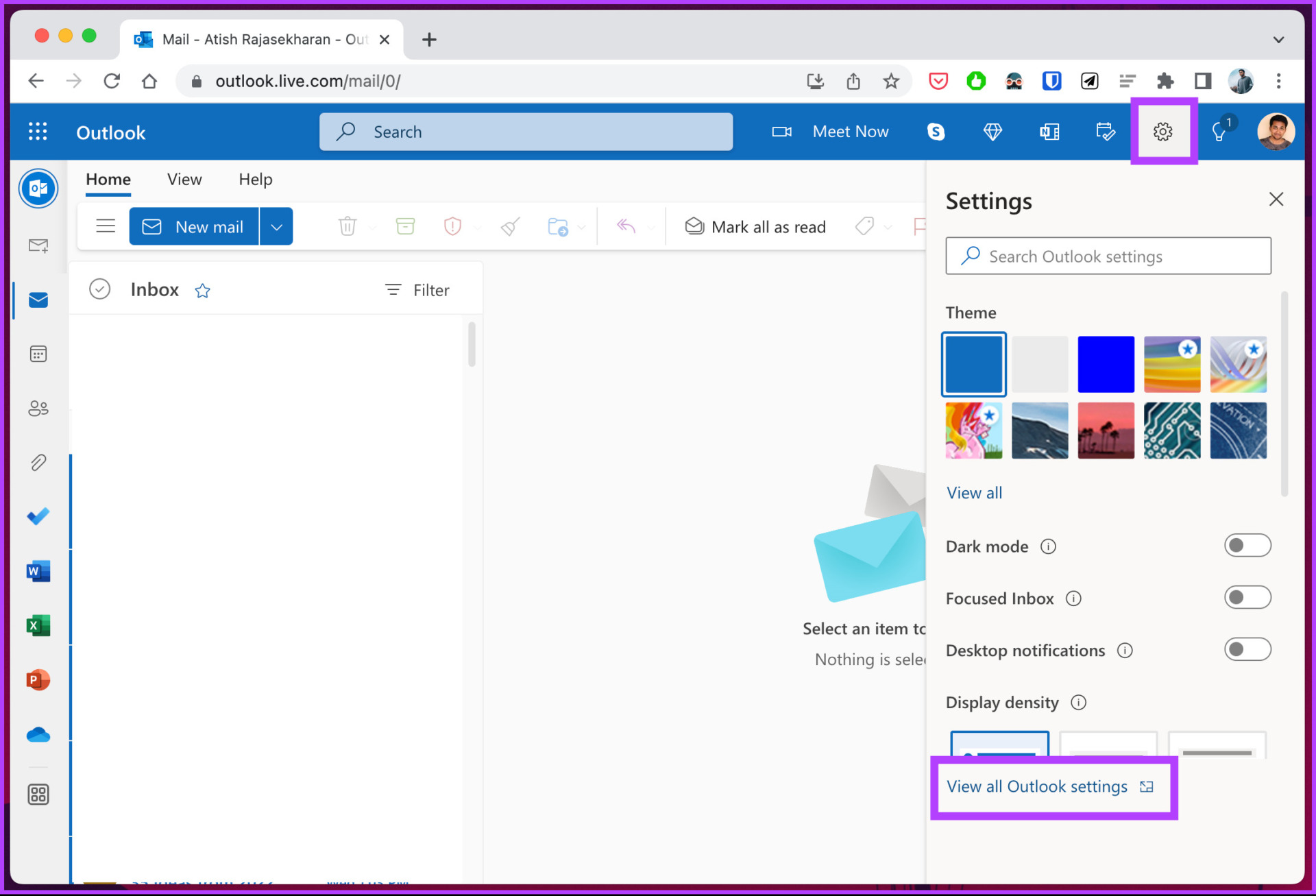
Step 2: Navigate to Settings from the top right corner and click on View all Outlook settings.
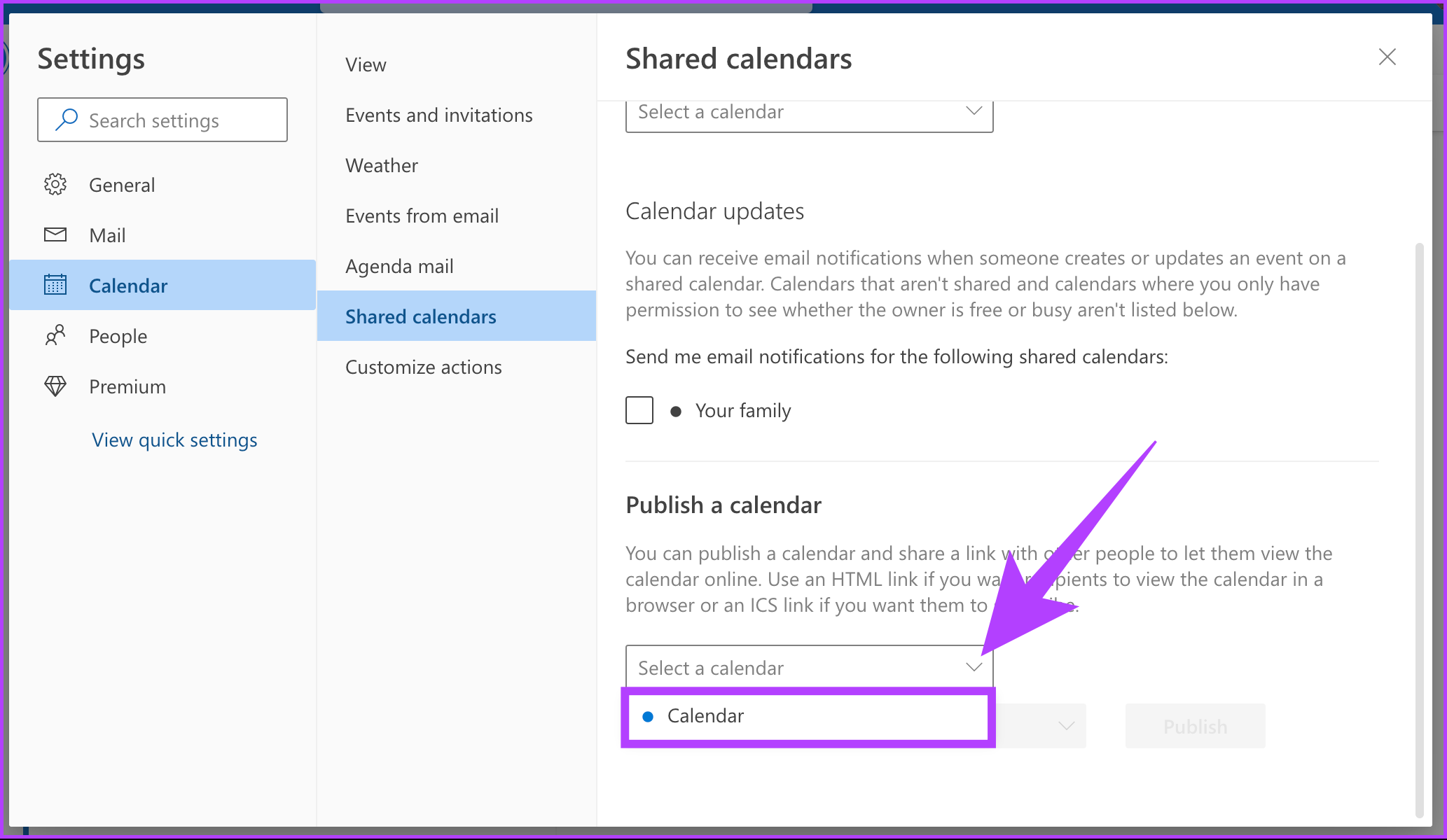
Step 3: Select Calendar from the left and click on Shared calendars.
Step 4: Under the Publish a calendar section, select Calendar followed by Can view all details.
Step 5: Click Publish.
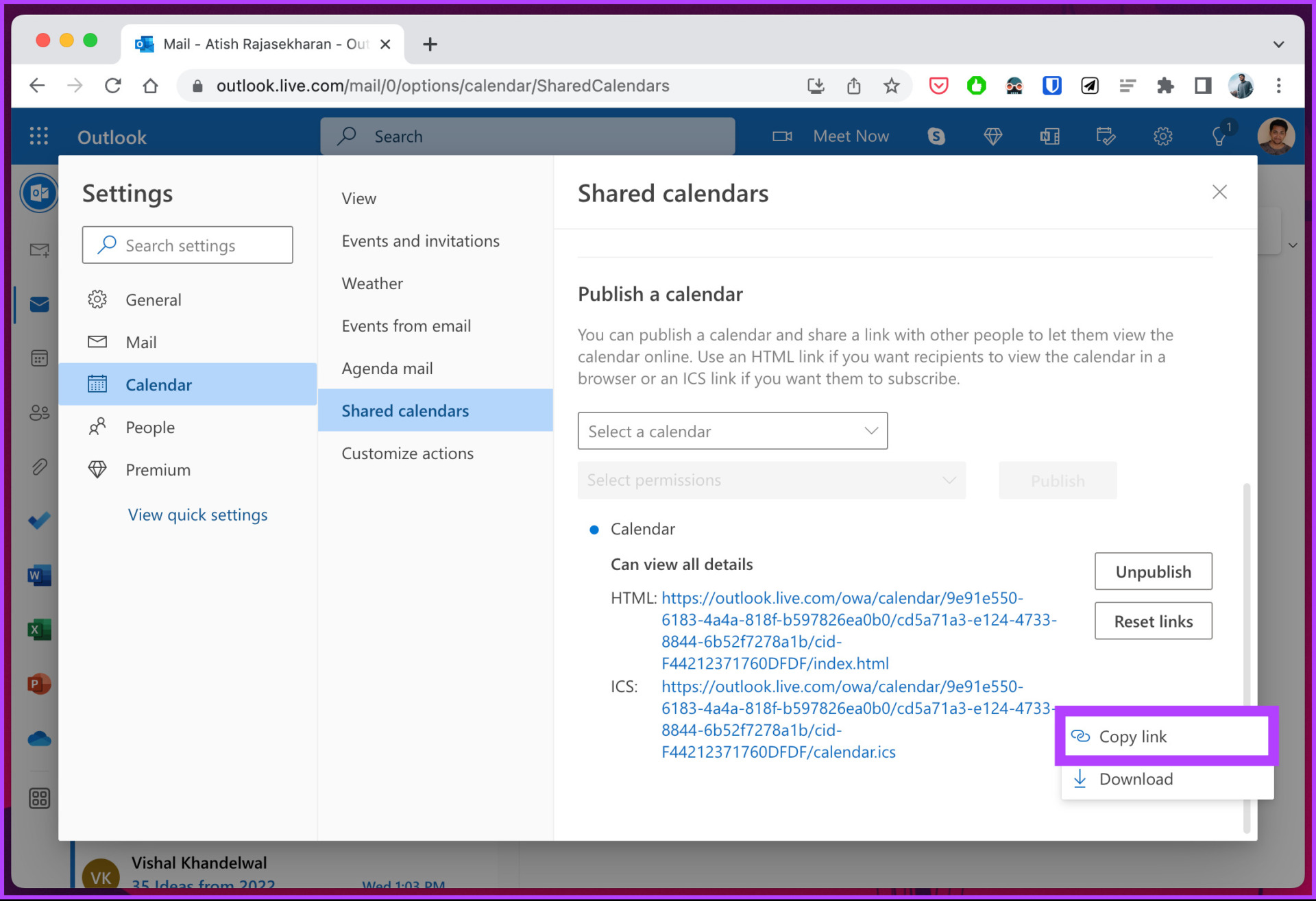
This will generate two links: one HTML and the other ICS.
Step 6: Copy the ICS link.
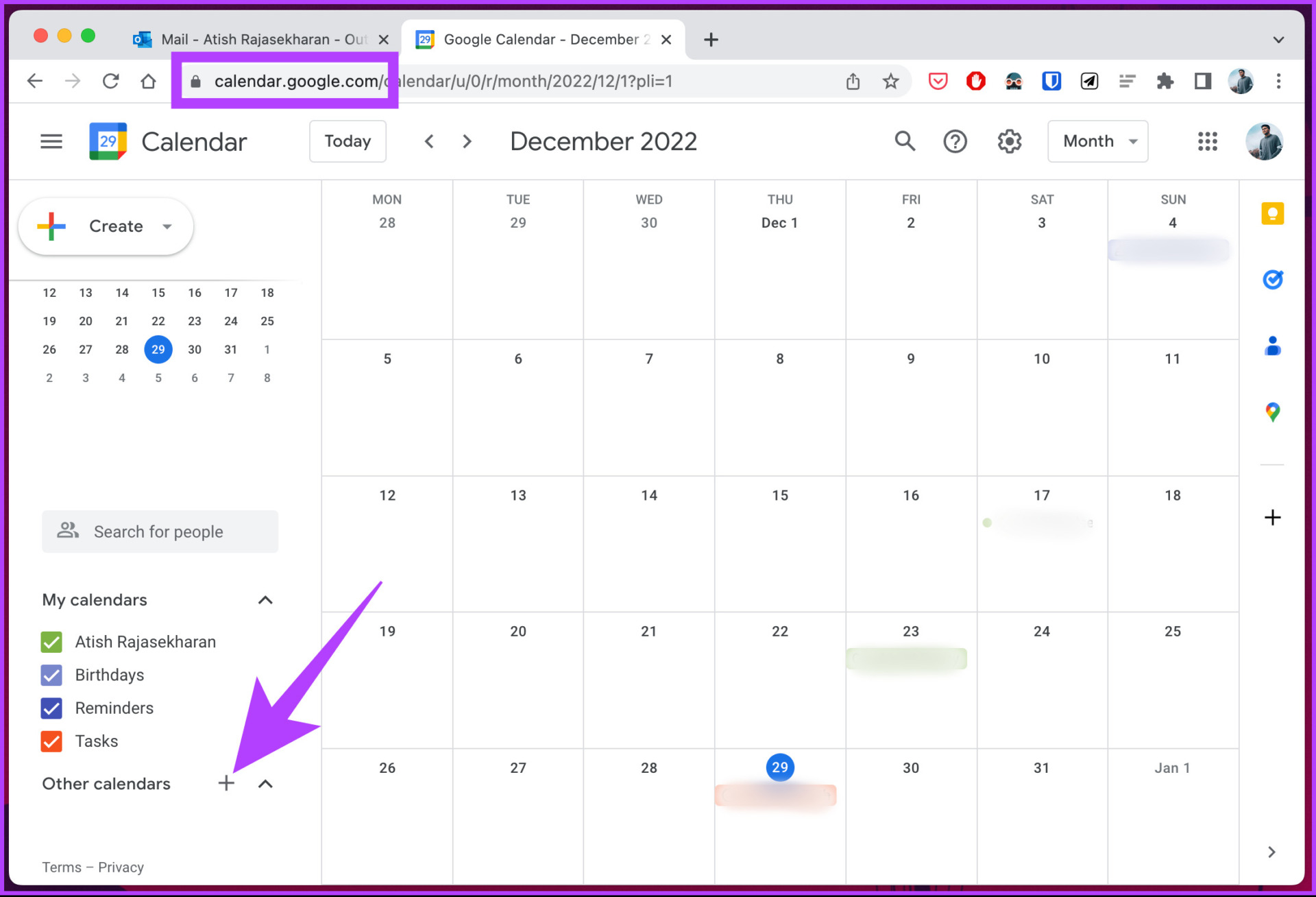
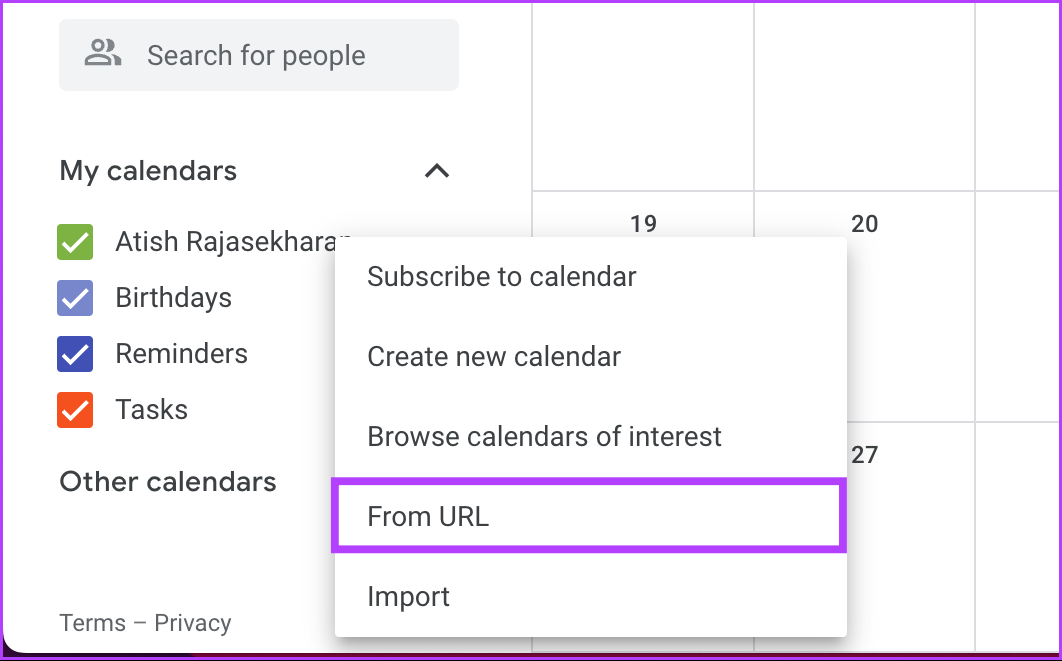
Step 7: Now, open Google Calendar, and click on Other calendars + on the left pane.
Step 8: In the context menu, click on From URL.
Step 9: Paste the copied Outlook link and click on the Add calendar button
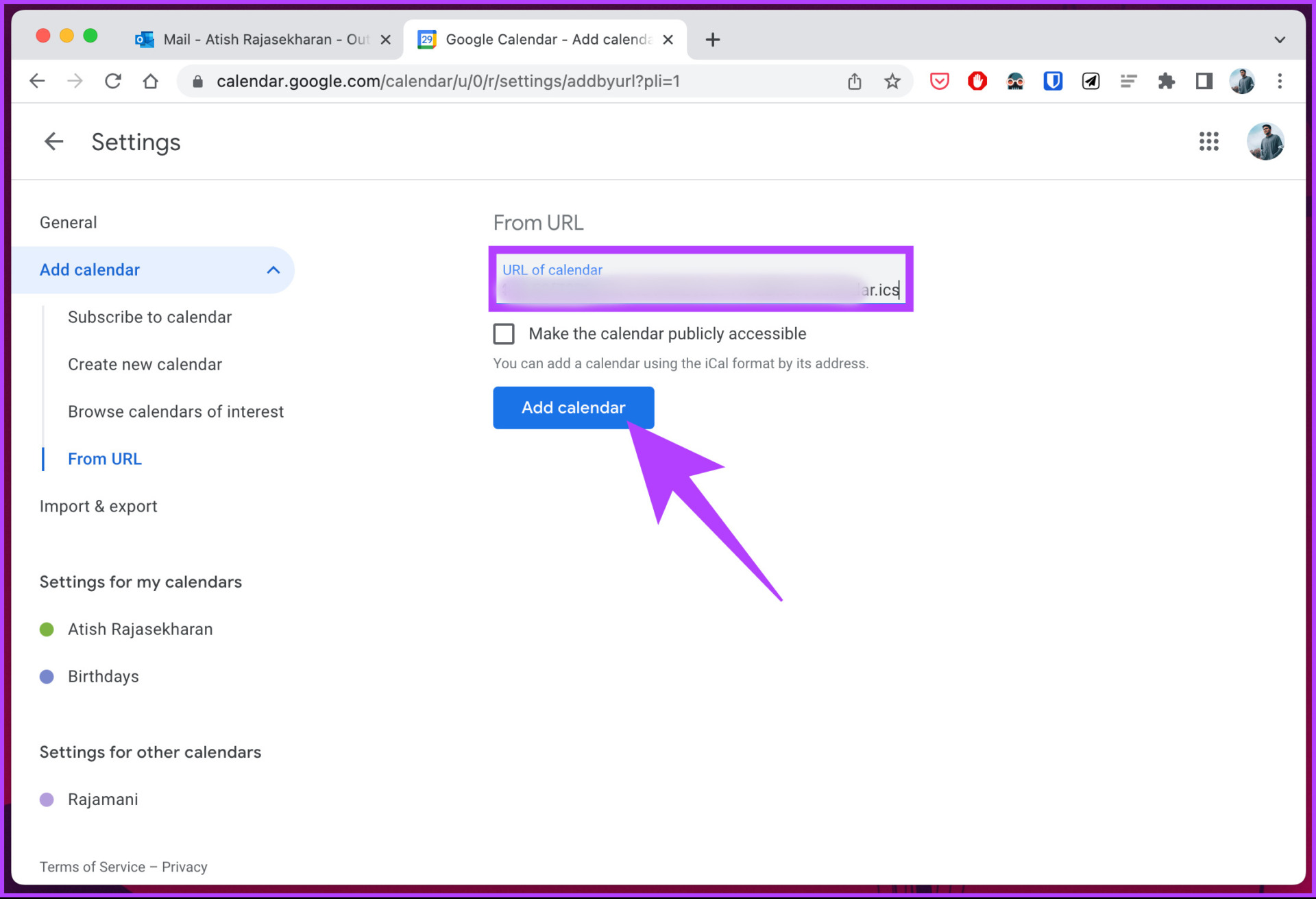
That’s it. You have successfully connected Outlook Calendar and Google Calendar.
In the future, if you wish to disconnect two calendars, all you would need to do is either unpublish the Outlook link or hover over the calendar’s name in the Google Calendar and click the X icon.
Method 2: Sync Outlook Calendar With Google Calendar
On Windows
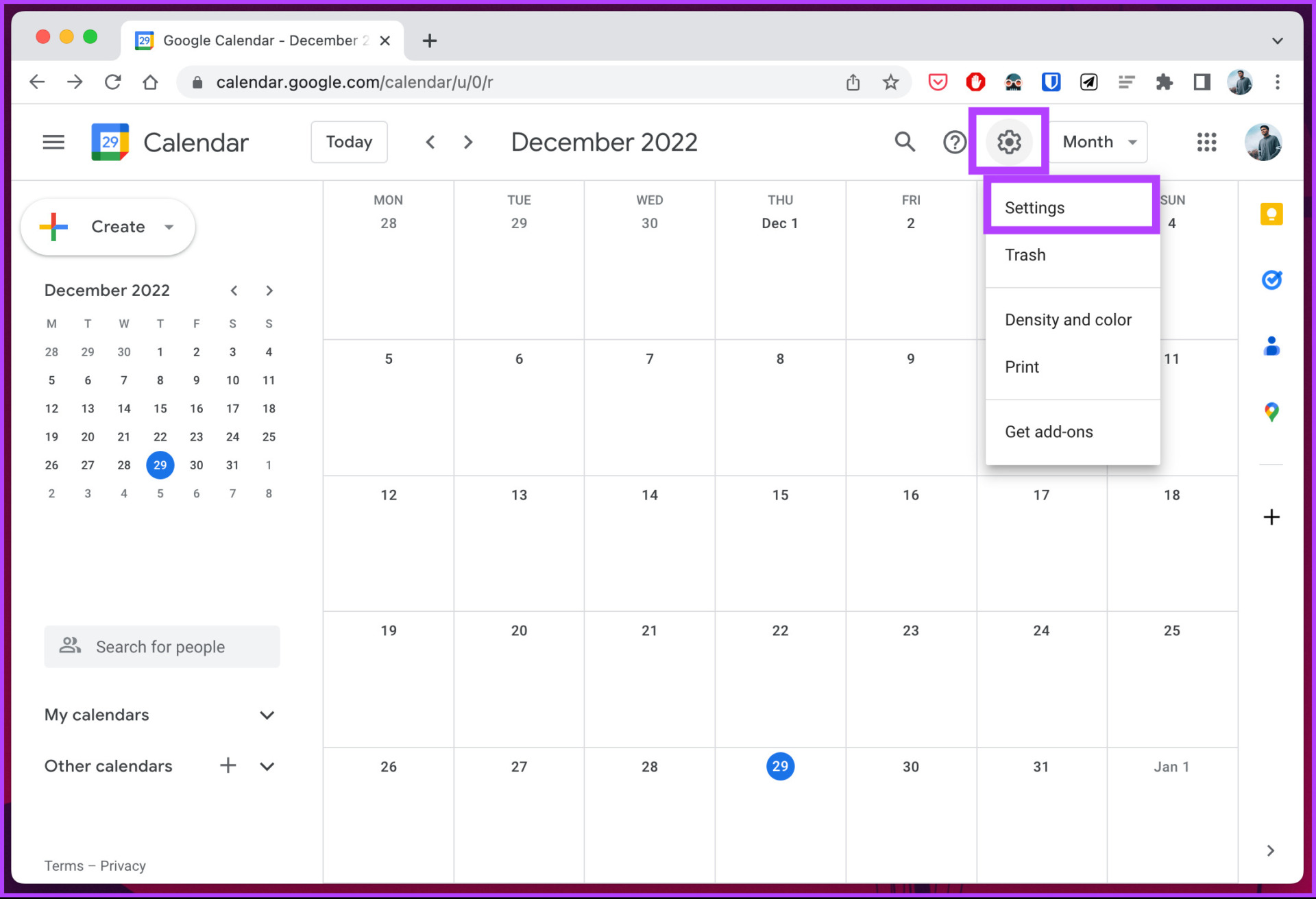
Step 1: Open Google Calendar in your preferred browser on your Windows PC.
Step 2: Click on the gear icon and select Settings.
Step 3: Go to Import & export.
Step 4: Navigate to Export and click on the Export button to download the .ics file.
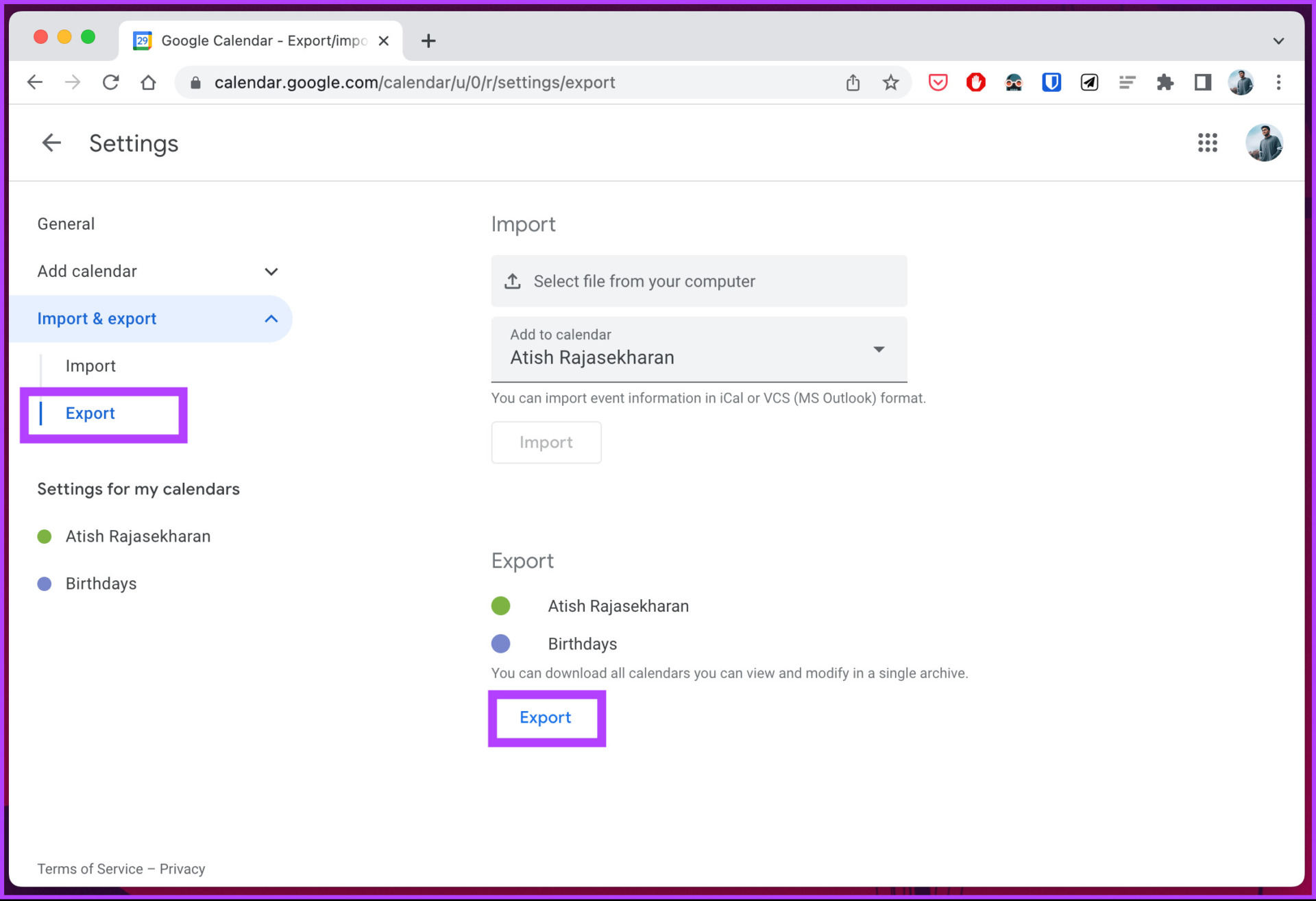
Note: The downloaded .ics file is zipped; you will need to unzip the file.
After this step, close or minimize the browser.
Step 5: Press the Windows key, type Outlook, and click Open.
Step 6: Once Microsoft Outlook opens, go to Files.
Step 7: Click on Open & Export from the left pane.
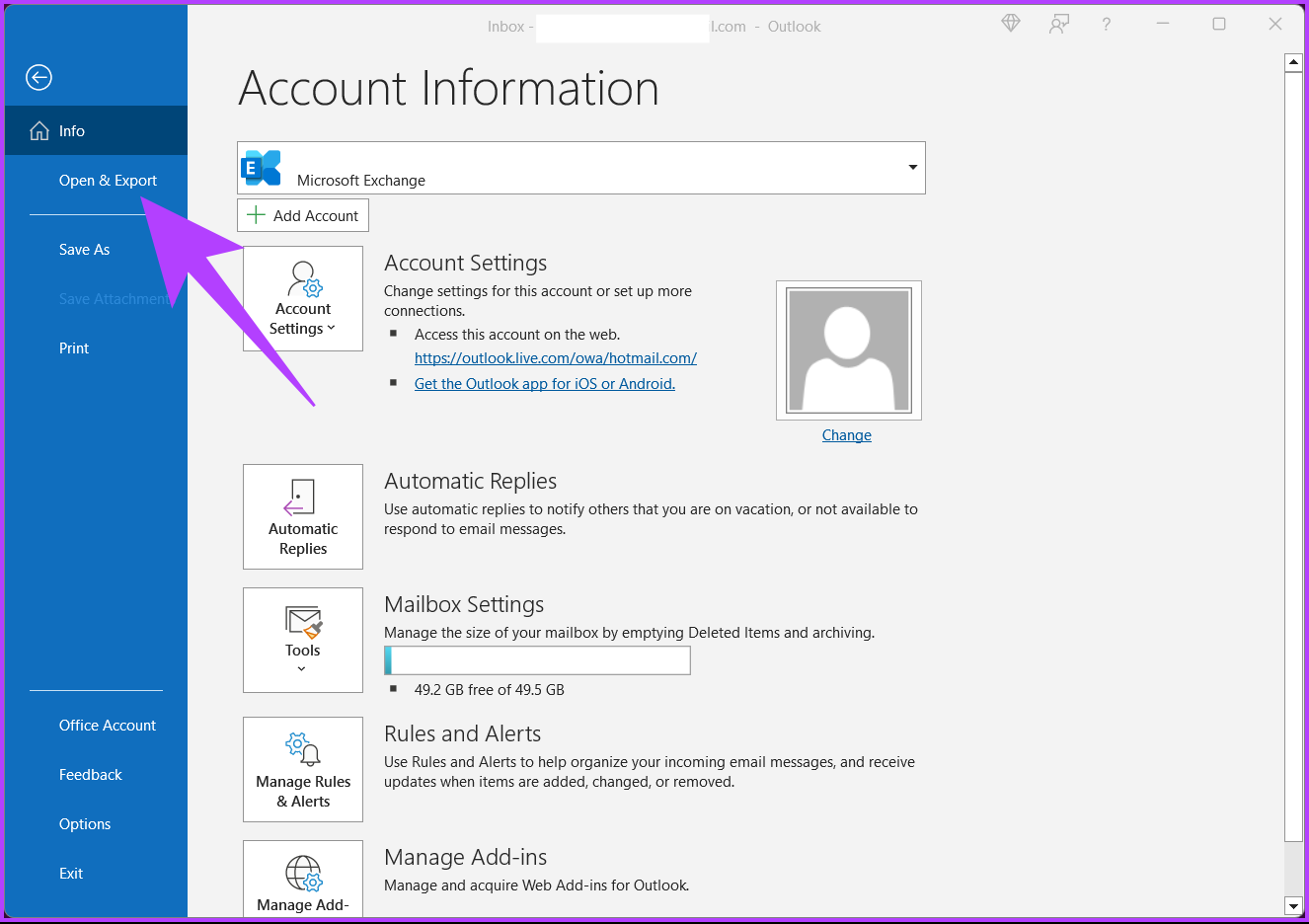
Step 8: Under the Open menu, select Import/Export.
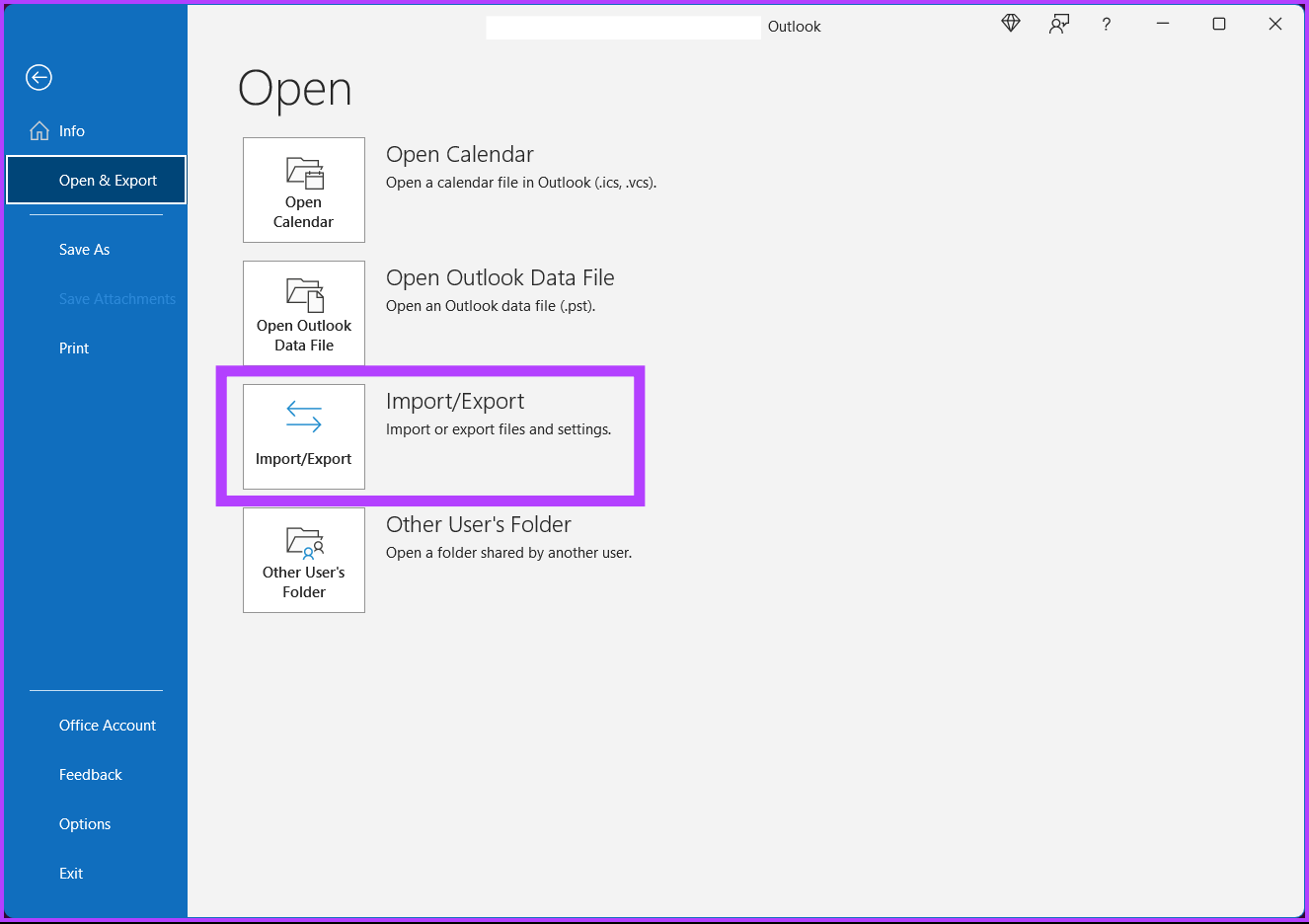
This will trigger a pop-up window.
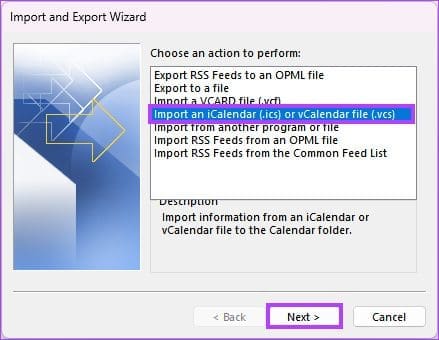
Step 9: Select the Import an iCalendar (.ics) or VCalendar file (.vcs) option and click Next.
Step 10: Browse the .ics file you exported from Google Calendar and click OK.
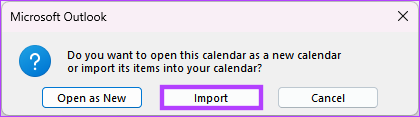
Step 11: Click Import to add the exported Google Calendar to Outlook.
All your Google Calendar items will show up on your Outlook Calendar. You can tweak or customize the calendar as per your requirements. Hover over the name and click the X icon if you wish to disconnect the calendar.
On Mac
Step 1: Press Command + Space, type Outlook, and press Return.
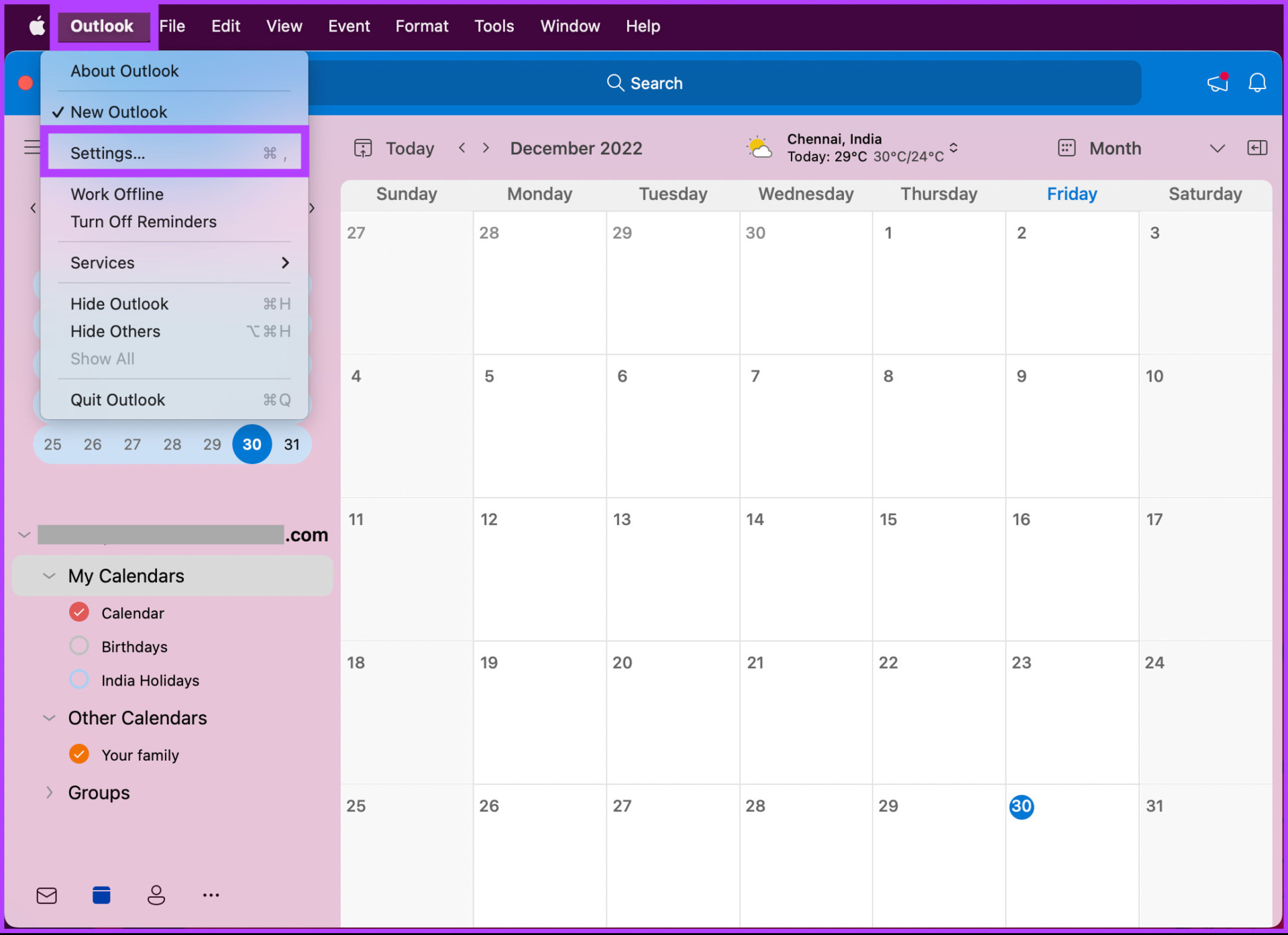
Step 2: Go to Outlook from the top bar and select Settings.
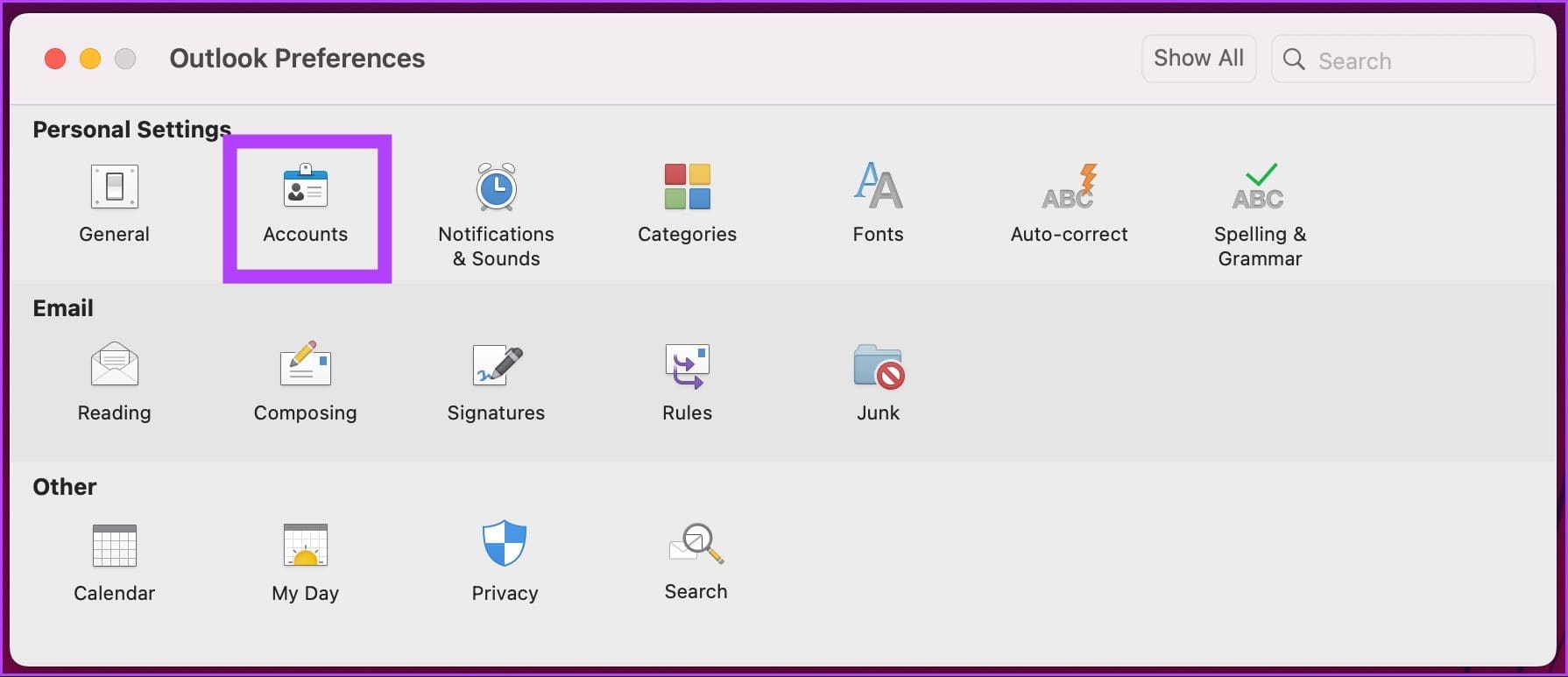
Step 3: Now, in the left pane, select Accounts.
Step 4: Click on the + button and choose New Account.

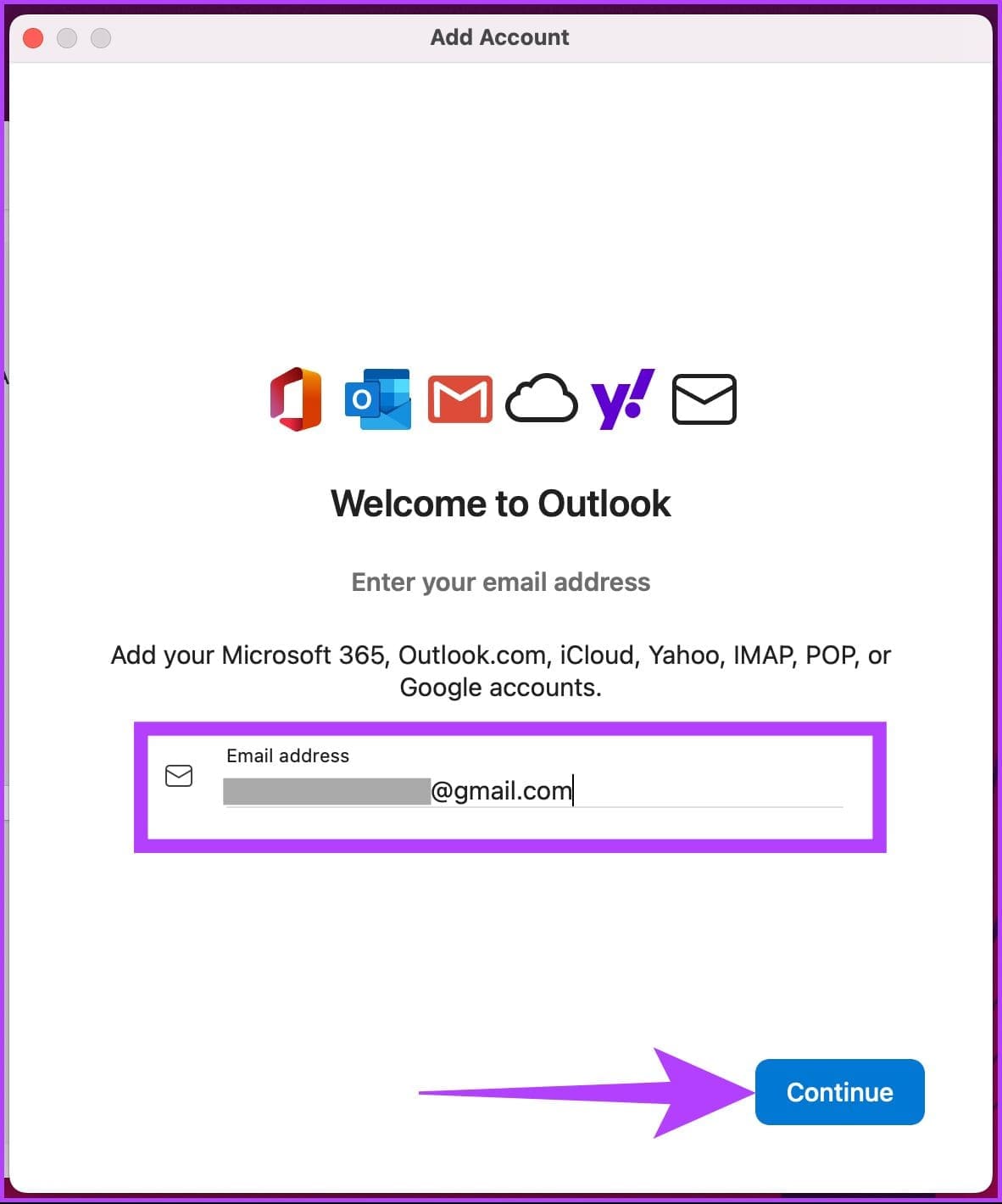
Step 5: Enter your Email address and click Continue.
Step 6: From the prompt, select the account.
Step 7: When asked to authorize Microsoft Apps to access your Google account, click Allow.

There you go. You have connected Outlook Calendar with Google Calendar on Mac. If you don’t want to have access to your Mac and want to do it through your Android device, keep reading.
On Android
One of the easiest ways to sync two calendars is to connect both to an Outlook Calendar app.
Step 1: Open the Outlook app and click on your profile picture in the top left corner.
Step 2: Tap on the Settings (gear) icon.
Step 3: Under Mail accounts, tap on Add Mail Account.
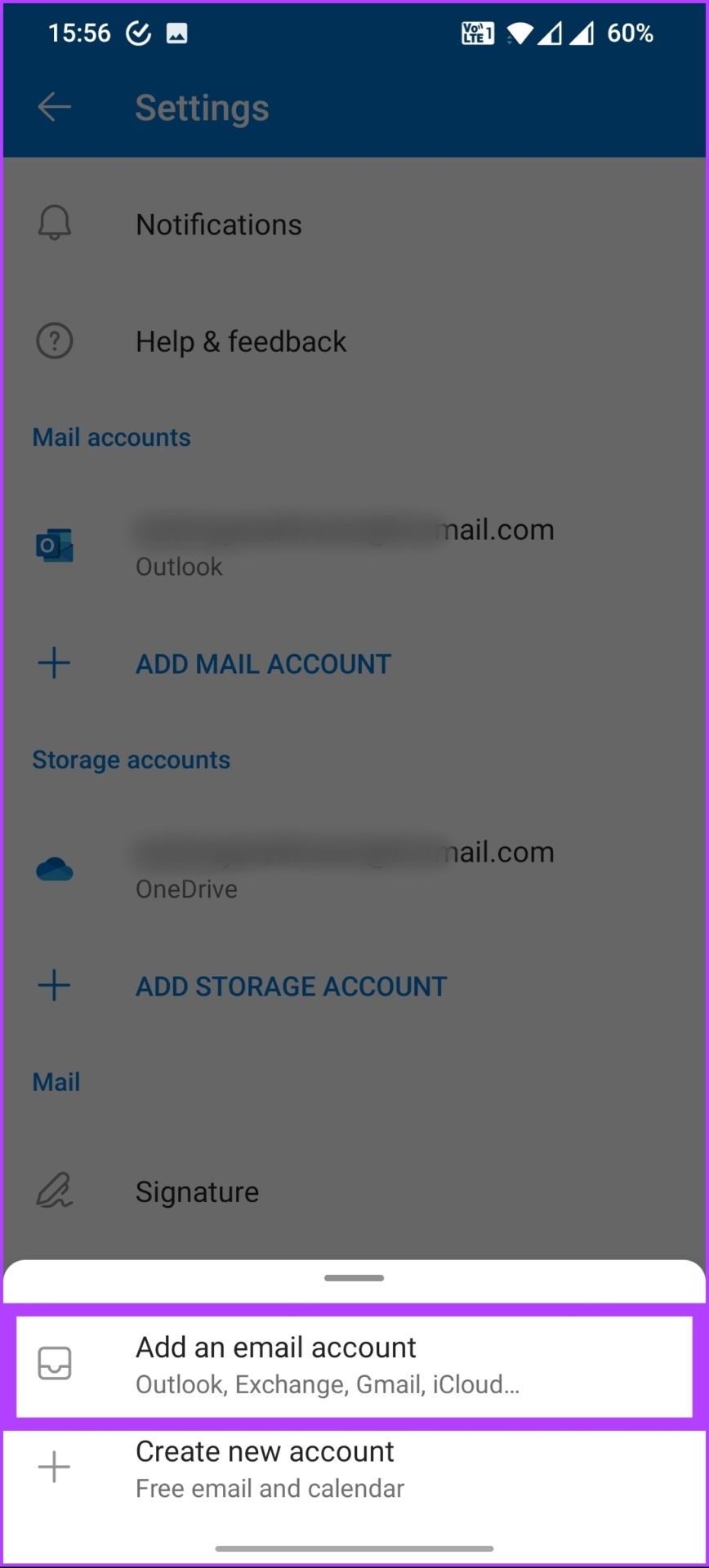
Step 4: From the bottom card, select Add an email account.

Step 5: On the Add account page, tap on Add Google Account.
Step 6: Choose the account you want to connect to. On the next page, click Allow.

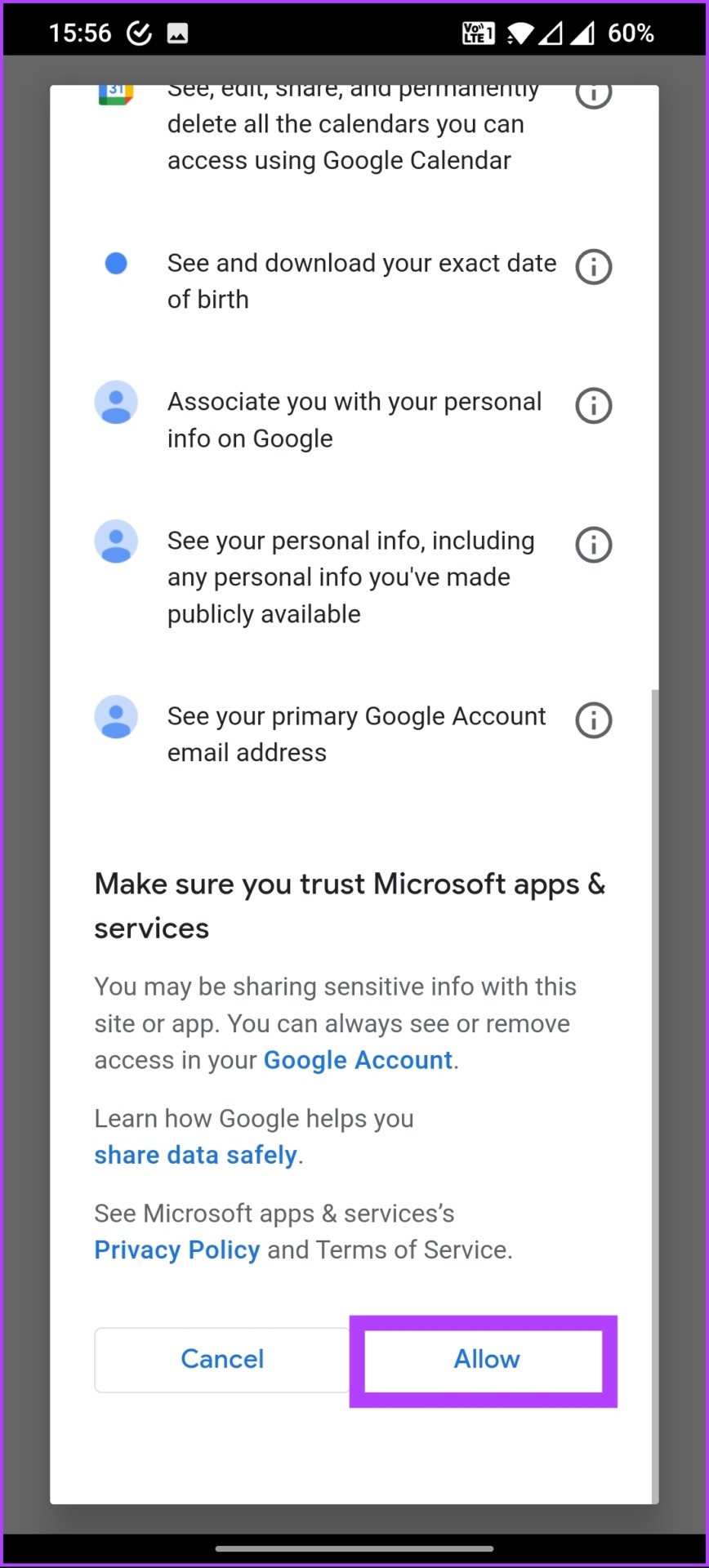
That’s about it. When you open the Microsoft Outlook app on Android, you can see and schedule events hassle-free. If you are running on an iPhone, move on to the next method.
On iPhone or iPad
There are many ways to sync your calendar. However, the best option is to sync your calendar with your iPhone or iPad’s Calendar app so that you don’t have to look elsewhere. The same gets synced on your Mac too.
Step 1: Open your iPhone or iPad Settings.
Step 2: Go to Calendar and tap on Accounts.
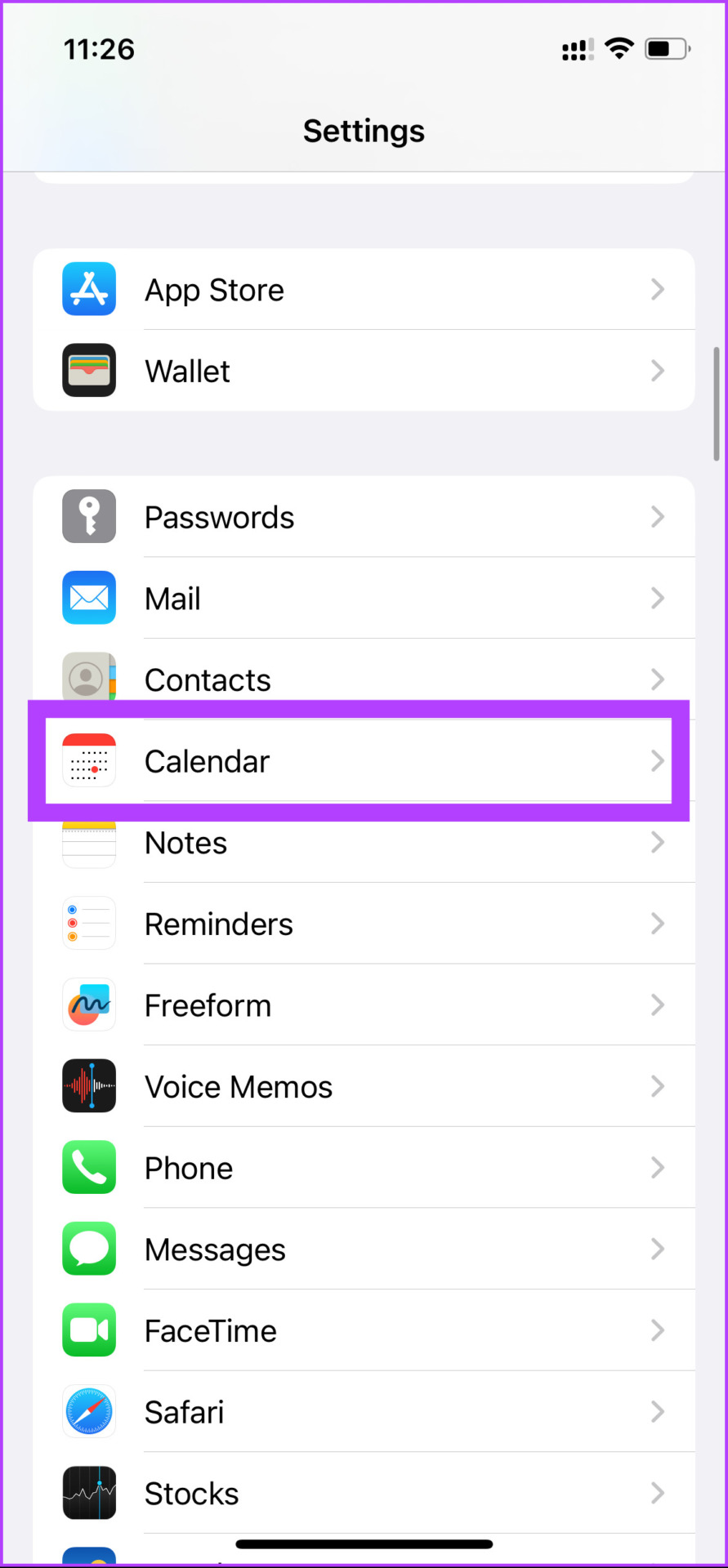
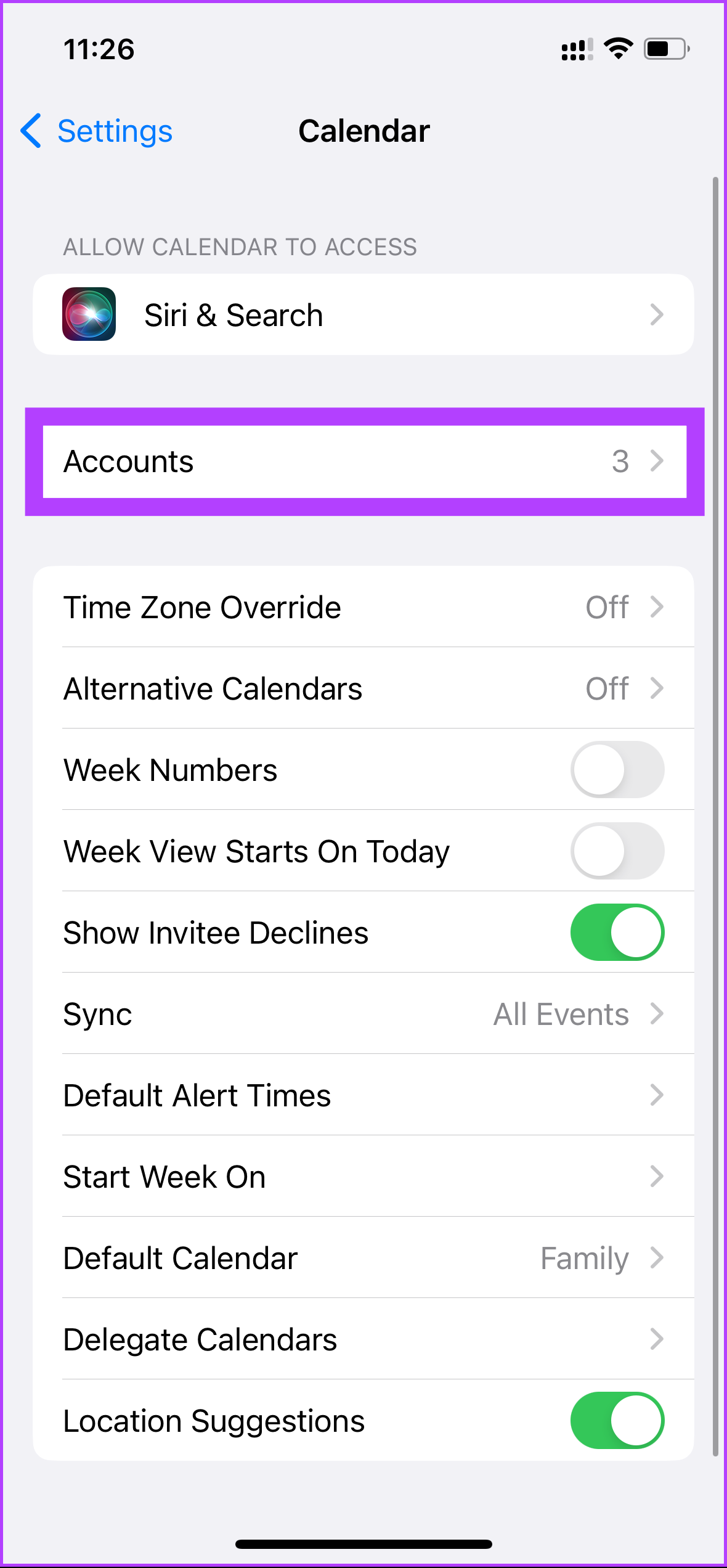
Step 3: Add your Google and Outlook accounts simultaneously to your iPhone or iPad by following the prompts.
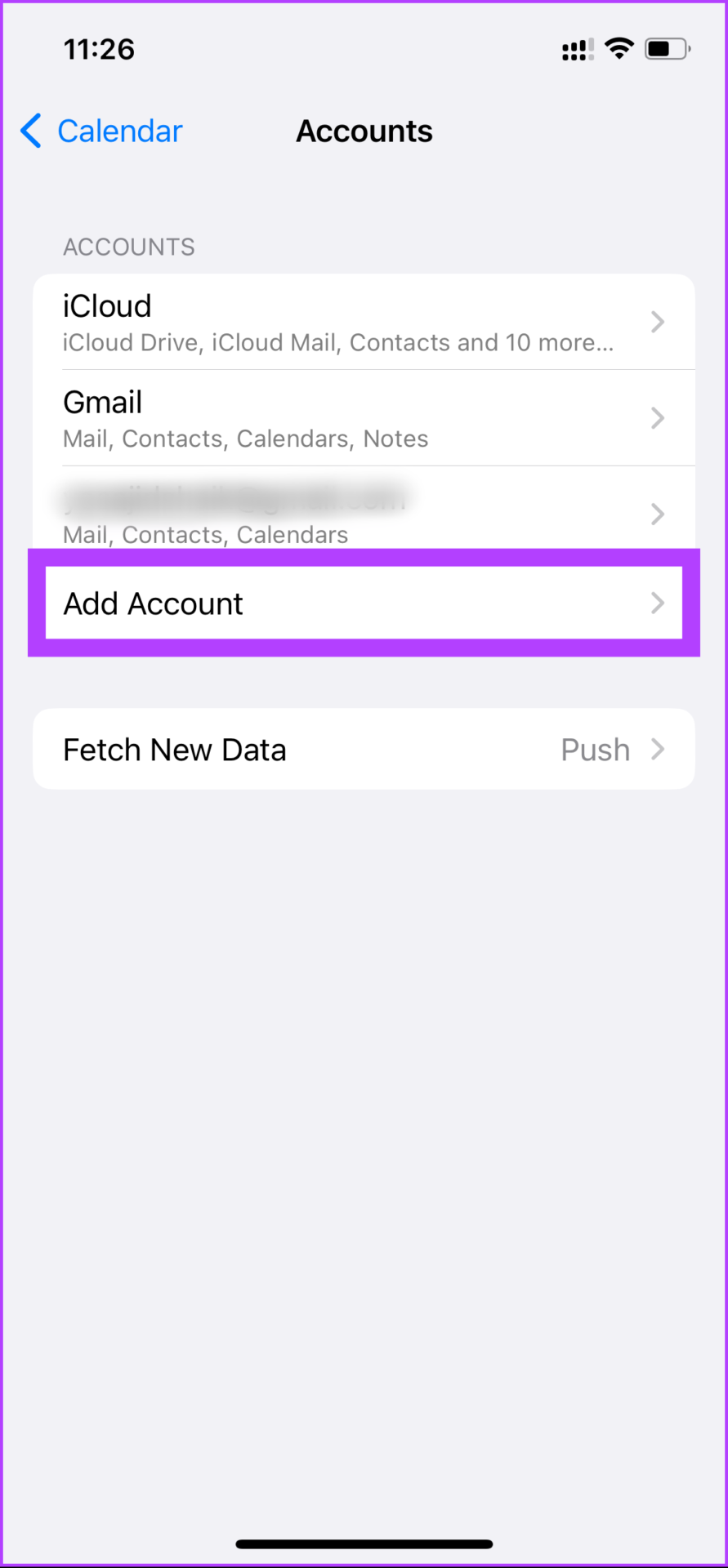
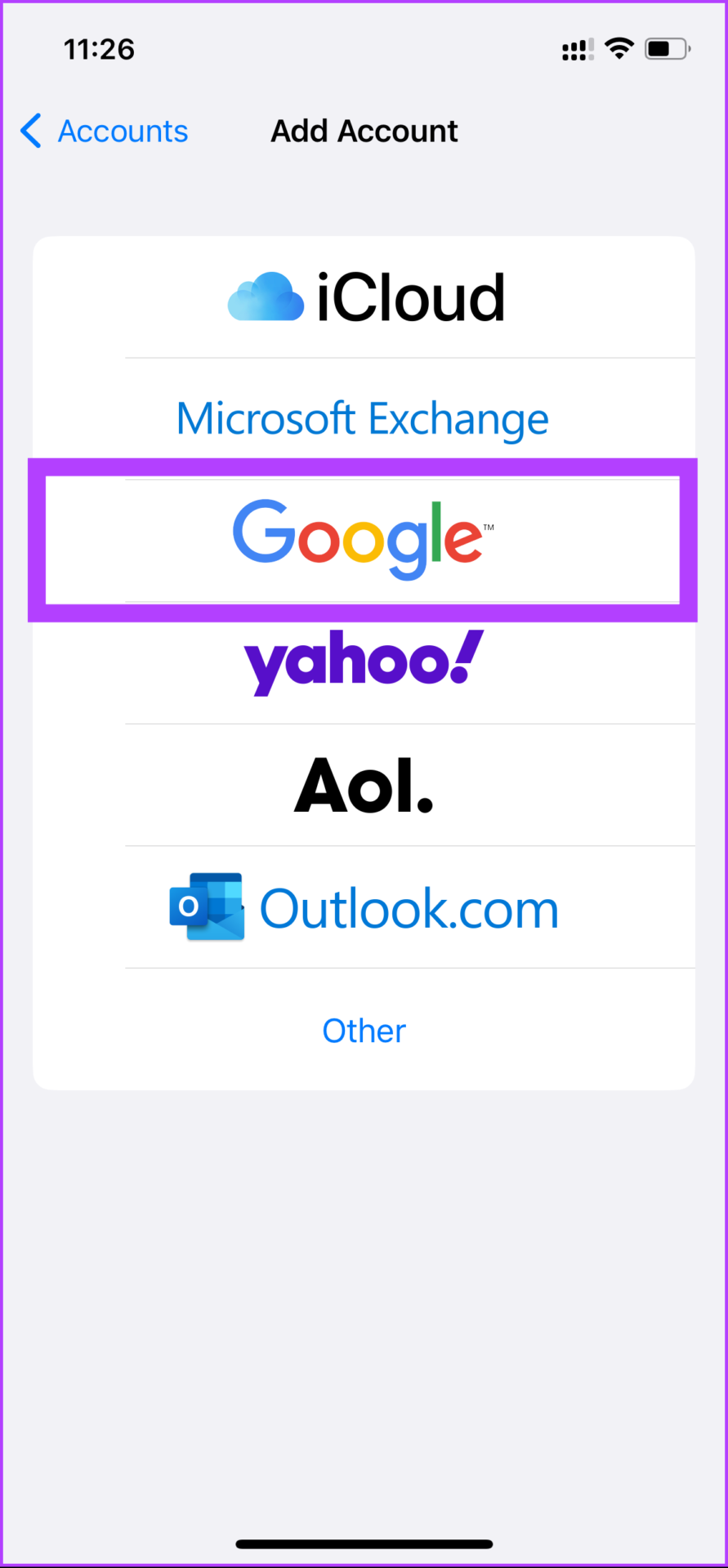
Step 4: Once the accounts are connected, go to each Account and turn on the toggle for Calendars to sync the calendar.
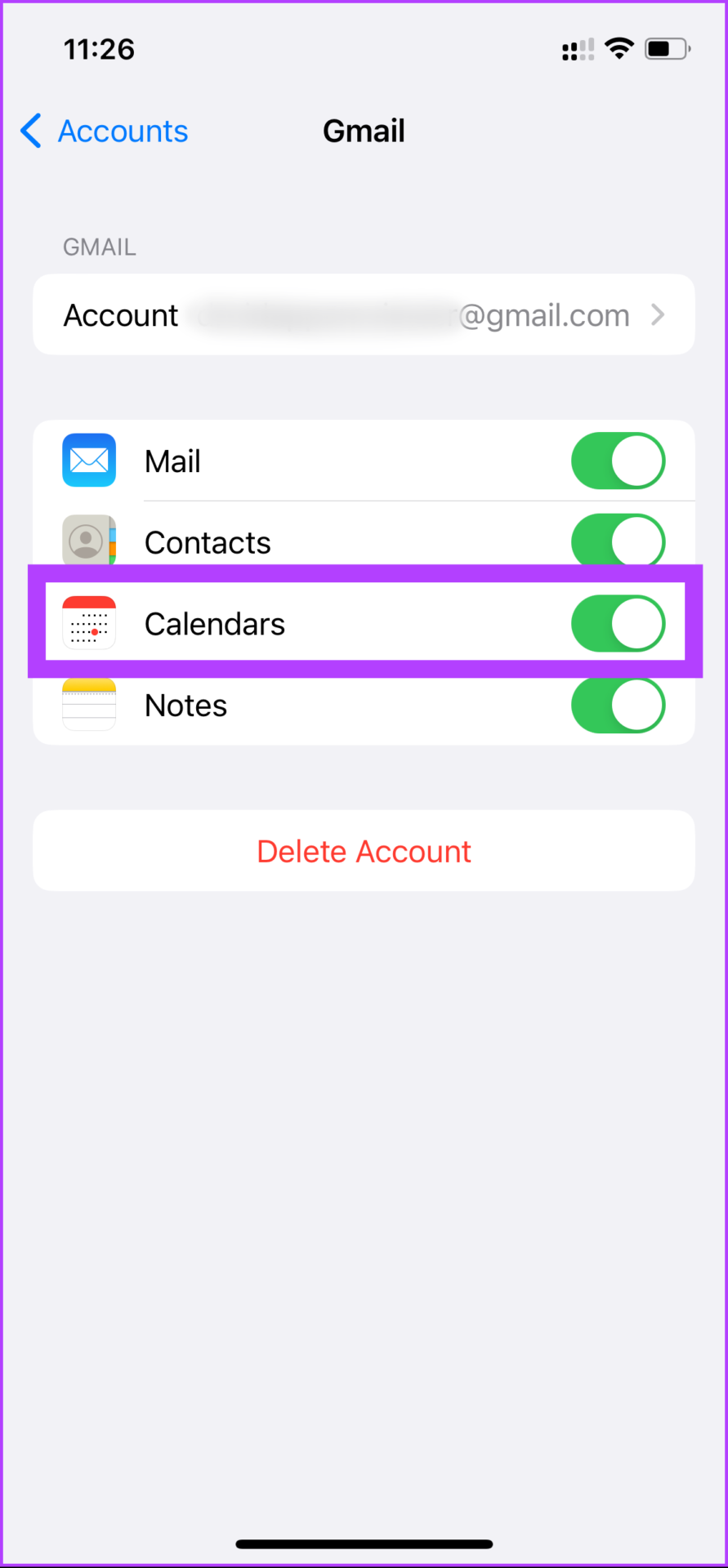
Once you are done with logging and syncing the calendar, you are good to go. All the events and scheduled data will automatically sync in one place without causing any trouble for you.
Method 3: How to Sync Outlook Calendar With Gmail
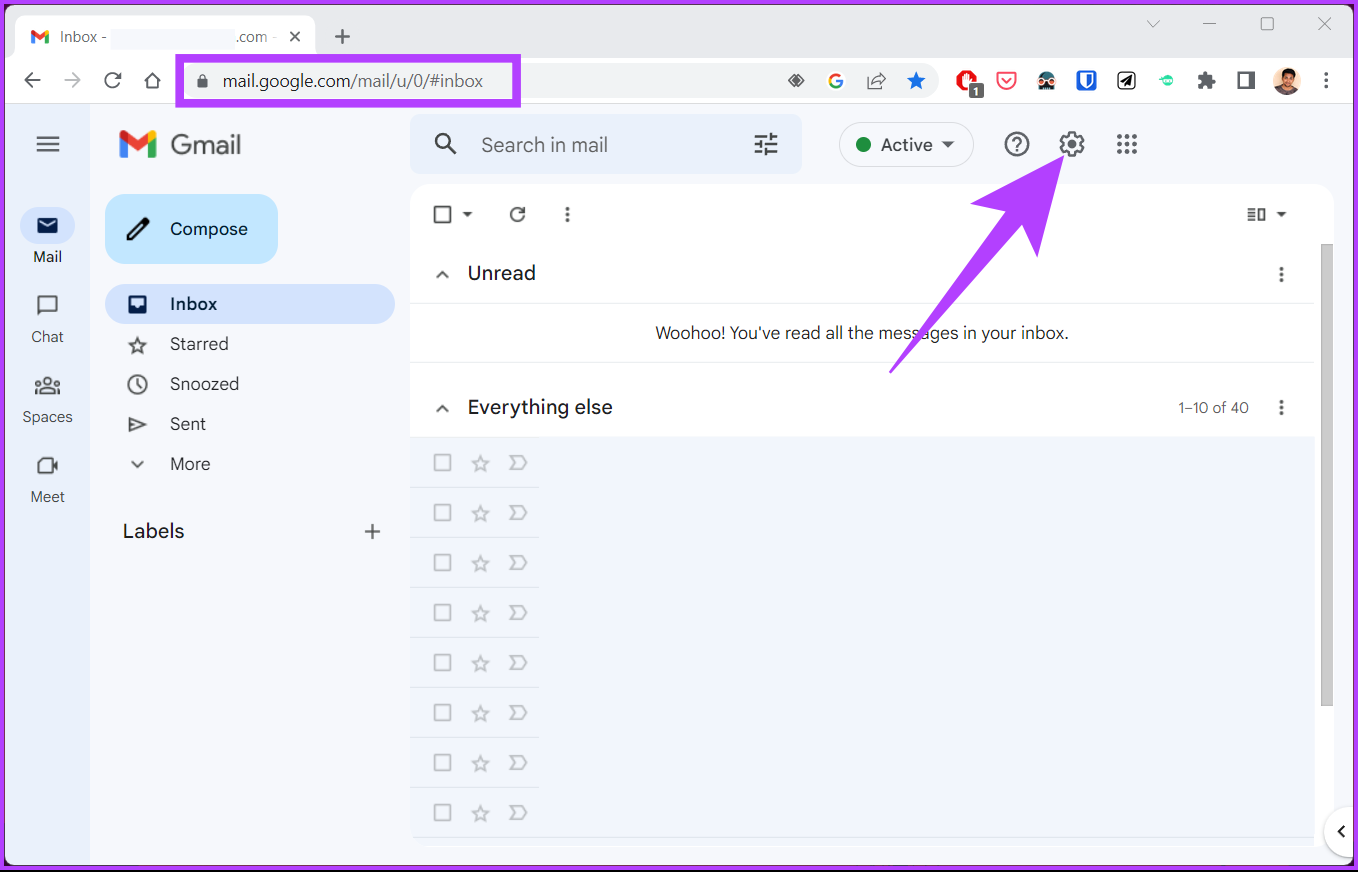
Step 1: Go to Gmail, log in with your account, and click on the gear icon.
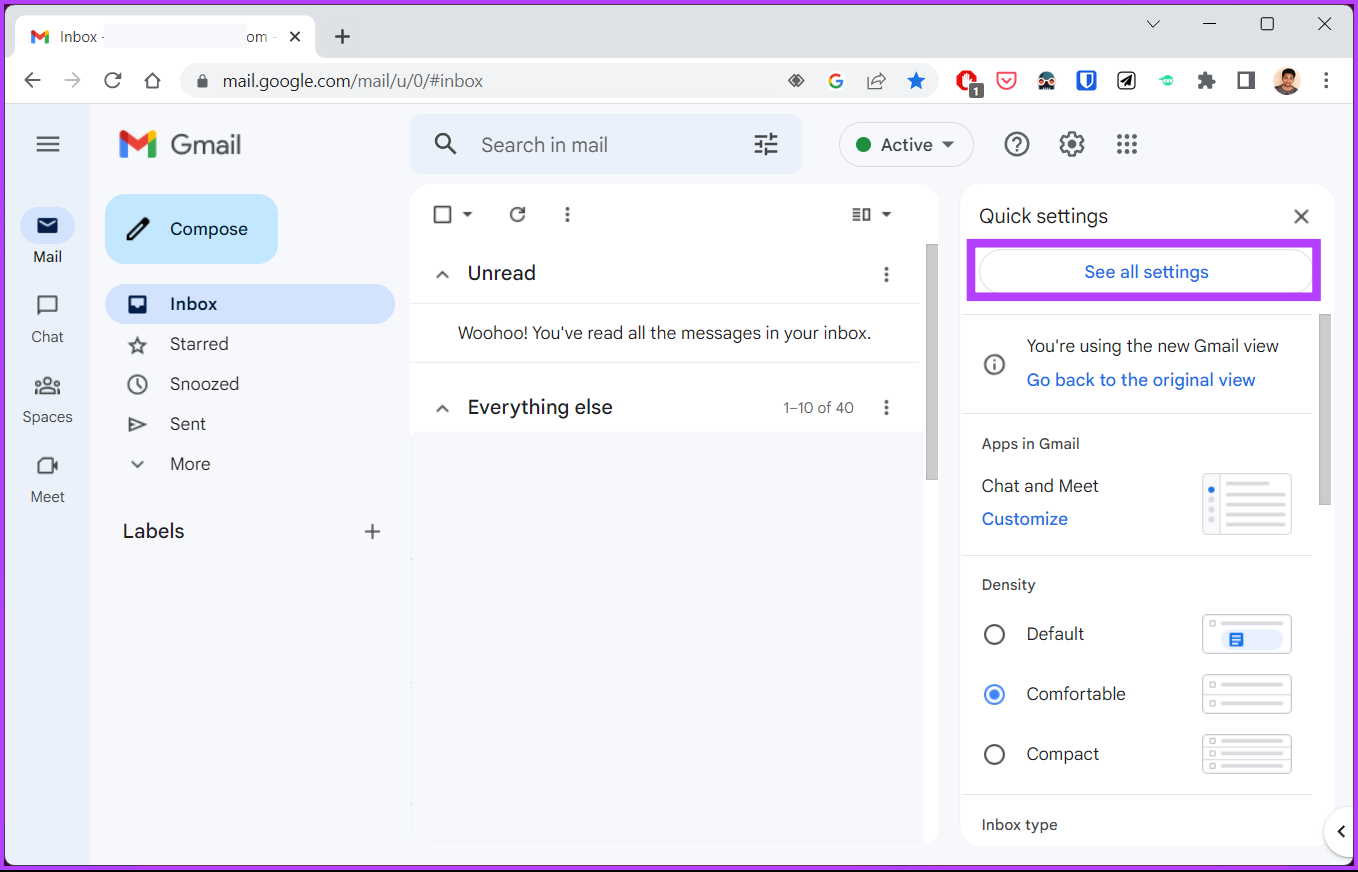
Step 2: From the drop-down, click on See all settings.
Step 3: Go to Forwarding and POP/IMAP.
Step 4: Ensure that the POP download and IMAP access are enabled.

Step 5: Click on Save Changes.
Step 6: Now, open the Outlook app. Press the Windows key on your keyboard, type Outlook, and click Open.
Step 7: Go to File from the home page.
Step 8: Click on Add Account.
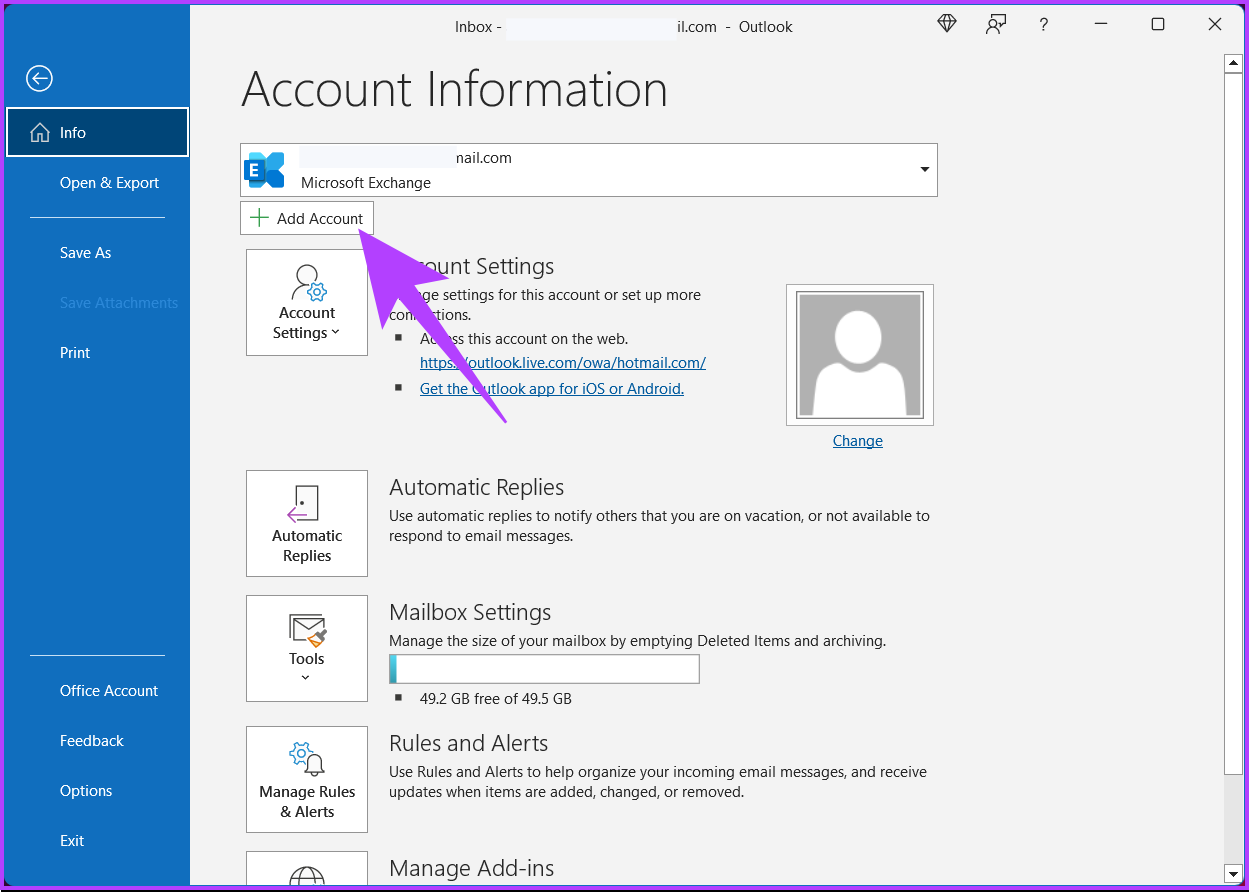
Step 9: Enter your Gmail email address and click on Advanced options. Check Let me set up my account manually, and then click Connect.
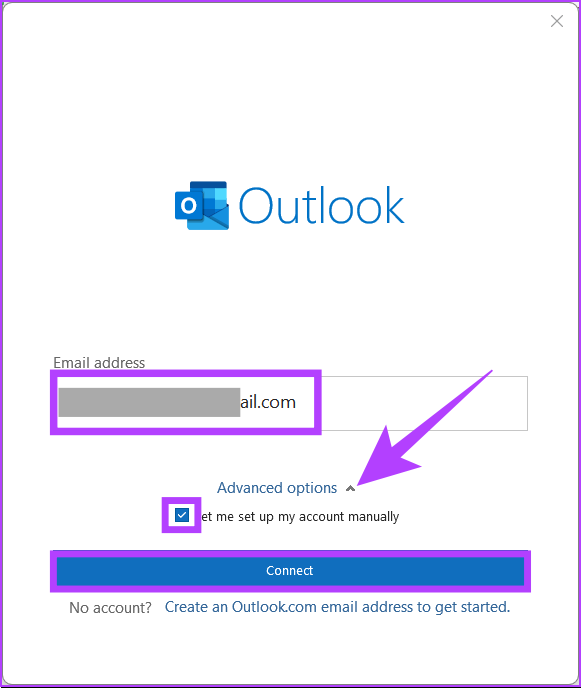
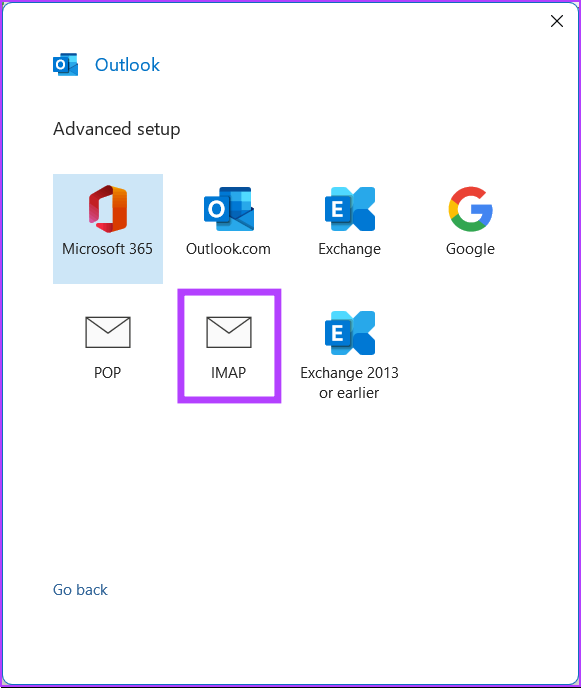
Step 10: Add input information for IMAP account settings.
Step 10: Enter your Gmail password and click Sign in.
Step 11: In the next screen, click Allow.
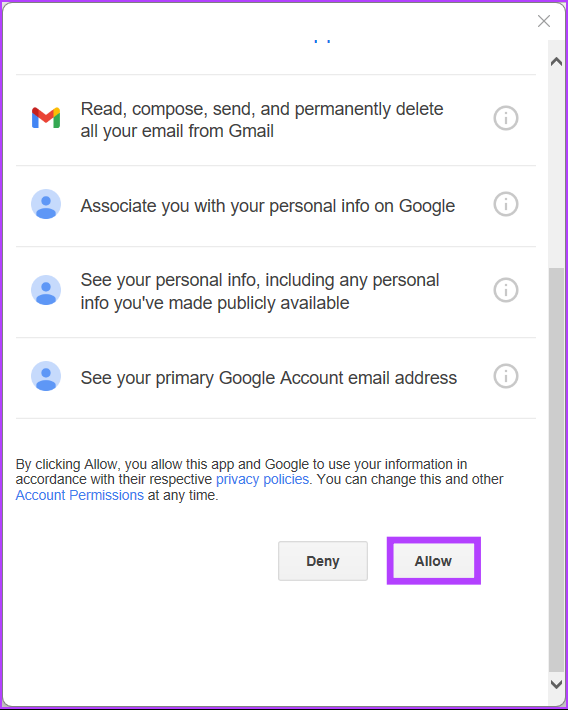
That’s about it. You have connected Gmail to Outlook, providing you with the best of both worlds. If you don’t want to connect and sync your Gmail with Outlook, you can import Google Calendar into Outlook. Keep reading.
Method 4: Import a Google Calendar Into Outlook Calendar
Step 1: Go to Google Calendar and log in with your Google account.
Step 2: Hover over the calendar you want to share and click on the three-dot icon.
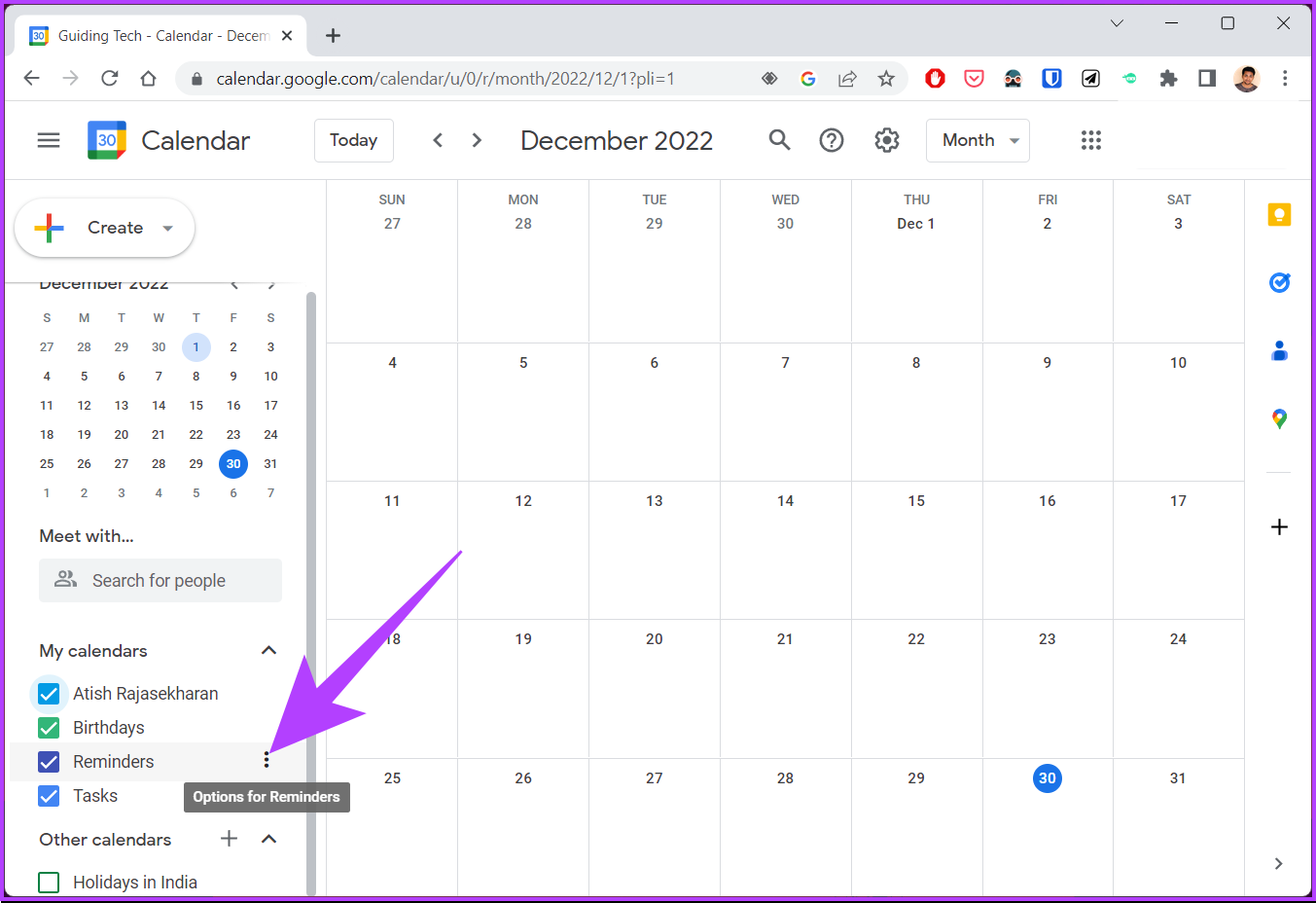
Step 3: Click on Settings and sharing.
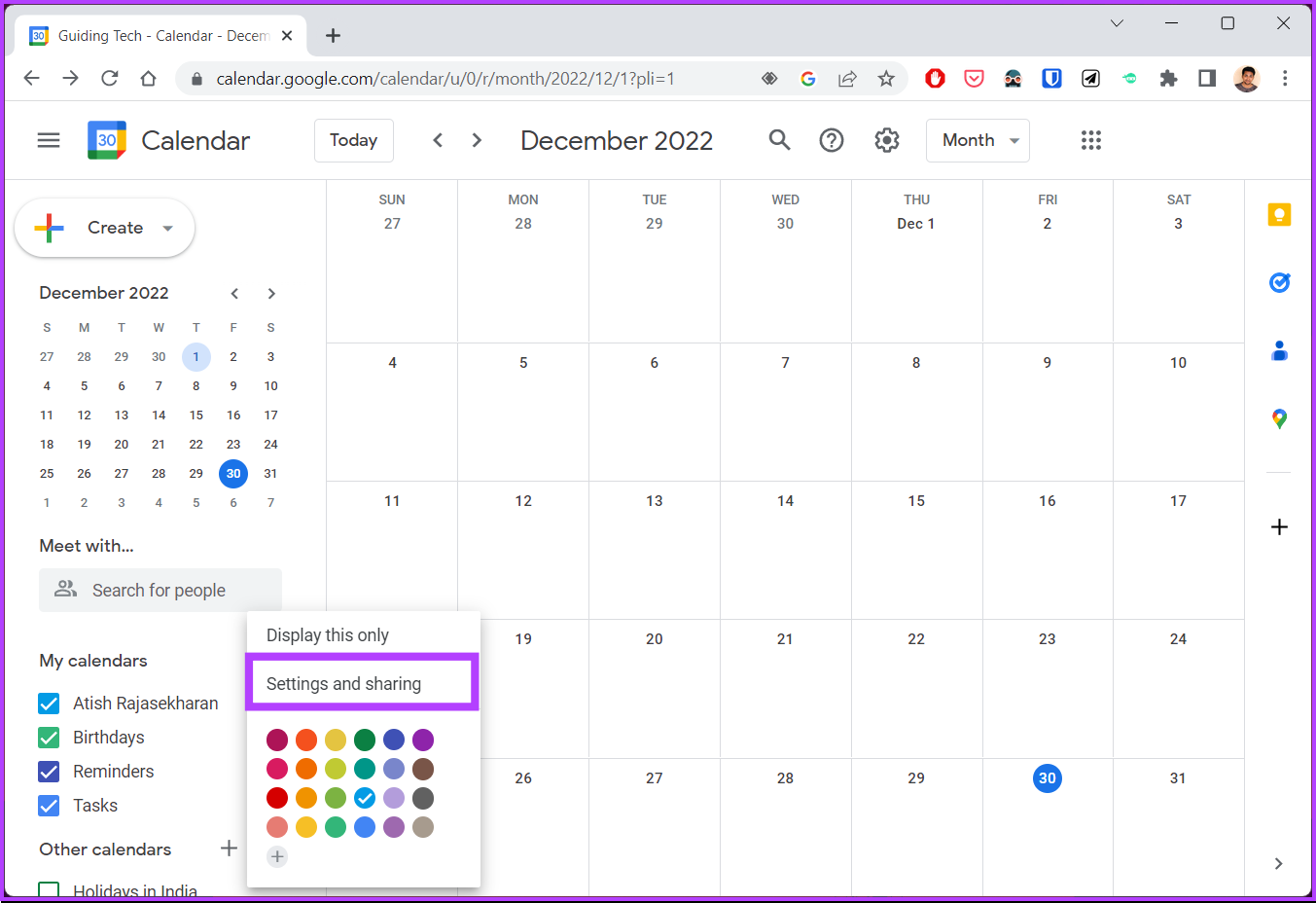
Step 4: Navigate to Integrate calendar.
Step 5: Scroll down, click on toggle visibility (eye icon), and copy the Secret address in iCal format.
Note: If you are on Google Workspace, use Public address in iCal format for this step.
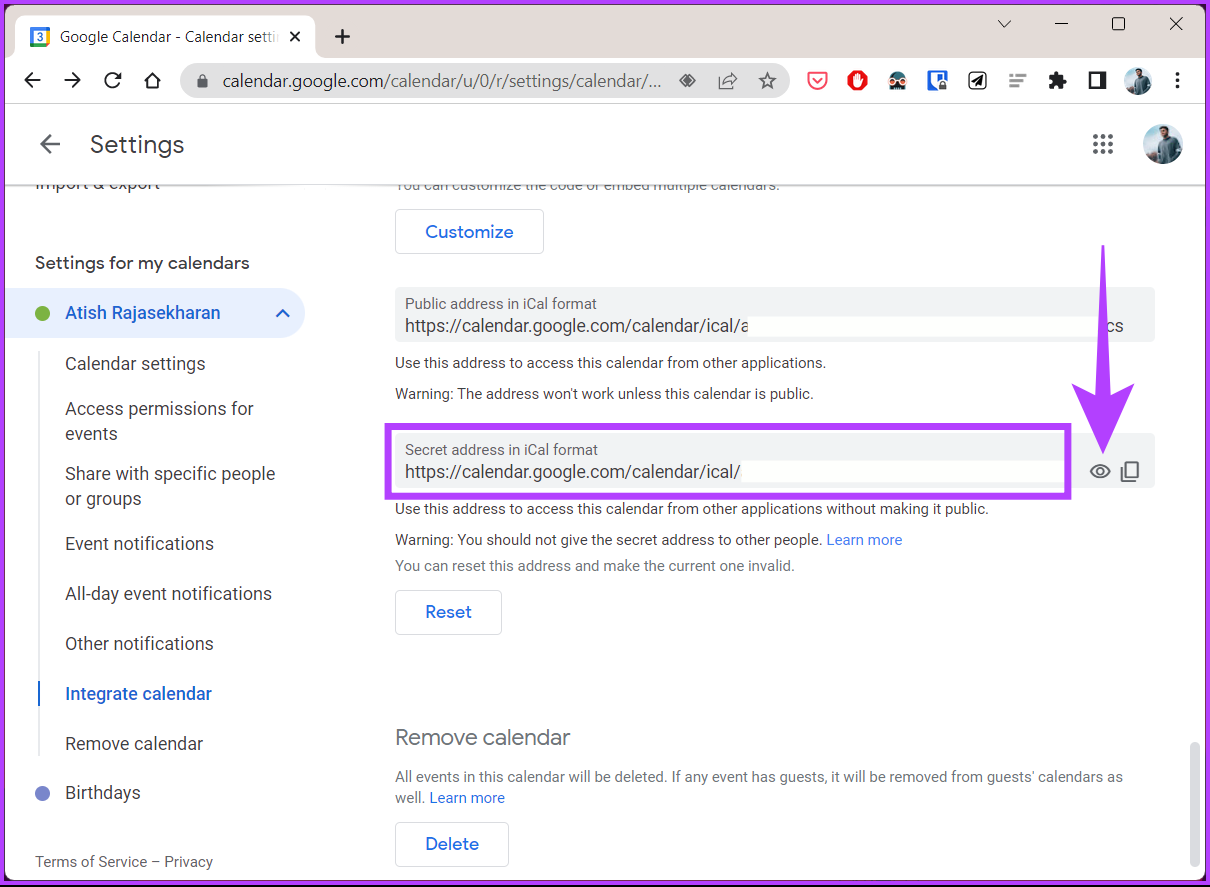
Step 6: Now, Open Outlook Calendar on a different tab and go to Calendar.
Step 7: Click on the hamburger menu.

Step 8: Select Add calendar.
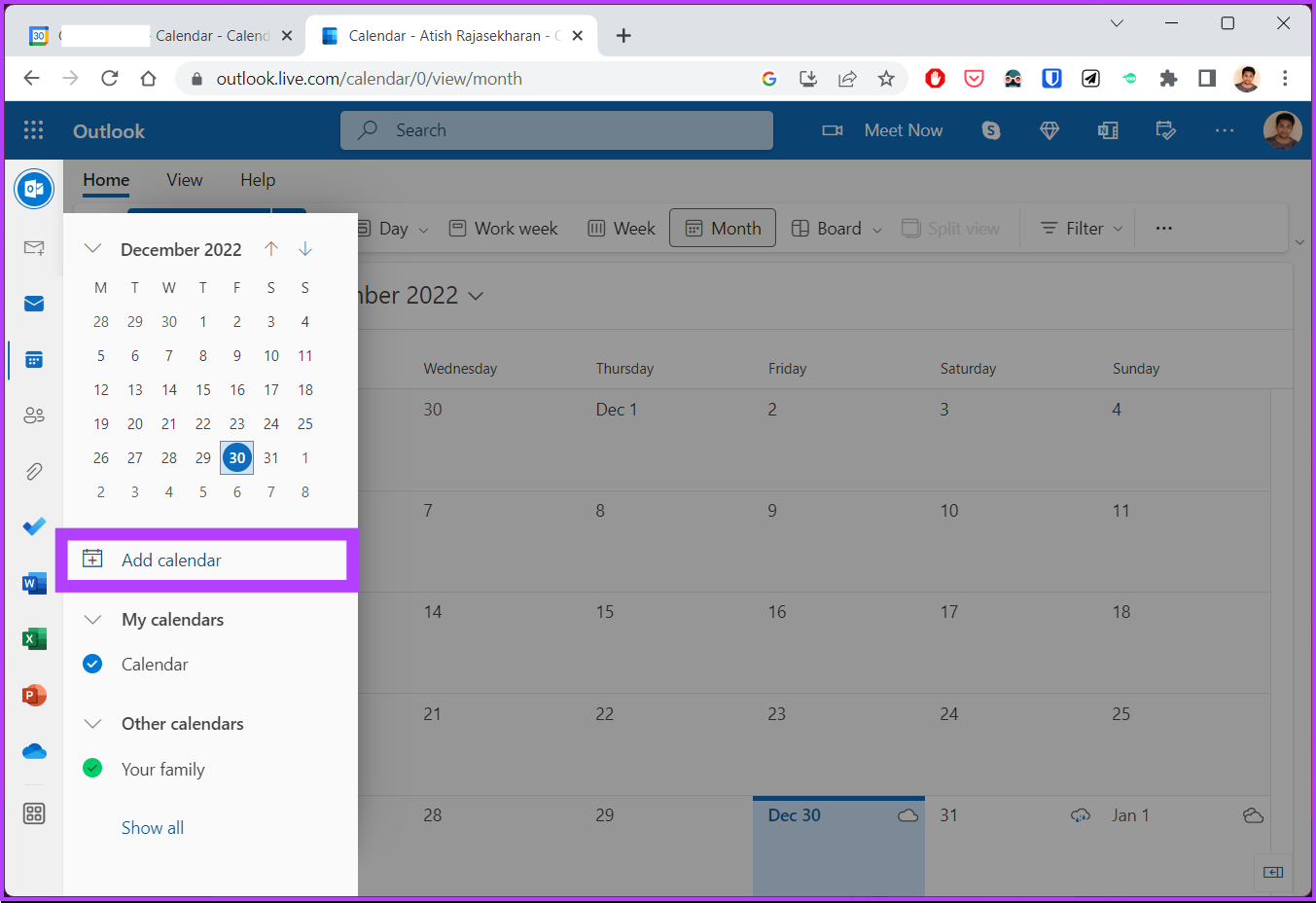
Step 9: In the Add calendar pop-up, navigate to Subscribe from web.
Step 10: Paste the Calendar link and give it a name.
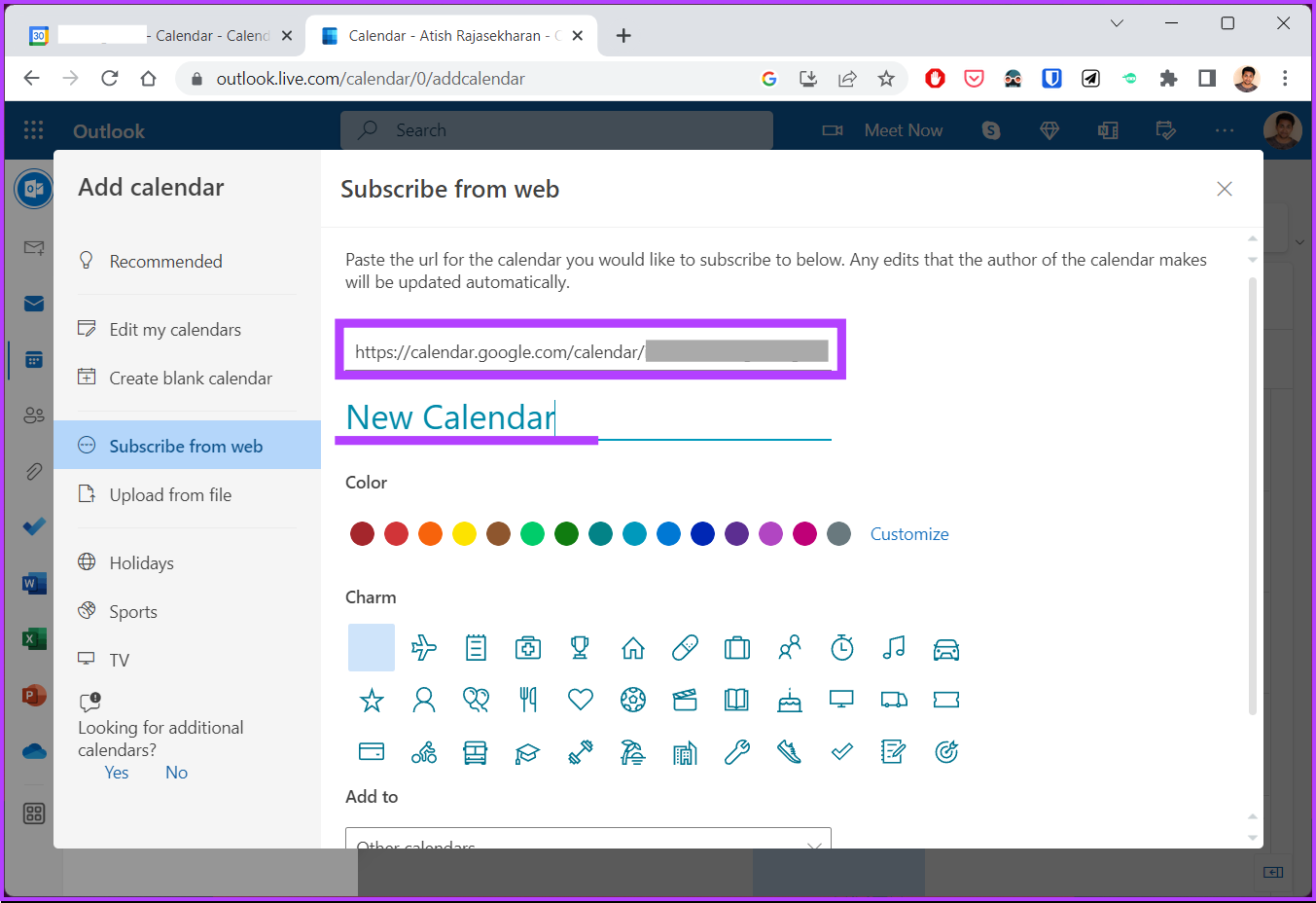
Step 11: Finally, click on Import.
There you have it. Now, you can access all the events of Google Calendar on Outlook Calendar, easing the process of checking the events. If you have any queries, check out the FAQ section below.
FAQs on Syncing Outlook Calendar With Google Calendar
There could be multiple reasons for it, such as incorrect sync settings, network or internet connection issues, third-party apps, and so on. Try any of the above methods and see if it helps.
There are no official limitations, you can create as many calendars as you need and name them according to your preference.
By default, only you can view your Outlook calendar. However, you can choose to share your calendar with others and give them access to view it.
Merging your Outlook Calendar with your Google Calendar can be a useful and convenient way to keep track of your schedules and appointments.
Was this helpful?
Last updated on 11 July, 2024
1 Comment
Leave a Reply
Read Next
 How to Add Zoom Meetings to Outlook Calendar and Google Calendar
How to Add Zoom Meetings to Google Calendar The easiest way is using the Zoom for Google Workspace Google calendar add-on.
How to Add Zoom Meetings to Outlook Calendar and Google Calendar
How to Add Zoom Meetings to Google Calendar The easiest way is using the Zoom for Google Workspace Google calendar add-on.
 How to Add and Remove Holidays Calendar in Apple Calendar App
How to Use Holidays Calendar on iPhone The Apple Calendar app offers a built-in regional calendar, displaying the common holidays (occasions and festivals) from that area.
How to Add and Remove Holidays Calendar in Apple Calendar App
How to Use Holidays Calendar on iPhone The Apple Calendar app offers a built-in regional calendar, displaying the common holidays (occasions and festivals) from that area.
 How to Share Your Outlook Calendar and Manage Permissions
How to Share Your Microsoft Outlook Calendar Note: To share your Microsoft Outlook calendar, you must have a Microsoft 365 or Exchange account.
How to Share Your Outlook Calendar and Manage Permissions
How to Share Your Microsoft Outlook Calendar Note: To share your Microsoft Outlook calendar, you must have a Microsoft 365 or Exchange account.
 How to Connect iCloud Email to Outlook
Set Up iCloud Email to New Outlook App On Windows Microsoft has started promoting the web-based Outlook app on Windows.
How to Connect iCloud Email to Outlook
Set Up iCloud Email to New Outlook App On Windows Microsoft has started promoting the web-based Outlook app on Windows.
 6 Best Microsoft Outlook Calendar Tips & Tricks to Manage It Better
The Microsoft Office Calendar is part of Microsoft 365 products and is not a stand-alone program.
6 Best Microsoft Outlook Calendar Tips & Tricks to Manage It Better
The Microsoft Office Calendar is part of Microsoft 365 products and is not a stand-alone program.
 How to Add and Edit Outlook Calendar Reminders
Add Reminders to Outlook Calendar on Mobile The Outlook app on your iPhone and Android lets you quickly add reminders to your Outlook calendar on the go.
How to Add and Edit Outlook Calendar Reminders
Add Reminders to Outlook Calendar on Mobile The Outlook app on your iPhone and Android lets you quickly add reminders to your Outlook calendar on the go.
 4 Fixes for Events Not Showing in Outlook Calendar on Windows 11
Basic Fixes Check your internet speed: You should check the status of your internet speeds in order to sync your calendar events to Outlook Check your Outlook account: If you
4 Fixes for Events Not Showing in Outlook Calendar on Windows 11
Basic Fixes Check your internet speed: You should check the status of your internet speeds in order to sync your calendar events to Outlook Check your Outlook account: If you
 How to Add and Remove Holidays in Outlook Calendar on Mobile and Desktop
How to Add Holidays in Outlook Calendar App on Mobile Let's check how to add holidays to the Outlook Calendar app for Android and iPhone.
How to Add and Remove Holidays in Outlook Calendar on Mobile and Desktop
How to Add Holidays in Outlook Calendar App on Mobile Let's check how to add holidays to the Outlook Calendar app for Android and iPhone.
The article above may contain affiliate links which help support Guiding Tech. The content remains unbiased and authentic and will never affect our editorial integrity.

This article is garbage. None of these solutions _sync_ the calendars, they just let you see them side by side. You still have to manually recreate all events from one to the other and vice versa.
What horrific clickbait, you should be ashamed.