


How to Enable Backup & Sync in Google Photos
To add the pictures in your Photos app to the Google Photos app, you first need to enable the automatic sync option. Here’s how to do it.
Step 1: Download and open the Google Photos app on your iPhone. Tap your account picture in the top-right corner and select Google Photos settings.
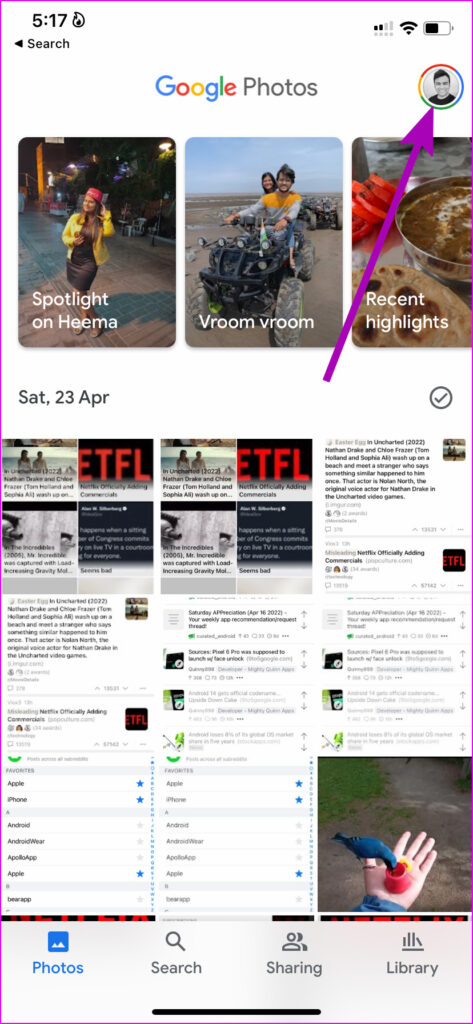
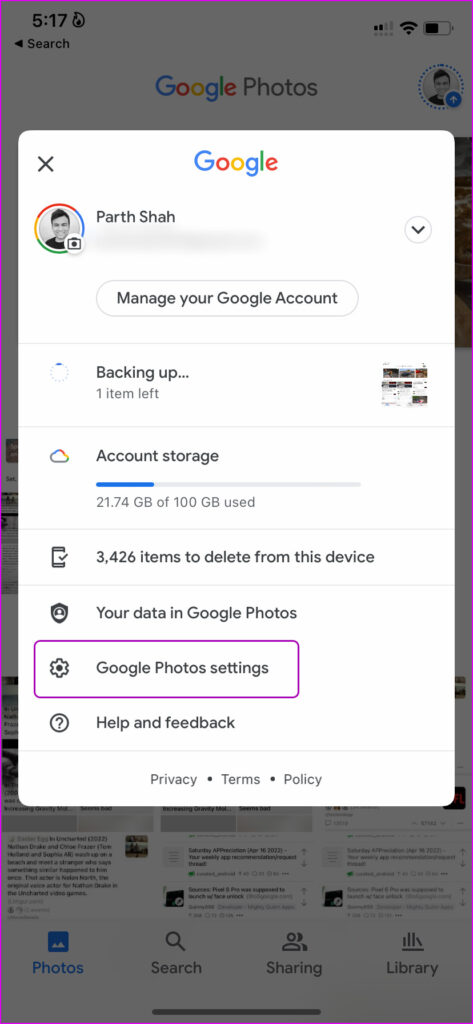
Step 2: Tap on Backup & sync option and enable the toggle for Backup & sync. You can tap the Upload size option to select your preferred quality for uploads.
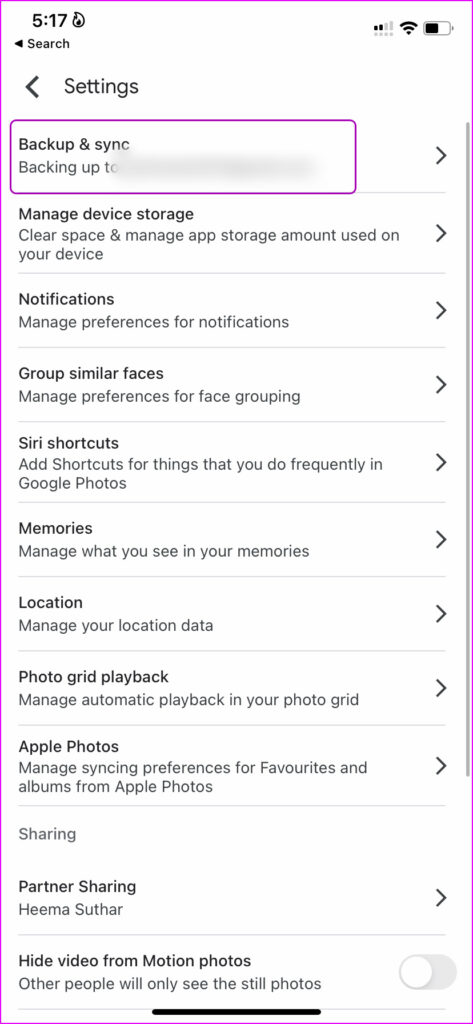

Once you do this, Google Photos will begin to sync the pictures from the Apple Photos library. This might take a while, depending on the number of photos and videos you have on your iPhone.
How to Sync Apple Photos Favorites to Google Photos
The Apple Photos app allows you to mark certain photos as favorites, making it easier to find them without scrolling through your entire photo library. Fortunately, you don’t need to add these favorites again in Google Photos. Google Photos can automatically sync your favorites from Apple Photos. Here’s what you need to do:
Step 1: Open the Google Photos app on your iPhone. Tap your account picture in the top-right corner and select Google Photos settings.
Step 2: Scroll down to Apple Photos and enable Sync Favorites toggle.


Your Apple Photos favorites will appear in Library > Favorites in the Google Photos app.
How to Remove Uploaded Google Photos Media From iPhone
iCloud offers a handy feature that allows you to remove media files from your phone storage once they’ve been backed up, helping to free up space on your device. Google Photos also provides a similar function, which we highly recommend using if you’re dealing with low storage space on your iPhone.
Step 1: Open the Google Photos app on your iPhone. Tap your account picture in the top-right corner and select Google Photos settings.
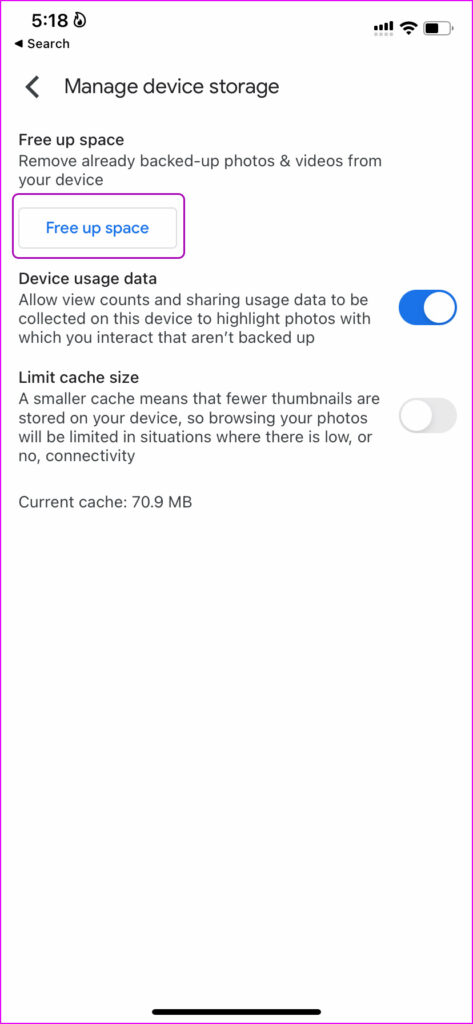
Step 2: Tap on the Manage device storage menu.
Step 3: Select the Free up space button. Google Photos will remove photos and videos on your iPhone that are already part of a backup.

Was this helpful?
Last updated on 03 September, 2024
1 Comment
Leave a Reply
Read Next
 How to Add Downloaded Music to Apple Music Library
If you download songs on your iPhone and use the Files app to listen to them, you are doing it wrong.
How to Add Downloaded Music to Apple Music Library
If you download songs on your iPhone and use the Files app to listen to them, you are doing it wrong.
 How to Auto Sync Files and Photos to Google Drive on Android
Today, smartphones are more than just devices for tending to calls and messages.
How to Auto Sync Files and Photos to Google Drive on Android
Today, smartphones are more than just devices for tending to calls and messages.
 How to Use App Library on iPhone
How to Access App Library Apple has redesigned the iPhone’s home screen with the launch of iOS 14.
How to Use App Library on iPhone
How to Access App Library Apple has redesigned the iPhone’s home screen with the launch of iOS 14.
 10 Ways to Fix Google Family Play Library Not Working
Fix 1.
10 Ways to Fix Google Family Play Library Not Working
Fix 1.
 How to Sync Apple Notes with OneNote
Add Outlook Account and Enable Notes For the Notes app, you can add your Outlook account details and then enable syncing.
How to Sync Apple Notes with OneNote
Add Outlook Account and Enable Notes For the Notes app, you can add your Outlook account details and then enable syncing.
 How to Delete Photos From iPhone But Not From Google Photos
How to Delete Photos from iPhone But Keep Them in Google Photos Open Google Photos, swipe up the photo you want to delete, and select Delete from Device.
How to Delete Photos From iPhone But Not From Google Photos
How to Delete Photos from iPhone But Keep Them in Google Photos Open Google Photos, swipe up the photo you want to delete, and select Delete from Device.
 How to Move Photos From iPhone to Google Photos
Method 1.
How to Move Photos From iPhone to Google Photos
Method 1.
 5 Ways to Fix Google Photos App Not Showing All Photos
Basic Fixes Check your network connection - Ensure your phone is connected to a good internet connection.
5 Ways to Fix Google Photos App Not Showing All Photos
Basic Fixes Check your network connection - Ensure your phone is connected to a good internet connection.
The article above may contain affiliate links which help support Guiding Tech. The content remains unbiased and authentic and will never affect our editorial integrity.
Hi,
I like your guide on setting google photos on iOS. I think everybody will understand and appreciate the content.
I have follow up question thou. I manage my photos on iPhone photos app. I would like to have same photos on my Google photos app as I have in iPhone photos. Unfortunately for some reason when I delete unwanted photos from my iOS photos app they do not delete themselves from Google photos app. I have all synchronization on and everything but Google photos still keeps photos I deleted from iPhone. Do you have any idea how I can fix it?