
Have you ever turned off your PC with the browser open, only to find all the tabs reload when you turn it back on? This can happen because Windows can automatically reopen certain restartable apps after you sign in. Browsers may also restore their previous sessions using their own settings. While this can be useful, having too many apps reopen can slow down the startup process. Here’s what to do if you see Windows 11 opening after restart.
Fix 1 – Prevent Windows 11 Opening Apps After Restart Through Sign-In Settings
Most apps that support this “feature” come from Microsoft itself or are browsers, and there’s a global setting that can manage them.
Step 1. Open “Settings” and go to “Accounts” from the left-hand panel.
Step 2. Go to “Sign in options.”
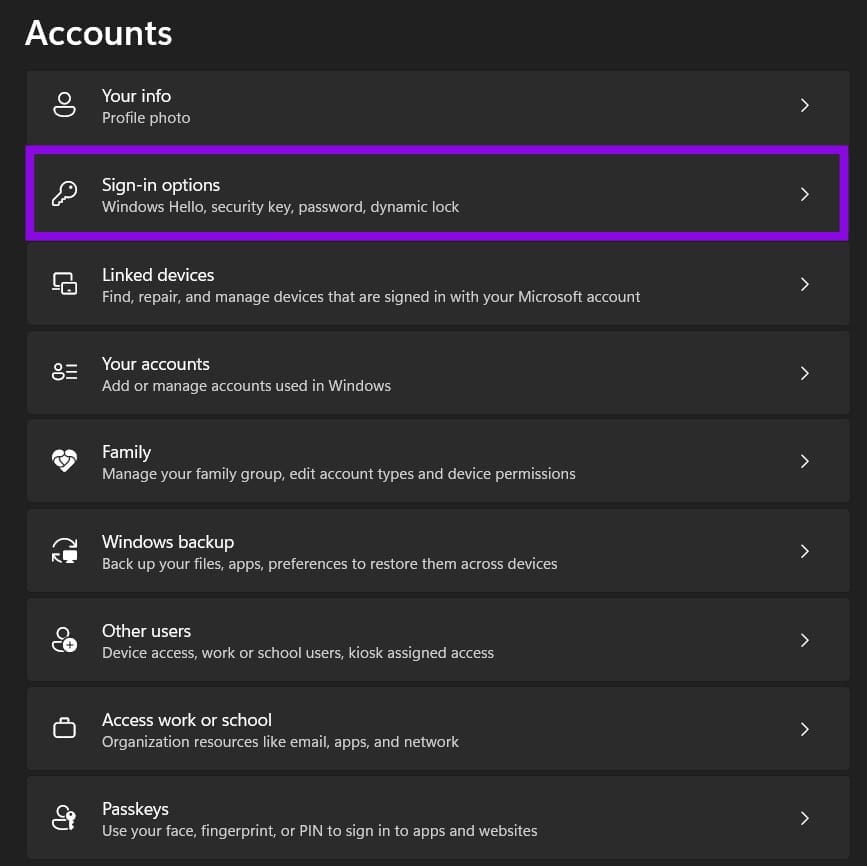
Step 3. Scroll down and disable the option “Automatically save my restartable apps and restart them when I sign back in.”

If the option doesn’t exist, look for anything about restarting apps (as Microsoft may have renamed it in a newer update).
Fix 2 – Use a Clean Shutdown Shortcut to Stop Apps Opening After Restart
The “Shut down” button in the Start menu usually saves current context, which can prompt some apps to reopen with it later. This can be bypassed by creating a new shutdown shortcut using the Windows shutdown command, which performs a full shutdown rather than a hybrid shutdown. This may help stop apps reopening after restart.
Step 1. In a space on the desktop, right-click and select “New,” then choose “Shortcut.”
Step 2. Put the following in the text box:
shutdown /s /t 0
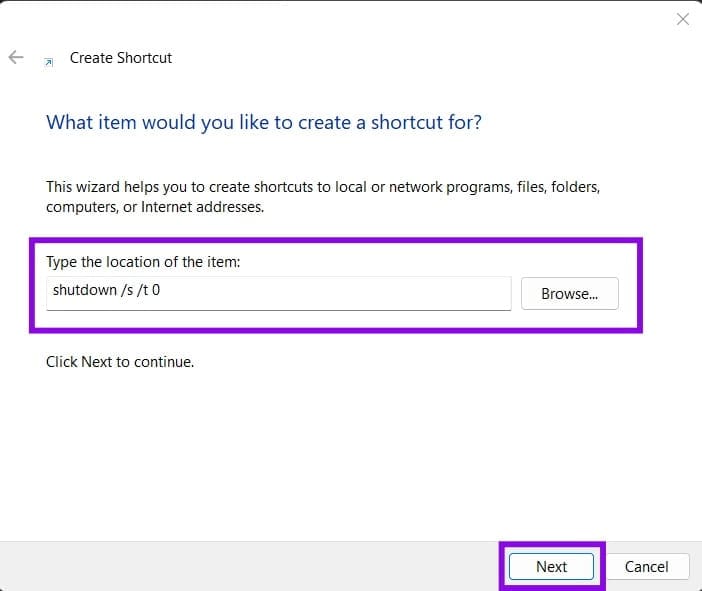
Step 3. Click on “Next” and give the shortcut a name you won’t miss, then click “Finish.”

Step 4. You can open the shortcut’s Properties to change its icon to something memorable.
Double-clicking on the shortcut will shut down the PC. You can also put it in your toolbar.
Alternatively, if you don’t want to put something on the desktop that you might accidentally click, you can use the same command from the Command Prompt. Make sure to save your work beforehand, as it doesn’t come with a confirmation prompt.
Step 1. Open the Command Prompt.
Step 2. Enter the command and press “Enter.”
Fix 3 – Prevent Startup Apps Through Task Manager
If apps are reopening in a “blank” state, such as their home screens, they may be configured to launch automatically when you sign in to Windows. This can prolong Windows 11 boot times, especially if you end up installing a lot of them. Most of them can be managed via Task Manager.
Step 1. Open Task Manager (available by right-clicking on the taskbar and selecting it).
Step 2. Go to the “Startup apps” tab on the left.
Step 3. For each app you want to stop from automatically running, right-click on it and select “Disable.” Most apps will also list how much approximate resources they use in terms of boot time impact.

Was this helpful?
Last updated on 06 November, 2026
Read Next
 Top 4 Fixes for Windows 10 PC Automatically Restarting After Shutdown
Power-related failures on Windows PC come in different forms.
 5 Ways to Fix Windows 11 Stuck on Restarting Screen
Try Basic Fixes Perform a force shutdown: While your Windows PC is stuck on restarting, press and hold the Windows key + X + power button until it turns off
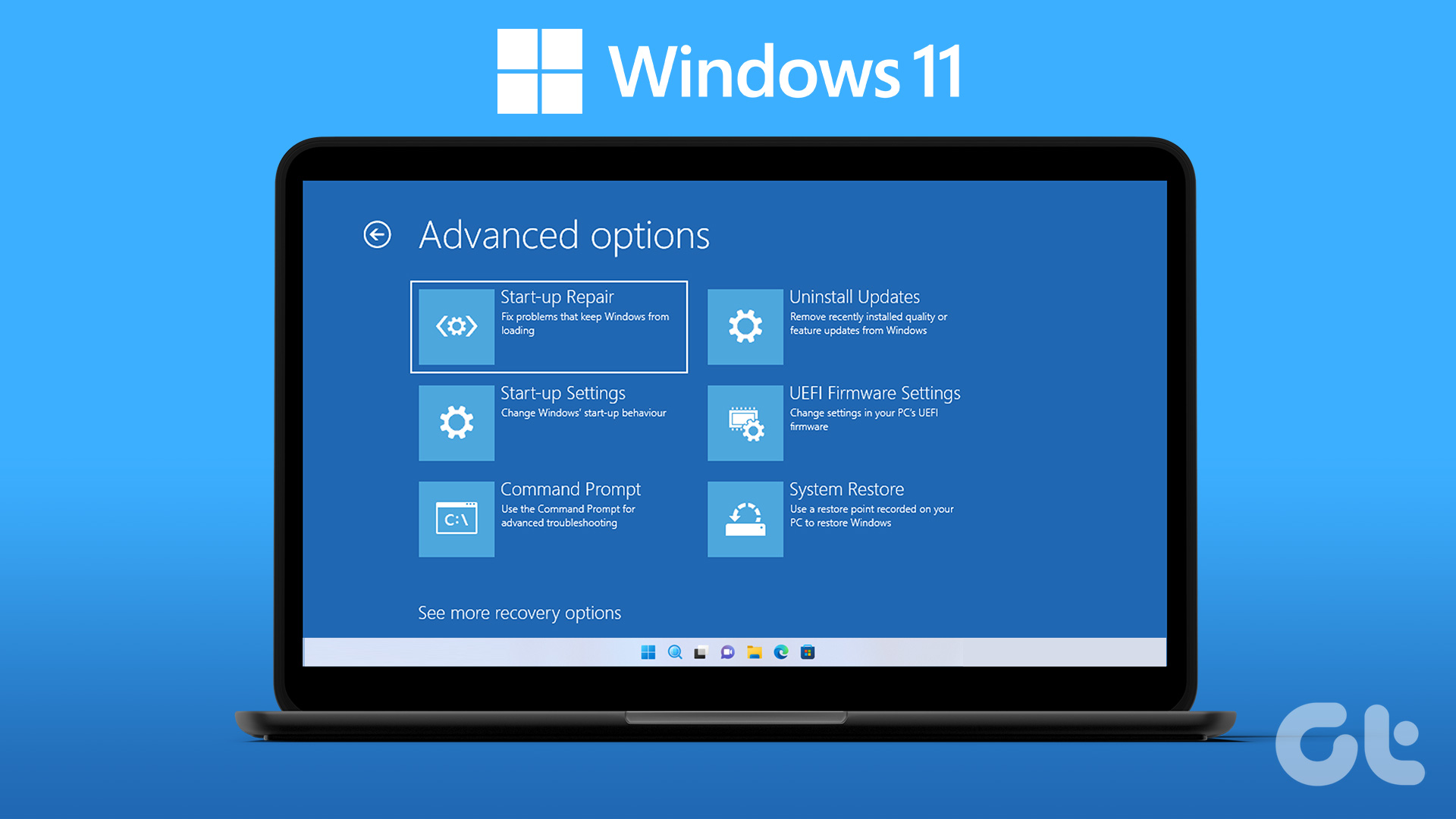 How to Enter BIOS on Windows 10 and 11 PC Without Restarting
What Is BIOS and How Does It Work?
 Windows 11 Installation Keeps Restarting After Reboot
If your Windows 11 installation keeps restarting with each mandatory reboot, cycling back to the setup screen instead of progressing to the desktop, you’re not alone.
 How to Prevent Windows From Restarting After an Update
Unexpected Windows updates can be frustrating if they interrupt your productivity.
 3 Ways to Fix Amazon Fire TV Stick Keeps Restarting
Basic Fixes Use official accessories: If you aren't using the original accessories with your Firestick, you might use an incompatible USB cable or adapter.
 4 Ways to Stop Apps From Opening at Startup in Windows 11
Method 1: Remove Startup Programs via Windows Settings Probably the easiest way to disable or manage startup apps in Windows 11 is via the Settings app.
 4 Ways to Stop Chrome From Opening Apps in Android
Fix 1: Turn off Instant Apps When you click on a link in Chrome, it may open as an Instant app.
The article above may contain affiliate links which help support Guiding Tech. The content remains unbiased and authentic and will never affect our editorial integrity.