

Method 1: Stop Automatic Backup on Android and iPhone
Step 1: Open the Google Photos app and tap the profile icon at the top-right corner.
Step 2: You can tap on Manage Storage or Google Photos Settings.
Step 3: Tap on Back up and Sync at the top and disable the toggle for Back up and Sync.


Once you disable this feature, your photos and videos will stop uploading on Google Photos. You can still view them from the Google Photos app, but they will be saved on your smartphone. However, your previously backed-up photos will remain on your drive account.
You can also check our guide to learn how to delete photos from Google Photos but not from your phone.
Method 2: Stop Automatic Backup of Pictures in Photos App to Google Photos
The Google Photos app on your iPhone lets you back up images that you mark as Favorites in the Photos app. While that helps save space on iCloud, it eventually syncs to your Google account. To stop automatic backup to Google Photos, follow the below steps.
Step 1: Open the Google Photos app on your iPhone and tap the profile icon at the top-right corner.
Step 2: Tap on Google Photos Settings.
Step 3: Tap on Apple Photos > turn off the toggle for Sync Favorites.
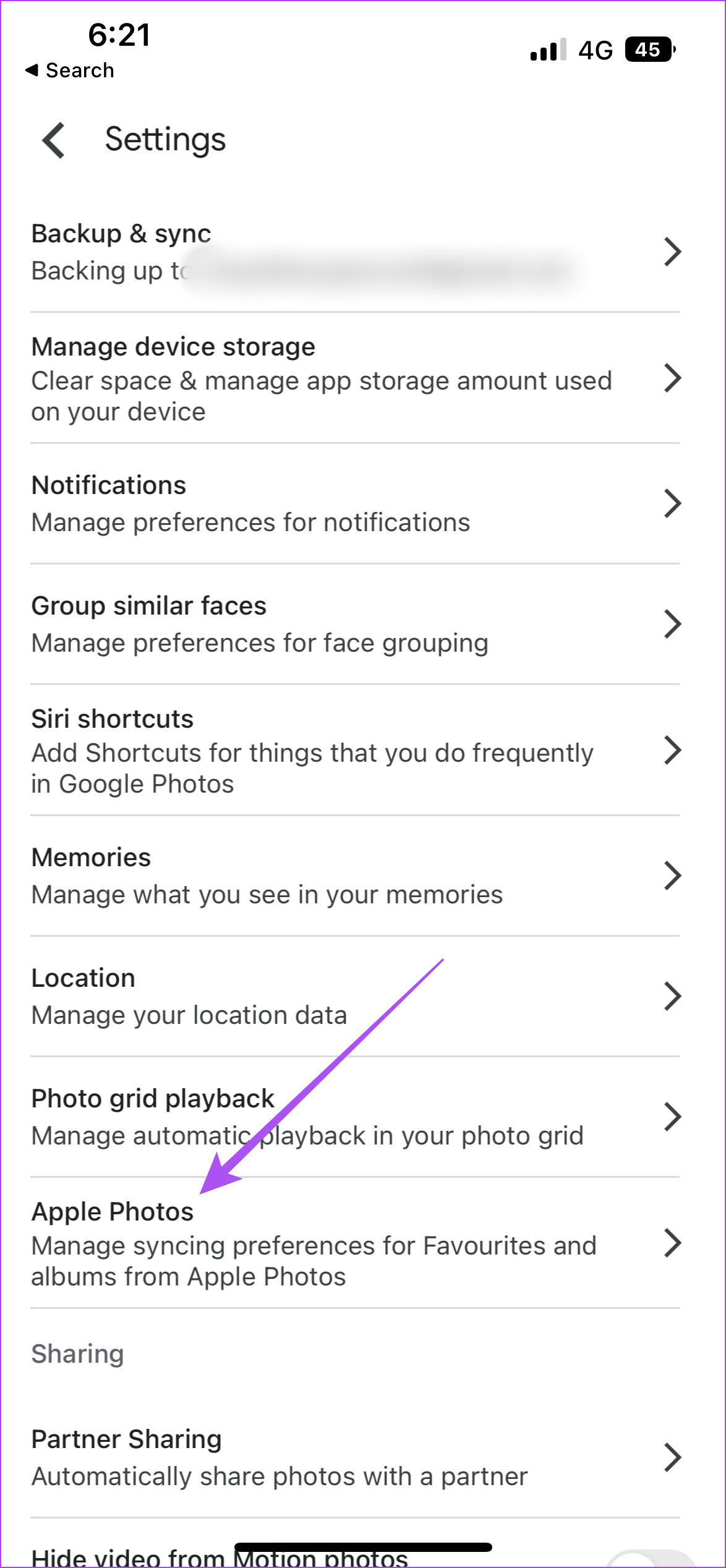
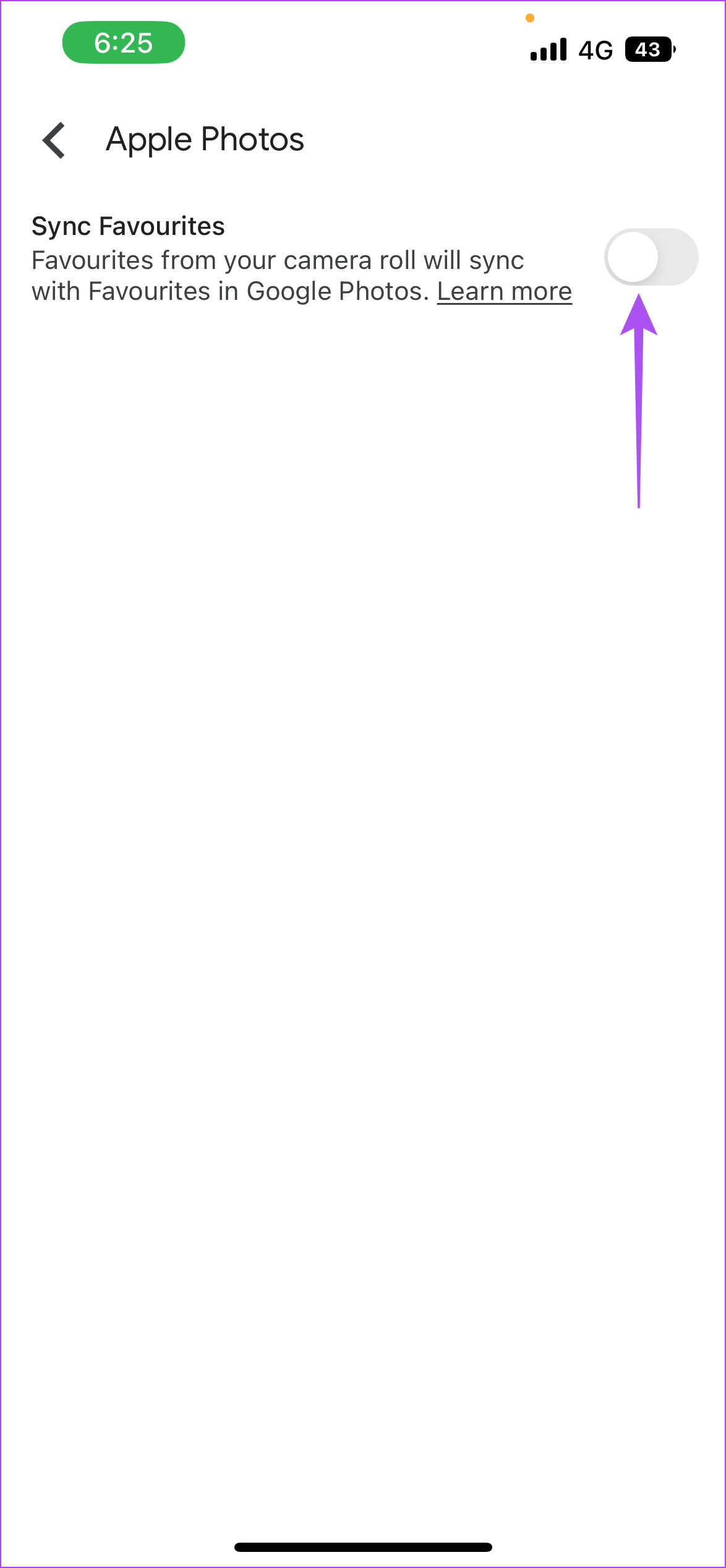
Check out our guide to delete photos from Google Photos but not from iCloud and better manage your cloud storage and data.
Method 3: Stop Automatic Backup to Google Photos on Desktop
The Google Drive app is also available for Desktop users. Let us show you how to stop the automatic backup of photos and videos from your Mac or Windows PC to Google Drive.
Step 1: On Mac, click on the Google Drive icon on the right side of the top Menu Bar.
On Windows, click the arrow icon at the bottom-right corner of the desktop and click the Google Drive icon.
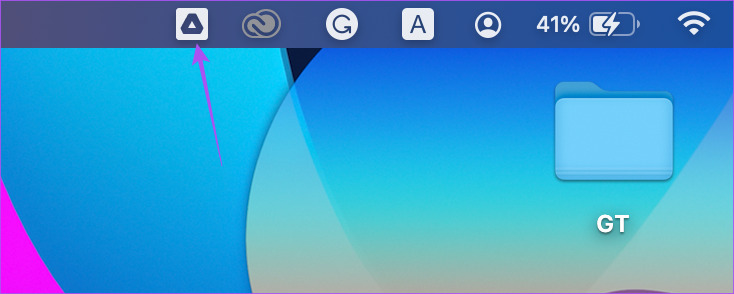
Step 2: Click the Settings icon from the popup message.

Step 3: Click on Pause Syncing from the list of options.
Was this helpful?
Last updated on 12 April, 2024
1 Comment
Leave a Reply
Read Next
 Google Drive vs Google Photos: Which Is Best for Storing Photos
Google Drive vs Google Photos Comparison Key Differences Feature Google Drive Google PhotosFile Types All types Photos, Videos, GIFsOrganization Folders & Subfolders AlbumsPhoto Quality Original Original, High (compressed), Express (compressed)Storage
Google Drive vs Google Photos: Which Is Best for Storing Photos
Google Drive vs Google Photos Comparison Key Differences Feature Google Drive Google PhotosFile Types All types Photos, Videos, GIFsOrganization Folders & Subfolders AlbumsPhoto Quality Original Original, High (compressed), Express (compressed)Storage
 How to Remove Photos from Google Drive but Not Google Photos
Google Drive and Photos are two similar yet distinct products for storing photos and videos.
How to Remove Photos from Google Drive but Not Google Photos
Google Drive and Photos are two similar yet distinct products for storing photos and videos.
 How to Stop Telegram From Auto-Saving Photos and Videos
Stop Telegram From Auto-Saving on Android Telegram lets you share high-quality photos and videos.
How to Stop Telegram From Auto-Saving Photos and Videos
Stop Telegram From Auto-Saving on Android Telegram lets you share high-quality photos and videos.
 How to Stop Photos and Videos From Auto-Downloading on WhatsApp
Disable Media Auto-Download on WhatsApp By default, WhatsApp automatically downloads all photos, videos, and other files shared in a WhatsApp chat or group.
How to Stop Photos and Videos From Auto-Downloading on WhatsApp
Disable Media Auto-Download on WhatsApp By default, WhatsApp automatically downloads all photos, videos, and other files shared in a WhatsApp chat or group.
 6 Best Fixes for Windows 10 Stuck in Automatic Repair Loop
Windows 10 PC runs fun until a bad system update, a corrupted file, and even a driver update can cause your it to stop working abruptly.
6 Best Fixes for Windows 10 Stuck in Automatic Repair Loop
Windows 10 PC runs fun until a bad system update, a corrupted file, and even a driver update can cause your it to stop working abruptly.
 iOS 12 Notifications Grouping By App vs Automatic: What’s the Difference
With iOS 12, Apple introduced one of the most significant improvements in quite a while — grouped notifications.
iOS 12 Notifications Grouping By App vs Automatic: What’s the Difference
With iOS 12, Apple introduced one of the most significant improvements in quite a while — grouped notifications.
 5 Ways to Turn off Automatic Updates on Windows 11
Note: All the methods mentioned below help pause or restrict automatic updates on Windows 11.
5 Ways to Turn off Automatic Updates on Windows 11
Note: All the methods mentioned below help pause or restrict automatic updates on Windows 11.
 6 Best Automatic Dog Water Dispensers and Fountains
If you often miss out on filling your dog’s water bowls, then an automatic water dispenser for dogs might be just what you are looking for.
6 Best Automatic Dog Water Dispensers and Fountains
If you often miss out on filling your dog’s water bowls, then an automatic water dispenser for dogs might be just what you are looking for.
The article above may contain affiliate links which help support Guiding Tech. The content remains unbiased and authentic and will never affect our editorial integrity.
Can you help me with questions about my google photos app on my iphone? If so, should I email you the questions? Or can you put me in touch with someone who might help?