


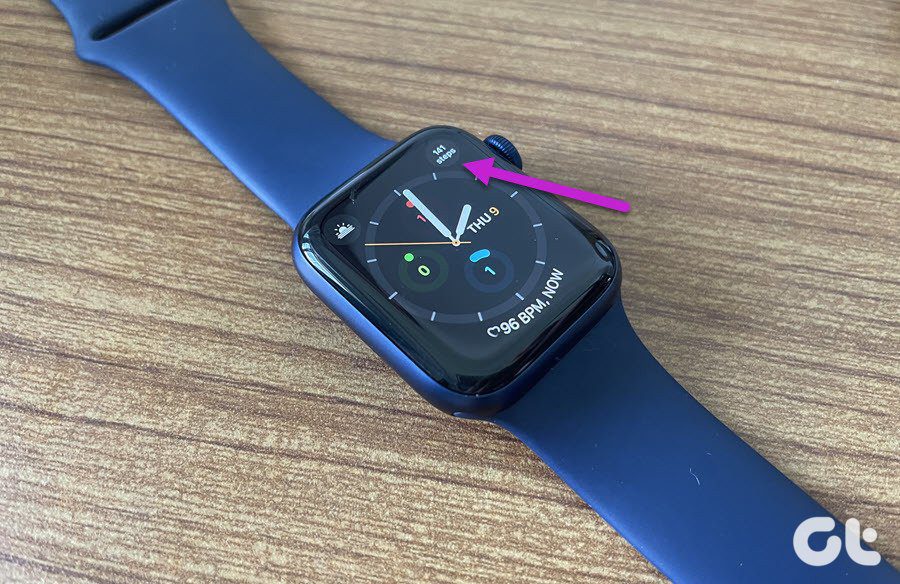
While you can see steps on your Apple Watch, there’s no native way to display the metric on any watch face. Hence, we will have to take the aid of a third-party app to add a complication.
Selecting the Right Watch Face
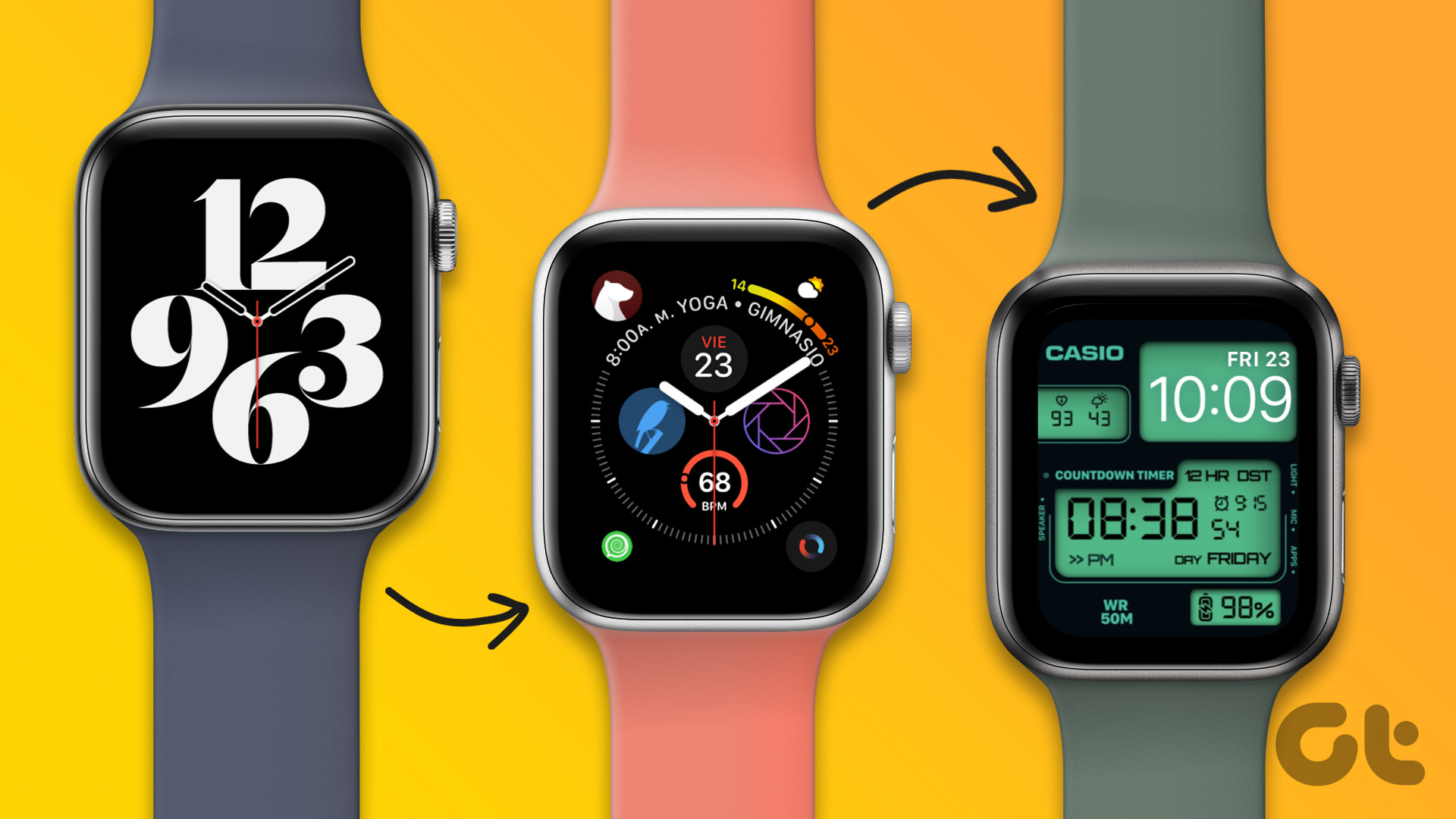
Before adding the steps complication, we’ll first have to select a watch face that supports third-party complications. Here’s how to do that.
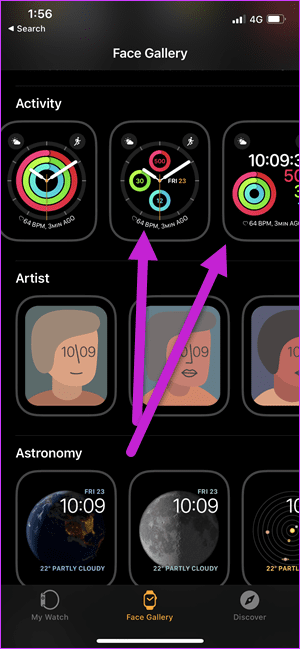
Step 1: Open the Watch app on your phone and tap on Face Gallery. Select the Modular, Modular Compact, or Infographics watch face.
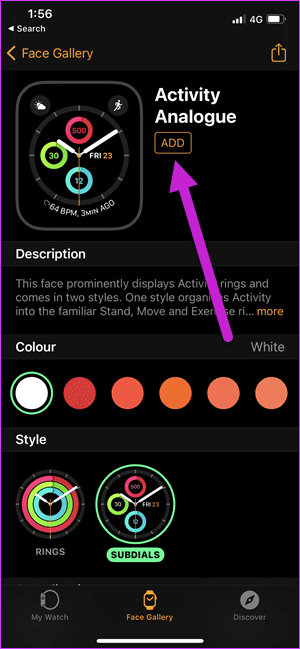
Step 2: After choosing the desired watch face, tap on Add to include it in your collection.
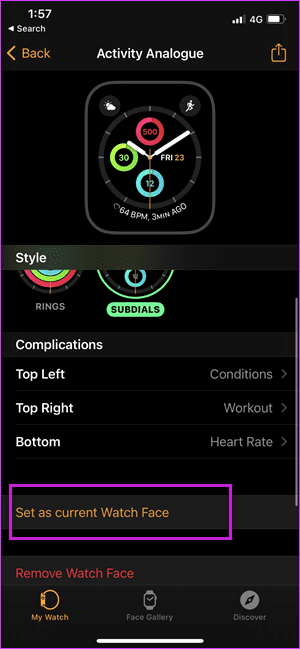
Step 3: Head over to the My Watch tab. Select the watch face and tap on Set as current Watch Face.
Adding the Step Count Complication to Your Watch Face
Now that you have set the desired watch face, it’s time to add the pedometer to your Apple Watch face. Here’s how.
Step 1: Download and install the Duffy app on your iPhone.
Step 2: Long-press on the Apple Watch face to go to the Edit mode.
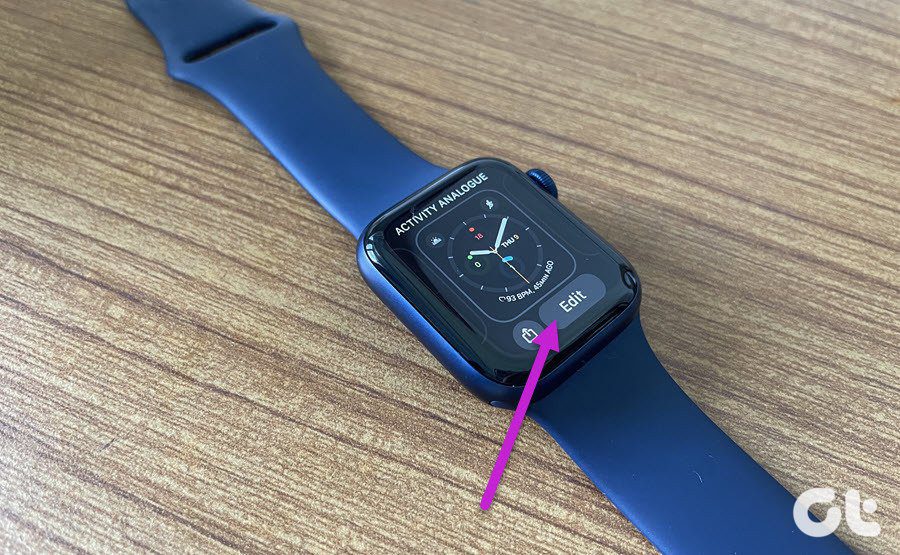
Step 3: Swipe left to go to the complications page. Once in, tap on one of the spots and choose Duffy from the list of supported apps.
Why Is Step Count Not Updating on the Apple Watch Face?
There may be a few reasons you can’t see your step count in real-time on the Apple Watch face.
- If you chose Duffy as the app of choice, it takes time to update steps on the watch face.
- Your Apple Watch is disconnected from the network and can’t sync.
- The battery level of your Apple Watch is low.
- If the Health app on your iPhone also doesn’t show the updated steps, your Apple Watch could have a hardware defect. Try taking it to the Apple Store for a resolution.
FAQs
It totally depends on the app you use to display steps. While Duffy takes a while to update the number of steps, it’s understandable since it’s free. There are also paid apps that can update your steps in real-time on the watch face.
Since third-party apps also use the same gyroscope and accelerometer sensors as your Apple Watch’s Health app, you can expect the steps tracking to be accurate.
Yes, displaying any third-party complication on the Apple Watch face will drain more battery. However, this may not have a substantial impact.
Was this helpful?
Last updated on 29 August, 2024
Read Next
 How to Change Apple Watch Face from iPhone or Watch
Traditional watches had the problem that you couldn't change their clock face.
How to Change Apple Watch Face from iPhone or Watch
Traditional watches had the problem that you couldn't change their clock face.
 6 Ways to See Steps on Apple Watch
View Daily Steps on Apple Watch or iPhone Method 1: Use the Activity App on Apple Watch Step 1: Press the Digital Crown on your Apple Watch to open the
6 Ways to See Steps on Apple Watch
View Daily Steps on Apple Watch or iPhone Method 1: Use the Activity App on Apple Watch Step 1: Press the Digital Crown on your Apple Watch to open the
 3 Ways to Fix Apple Watch Not Counting Steps Correctly
Basic Fixes Clean Rear Sensors: Dirty Apple Watch sensors can prevent footsteps from being counted or cause them to be counted improperly.
3 Ways to Fix Apple Watch Not Counting Steps Correctly
Basic Fixes Clean Rear Sensors: Dirty Apple Watch sensors can prevent footsteps from being counted or cause them to be counted improperly.
 6 Ways to Fix Apple Watch Face Keeps Changing
Basic Fixes Restart Apple Watch: This issue can often be caused by a temporary bug, and a simple restart should fix it.
6 Ways to Fix Apple Watch Face Keeps Changing
Basic Fixes Restart Apple Watch: This issue can often be caused by a temporary bug, and a simple restart should fix it.
 Top 6 Ways to Fix Samsung Galaxy Watch Not Tracking Steps
Samsung Galaxy Watch is one of the best alternatives to Apple Watch in the Android camp.
Top 6 Ways to Fix Samsung Galaxy Watch Not Tracking Steps
Samsung Galaxy Watch is one of the best alternatives to Apple Watch in the Android camp.
 How to Make Echo Show Only Show the Clock
I have my Echo Show on my desk in front of me, and it’s distracting when the display keeps changing every few seconds.
How to Make Echo Show Only Show the Clock
I have my Echo Show on my desk in front of me, and it’s distracting when the display keeps changing every few seconds.
 3 Ways to Fix Health App Not Tracking Steps on iPhone
https://youtu.be/ihwcsTDrs54 Try Basic Fixes Remove conflicting apps: At times, running multiple health or fitness apps on your iPhone can result in conflicts and prevent the Health app from tracking your
3 Ways to Fix Health App Not Tracking Steps on iPhone
https://youtu.be/ihwcsTDrs54 Try Basic Fixes Remove conflicting apps: At times, running multiple health or fitness apps on your iPhone can result in conflicts and prevent the Health app from tracking your
 5 Fixes for Samsung Health App Not Tracking Steps
Basic Fixes Ensure that step counter is enabled: Open the Health app > Tap on Steps > Three dots in the top-right corner > Check and ensure that the step
5 Fixes for Samsung Health App Not Tracking Steps
Basic Fixes Ensure that step counter is enabled: Open the Health app > Tap on Steps > Three dots in the top-right corner > Check and ensure that the step
The article above may contain affiliate links which help support Guiding Tech. The content remains unbiased and authentic and will never affect our editorial integrity.

