What You Need to Know About Snapchat Parental Controls
Snapchat includes the option of the Family Center for setting up Parental Controls. However, there are some prerequisites for using Family Center on Snapchat.
- You must be bi-directional friends with your kids on Snapchat to send them invites to the Family Center.
- Parents, guardians, or trusted relatives aged 25 or above can invite their young family members to the Family Center.
- Your kid should be between 13 and 18 to join Family Center. Users under 13 years of age are not allowed to create a Snapchat account.
Set Up Parental Controls on Snapchat
Once all the above-mentioned conditions are met, here’s how you can enable Snapchat Parental Controls. The steps apply to both iPhone and Android users.
Step 1: Open Snapchat > Profile icon > Settings > Family Centre > Continue.
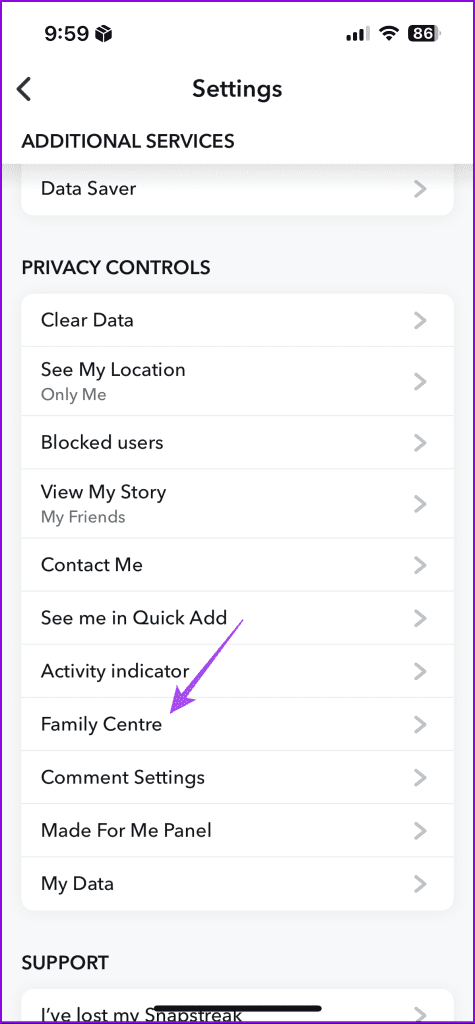

Step 2: To send an invitation to your kid(s), simply tap on their profile name and then select the Send Invitation option.
Step 3: Open Snapchat on your kid’s phone and then tap on Chat.
Step 4: Select your message and then tap on View Invitation in the chat window.
Step 5: Scroll down and then tap on Accept.

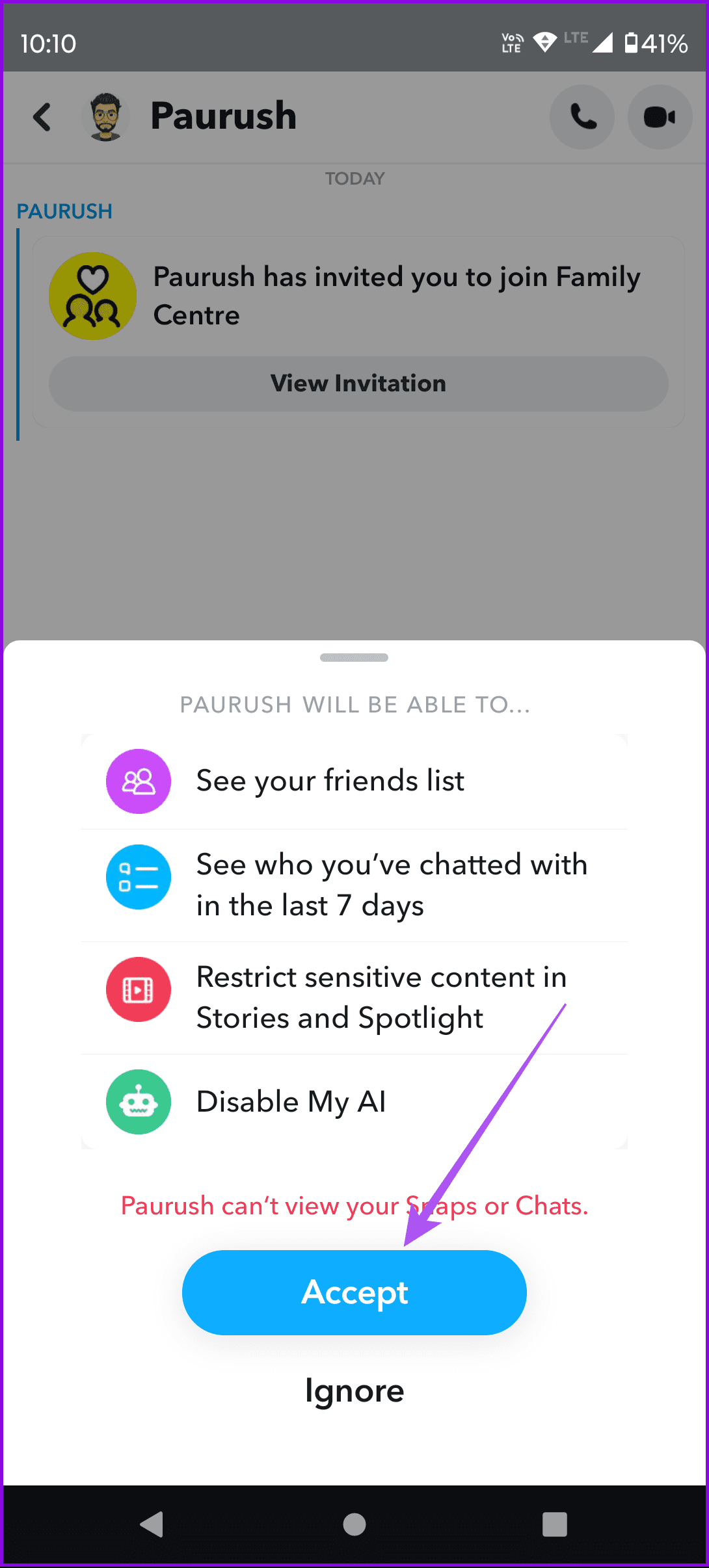
Once accepted, you will receive a notification for the same on your Snapchat account.
Manage Parental Controls on Snapchat
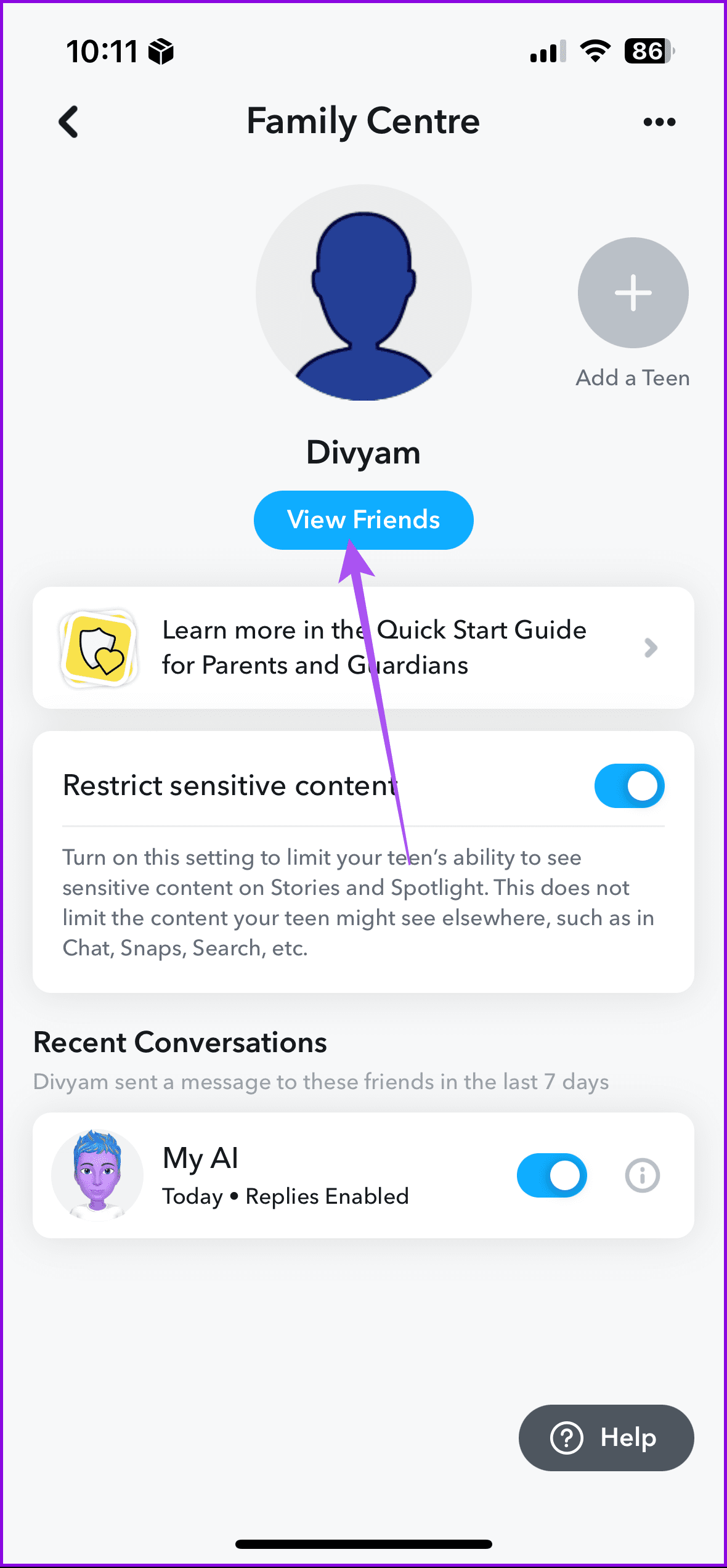
After adding your kid(s) account to the Family Center, you can now take control of restricting sensitive content. This will limit your kid’s ability to come across sensitive content on Snapchat Stories and Spotlight. However, you cannot limit the content that your kid sees in Chat, Snaps, or Search. Here’s how to manage parental controls in the Family Center.
Open Snapchat > Settings > Family Centre > Enable feature of Restrict Sensitive Content for your kid’s account.


The name of your kids’ account will be visible along with the option to check their friend list.
Once again, remember that Snapchat doesn’t allow parents to check chat messages through the Family Center utility. But you can get insights into the Recent Conversations on your kid’s account.
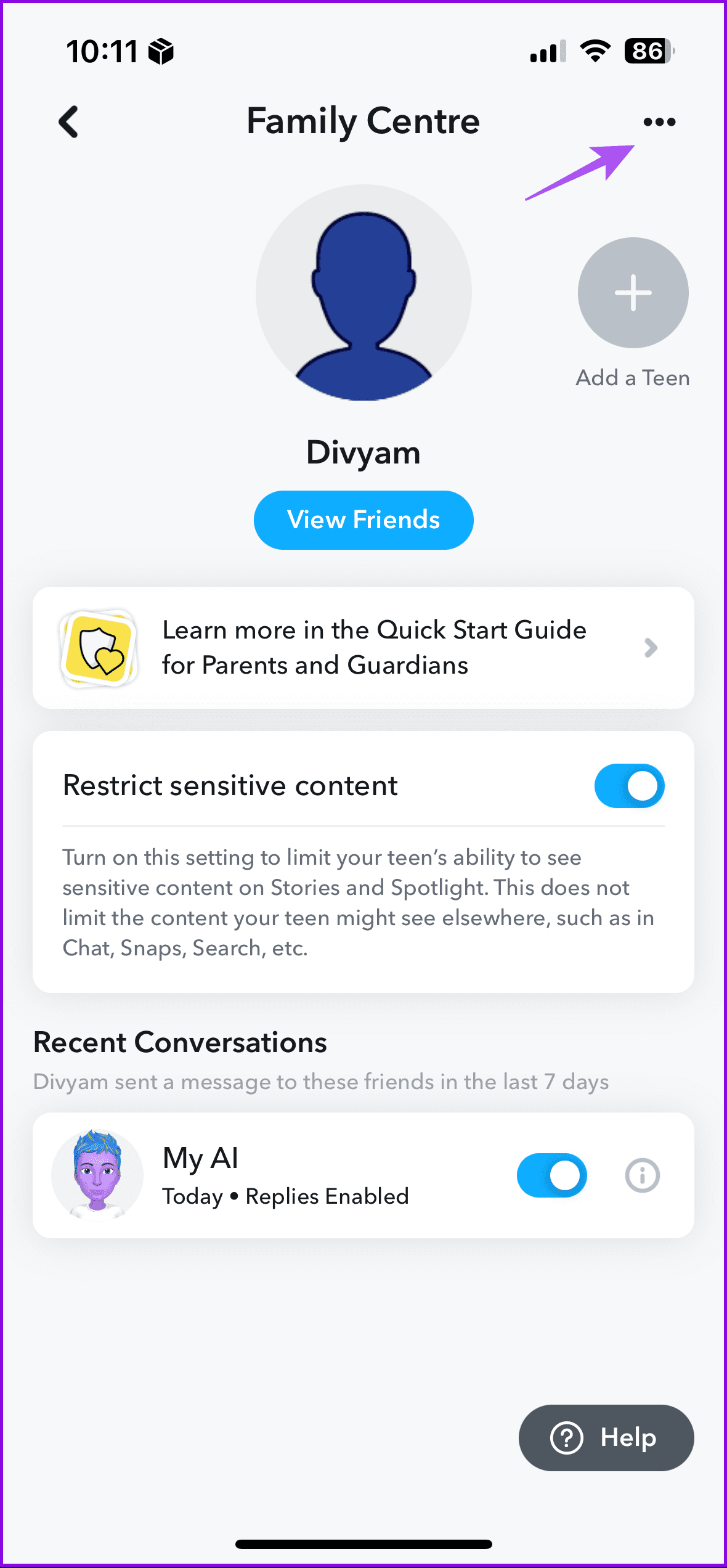
You also have the option to add more kid’s profiles in the Family Center. Just tap the Add a Teen icon and re-do the steps outlined above.

Remove Teen Profile From Family Center on Snapchat
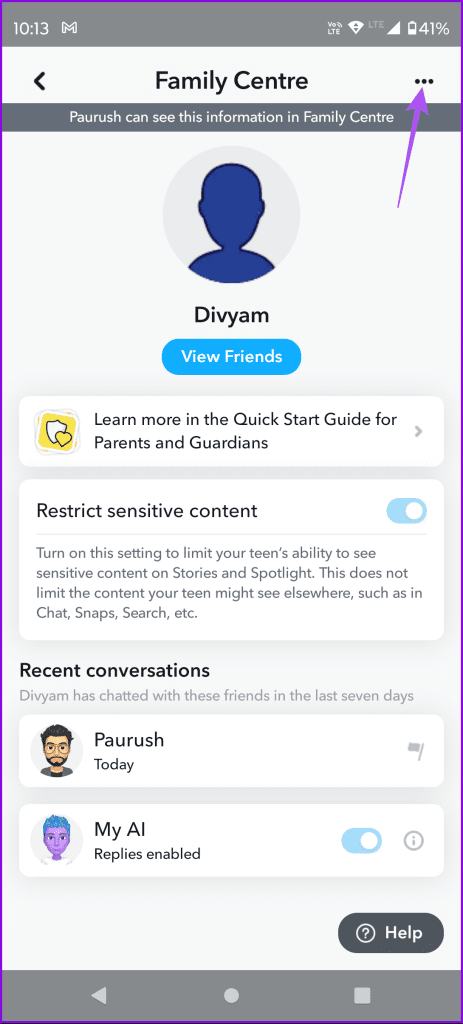
You can choose to remove your kid’s profile from the Family Center using your Snapchat account. Here’s how.
Open Snapchat on your kid’s phone > Settings > Family Centre > Three dots > Leave Family Centre.

Disable Family Center on Snapchat
As a parent, you can also choose to opt out of Family Center on your Snapchat account. Doing this will remove all the Teen Accounts added to your profile.
Open Snapchat on your your phone > Settings > Family Centre > Three dots > Leave Family Centre.

Tip: Refer to our post to learn the differences between blocking and removing someone on Snapchat. As always, let us know if this guide was helpful in the comments below.
Was this helpful?
Last updated on 27 August, 2024
Read Next
 How to Set Up and Use Fire TV Stick Parental Controls
Most services now have their app on streaming devices like the Fire TV Stick.
How to Set Up and Use Fire TV Stick Parental Controls
Most services now have their app on streaming devices like the Fire TV Stick.
 How to Access and Manage Your Google Activity Using Google Activity Controls
Google offers a wide range of products in the technology space.
How to Access and Manage Your Google Activity Using Google Activity Controls
Google offers a wide range of products in the technology space.
 How to Fix YouTube Button Controls Not Hiding
Basic Fixes: Restart the YouTube app: If the issue of button controls showing up is due to a temporary bug, restarting the app should fix it.
How to Fix YouTube Button Controls Not Hiding
Basic Fixes: Restart the YouTube app: If the issue of button controls showing up is due to a temporary bug, restarting the app should fix it.
 How to Manage and Customize Controls on OnePlus Buds
Install and Set Up the HeyMelody App Step 1: Download and install the HeyMelody app from the Play Store or App Store.
How to Manage and Customize Controls on OnePlus Buds
Install and Set Up the HeyMelody App Step 1: Download and install the HeyMelody app from the Play Store or App Store.
 5 Fixes for Touch Controls Not Working on AirPods and AirPods Pro
Fix 1: Clean the Outer Surface of the AirPods The touch sensors on the AirPods need to detect proper contact with your fingers to register a touch or a press.
5 Fixes for Touch Controls Not Working on AirPods and AirPods Pro
Fix 1: Clean the Outer Surface of the AirPods The touch sensors on the AirPods need to detect proper contact with your fingers to register a touch or a press.
 6 Best RGB Corner Floor Lamps With Smart Controls
Adding a hint of color to your home is never a bad thing.
6 Best RGB Corner Floor Lamps With Smart Controls
Adding a hint of color to your home is never a bad thing.
 How to Share Instagram Post to Snapchat Story
Can You Link Instagram to Snapchat No, you cannot directly connect Instagram to Snapchat.
How to Share Instagram Post to Snapchat Story
Can You Link Instagram to Snapchat No, you cannot directly connect Instagram to Snapchat.
 How to Make a Collage on Snapchat on iPhone and Android
How to Make a Collage on a Snapchat Story or Message You can use this lens called 'Collage Maker Lens' on Snapchat.
How to Make a Collage on Snapchat on iPhone and Android
How to Make a Collage on a Snapchat Story or Message You can use this lens called 'Collage Maker Lens' on Snapchat.
The article above may contain affiliate links which help support Guiding Tech. The content remains unbiased and authentic and will never affect our editorial integrity.