Add Reminders to Outlook Calendar on Mobile
The Outlook app on your iPhone and Android lets you quickly add reminders to your Outlook calendar on the go. Before you begin, we recommend you update the respective Outlook app to the latest version on iPhone and Android.
Step 1: Open the Outlook app on your iPhone or Android.
Step 2: Tap the Calendar icon at the bottom-right corner.
Step 3: Tap the Plus icon at the bottom-right corner.
Step 4: Enter the details of your event. Then, scroll down and then open the drop-down menu next to Remind Me.
Step 5: Select the time when you want to be reminded about the event.
Step 6: Tap on the tick mark at the top-right corner to add your event.


Edit or Delete Reminder in Outlook Calendar on Mobile
It’s only natural that you’d want to change the time of the reminder or delete it if things have changed. Here’s how you can edit or delete a reminder from your Outlook Calendar on iPhone or Android.
Step 1: Open the Outlook app on your iPhone or Android.
Step 2: Tap on the Calendar icon at the bottom.
Step 3: Tap on your event that you want to edit or remove.
Step 4: Tap the Pencil icon at the top-right corner.
Step 5: Change the reminder time and then tap on the tick mark at the top-right corner to confirm.


To delete the event, tap on Delete Event at the bottom.
Tip: Read our post if the Outlook app is not downloading attachments.
Add Reminders to Outlook Calendar on Mac
If you are using the Outlook app on your Mac, here’s how you can add a reminder to your Outlook calendar. Ensure that you are using the latest version of the app to avoid any bugs or glitches.
Step 1: Open the Outlook app on your Mac or Windows PC.
Step 2: Click the Calendar icon at the bottom-left corner.
Step 3: Once the Calendar opens, click on New Event at the top-left side.

Step 4: Fill in the details of your event.
Step 5: Click the drop-down menu next to the Reminder icon.

Step 6: Select the time when you want to be reminded about the event.
Step 7: Click on Save at the bottom-left side to confirm.
Your reminder will be added to your Outlook calendar at your chosen date and time.
Edit or Delete Reminders in Outlook Calendar on Mac
Here’s how you can edit or delete a reminder from your Outlook calendar on your Mac.
Step 1: Open the Outlook app on your desktop.
Step 2: Click the Calendar icon at the bottom-left corner.
Step 3: Right-click on your event slot in the calendar.
Step 4: Select Edit.

Step 5: Click the drop-down menu next to the Reminder icon to edit the timing.
You can also edit or change other details of your event.
To delete a reminder, right-click on your event slot in the Calendar and select Delete.

Tip: Read our post on how to turn on suggested replies in Microsoft Outlook.
Was this helpful?
Last updated on 13 July, 2024
Read Next
 How to Add Zoom Meetings to Outlook Calendar and Google Calendar
How to Add Zoom Meetings to Google Calendar The easiest way is using the Zoom for Google Workspace Google calendar add-on.
How to Add Zoom Meetings to Outlook Calendar and Google Calendar
How to Add Zoom Meetings to Google Calendar The easiest way is using the Zoom for Google Workspace Google calendar add-on.
 How to Add and Remove Holidays Calendar in Apple Calendar App
How to Use Holidays Calendar on iPhone The Apple Calendar app offers a built-in regional calendar, displaying the common holidays (occasions and festivals) from that area.
How to Add and Remove Holidays Calendar in Apple Calendar App
How to Use Holidays Calendar on iPhone The Apple Calendar app offers a built-in regional calendar, displaying the common holidays (occasions and festivals) from that area.
 How to Connect Outlook Calendar With Google Calendar: 4 Best Ways
Note: The methods recommended in the article allow two-way syncs in the calendar.
How to Connect Outlook Calendar With Google Calendar: 4 Best Ways
Note: The methods recommended in the article allow two-way syncs in the calendar.
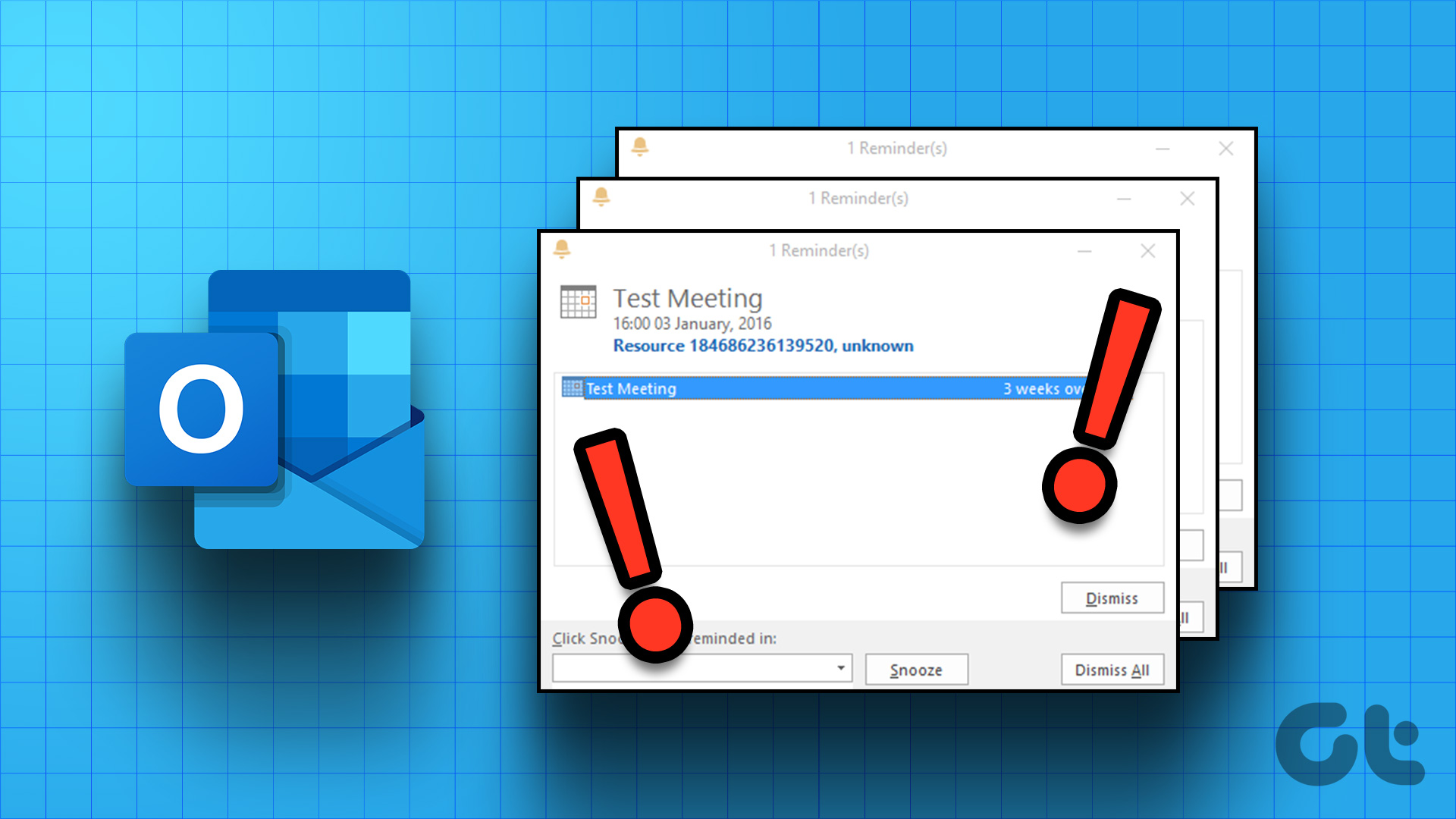 5 Ways to Fix Outlook Reminders Not Popping Up in Windows
Fix 1: Check Microsoft Outlook Reminder Settings The first thing you'll need to do is review the Outlook reminder settings to ensure they are configured correctly.
5 Ways to Fix Outlook Reminders Not Popping Up in Windows
Fix 1: Check Microsoft Outlook Reminder Settings The first thing you'll need to do is review the Outlook reminder settings to ensure they are configured correctly.
 How to Add and Remove Holidays in Outlook Calendar on Mobile and Desktop
How to Add Holidays in Outlook Calendar App on Mobile Let's check how to add holidays to the Outlook Calendar app for Android and iPhone.
How to Add and Remove Holidays in Outlook Calendar on Mobile and Desktop
How to Add Holidays in Outlook Calendar App on Mobile Let's check how to add holidays to the Outlook Calendar app for Android and iPhone.
 How to Add Reminders for Instagram Posts and Stories on Mobile App
Who Can Create Reminders for Events on Instagram Reminders are a great way to ensure you remind your followers about any of your plans and events, and they are quite
How to Add Reminders for Instagram Posts and Stories on Mobile App
Who Can Create Reminders for Events on Instagram Reminders are a great way to ensure you remind your followers about any of your plans and events, and they are quite
 6 Best Microsoft Outlook Calendar Tips & Tricks to Manage It Better
The Microsoft Office Calendar is part of Microsoft 365 products and is not a stand-alone program.
6 Best Microsoft Outlook Calendar Tips & Tricks to Manage It Better
The Microsoft Office Calendar is part of Microsoft 365 products and is not a stand-alone program.
 4 Fixes for Events Not Showing in Outlook Calendar on Windows 11
Basic Fixes Check your internet speed: You should check the status of your internet speeds in order to sync your calendar events to Outlook Check your Outlook account: If you
4 Fixes for Events Not Showing in Outlook Calendar on Windows 11
Basic Fixes Check your internet speed: You should check the status of your internet speeds in order to sync your calendar events to Outlook Check your Outlook account: If you
The article above may contain affiliate links which help support Guiding Tech. The content remains unbiased and authentic and will never affect our editorial integrity.