


How to Send Group Texts on iPhone
Sending group texts on an iPhone is easy and convenient with Apple’s Messages app. Here’s how.
Step 1: Open Messages and tap Compose (square with pencil icon).
Step 2: Enter the names or numbers of your contacts, or tap the plus sign (+) to add them.
Step 3: Type in your message and tap the green arrow to send.


Your group text will be sent to all selected contacts.
How to Send Group Texts on Android
Most Android phones use Google Messages as the default app, and here’s how to send group texts using it.
Step 1: Open the Messages app and tap Start chat > Create group.


Step 2: Add your contacts to the group, then tap Next.
Step 3: Name your group and tap Done.
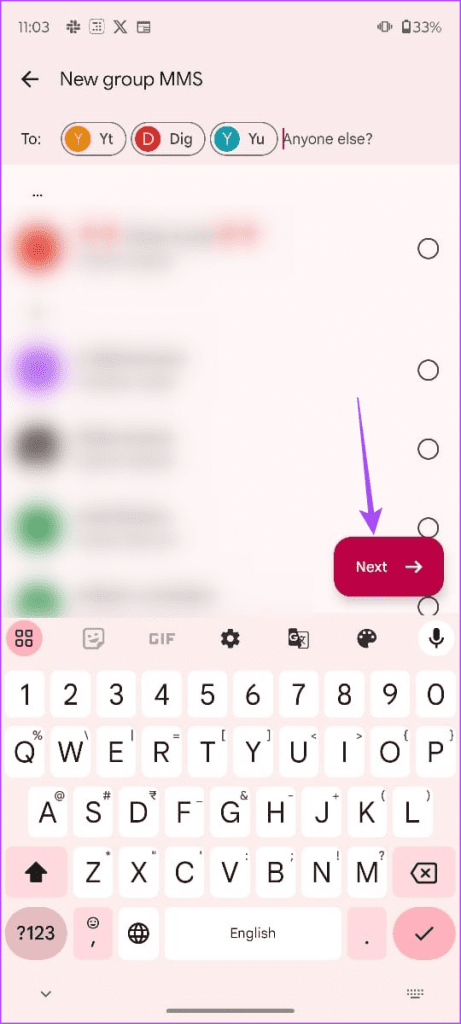

Your group chat is now created, and you can send group texts to all selected contacts.
How to Send Group Texts on Samsung
If you own a Samsung phone, Samsung Messages is the default messaging app. Sending group texts from your Samsung device is straightforward. Follow these steps.
Step 1: Open the Samsung Messages app and tap the Compose button.
Step 2: Enter the names or numbers of your contacts, or tap the plus sign (+) to select them.


Step 3: Type your message and tap the send icon (typically a paper airplane).
All selected contacts will receive your group text.
Almost everyone uses instant messaging these days, but text messages are still popular because of their simplicity. These are the procedures to send group text messages from your Android, iPhone, or Samsung device.
Was this helpful?
Last updated on 31 July, 2024
1 Comment
Leave a Reply
Read Next
 4 Ways to Fix Android Not Receiving Texts From iPhone
Why Is My Android Phone Not Receiving Texts From an iPhone?
4 Ways to Fix Android Not Receiving Texts From iPhone
Why Is My Android Phone Not Receiving Texts From an iPhone?
 How to Stop Texts From Unknown Numbers on Your Phone
How to Block Messages From Unknown Numbers on iPhone Apple allows you to block spam texts sent from unknown numbers.
How to Stop Texts From Unknown Numbers on Your Phone
How to Block Messages From Unknown Numbers on iPhone Apple allows you to block spam texts sent from unknown numbers.
 5 Ways to Fix iPhone Not Receiving Texts
Basic Troubleshooting Check cellular connectivity: If you are in an area with low or no coverage, errors like call drop, call failing, and not receiving or sending can occur.
5 Ways to Fix iPhone Not Receiving Texts
Basic Troubleshooting Check cellular connectivity: If you are in an area with low or no coverage, errors like call drop, call failing, and not receiving or sending can occur.
 How to Send Pictures in Text Message or Email on Android or iPhone
How to Send Pictures in a Text Message You can send pictures using the Messages app on your Android or iPhone.
How to Send Pictures in Text Message or Email on Android or iPhone
How to Send Pictures in a Text Message You can send pictures using the Messages app on your Android or iPhone.
 5 Ways to Fix WhatsApp Group Notifications Not Working
Common Fixes Unmute WhatsApp group - Long-tap the muted WhatsApp group and tap the Sound icon at the top to unmute notifications.
5 Ways to Fix WhatsApp Group Notifications Not Working
Common Fixes Unmute WhatsApp group - Long-tap the muted WhatsApp group and tap the Sound icon at the top to unmute notifications.
 4 Ways to Send PDFs From iPhone to Android
1.
4 Ways to Send PDFs From iPhone to Android
1.
 How to Send Pictures From Android to iPhone (Without Losing Quality)
Method 1.
How to Send Pictures From Android to iPhone (Without Losing Quality)
Method 1.
 4 Ways to Send Multiple Photos From iPhone to Android
Method 1: Use Instant Messaging Apps There are several ways to send multiple photos from iPhone and Android.
4 Ways to Send Multiple Photos From iPhone to Android
Method 1: Use Instant Messaging Apps There are several ways to send multiple photos from iPhone and Android.
The article above may contain affiliate links which help support Guiding Tech. The content remains unbiased and authentic and will never affect our editorial integrity.


Have a Samsung s22 . How do I send a group text that keeps it private with each one that I send it to as a group.