


View Daily Steps on Apple Watch or iPhone
Method 1: Use the Activity App on Apple Watch
Step 1: Press the Digital Crown on your Apple Watch to open the app screen.
Step 2: Tap the Activity app. You will see activity circles.
Step 3: Scroll down until you see the Total Steps box. This box will show you the total number of steps daily, i.e., steps for the current day.


Method 2. Use Watch Face to See Your Steps on Apple Watch
If the watch face you are using has the Activity complication, you can tap on it to open the Activity app directly from the watch face. Then, scroll down in the Activity app and look for Total Steps to check your steps.

Pro Tip: To add the Activity complication to your favorite watch face, hold the watch face to enter the edit mode. Tap Edit and swipe left to reach the Complications screen. Select the complication you want to replace and select Activity.
Method 3: Check Steps Using the Fitness App on iPhone
If you want to check your steps from the paired iPhone, you can easily do so using the Apple Fitness app.
Step 1: Open the Apple Fitness app on your iPhone.
Step 2: You will see your daily step count on the main screen in the Activity box.

Method 4: View Steps Using the Health App on iPhone
In addition to the Fitness app, you can also use the Apple Health app to see your steps. Here’s how:
Step 1: Open the Health app on your iPhone.
Step 2: You will see the Steps section under Favorites on the main screen.

If you don’t find the Steps section, tap Show All Health Data. Scroll down and tap Steps to view your daily or past history of steps.


Tip: Want more from your Apple Watch? Here are some apps to do more than fitness tracking on Apple Watch.
View Past Steps or Trends
Method 5: View Weekly Summary of Steps on Apple Watch
Step 1: Open the Activity app on your Apple Watch.
Step 2: Scroll to the bottom of the Activity graph screen and tap Weekly Summary.
Step 3: Again, scroll down to see the total steps you took in that particular week.


Method 6: How to View Steps from Previous Days on Apple Watch
While you can see the weekly summary of steps from the Apple Watch, it’s not possible to see the steps from the previous day or view the actual history of steps directly from the watch. But, thankfully, you can do it from your iPhone using both Fitness and Health apps.
1. Using the Fitness App
Step 1: Open the Fitness app → tap Steps or anywhere in the Activity area.
Step 2: Swipe right multiple times or tap the day of the week at the top to select the day whose steps you want to check. Once selected, scroll down, and you will see the total steps taken on that day.
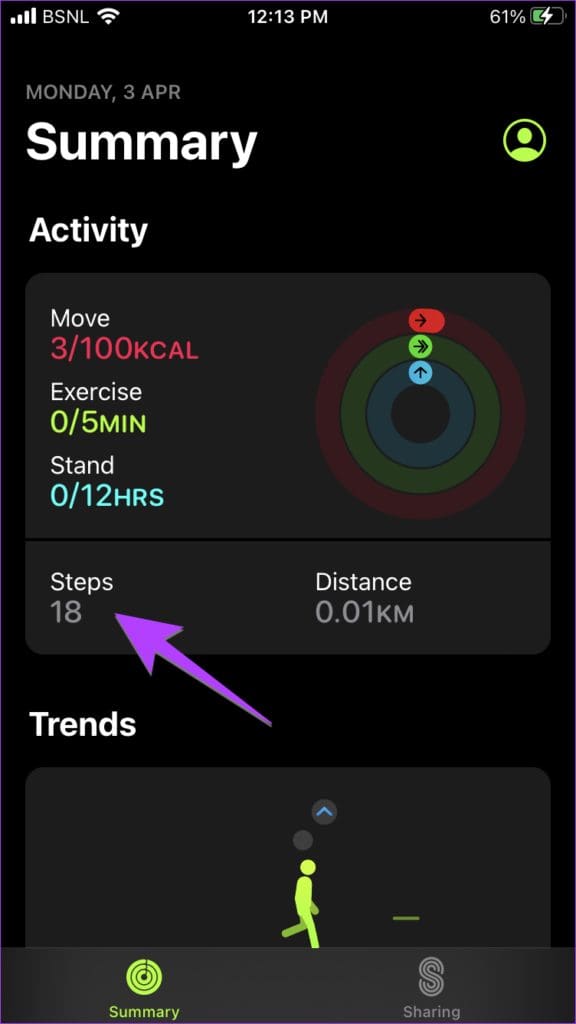

Pro Tip: Tap the Calendar icon at the top to select the day you want to check the steps.
2. Using the Health App
Step 1: Open the Health app → tap the Steps section to view the history of your steps.
Step 2: Swipe right to change the day or tap on the options at the top, such as weekly (W), monthly (M), etc., to get an overview of the steps taken.


FAQs
Sadly, Apple doesn’t offer a native way to show daily steps on any watch face. However, you can do it using third-party apps. Check our detailed guide on how to put steps on the Apple Watch face.
Yes, your Apple Watch can count steps without an iPhone nearby.
Open the Health app on your iPhone. Go to Steps and tap on Add Data at the top. Add the steps and select the date and time.
Was this helpful?
Last updated on 20 August, 2024
1 Comment
Leave a Reply
Read Next
 3 Ways to Fix Apple Watch Not Counting Steps Correctly
Basic Fixes Clean Rear Sensors: Dirty Apple Watch sensors can prevent footsteps from being counted or cause them to be counted improperly.
3 Ways to Fix Apple Watch Not Counting Steps Correctly
Basic Fixes Clean Rear Sensors: Dirty Apple Watch sensors can prevent footsteps from being counted or cause them to be counted improperly.
 How to Show Steps on an Apple Watch Face
While you can see steps on your Apple Watch, there's no native way to display the metric on any watch face.
How to Show Steps on an Apple Watch Face
While you can see steps on your Apple Watch, there's no native way to display the metric on any watch face.
 Top 6 Ways to Fix Samsung Galaxy Watch Not Tracking Steps
Samsung Galaxy Watch is one of the best alternatives to Apple Watch in the Android camp.
Top 6 Ways to Fix Samsung Galaxy Watch Not Tracking Steps
Samsung Galaxy Watch is one of the best alternatives to Apple Watch in the Android camp.
 3 Ways to Fix Health App Not Tracking Steps on iPhone
https://youtu.be/ihwcsTDrs54 Try Basic Fixes Remove conflicting apps: At times, running multiple health or fitness apps on your iPhone can result in conflicts and prevent the Health app from tracking your
3 Ways to Fix Health App Not Tracking Steps on iPhone
https://youtu.be/ihwcsTDrs54 Try Basic Fixes Remove conflicting apps: At times, running multiple health or fitness apps on your iPhone can result in conflicts and prevent the Health app from tracking your
 5 Ways to Fix Google Fit App Not Tracking Steps on Android
Try Basic Fixes Disable or uninstall other step counter apps: If there are multiple health apps installed on your Android, Google Fit may fail to track your steps due to
5 Ways to Fix Google Fit App Not Tracking Steps on Android
Try Basic Fixes Disable or uninstall other step counter apps: If there are multiple health apps installed on your Android, Google Fit may fail to track your steps due to
 Check Your Android Device’s Security Patch Level in 3 Steps
Security is of paramount importance, especially in the highly connected modern world, where devices are vulnerable to remote attacks and everything from your financial to personal data can be mined
Check Your Android Device’s Security Patch Level in 3 Steps
Security is of paramount importance, especially in the highly connected modern world, where devices are vulnerable to remote attacks and everything from your financial to personal data can be mined
 How to Change MacBook Name With Easy Steps
Your Mac computer has a name that is more than an identifier.
How to Change MacBook Name With Easy Steps
Your Mac computer has a name that is more than an identifier.
 5 Fixes for Samsung Health App Not Tracking Steps
Basic Fixes Ensure that step counter is enabled: Open the Health app > Tap on Steps > Three dots in the top-right corner > Check and ensure that the step
5 Fixes for Samsung Health App Not Tracking Steps
Basic Fixes Ensure that step counter is enabled: Open the Health app > Tap on Steps > Three dots in the top-right corner > Check and ensure that the step
The article above may contain affiliate links which help support Guiding Tech. The content remains unbiased and authentic and will never affect our editorial integrity.


Was this written by AI? Because the article uses the word “complication” repeatedly when it should be “application.” For Christ’s sake.