How to Check and Cancel Your Sent Friend Requests on Facebook
The Friend Requests tab on Facebook makes it simple to track all the friend requests you have sent and received. Here’s how to access it to view your sent friend requests.
On Desktop
Step 1: Open a web browser and go to Facebook’s website. Log into your account if you haven’t already.
Step 2: Click on the Friends tab in the left pane.

Step 3: Click on Friend Requests.
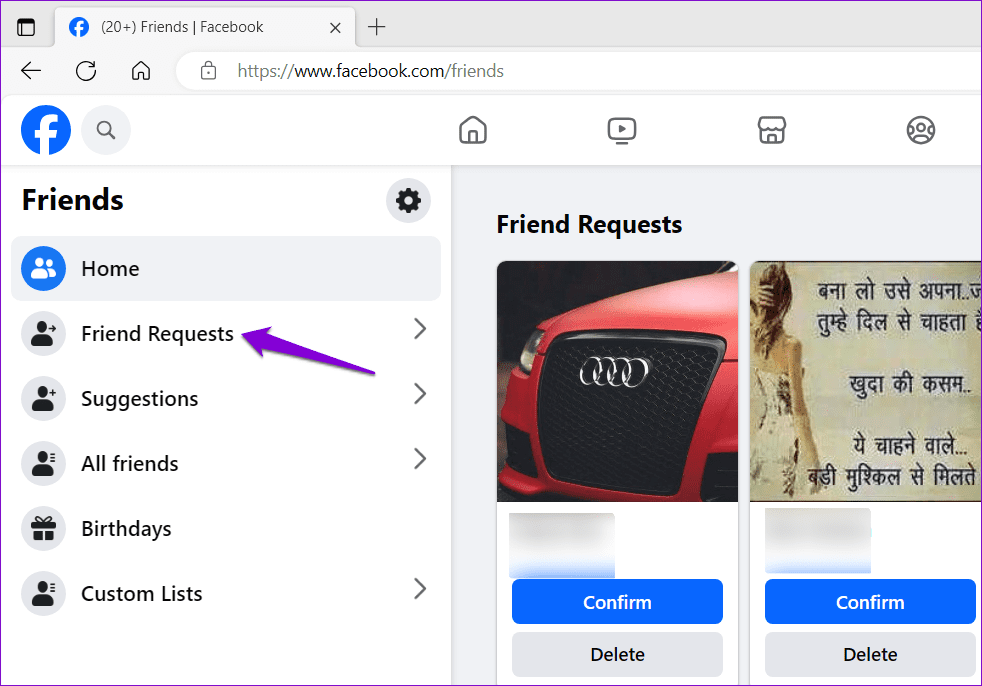
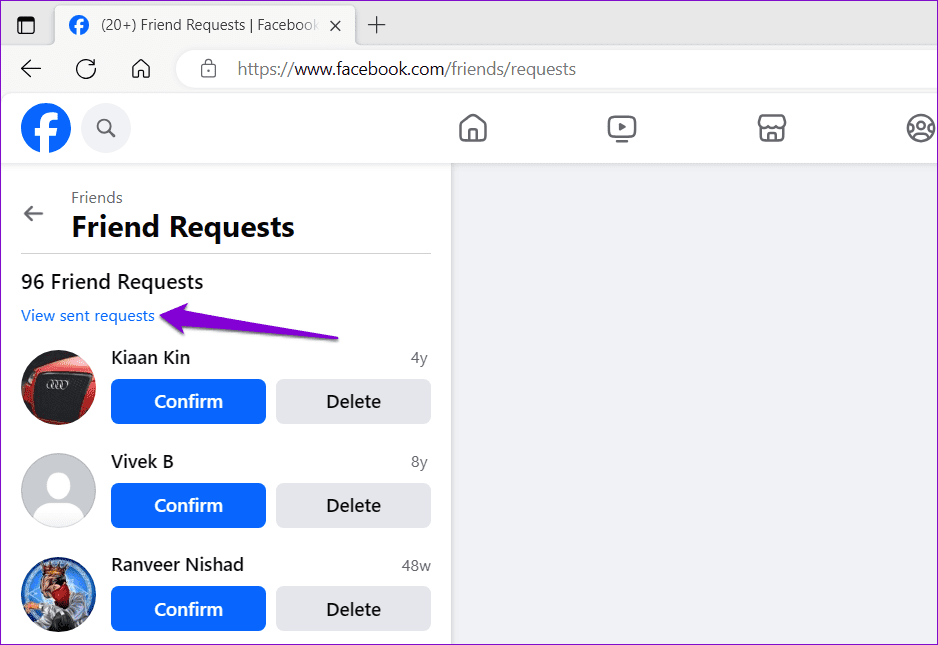
Step 4: Click on View sent requests to see all the unconfirmed friend requests.
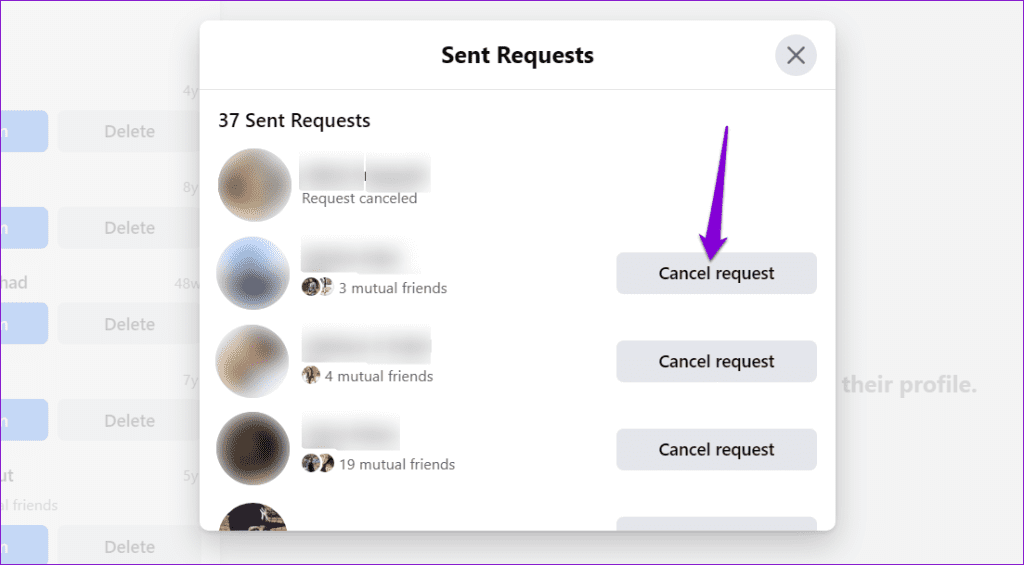
Step 5: In the Sent Requests window, scroll through the list and click Cancel request next to a user to revoke your friend request.
On Mobile
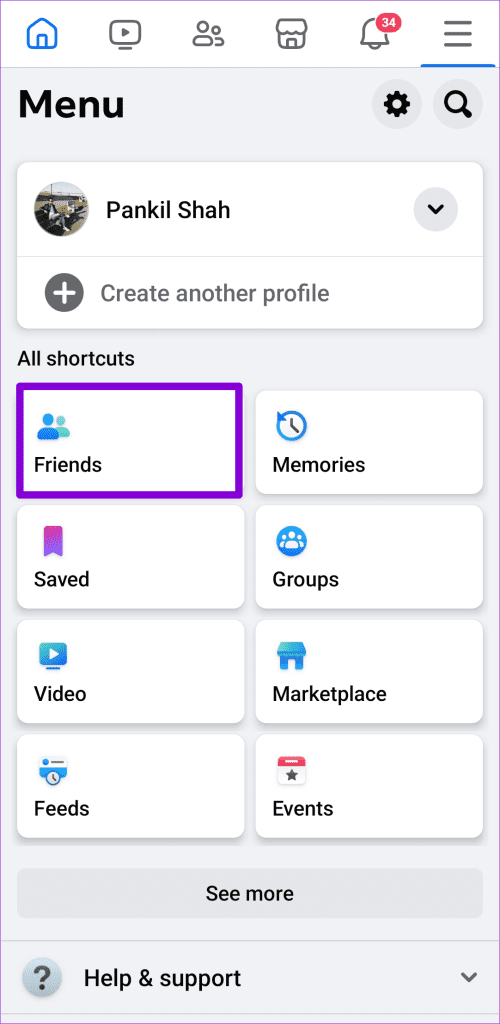
Step 1: Open the Facebook app on your phone and tap the menu icon (three horizontal lines) in the top-right corner.
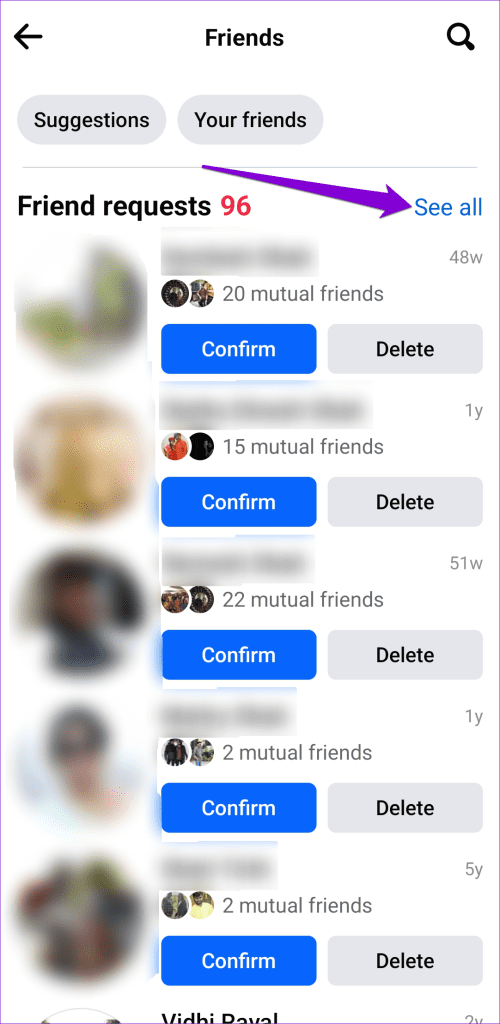
Step 2: Tap on Friends > See all.

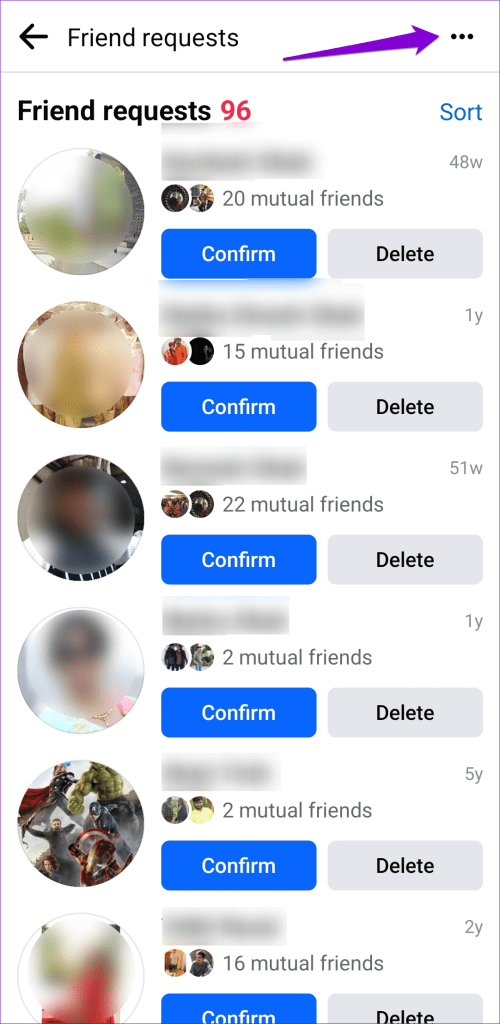
Step 3: Tap the three-dot icon at the top right corner and select View sent requests.
Step 4: Scroll through the list and tap Cancel next to a person to revoke the friend request.


How to Check Your Sent Follow Requests on Instagram
Unlike Facebook, Instagram does not offer the option to view your sent follow requests within the app. To do so, you must first download your Instagram account data and review it on a computer. Here’s how to go about it.
1. Download Instagram Data
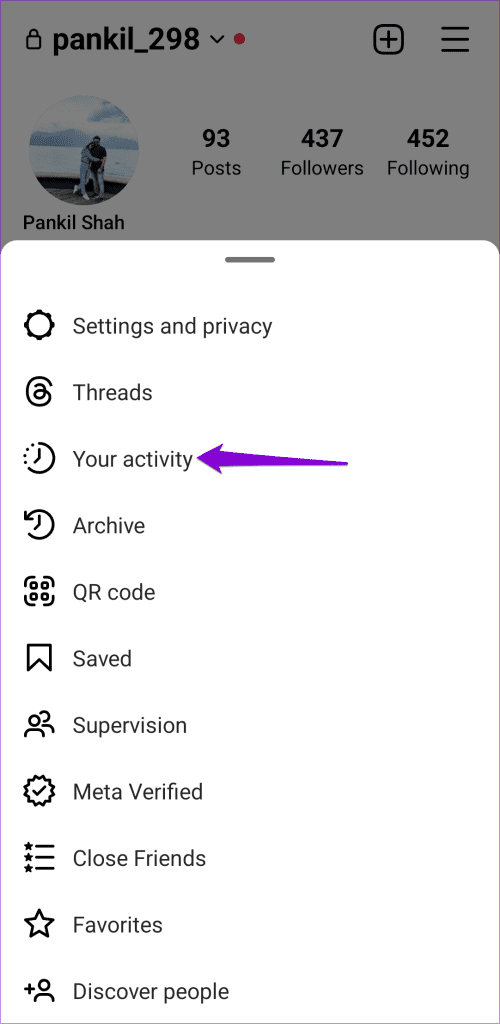
Step 1: Open the Instagram app on your phone and switch to the profile tab. Tap the menu icon (three horizontal lines) at the top-right corner and select Your activity.

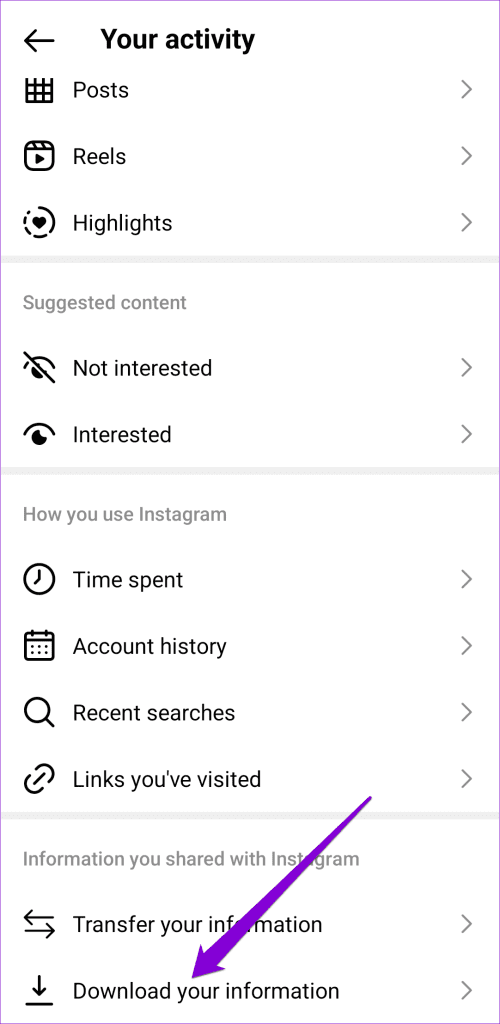
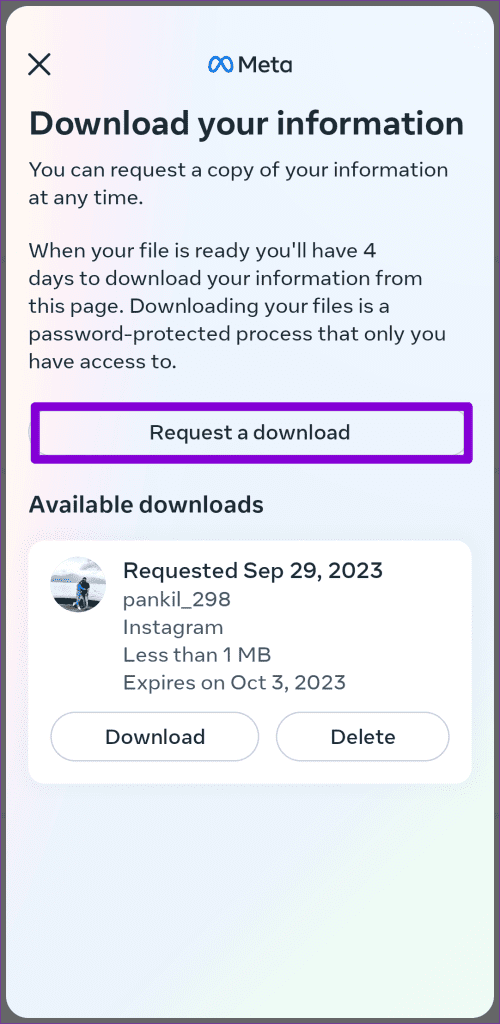
Step 2: Scroll to the end and tap on Download your information. Then, tap on Request a download.
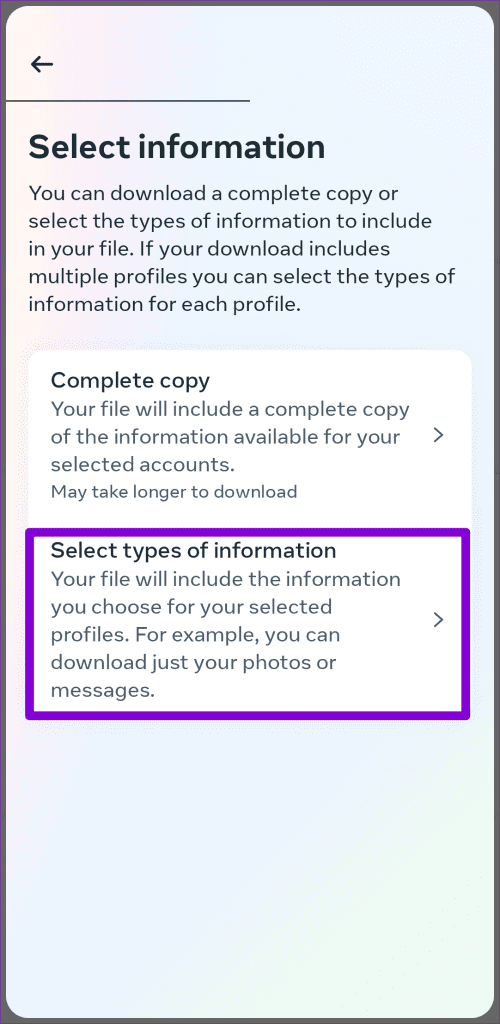
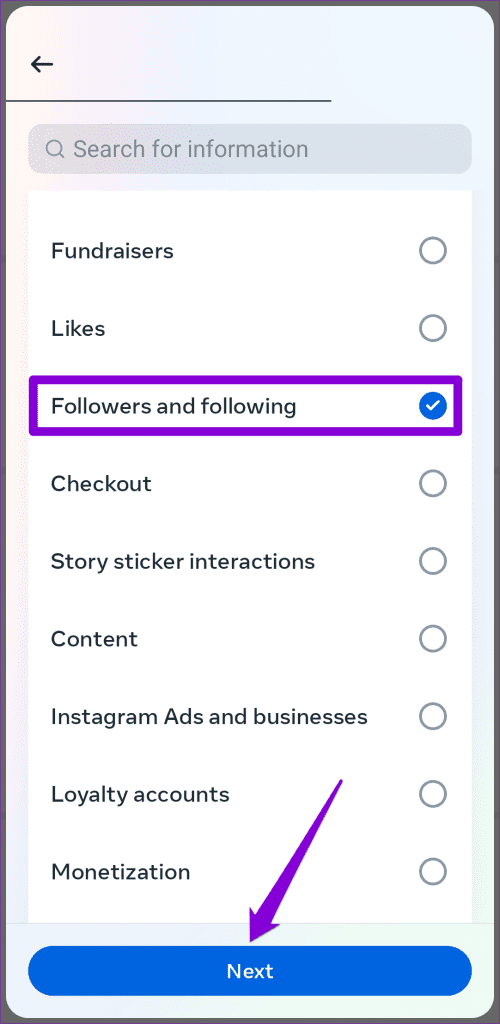
Step 3: Tap Select types of information > Followers and following > hit Next.
Step 4: Tap the Submit Request button to confirm.
2. Download Instagram Data and Cancel Request
After completing the above steps, you will receive an email confirming that your request is being processed. Instagram will notify you via email once your account report is ready. After that, use these steps to download it.
Step 1: In the Instagram app, switch to the profile tab. Tap the menu icon in the top-right corner and select Your activity.
Step 2: Scroll down to tap on Download your information and select Download.

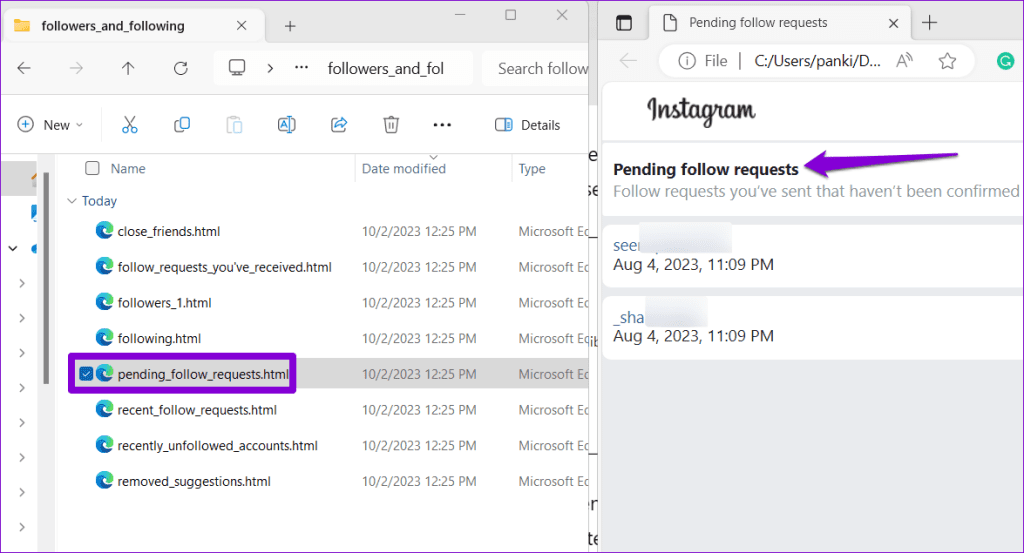
Step 3: After you have downloaded the ZIP file, transfer it to a computer using your preferred method. Extract the ZIP file and double-click the followers_and_following folder.
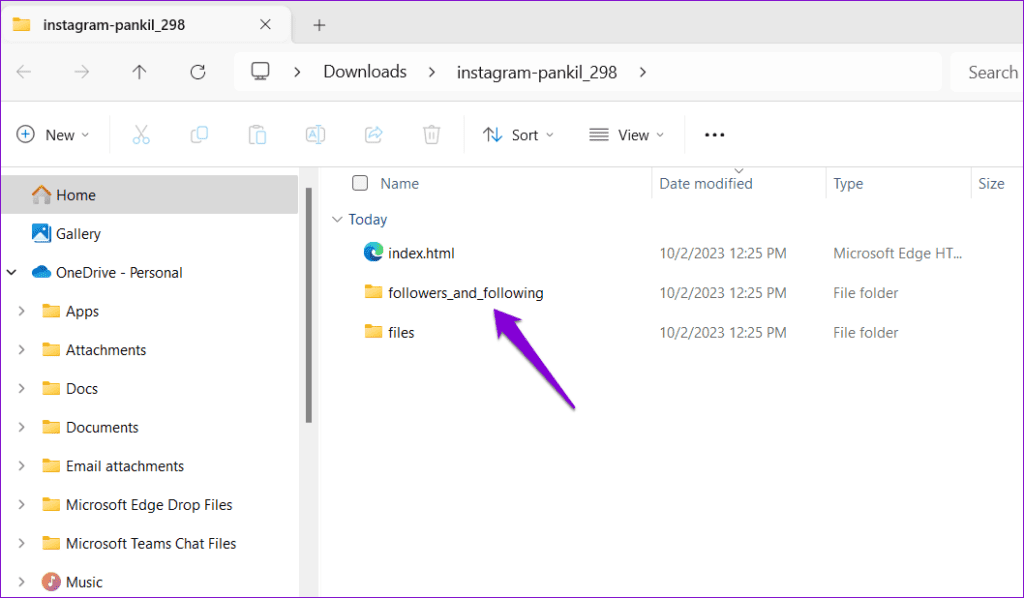
Step 4: Double-click on the pending_follow_requests file. It can open in your default browser. Under Pending follow requests, you will see a list of users who have not yet accepted your follow request.
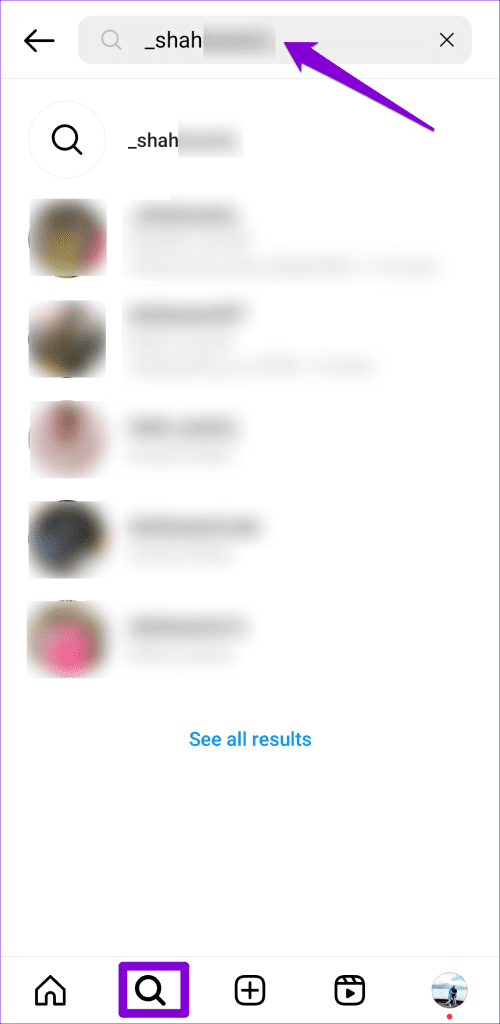
Step 5: To cancel a sent friend request, open Instagram and search for the person’s username you sent the request to. Then, tap the Requested button.
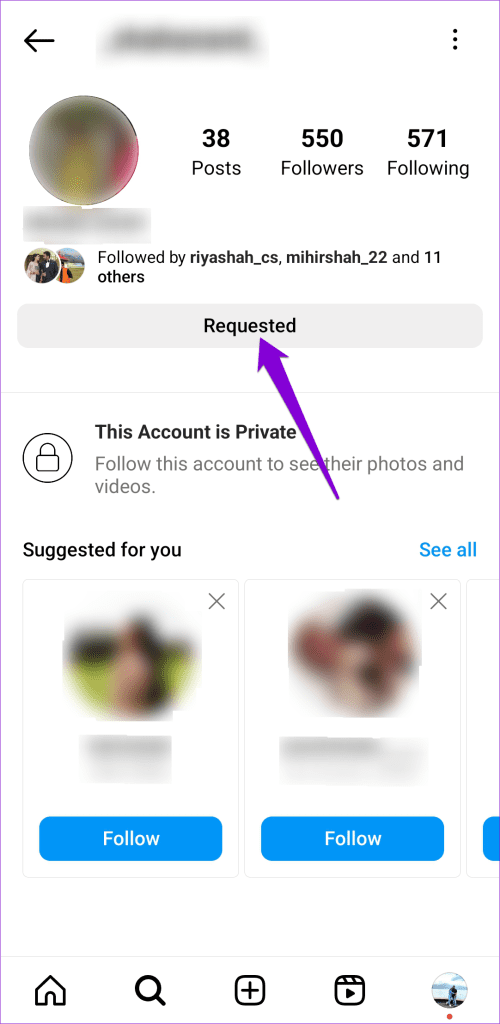
Similarly, you can cancel more follow requests on Instagram if you like and resend them if necessary.
Was this helpful?
Last updated on 08 April, 2024
Read Next
 Why Can’t I Send Friend Requests on Facebook And How to Fix It
Why Can't I Add Friends on Facebook?
Why Can’t I Send Friend Requests on Facebook And How to Fix It
Why Can't I Add Friends on Facebook?
 A Guide to Facebook Friend Request Settings
Sending Facebook friend requests is the easiest thing you can do.
A Guide to Facebook Friend Request Settings
Sending Facebook friend requests is the easiest thing you can do.
 How to Fix iMessage “Sent as Text Message” Issue on iPhone
Basic Fixes Trigger Airplane Mode: If your mobile data has trouble, it is best to trigger airplane mode.
How to Fix iMessage “Sent as Text Message” Issue on iPhone
Basic Fixes Trigger Airplane Mode: If your mobile data has trouble, it is best to trigger airplane mode.
 6 Fixes for Sent Items Not Showing in Microsoft Outlook for Windows
Fix 1: Make Sure Outlook Is Configured to Save Sent Items Your sent emails may not show up in Outlook if you have previously configured the app to not save
6 Fixes for Sent Items Not Showing in Microsoft Outlook for Windows
Fix 1: Make Sure Outlook Is Configured to Save Sent Items Your sent emails may not show up in Outlook if you have previously configured the app to not save
 How to Turn Off Sent Message Sound on iPhone and Android
Notifications and sounds tell you about new messages, but some sounds, like the one when you send a message from your phone, may be unnecessary.
How to Turn Off Sent Message Sound on iPhone and Android
Notifications and sounds tell you about new messages, but some sounds, like the one when you send a message from your phone, may be unnecessary.
 What Happens When You Remove a Friend on Discord
What Happens When You Unfriend Someone on Discord Before we show you how to unfriend someone on Discord, you should learn the implications of your actions and take steps accordingly.
What Happens When You Remove a Friend on Discord
What Happens When You Unfriend Someone on Discord Before we show you how to unfriend someone on Discord, you should learn the implications of your actions and take steps accordingly.
 3 Ways to Fix Friend Request Not Working in Discord
Try Basic Fixes Double-check the username: This may seem obvious, but if you have made a typo while entering the username, Discord may display the "Friend Request Failed" error on
3 Ways to Fix Friend Request Not Working in Discord
Try Basic Fixes Double-check the username: This may seem obvious, but if you have made a typo while entering the username, Discord may display the "Friend Request Failed" error on
 5 Fixes for Spotify Not Showing Friend Activity
Fix 1: Enable the Friend Activity Tab The Spotify app may not show the Friend Activity tab if you have previously hidden it using the View menu.
5 Fixes for Spotify Not Showing Friend Activity
Fix 1: Enable the Friend Activity Tab The Spotify app may not show the Friend Activity tab if you have previously hidden it using the View menu.
The article above may contain affiliate links which help support Guiding Tech. The content remains unbiased and authentic and will never affect our editorial integrity.