


How to Schedule WhatsApp Messages on iPhone
We will create a custom Shortcut to send scheduled messages to a selected contact on WhatsApp. Here’s how.
Step 1: Open the Shortcuts app on your iPhone. Head to the Automation section > Create Personal Automation. Now, select Time of Day and input details such as date, time, repeat, etc., and tap Next.
Note: Under the Repeat tab, select Monthly.


Step 2: Select Add Action. In the Apps column, choose WhatsApp.

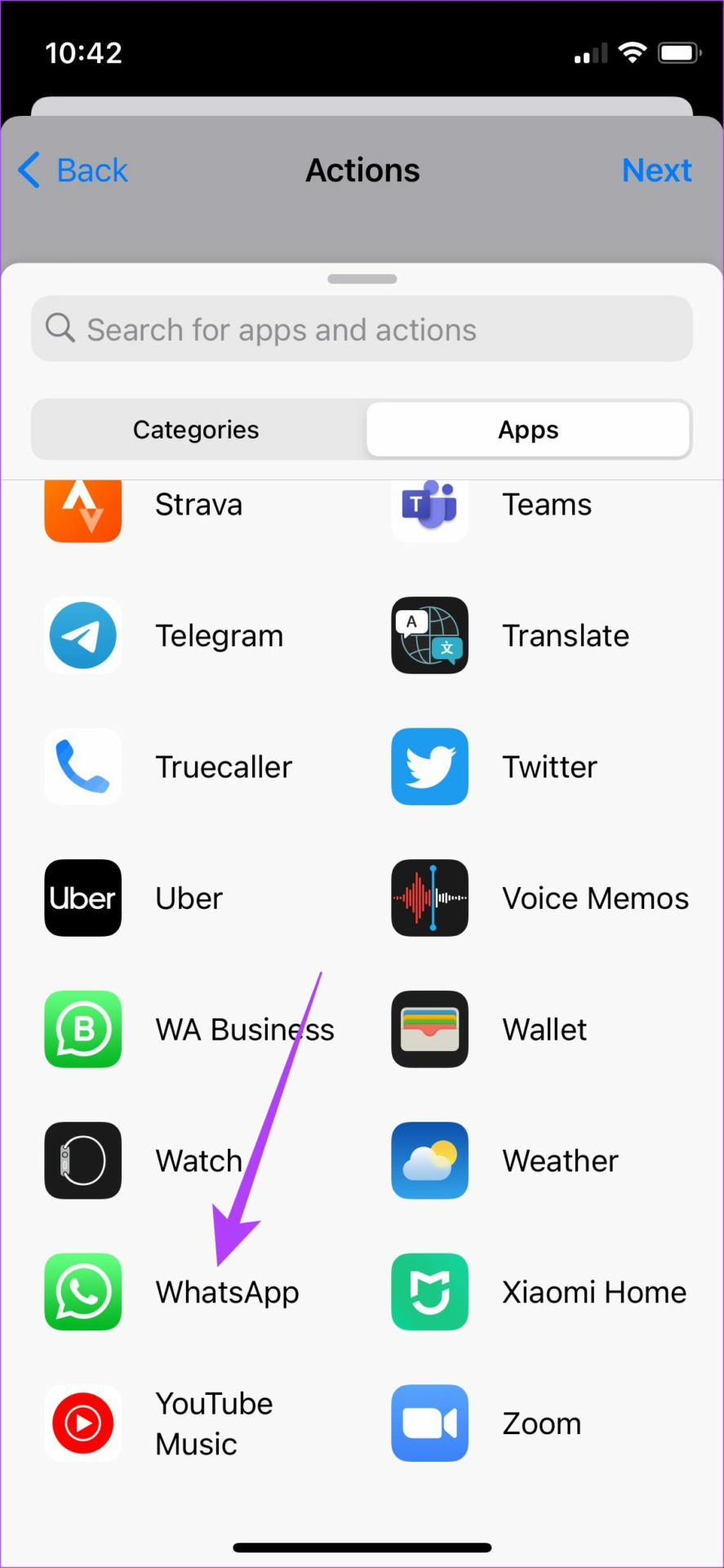
Step 3: Now, head to Send Message. Then, under Message, add the message you wish to send. Under Recipients, select the contact you wish to send this message to.


Step 4: Turn off the toggle for Ask Before Running. Finally, tap Done.
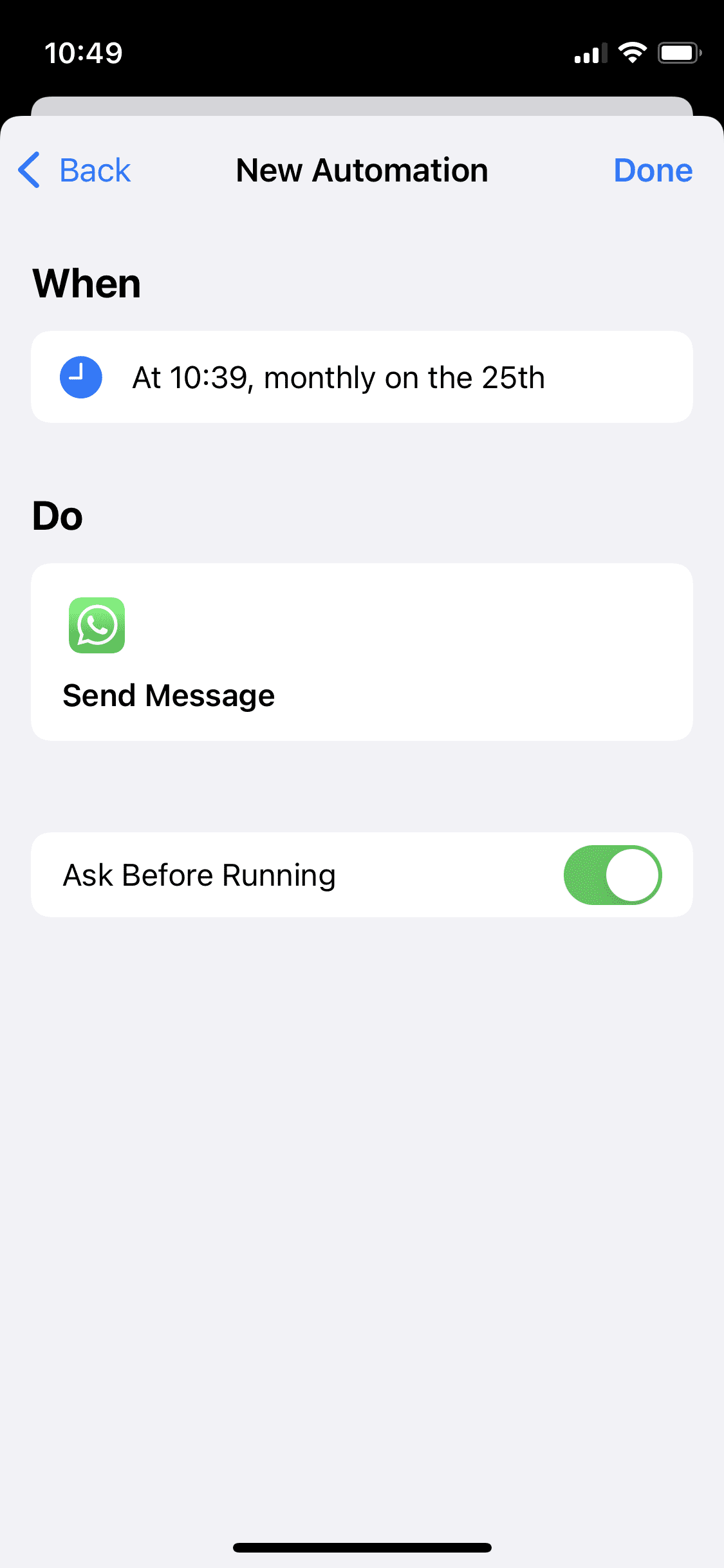

Your WhatsApp message has now been scheduled. The iPhone will be sent automatically at the chosen date and time. However, it’s important to perform one more step to ensure that your scheduled message isn’t sent to your contact every month.
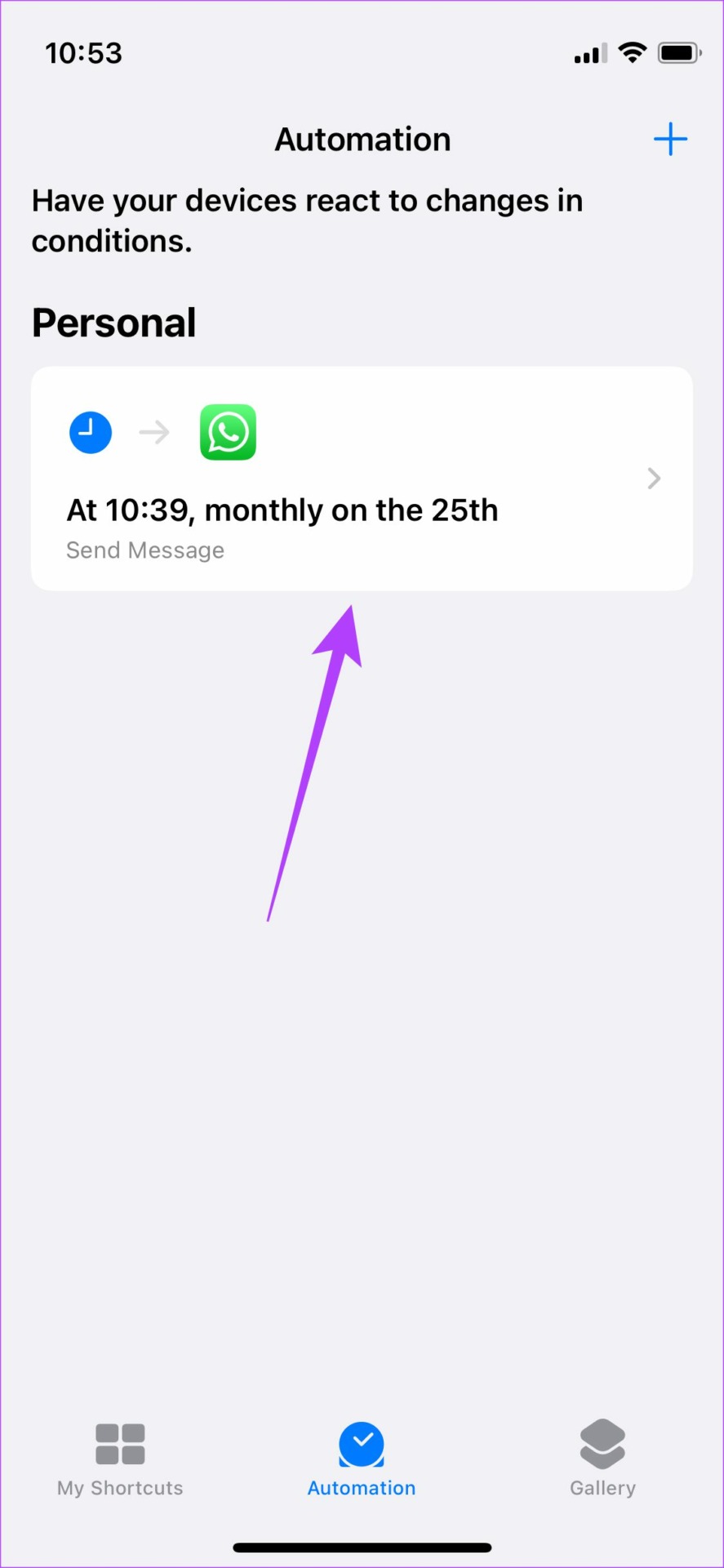
Open the Shortcuts app > Automation. Then, tap on the automation you created. Now, disable the toggle for Enable This Automation.

How to Edit the Shortcut to Schedule a Different Message
Here’s what you must do to edit this shortcut. Note that you must wait till the above automation is sent across.
Step 1: Once it has been sent, open the Shortcuts app > Automation. Then, tap on the automation you created. Change relevant details such as date, time, etc., under the When section.
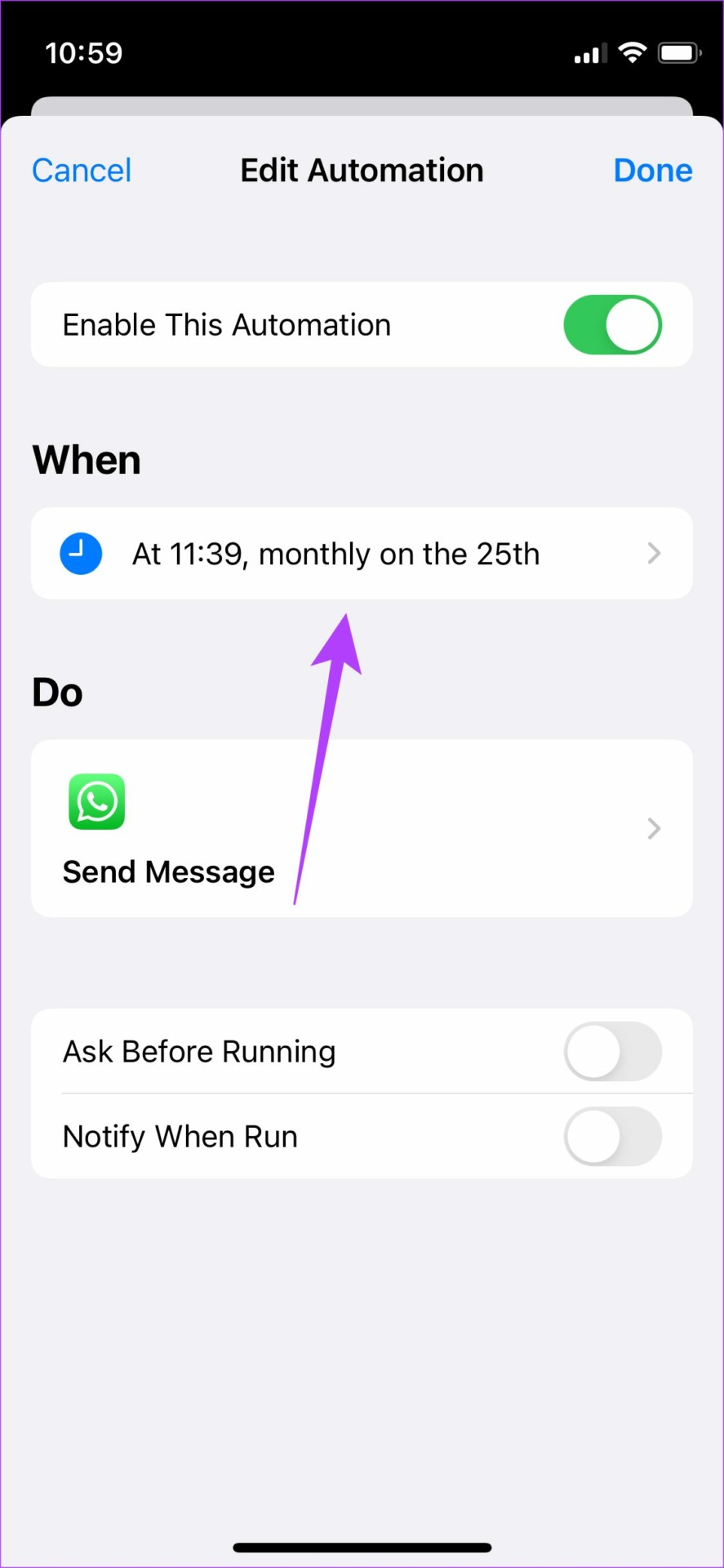
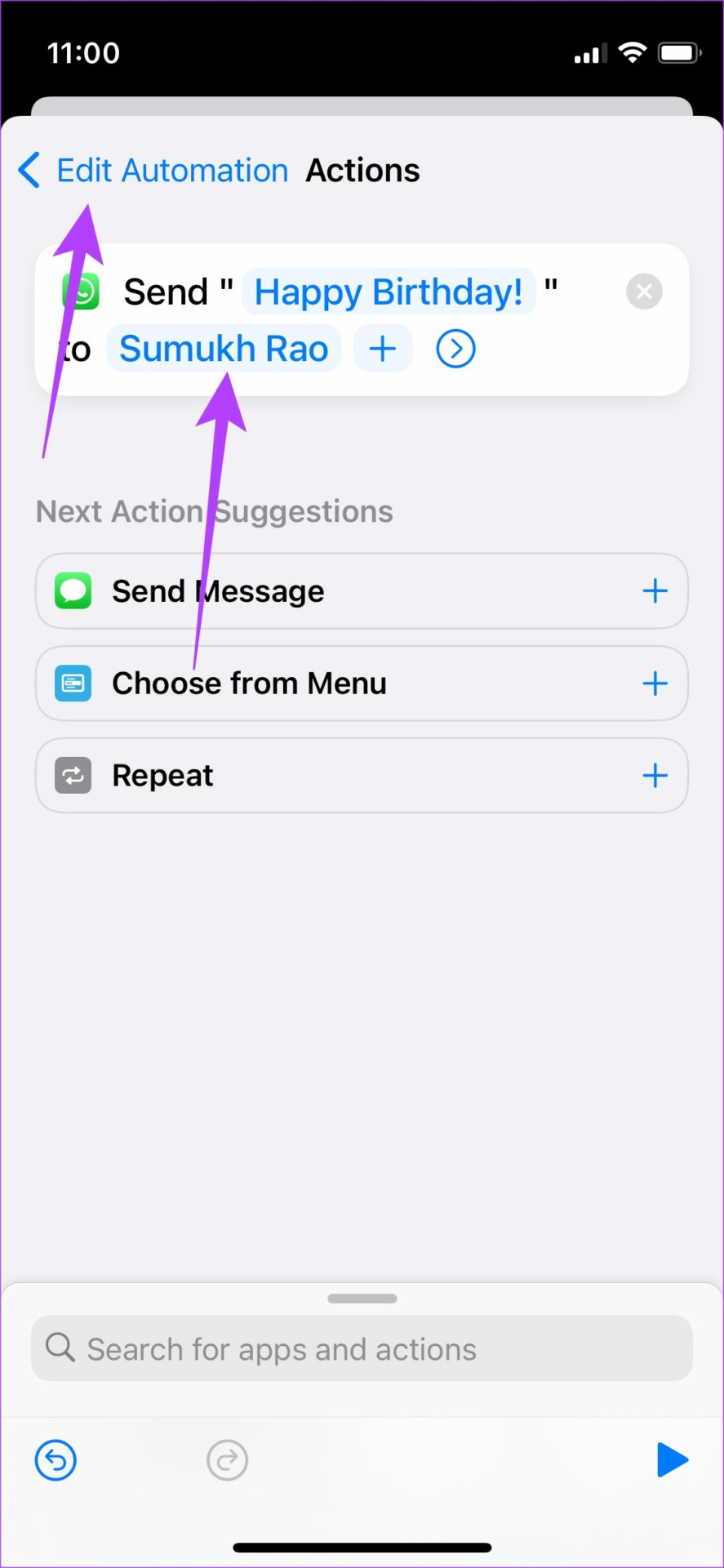
Step 2: Select the section under Do > change the Message and Recipient’s Name > return to Edit Automation > tap Done.

Was this helpful?
Last updated on 19 July, 2024
1 Comment
Leave a Reply
Read Next
 How to Schedule Messages And Auto Reply on WhatsApp
If you ask me, I'd say that WhatsApp is almost perfect.
How to Schedule Messages And Auto Reply on WhatsApp
If you ask me, I'd say that WhatsApp is almost perfect.
 How to Schedule Messages in Telegram (Desktop and Mobile)
Schedule Messages on Telegram While Telegram offers its Premium subscription to unlock more features, the option to schedule messages is available to other users, too.
How to Schedule Messages in Telegram (Desktop and Mobile)
Schedule Messages on Telegram While Telegram offers its Premium subscription to unlock more features, the option to schedule messages is available to other users, too.
 How to Schedule Messages on the Signal App
Have you ever wanted to send a message later but were worried you might forget?
How to Schedule Messages on the Signal App
Have you ever wanted to send a message later but were worried you might forget?
 How to Schedule Airplane Mode on iPhone
How to Set up Automation for Airplane Mode While we’ll share generic steps to set Airplane Mode automatically, the exact steps might vary depending on your needs.
How to Schedule Airplane Mode on iPhone
How to Set up Automation for Airplane Mode While we’ll share generic steps to set Airplane Mode automatically, the exact steps might vary depending on your needs.
 How to Fix WhatsApp Messages Not Sending on iPhone and Android
Why Doesn't WhatsApp Send My Messages Here are some of the reasons behind WhatsApp's sketchy behavior on your phone.
How to Fix WhatsApp Messages Not Sending on iPhone and Android
Why Doesn't WhatsApp Send My Messages Here are some of the reasons behind WhatsApp's sketchy behavior on your phone.
 How to Translate WhatsApp Messages on Android and iPhone
Method 1: Translate WhatsApp Messages Using Google Translate Using a translation app like Google Translate is the most basic way to translate your WhatsApp messages.
How to Translate WhatsApp Messages on Android and iPhone
Method 1: Translate WhatsApp Messages Using Google Translate Using a translation app like Google Translate is the most basic way to translate your WhatsApp messages.
 How to Schedule Emails in Outlook on Any Platform
Have you ever wished for an easier way to manage your emails and ensure they get sent at the most opportune time?
How to Schedule Emails in Outlook on Any Platform
Have you ever wished for an easier way to manage your emails and ensure they get sent at the most opportune time?
 How to Schedule Google Meet in Microsoft Outlook
Method 1: Microsoft Outlook Web If you find the Outlook app on your PC too heavy, use the Outlook web, which is much faster for creating a Google Meet schedule.
How to Schedule Google Meet in Microsoft Outlook
Method 1: Microsoft Outlook Web If you find the Outlook app on your PC too heavy, use the Outlook web, which is much faster for creating a Google Meet schedule.
The article above may contain affiliate links which help support Guiding Tech. The content remains unbiased and authentic and will never affect our editorial integrity.
Good afternoon
After updating the iphone to version 17.5.1, automatic messaging stopped working on June 6, 2024. What to do? Help!