How to Export Images From Google Docs on Desktop
Method 1: Save to Google Keep
Step 1: Open the Google Docs document to extract an image.
Step 2: Right-click on the image and select Save to Keep.
Keep will open in the right sidebar of Google Docs. This will save your image as a note.

Step 3: Now, right-click on the image in Keep and select Save image as.

Give the image a suitable name and save it at a desired location on your computer. You can store the image in Keep or delete it after saving it on your computer. Repeat the steps for other images.
Method 2: Downloading Image from Microsoft Word File
Note: We assume you have the Google document opened from which you want to save images.
Step 1: Go to the File option in the toolbar, choose Download, and select Microsoft Word (.docx).
The Google Docs will be downloaded as a Word document.

Step 2: Once downloaded, double-click on the document from the File Explorer to open the Microsoft Word document.
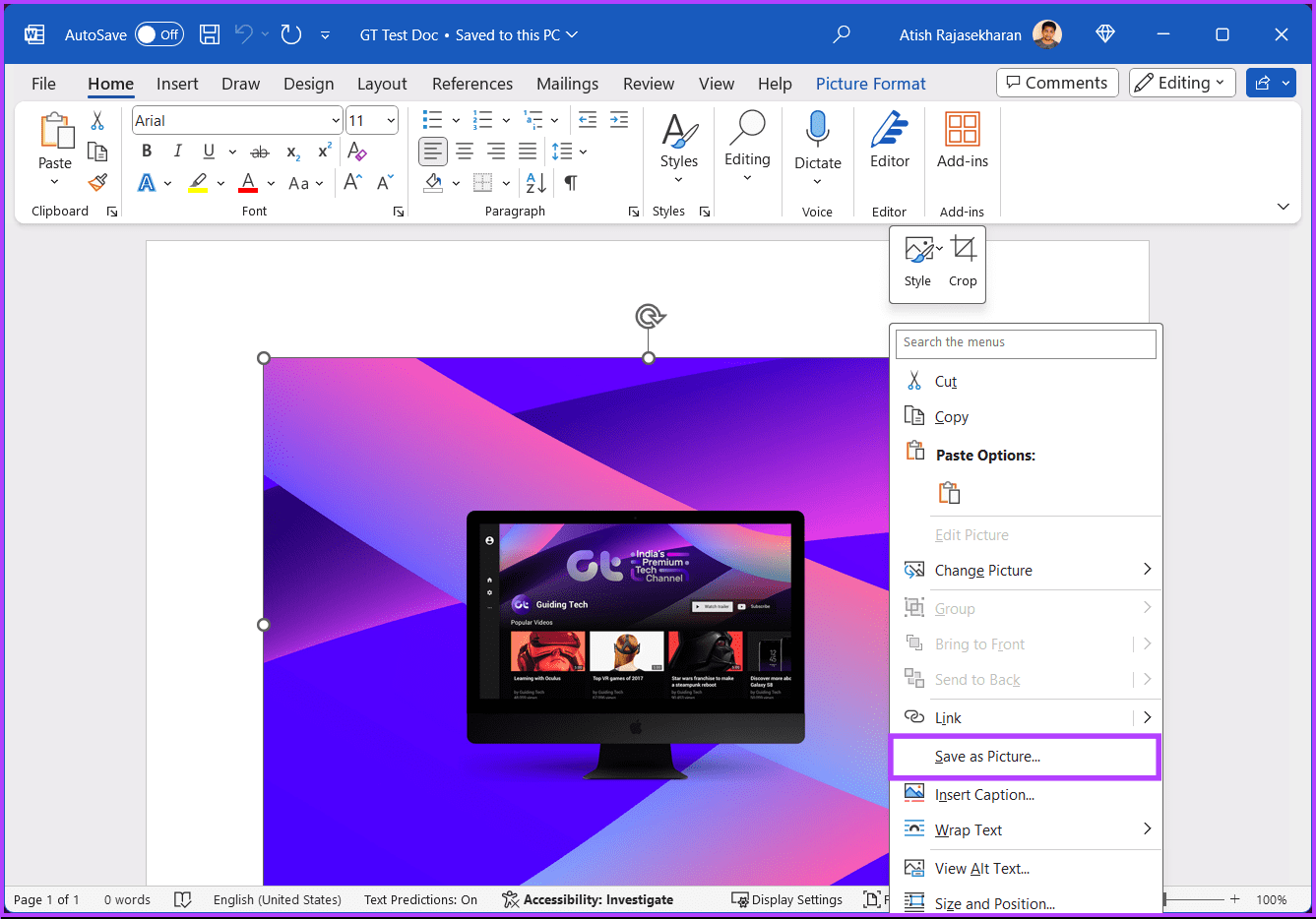
Step 3: Now, navigate to and right-click the image. From the menu, choose Save as Picture.
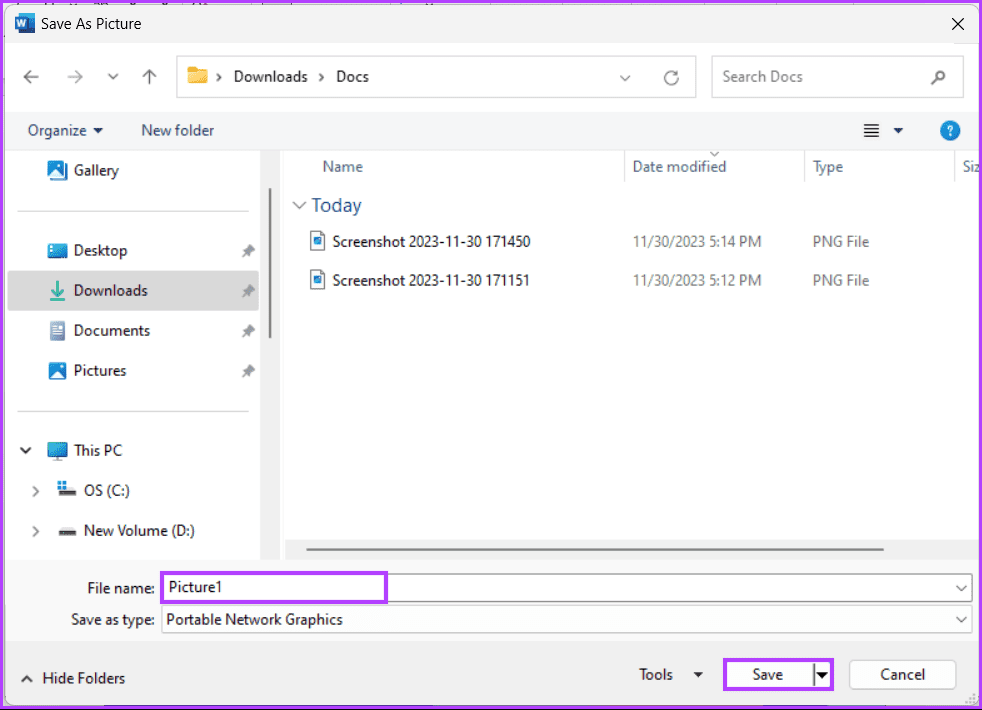
Step 4: In the Save as window, select the image’s destination and name > hit Save.
There you go. You have extracted and saved images from Google Docs. However, if you want to extract multiple images from Google Docs, move to the next method.
Method 3: Download as Web Page
Step 1: Open the Google Docs document on your PC.
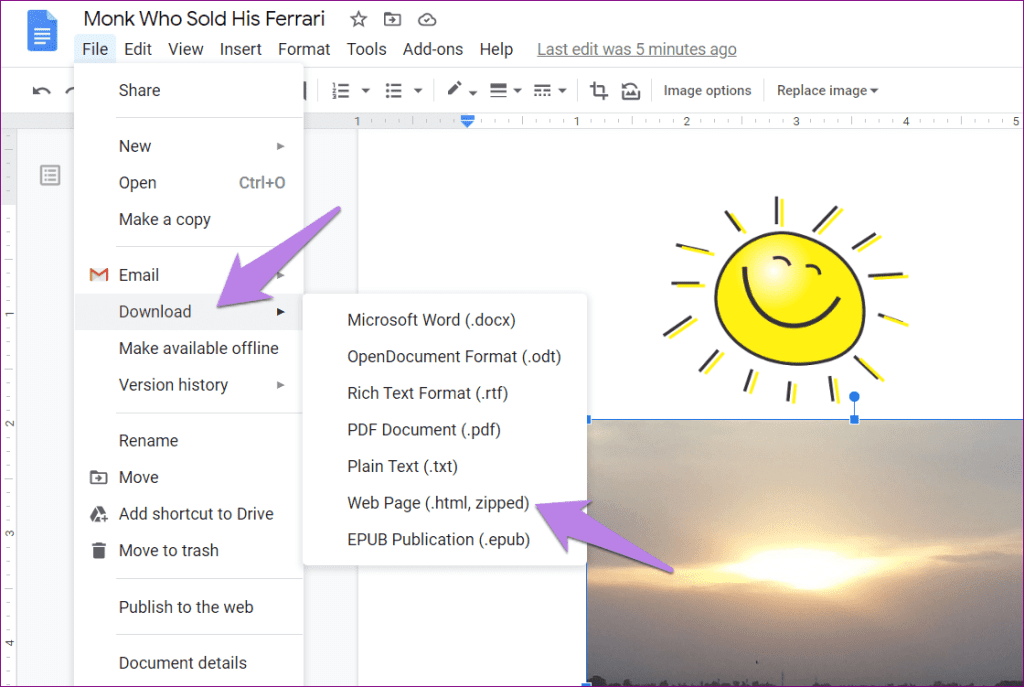
Step 2: Click on the File option > Download > Web page.
Step 3: The Save as window will open. Click on Save.
Step 4: Open the folder on your computer where you saved the file generated in step 3. You will find a ZIP folder with the same name as you saved in step 3. Extract the contents of the ZIP folder.

Step 5: Once the ZIP folder has been extracted, open the newly created folder. You will find a folder named images.

Open it, and all your images exported from the Google Docs document will be saved in that folder.

Method 4: Using Publish to Web
Step 1: Launch the Google Docs document.
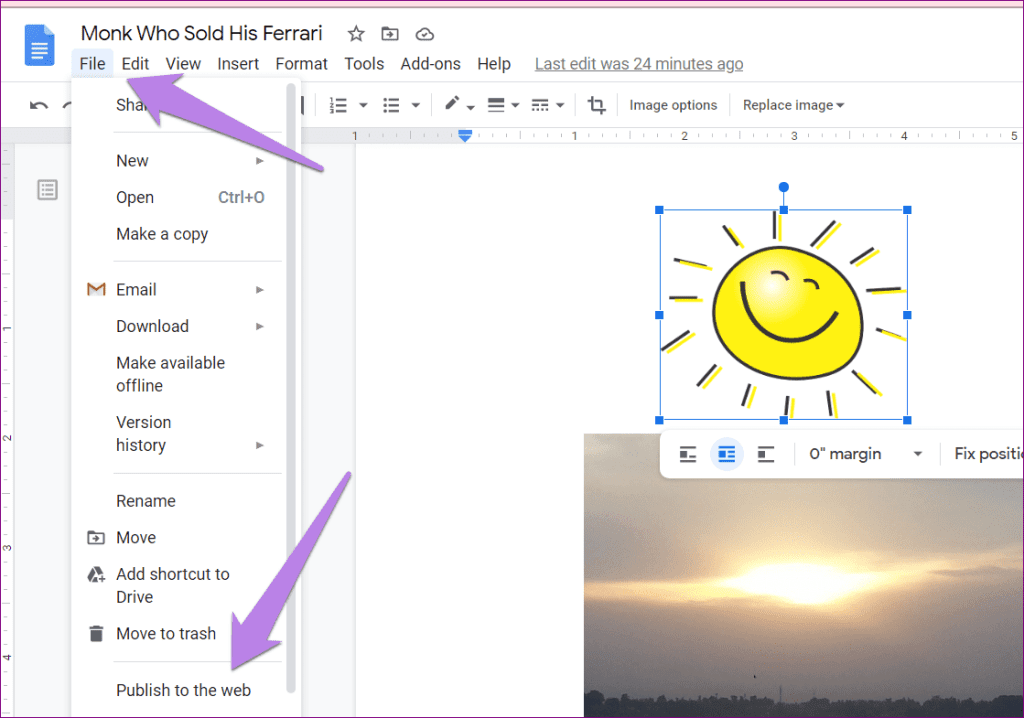
Step 2: Click on File > Publish to the web.
Step 3: Copy the URL under the Link header and paste it into a new tab of your browser.
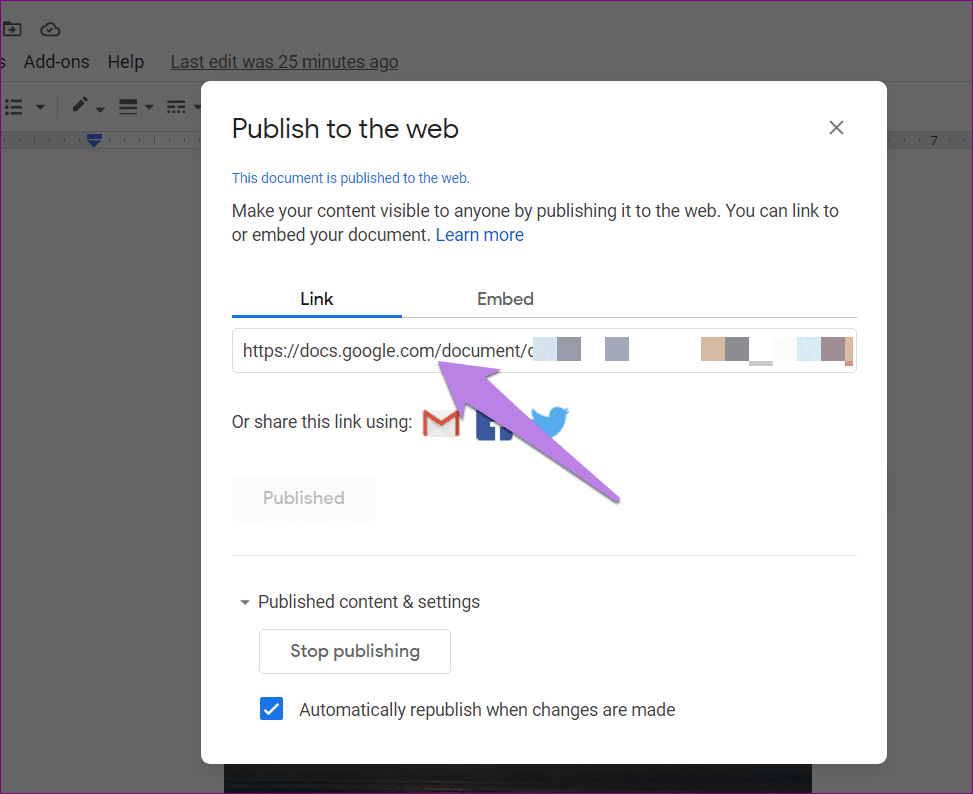
Step 4: Now, right-click on the images that you want to save to your computer.
Method 6: Take Screenshot
If the above methods seem exhausting, try the age-old technique of taking a screenshot. Once a screenshot is captured, save the image, and you will have successfully extracted the picture from Google Docs. Find out various ways to take a screenshot on a Windows computer.
How to Extract Pictures from Google Docs on Android and iOS
Method 1: Link Sharing
Step 1: Open the Google Docs document in the app on your mobile phone.
Step 2: Tap on the three-dot icon at the top and go to Share & export.

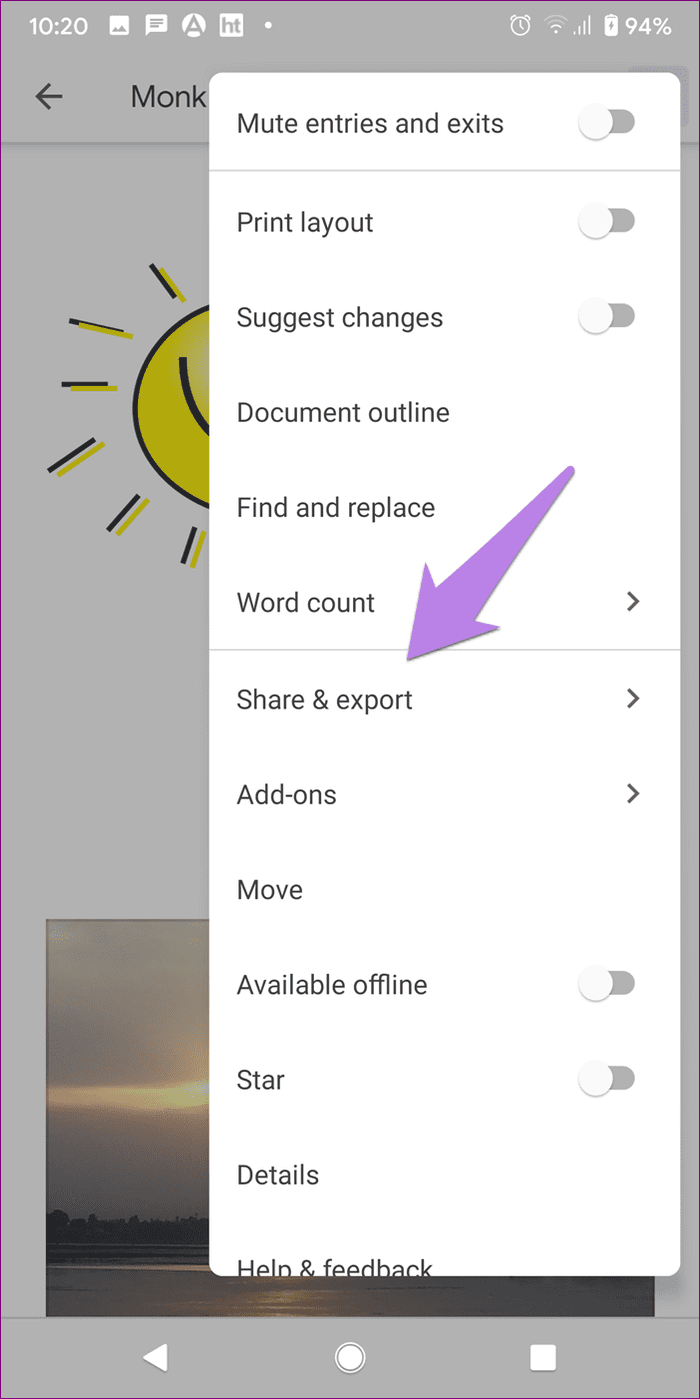
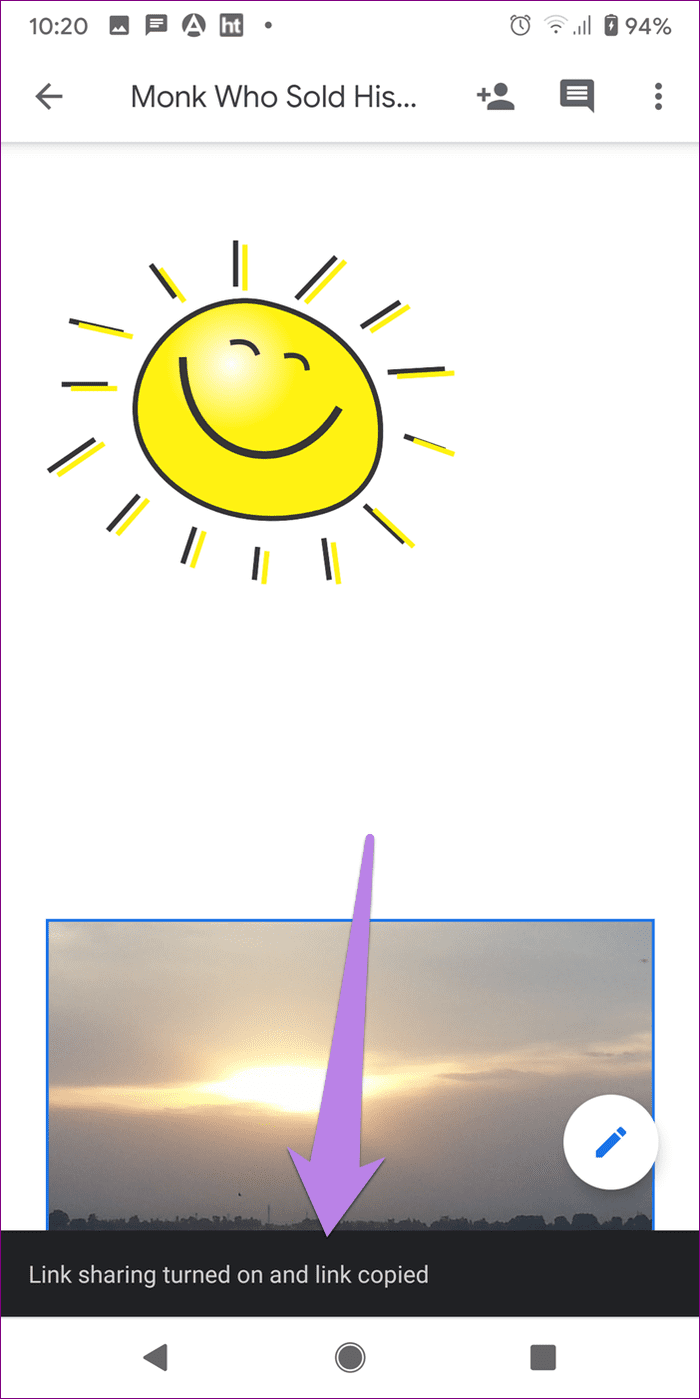
Step 3: Enable the toggle for Link sharing.
After generating and copying the link, the interface will notify you about it.

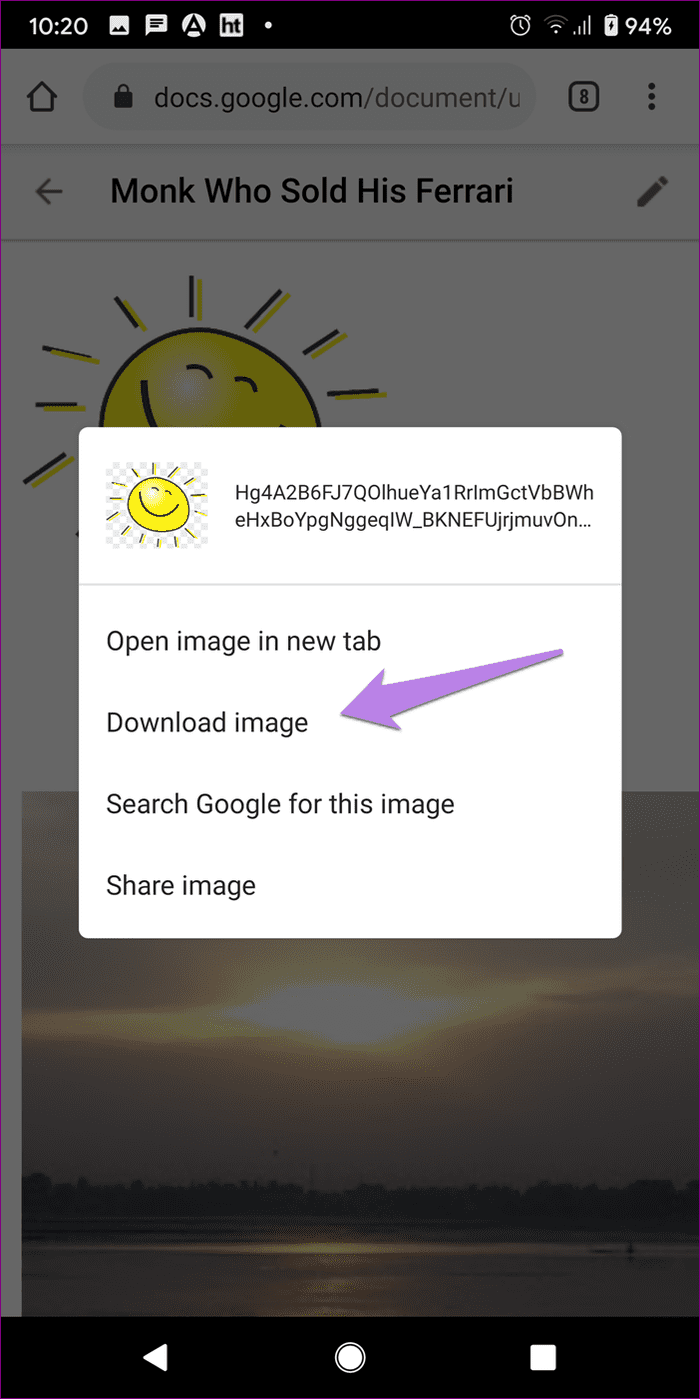
Step 4: Open any browser on your mobile phone and paste the link. Once the Google Docs page opens, touch and hold the image you want to download. Select Download image from the menu. Repeat for all other images.
Pro Tip: Confused about Google Drive sharing permissions? Check our detailed guide covering Drive permissions.
Method 2: Download as a Web Page
Note: This method will not work on iPhone or iPad.
Step 1: Open the document in the Google Docs app on your Android phone.
Step 2: Tap on the three-dot icon > go to Share & export.
Step 3: Choose Save as > Web Page. Tap on OK.
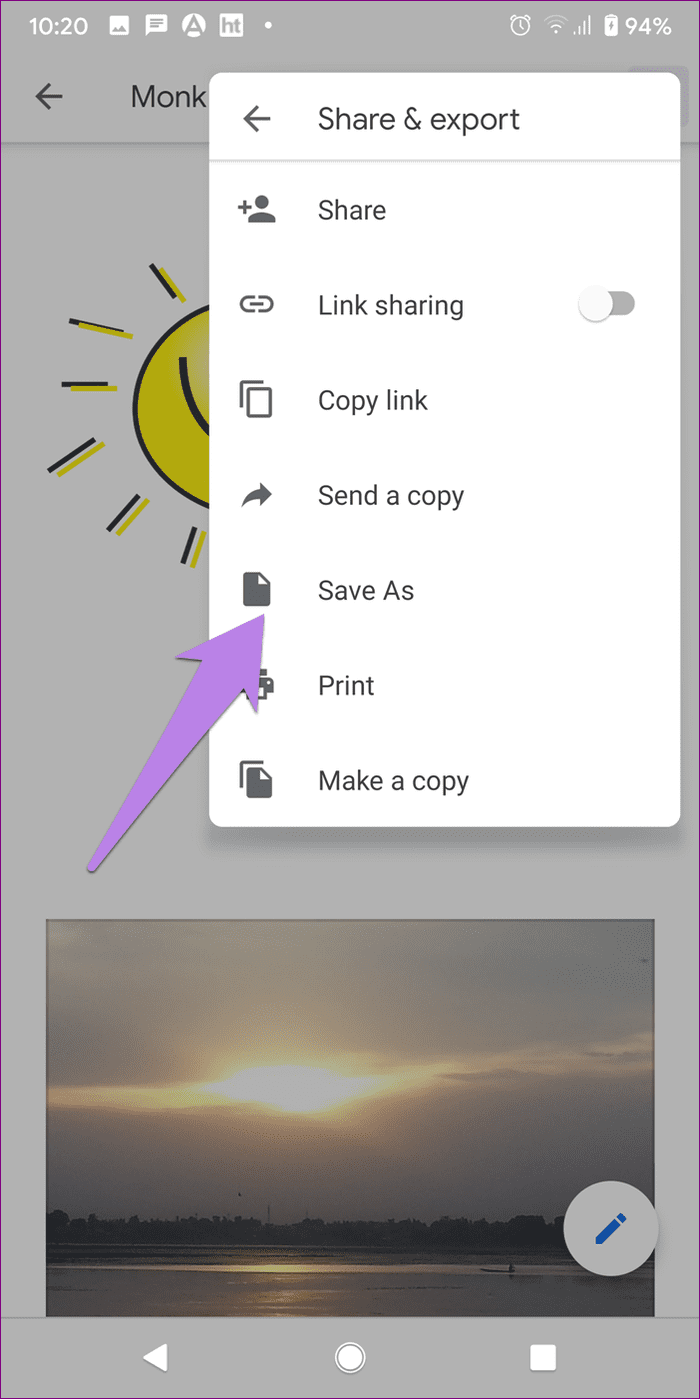

A ZIP archive will be created in your Google Drive.
Step 4: Now, open the Google Drive app and look for the newly created ZIP archive with the same name as your Google Docs document. Tap on the three-dot icon next to the ZIP archive and select Download.
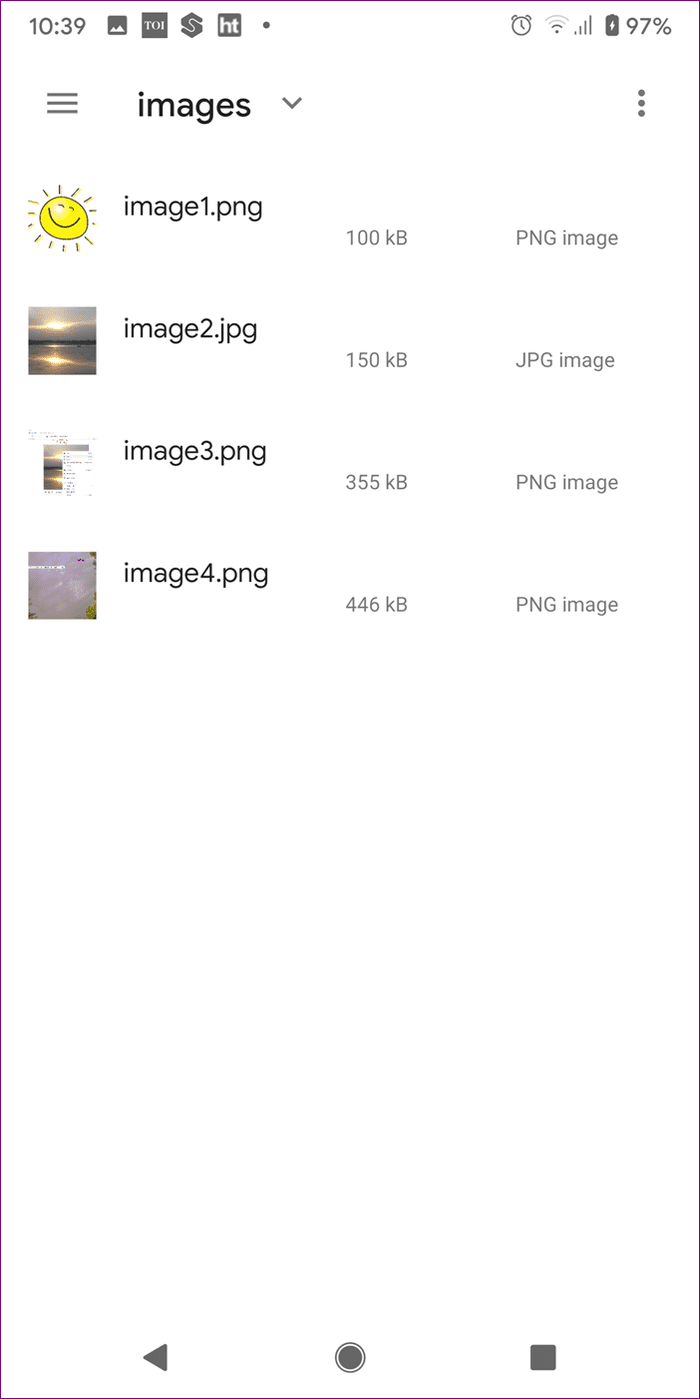
Step 5: Once downloaded, extract the ZIP archive. Go to the folder where you’ve extracted the contents. You will find the Image folder containing all your images from Google Docs document.

Method 3: Take a Screenshot
The third method is simple. You can simply take a screenshot of the image in Google Docs on your phone. Sometimes, the power button doesn’t work. Find out how to take a screenshot without the power button on Android.
FAQs on Downloading and Save Images From Google Docs
Google Docs doesn’t provide a built-in feature to download all images at once. You must save each image individually using the right-click method.
Depending on the original format of the image in the Google Docs document, images can be saved in various formats, such as JPEG, PNG, or GIF.
When you save an image from Google Docs, it retains its original quality. However, if the image was compressed or downsized when added to the document, you won’t retrieve a higher resolution.
Currently, there’s no direct method to save images without opening them. You must view the image in the document and save it.
Was this helpful?
Last updated on 02 September, 2024
Read Next
 How to Overlap Images or Text in Google Docs
Method 1: Overlap Images in Google Docs With Google Drawings In this method, you must first add your image as a drawing.
How to Overlap Images or Text in Google Docs
Method 1: Overlap Images in Google Docs With Google Drawings In this method, you must first add your image as a drawing.
 4 Ways to Add Captions to Images in Google Docs
Method 1: Use the Drawing Panel Using the Drawing panel is probably the most effective way of captioning images in Google Docs.
4 Ways to Add Captions to Images in Google Docs
Method 1: Use the Drawing Panel Using the Drawing panel is probably the most effective way of captioning images in Google Docs.
 4 Ways to Insert Images in Google Docs
Method 1: Add Photos From Camera Roll to Google Docs You can add photos in Google Docs from the Camera Roll of your iPhone or Android phone.
4 Ways to Insert Images in Google Docs
Method 1: Add Photos From Camera Roll to Google Docs You can add photos in Google Docs from the Camera Roll of your iPhone or Android phone.
 2 Fixes if you Cannot Save Images From Google on iPhone, iPad, and Android
Basic Troubleshooting Check for Storage error - Your phone or tablet should have free space to store downloaded images from Google.
2 Fixes if you Cannot Save Images From Google on iPhone, iPad, and Android
Basic Troubleshooting Check for Storage error - Your phone or tablet should have free space to store downloaded images from Google.
 How to Save Google Docs as PDF on Desktop and Mobile
Save Google Docs as PDF Despite a few differences, the steps are similar for Android, iOS, and Desktop devices.
How to Save Google Docs as PDF on Desktop and Mobile
Save Google Docs as PDF Despite a few differences, the steps are similar for Android, iOS, and Desktop devices.
 2 Ways to Download Images from Pinterest on Desktop and Mobile
Method 1: Download Image On Mobile Open the image you want to download, tap on the three-dots icon at the top right, and select Download image.
2 Ways to Download Images from Pinterest on Desktop and Mobile
Method 1: Download Image On Mobile Open the image you want to download, tap on the three-dots icon at the top right, and select Download image.
 4 Ways to Save Images From an Excel Workbook
Method 1: Save Individual Images Manually The most straightforward way to extract images from an Excel workbook is to save them manually.
4 Ways to Save Images From an Excel Workbook
Method 1: Save Individual Images Manually The most straightforward way to extract images from an Excel workbook is to save them manually.
 How to Generate AI Images With Google Gemini
Google Gemini is like a magic paintbrush that uses artificial intelligence (AI) to create amazing images.
How to Generate AI Images With Google Gemini
Google Gemini is like a magic paintbrush that uses artificial intelligence (AI) to create amazing images.
The article above may contain affiliate links which help support Guiding Tech. The content remains unbiased and authentic and will never affect our editorial integrity.