


1. Outlook for Windows
Step 1: Open the Microsoft Outlook app on your Windows computer.
Step 2: Select an email you want to export as a PDF.
Step 3: Click the more actions menu in the top right corner (it looks like a three-dot menu).
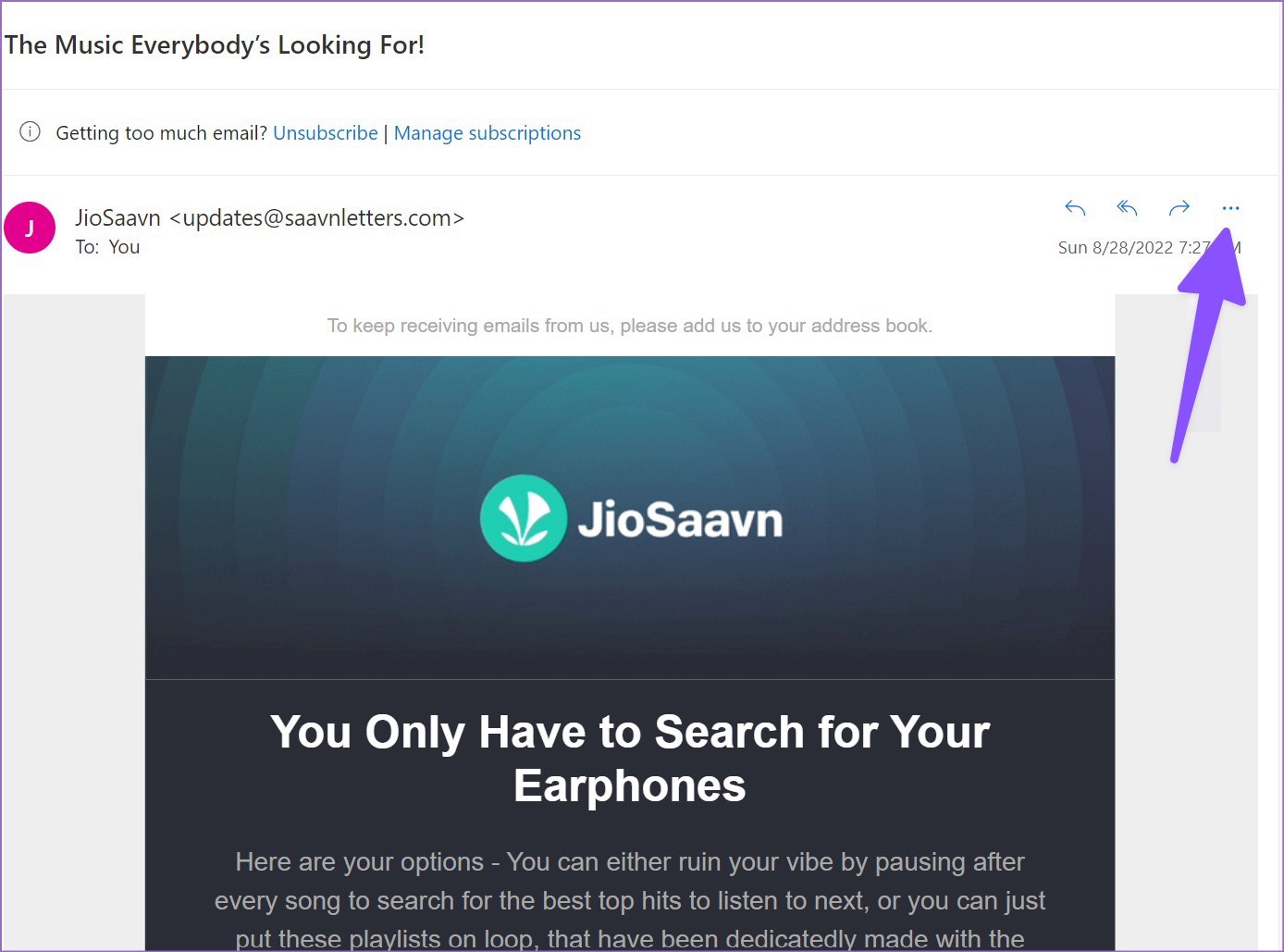
Step 4: Select Print from the context menu.

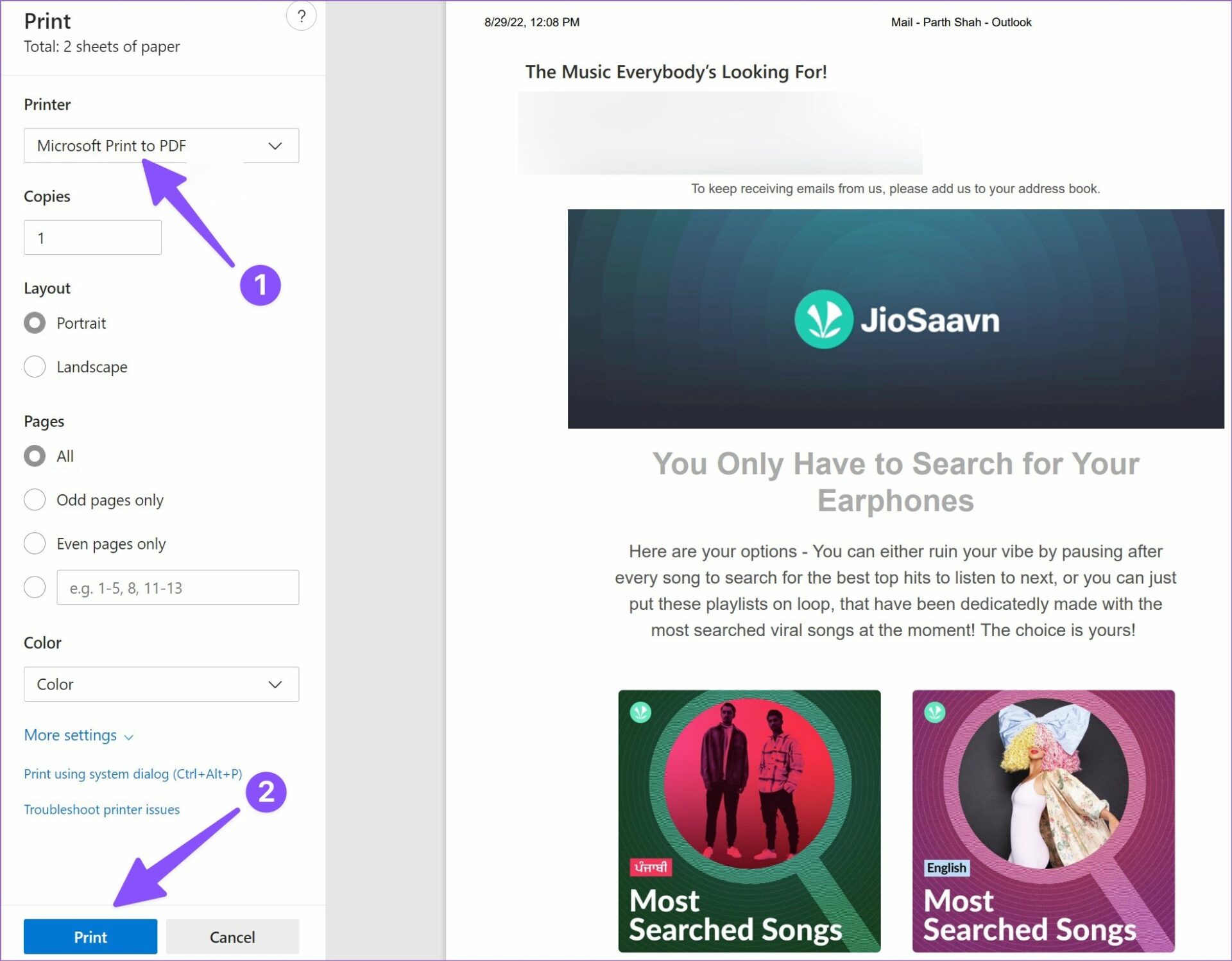
Step 5: It will open the print interface. Click Print in the top left corner.

Step 6: Select Microsoft Print to PDF from the printer menu.
Step 7: Make layout changes, select pages to export as PDF, and hit the Print button at the bottom.
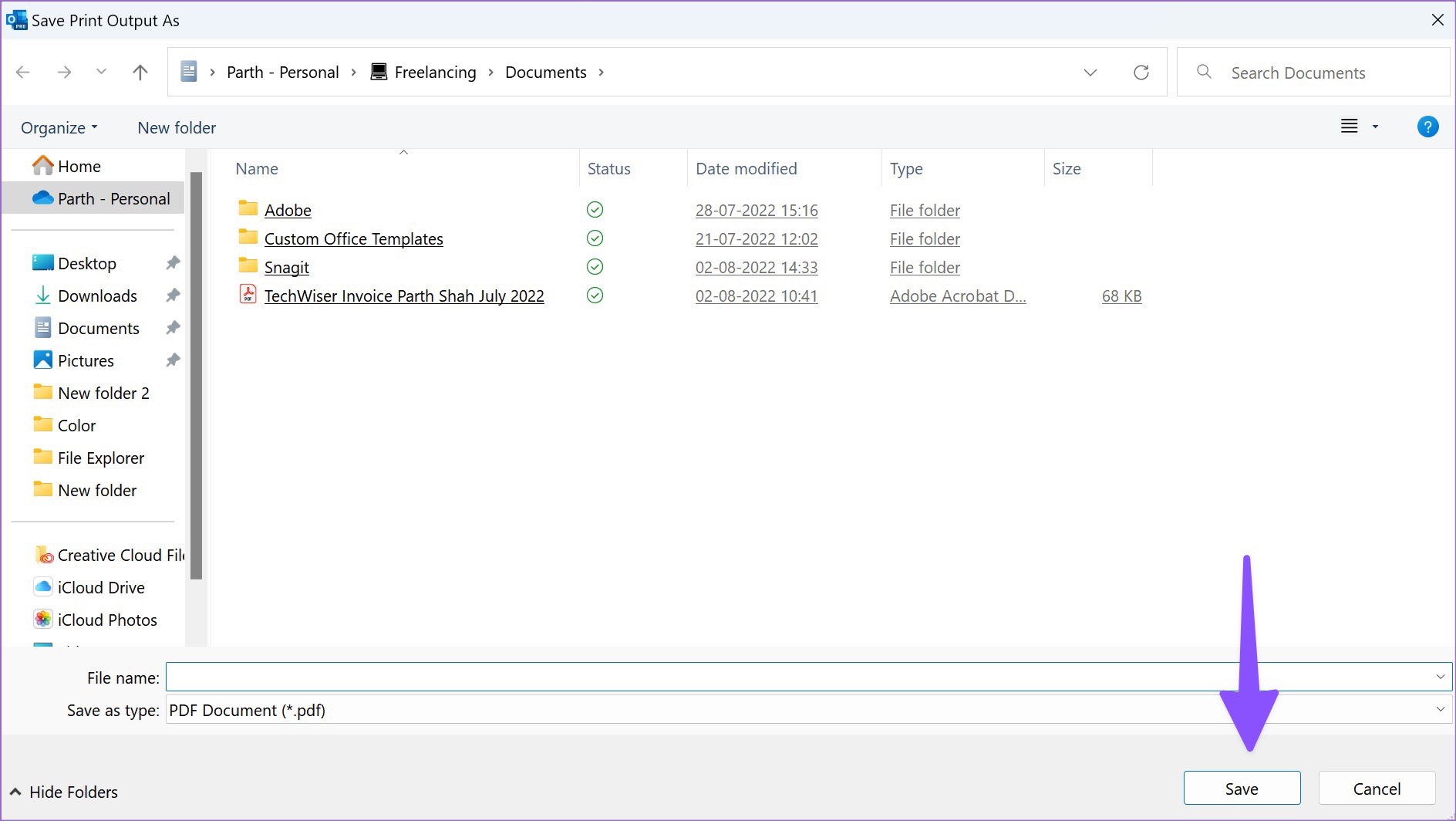
Step 8: Select your preferred location on the computer to export the PDF. Enter a file name and hit the Save button.
After you convert an Outlook email into a PDF, use the best Windows PDF editors to make changes before sending it to a client or employee. If you want to do the same on Mac, continue reading.
2. Outlook for Mac
Step 1: Open Outlook on Mac.
Step 2: Open an email you want to download.

Step 3: Right-click on an email and select Print from the context menu.

Step 4: Expand the PDF menu at the bottom and select the Save as PDF option.

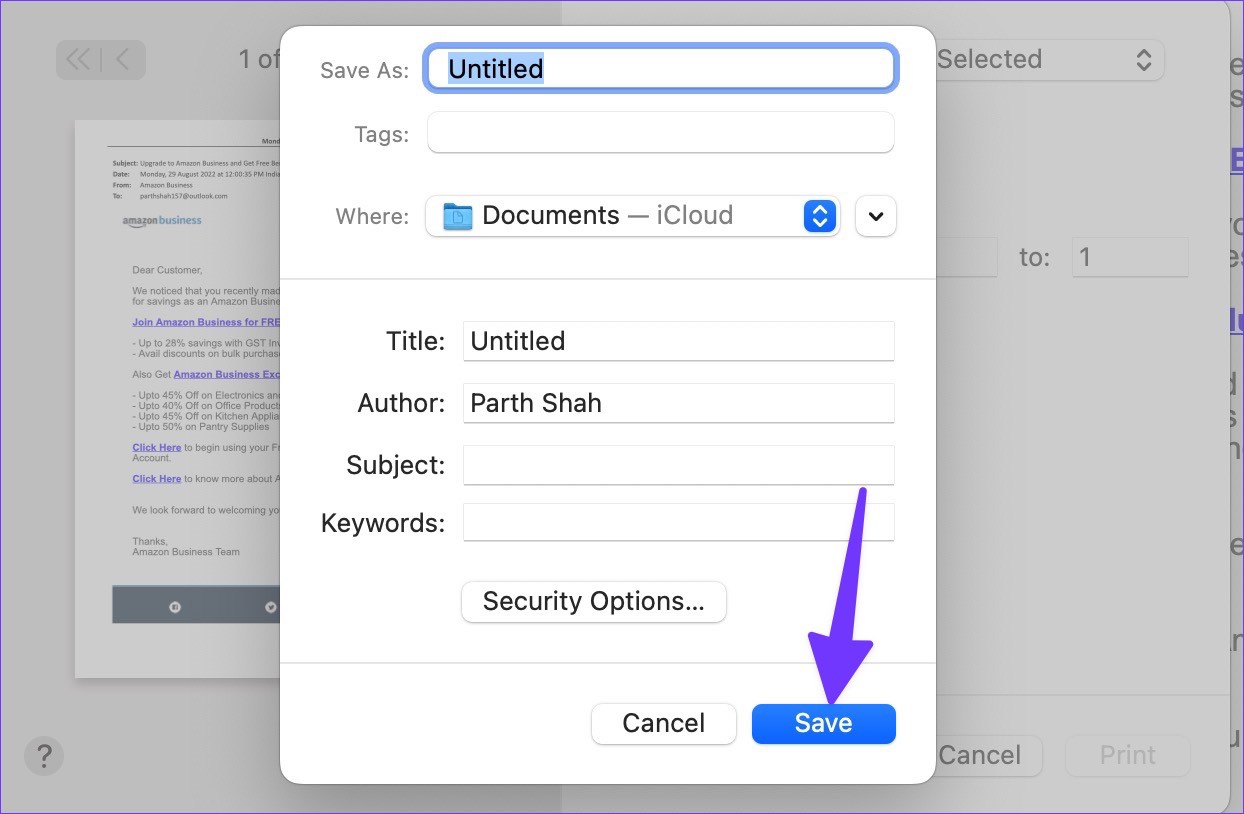
Step 5: Enter the file name and tags if required, and select a download location.
If you are downloading a confidential email, you should password-protect it before hitting the save button.
Step 6: Select Security Options and enable the checkmark beside Require password to open document.
Step 7: Enter the password, verify it, and press OK.

Step 8: Select Save and download the email as a PDF.
You can use the Preview app or Adobe Acrobat Reader DC on Mac to make several changes to the PDF file.
3. Outlook on Mobile (Android and iOS)
The steps are the same for both Android and iOS. For demonstration, we are going with the iPhone. However, if you are an Android user, follow along.
Step 1: Launch Outlook on your iPhone or Android.
Step 2: Open an email and tap the three-dot menu at the top.
Step 3: Select Print Conversation.
Note: On Android, tap Print.


Step 4: Outlook will open Print Options. Hit the Share button beside it.
Step 5: You can directly share Outlook email in PDF format with contacts or select Save to Files.
Note: On Android, tap on the three-dot icon and choose Save as PDF.
Step 6: Select a device folder from the following menu and hit the Save button in the top-right corner.


That’s it. Your PDF file is now ready to share on your iPhone or Android.
You can always forward your Outlook emails. However, not everyone prefers to receive information by email. You can export an email as a PDF on Windows, Mac, or iPhone and share it without any issue.
Was this helpful?
Last updated on 07 July, 2024
1 Comment
Leave a Reply
Read Next
 How to Save Google Docs as PDF on Desktop and Mobile
Save Google Docs as PDF Despite a few differences, the steps are similar for Android, iOS, and Desktop devices.
How to Save Google Docs as PDF on Desktop and Mobile
Save Google Docs as PDF Despite a few differences, the steps are similar for Android, iOS, and Desktop devices.
 How to Recall an Email on Microsoft Outlook for Desktop and Web
Have you experienced panic after sending an email because you noticed an error or you forgot to include an important attachment?
How to Recall an Email on Microsoft Outlook for Desktop and Web
Have you experienced panic after sending an email because you noticed an error or you forgot to include an important attachment?
 6 Ways to Fix Microsoft Outlook Not Showing Email Content on Windows
Fix 1: Disable Offline Mode Your first step is to ensure that Outlook is not in offline mode.
6 Ways to Fix Microsoft Outlook Not Showing Email Content on Windows
Fix 1: Disable Offline Mode Your first step is to ensure that Outlook is not in offline mode.
 5 Fixes for Email Templates Missing in Microsoft Outlook
Fix 1: Check the Email Templates Folder An obvious reason why your Outlook email templates may not show up is that you have accidentally deleted them.
5 Fixes for Email Templates Missing in Microsoft Outlook
Fix 1: Check the Email Templates Folder An obvious reason why your Outlook email templates may not show up is that you have accidentally deleted them.
 How to Find the Email You Used for Facebook on Mobile or Desktop
Can I Find Out What Email I Used for Facebook Without Logging In Unfortunately, you cannot find the email associated with your Facebook account without logging in.
How to Find the Email You Used for Facebook on Mobile or Desktop
Can I Find Out What Email I Used for Facebook Without Logging In Unfortunately, you cannot find the email associated with your Facebook account without logging in.
 How to Change Font Style in Microsoft Outlook
Change Font Style in Microsoft Outlook App for Windows Outlook Windows app doesn’t use plain text and opts for HTML to draft a message.
How to Change Font Style in Microsoft Outlook
Change Font Style in Microsoft Outlook App for Windows Outlook Windows app doesn’t use plain text and opts for HTML to draft a message.
 How to Add and Remove Holidays in Outlook Calendar on Mobile and Desktop
How to Add Holidays in Outlook Calendar App on Mobile Let's check how to add holidays to the Outlook Calendar app for Android and iPhone.
How to Add and Remove Holidays in Outlook Calendar on Mobile and Desktop
How to Add Holidays in Outlook Calendar App on Mobile Let's check how to add holidays to the Outlook Calendar app for Android and iPhone.
 How to Insert Emojis in a Microsoft Outlook Email
Have you ever typed a work email and wished there was a way to add a touch of personality or convey emotions through your words?
How to Insert Emojis in a Microsoft Outlook Email
Have you ever typed a work email and wished there was a way to add a touch of personality or convey emotions through your words?
The article above may contain affiliate links which help support Guiding Tech. The content remains unbiased and authentic and will never affect our editorial integrity.


You can do it on Android.
Open the email.
Click the three dots up the top right of the mail (not the app) the dots are below the mail’s date.
Click to print the email.
When selecting printer, there should be a “Save as PDF option”.