When Windows 11 launched in 2021, Microsoft introduced the Windows Subsystem for Android. It allowed Windows users to run Android apps directly on their devices. However, the support for this feature will sadly end on March 5, 2025. But even after March 2025, you can still run Android apps on Windows 11. This guide will show you the best remaining options to do so.
How to Run Android Apps on Windows 11: The Official Methods
The Windows Subsystem for Android isn’t the only official feature that bridges the gap between Windows and Android. Here are two ways you can run Android apps on Windows 11 “officially.”
Google Play Games Beta
Mobile gaming is immensely popular. However, the little screen can seriously affect your experience. So, when a user wants to run Android app on Windows 11, it’s usually a game. They’re only looking for a bigger screen and smoother gameplay. This can be achieved by installing Google Play Games Beta on your Windows 11 device.
But first, you’ll have to set up virtualization on your Windows PC. This will allow your system to run the Android apps smoothly. Here’s how to enable virtualization in your BIOS/UEFI settings.
Step 1: Restart your computer.
Step 2: Enter the BIOS/UEFI menu. You can do this by pressing “F2,” “F12,” “Delete,” or “Esc” during boot-up. The exact key depends on your computer’s manufacturer.
Step 3: Look for a setting named Intel VT-X or AMD-V. Which setting you’ll see depends on the type of your processor.
Step 4: Enable this option.
Step 5: Save the changes before exiting the BIOD/UEFI menu.
Next, you’ll have to enable virtualization in Windows 11. Here’s how.
Step 1: Search for “Control Panel” in the “Start” menu.

Step 2: Go to the “Programs” section.

Step 3: Click on “Turn Windows features on or off.”

Step 4: Check the boxes next to “Virtual Machine Platform” and “Windows Hypervisor Platform.”

Step 5: Click on “OK.”

Step 6: Restart your device.
Now, you can install Google Play Games Beta.
Step 1: Make sure your PC meets the necessary requirements for this feature.
Step 2: Go to the Google Play Game Beta website.

Step 3: Click on the “Download beta” button.

Step 3: Open the downloaded file.
Step 4: Follow the on-screen instructions to complete the installation.
All that’s left to do is sign in to your account. Make sure you’re using the same account on your Android and Windows devices. From there, you’ll be able to install and run Android games on your Windows 11 system.
The Phone Link App
The Phone Link app can connect your Android smartphone directly to your Windows 11 device. Then, you can use this device to run Android apps, as well as view photos, change device settings, and more. This app will work with select Microsoft Duo, HONOR, and Samsung phones. Here’s what to do.
Step 1: Download and install the Phone Link app to your Windows device.

Step 2: Download and install the Link to Windows app on your Android phone.

Step 3: Launch the Phone Link app and select “Android.”

Step 4: Open the Link to Windows app and scan the QR code.

How to Run Android Apps on Windows 11: The Unofficial Way
By sunsetting the Windows Subsystem for Android, Microsoft took away the best way to run Android apps on Windows 11. This goes for all apps, not just games. That’s why you might need to go the unofficial route – install an Android emulator. You’ll still need to set up virtualization for these emulators to work. After completing those steps, you can download and install an Android emulator of your choosing. Our suggestion is BlueStacks.

This emulator is widely considered the best in its category. This mainly has to do with its wide range of features, excellent compatibility with Android apps, and user-friendly interface.
Was this helpful?
Last updated on 10 March, 2025
Read Next
 4 Ways to Run Apps at Startup on Windows 11
Method 1: Modify In-App Settings Probably the simplest way to run an app at startup is by tweaking its in-app settings.
4 Ways to Run Apps at Startup on Windows 11
Method 1: Modify In-App Settings Probably the simplest way to run an app at startup is by tweaking its in-app settings.
 3 Ways to Run Old Programs in Compatibility Mode on Windows 11
Method 1: Modify Program Properties You can configure a program to run in compatibility mode by modifying its properties.
3 Ways to Run Old Programs in Compatibility Mode on Windows 11
Method 1: Modify Program Properties You can configure a program to run in compatibility mode by modifying its properties.
 3 Ways to Run CHKDSK Utility to Repair Disk Errors on Windows 11
Method 1: Run Check Disk Utility From File Explorer File Explorer provides an easy way to run the Check Disk Utility on your selected system drive to repair its errors.
3 Ways to Run CHKDSK Utility to Repair Disk Errors on Windows 11
Method 1: Run Check Disk Utility From File Explorer File Explorer provides an easy way to run the Check Disk Utility on your selected system drive to repair its errors.
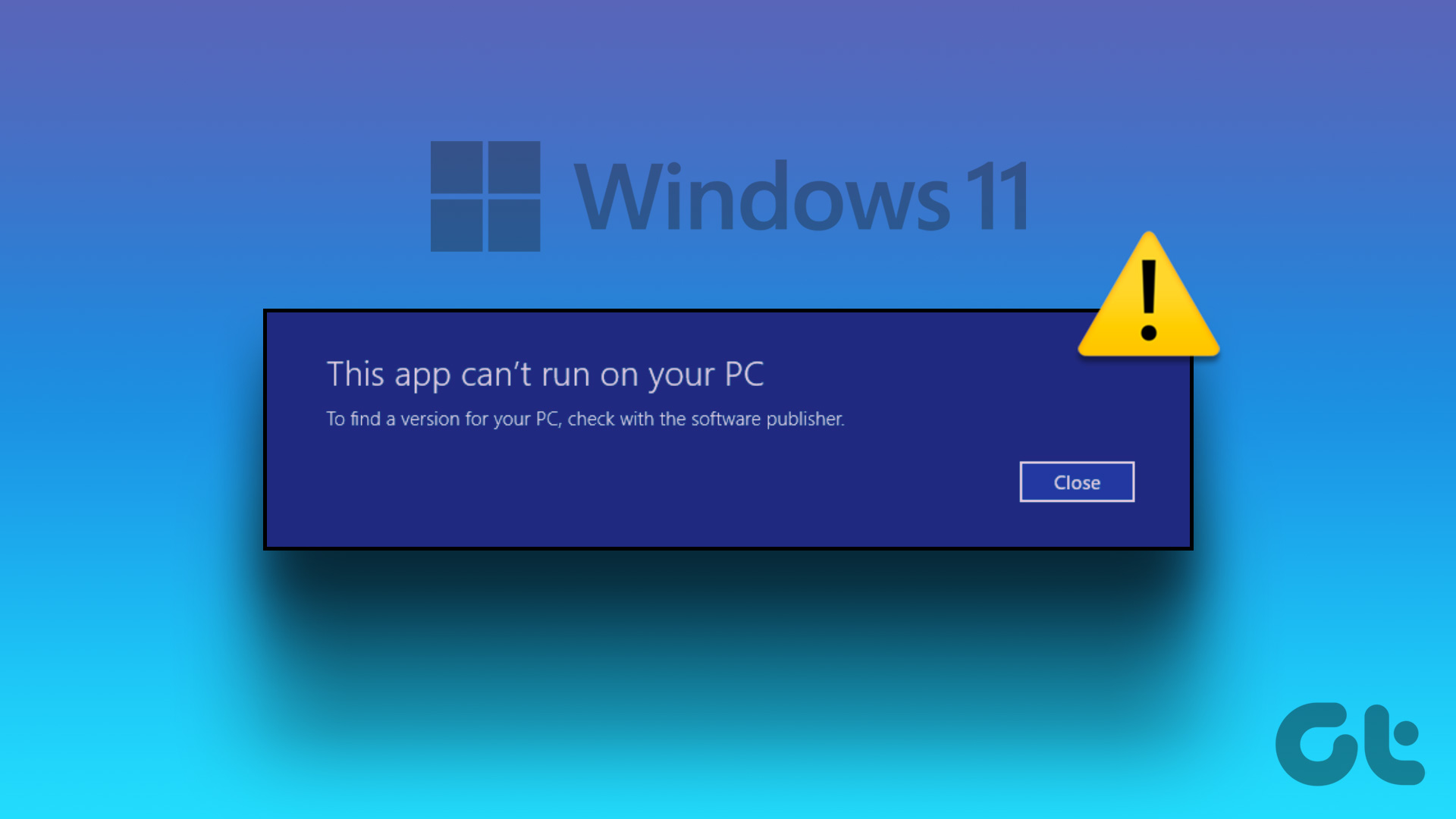 4 Ways to Fix “This App Can’t Run on Your PC” Error in Windows 11
https://youtu.be/7WuW8HnSp9Q Try Basic Fixes Launch the app as an administrator: If an app lacks the necessary permissions to work on your computer, it could fail to launch and trigger the
4 Ways to Fix “This App Can’t Run on Your PC” Error in Windows 11
https://youtu.be/7WuW8HnSp9Q Try Basic Fixes Launch the app as an administrator: If an app lacks the necessary permissions to work on your computer, it could fail to launch and trigger the
 6 Ways to Run PowerShell as Administrator in Windows 11
Method 1.
6 Ways to Run PowerShell as Administrator in Windows 11
Method 1.
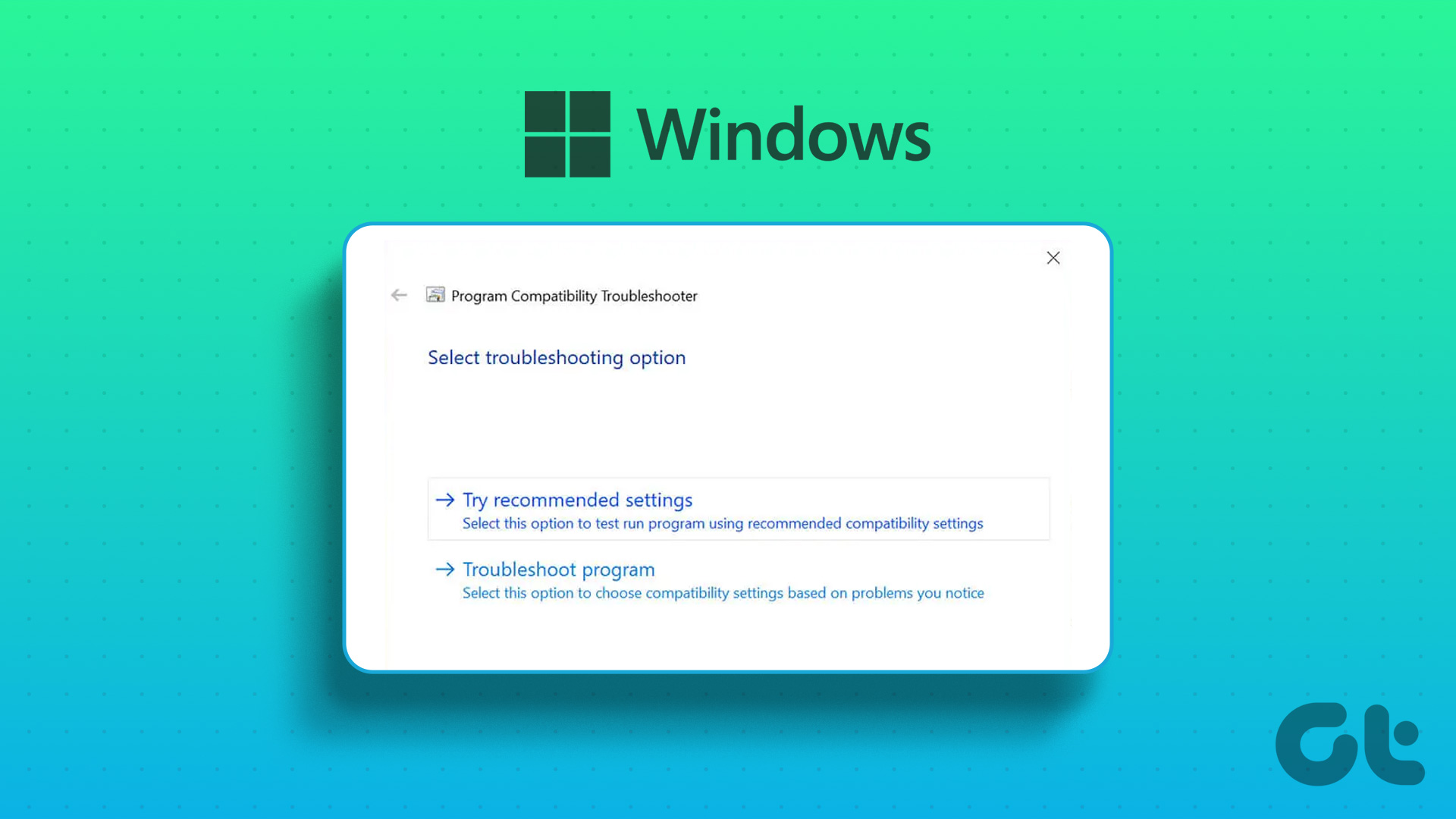 4 Ways to Run the Program Compatibility Troubleshooter on Windows 10 and 11
Method 1: Using the Settings App The Settings app has a dedicated Troubleshoot section that contains all types of troubleshooters. To run the Program Compatibility Troubleshooter, you must access the Settings
4 Ways to Run the Program Compatibility Troubleshooter on Windows 10 and 11
Method 1: Using the Settings App The Settings app has a dedicated Troubleshoot section that contains all types of troubleshooters. To run the Program Compatibility Troubleshooter, you must access the Settings
 6 Ways to Run Disk Cleanup on Windows 11
Method 1: Run the Disk Cleanup Utility From the Control Panel The Control Panel app houses a majority of crucial system tools and Windows settings.
6 Ways to Run Disk Cleanup on Windows 11
Method 1: Run the Disk Cleanup Utility From the Control Panel The Control Panel app houses a majority of crucial system tools and Windows settings.
 5 Fixes for “DLL Is Not Designed to Run on Windows” Error
Try Basic Fixes Update or reinstall the problematic software: Compatibility issues with your app or program can trigger the "DLL is not designed to run on Windows" error on your
5 Fixes for “DLL Is Not Designed to Run on Windows” Error
Try Basic Fixes Update or reinstall the problematic software: Compatibility issues with your app or program can trigger the "DLL is not designed to run on Windows" error on your
The article above may contain affiliate links which help support Guiding Tech. The content remains unbiased and authentic and will never affect our editorial integrity.