Method 1: On iPhone
Note: Modern websites have responsive designs that adapt to different screen sizes, making it challenging to force a desktop view. This can lead to websites displaying their mobile/tablet view even when the feature to access a desktop website is enabled in Safari.
Step 1: Launch the Safari browser and visit a webpage.
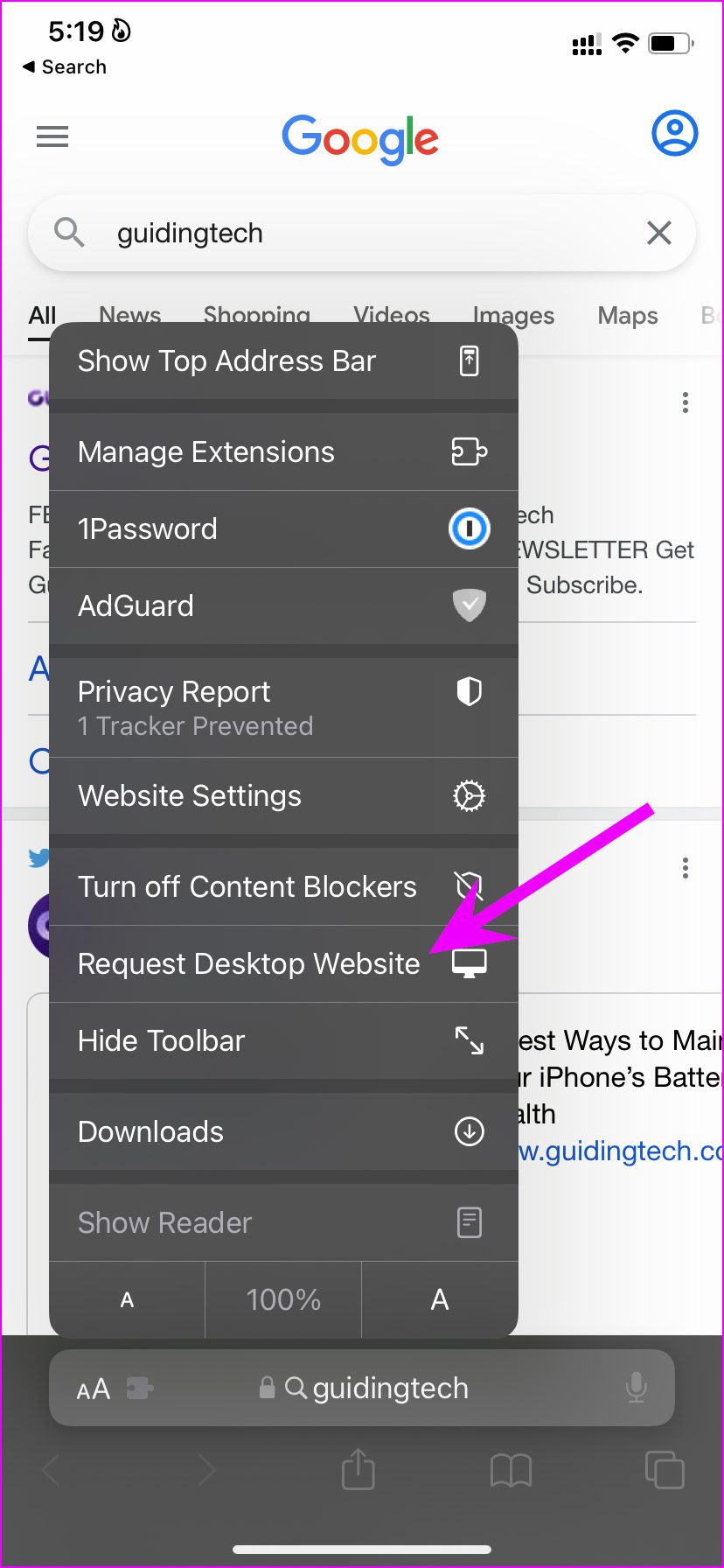
Step 2: Once you load the webpage, find the extension icon in the address bar and tap on it.
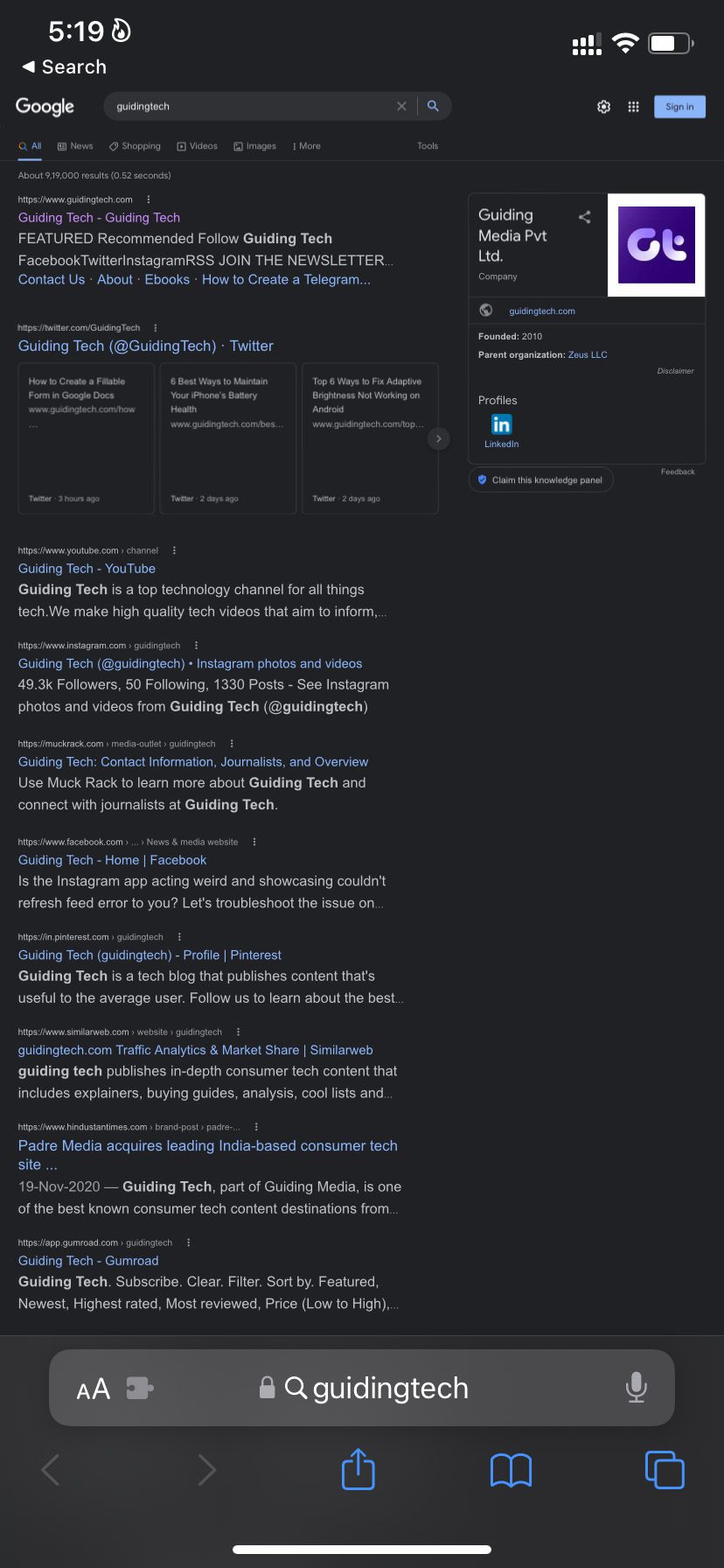
Step 3: Select Request Desktop Website, and Safari will reload the webpage in desktop mode.
Method 2: On iPad
While we don’t recommend using a desktop mode in Safari for iPhone, we argue against the same on the Safari iPad app. Most iPad users use the device in horizontal mode and with iPad screen size reaching almost 13-inch, it makes sense to use the Safari browser in desktop mode only.
That’s the reason Apple has set the desktop mode as the default view on Safari for iPad.
Enable All Websites to Open in Desktop Mode
Method 1: On iPhone
You can return to the same extensions menu and request a mobile website to browse on your iPhone. If you wish to open all the tabs in the future in desktop mode only, you must tweak the Safari settings menu.
Step 1: Open the Settings app on iPhone and tap on Safari.
Step 2: Find the Settings for the websites menu and select Request Desktop Website. Enable the toggle for all websites from the following menu.
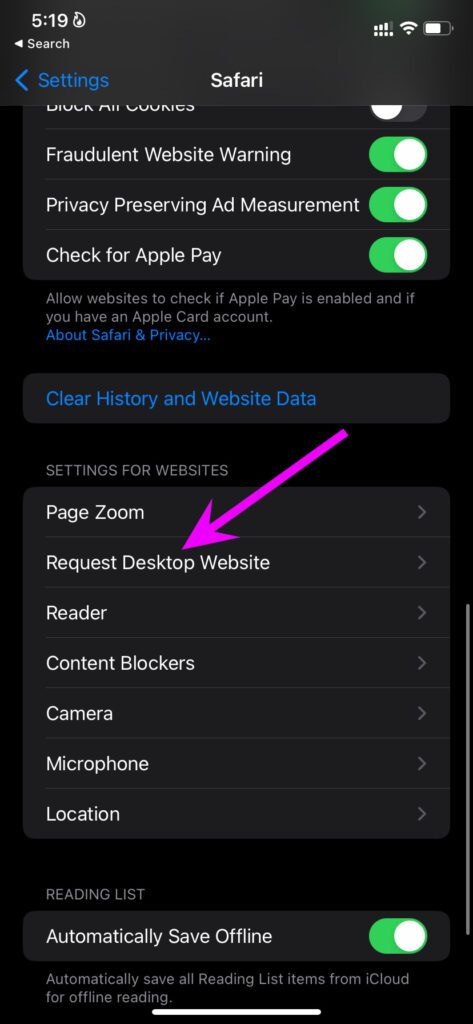
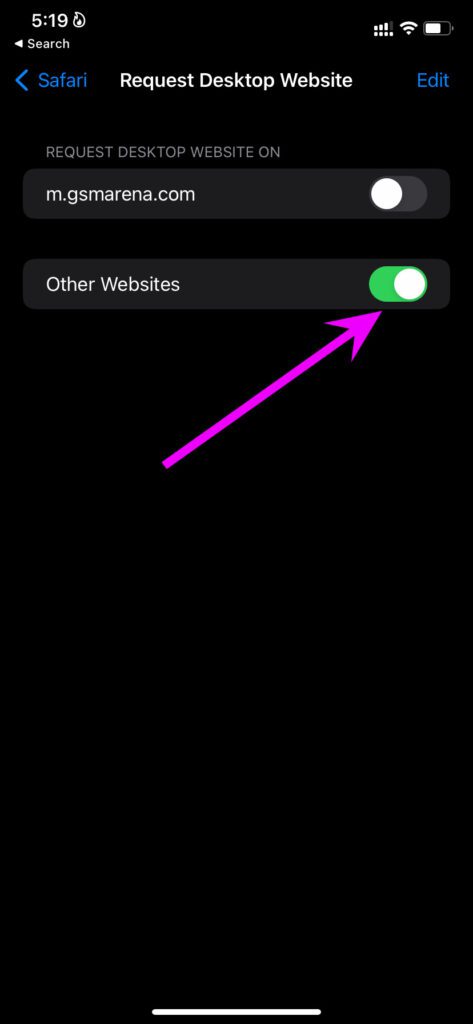
From now on, every web query will load in desktop mode in Safari for iPhone. However, the desktop mode experience can be below-average on a small screen.
Method 2: On iPad
If you don’t see the websites loading in desktop mode, you must make a similar setting tweak on your iPad.
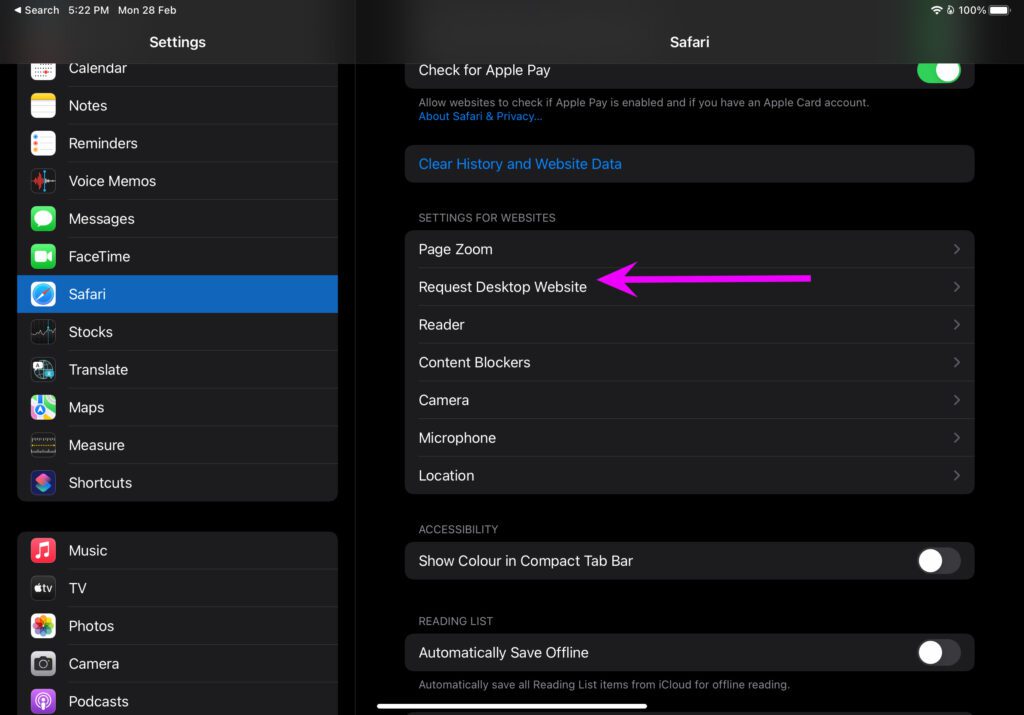
Step 1: Open iPad Settings > go to Safari.
Step 2: Select the Request Desktop Website option and enable the toggle for the same.
Was this helpful?
Last updated on 02 May, 2024
Read Next
 7 Ways to Fix if You Can’t Access Certain Websites on Any Browser
Preliminary Fixes Your IP Address is Blocked: Websites sometimes block specific IP addresses for suspicious activity, security reasons, or geographic restrictions.
7 Ways to Fix if You Can’t Access Certain Websites on Any Browser
Preliminary Fixes Your IP Address is Blocked: Websites sometimes block specific IP addresses for suspicious activity, security reasons, or geographic restrictions.
 How to Block Websites on iPhone and iPad
How to Block Specific Sites on iPhone and iPad The Screen Time functionality lets you easily block websites using the built-in Web Content restrictions.
How to Block Websites on iPhone and iPad
How to Block Specific Sites on iPhone and iPad The Screen Time functionality lets you easily block websites using the built-in Web Content restrictions.
 8 Best Online Alarm Clock Websites for Free
Online alarm clocks are an ideal option for people who travel frequently or need multiple alarms or reminders throughout the day.
8 Best Online Alarm Clock Websites for Free
Online alarm clocks are an ideal option for people who travel frequently or need multiple alarms or reminders throughout the day.
 6 Best Free Websites for Floor Plan Design
It’s 2019, and today, the internet acts as the gateway to a myriad of different tools and websites.
6 Best Free Websites for Floor Plan Design
It’s 2019, and today, the internet acts as the gateway to a myriad of different tools and websites.
 How to Block All Websites Except Approved Ones on Windows
Method 1: Block All Websites Except Approved Ones Using Control Panel The fastest way to block all websites except approved ones is through Internet Options in the Control Panel.
How to Block All Websites Except Approved Ones on Windows
Method 1: Block All Websites Except Approved Ones Using Control Panel The fastest way to block all websites except approved ones is through Internet Options in the Control Panel.
 6 Fixes for Websites Opening Automatically in Google Chrome
Fix 1: Check Browser Extensions A poorly built third-party extension can often cause problems.
6 Fixes for Websites Opening Automatically in Google Chrome
Fix 1: Check Browser Extensions A poorly built third-party extension can often cause problems.
 6 Ways to Fix Edge Keeps Signing Me Out of Websites
Fix 1: Prevent Edge From Deleting Cookies and Passwords on Exit First, ensure that Edge isn’t configured to delete passwords and browser cookies every time you close the browser.
6 Ways to Fix Edge Keeps Signing Me Out of Websites
Fix 1: Prevent Edge From Deleting Cookies and Passwords on Exit First, ensure that Edge isn’t configured to delete passwords and browser cookies every time you close the browser.
 6 Ways to Fix Certain Websites Not Loading on Mac
Basic Fixes Restart your Mac: Start the solution hunt by restarting your Mac.
6 Ways to Fix Certain Websites Not Loading on Mac
Basic Fixes Restart your Mac: Start the solution hunt by restarting your Mac.
The article above may contain affiliate links which help support Guiding Tech. The content remains unbiased and authentic and will never affect our editorial integrity.