


Method 1: Remove Saved Email Address From Gmail on Desktop
You can’t view or modify saved Gmail contacts from the Gmail web. You need to use Google Contacts web to make changes. Visit Google Contacts on the web and follow the steps below to remove remembered email addresses from Google Contacts.
Step 1: Sign in using your account information.
Step 2: Use the search bar at the top and type the contact name you want to remove.
Step 3: Click on the three-dot menu beside the contact name.

Step 4: Click on Delete and confirm your decision.

Optionally, you may disable the Gmail auto-complete list to ensure new email contacts are not enrolled by following the steps below.
Step 1: Visit Gmail on the web and sign in using your account information.
Step 2: Click on the Settings gear at the top and open See All Settings.

Step 3: From the General menu, scroll down to Create contacts for auto-complete.
Step 6: Select I will add contacts myself.

Step 7: Scroll to the bottom and hit Save Changes.
From now on, Gmail won’t save new email addresses as new contacts.
Method 2: Remove Gmail Saved Contacts on iPhone
You don’t need to use Google Contacts on the web to remove remembered email addresses from Gmail. You can also use mobile apps.
Step 1: Open the Settings app on your iPhone.
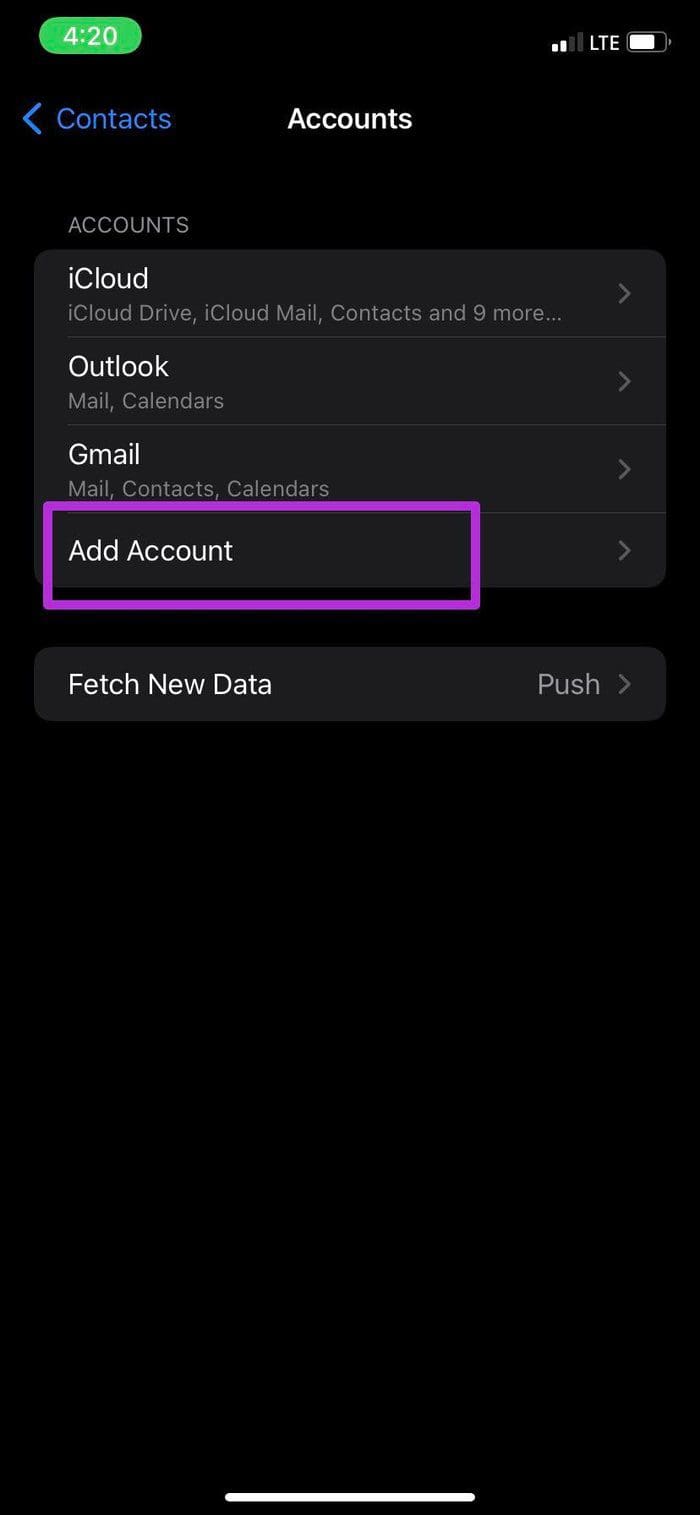
Step 2: Scroll to Contacts and open Accounts from the following menu.
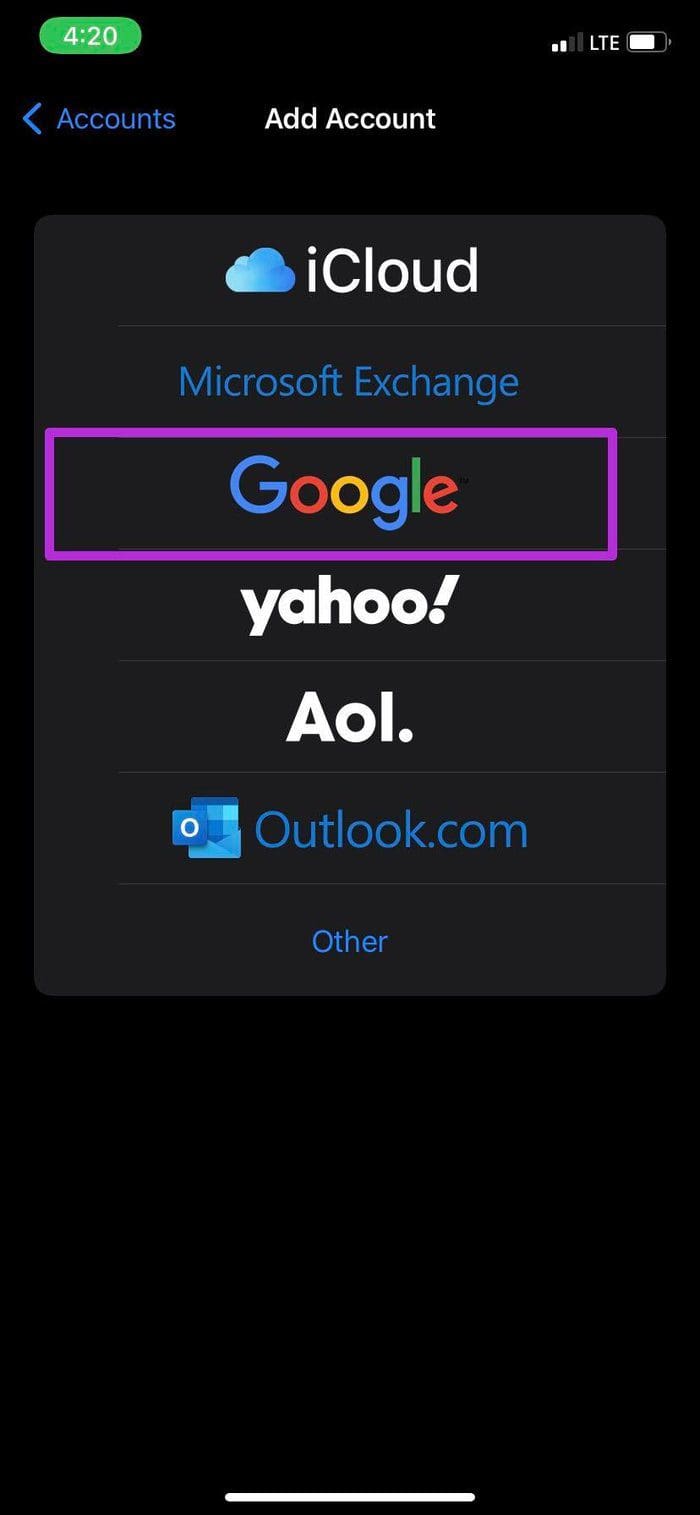
Step 3: Tap on Add Account and sign in using your Google account details and now, you will see a Gmail account appearing in the same Accounts menu.
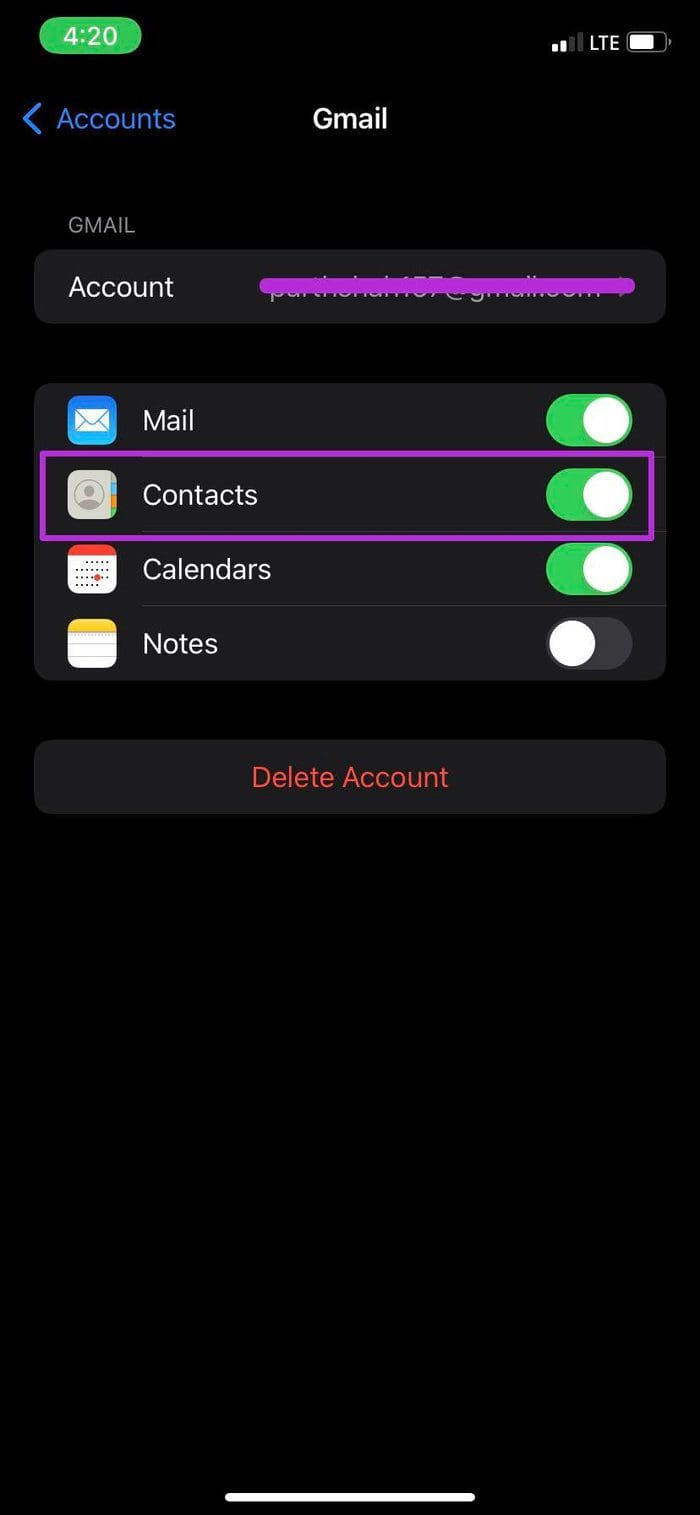
Step 4: From the Gmail menu, enable Contacts.

Step 5: Open the default Contacts app on your iPhone.
Step 6: Find your Gmail contacts and open contact with the email ID you want to delete.
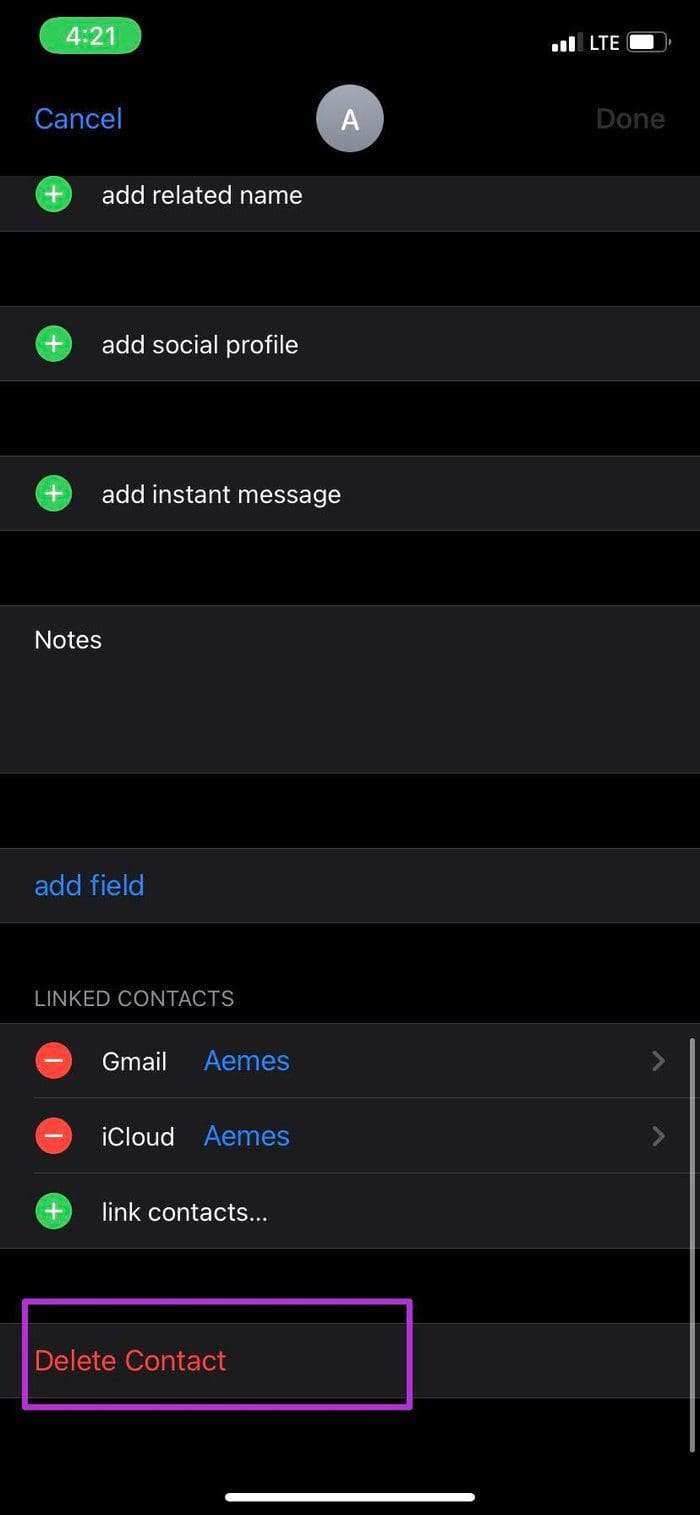
Step 7: Tap on Edit at the upper right corner, scroll to the bottom, and tap on Delete Contact. Hit the confirmation button, and Gmail will no longer suggest the email address.

Method 3: Remove Gmail Remembered Contacts on an Android
Since Google Contacts is built-in on your Android phone and you already have an email address added, it only takes two or three steps to delete the saved Gmail address on Android. Here’s how:
Step 1: Open the Google Contacts app on Android. If the app isn’t built-in on your Android phone, download it from the Play Store.
Step 2: Tap on the contact. You will see all the social media accounts attached to it.
Step 3: Select the three-dot menu in the upper right corner and tap Delete.
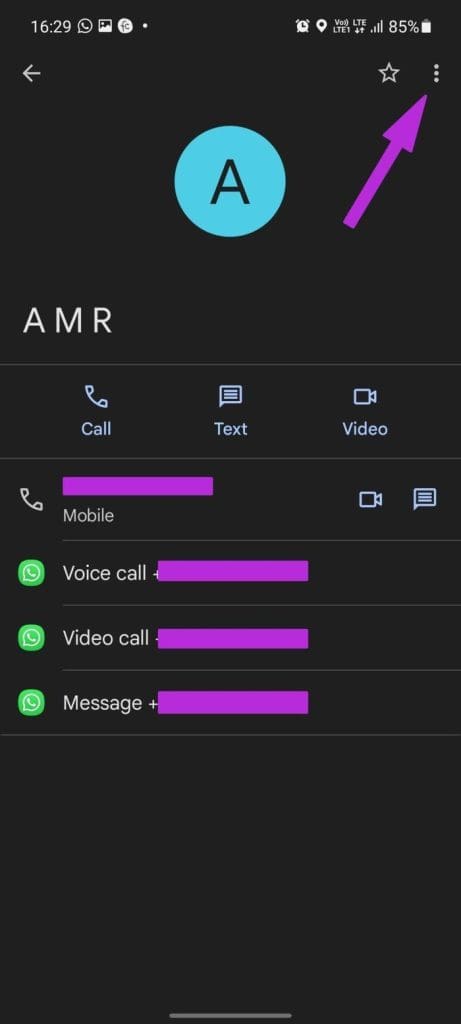
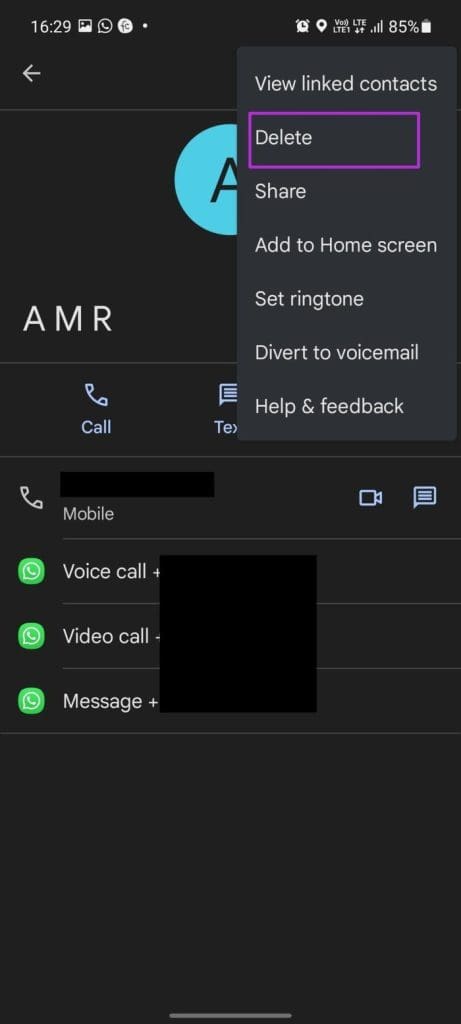
Repeat the same steps for all the remembered email addresses you want to remove in Gmail.
Was this helpful?
Last updated on 27 May, 2024
3 Comments
Leave a Reply
Read Next
 6 Ways to Fix Chrome Autofill Not Working Issue
Fix 1: Check Chrome’s Autofill Settings Usually, Google Chrome automatically saves your passwords, addresses, or payment methods.
6 Ways to Fix Chrome Autofill Not Working Issue
Fix 1: Check Chrome’s Autofill Settings Usually, Google Chrome automatically saves your passwords, addresses, or payment methods.
 How to Enable or Disable Autofill in Google Chrome for PC and Mobile
Are you tired of entering your personal information every time you fill out a form or make an online purchase?
How to Enable or Disable Autofill in Google Chrome for PC and Mobile
Are you tired of entering your personal information every time you fill out a form or make an online purchase?
 How to Add or Change Autofill Data on Google Chrome
While using Google Chrome on your mobile or computer, you will surely come across websites on which you would want to sign up.
How to Add or Change Autofill Data on Google Chrome
While using Google Chrome on your mobile or computer, you will surely come across websites on which you would want to sign up.
 6 Ways to Attach an Email in Gmail
Method 1: Download and Send an Email as an Attachment You can download an email from Gmail, stored in the .eml file format.
6 Ways to Attach an Email in Gmail
Method 1: Download and Send an Email as an Attachment You can download an email from Gmail, stored in the .eml file format.
 How to Edit or Cancel a Scheduled Email in Gmail
How to Edit a Scheduled Email in Gmail During the time between scheduling and sending an email, you can edit or reschedule the content as needed.
How to Edit or Cancel a Scheduled Email in Gmail
How to Edit a Scheduled Email in Gmail During the time between scheduling and sending an email, you can edit or reschedule the content as needed.
 How to Recall an Email in Gmail Using App or Web Browser
While proofreading an email is a must, there are always times when you end up missing things.
How to Recall an Email in Gmail Using App or Web Browser
While proofreading an email is a must, there are always times when you end up missing things.
 How to Add Canva Email Signature to Gmail
Create a Gmail Signature Using Canva You can quickly create an email signature in Canva for free, as its intuitive user interface has drag-and-drop options.
How to Add Canva Email Signature to Gmail
Create a Gmail Signature Using Canva You can quickly create an email signature in Canva for free, as its intuitive user interface has drag-and-drop options.
 How to Forward Email to Your Phone as a Text
Popular Carriers and SMS Gateways to Convert Email to Text Before we move forward, we need to look at the phone carrier and their email-SMS gateway address.
How to Forward Email to Your Phone as a Text
Popular Carriers and SMS Gateways to Convert Email to Text Before we move forward, we need to look at the phone carrier and their email-SMS gateway address.
The article above may contain affiliate links which help support Guiding Tech. The content remains unbiased and authentic and will never affect our editorial integrity.
My account lock please email no work ing gmail add please
I don’t have the delete function displayed so am not able to delete the email address. When I started this reply the default email address was the one I am trying to delete.
I am trying to delete e-mail addresses that show up as I am typing. These are e-mail addresses that are NOT part of my contact list, but ones that i may have sent something to in the past as a one of affair.