Basic Troubleshoot
- Check the Recently Deleted Folder – Assuming the disappeared note is accidentally deleted, you can recover it within 30 days from the date of deletion.
- Use the Search feature – If you remember even some of the notes’ content, try searching for it. You can also select categories like Shared Notes, Notes with Tags, etc., to narrow down the hunt.
- Update iOS – The chances that a bug is behind your disappeared iPhone note are low. However, we’re leaving no stone unturned to get it back. So, let’s check this one off the list as well.
Fix 1. How to Search for Notes in a Specific Folder or Group
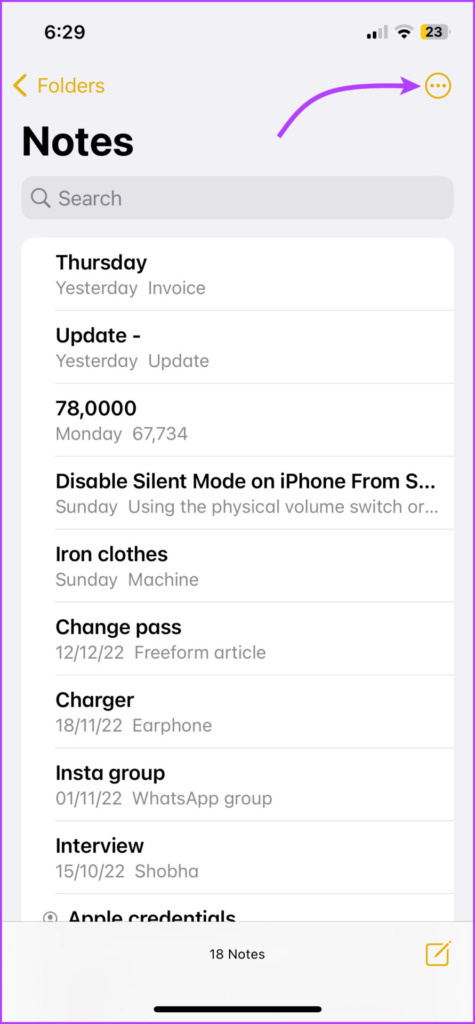
Step 1: In the Notes app, select the folder and tap the three-dot icon from the top-right corner.
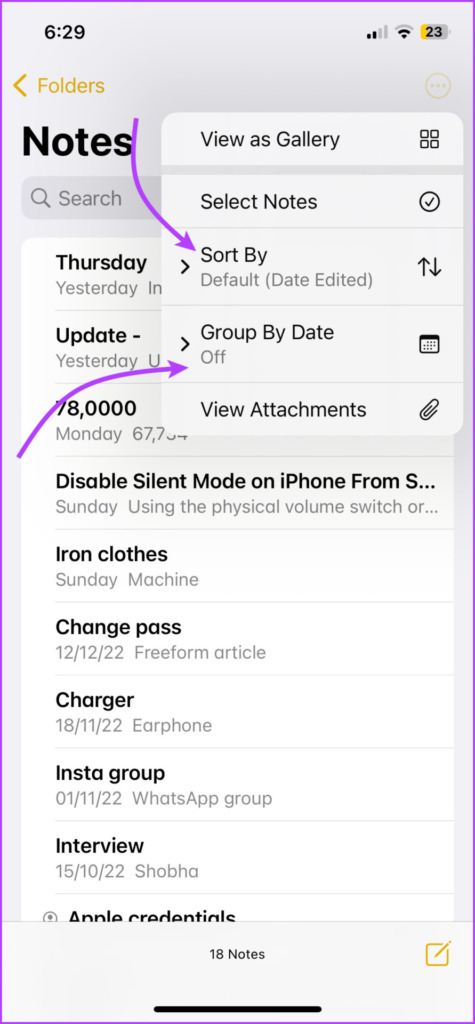
Step 2: Select Group By Date or Sort By.
Once organized in groups and sorted per your preference, you can look for the missing notes under the expected date group.

Fix 2. Check the Account Settings for Notes Sync
If you use multiple email accounts on your device, the disappeared note is likely linked to one of those accounts. The same is true for a previously removed account from your iPhone.
Now, the plan is to ensure Notes sync is turned on for all existing accounts. Plus, add back the deleted accounts to retrieve the missing notes.
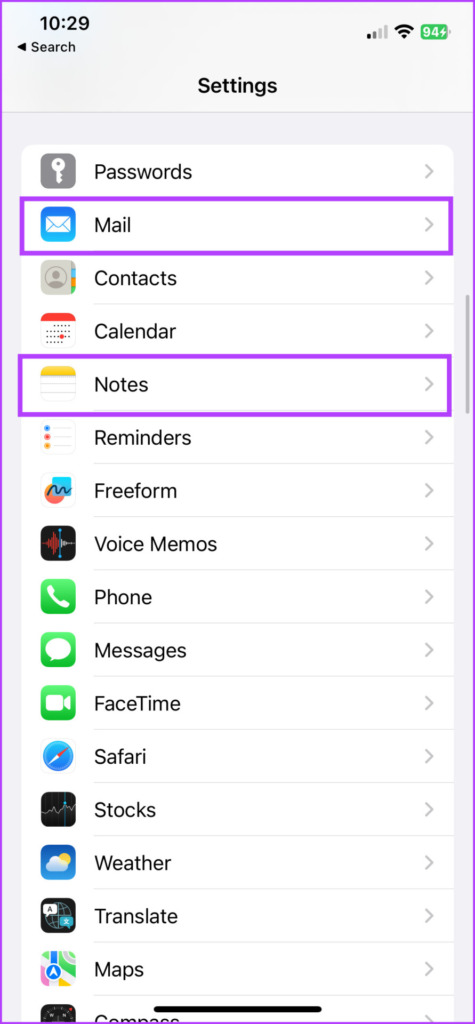
Step 1: Launch the Settings app. Go to Mail/Notes.
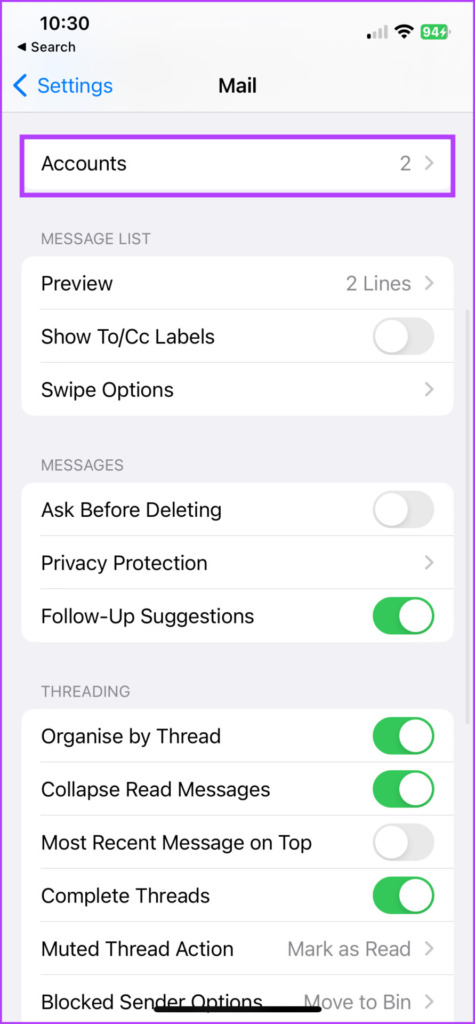
Step 2: Select Accounts.
Step 3: Tap the existing accounts. Ensure to toggle on Notes.
Step 4: Next, if an account is missing, tap Add Account and follow the on-screen instructions. Just ensure the Notes sync is turned on for the account.


Step 5: Once done, go to the Notes app → folders list (tap back < if needed).
Step 6: Select the account from the list and look for your note.
Notably, you can also try searching again for the note. You’ll probably find it under the newly synced notes. Although, if your notes are still lost, try the next step to get them back on the iPhone.
Fix 3. Check iCloud for the Missing Note
Although a little out-of-the-box solution, it’s worth trying. The idea here is to temporarily disconnect the iPhone’s connection to iCloud, stopping notes from syncing.
In turn, this might prevent the disappeared note on iPhone from being deleted or lost from iCloud or another non-active device.
Step 1: On your iPhone, turn off Wi-Fi and Cellular Data. This will stop iCloud from being connected and thus, prevent the synchronization across devices.
Step 2: Now, open the iCloud website on any other device. Sign in with your Apple ID.
Step 3: Select Notes.

Step 4: Here, look for the missing note. You can scroll, search, and check individual folders (don’t forget the Recently Deleted folder).
Step 5: If found, copy the content of the note/notes into a new one.

Step 6: On your iPhone, turn on Wi-Fi and Cellular Data to allow the new note to sync with your iPhone.
Note: If you have a non-active Apple Device handy, that can also help you recover the deleted note. Turn on the device → turn off Wi-Fi or Cellular Data → open the Notes app → look for the notes → create a new note with the content of the old one.
Fix 4. Restore an Older Backup to Retrieve a Missing Note
If you have an iCloud or Finder/iTunes backup of the iPhone that might have the lost note, restoring it is the best way to get it back. However, you can’t just select the notes section of the backup and restore it.
You’ll have to completely erase the iPhone and then restore it with the old backup. Notably, this step will remove new data from the iPhone, so try these steps only if the data is extremely important.
1. Create a Backup of the Recent Data on the iPhone
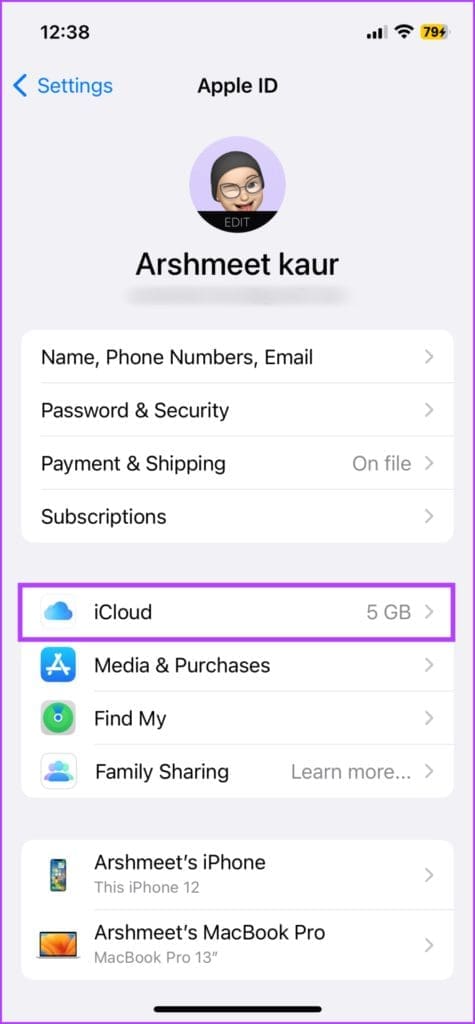
Step 1: On iPhone, launch the Settings app. Tap your name from the top.
Step 2: Tap iCloud > select iCloud Backup.
Step 3: Turn on the toggle for Back Up This iPhone. If already enabled, tap Back Up Now to take an updated backup of your iPhone.


2. Reset Your iPhone
Next up, reset your iPhone to ensure old content is completely erased.
Step 1: Go to Settings → General. Scroll down and select Transfer or Reset iPhone.
Step 2: Select Erase All Content and Settings.
Step 3: Tap Continue and enter the passcode if prompted.


Now, let the process finish. Once done, the phone will restart with the set-up screen.
3. Restore the iPhone With a Backup
Step 1: On the setup screen, select Set Up Manually. Follow the on-screen instructions, till you reach the Apps & Data screen.
Step 2: Select either of the following to find the old backup,
- Restore from iCloud Backup → Sign in to iCloud with your Apple ID.
- Restore from Mac or PC → Connect the phone to Mac/PC via USB.


Step 4: Accordingly, follow the on-screen instructions and select the previous backup you want to update.
Step 5: Wait while the backup is restored.
Once done, look for the missing note and transfer it to a different account, such as Google Keep, Outlook, etc. Hopefully, you’ll finally find the lost notes.
Now, if you want to restore the latest backup on an iPhone, repeat the steps in sections 2 and 3, selecting the most recent backup we made in section 1. We’ll reiterate, that these methods should be the last-case scenario because you could lose some other data in the to and fro. Although, if the lost note is worth it, it’s your call.
FAQs
Yes, but only if you have an old iPhone backup. You can recover the old notes by restoring this backup on the iPhone. However, your current iPhone data will be removed.
Most probably, the iCloud or third-party email account sync was disabled during the update. Go to Settings → Mail → Accounts → select account → toggle on Notes.
Yes, although there is a risk of data breach in such scenarios. So, first, try the above-mentioned solutions and opt for a third-party app only if nothing else works.
Was this helpful?
Last updated on 16 July, 2024
Read Next
 6 Ways to Recover Deleted Sticky Notes in Windows 10
Microsoft improved Sticky Notes with Windows 10 while retaining the simplicity of taking notes that came with the classic version.
6 Ways to Recover Deleted Sticky Notes in Windows 10
Microsoft improved Sticky Notes with Windows 10 while retaining the simplicity of taking notes that came with the classic version.
 3 Ways to Fix Wallpaper Disappeared on iPhone
Basic Fixes: Restart iPhone: Force your iOS device to shut down.
3 Ways to Fix Wallpaper Disappeared on iPhone
Basic Fixes: Restart iPhone: Force your iOS device to shut down.
 5 Ways to Fix Memoji Disappeared After iOS 17 Update on iPhone
Fix 1: Send a Memoji via Stickers After the iOS 17 update, you can use the Stickers option to send a Memoji in iMessage.
5 Ways to Fix Memoji Disappeared After iOS 17 Update on iPhone
Fix 1: Send a Memoji via Stickers After the iOS 17 update, you can use the Stickers option to send a Memoji in iMessage.
 How to Fix Message App Icon Disappeared on iPhone and iPad
Try These Fixes First Restart your device: The Messages app might not appear because of a temporary bug.
How to Fix Message App Icon Disappeared on iPhone and iPad
Try These Fixes First Restart your device: The Messages app might not appear because of a temporary bug.
 8 Fixes for GIFs Not Working or Disappeared on iPhone
Not everything can be described in words.
8 Fixes for GIFs Not Working or Disappeared on iPhone
Not everything can be described in words.
 8 Best Ways to Fix Taskbar Disappeared or Missing on Windows 11
The Windows 11 taskbar is where you can find your favorite apps and the Start menu.
8 Best Ways to Fix Taskbar Disappeared or Missing on Windows 11
The Windows 11 taskbar is where you can find your favorite apps and the Start menu.
 2 Awesome Tools to Recover Screen Time Passcode on iPhone Easily
Screen Time is a refreshing addition to iOS.
2 Awesome Tools to Recover Screen Time Passcode on iPhone Easily
Screen Time is a refreshing addition to iOS.
 7 Methods to Find and Recover Deleted Videos on iPhone
A video can be an excellent way to relive a memory.
7 Methods to Find and Recover Deleted Videos on iPhone
A video can be an excellent way to relive a memory.
The article above may contain affiliate links which help support Guiding Tech. The content remains unbiased and authentic and will never affect our editorial integrity.