When you archive emails in Outlook, they are moved out of your main inbox to help keep things organized, but they’re still in storage. You’ll need to determine the exact type of file used for this storage to retrieve it. Here’s how to recover archived emails in Outlook and stop them from being put there in the first place.
Recover Archived Emails in Outlook From the Archive Folder
This is the simplest recovery method and works when you’ve manually archived emails or when Outlook’s built-in archive feature has moved them to the dedicated Archive folder.
Step 1. Open Outlook and look at the left-hand folder panel.
Step 2. Scroll down and locate the “Archive” folder. It should appear below your main mailbox folders (Inbox, Sent, Drafts, etc.).
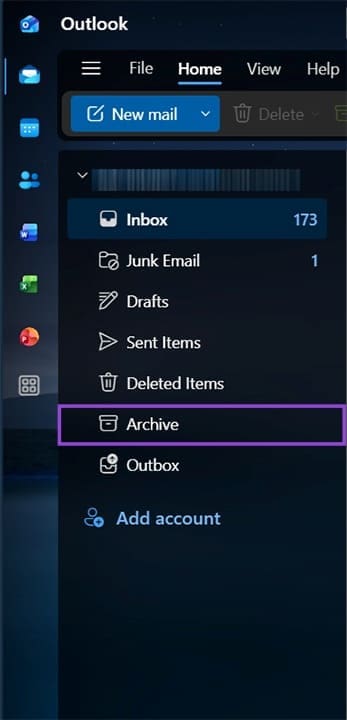
Step 3. Click on “Archive” to open it. Your archived emails will be listed here, typically sorted by date.
Step 4. To move an email back to your Inbox, right-click on it and select “Move”, then click on “Inbox.” You can also drag it out of the folder to the Inbox. To recover multiple emails at once, hold “Ctrl” and click through the emails, then move them.
Recover Archived Emails From Outlook 365 via a Local .pst File (Auto-Archive)
Outlook’s Auto-Archive feature stores emails in a local .pst file on your computer rather than the server. If the folder isn’t visible in the panel, you’ll need to open the .pst file manually.
Step 1. Open Outlook and click on the File tab in the top-left corner.
Step 2. Select “Open & Export,” then go to “Open Outlook Data File.” Notably, this option will be gray if the account doesn’t have an active Microsoft 365 license, since that’s responsible for keeping the files.
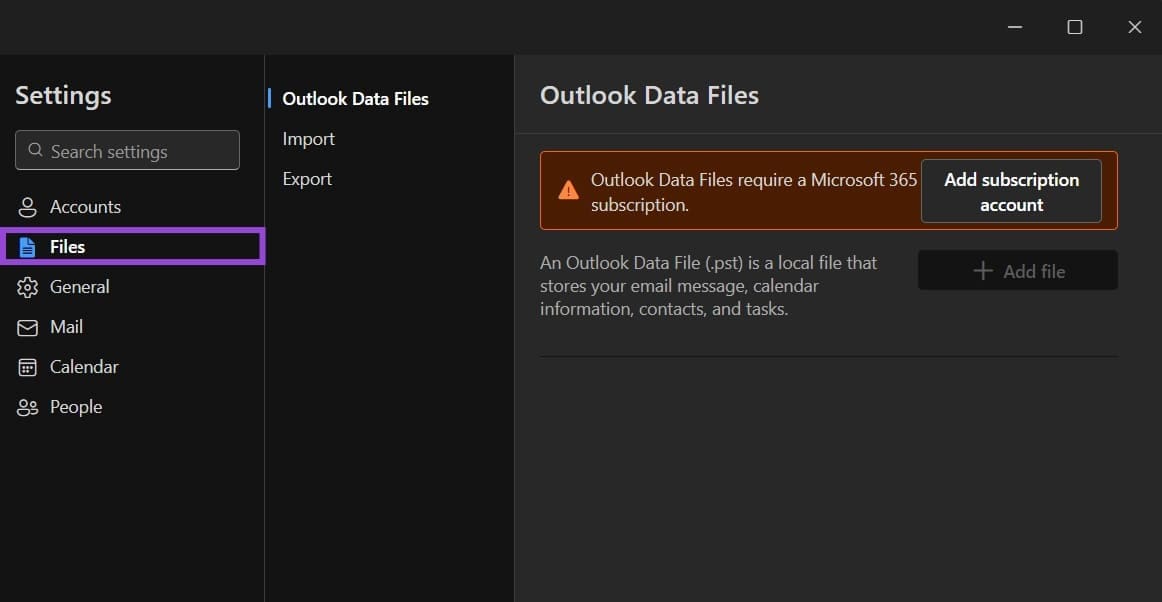
Step 3. Navigate to the location of the file. By default, this is usually found at: C:\Users\[YourName]\Documents\Outlook Files\archive.pst.
Step 4. Select the file and click on “OK.” The archive will now appear as a separate mailbox in the left panel. You can browse the folders inside the archive, find the emails you need, and drag them back to your primary mailbox.
Recover Archived Emails in Outlook on the Web
If your organization uses Microsoft 365 or Exchange, an In-Place Archive (also called an Online Archive) may have been enabled by your IT admin. These emails won’t appear in the desktop app by default, but are accessible via the web.
Step 1. Go to https://outlook.office.com and sign in with your Microsoft account.
Step 2. In the left panel, scroll down past your mailbox folders until you see In-Place Archive or Online Archive. Click on it to expand.
Step 3. Browse the subfolders or use the search bar at the top to find specific archived emails.
Step 4. You can move an email by dragging it.
Recover Archived Emails Using Outlook Search
Outlook’s search function can also locate emails in the archive.
Step 1. Click on the search bar at the top of Outlook (or press “Ctrl + E”).
Step 2. Type in a keyword, sender name, or subject line from the email you’re looking for. Check “All Mailboxes” or “All Outlook Items” to make sure the search covers the archive and not just the inbox.
Step 3. The “Folder” column in the email results will list whether the email is in the archive. You can right-click on it to move it out of the archive.
Prevent Outlook From Archiving Emails on Mobile
Beyond automatic archiving, Outlook can archive emails when you’re using the mobile app and swipe an email to the side. You can remove this option in settings.
Step 1. Open the Outlook app and go to “Settings.”
Step 2. Tap on your account name, then select “Swipe options.”
Step 3. If there’s an option set to “Archive,” tap on it, then change what it does. You can still manually archive emails by opening them and tapping the “Archive” option, but this stops most accidents.
Was this helpful?
Last updated on 30 March, 2026
Read Next
 How to Recover a Deleted Item or Folder in Outlook
 Desktop If you have not cleared it from your deleted items or trash folder, you can recover it.
How to Recover a Deleted Item or Folder in Outlook
How to Recover a Deleted Item or Folder in Outlook Desktop If you have not cleared it from your deleted items or trash folder, you can recover it.
 How to Schedule Emails in Outlook on Any Platform
Have you ever wished for an easier way to manage your emails and ensure they get sent at the most opportune time?
How to Schedule Emails in Outlook on Any Platform
Have you ever wished for an easier way to manage your emails and ensure they get sent at the most opportune time?
 How to Download Emails From Outlook on Web, Desktop, and Mobile
How to Download an Email From Outlook’s Web Version Note: You may choose to skip this method if you have multiple emails you want to download.
How to Download Emails From Outlook on Web, Desktop, and Mobile
How to Download an Email From Outlook’s Web Version Note: You may choose to skip this method if you have multiple emails you want to download.
 How to Delete Multiple Emails in Outlook on Mobile and Web
How to Delete Multiple Outlook Emails on Mobile Let's first start with how you can mass delete emails from the Microsoft Outlook app on your mobile.
How to Delete Multiple Emails in Outlook on Mobile and Web
How to Delete Multiple Outlook Emails on Mobile Let's first start with how you can mass delete emails from the Microsoft Outlook app on your mobile.
 How to Translate Emails in Microsoft Outlook
How to Translate an Email Message in Outlook for Desktop In order to translate messages manually in Outlook, you first need to set up your preferred translation language in the
How to Translate Emails in Microsoft Outlook
How to Translate an Email Message in Outlook for Desktop In order to translate messages manually in Outlook, you first need to set up your preferred translation language in the
 How to Send Recurring Emails in Microsoft Outlook
Set up Recurring Emails Using Power Automate The purpose of setting up a recurring email is to ensure the email is sent out automatically during the required period.
How to Send Recurring Emails in Microsoft Outlook
Set up Recurring Emails Using Power Automate The purpose of setting up a recurring email is to ensure the email is sent out automatically during the required period.
 How to Automatically Forward Emails in Outlook
There are several reasons you may want to automatically forward emails in Outlook.
How to Automatically Forward Emails in Outlook
There are several reasons you may want to automatically forward emails in Outlook.
 Can’t Select Multiple Emails in Outlook – What to Do
If you want to move, label, or delete multiple emails on Outlook quickly, you need to be able to select more than one at a time.
Can’t Select Multiple Emails in Outlook – What to Do
If you want to move, label, or delete multiple emails on Outlook quickly, you need to be able to select more than one at a time.
The article above may contain affiliate links which help support Guiding Tech. The content remains unbiased and authentic and will never affect our editorial integrity.