

How to Recover a Deleted Item or Folder in Outlook Desktop
If you have not cleared it from your deleted items or trash folder, you can recover it.
Method 1: From Deleted Items Folder
Step 1: Open the Microsoft Outlook app on your Windows or Mac.
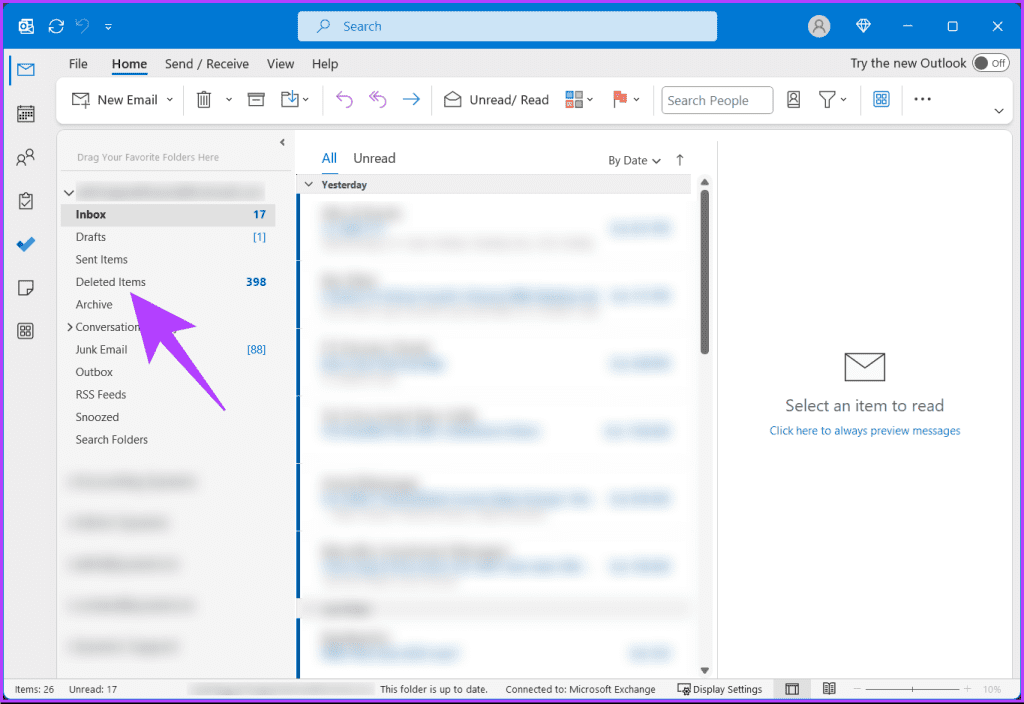
Step 2: On the left pane, click on Delete Items.

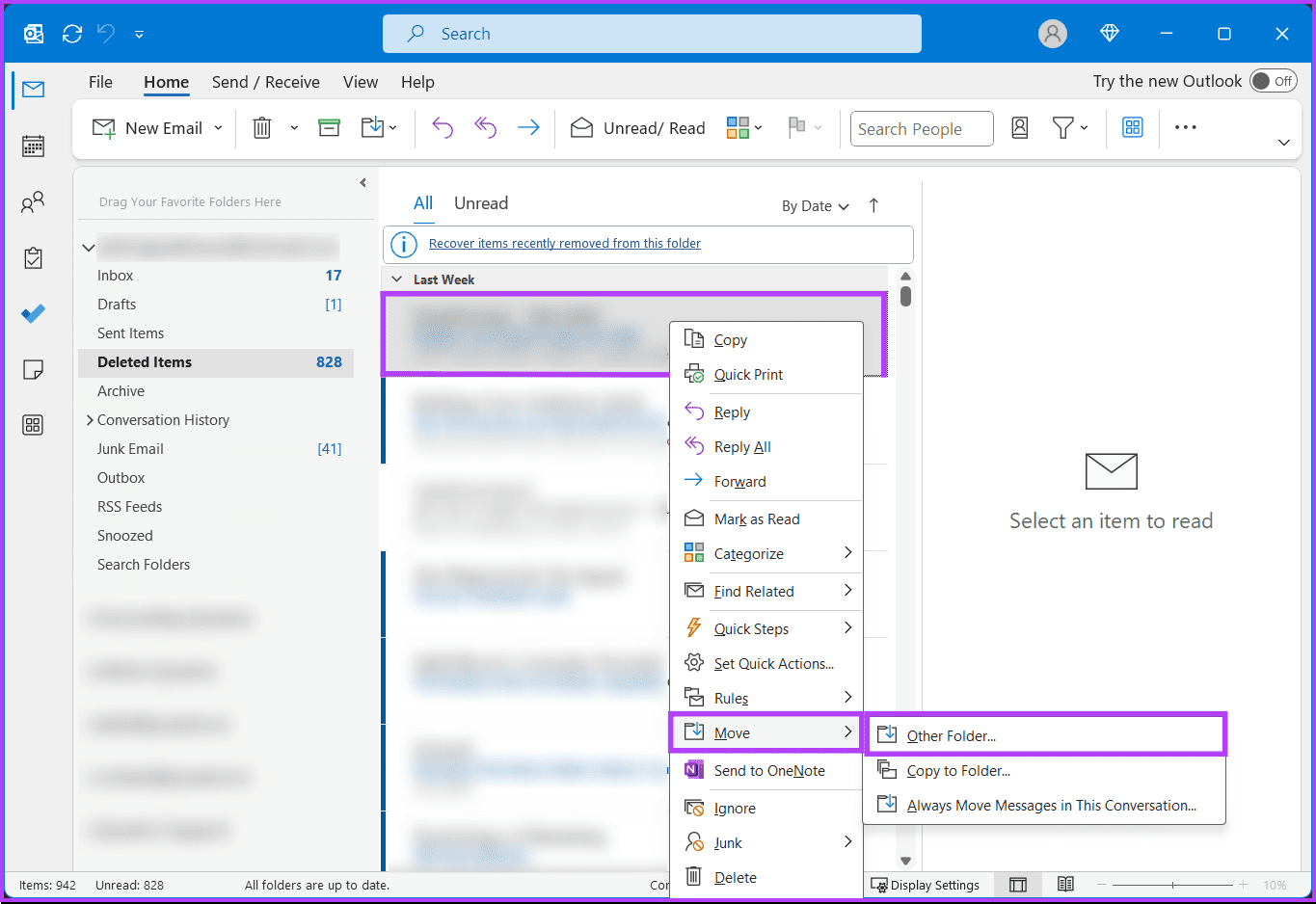
Step 3: Look for the deleted email or folder you want to restore. Right-click on the item and choose Move from the menu > select Other Folder.
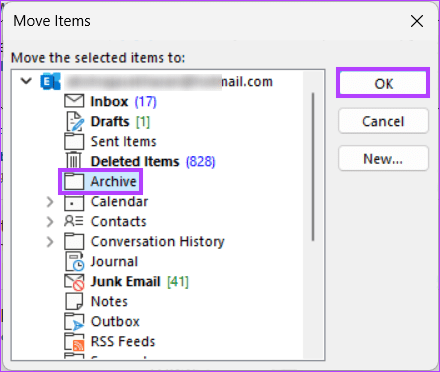
Step 4: In the Move Items window, select the folder to which you want to move the email or event and press OK.
You have successfully retrieved the deleted folder in Outlook. If you cannot follow the above steps or cannot locate the deleted items folder, you must check the Trash folder instead.
Method 2: From Trash Folder
Note: We couldn’t produce images for the steps below. However, the steps are simple to follow.
Step 1: Open the Microsoft Outlook app on your Windows or Mac computer.
Step 2: On the left pane, click the Trash folder.
Step 3: Look for the deleted email or folder you have accidentally deleted and want to recover. Right-click on the item, and from the menu, choose Move and select Other Folder.
Step 4: In the Move Items window, select the folder to which you want to move the email or event and press OK.
There you go. You successfully retrieved the deleted folder in Microsoft Outlook. If you have deleted a folder or item from the deleted items folder, the next place to look is the recoverable items folder.
Also Read: How to fix ‘your organization’s policies are preventing’ error in Outlook
How to Recover Items That Aren’t in Your Deleted Items Folder
If you have a Microsoft 365 or Exchange Server account, there’s a good chance that your deleted items are still on the server and can be recovered.
Step 1: Open the Microsoft Outlook app on your Windows or Mac.
Step 2: On the left pane, click on Delete Items.
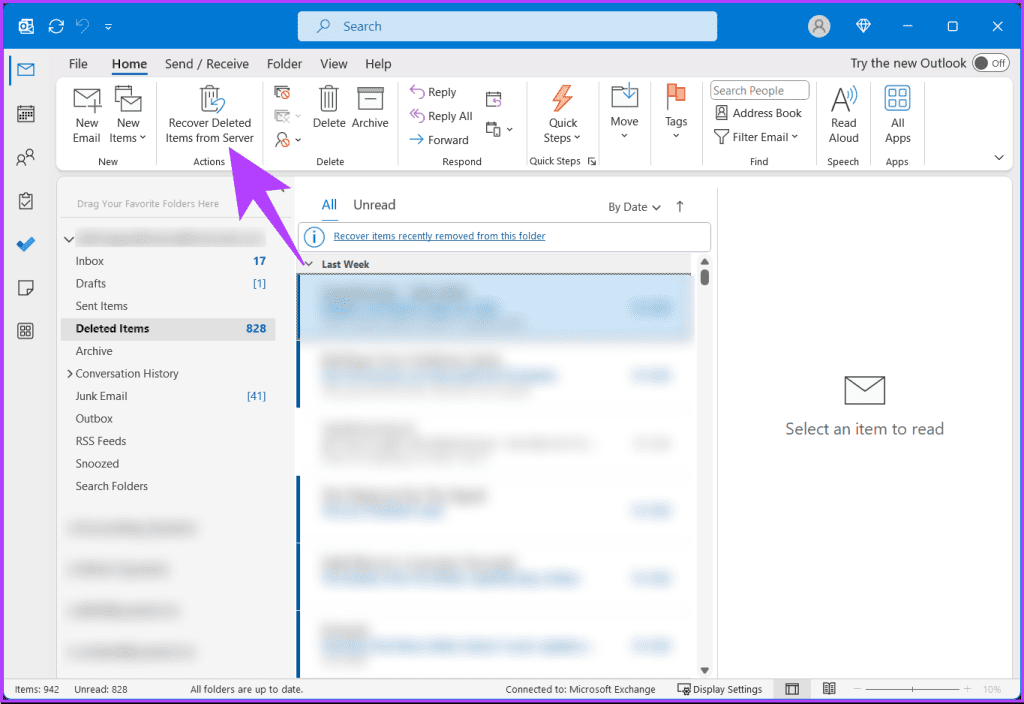
Step 3: Click the Home tab > choose Recover Deleted Items from Server.
If you don’t see the Recover Deleted Items from Server option on the menu, it is likely hidden in the Classic Ribbon layout. To make it visible, click on the chevron (arrow) icon at the bottom right > select Classic Ribbon from the drop-down menu.
Step 4: Select the items you want to recover from the list in the Recover Deleted Items window. Choose Restore Selected Items > click OK.
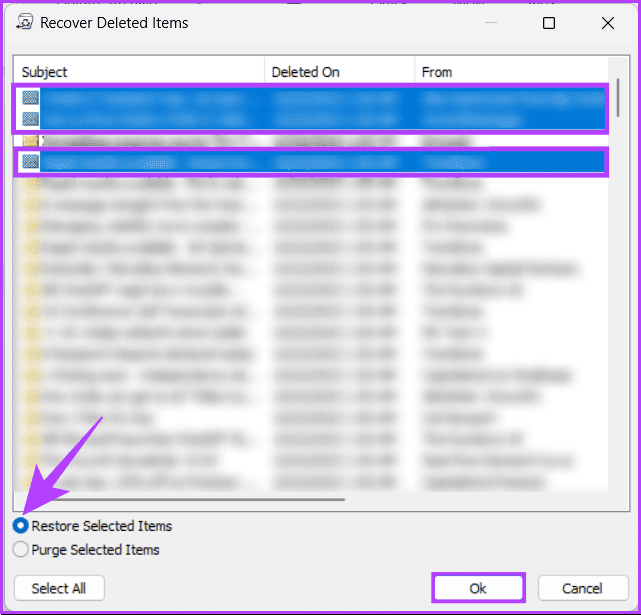
There you go. You have recovered permanently deleted items in Outlook. This was when you were using the Microsoft app on your Windows or Mac. What if you are on Outlook Web and want to recover a deleted item or folder? Continue reading.
Also Read: Best ways to fix Outlook error 500 ‘something went wrong.’
How to Recover a Deleted Item or Folder in Outlook Web
Step 1: Open Outlook in your preferred browser on your Windows or Mac.
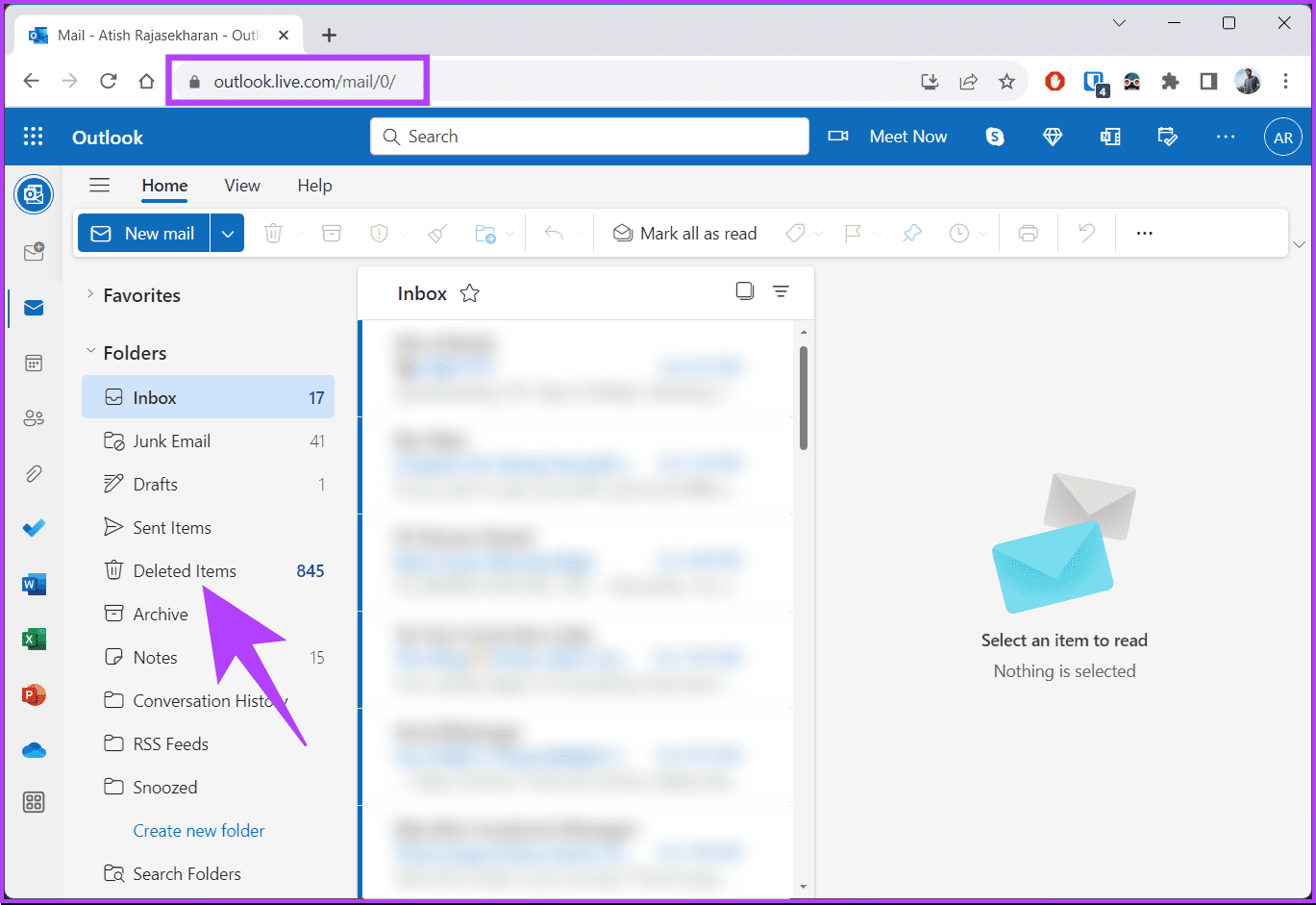
Step 2: From the side pane, click on Deleted Items.
Step 3: Scroll through the items (emails or events), right-click on the folder you wish to recover from the drop-down menu, choose Move, and select the destination to restore and recover your deleted folders.
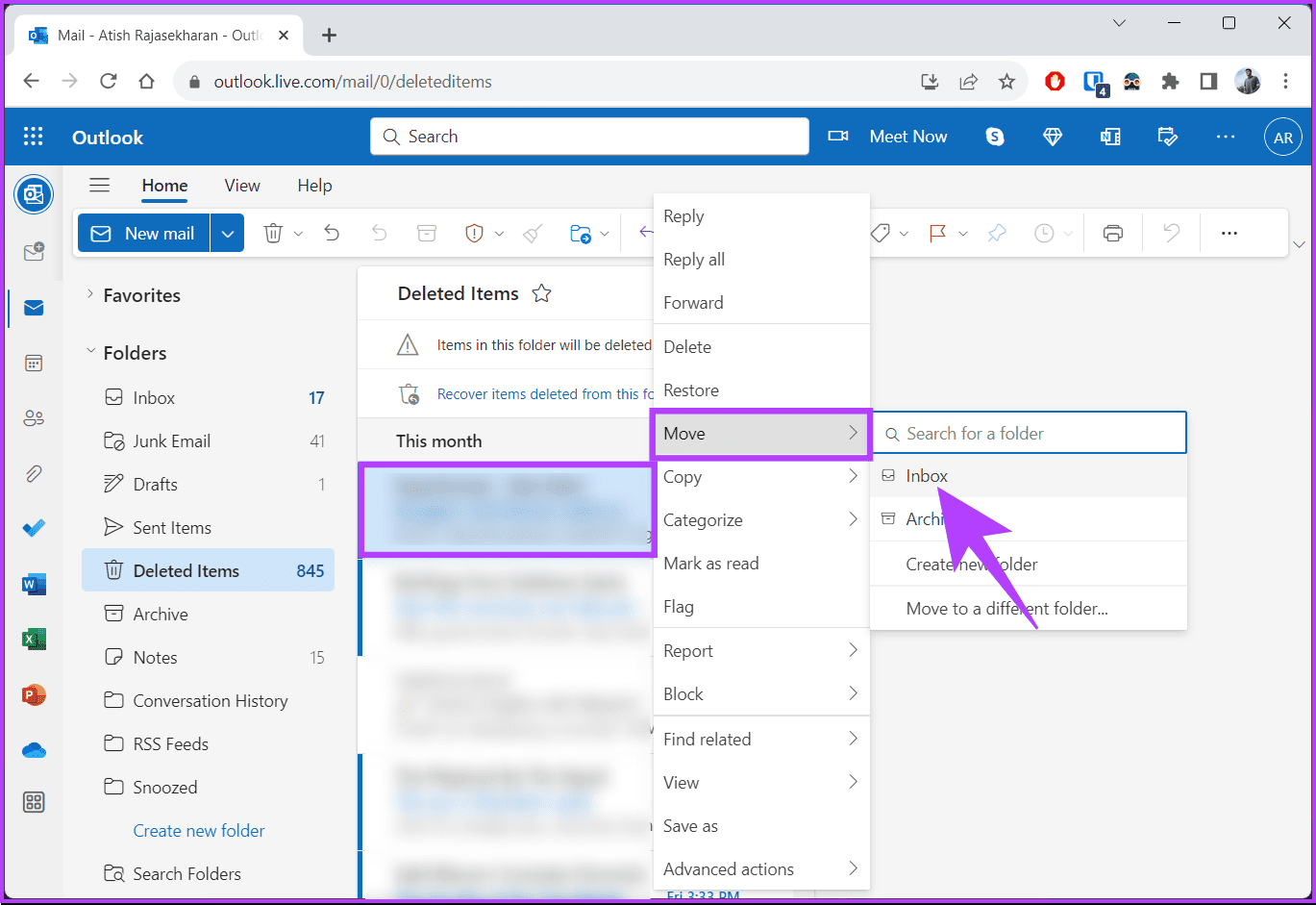
The item under Deleted Items will be recovered and restored.
Also Read: How to find what folder an email is in Outlook
How to Recover a Deleted Item in Outlook Mobile App
Step 1: Launch the Microsoft Outlook app on your Android or iPhone. Tap on the top left corner of the Outlook logo.
Step 2: From the side pane, choose Deleted. Now, long-press on the email or event from the list of deleted items and tap on the three-dot icon.
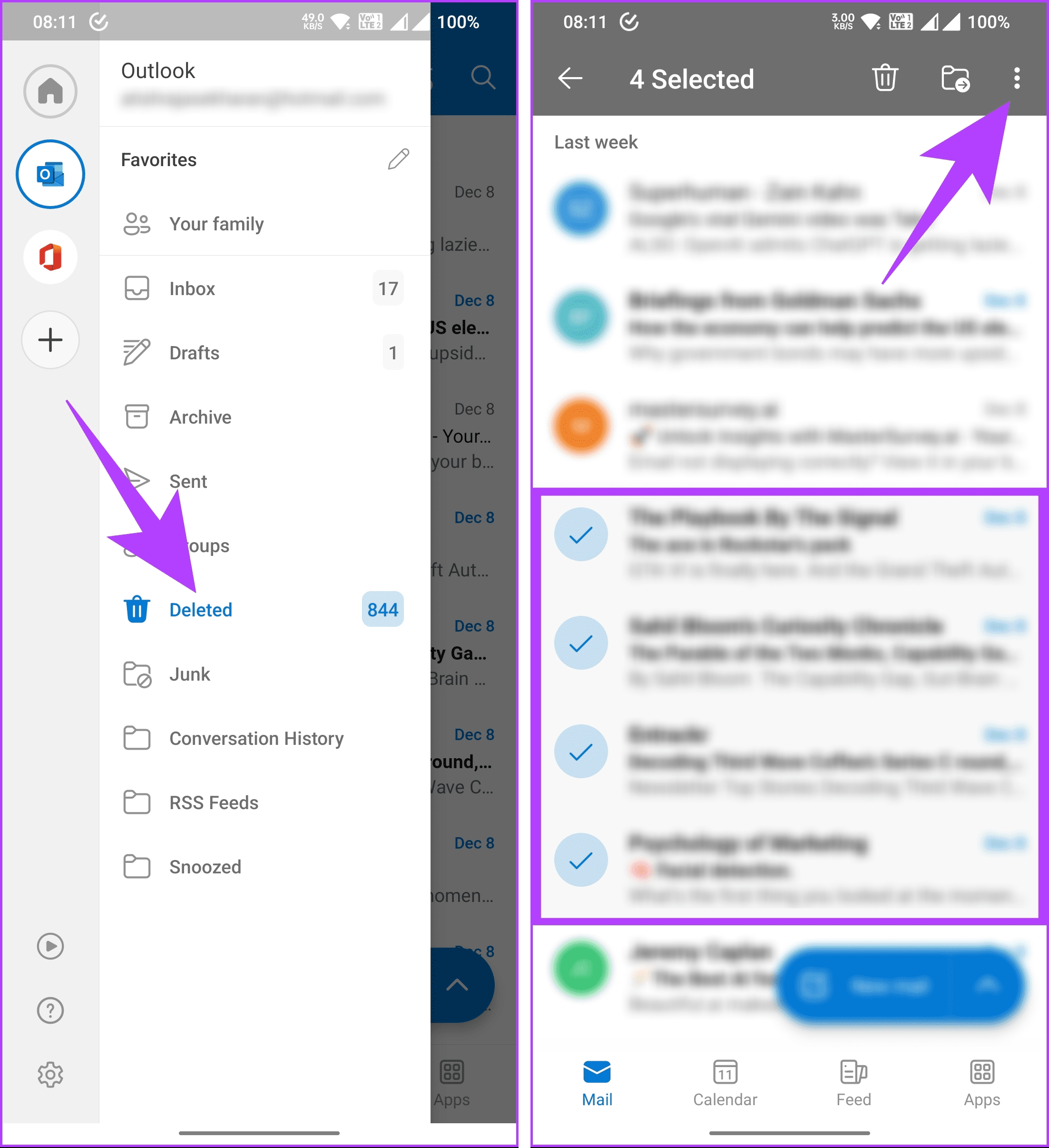
Step 3: Tap Restore conversation from the menu.
This will restore the selected items from the Deleted Items folder to their original location.
FAQs
The default retention period for items in the Recoverable Items folder is 14 days, after which they are permanently deleted.
After 14 days, items are permanently deleted and cannot be recovered.
While there isn’t a strict limit, the recoverable items folder may have a size limit. It’s advisable to move recovered items to a regular folder.
Outlook may automatically archive deleted items if configured to do so. Check the archive folder or settings for automatic archiving.
Was this helpful?
Last updated on 19 August, 2024
Read Next
 How to Recover Deleted Instagram Posts, Stories, Reels, and IGTV Videos
To save people from losing their Instagram data when their account gets hacked, Instagram launched the Recently Deleted feature.
How to Recover Deleted Instagram Posts, Stories, Reels, and IGTV Videos
To save people from losing their Instagram data when their account gets hacked, Instagram launched the Recently Deleted feature.
 How to Recover Deleted Passwords in Google Chrome
Recover Deleted Passwords in Google Chrome Step 1: Launch Google Chrome on the computer you have previously logged into your Google account.
How to Recover Deleted Passwords in Google Chrome
Recover Deleted Passwords in Google Chrome Step 1: Launch Google Chrome on the computer you have previously logged into your Google account.
 3 Ways to Recover Deleted Snaps on iPhone and Android
Method 1: Recover Deleted Snaps Using Snapchat Memories With Memories, you can recover Snapchat pictures on iOS and Android devices without a computer.
3 Ways to Recover Deleted Snaps on iPhone and Android
Method 1: Recover Deleted Snaps Using Snapchat Memories With Memories, you can recover Snapchat pictures on iOS and Android devices without a computer.
 6 Ways to Recover Deleted Sticky Notes in Windows 10
Microsoft improved Sticky Notes with Windows 10 while retaining the simplicity of taking notes that came with the classic version.
6 Ways to Recover Deleted Sticky Notes in Windows 10
Microsoft improved Sticky Notes with Windows 10 while retaining the simplicity of taking notes that came with the classic version.
 How to Recover Deleted Favorites in Microsoft Edge
Method 1.
How to Recover Deleted Favorites in Microsoft Edge
Method 1.
 How to Recover Deleted Apps and Games on Android
Method 1: Using Play Store Mobile The most common way to see your history of deleted apps is by using your smartphone.
How to Recover Deleted Apps and Games on Android
Method 1: Using Play Store Mobile The most common way to see your history of deleted apps is by using your smartphone.
 7 Methods to Find and Recover Deleted Videos on iPhone
A video can be an excellent way to relive a memory.
7 Methods to Find and Recover Deleted Videos on iPhone
A video can be an excellent way to relive a memory.
 9 Ways to Fix Amazon “This Item Cannot Be Shipped” Error
Amazon has become a hub for almost every product in the past few years.
9 Ways to Fix Amazon “This Item Cannot Be Shipped” Error
Amazon has become a hub for almost every product in the past few years.
The article above may contain affiliate links which help support Guiding Tech. The content remains unbiased and authentic and will never affect our editorial integrity.

