How to Enable Remote Play Inside Steam
The Steam Link app’s Remote Play toggle lets your computer communicate wirelessly with your phone over the internet, thereby letting you to play your favorite computer games remotely.
If you don’t have Steam already installed on your computer, you might want to look at our complete guide on installing Steam on Windows 11. Then, follow the steps listed below to enable Remote Play inside Steam.
Note: The steps for opening Steam and enabling Remote Play can differ on macOS.
Step 1: Open the Steam app on your Windows PC. Inside, navigate to Steam > Settings.
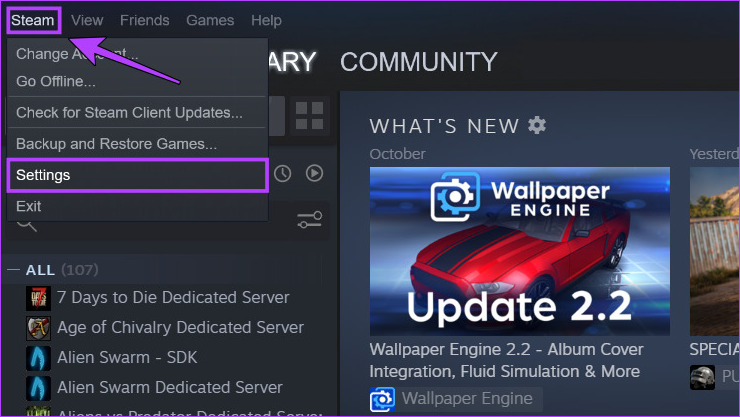
Step 2: In the Settings page, switch to the Remote Play section from the left pane. Then, click the checkbox that says Enable Remote Play. Finally, click on OK to save the changes.

After that, you can pair your phone with Steam via the Steam Link app. Keep reading further as we explain more about it.
Play Steam Games on Android and iOS Using the Steam Link App
With the Remote Play toggle enabled you’ll need to download the Steam Link app for your Android or iOS phone. After the app finishes downloading, you’ll need to connect your phone to a computer running Steam, as detailed in the steps below:
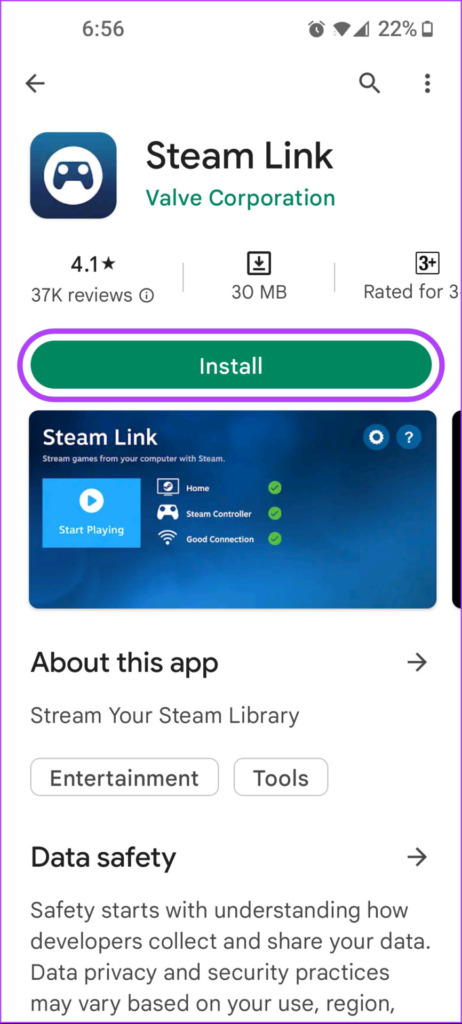
Step 1: Download the Steam Link app from the Play Store on your Android phone or App Store on your iPhone. After the app is downloaded, tap on the Steam Link app to open it.
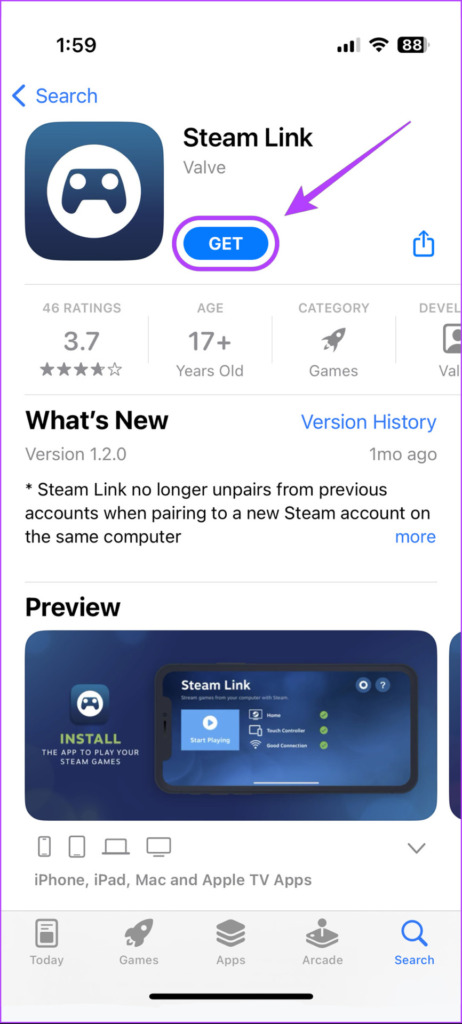
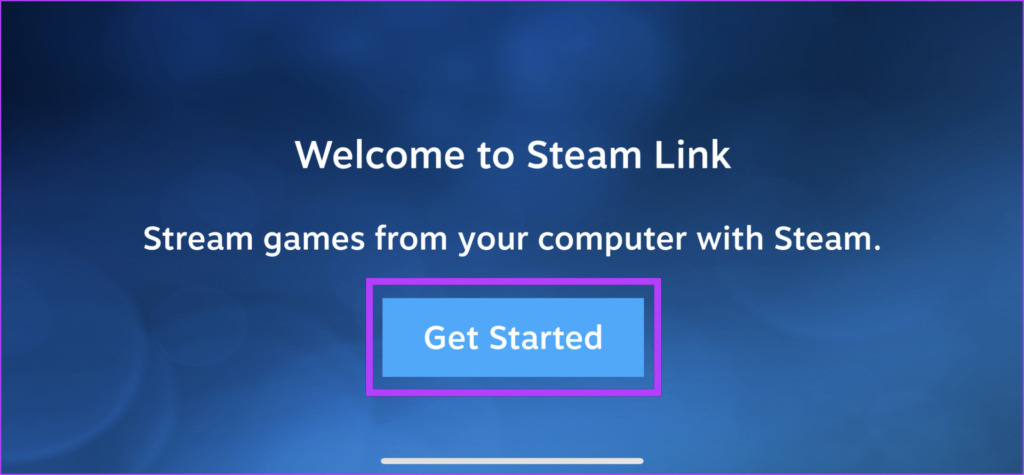
Step 2: Accept the permissions that appear on the phone’s screen. Once done, tap on Get Started.
Step 3: Steam Link will scan for computers running Steam connected to the same Wi-Fi network.
Steam Link will automatically discover your computer if your phone and computer are connected to the same Wi-Fi network. However, automatic discovery won’t work if you try discovery on the mobile data, and you need to pair your phone to Steam manually, as detailed in Steps 4 to 7.

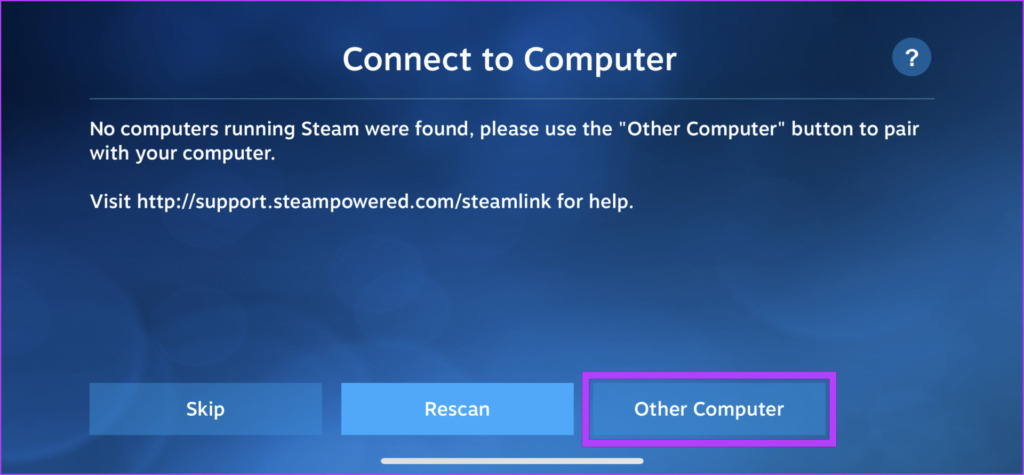
Step 4: If a computer isn’t discovered, tap on Other Computer.
Step 5: Note down the four-digit code that appears on the screen and open Steam on your computer.
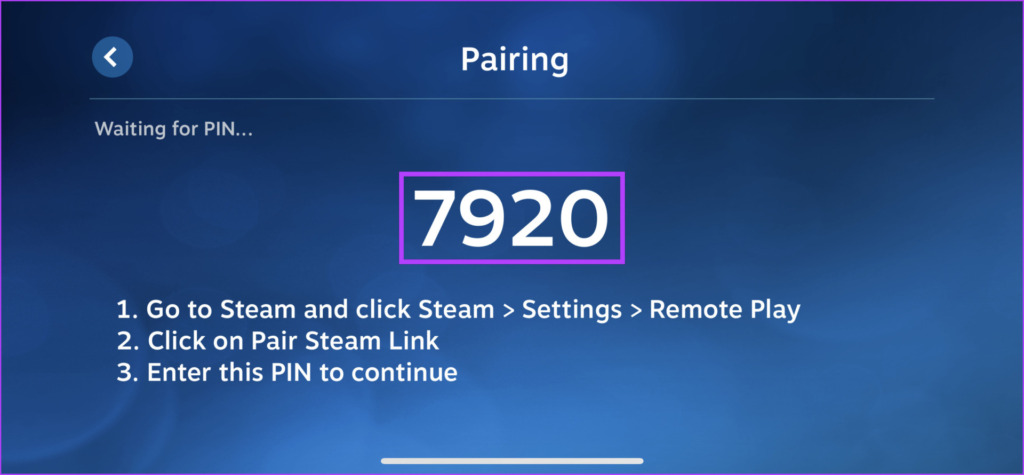
Step 6: On your computer running Steam, navigate to Settings > Remote Play > Pair Steam Link.

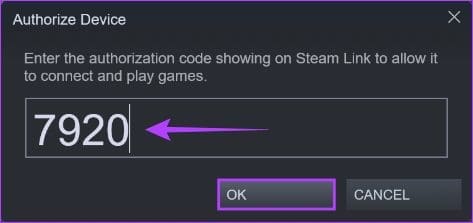
Step 7: Here, type the four-digit code you noted down earlier (in Step 5) into the text box and click OK.
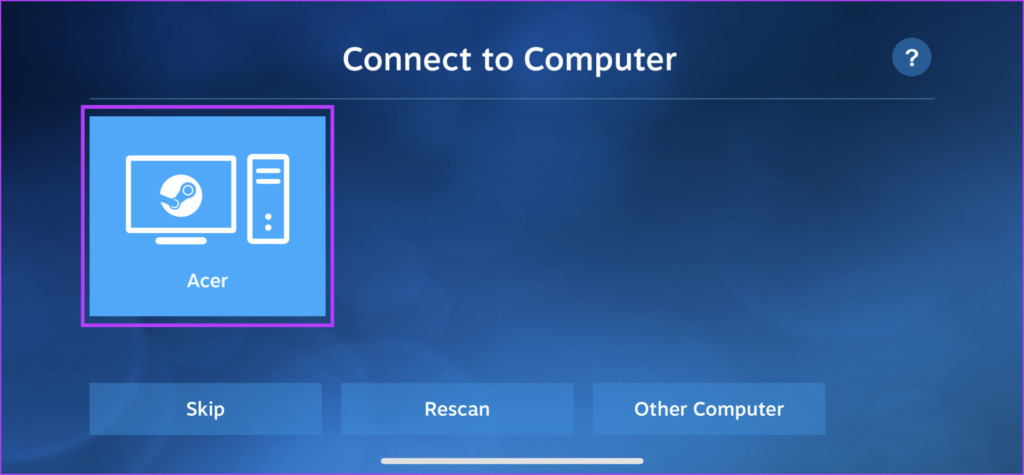
Step 8: Tap on your computer’s name when it appears on your phone.
Step 9: With Steam Link successfully connected to your computer, tap on Start Playing.
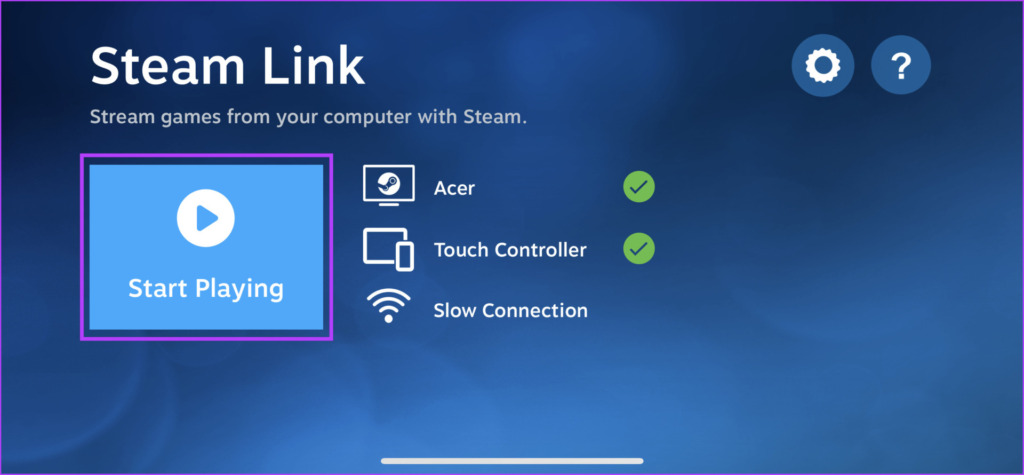
Step 10: After this, you will see your computer running Steam appear on your phone’s screen. You can now use your phone as a wireless controller to navigate menus and play your favorite games.

FAQs
Yes, a strong and stable internet connection, preferably over 5 GHz Wi-Fi and Ethernet (for PC) is recommended for smooth gameplay.
Yes, you can connect a compatible Bluetooth controller to your mobile device for a better gaming experience.
Most Steam games are compatible. However, it’s important to check individual game listings for confirmation.
While possible, using Steam Link on mobile data is not recommended due to potential latency and high data usage.
Was this helpful?
Last updated on 09 July, 2024
Read Next
 12 Hidden Google Games You Can Play on Chrome, Android, Earth, Search, and Assistant
Google is a company like no other.
12 Hidden Google Games You Can Play on Chrome, Android, Earth, Search, and Assistant
Google is a company like no other.
 How to Fix Epic Games Library Not Showing Games
Basic Fixes: Refresh Epic Games launcher library: A quick refresh can help fix any glitches keeping you from accessing your Epic Games Library.
How to Fix Epic Games Library Not Showing Games
Basic Fixes: Refresh Epic Games launcher library: A quick refresh can help fix any glitches keeping you from accessing your Epic Games Library.
 How to Update Epic Games Launcher and Its Games on Windows
How to Check and Update Epic Games Launcher Epic Games Launcher auto-updates along with its games.
How to Update Epic Games Launcher and Its Games on Windows
How to Check and Update Epic Games Launcher Epic Games Launcher auto-updates along with its games.
 How to Uninstall Epic Games Launcher and Its Games
Things to Consider Before Uninstalling Games or Epic Games Launcher Before uninstalling Epic Games Launcher or the games in it, consider the following things: Backup game files: If you have
How to Uninstall Epic Games Launcher and Its Games
Things to Consider Before Uninstalling Games or Epic Games Launcher Before uninstalling Epic Games Launcher or the games in it, consider the following things: Backup game files: If you have
 Where Are Steam Games Stored and How to Change Their Location
Where Does Steam Install Games?
Where Are Steam Games Stored and How to Change Their Location
Where Does Steam Install Games?
 How to Link Epic Games to Steam: Everything You Need to Know
Things to Remember Before you go ahead with linking your Steam and Epic Games accounts to one another, there are a handful of things to keep in mind.
How to Link Epic Games to Steam: Everything You Need to Know
Things to Remember Before you go ahead with linking your Steam and Epic Games accounts to one another, there are a handful of things to keep in mind.
 How to Share Games on Steam With Friends and Family
Do you ever stare at your massive Steam library, wishing you could share the joy with your friends?
How to Share Games on Steam With Friends and Family
Do you ever stare at your massive Steam library, wishing you could share the joy with your friends?
 How to Optimize Steam Deck’s Performance in Games
Valve's Steam Deck is easily one of the best handheld gaming consoles.
How to Optimize Steam Deck’s Performance in Games
Valve's Steam Deck is easily one of the best handheld gaming consoles.
The article above may contain affiliate links which help support Guiding Tech. The content remains unbiased and authentic and will never affect our editorial integrity.