How to Open JSON Files on Mac
Here are two ways to open JSON files on your Mac.
Method 1: Open JSON File Using TextEdit
Using TextEdit on a Mac to open JSON files allows for basic viewing and manual editing of the file’s contents. You can make changes, perform simple search and replace tasks, and save modifications.
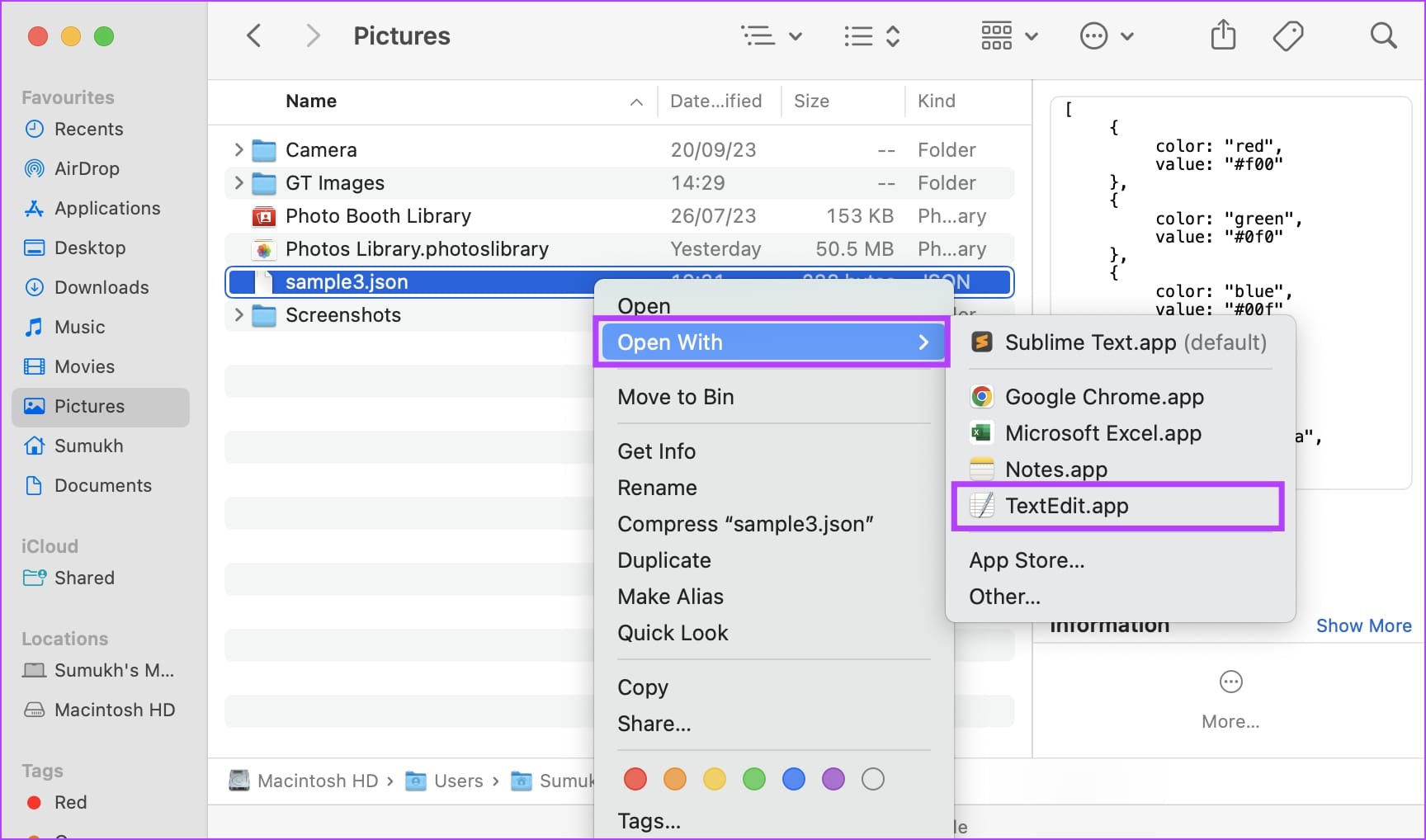
Step 1: Navigate to the folder where the JSON file is present on your Mac.
Step 2: Right-click on the file. Select Open With -> TextEdit.app.
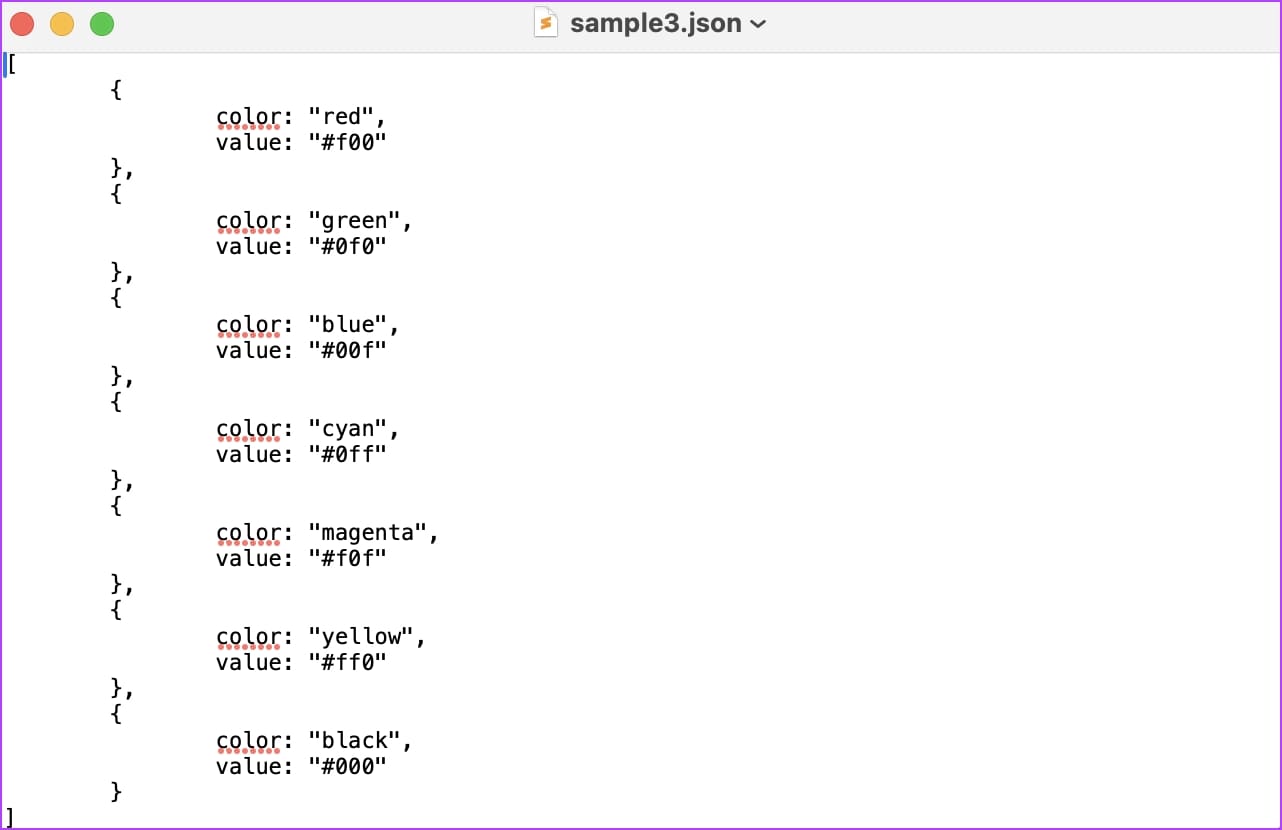
The JSON file will open in the TextEdit.app on your Mac.
Method 2: Open JSON Files in Safari
You can also open JSON files in a readable format in Safari on your Mac.
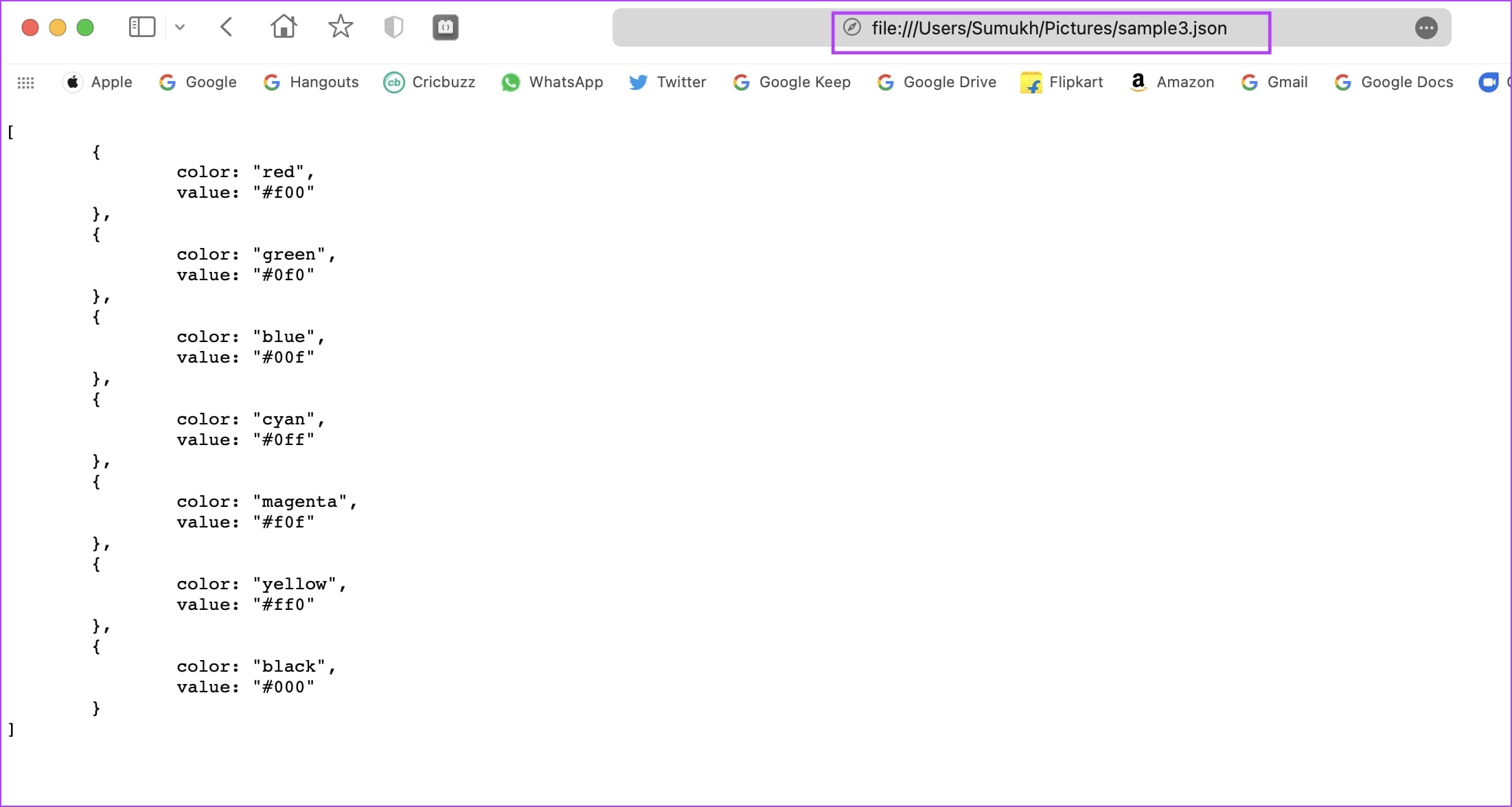
All you need to do is to open Safari and drag and drop the JSON file onto the browser window.
Or, you can copy the path address of the file (Right click on the file -> “Copy [filename] as Pathname.”) and paste it into the address bar in Safari.
How to Open JSON Files on Windows
Here’s how you can open JSON files on your Windows PC.
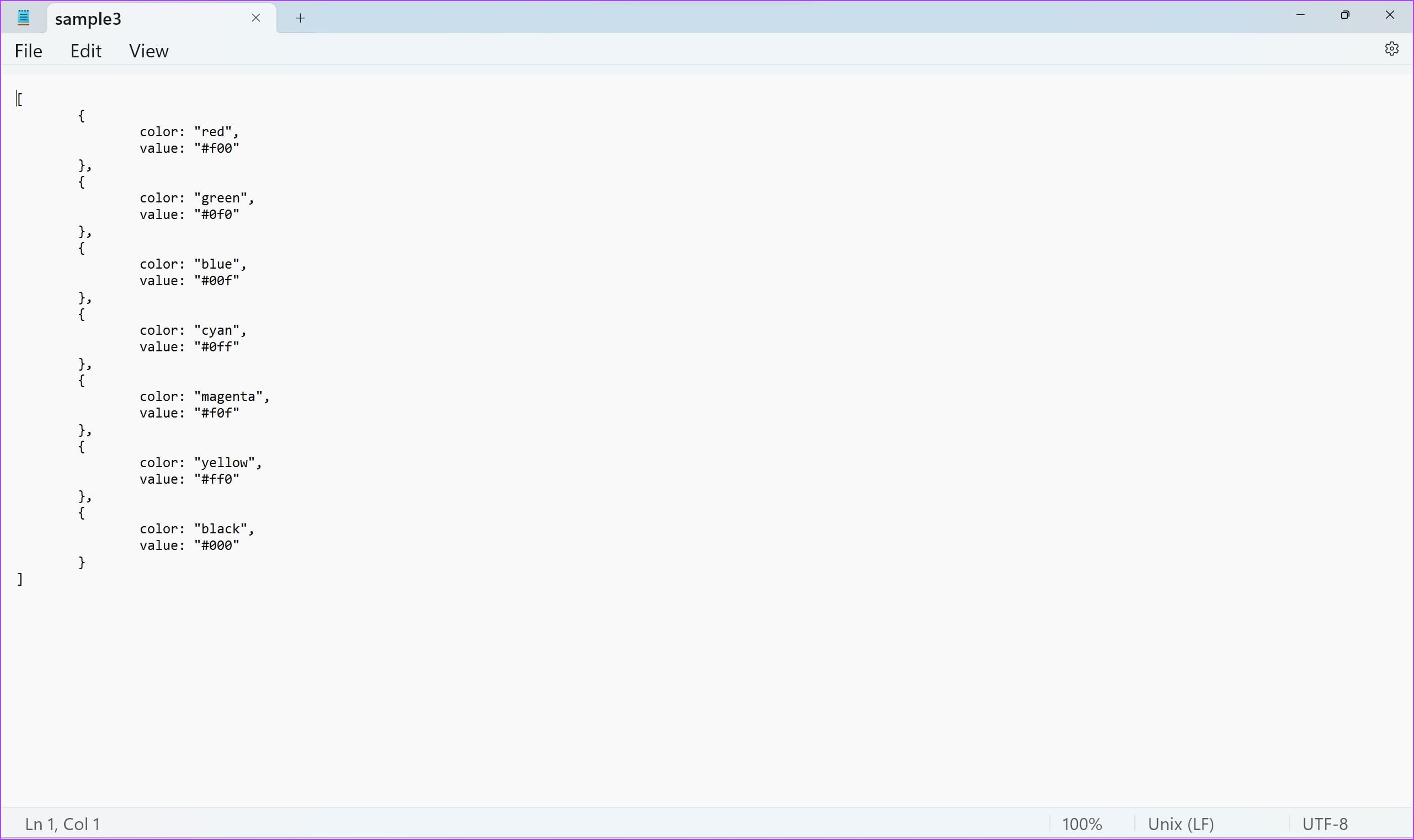
1. Open .JSON File Using Notepad
The simplest way to open a JSON file on Windows is with the Notepad app. Here’s how you can do it.
Step 1: Open the Notepad app on your PC.
Step 2: Click on File -> Open.
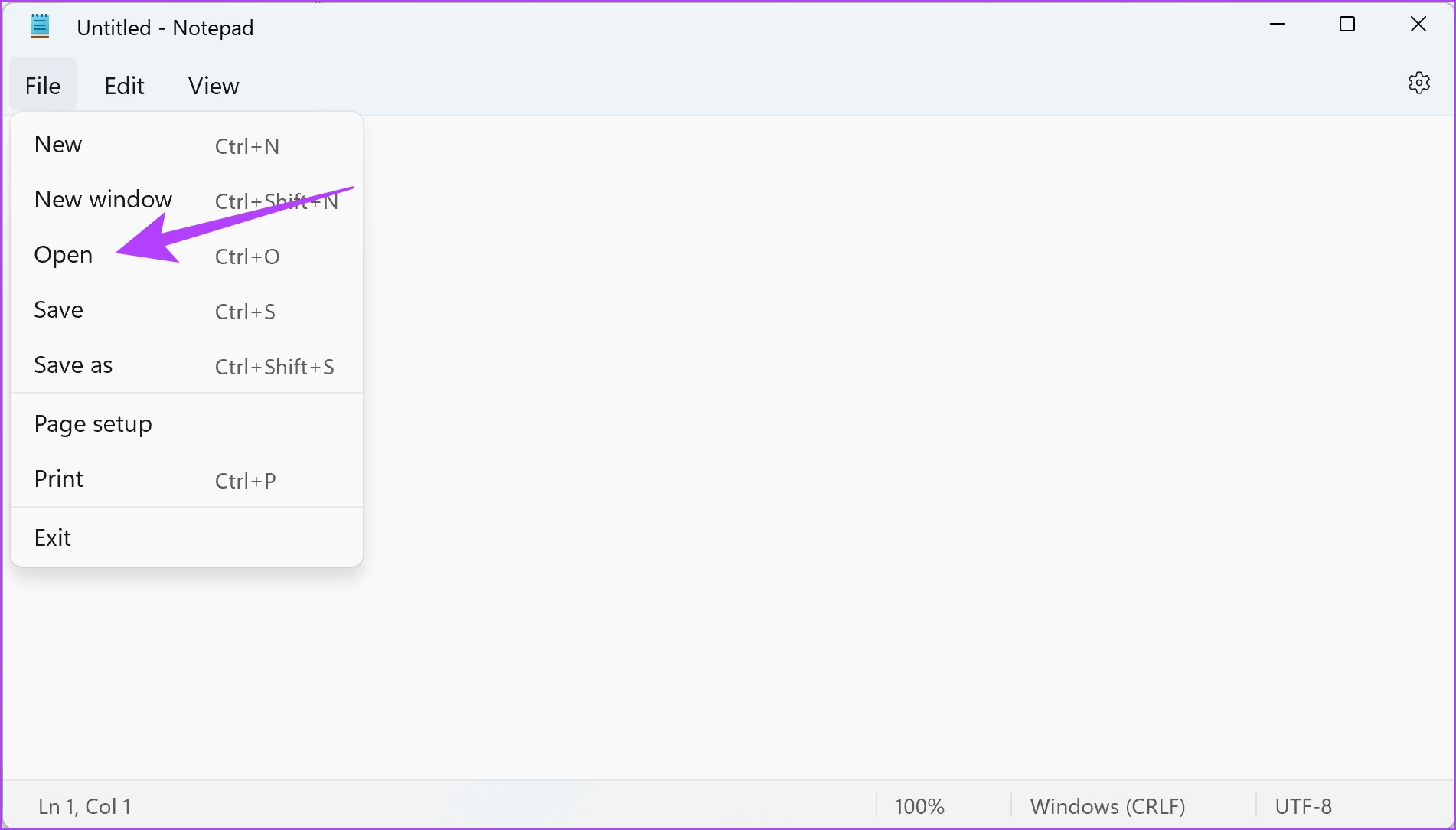
Step 3: Browse and select the file that you want to open.
Step 4: The JSON file will open up in the Notepad app.
2. Open JSON Files in a Web Browser on Windows
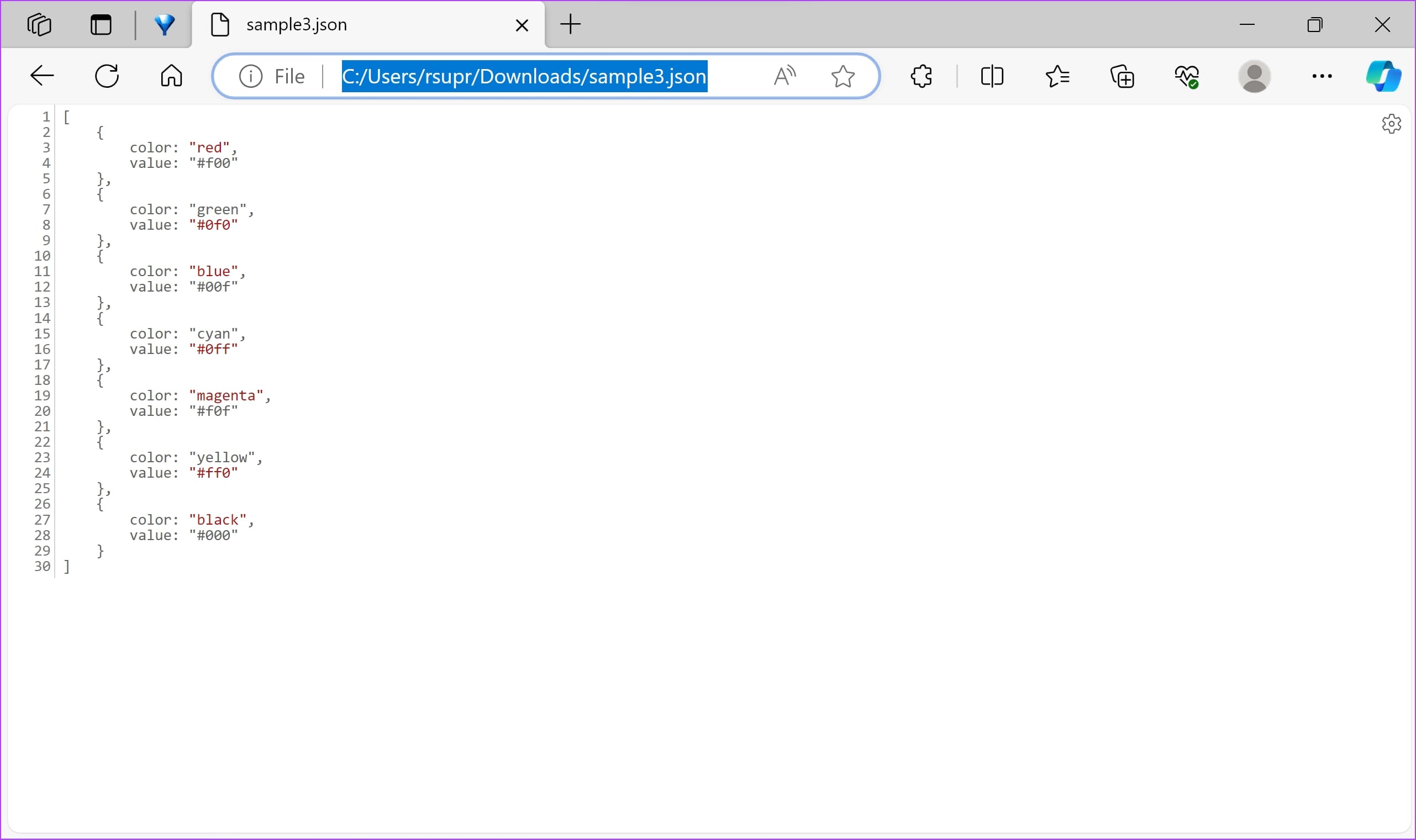
You can also open JSON files in the most popular web browsers on Windows, be it Google Chrome, Firefox, or Microsoft Edge.
- All you need to do is drag the file and drop it into the browser window on your PC.
- Alternatively, you can also copy the path address (right-click on the file -> Select ‘Copy as Path’), and paste it in the URL bar.
- However, make sure to remove the double quotes at the beginning and the end from the address before you paste it.
View JSON Files Online on Windows and Mac
Alternatively, you can view JSON files on a website on Windows and Mac. JSON Editor Online is a simple, free-to-use app on your web browser that lets you quickly view a JSON file.
Step 1: Open the JSON Editor online website.
Step 2: Click on the folder icon. Select Open from disk.

The JSON file will open up in your web browser.
How to Edit JSON Files on Windows and Mac
Using a web browser, TextEdit (Mac), or Notepad (Windows) to open JSON files allows for basic viewing and manual editing of the file’s contents. You can make changes, perform simple search and replace tasks, and save modifications. However, the above tools lack specialized features for handling JSON files, such as syntax highlighting, automatic formatting, or validation.
Therefore, we recommend using an IDE (Integrated Development Environment) on your Windows and Mac to work and edit JSON files. Sublime Text and Visual Studio Code and two popular applications that natively support working with JSON files.
Was this helpful?
Last updated on 14 August, 2024
Read Next
 Samsung My Files vs Google Files: Which File Manager Is Better on Galaxy Phones
Samsung apps are bundled to replace the official Google Apps in the One UI.
Samsung My Files vs Google Files: Which File Manager Is Better on Galaxy Phones
Samsung apps are bundled to replace the official Google Apps in the One UI.
 5 Best Ways to Fix Can’t Open Files in OneDrive Error in Windows
People use OneDrive for storing and saving files in all formats.
5 Best Ways to Fix Can’t Open Files in OneDrive Error in Windows
People use OneDrive for storing and saving files in all formats.
 How to Fix and Open Corrupt Folder and Files in Windows 10
I can imagine your astonishment when you click on a folder or a file and it doesn't open on your Windows 10 PC.
How to Fix and Open Corrupt Folder and Files in Windows 10
I can imagine your astonishment when you click on a folder or a file and it doesn't open on your Windows 10 PC.
 How to Open Files in Separate Windows on Adobe Acrobat Pro, Standard, and Reader DC
The tabbed-view in Adobe Acrobat Pro, Standard, and Reader DC is a mixed bag.
How to Open Files in Separate Windows on Adobe Acrobat Pro, Standard, and Reader DC
The tabbed-view in Adobe Acrobat Pro, Standard, and Reader DC is a mixed bag.
 How to Open and Analyze Dump Files on Windows
Types of Dump Files on Windows Complete Memory Dump: This memory dump records all the contents of system memory when your system hits a BSOD error.
How to Open and Analyze Dump Files on Windows
Types of Dump Files on Windows Complete Memory Dump: This memory dump records all the contents of system memory when your system hits a BSOD error.
 6 Ways to Fix Microsoft Teams Can Not Open Files on Windows
Fix 1.
6 Ways to Fix Microsoft Teams Can Not Open Files on Windows
Fix 1.
 How to Create and Open Batch (BAT) Files on Windows 11
How to Create a Batch File (.Bat) on Windows 11 It's easy to make a BAT file on Windows 11.
How to Create and Open Batch (BAT) Files on Windows 11
How to Create a Batch File (.Bat) on Windows 11 It's easy to make a BAT file on Windows 11.
 How to Open Files and Folders in CMD on Windows
How to Open a File Using Command Prompt on Windows Here's how you can easily open Command Prompt on your PC and use it to access a file.
How to Open Files and Folders in CMD on Windows
How to Open a File Using Command Prompt on Windows Here's how you can easily open Command Prompt on your PC and use it to access a file.
The article above may contain affiliate links which help support Guiding Tech. The content remains unbiased and authentic and will never affect our editorial integrity.