Having a second monitor is useful for moving more of your workflow to another screen, but what happens when the taskbar doesn’t come along for the ride? If you’re trying to get your taskbar on one or more of your monitors, then let this article be your guide.
How to Move the Taskbar to a Different Monitor
There are quite a few ways to move your taskbar or duplicate it on a different monitor. This might add to your confusion about where to start. Never fear, we’ve assembled a few surefire methods below.
Drag Your Taskbar
Let’s begin with a simple method: dragging the taskbar to the other monitor. You might think this is impossible, seeing as the taskbar is locked by default (unlike in older versions of Windows), but moving it is still possible. Here’s what to do:
Step 1. Right-click on an empty area on your taskbar.
Step 2. From the context menu that pops up, click “Lock the taskbar” to uncheck it.
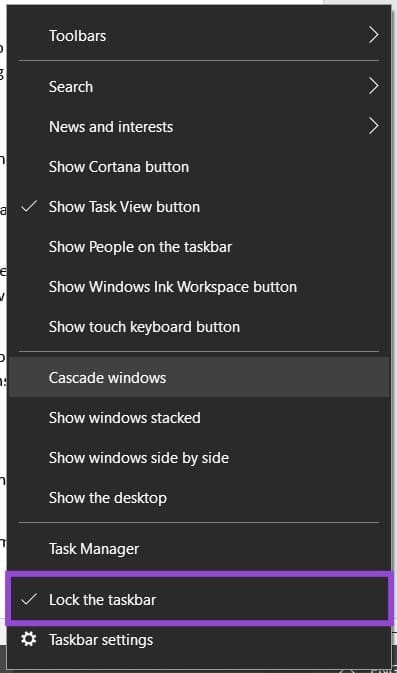
Step 3. From here, click and drag your taskbar to the desktop of the secondary monitor. You can also position it on any edge of the screen.
Step 4. Right-click the taskbar and choose “Lock the taskbar” again to lock it in place if you want.
Make a Different Monitor Your Main Display
If you’re going to be using your other monitor quite often and need the taskbar regularly, why not make it your main display? This can be easily done through Settings. Here’s what to do:
Step 1. Open up Settings (Win + I) and choose “Display.”

Step 2. On Windows 11, scroll down to “Multiple Displays” and click it. On Windows 10, navigate down to the “Multiple Displays” section.
Step 3. Check the box next to “Make this my main display,” and your taskbar and desktop icons should be moved over to your secondary monitor.
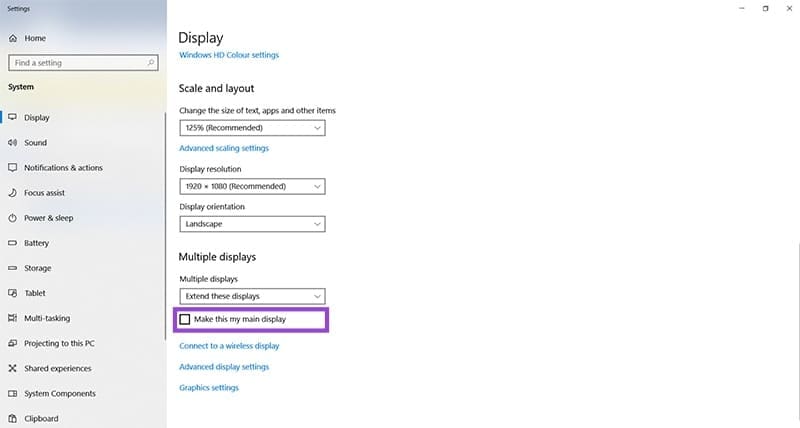
If this option does not appear, it may be because your displays are duplicated. Press (Win + P) to bring up the projection screen and choose “Extend” from the options provided.
Personalize Your Taskbar
If you want the taskbar on all displays by default, then you can also do this through the Settings menu. Here’s what you need to do:
Step 1. Open up Settings (Win + I) and navigate to “Personalization.”
Step 2. Click the “Taskbar” section in Windows 11 from the main window and from the sidebar in Windows 10.
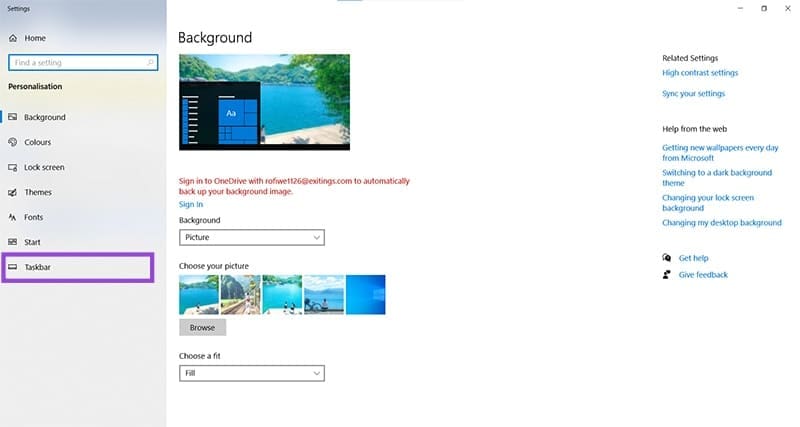
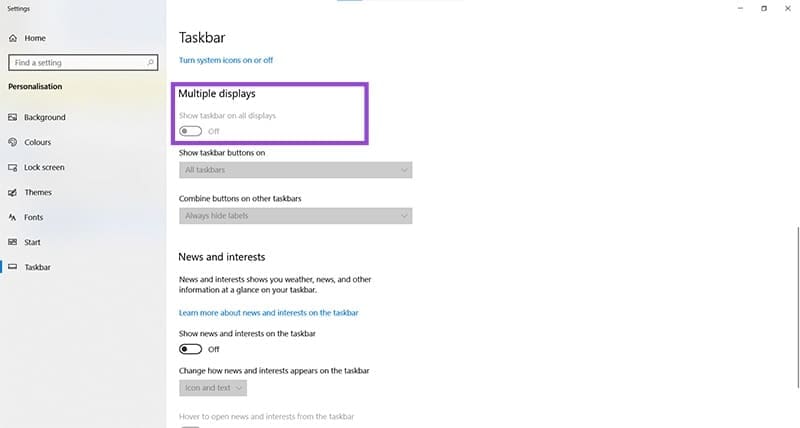
Step 3. Scroll down to the “Multiple Displays” section and drag the “Show taskbar on all displays” slider to “On for Windows 10.” For Windows 11, make sure to check the “Show my taskbar on all displays” under “Taskbar behaviors.”
Duplicating Your Display
If you need not only your taskbar, but the entire desktop mirrored on another monitor, you can easily do so by mirroring your screen. Here’s what to do:
Step 1. Connect your other monitor.
Step 2. Press (Win + P) or one of your function keys (shortcuts vary) to open the “Project” menu.

Step 3. Choose “Duplicate” to mirror your entire desktop (including taskbar) on the other monitor.
Was this helpful?
Last updated on 07 September, 2025
Read Next
 How to Move the Taskbar on Windows 11
In past versions of Windows, it was possible to move the taskbar around.
How to Move the Taskbar on Windows 11
In past versions of Windows, it was possible to move the taskbar around.
 How to Take Screenshots of One Monitor on Windows 11 With a Multi-Monitor Setup
Method 1: PikPick Some screenshot tools allow you to configure their settings so that they will only capture screenshots of one monitor.
How to Take Screenshots of One Monitor on Windows 11 With a Multi-Monitor Setup
Method 1: PikPick Some screenshot tools allow you to configure their settings so that they will only capture screenshots of one monitor.
 How to Group Multiple Shapes and Move a Diagram In MS Word
You must have at one time or the other used the Shapes tool in MS Word to draw objects, diagrams, etc.
How to Group Multiple Shapes and Move a Diagram In MS Word
You must have at one time or the other used the Shapes tool in MS Word to draw objects, diagrams, etc.
 How to Move Images Freely in Word Without Limitations
Microsoft Word has long been the default champion of the document editing world, that is until Google Docs came along.
How to Move Images Freely in Word Without Limitations
Microsoft Word has long been the default champion of the document editing world, that is until Google Docs came along.
 How to Create Folders and Move Emails in Outlook on Mac and Windows
Microsoft Outlook app for Mac and Windows lets you manage email conversations and calendar events.
How to Create Folders and Move Emails in Outlook on Mac and Windows
Microsoft Outlook app for Mac and Windows lets you manage email conversations and calendar events.
 How to Move a Window When You Can’t Click on the Title Bar
Sometimes, applications you have open might, for various reasons, move partially past the edges of your screen.
How to Move a Window When You Can’t Click on the Title Bar
Sometimes, applications you have open might, for various reasons, move partially past the edges of your screen.
 10 Ways to Fix Action Center Not Visible or Showing on Taskbar in Windows 10
The Action Center is a notification center where you can view, interact with, and dismiss all Windows 10 notifications.
10 Ways to Fix Action Center Not Visible or Showing on Taskbar in Windows 10
The Action Center is a notification center where you can view, interact with, and dismiss all Windows 10 notifications.
 How to Fix Taskbar Icons Missing on Windows 11
Windows 11's new Taskbar looks great and feels modern, but it's not as perfect as it used to be.
How to Fix Taskbar Icons Missing on Windows 11
Windows 11's new Taskbar looks great and feels modern, but it's not as perfect as it used to be.
The article above may contain affiliate links which help support Guiding Tech. The content remains unbiased and authentic and will never affect our editorial integrity.