


Installing and Enabling the Wireless Display Feature
Step 1: Use the Windows + I shortcut to open the Settings app.
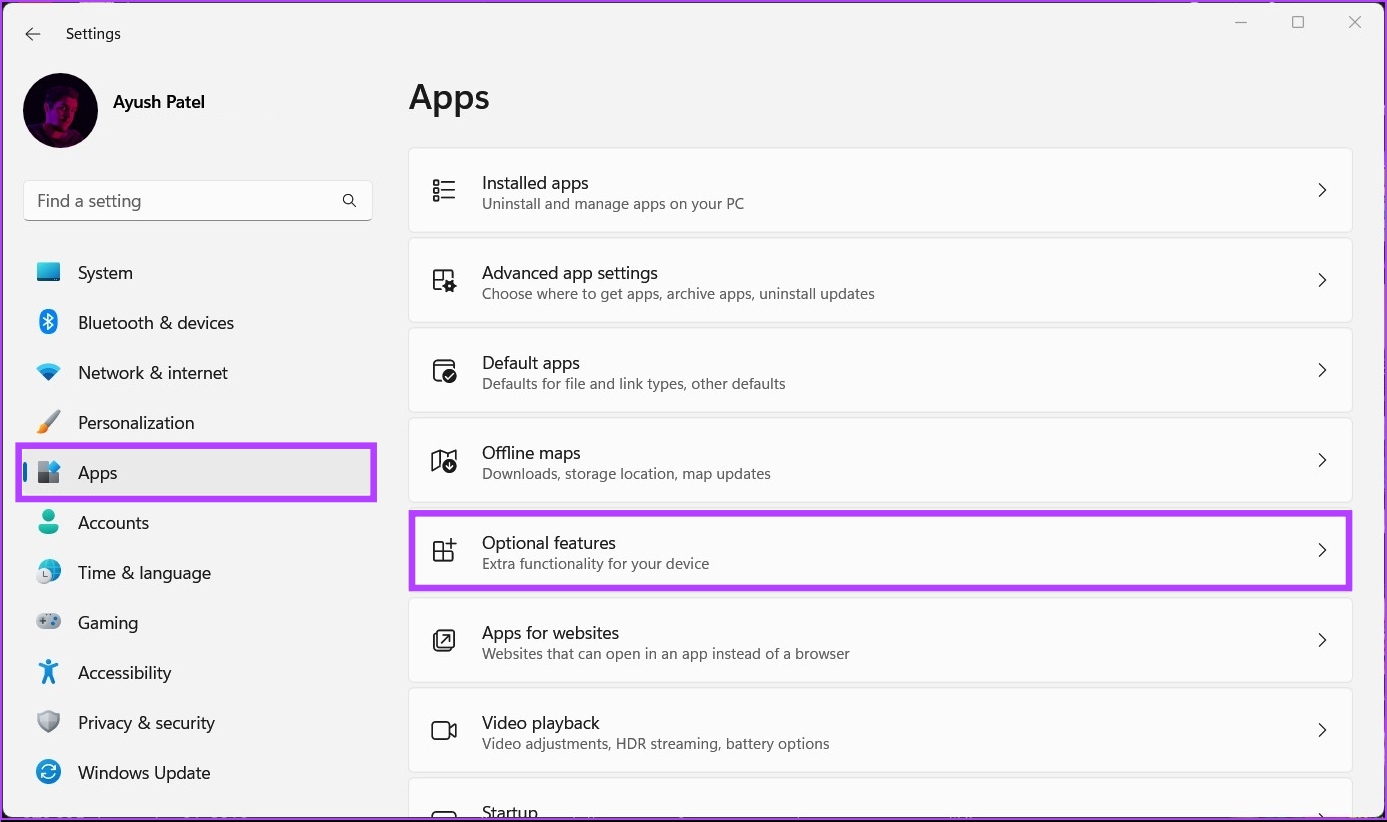
Step 2: Inside the Settings app, click on the Apps and click on Optional features.
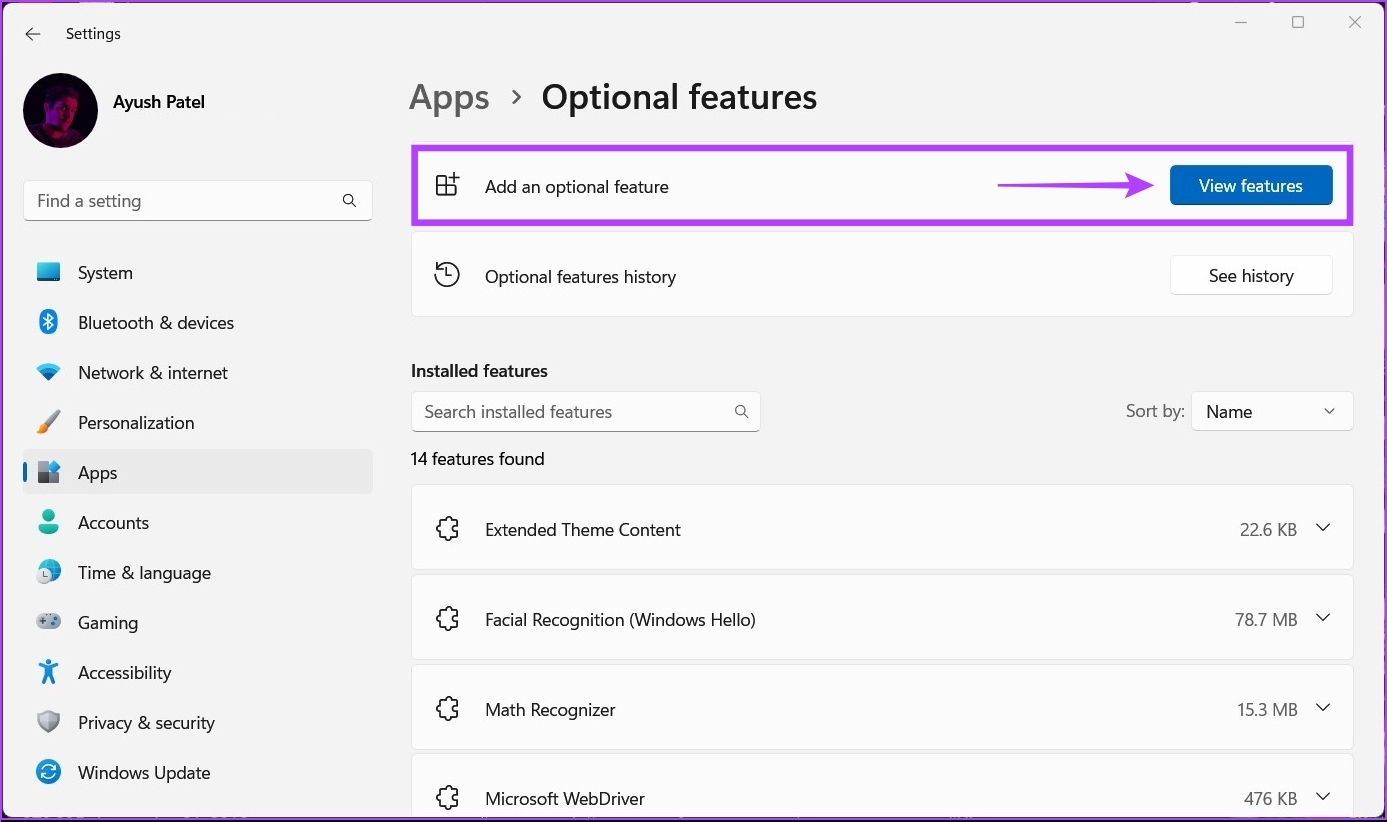
Step 3: Click on the View features next to Add an optional feature section.
Step 4: Check the box next to Wireless Display and click the Next button.

Step 5: On the following screen, click the Install button.

After that, Windows 11 will automatically download and install the necessary files to enable the Wireless Display feature on your computer.
After installing and enabling Wireless Display on your Windows 11, you may set up screen mirroring from your Android phone.
Also Read: Fixes when Wireless Display feature is not working on Windows 11
Mirroring Android Devices to Windows 11
To mirror an Android smartphone to your PC, you must ensure that both devices are appropriately configured and connected to the same Wi-Fi network.
Configuring Your Windows 11 PC
Step 1: Open the Windows Settings app. Then, scroll down and click on Projecting to this PC.

Step 2: Now, click on one drop-down at a time and ensure that you select all the options that are selected in the screenshot below:

Step 3: Click on the Launch the Wireless Display app to project to this PC option.
Note: If you’re trying to use the Wireless Display feature on a laptop, you must turn off the This PC can be discovered for projection only when it’s plugged into a power source toggle.

After that, you’ll see a blue Wireless Display window on your screen with the message, Your PC’s Name is ready for you to connect wirelessly.

After you’ve configured and confirmed that Wireless Display works on your Windows 11 PC, let’s move to the Android phone to get things ready.
Configuring Your Android Device
Almost all Android phones have a Cast feature built inside, regardless of the phone maker. So, it is pretty easy to configure your Android device for screen mirroring.
Step 1: Open the Settings app on your Android device. Then, tap on Bluetooth & Device Connection.
Note: The Settings app may look different on your Android phone depending on its make and Android version.
Step 3: Under Bluetooth & Device Connection, tap the Cast option.
Step 4: Under Cast, tap on the Enable wireless display toggle to turn it on.


Step 5: Now, tap on your PC’s name. This will open an Invitation to connect dialog, and you’ll need to enter the 8-digit PIN that you can find on your Windows 11 PC.


Your Windows 11 PC will display an 8-digit security PIN, which you’ll need for the next step.

Step 6: Enter the 8-digit PIN from your PC’s screen, then tap Accept.

When you tap Accept, your Android phone’s interface should appear on your PC’s screen.

This way, you can mirror an Android smartphone onto your Windows 11 PC. However, if you can’t, ensure all devices are connected to the same wireless network.
Was this helpful?
Last updated on 23 August, 2024
2 Comments
Leave a Reply
Read Next
 How to Mirror Your iPhone Screen on Android TV
Mirroring your iPhone screen on an Android TV can open up a world of possibilities, allowing you to enjoy your favorite videos, photos, and apps on a bigger screen.
How to Mirror Your iPhone Screen on Android TV
Mirroring your iPhone screen on an Android TV can open up a world of possibilities, allowing you to enjoy your favorite videos, photos, and apps on a bigger screen.
 How to Easily Cast and Mirror Videos from Android to Xiaomi Mi TV
If you look at it, the very core idea of a Smart TV differs from one manufacturer to another.
How to Easily Cast and Mirror Videos from Android to Xiaomi Mi TV
If you look at it, the very core idea of a Smart TV differs from one manufacturer to another.
 4 Ways to Screen Mirror From iPhone to Samsung TV
Method 1: Using Screen Mirroring on iPhone You can connect your iPhone to a Samsung smart TV using the native method of the AirPlay feature in iOS devices.
4 Ways to Screen Mirror From iPhone to Samsung TV
Method 1: Using Screen Mirroring on iPhone You can connect your iPhone to a Samsung smart TV using the native method of the AirPlay feature in iOS devices.
 4 Best Mirror Dash Cams for Cars
A mirror dash cam is a rearview mirror and dash cam rolled into one.
4 Best Mirror Dash Cams for Cars
A mirror dash cam is a rearview mirror and dash cam rolled into one.
 2 Ways to Mirror iPhone Screen to Mac
Prerequisite 1: Enable AirPlay Receiver on macOS To mirror your iPhone screen wirelessly, you must first enable the AirPlay Receiver on your Mac.
2 Ways to Mirror iPhone Screen to Mac
Prerequisite 1: Enable AirPlay Receiver on macOS To mirror your iPhone screen wirelessly, you must first enable the AirPlay Receiver on your Mac.
 5 Fixes for Android Phone Not Showing Up on Windows 11
Basic Fixes Check your USB cable and port: You need to start by checking the port and USB cable that you are using.
5 Fixes for Android Phone Not Showing Up on Windows 11
Basic Fixes Check your USB cable and port: You need to start by checking the port and USB cable that you are using.
 9 Fixes for Windows Subsystem for Android Not Working on Windows 11
Reminder: Windows Subsystem for Android and the Amazon App Store will no longer be available in the Microsoft Store after March 5, 2025.
9 Fixes for Windows Subsystem for Android Not Working on Windows 11
Reminder: Windows Subsystem for Android and the Amazon App Store will no longer be available in the Microsoft Store after March 5, 2025.
 Top 5 Ways to Install Android App Bundles on Android
Google is moving to adopt Android App Bundles (AAB) as a new file format and bidding farewell to the APK (Android Package) format.
Top 5 Ways to Install Android App Bundles on Android
Google is moving to adopt Android App Bundles (AAB) as a new file format and bidding farewell to the APK (Android Package) format.
The article above may contain affiliate links which help support Guiding Tech. The content remains unbiased and authentic and will never affect our editorial integrity.

On my Pixel 7, running V14, updated today, there is no option to enable wireless display. (Settings/Connected Devices/Connection Preferences/Cast) Instead, I see a message that says “Not connected”. When I click on Cast, there is one option on the list and it isn’t my laptop! No way to get it to search for anything.
On the Windows side, running Windows 11 Pro, 23H2, OS Build 22631.3447, I have installed the wireless display app, and have it running, available anywhere, ask to project, require a pin (first time) and also have the slider off so the PC does not have to be plugged in. When I launch the wireless display app, I see the screen described above, version 10.0.22621.1.
But again, the laptop does not show up in the cast list, no prompt to “enable wireless display” and a dead end should I press CTRL-S to open settings.
I have a Pixel 6 and have the same problem that Steve Woodward describes.