Install and Set Up the HeyMelody App
Step 1: Download and install the HeyMelody app from the Play Store or App Store.
Note: Open Settings > Bluetooth and ensure your OnePlus Buds are connected.
Step 2: Open the HeyMelody app, tap on Add, and provide permission to access Bluetooth so that it can scan your device. Tap on your device when the app discovers it.


If you face a problem while connecting the Bluetooth device, here’s how you can fix it on your iPhone and Android device.
How to Customize Controls Using the HeyMelody App
Here’s how you can change the way your OnePlus Buds responds to various input actions.
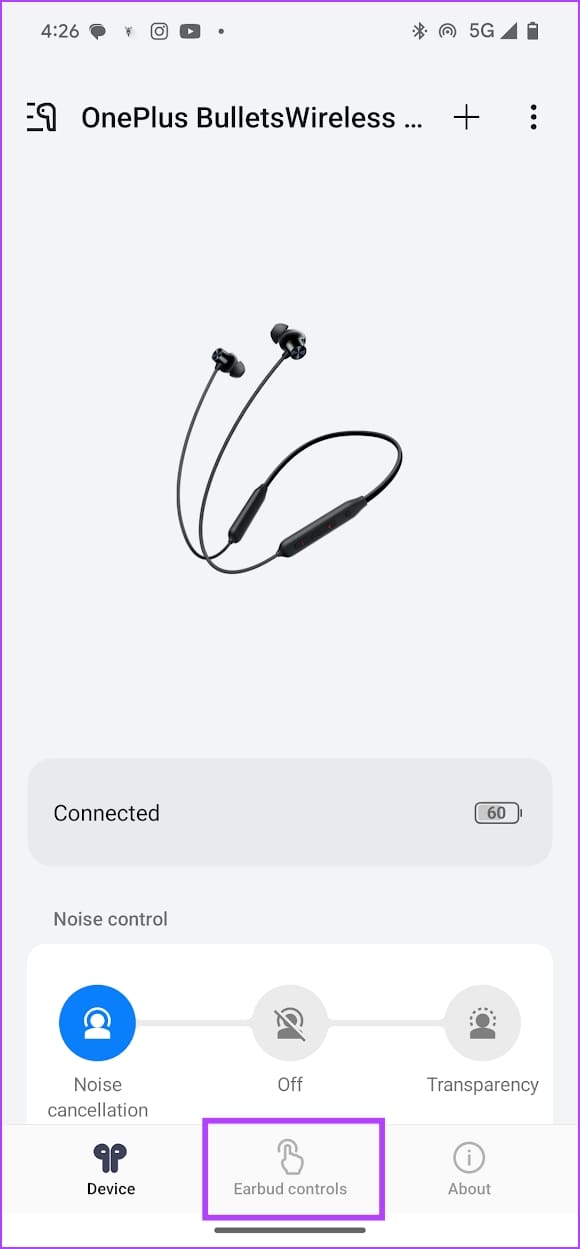
Open the HeyMelody app, go to the Earbud controls tab, select what you want to change – and select the new action.


How to Manage OnePlus Buds Settings
- Control noise cancellation: If your earbuds support noise cancellation, you can switch between the available modes in the Noise Control tab.
- Use Equalizer: You can also change your sound settings, and use the equalizer in the Sound Master HQ menu.
- Check battery level: The app also displays the battery level – and you can easily know when to charge your headset.
- Earbud fit test: If your earbuds let you change the ear tips, you can perform an earbud fit test to check which one suits your ear best.


- Find my earbuds: Can’t find your earphones? The Find My Earbuds option plays a loud sound that helps you locate it.
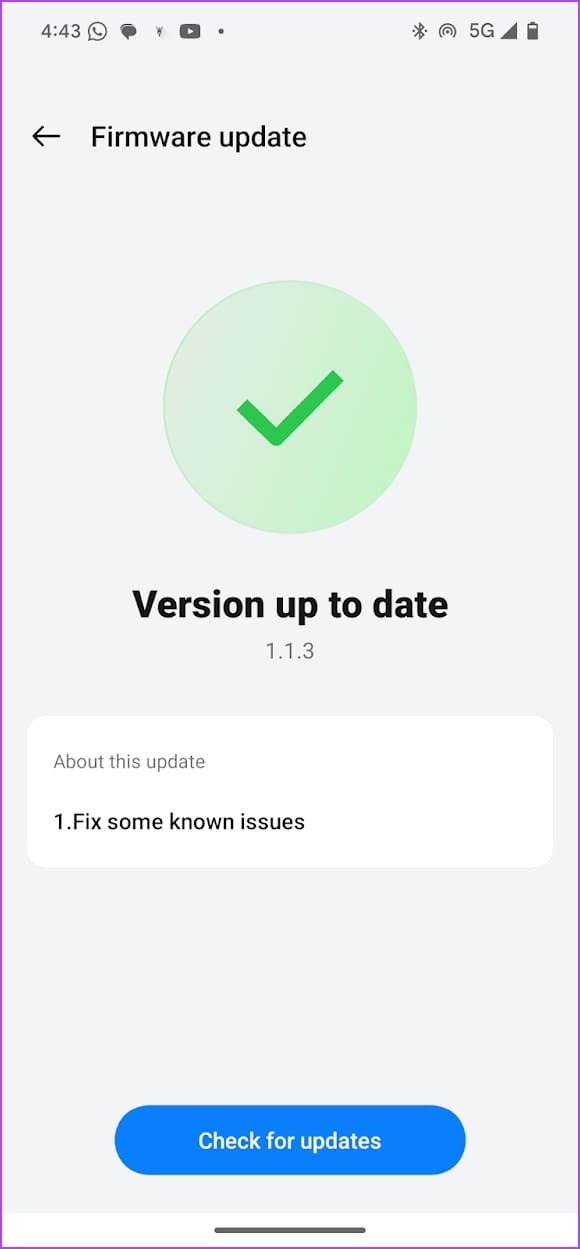
- Firmware update: Check for updates, and install if anything is available under the Firmware update option.
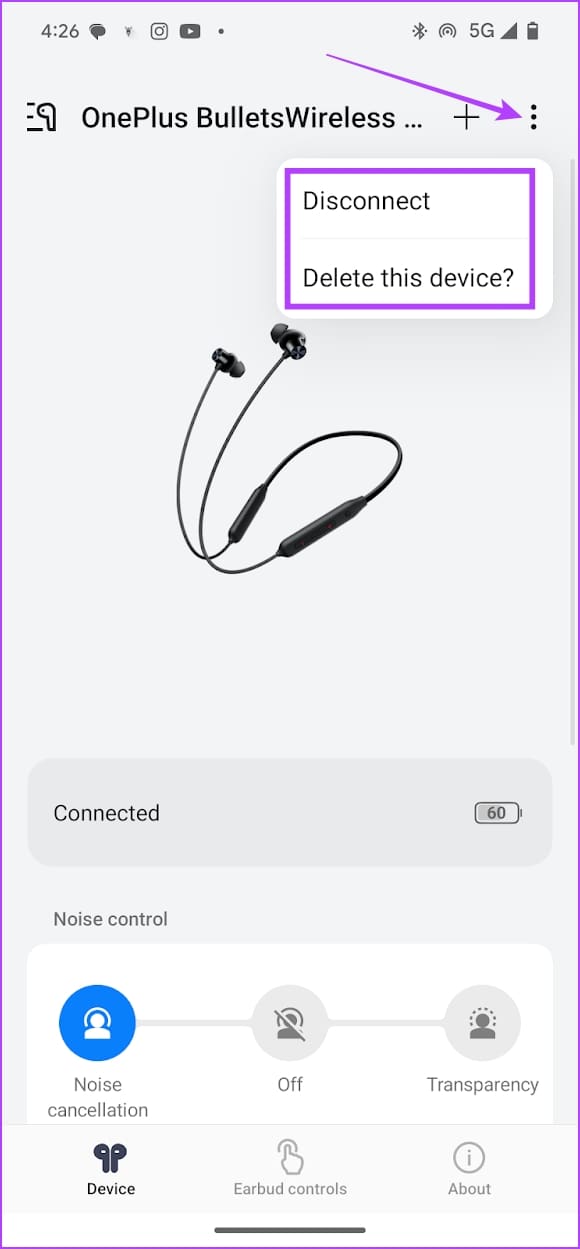
- Disconnect or delete device: To disconnect the device, or delete it from the app – tap on the three-dots icon, and select

Was this helpful?
Last updated on 22 August, 2024
Read Next
 How to Access and Manage Your Google Activity Using Google Activity Controls
Google offers a wide range of products in the technology space.
How to Access and Manage Your Google Activity Using Google Activity Controls
Google offers a wide range of products in the technology space.
 6 Best RGB Corner Floor Lamps With Smart Controls
Adding a hint of color to your home is never a bad thing.
6 Best RGB Corner Floor Lamps With Smart Controls
Adding a hint of color to your home is never a bad thing.
 How to Fix YouTube Button Controls Not Hiding
Basic Fixes: Restart the YouTube app: If the issue of button controls showing up is due to a temporary bug, restarting the app should fix it.
How to Fix YouTube Button Controls Not Hiding
Basic Fixes: Restart the YouTube app: If the issue of button controls showing up is due to a temporary bug, restarting the app should fix it.
 5 Fixes for Touch Controls Not Working on AirPods and AirPods Pro
Fix 1: Clean the Outer Surface of the AirPods The touch sensors on the AirPods need to detect proper contact with your fingers to register a touch or a press.
5 Fixes for Touch Controls Not Working on AirPods and AirPods Pro
Fix 1: Clean the Outer Surface of the AirPods The touch sensors on the AirPods need to detect proper contact with your fingers to register a touch or a press.
 How to Set Up and Use Fire TV Stick Parental Controls
Most services now have their app on streaming devices like the Fire TV Stick.
How to Set Up and Use Fire TV Stick Parental Controls
Most services now have their app on streaming devices like the Fire TV Stick.
 How to Set Up Parental Controls on Snapchat
What You Need to Know About Snapchat Parental Controls Snapchat includes the option of the Family Center for setting up Parental Controls.
How to Set Up Parental Controls on Snapchat
What You Need to Know About Snapchat Parental Controls Snapchat includes the option of the Family Center for setting up Parental Controls.
 How to Connect Samsung Galaxy Buds Live to Laptop, iPhone and Mac
Thanks to their unusual shape, the Samsung Galaxy Buds Live had created quite the hype even before its release.
How to Connect Samsung Galaxy Buds Live to Laptop, iPhone and Mac
Thanks to their unusual shape, the Samsung Galaxy Buds Live had created quite the hype even before its release.
 How to Pair Samsung Galaxy Buds Pro to iPhone, Laptop, and MacBook
How to Pair Samsung Galaxy Buds Pro to Other Devices With iPhone Step 1: If you've paired the earphones with another device already, it's best to reset the earphones before
How to Pair Samsung Galaxy Buds Pro to iPhone, Laptop, and MacBook
How to Pair Samsung Galaxy Buds Pro to Other Devices With iPhone Step 1: If you've paired the earphones with another device already, it's best to reset the earphones before
The article above may contain affiliate links which help support Guiding Tech. The content remains unbiased and authentic and will never affect our editorial integrity.