Method 1. Create a Fraction by Setting Automatic Substitutions
The Automatic substitution method is the best if you use a set of fractions all the time. All you need to do is type in the usual way, and Google Docs will automatically replace it with predefined text.
Step 1: Open the Google Docs document you want to edit.

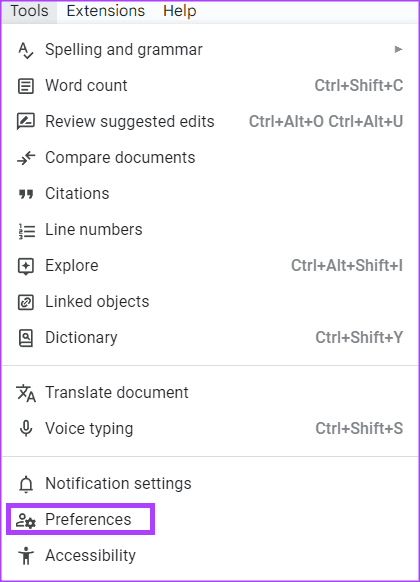
Step 2: On the Google Docs ribbon, click the Tools tab.
Step 3: Select Preferences. This should launch the Preferences dialog box.
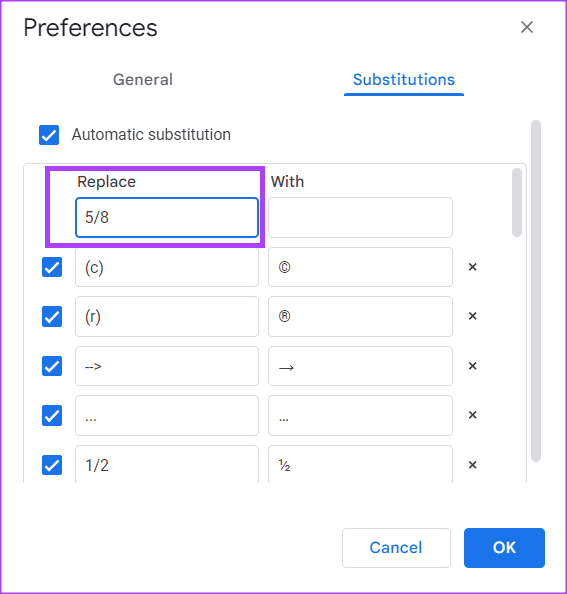
Step 4: On the Preferences dialog box, click the Substitutions tab.
Step 5: In the Replace column, enter the numbers you want to use (e.g., 5/9, 7/10, 9/11, etc.).
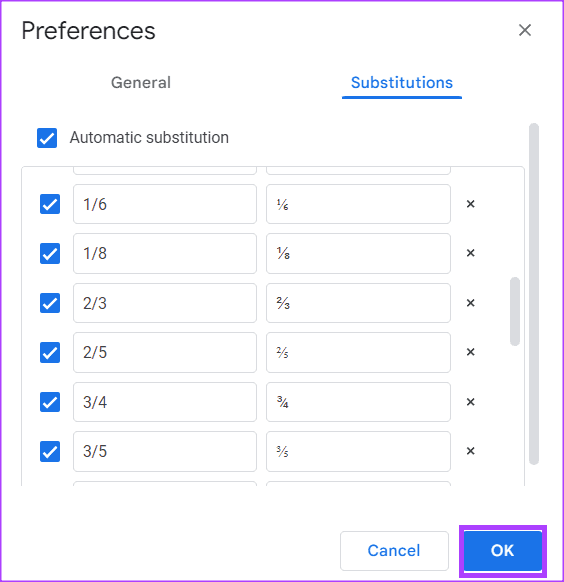
Step 6: In the With column, enter the fractions you want to convert them to (e.g., stacked fraction, skewed fraction, linear fraction, etc.).
Step 7: Repeat Steps 5 and 6 for all fractions you expect to use in the document, and click OK to save your changes.
Step 8: On the Google Docs canvas, type the numbers of the fraction you want, and Google Docs should substitute it with your preferred replacement.
Method 2. Create a Fraction From the Special Characters Menu
If you use fractions occasionally, use the special characters menu, which includes some of the most commonly used fractions.
Step 1: On the Google Docs ribbon, click the Insert tab.
Step 2: Select Special Characters from the context menu. This will launch the Insert special characters dialog box.

Step 3: In the search bar, type fraction in the search box.
Step 4: Select your desired fraction to insert it into your document.
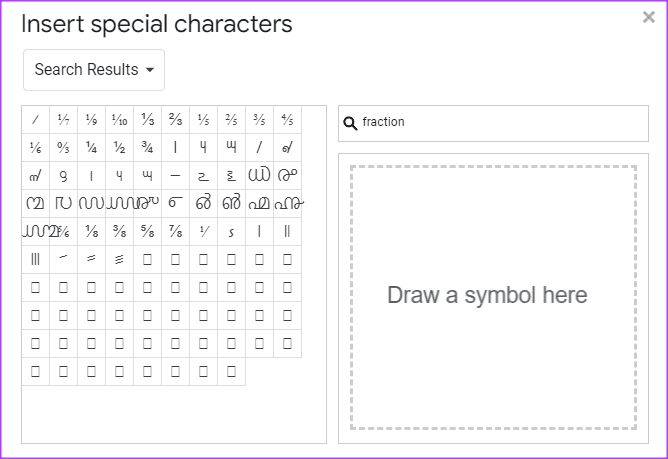
Step 5: After inserting your preferred fractions, click the x sign to close the Insert special characters dialog box.
Method 3. Create a Fraction From the Equations Menu
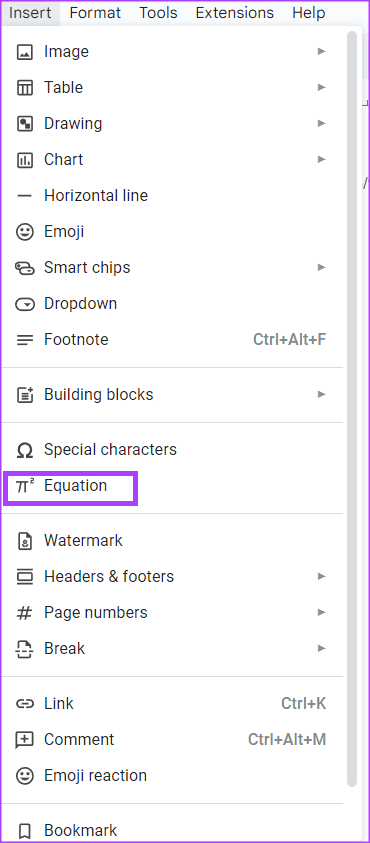
Step 1: On the Google Docs ribbon, click the Insert tab.
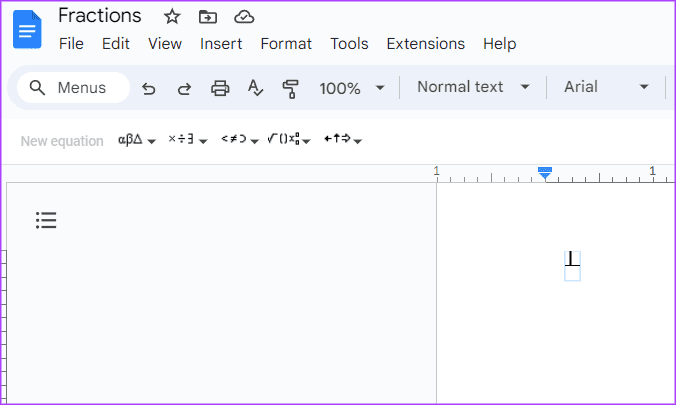
Step 2: Select Equation from the context menu. This will reveal a new line of tools below the Google Docs ribbon with equations of different categories.
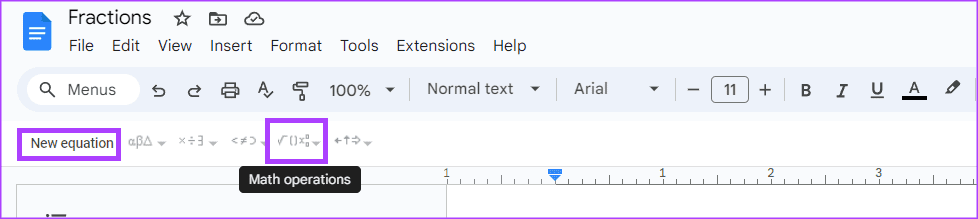
Step 3: Click on New equation, then select the Math operations drop-down.
Step 4: Select the fraction icon from the drop-down.
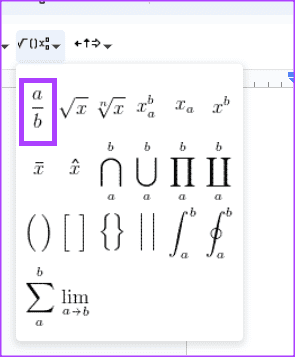
Step 5: On the Word canvas, enter the numerator and denominator for the fraction.
Method 4. Create a Fraction With Superscript and Subscript Functions
Step 1: Place your cursor on the Google Docs canvas.
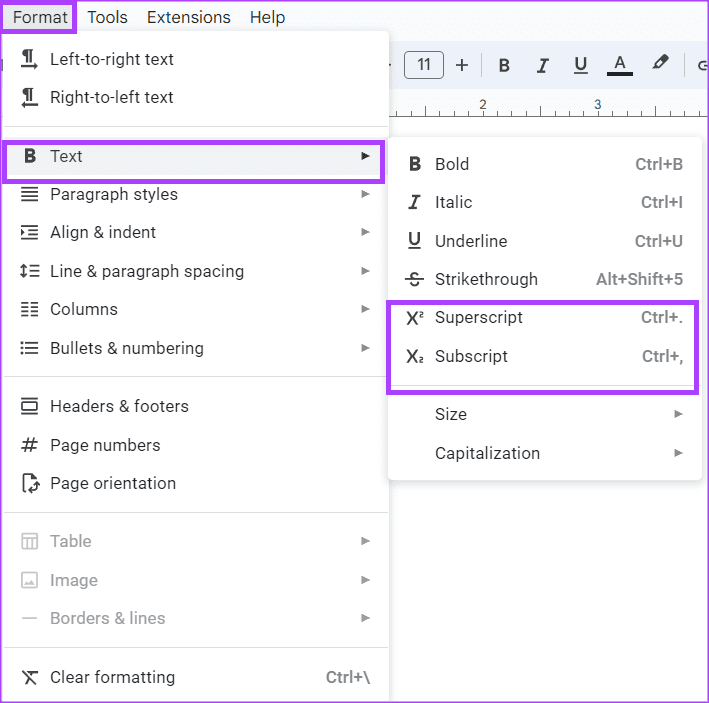
Step 2: Hold down the following keys on your keyboard to enter superscript mode – Ctrl + .; alternatively, click the Format tab and select the Text drop-down to get superscript mode.
Step 3: Type your numerator and repeat the superscript shortcut to return to standard text.

Step 4: Tap the forward slash key (/) on your keyboard to imitate the fraction bar.

Step 5: Hold down the following keys on your keyboard to enter subscript mode – control + ,; alternatively, click the Format tab and select the Text drop-down to get subscript mode.
Step 6: Type your denominator and repeat the subscript shortcut to return to standard text.

Was this helpful?
Last updated on 03 September, 2024
Read Next
 4 Ways to Write a Fraction in Microsoft Word
Method 1: Using Equations Unlike the symbols and autoformat options, which present limited fraction types to insert in your document, you can try creating your fraction using equations.
4 Ways to Write a Fraction in Microsoft Word
Method 1: Using Equations Unlike the symbols and autoformat options, which present limited fraction types to insert in your document, you can try creating your fraction using equations.
 3 Ways to Create a Collage in Google Docs
Method 1: Create a Collage in Google Docs Using Google Drawings Step 1: Open the Google Docs document in which you want to add a collage.
3 Ways to Create a Collage in Google Docs
Method 1: Create a Collage in Google Docs Using Google Drawings Step 1: Open the Google Docs document in which you want to add a collage.
 How to Create a Custom Template in Google Docs
How to Create Custom Template in Google Docs First, you need to make up your mind on how you want to create a template in Google Docs.
How to Create a Custom Template in Google Docs
How to Create Custom Template in Google Docs First, you need to make up your mind on how you want to create a template in Google Docs.
 How to Create a Different Header and Footer for Each Page in Google Docs
Add Different Headers and Footers for Pages in Google Docs First, you must add a section break and cut the link between successive sections by unchecking the 'Link to previous'
How to Create a Different Header and Footer for Each Page in Google Docs
Add Different Headers and Footers for Pages in Google Docs First, you must add a section break and cut the link between successive sections by unchecking the 'Link to previous'
 How to Create a Fillable Form in Google Docs
Method 1: Using Tables and Other Form Elements One of the best methods to create a form in Google Docs is to use Tables.
How to Create a Fillable Form in Google Docs
Method 1: Using Tables and Other Form Elements One of the best methods to create a form in Google Docs is to use Tables.
 4 Ways to Create Desktop Shortcuts for Google Docs or Sheets
Note: Ensure that the Google Docs or Sheets website is open in the browser if you want to add shortcuts to any particular file.
4 Ways to Create Desktop Shortcuts for Google Docs or Sheets
Note: Ensure that the Google Docs or Sheets website is open in the browser if you want to add shortcuts to any particular file.
 How to Convert Google Forms to PDF, Google Docs, or Word
How to Convert Google Forms to PDF Google Forms doesn’t have a native option to convert it into PDF.
How to Convert Google Forms to PDF, Google Docs, or Word
How to Convert Google Forms to PDF Google Forms doesn’t have a native option to convert it into PDF.
 How to Insert a Date Picker in Google Sheets and Google Docs
Google Sheets and Google Docs provide a free, online alternative to Microsoft Office, along with unique features.
How to Insert a Date Picker in Google Sheets and Google Docs
Google Sheets and Google Docs provide a free, online alternative to Microsoft Office, along with unique features.
The article above may contain affiliate links which help support Guiding Tech. The content remains unbiased and authentic and will never affect our editorial integrity.