Basic Ways:
- Remove the mobile case: Ill-fitted cases can cover device hardware like the speaker. So, if you notice muffled or lower-than-normal sounds on your device, you are always advised to remove the case and check again.
- Check the volume settings: It is always good to check if your device is on maximum volume levels. This way, you can get the most out of your iPhone.
Method 1: Adjust the EQ Settings
iPhone uses settings like Equalizer and Sound Check to make audio smoother. However, these settings may inadvertently restrict the overall sound levels. To prevent this, turn off Sound Check and set EQ to Late Night mode. Follow the below steps to do it.
Step 1: Open the Settings app and tap on Music. Ensure the toggle for Sound Check is off.
Step 2: Then, tap on EQ. From the options, tap on Late Night.


Method 2: Enable Lossless Audio
Apple Music has native options for turning on Lossless Audio. This allows users to have an enhanced, superior sound experience. Additionally, this works better if the song you’re listening to has the Lossless Audio tag. Here’s how to turn this on using your iPhone’s settings menu.
Step 1: Open Settings and tap on Music. Scroll down and tap on Audio Quality.
Step 2: First, ensure the Lossless Audio toggle is turned on. Then, change the Wi-Fi Streaming and Download quality to Lossless or Hi-res Lossless.


Method 3: Disable Headphone Safety
Headphone Safety is a handy feature that prevents sudden jumps in the audio volume on your headphones by keeping it below the set decibel limit. However, this might also be why Apple Music plays at a low volume. Here’s how to turn this feature off and make Apple Music louder.
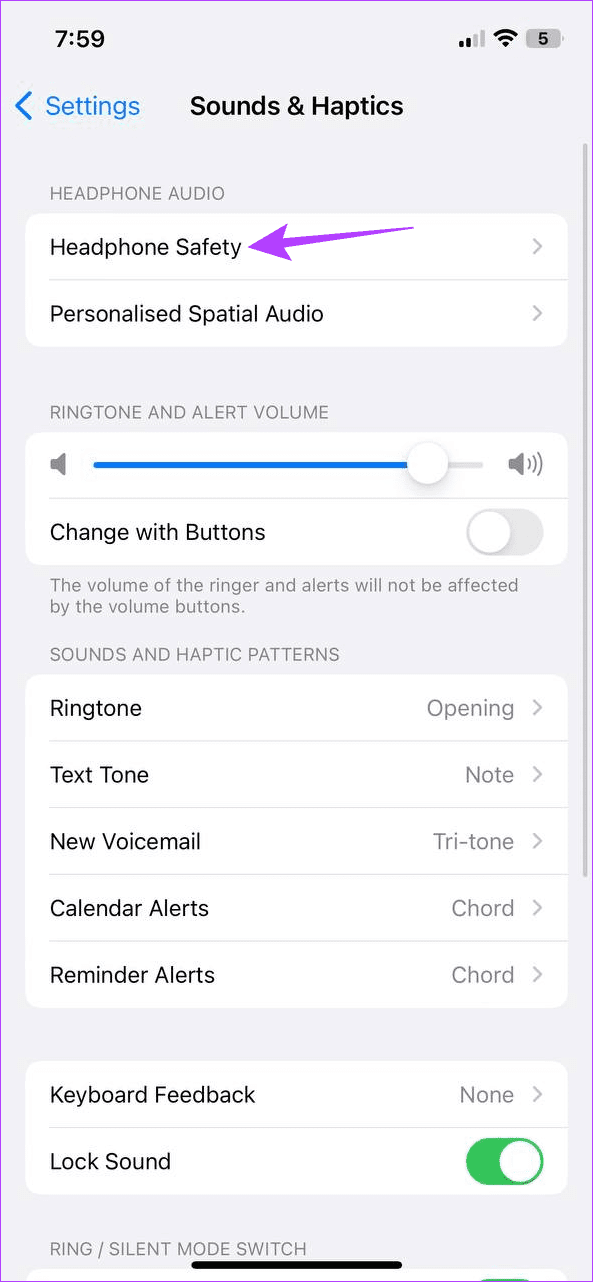
Step 1: Open Settings and tap on Sounds & Haptics. Here, tap on Headphone Safety.
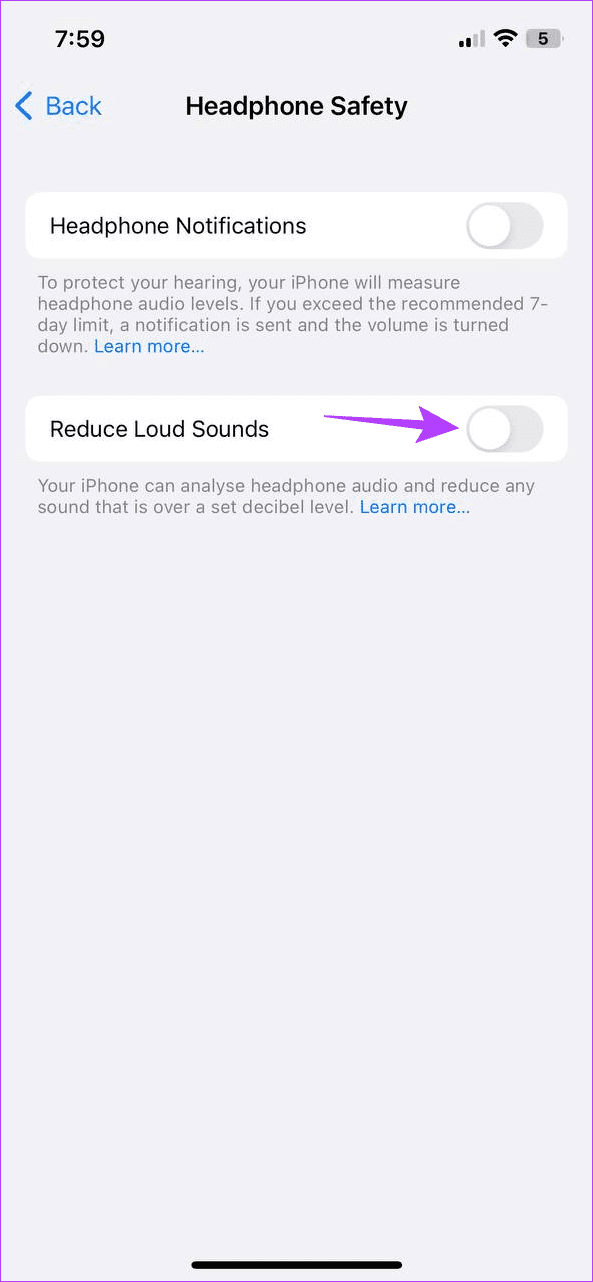
Step 2: Turn off the toggle for Reduce Loud Sounds.

Method 4: Connect to an External Speaker
For that full-party effect, connect your iPhone to an external Bluetooth speaker and enjoy Apple Music with your friends and family. This can also help increase the volume of certain songs on Apple Music. Here’s how.
Step 1: Open Settings and tap on Bluetooth. Here, tap on any previously connected device from the list.
Step 2: For new devices, go to the Other Devices section and tap on the relevant device.
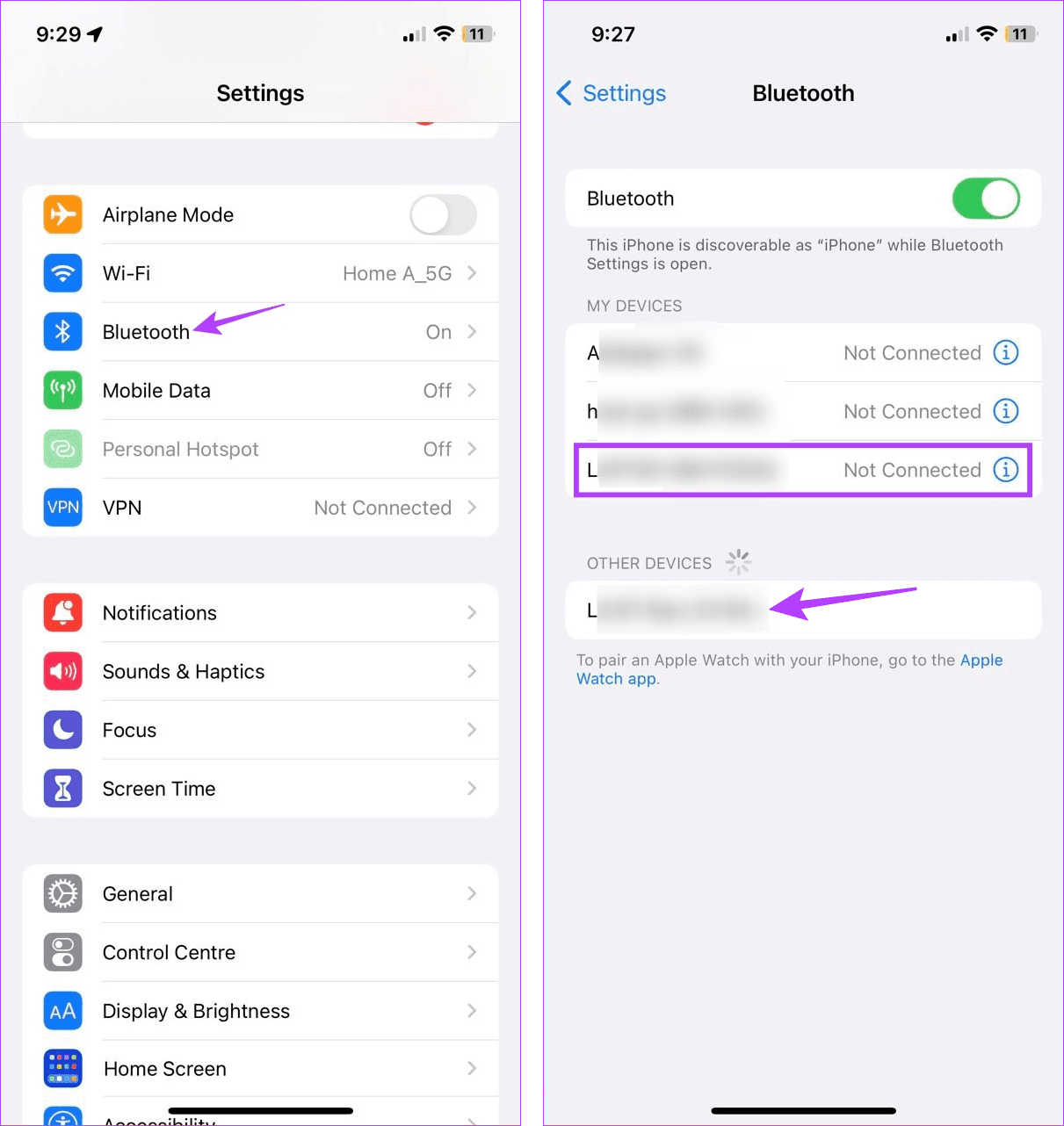
Once the device connects, it should appear as Connected in the Bluetooth settings menu.
Bonus: How to Make Apple Music Louder in Car
You can also make Apple Music louder in a car. To do this, open Siri on your phone and ask it any question. Once Siri starts responding, simultaneously increase the volume on your iPhone. This should help make Apple Music louder on iPhone in the car.
Was this helpful?
Last updated on 20 May, 2024
Read Next
 Top 7 Ways to Fix Siri Not Playing Music from Apple Music
Siri not recognizing your voice and not playing music from Apple Music can lead to an undesirable experience.
Top 7 Ways to Fix Siri Not Playing Music from Apple Music
Siri not recognizing your voice and not playing music from Apple Music can lead to an undesirable experience.
 How to Add Downloaded Music to Apple Music Library
If you download songs on your iPhone and use the Files app to listen to them, you are doing it wrong.
How to Add Downloaded Music to Apple Music Library
If you download songs on your iPhone and use the Files app to listen to them, you are doing it wrong.
 3 Ways to Transfer Playlists From YouTube Music to Apple Music
There are three services you can use to perform the transfer based on your preferences.
3 Ways to Transfer Playlists From YouTube Music to Apple Music
There are three services you can use to perform the transfer based on your preferences.
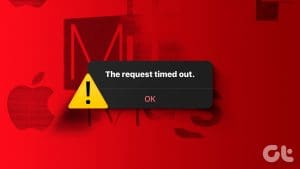 3 Ways to Fix Apple Music “Request Timed Out” on iPhone
Basic Fixes Check if Apple Music is down: Check the system status of Apple Services on this dashboard and see if Apple Music is affected.
3 Ways to Fix Apple Music “Request Timed Out” on iPhone
Basic Fixes Check if Apple Music is down: Check the system status of Apple Services on this dashboard and see if Apple Music is affected.
 4 Ways to Fix ‘This Song Is Not Available in Your Region’ in Apple Music on iPhone
Basic Fixes Check if Apple Music is down: Check the system status of Apple Music on this dashboard and check if you're facing a problem with your Wi-Fi or cellular
4 Ways to Fix ‘This Song Is Not Available in Your Region’ in Apple Music on iPhone
Basic Fixes Check if Apple Music is down: Check the system status of Apple Music on this dashboard and check if you're facing a problem with your Wi-Fi or cellular
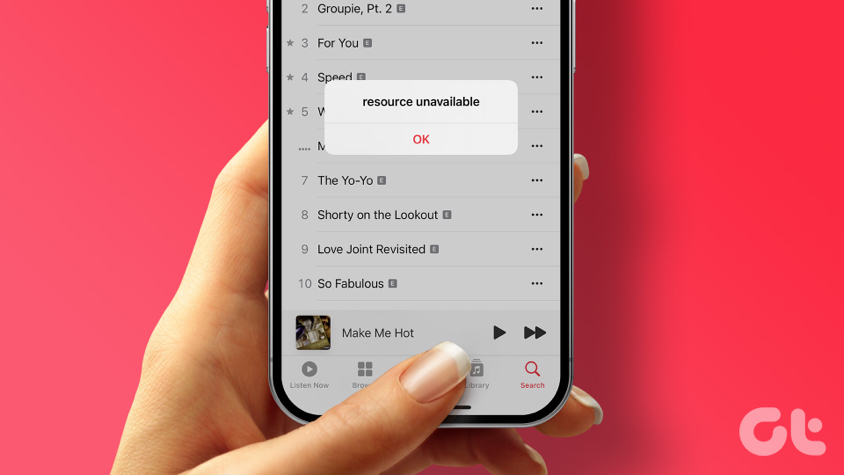 3 Ways to Fix the Resource Unavailable Error in Apple Music on iPhone
What Is the Apple Music Resource Unavailable Error The Resource Unavailable Error in Apple Music is something that we faced while playing certain songs only, and we suspect that the
3 Ways to Fix the Resource Unavailable Error in Apple Music on iPhone
What Is the Apple Music Resource Unavailable Error The Resource Unavailable Error in Apple Music is something that we faced while playing certain songs only, and we suspect that the
 4 Ways to Fix Apple Music Low Volume Issue on iPhone
Basic Fixes: Check volume levels on iPhone: If the volume levels are set to low, it might result in an overall low volume when using Apple Music.
4 Ways to Fix Apple Music Low Volume Issue on iPhone
Basic Fixes: Check volume levels on iPhone: If the volume levels are set to low, it might result in an overall low volume when using Apple Music.
 6 Ways to Fix Apple Music Family Sharing Not Working on iPhone
Are you facing issues with Apple Music Family Sharing on your iPhone?
6 Ways to Fix Apple Music Family Sharing Not Working on iPhone
Are you facing issues with Apple Music Family Sharing on your iPhone?
The article above may contain affiliate links which help support Guiding Tech. The content remains unbiased and authentic and will never affect our editorial integrity.