Things to Remember
Before you go ahead with linking your Steam and Epic Games accounts to one another, there are a handful of things to keep in mind.
- Number of linked accounts: You can only connect one Steam account to one Epic Games account at a time. Hence, unlinking your Steam account from Epic Games is essential to connect to another Epic account.
- Transfer of game library: If you plan to connect Epic Games to Steam to link your game libraries, we are sorry to tell you that you can’t. You are required to play the respective games on the respective platform.
- Sharing of Account data: When you connect Epic Games to Steam, you can connect with your friends from both platforms. However, Epic can access the data of this newly shared account.
- Data Synchronization: While you can link your friend list, you can’t link any discussions or connected data to the platform, and you will be required to access Steam to get them.
With that out of the way, if you still wish to link the accounts together, we have mentioned the steps you need to follow in the next section.
Also read: Fix Epic Games launcher not opening on Windows
How to Connect Epic Games to Steam Account
Here’s a step-by-step guide on connecting your Epic Games account to Steam without issues.
Step 1: Head over to the Epic Games Web portal on your desktop or Mac. Login with your account details.
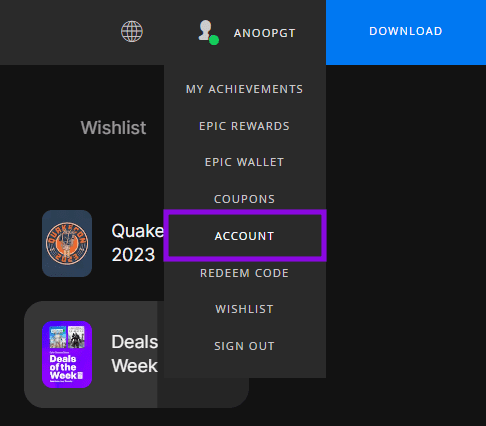
Step 2: Once logged in, navigate to Username > Account.
Step 3: Now, from the left sidebar, choose ‘Apps And Accounts.’ Then, on the right side, scroll down to the Steam section, and click on Connect.

Step 4: Now, choose Link Account.
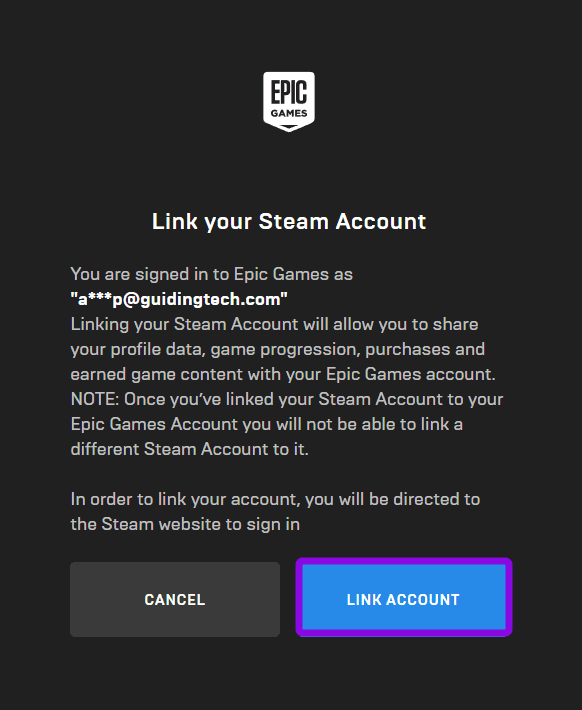
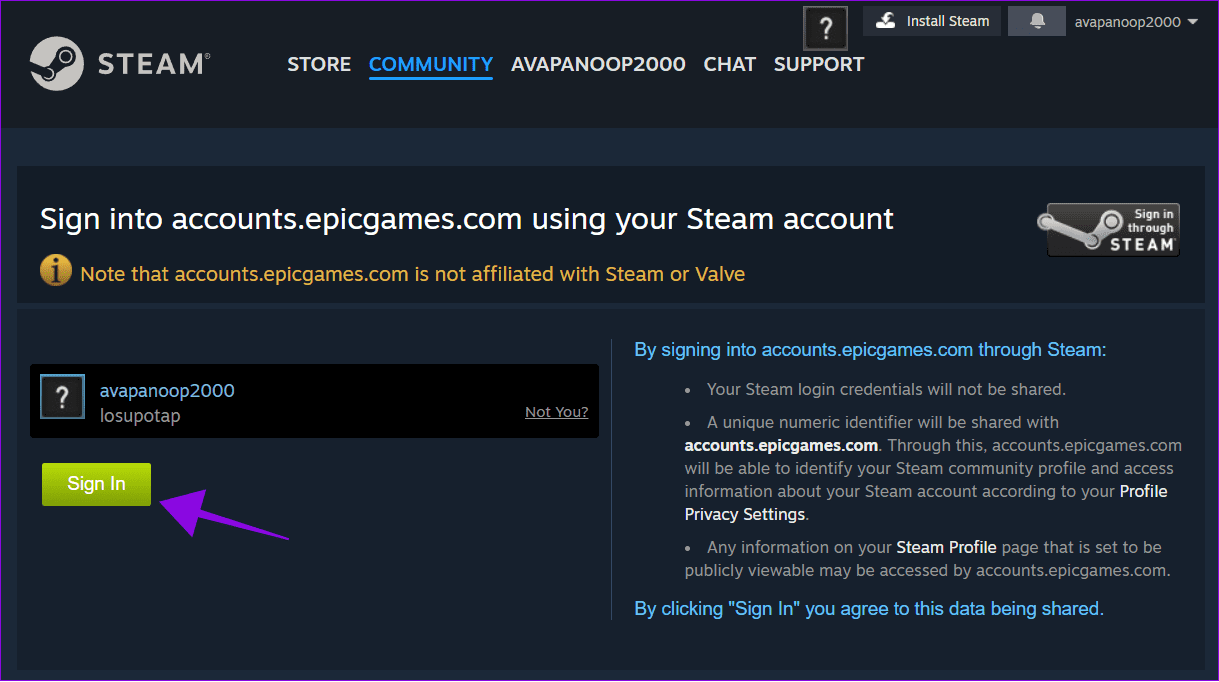
Step 5: Next up, log in to your Steam account. Once done, choose Sign In to confirm.
Also read: How to fix Steam ‘Invalid Depot Configuration’ error in Windows 11
Unlink Steam Account From Epic Games
Like linking the accounts, disconnecting your Steam account from Epic Games is also easy. Here are the steps you need to follow:
Step 1: Once again, visit Epic Games and log in to your account.
Step 2: Navigate to Username > Account from the top-right corner.
Step 3: Select ‘Apps And Accounts‘ and then click on Remove under Steam.
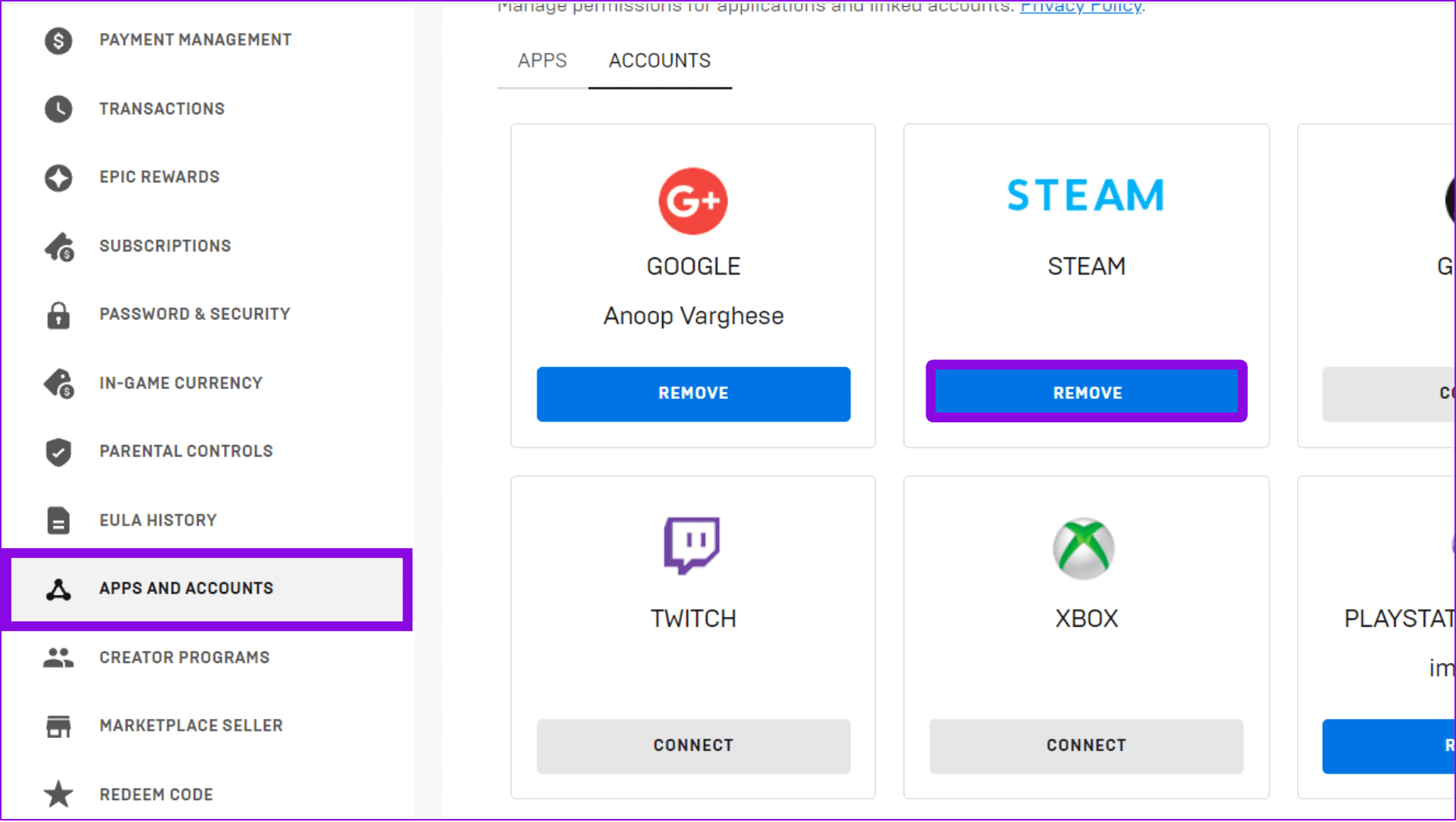
Step 4: Finally, click on Unlink to confirm.
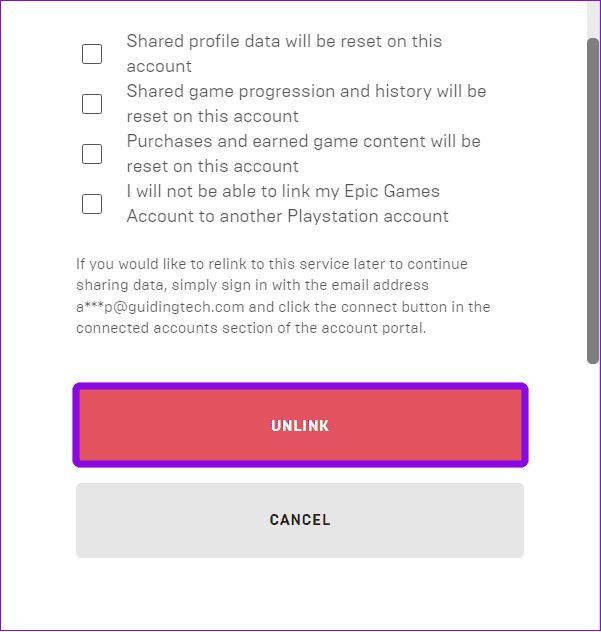
The Steam account will be unlinked, and you will be informed about it. However, do note that once you remove the Steam account, you can’t link it again with your Epic Games account.
Also Read: How to delete a Steam account permanently
FAQs
Yes. Unlinking your Steam account from your Epic Games account will delete the previously shared data between the two platforms. This includes the friend list that was imported along with other data. However, the specifics can vary depending on the games and services involved.
While you can add Steam to Epic Games, Steam doesn’t offer a similar option to add Epic Games data within the platform.
Was this helpful?
Last updated on 27 June, 2024
Read Next
 How to Fix Epic Games Library Not Showing Games
Basic Fixes: Refresh Epic Games launcher library: A quick refresh can help fix any glitches keeping you from accessing your Epic Games Library.
How to Fix Epic Games Library Not Showing Games
Basic Fixes: Refresh Epic Games launcher library: A quick refresh can help fix any glitches keeping you from accessing your Epic Games Library.
 How to Uninstall Epic Games Launcher and Its Games
Things to Consider Before Uninstalling Games or Epic Games Launcher Before uninstalling Epic Games Launcher or the games in it, consider the following things: Backup game files: If you have
How to Uninstall Epic Games Launcher and Its Games
Things to Consider Before Uninstalling Games or Epic Games Launcher Before uninstalling Epic Games Launcher or the games in it, consider the following things: Backup game files: If you have
 How to Update Epic Games Launcher and Its Games on Windows
How to Check and Update Epic Games Launcher Epic Games Launcher auto-updates along with its games.
How to Update Epic Games Launcher and Its Games on Windows
How to Check and Update Epic Games Launcher Epic Games Launcher auto-updates along with its games.
 2 Ways to Fix Epic Games Not Sending a Security Code
Basic Fixes: Check network connection: If your phone has a spotty network connection, you may not receive a security code from Epic Games via email or SMS.
2 Ways to Fix Epic Games Not Sending a Security Code
Basic Fixes: Check network connection: If your phone has a spotty network connection, you may not receive a security code from Epic Games via email or SMS.
 6 Ways to Fix Epic Games Error Code II-E1003
Basic Fixes: Ensure Stable Network: This is one of the biggest reasons you see the Install Failed Error Code II-E1003 in Epic Games.
6 Ways to Fix Epic Games Error Code II-E1003
Basic Fixes: Ensure Stable Network: This is one of the biggest reasons you see the Install Failed Error Code II-E1003 in Epic Games.
 4 Ways to Fix Slow Download Speed in Epic Games Launcher on Windows 11
https://youtu.be/w8E4d-rCMUQ Basic Fixes: Check the Epic Server Status: Epic Games Launcher also relies on multiple servers to operate, and It’s possible that a server might be out of order or
4 Ways to Fix Slow Download Speed in Epic Games Launcher on Windows 11
https://youtu.be/w8E4d-rCMUQ Basic Fixes: Check the Epic Server Status: Epic Games Launcher also relies on multiple servers to operate, and It’s possible that a server might be out of order or
 5 Ways to Fix Can’t Uninstall Epic Games Launcher From Windows
https://youtu.be/FlTQNprjfwQ Fix 1: Close the Epic Games Launcher Using Task Manager Windows may have trouble uninstalling a program if it is actively running in the background.
5 Ways to Fix Can’t Uninstall Epic Games Launcher From Windows
https://youtu.be/FlTQNprjfwQ Fix 1: Close the Epic Games Launcher Using Task Manager Windows may have trouble uninstalling a program if it is actively running in the background.
 How to Change Epic Games Install Location on Windows
Where Are Epic Games Installed on Your System?
How to Change Epic Games Install Location on Windows
Where Are Epic Games Installed on Your System?
The article above may contain affiliate links which help support Guiding Tech. The content remains unbiased and authentic and will never affect our editorial integrity.