Windows 11 hasn’t had the best track record with major software updates. Windows 11 24H2, for example, and occasionally cause bugs and driver conflicts for many PCs, leading many owners to roll back to a more stable version. For 25H2, Microsoft is performing a staggered release, providing the option to compatible machines with no known driver conflicts to mitigate risk.
If you’re confident your PC is up to the task, though, and aware of the possible caveats, there are ways to get this update for your machine, even if it isn’t showing up automatically. This article will be your guide.
Controlling the Release
Windows 11 25H2 should be considered as a lightweight enablement package rather than a major software update. Compared to its yearly predecessor, the update is small and designed to work over the existing 24H2 code. It enhances and enables, rather than replaces.
The new update offers improvements to Copilot functionality and includes a 64-bit command-line editor. For many users, compared to the trauma of 24H2, this “update” aims to be much more gradual. Part of this involves releasing 25H2 to select devices. Here are the current requirements:
- The standard Windows 11 requirements (UEFI, Secure Boot, TPM 2.0, etc.)
- No known driver conflicts that might harm your computer during or after updating
- The machine must be signed up to receive the latest updates as soon as they become available
Windows 11 25H2 if It Doesn’t Show in Windows Update and How to Fix That
If you’re not seeing the option to install 25H2 in Windows Updates, then there are a few ways to get it. Before you do, though, just be aware of the potential bugs and risks involved with installing an update not yet widely distributed, including audio and GPU conflicts. Let’s get started:
Enable Updates
A quick way to get the latest update through on your PC is to ensure you’re signed up to having all the latest updates downloaded and installed on your machine as soon as possible. Here’s what to do:
Step 1. Open Settings (Win + I) and click “Windows Update” in the sidebar.
Step 2. In the main window, navigate to the “More options” subheader and drag the slider next to “Get the latest updates as soon as they’re available” to “On.”
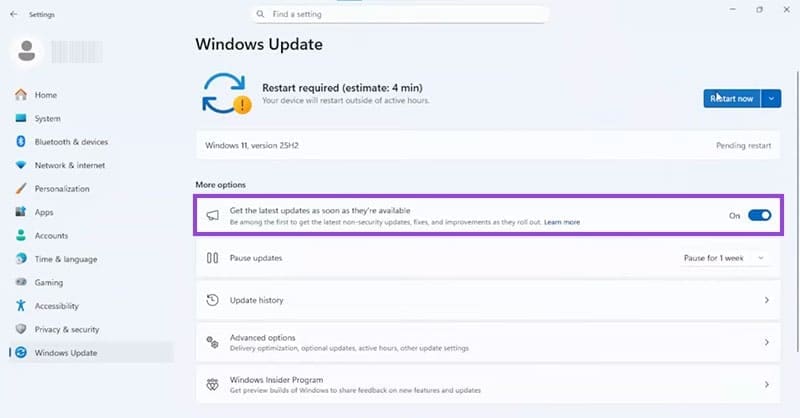
Step 3. Click the “Check for updates” button at the top of the window and see if the option to install 25H2 appears.
Step 4. If so, click the “Download & install” button and let your PC do the rest. Restart afterwards.
Use the ISO File From Microsoft
Another method is to go straight to Microsoft itself and download the necessary installation files in the form of an ISO (a virtual disc image). To do this:
Step 1. Visit the Microsoft Software Download Page.

Step 2. Scroll down to “Download Windows 11 Disk Image (ISO) for x64 devices” and select the Windows 11 ISO from the dropdown menu.
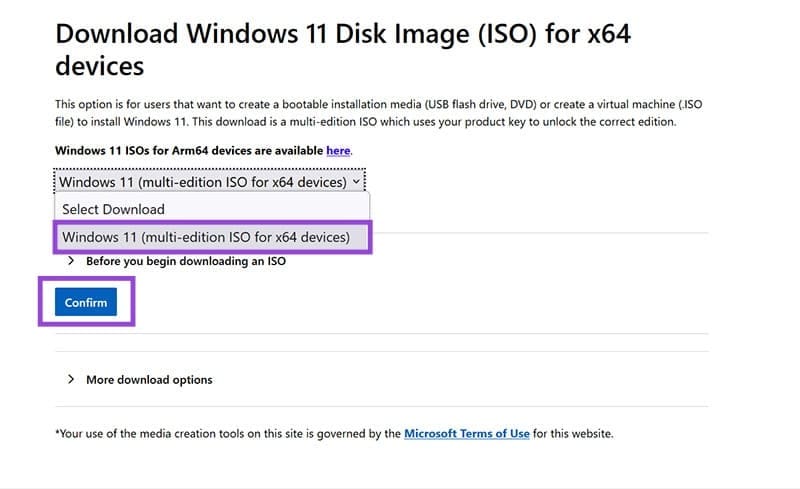
Step 3. Click the “Confirm” button and (importantly), select your installation language. For English, ensure that the region you choose matches that of the installation language of your PC.
Step 4. Download the ISO file, then double-click it to mount the image.
Step 5. Follow the wizard’s steps to install the update.
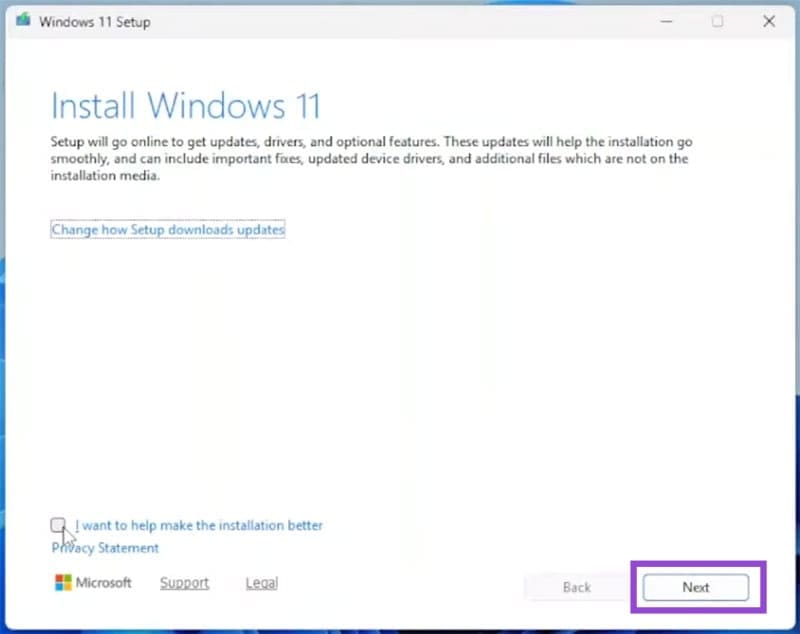
Finding that the option to install Windows 11 25H2 passed you by? We show you how to fix the update not showing up on your PC and how to get it.
Was this helpful?
Last updated on 21 October, 2025
Read Next
 How to Make Echo Show Only Show the Clock
I have my Echo Show on my desk in front of me, and it’s distracting when the display keeps changing every few seconds.
How to Make Echo Show Only Show the Clock
I have my Echo Show on my desk in front of me, and it’s distracting when the display keeps changing every few seconds.
 How to Show Missing Date and Time in Taskbar on Windows
A few days back, I was playing with the Taskbar settings on my Windows laptop.
How to Show Missing Date and Time in Taskbar on Windows
A few days back, I was playing with the Taskbar settings on my Windows laptop.
 2 Ways to Disable the Show More Options Context Menu in Windows 11
Method 1: Revert to Old Context Menu Using Command Prompt Command Prompt is a command-line interpreter that lets you perform various complicated tasks on your PC with a few text
2 Ways to Disable the Show More Options Context Menu in Windows 11
Method 1: Revert to Old Context Menu Using Command Prompt Command Prompt is a command-line interpreter that lets you perform various complicated tasks on your PC with a few text
 5 Quick Ways to Show FPS Counter in Windows 11
Method 1: Using the Xbox Game Bar Xbox Game Bar is baked into Windows 10 and Windows 11.
5 Quick Ways to Show FPS Counter in Windows 11
Method 1: Using the Xbox Game Bar Xbox Game Bar is baked into Windows 10 and Windows 11.
 How to Show Seconds on Windows 11 Clock
Ever find yourself glancing at your computer clock, craving that extra level of precision?
How to Show Seconds on Windows 11 Clock
Ever find yourself glancing at your computer clock, craving that extra level of precision?
 What to Do if Your Upgraded RAM Doesn’t Show up or Work on Windows 11?
Basic Fixes: Ensure the RAM is seated properly: If the RAM isn't inserted properly in the slot or if the side clips holding the RAM didn't click, it can prevent
What to Do if Your Upgraded RAM Doesn’t Show up or Work on Windows 11?
Basic Fixes: Ensure the RAM is seated properly: If the RAM isn't inserted properly in the slot or if the side clips holding the RAM didn't click, it can prevent
 How to Show Battery Percentage on Laptop (Windows 11)
Running out of power halfway through a critical task is such a nightmare.
How to Show Battery Percentage on Laptop (Windows 11)
Running out of power halfway through a critical task is such a nightmare.
 How to Show File Preview in Folders in Windows 11
When you need to check up on multiple files for a value or a single piece of info, it can get tedious to open each file separately.
How to Show File Preview in Folders in Windows 11
When you need to check up on multiple files for a value or a single piece of info, it can get tedious to open each file separately.
The article above may contain affiliate links which help support Guiding Tech. The content remains unbiased and authentic and will never affect our editorial integrity.