In March 2025, Microsoft decided to roll out new AI features in an updated version of the classic Notepad app. Instead of the basic, no-frills notepad, Windows 11 now automatically includes a Copilot-enabled version that requires you to sign in to your Microsoft 365 account.
If you’re one of the people out there who like their apps how they used to be without any AI additions, you’re not alone. Thankfully, it’s easy to revert Notepad to the classic version you know and love.
Simple Steps to Get Old Notepad Back
Step 1. Check if you have the current or older, classic version of Notepad by opening the app. This is as simple as typing “Notepad” or “Apps: notepad” into your search bar and double-clicking on the app when it appears.

Step 2. If this is the first time you’ve used the AI-augmented version of Notepad, you’ll see a pop-up Window telling you about how Microsoft collects your data. This, and the colorful Copilot logo in the top-right corner, show that you have the new Notepad alternative.

Step 3. Now, close the Notepad app and head to settings. Top tip: While you can search for settings using the Windows taskbar, you can also press the Windows key and “I” simultaneously to instantly open this area.

Step 4. Once you’ve clicked on “Settings” or “Open,” click “Apps” and then click “Advanced app settings.”
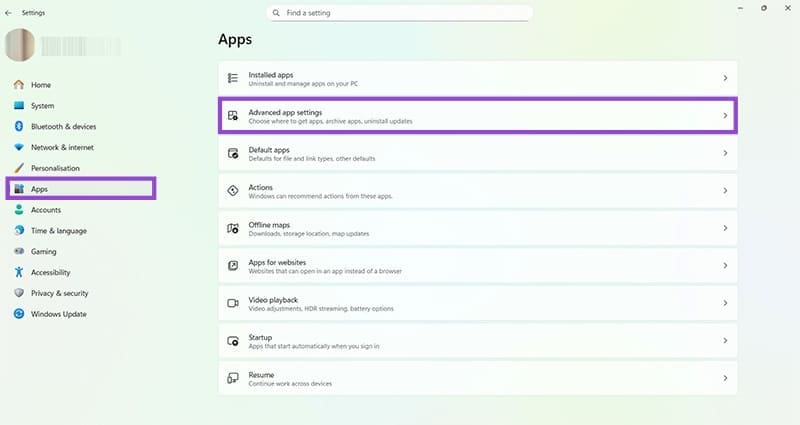
Step 5. Look for “App execution aliases” and click here. App execution aliases are different names that can be used to launch the same application. In this instance, you’re turning off this feature so that when you try to get old Notepad back by running its execution file, it doesn’t automatically search for the new Notepad alternative.
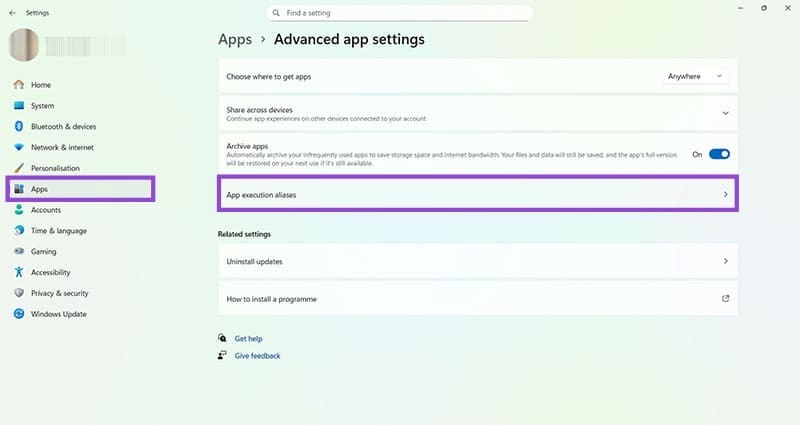
Step 6. Scroll down the list of App execution aliases until you find Notepad, then toggle the switch to “Off.”

Step 7. Press the Windows key and “R” together to open a Run window, which is a manual way to open apps and other resources. In the “Open” box, type “notepad.exe.” Press “OK.”
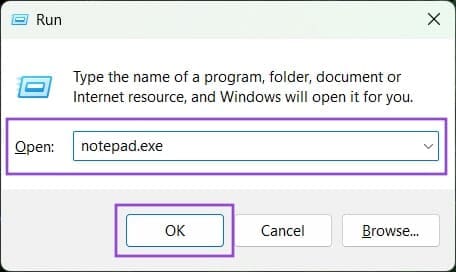
Step 8. You will now see a new window open with the classic, unaltered version of Notepad, meaning you can use it without any of the new AI-powered features.
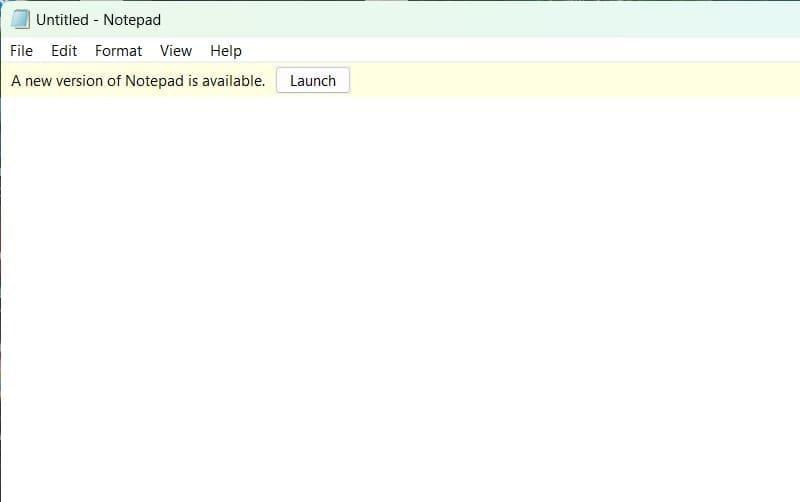
There’s a “launch” button for the new Notepad alternative, should you change your mind. Or, you can simply work through these steps again and switch the App execution aliases option back to “On” to reverse this process.
Was this helpful?
Last updated on 09 January, 2026
Read Next
 10 Notepad++ Plugins for Writers and Coders
1.
10 Notepad++ Plugins for Writers and Coders
1.
 How to Fix Notepad Missing Issue in Windows 11/10
Method 1: Install Notepad From Optional Features Microsoft has made Notepad an optional feature.
How to Fix Notepad Missing Issue in Windows 11/10
Method 1: Install Notepad From Optional Features Microsoft has made Notepad an optional feature.
 4 Ways to Fix Notepad Not Opening on Windows 11
Basic Fixes Restart PC: Press the Windows + X shortcut to open the Power User Menu.
4 Ways to Fix Notepad Not Opening on Windows 11
Basic Fixes Restart PC: Press the Windows + X shortcut to open the Power User Menu.
 How to Disable the Pin Tab in Notepad++
When the minds behind the open-source Notepad++ released version 8.7.2 of the software, they snuck in an interesting feature.
How to Disable the Pin Tab in Notepad++
When the minds behind the open-source Notepad++ released version 8.7.2 of the software, they snuck in an interesting feature.
 How to Get Classic Notepad Back in Windows 11
Windows 11 has brought with it many changes, and one such example is to the Microsoft staple, Notepad.
How to Get Classic Notepad Back in Windows 11
Windows 11 has brought with it many changes, and one such example is to the Microsoft staple, Notepad.
 How to Encode and Decode Base64 on Notepad ++
How to Convert and Decode Base64 Data on Notepad ++ Here's how you can easily encode and decode Base64 data on Notepad ++ on your PC.
How to Encode and Decode Base64 on Notepad ++
How to Convert and Decode Base64 Data on Notepad ++ Here's how you can easily encode and decode Base64 data on Notepad ++ on your PC.
 6 Fixes for “Gaming Features Aren’t Available for the Windows Desktop” Error
Fix 1: Update the Game Bar App and Open It From Microsoft Store Several users on a Microsoft community post reported fixing the error almost instantly by updating the Game
6 Fixes for “Gaming Features Aren’t Available for the Windows Desktop” Error
Fix 1: Update the Game Bar App and Open It From Microsoft Store Several users on a Microsoft community post reported fixing the error almost instantly by updating the Game
 How to Remove Copilot and Disable Other AI Features on Windows 11
AI is an increasingly prominent part of modern life, and it’s becoming a bigger feature on computers and other devices, too.
How to Remove Copilot and Disable Other AI Features on Windows 11
AI is an increasingly prominent part of modern life, and it’s becoming a bigger feature on computers and other devices, too.
The article above may contain affiliate links which help support Guiding Tech. The content remains unbiased and authentic and will never affect our editorial integrity.