Windows Explorer has a helpful “Preview” pane on the right side that should show you little previews of any files before you open them, including Word documents. However, it doesn’t always work as intended, and you may specifically have an issue with Word documents not previewing in Explorer when you select them. This guide shows how to fix that and related preview problems.
Word Documents Not Previewing in Explorer Fix 1. Enable Previews
If Explorer doesn’t preview Word files, it might simply be that you have inadvertently disabled the “Preview” feature. You can turn it on and off quite easily via the Explorer settings menu. Here’s how:
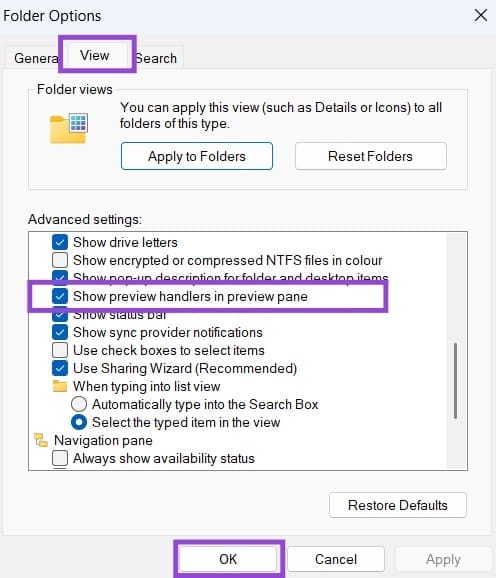
Step 1. Use the “Windows” and “E” shortcut to open Explorer or access it via your Start menu. Then click the three dots menu button and select “Options.”

Step 2. Go to the “View” tab and scroll down. Look for the setting labeled “Show preview handlers in preview pane” and make sure the box next to it is checked. Apply your changes and press “OK” to continue.
Fix 2. Adjust Your Trust Center Settings
If previews for other programs and file types are showing, but you specifically can’t preview Word files in Explorer, it might be an issue with your Word Trust Center settings.
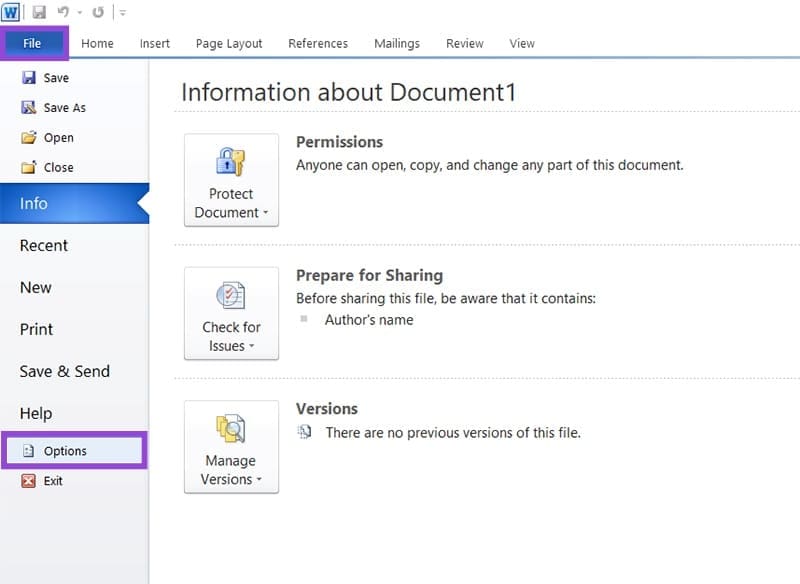
Step 1. Open Microsoft Word and click on “File,” then “Options.”
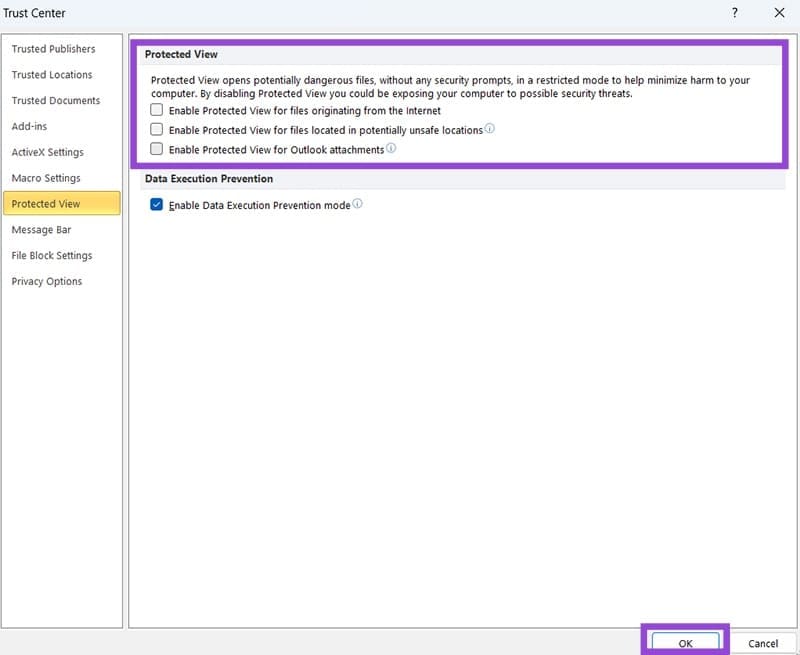
Step 2. Click on “Trust Center” and then “Trust Center Settings.”

Step 3. Go to “Protected View” and uncheck all the boxes in the “Protected View” section. Note, however, that this could expose your device to possible security threats if you download dangerous or corrupted files. Click “OK” to save your changes and check if Word files are previewing.
Fix 3. Adjust Windows Settings
There are also some Windows system settings you can change to fix the issue of Word documents not previewing in Explorer.
Step 1. Open the Settings by pressing “Windows” and “I” together or clicking the Settings icon in the Start menu.
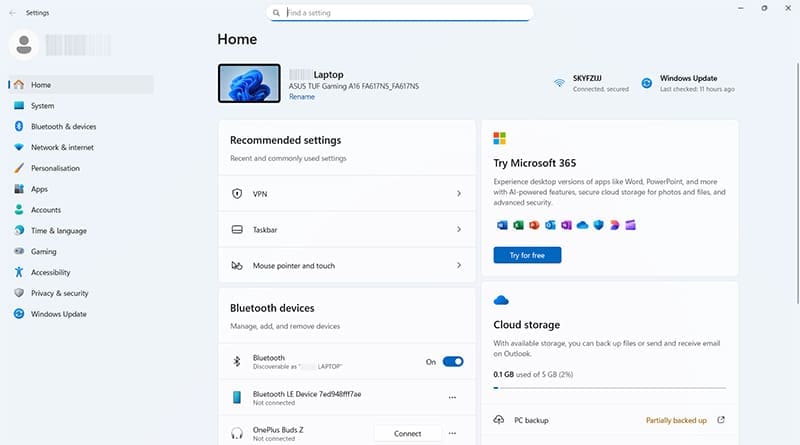
Step 2. Go to “Apps” then click on “Default apps.”

Step 3. Type in the extension for the file type that isn’t previewing. In this case, it’s likely .doc or .docx. Make sure that Word is selected as the default app for that file type. If it isn’t, click to change it.

Fix 4. Try a System File Checker Scan
There might be some corruption in your system’s files that can cause random issues like problems with the Explorer preview pane. You can find and fix these issues with an SFC scan.
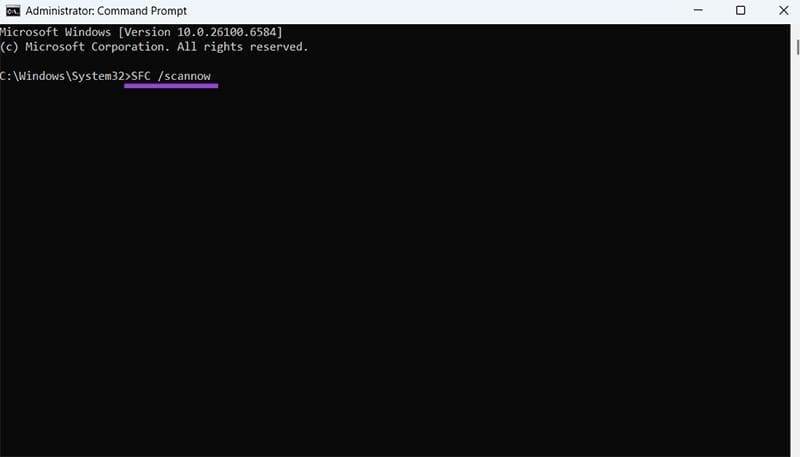
Step 1. Click the search icon and type “CMD” into the box. Then click “Run as administrator” for the Command Prompt.

Step 2. Enter this command: “SFC /scannow” A scan should then run, and if Windows finds any issues, it can repair them automatically. You’ll likely need to restart your device afterwards to check if the problem is fixed.
Fix 5. Update Your Graphics Drivers
Lastly, there may be an issue with your graphics card drivers being out of date, which could make features like the Explorer Preview pane less responsive and reliable. Update your drivers as follows:
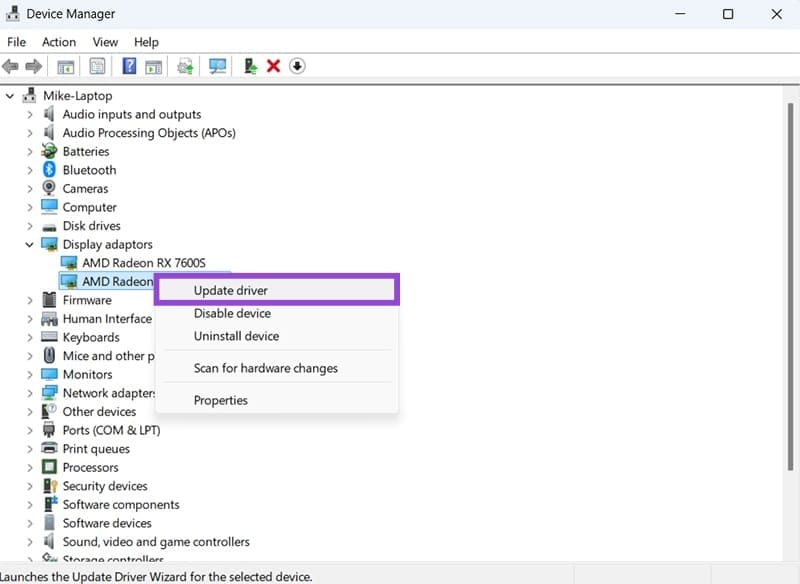
Step 1. Open the “Device Manager” by searching for it in the Start menu and clicking the corresponding icon.

Step 2. Go down the list and find the “Display adapters” section. Click to expand it, then find your graphics driver.

Step 3. Right-click the driver and select “Update driver,” followed by “Search automatically for drivers.” Then follow any on-screen prompts to install drivers and restart your machine.
Was this helpful?
Last updated on 18 September, 2025
Read Next
 How to Fix Word Documents Not Saving on Mac
Fix 1: Reduce File Size Step 1: Select File at the top and click on Reduce File Size.
How to Fix Word Documents Not Saving on Mac
Fix 1: Reduce File Size Step 1: Select File at the top and click on Reduce File Size.
 How to Convert Word Documents to Pages (and Vice Versa) on Mac
How to Convert Word Files to Pages on Mac If you are fully invested in an Apple ecosystem and don’t have Microsoft apps such as OneDrive or Microsoft Word, you
How to Convert Word Documents to Pages (and Vice Versa) on Mac
How to Convert Word Files to Pages on Mac If you are fully invested in an Apple ecosystem and don’t have Microsoft apps such as OneDrive or Microsoft Word, you
 Top 4 Ways to Find and Recover Unsaved Word Documents
Have you ever found yourself in the frustrating situation of working on an important document only to have your computer unexpectedly shut down or the application crash -- leaving you
Top 4 Ways to Find and Recover Unsaved Word Documents
Have you ever found yourself in the frustrating situation of working on an important document only to have your computer unexpectedly shut down or the application crash -- leaving you
 How to Clear or Disable Recently Used Documents List in Microsoft Word
Remove Specific or All Entries From Recent Documents List in Microsoft Word If you only want to remove a few documents from the Recent list, go to the Home tab
How to Clear or Disable Recently Used Documents List in Microsoft Word
Remove Specific or All Entries From Recent Documents List in Microsoft Word If you only want to remove a few documents from the Recent list, go to the Home tab
 4 Ways to Fix Printer Says Documents Are Waiting Error
Preliminary Fixes Check Printer Connection: You should first try power cycling both your computer and printer.
4 Ways to Fix Printer Says Documents Are Waiting Error
Preliminary Fixes Check Printer Connection: You should first try power cycling both your computer and printer.
 How to Sign Documents in Microsoft Teams
Microsoft Teams' user base is skyrocketing.
How to Sign Documents in Microsoft Teams
Microsoft Teams' user base is skyrocketing.
 3 Ways to Fix Unable to Send Multiple Documents on WhatsApp on Android
Basic Fixes: Check document size: WhatsApp allows you to send documents only up to 2GB.
3 Ways to Fix Unable to Send Multiple Documents on WhatsApp on Android
Basic Fixes: Check document size: WhatsApp allows you to send documents only up to 2GB.
 Where Are WhatsApp Documents or Images Stored on iPhone and Android
Where Are WhatsApp Images and Videos Stored on iPhone WhatsApp servers store the images and videos you receive in WhatsApp.
Where Are WhatsApp Documents or Images Stored on iPhone and Android
Where Are WhatsApp Images and Videos Stored on iPhone WhatsApp servers store the images and videos you receive in WhatsApp.
The article above may contain affiliate links which help support Guiding Tech. The content remains unbiased and authentic and will never affect our editorial integrity.