


On Windows
Method 1: Check Notifications Options in the Settings App
Step 1: Press the Windows + I keys shortcut to open the Settings app.
Step 2: Select System from the left sidebar.
Step 3: Click Notifications in the right pane.
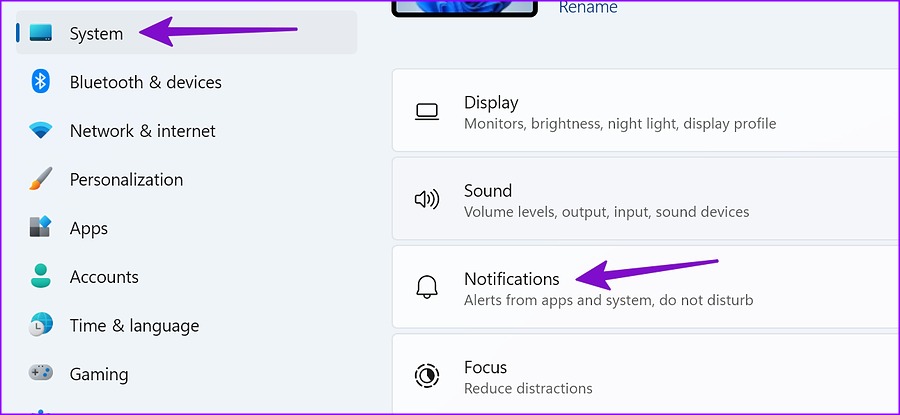
Step 4: Scroll to Microsoft Teams and click on it.

Step 5: Turn on the toggle for Play a sound when a notification arrives.

If you mostly interact with Teams notifications on Windows, click the radio button beside High to show Teams alerts above priority notifications in the notification center.
Method 2: Check Notification Settings in Microsoft Teams
Step 1: Launch Microsoft Teams on Windows.
Step 2: Click the three vertical dots at the top right and select Settings.

Step 3: Select Notifications from the sidebar.
Step 4: Turn on the toggle for Play sound for incoming calls and notifications.
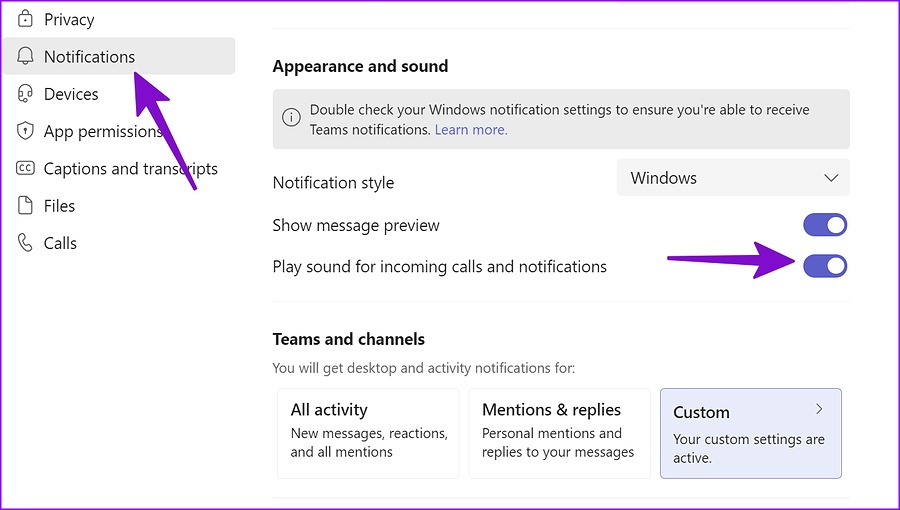
You can close Microsoft Teams and start receiving alerts with sound. From the same menu, you can tweak the Teams desktop and activity notifications.
2. On Mac
Method 1: Check Notifications Options in the Settings App
Step 1: Click the Apple logo > open System Settings.
Step 2: Select Notifications from the sidebar > click on Teams to open it.
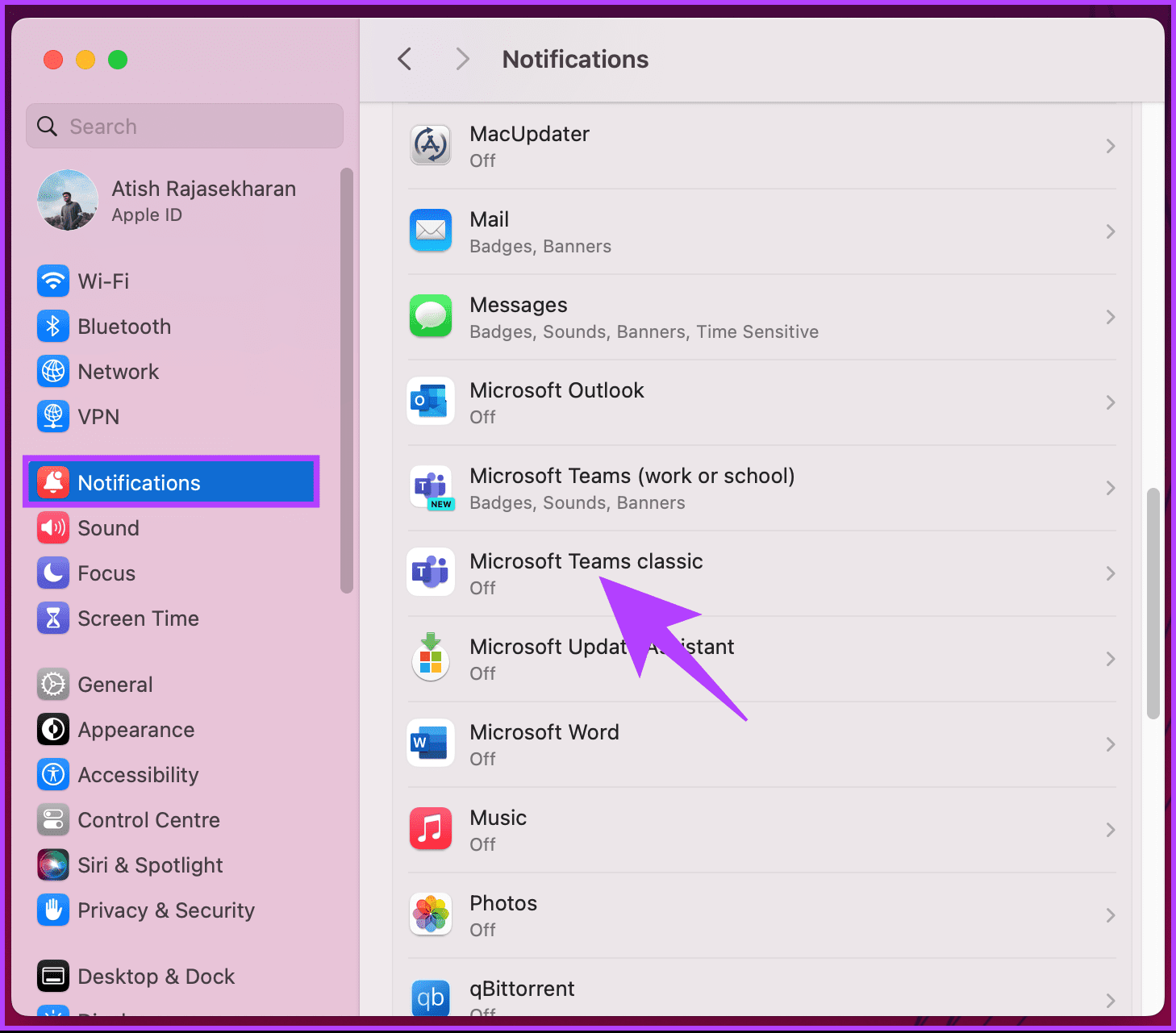
Step 3: Enable the Allow notifications toggle and make the necessary changes.
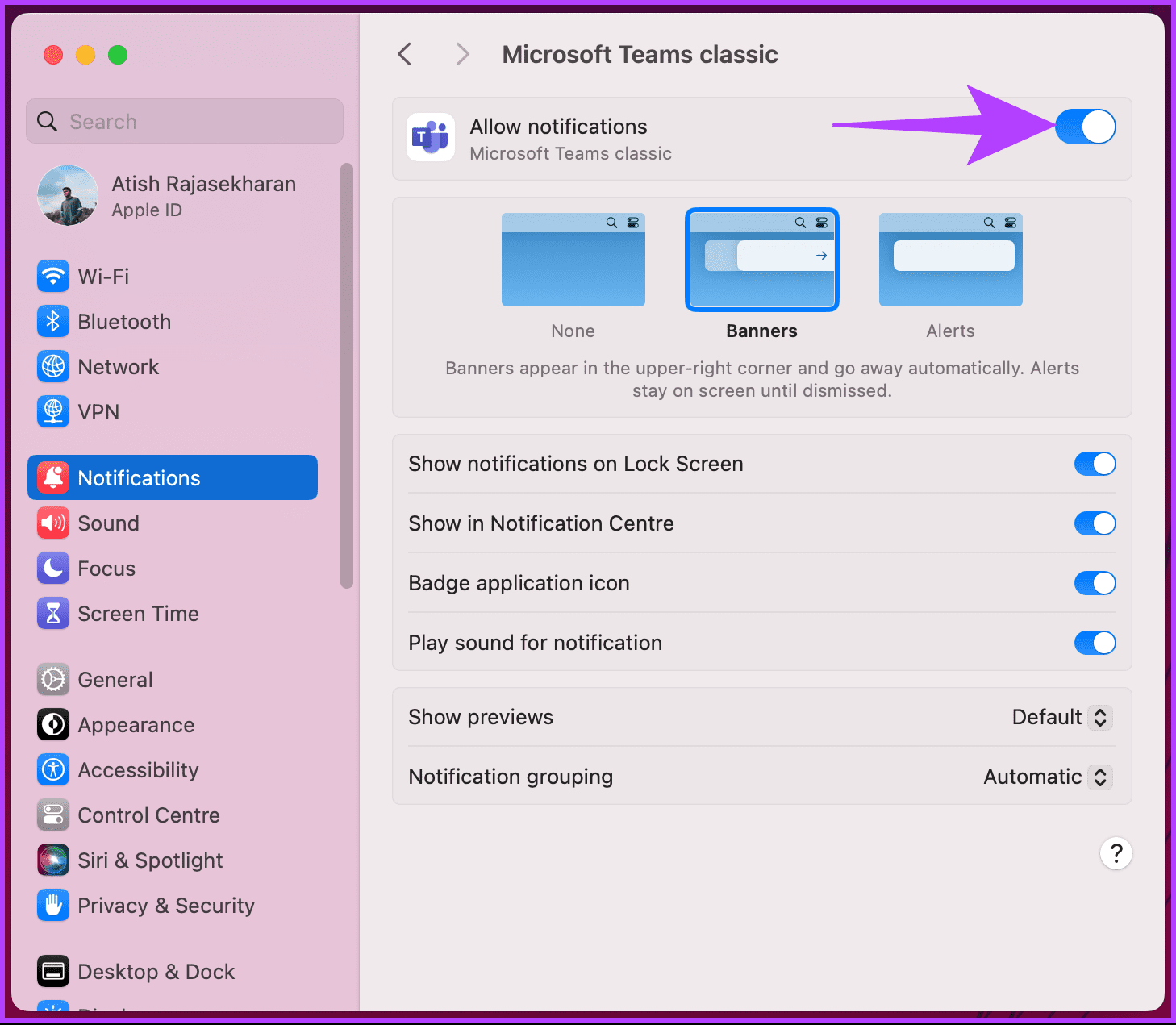
Once the above steps are executed, the issue should be fixed. If not, check out the next fix.
Method 2: Check Notifications Settings in Microsoft Teams
Step 1: From Teams web, select the three-dot menu at the top.
Step 2: Select Settings.

Step 3: Click Notifications from the sidebar.

Step 4: Enable the Show message preview toggle.

That’s it. This should fix the Teams notifications sound not working issue. If you are facing this issue on Android, keep reading.
3. On Android
Before making changes to the Microsoft Teams settings, check the notification volume on your Android phone.
Method 1: Check Teams Notification Channels
Step 1: Long-tap on the Microsoft Teams app icon > tap the i button.
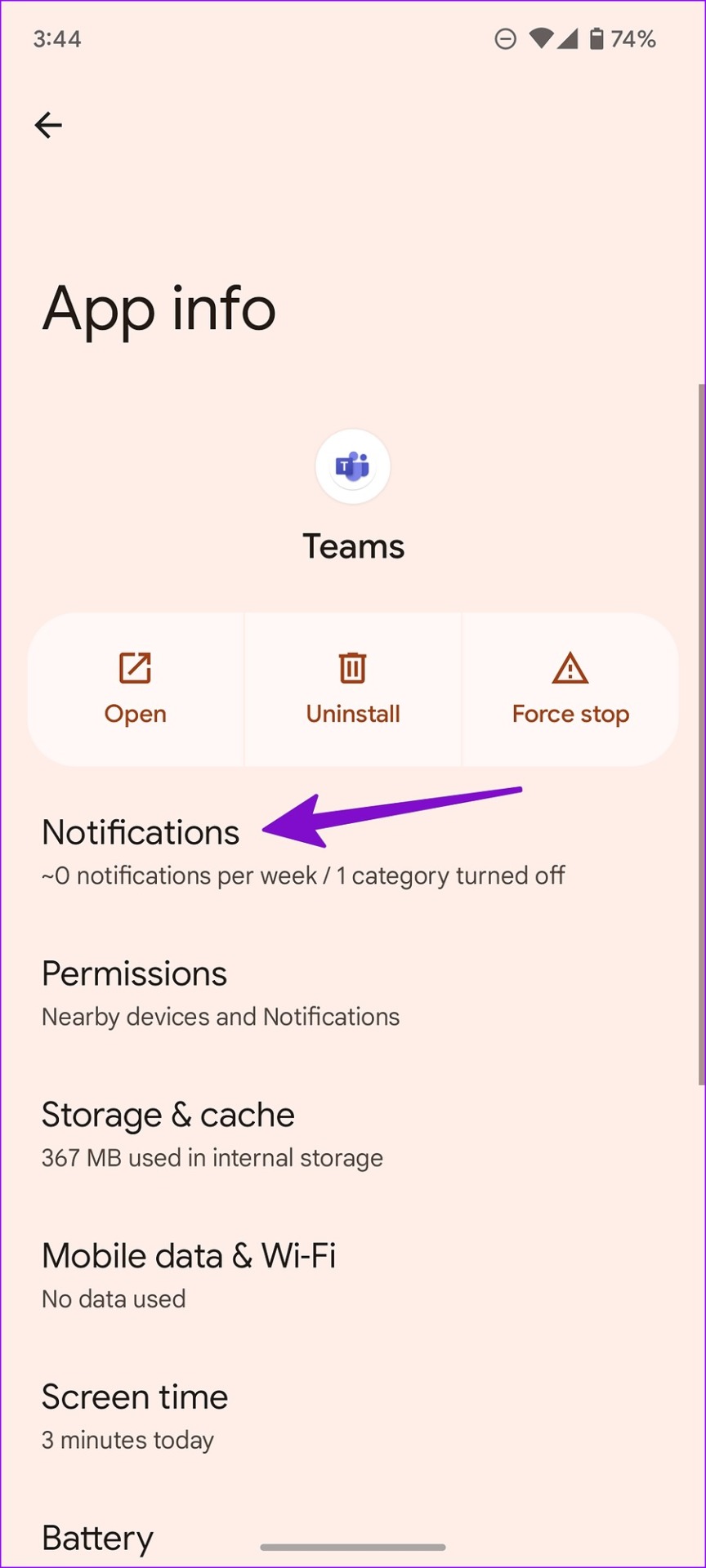
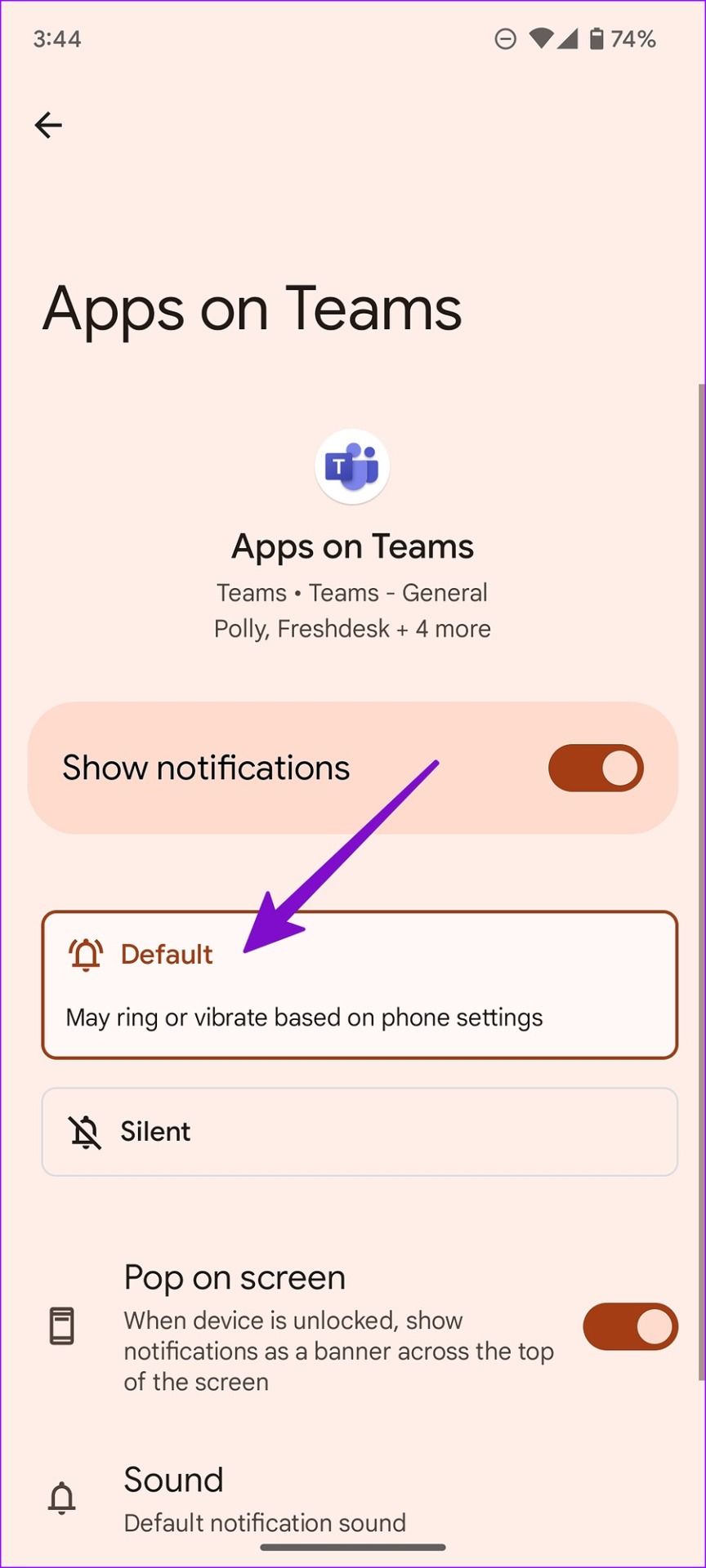
Step 2: Select Notifications from the app info menu > tap Default.
Method 2: Disable Quiet Time in Microsoft Teams
When you enable quiet days or hours in Microsoft Teams, the software mutes all Teams notifications on your Android phone.
Step 1: Open Microsoft Teams on your Android phone.
Step 2: Select your account > open Notifications.
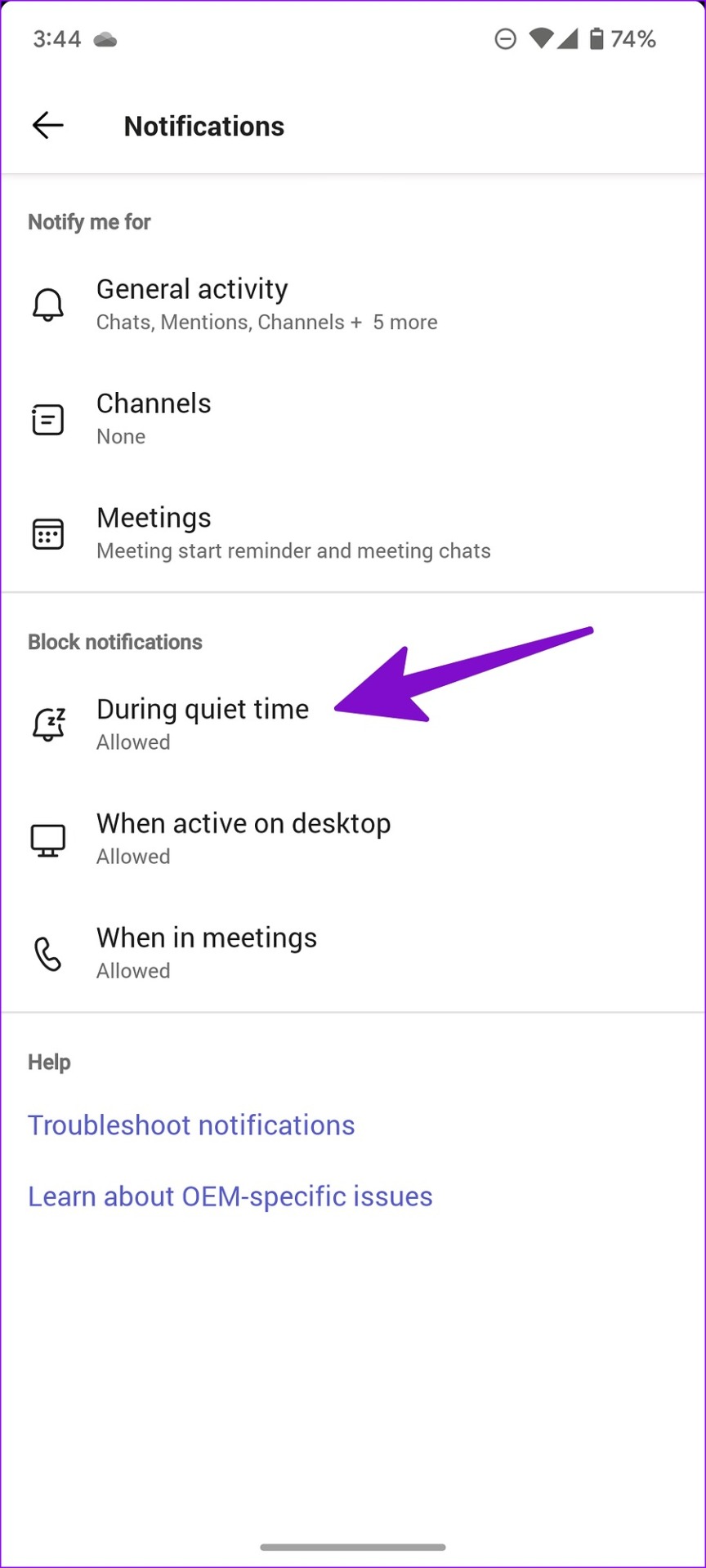
Step 3: Tap During quiet time under Block notifications.
Step 4: Disable the Daily quiet hours and Quiet days toggles.

There you go. You have successfully fixed the Microsoft Teams notifications sound not working issue. If you are an iOS user, continue reading.
4. On iPhone
Method 1: Check Notifications Options in the Settings App
Step 1: Open Settings on your iPhone.
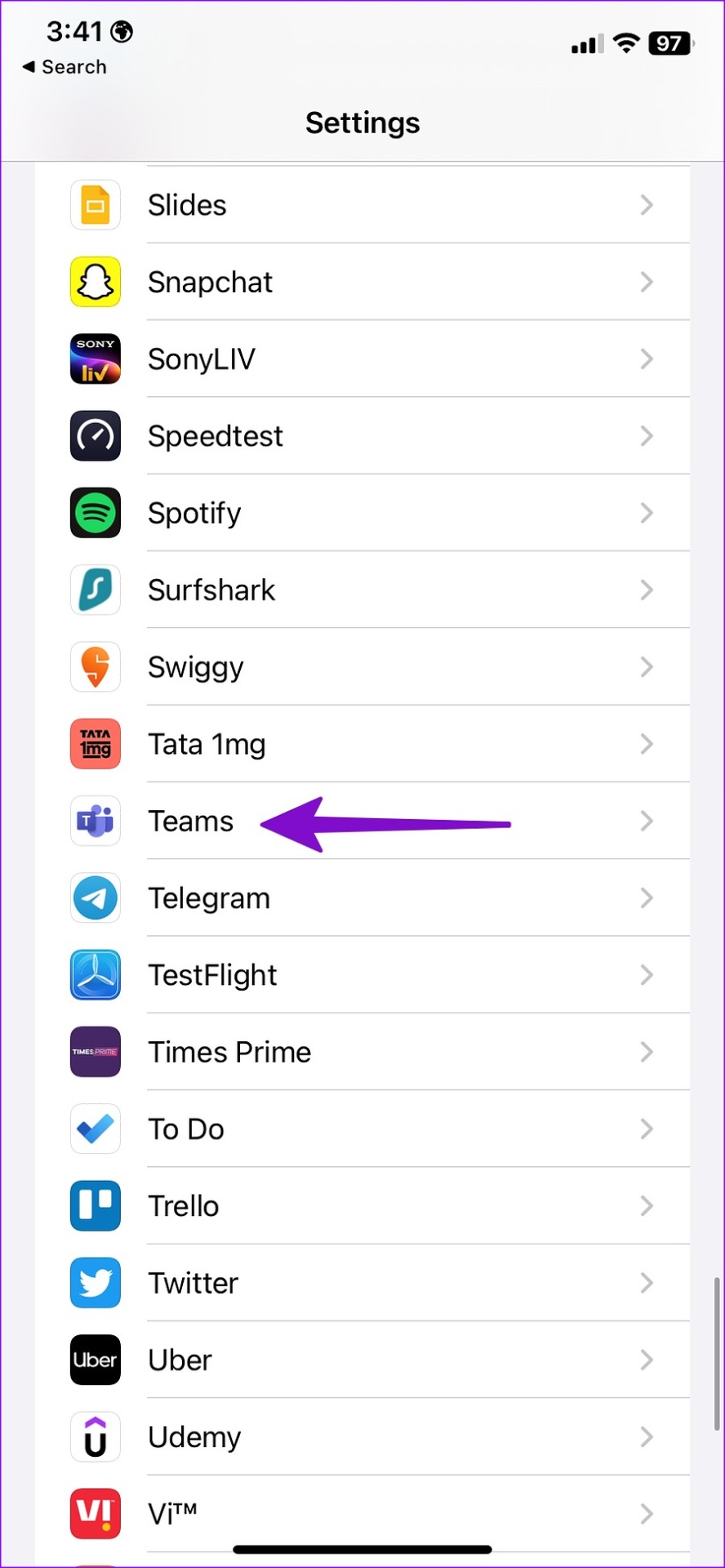
Step 2: Scroll to Microsoft Teams > select Notifications.
Step 3: Enable the Sounds toggle.
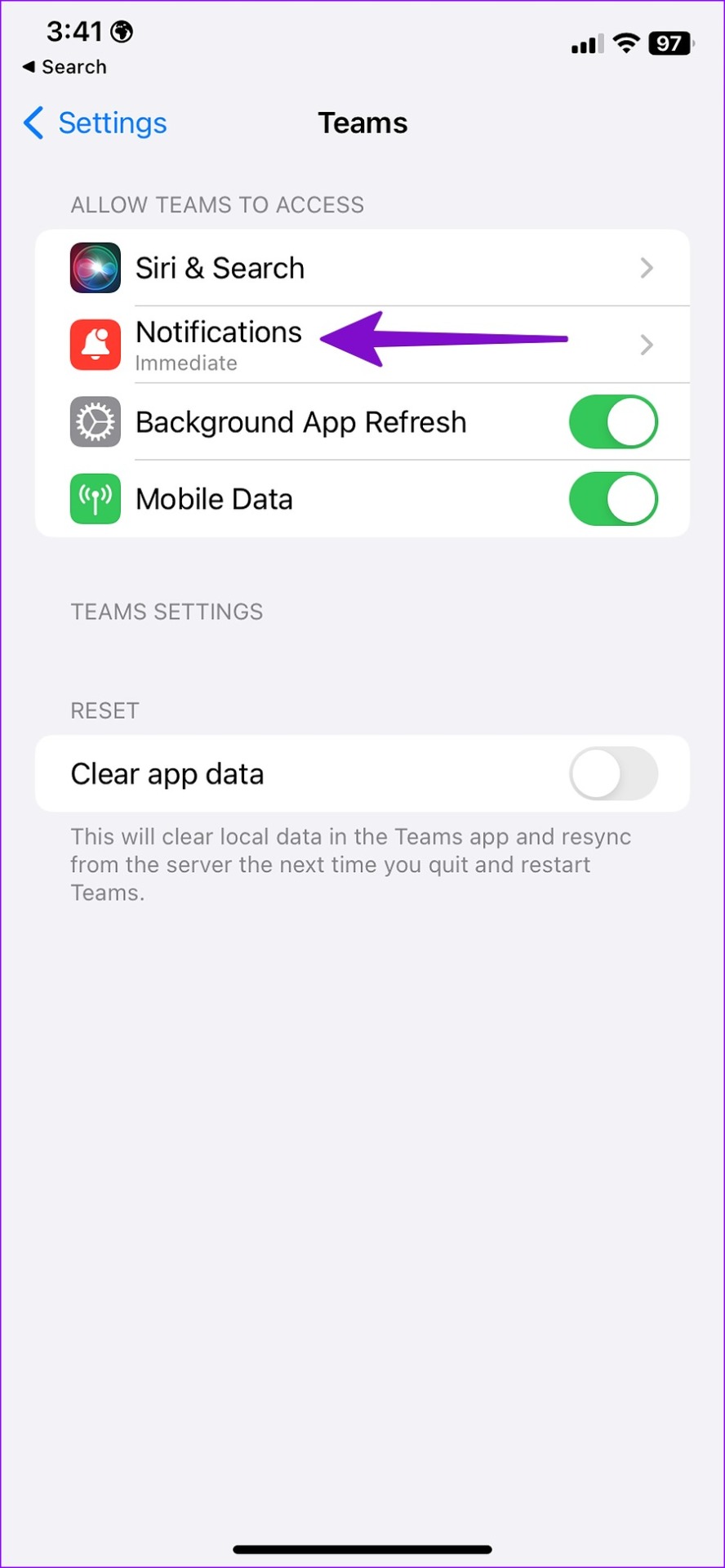
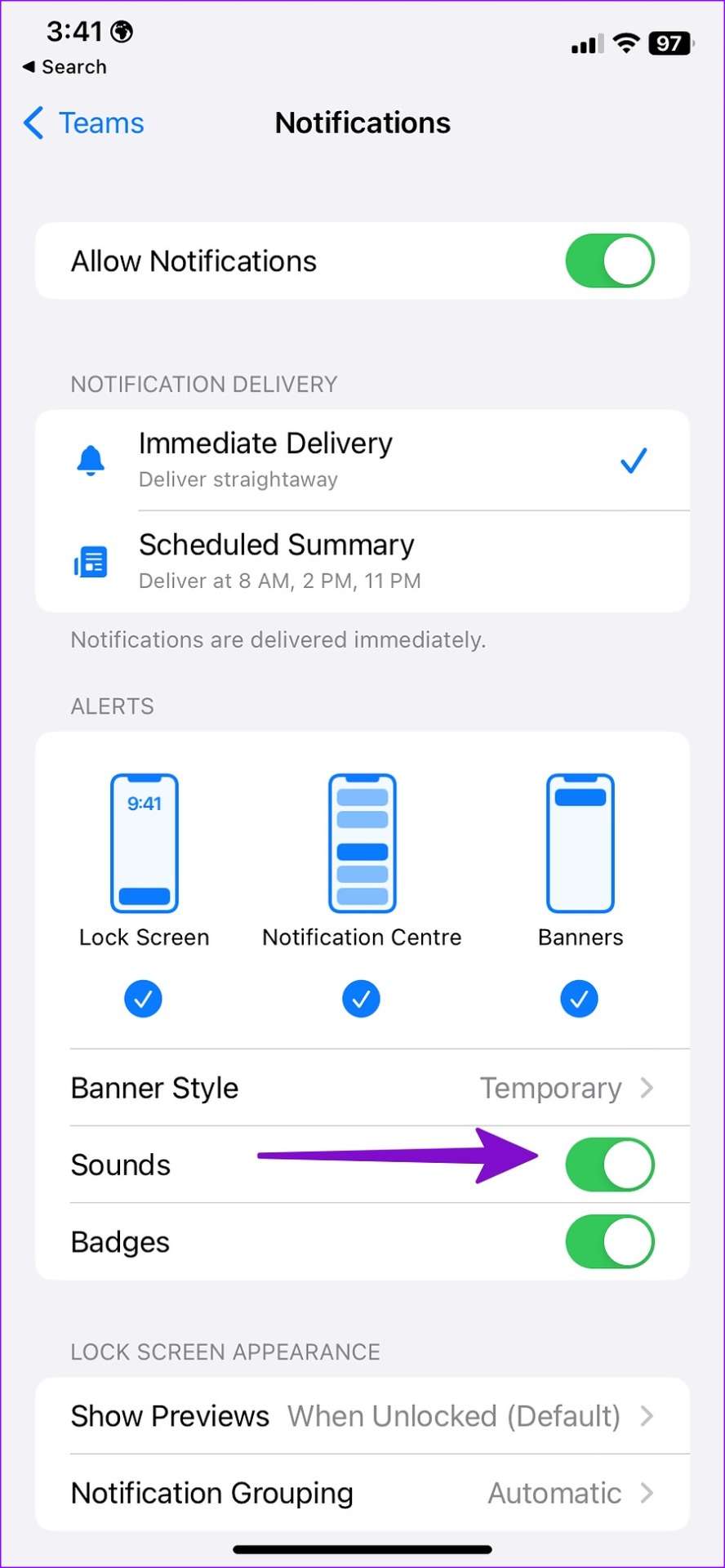
Method 2: Check Notification Settings in Teams for iPhone
If you want to set a custom sound for Teams alerts, make changes from the app settings.
Step 1: Open Microsoft Teams on your iPhone.
Step 2: Tap on your account from the top-left corner.
Step 3: Open Settings > select Notifications.


Step 4: Tap Sound under Alerts and pick your preferred Teams notification tone on your iPhone.


Method 3: Remove Teams from Scheduled Summary
When you add Microsoft Teams to Scheduled Summary, the system blocks Teams notifications and sends all alerts silently at an appropriate time. You can remove Microsoft Teams from Scheduled Summary on your iPhone.
Step 1: Open Settings on your iPhone.
Step 2: Select Notifications > choose Scheduled Summary.
Step 3: Disable Microsoft Teams from the following menu.
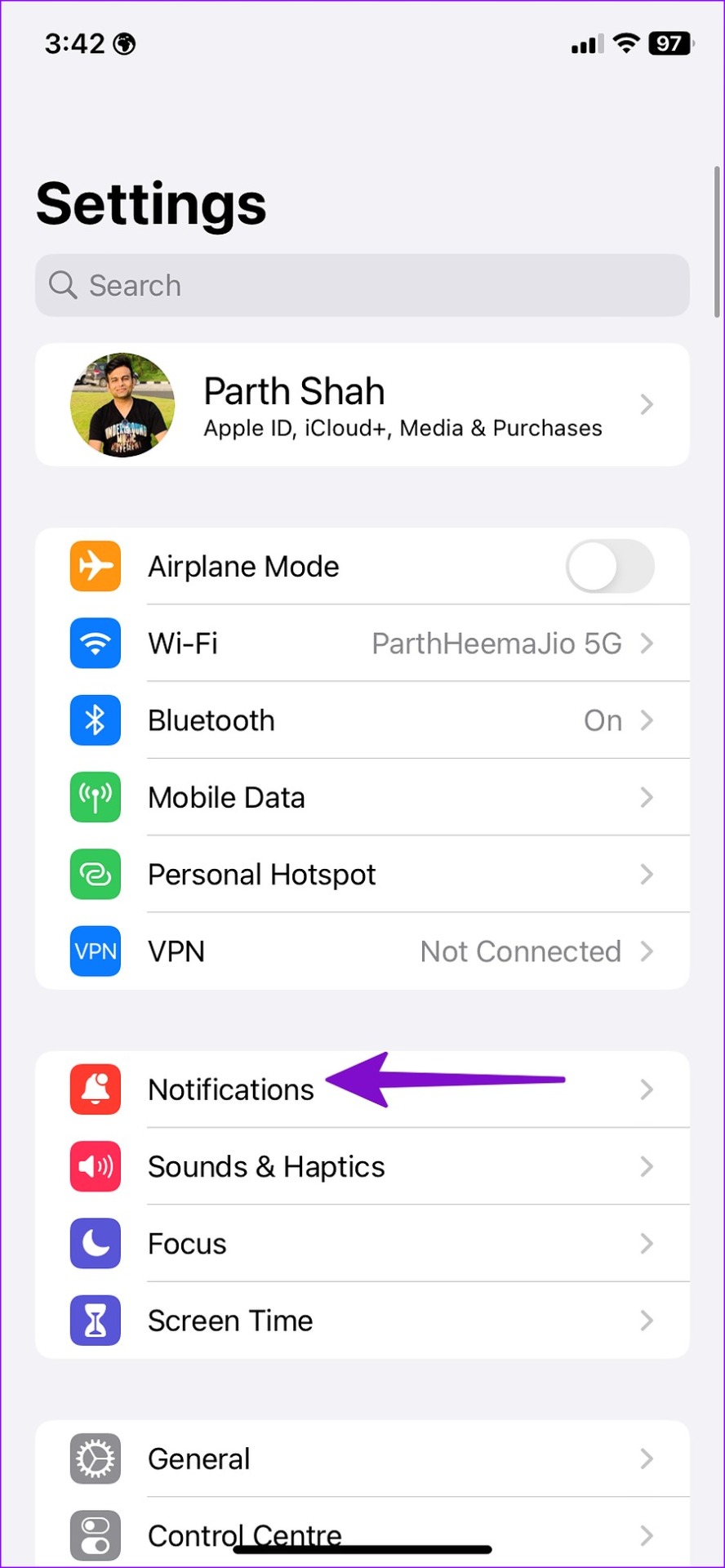

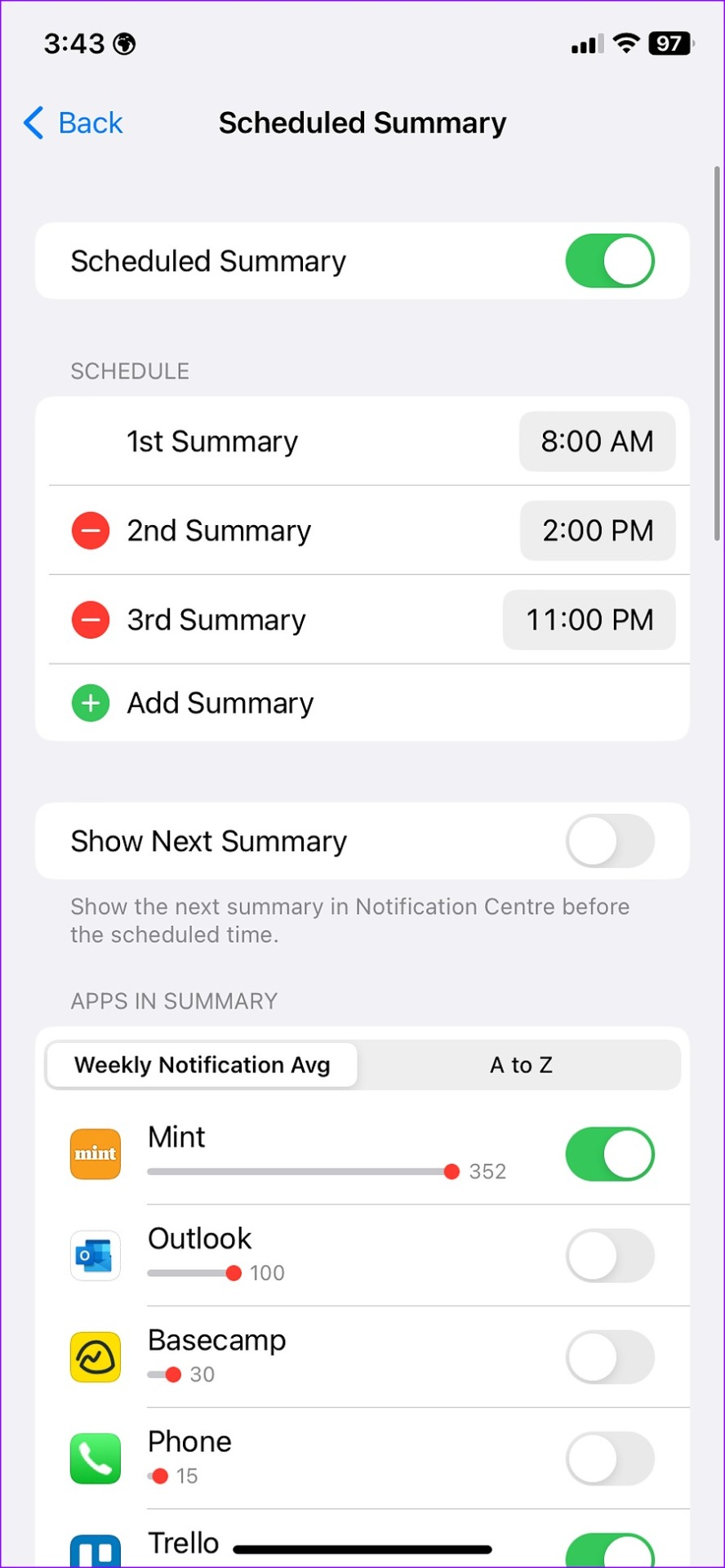
You should also check the device’s sound profile. If your iPhone is on mute, you won’t hear the notification sound for any installed app. You should use the side button to unmute your iPhone.
Was this helpful?
Last updated on 13 August, 2024
3 Comments
Leave a Reply
Read Next
 How to Change Microsoft Teams Notification Sound
Change Microsoft Teams Notification Sound on Android Step 1: Find and long-press the Microsoft Teams icon.
How to Change Microsoft Teams Notification Sound
Change Microsoft Teams Notification Sound on Android Step 1: Find and long-press the Microsoft Teams icon.
 4 Fixes for Microsoft Teams Notification Won’t Go Away on Windows
Fix 1: Open the Chat App and Clear Notifications (Windows 11 Only) Your Windows 11 PC includes a dedicated Chat app that can help you access and respond to your
4 Fixes for Microsoft Teams Notification Won’t Go Away on Windows
Fix 1: Open the Chat App and Clear Notifications (Windows 11 Only) Your Windows 11 PC includes a dedicated Chat app that can help you access and respond to your
 3 Ways to Fix the Notification Sound Not Working on Windows 11
Basic Fixes: Unmute your Windows PC: You might have muted your Windows PC and forgotten to unmute it after an important meeting or work hours.
3 Ways to Fix the Notification Sound Not Working on Windows 11
Basic Fixes: Unmute your Windows PC: You might have muted your Windows PC and forgotten to unmute it after an important meeting or work hours.
 How to Fix WhatsApp Notification Sound Not Working
Basic Fixes Ensure silent mode is turned off - The first thing you should do is to check and turn off Vibrate/Silent mode on your iPhone or Android.
How to Fix WhatsApp Notification Sound Not Working
Basic Fixes Ensure silent mode is turned off - The first thing you should do is to check and turn off Vibrate/Silent mode on your iPhone or Android.
 3 Ways to Fix Notification Sound Not Working on Android
Basic Ways: Adjust notification volume: Use the volume buttons or go to the Settings menu to check the current notification volume.
3 Ways to Fix Notification Sound Not Working on Android
Basic Ways: Adjust notification volume: Use the volume buttons or go to the Settings menu to check the current notification volume.
 4 Ways to Fix Facebook Messenger Notification Sound Not Working
Try Basic Fixes Close the Messenger app on your computer: If you have the Messenger app open on your computer, notifications may appear there instead of on your phone, and
4 Ways to Fix Facebook Messenger Notification Sound Not Working
Try Basic Fixes Close the Messenger app on your computer: If you have the Messenger app open on your computer, notifications may appear there instead of on your phone, and
 5 Ways to Fix Snapchat Notification Sound Not Working
Basic Fixes Disable the silent profile: Press the Volume Up physical button on your Android phone and tap the sound profile icon to disable the silent mode.
5 Ways to Fix Snapchat Notification Sound Not Working
Basic Fixes Disable the silent profile: Press the Volume Up physical button on your Android phone and tap the sound profile icon to disable the silent mode.
 How to Share Video With Sound on Zoom, Microsoft Teams, and Google Meet
How to Share Video With Audio in Microsoft Teams The feature to share your screen containing the video and its sound in Microsoft Teams is limited to the Windows app
How to Share Video With Sound on Zoom, Microsoft Teams, and Google Meet
How to Share Video With Audio in Microsoft Teams The feature to share your screen containing the video and its sound in Microsoft Teams is limited to the Windows app
The article above may contain affiliate links which help support Guiding Tech. The content remains unbiased and authentic and will never affect our editorial integrity.

I tried all of the tactics above and I am still not able to hear a chime when I receive a message. This hasn’t worked on either of my work laptops. I used to have an HP and now I have a Lenovo. 🙁
When my laptop was plugged into a dock and Dell HD monitor (w/audio support, but no speakers), the audio was being sent/routed to the monitor via the HDMI cable rather than to the laptop speaker. I disabled the Dell HD Monitor audio which fixed my problem when docked.
No sound, even with all the correct settings and following all the troubleshooting steps. Used to have notification sounds when I was using Teams app for business. Switched to personal and now no more notification sounds.