


How to Make iCloud and iMessage Account the Same
Since the problem is caused by different accounts logging into iCloud and iMessage, fixing that discrepancy should solve the issue.
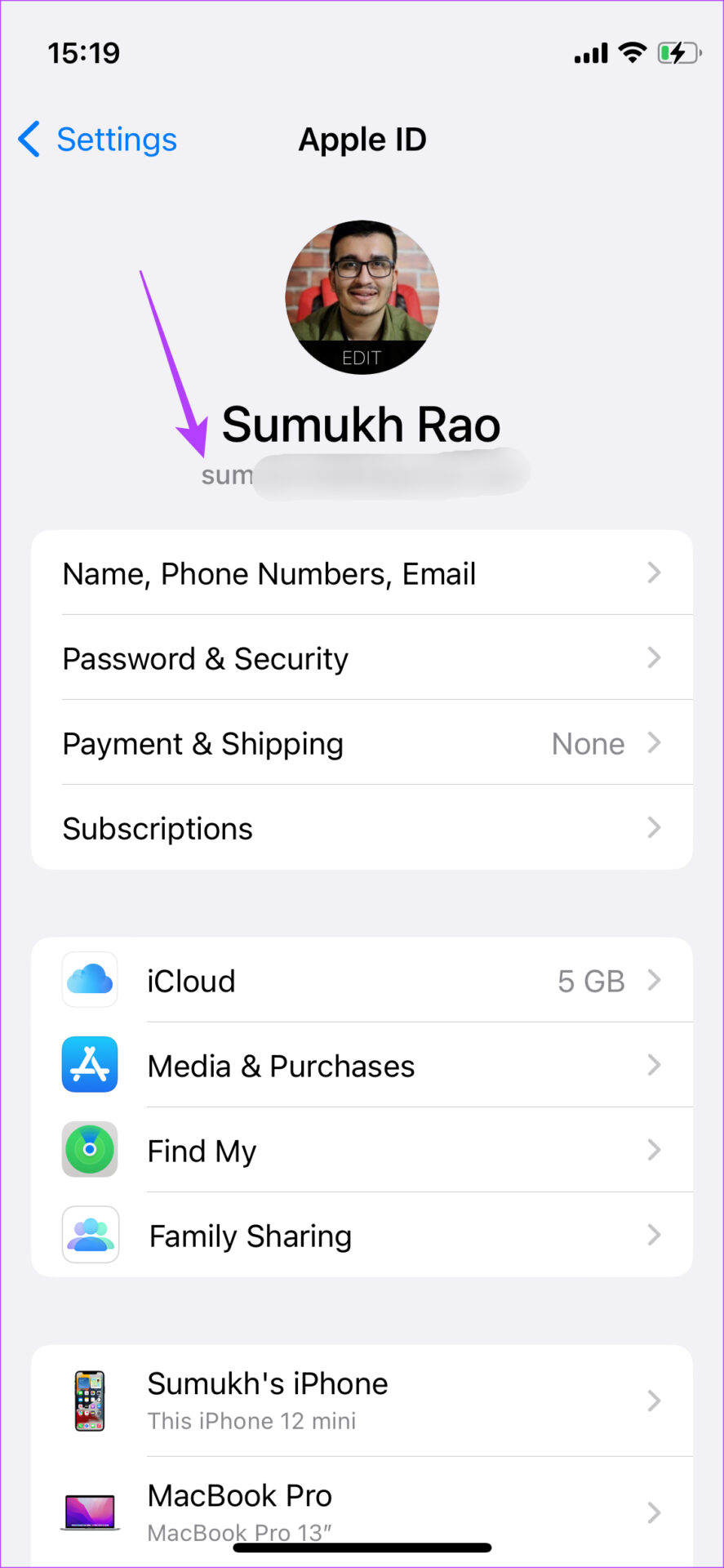
Step 1: Open the Settings app, tap on the first option that shows your account information, and note your Apple ID. This is the Apple ID you used with iCloud and the one that you should use for iMessage.
Step 2: Then, go back to the Settings app, scroll down, open Messages, and select Send and Receive.
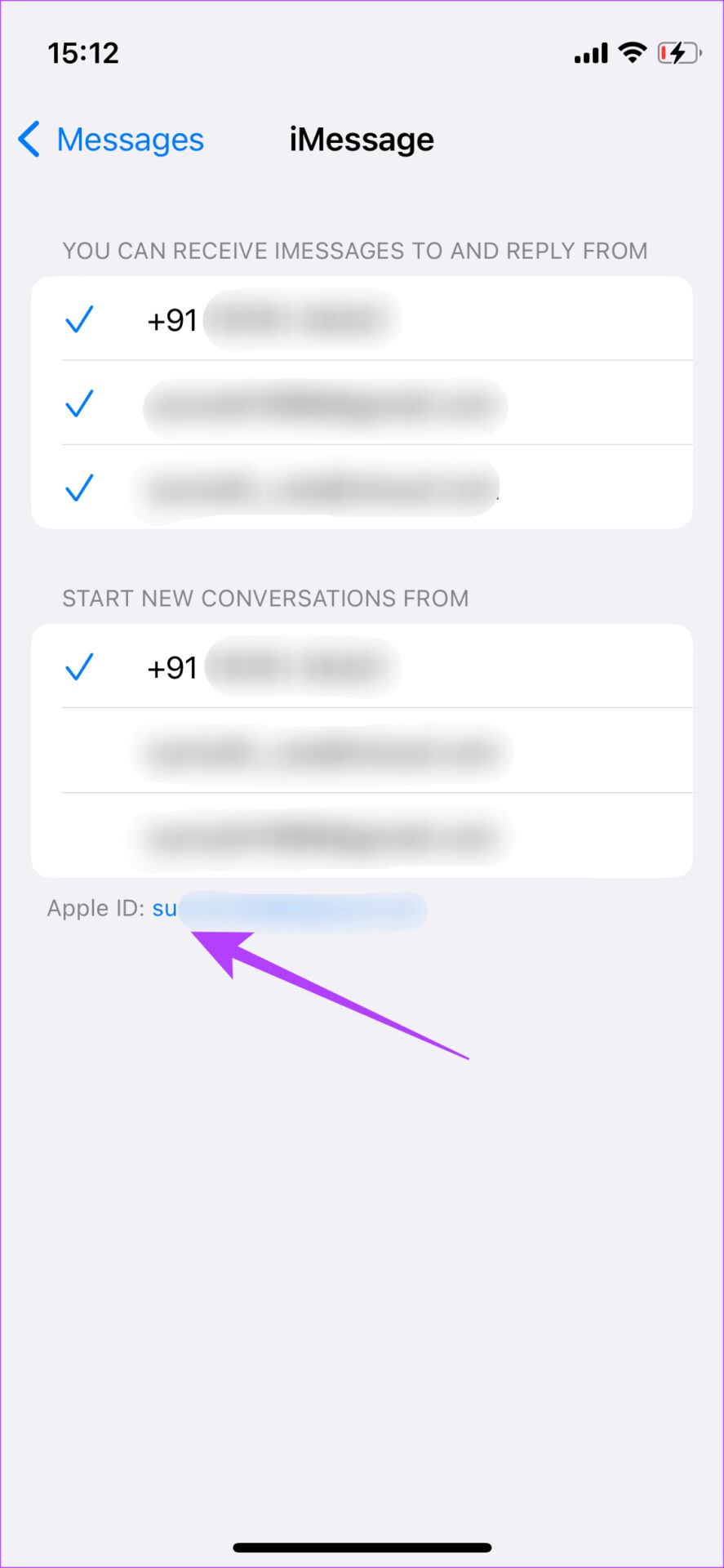
Step 3: Ensure the Apple ID you are using iCloud with is listed and checked under “You can receive iMessage to and reply from”.


If not, tap on the ID present next to Apple ID at the bottom and select Sign Out. This will sign you out from the other Apple ID you previously used with iMessage.
After signing out, select Sign In With Apple ID and select the Apple ID on your iPhone.


Also Read: How to fix iMessage sending from email instead of phone number
How to Sync iMessage Conversations to iCloud
After using the Apple ID for iMessage and iCloud, enable iCloud sync to access your message across devices using the same Apple ID.
Step 1: Open the Settings app and tap on the first option that shows your account information
Step 2: Now, tap on iCloud. Under Sync with iCloud, select Show All.
Step 3: Select Messages. Enable the toggle for Sync this iPhone.
Connect your iPhone to a Wi-Fi network, and your messages will be synced to iCloud.


Also Read: How to add, delete, or hide iMessage apps on iPhone
Was this helpful?
Last updated on 15 May, 2024
3 Comments
Leave a Reply
Read Next
 6 Ways to Fix “iMessage Is Signed Out” Error on iPhone
Why Does My iMessage Keep Signing Out Firstly, you need to understand that this error differs from the iMessage activation issue.
6 Ways to Fix “iMessage Is Signed Out” Error on iPhone
Why Does My iMessage Keep Signing Out Firstly, you need to understand that this error differs from the iMessage activation issue.
 4 Ways to Fix iMessage “Not Delivered” Error on iPhone
Why Is Your iMessage Not Being Delivered on iPhone?
4 Ways to Fix iMessage “Not Delivered” Error on iPhone
Why Is Your iMessage Not Being Delivered on iPhone?
 8 Best Ways to Fix iMessage Needs to Enabled to Send This Message Error
Apple's iMessage is the exclusive messaging service separating iOS from Android.
8 Best Ways to Fix iMessage Needs to Enabled to Send This Message Error
Apple's iMessage is the exclusive messaging service separating iOS from Android.
 How to Use Two WhatsApp Accounts on iPhone
Setting up the First WhatsApp Account If you're not using WhatsApp on your iPhone already, the first thing is to set up an account with your primary phone number.
How to Use Two WhatsApp Accounts on iPhone
Setting up the First WhatsApp Account If you're not using WhatsApp on your iPhone already, the first thing is to set up an account with your primary phone number.
 How to Fix iCloud Missing Media Features Error on Windows
Fix 1: Turn on Missing Media Features Chances are, if you live outside of Europe or Korea, your copy of Windows came with the media features turned off by default.
How to Fix iCloud Missing Media Features Error on Windows
Fix 1: Turn on Missing Media Features Chances are, if you live outside of Europe or Korea, your copy of Windows came with the media features turned off by default.
 How to Fix iMessage “Sent as Text Message” Issue on iPhone
Basic Fixes Trigger Airplane Mode: If your mobile data has trouble, it is best to trigger airplane mode.
How to Fix iMessage “Sent as Text Message” Issue on iPhone
Basic Fixes Trigger Airplane Mode: If your mobile data has trouble, it is best to trigger airplane mode.
 How to Fix iMessage Link Previews Not Working on iPhone
Basic Fixes Add link at the beginning or end of the message: Along with this, ensure that the URL starts with https://.
How to Fix iMessage Link Previews Not Working on iPhone
Basic Fixes Add link at the beginning or end of the message: Along with this, ensure that the URL starts with https://.
 4 Ways to Fix iMessage Apps and Games Not Working on iPhone
Fix 1: Enable the iMessage App and MMS Messaging Step 1: Open the Settings app on your iPhone and select Messages.
4 Ways to Fix iMessage Apps and Games Not Working on iPhone
Fix 1: Enable the iMessage App and MMS Messaging Step 1: Open the Settings app on your iPhone and select Messages.
The article above may contain affiliate links which help support Guiding Tech. The content remains unbiased and authentic and will never affect our editorial integrity.
Went through your steps; very thorough; however, I have two computers and one iPhone 14 Pro. Messages between the computers sync well. But, the iPhone retains all the messages, so I have to delete them from the iPhone, which deletes them from the computers. I can’t delete them from either computer so that they are gone from the iPhone. The iPhone still keeps the messages.
Wow, I so appreciate the detailed steps and my sync problem is now resolved! Thank you so much!!
I went thru the steps carefully and I’m still unable to send text to certain friends. Their name turns red and then a message says failure to send.