

Any longtime user of Microsoft Office will tell you that pasting from one app to another can be a frustrating challenge, especially trying to preserve formatting. This is what makes Format Painter invaluable: with it, you can copy formatting you like from one part of your file and paste it to another, saving so much time.
So, what do you do when it isn’t working? In this article, we’ll be covering fixes to help with the Format Painter not working in Office.
Fixes for Format Painter Not Working in Office
If your Format Painter isn’t working in one or all of your Office apps, here are some fixes to try:
Restart Everything
Let’s start simple with a restart. Restart the app that’s giving you problems and try again after reopening. Seeing as clipboard issues can arise with a PC being on for too long (not to mention the memory leaks), it’s a good idea to restart your machine too.
Use Keyboard Shortcuts
If you can’t access the Format Painter button in your Office app, then you can try using its shortcuts instead. Format Painter’s shortcuts are very similar to the regular Copy and Paste. To copy a format, hit (Alt + Ctrl + C) and to paste, press (Alt + Ctrl + V). For Microsoft 365, the shortcuts are (Ctrl + Alt + C) and (Ctrl + Alt + V), respectively.
Hitting the (Esc) key will also cancel any copied formatting that you have on your clipboard. It can be a good way to wipe the slate clean.
If these shortcuts don’t work, you’ll need to move on to deeper solutions.
Try Opening in Safe Mode
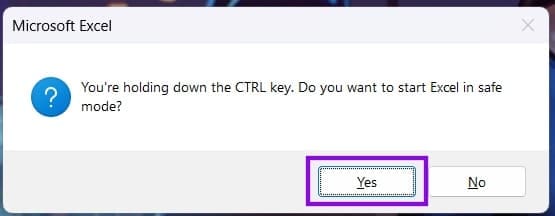
Often, add-ins and third-party extensions can interfere with various Microsoft features, not just those of Office. To start up a stripped-down version of your Office app, you can open it in Safe Mode and try Format Painter. It’s a quick, simple process, more so than booting your PC in Safe Mode:
Step 1. Hold down the (Ctrl) key and double-click the Office app on the Desktop, Start Menu, or Explorer window.
Step 2. A pop-up will appear, asking if you want to start in Safe Mode. Click “Yes” to confirm.
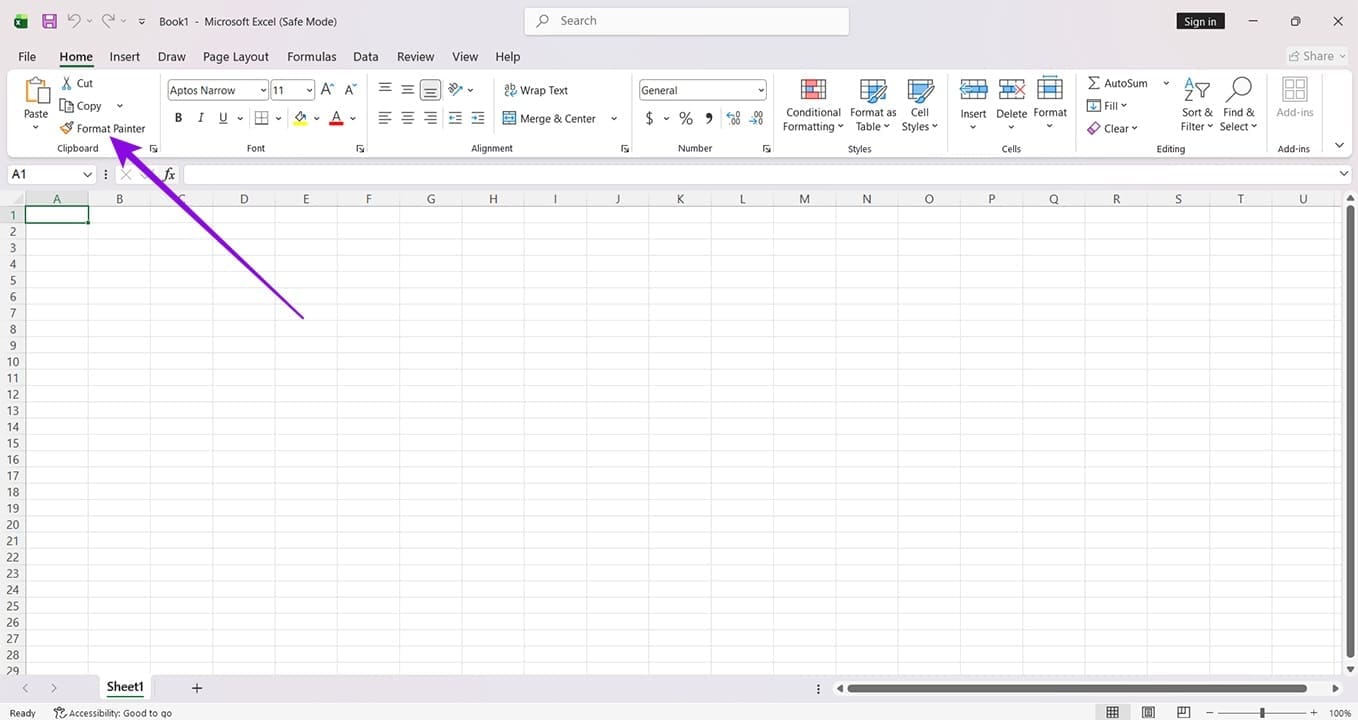
Step 3. Your app will boot up. Try using the Format Painter.
Disable Add-Ins Manually
Starting in Safe Mode might not be ideal every time. Manually disabling add-ins and re-enabling them one by one can help you isolate a troublesome extension. Here’s how to do it:
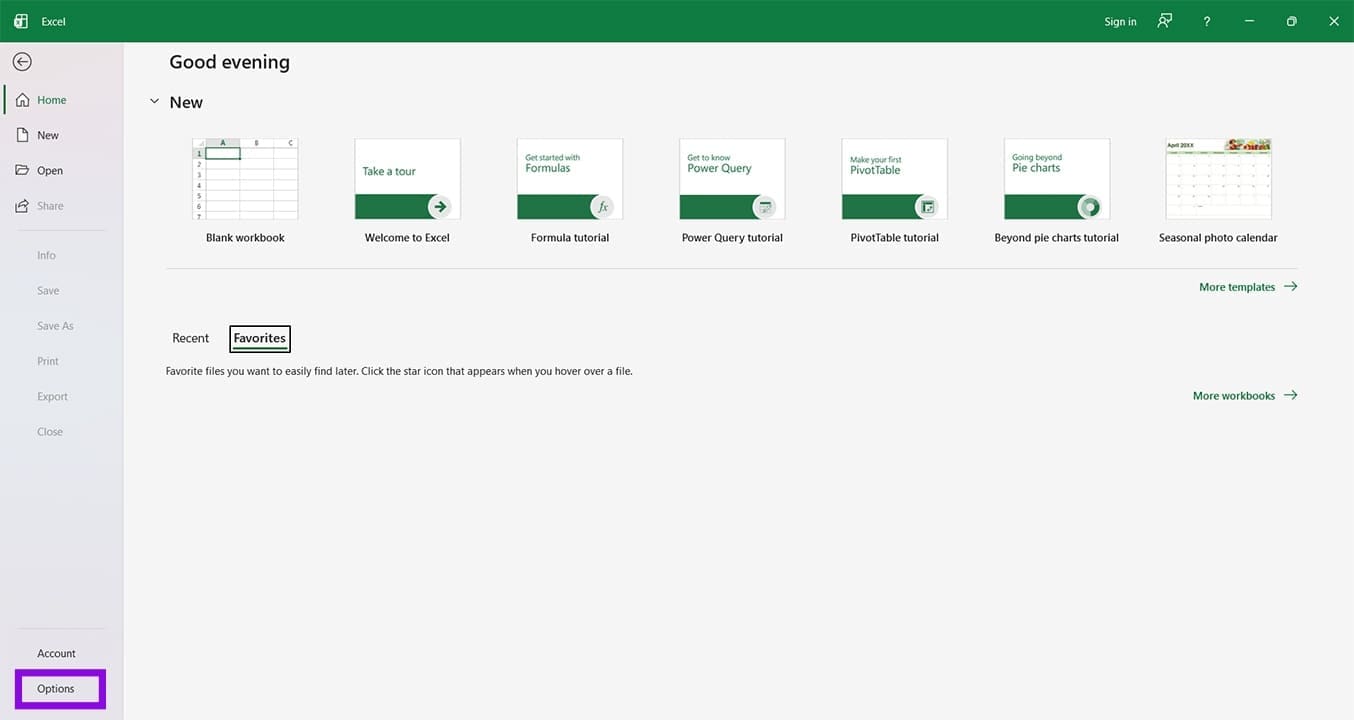
Step 1. Click the “File” tab in your app.
Step 2. In the sidebar, click “Options.”
Step 3. In the Options window, click the “Add-ins” tab.
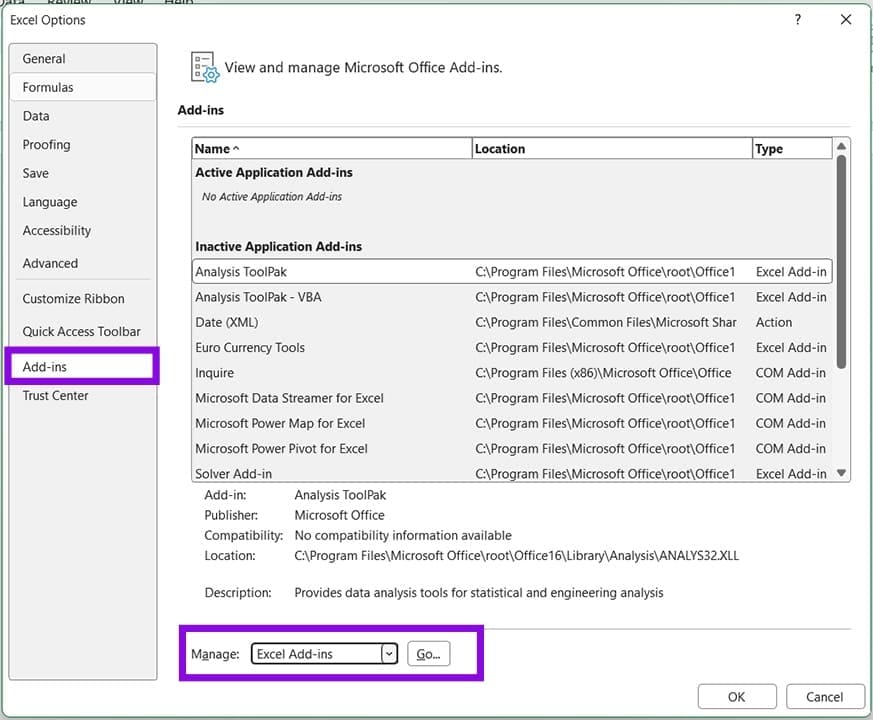
Step 4. Click the “Go” button next to “Manage.”
Step 5. Uncheck all add-ins and click “OK.”
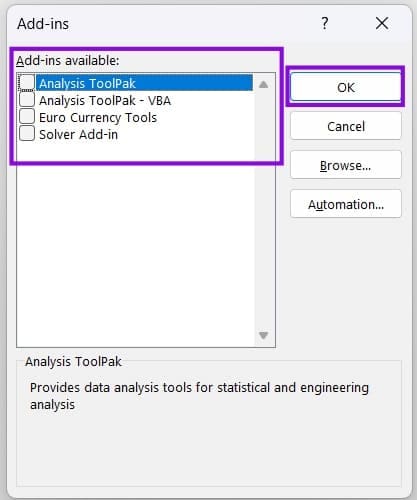
Step 6. If Format Painter starts working, enable the add-ins one by one until you find the one that causes it to malfunction.
Check File Restrictions
Some Microsoft files may have restrictions in place for editing. This extends to formatting, which can obstruct Format Painter. To disable this and fix Format Painter not working in Word or Format Painter not working in Office:
Step 1. Head to the “Review” tab in your app.
Step 2. Click “Restrict Editing” in the “Protect” subsection.
Step 3. A pane will pop up. Uncheck “Formatting restrictions” if checked and “Editing restrictions” for good measure.
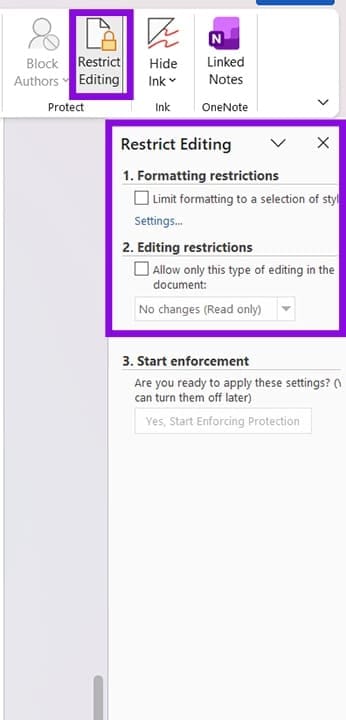
Step 4. Try Format Painter again.
Was this helpful?
Last updated on 15 June, 2026
Read Next
 Office 365 vs. Office 2024 – Which Is Right for You?
The choice between Microsoft 365 (or Office 365) vs.
Office 365 vs. Office 2024 – Which Is Right for You?
The choice between Microsoft 365 (or Office 365) vs.
 5 Ways to Format a Hard Drive on Windows 11
Method 1: Format a Hard Drive With File Explorer The File Explorer in Windows 11 makes it simple to format a hard drive on your PC.
5 Ways to Format a Hard Drive on Windows 11
Method 1: Format a Hard Drive With File Explorer The File Explorer in Windows 11 makes it simple to format a hard drive on your PC.
 Top 5 Ways to Format a USB Drive on Windows 11
Formatting a USB drive might seem easy as you can click the delete button to erase all the files the USB drive might store.
Top 5 Ways to Format a USB Drive on Windows 11
Formatting a USB drive might seem easy as you can click the delete button to erase all the files the USB drive might store.
 5 Ways to Format SD Card on Windows 11
Method 1: Format SD Card Using File Explorer The primary method for formatting your SD card is using File Explorer in Windows.
5 Ways to Format SD Card on Windows 11
Method 1: Format SD Card Using File Explorer The primary method for formatting your SD card is using File Explorer in Windows.
 How to Format Phone Numbers in Excel
Unfortunately, Excel doesn’t always handle phone numbers correctly - or, at least, it doesn’t handle them as we’d expect.
How to Format Phone Numbers in Excel
Unfortunately, Excel doesn’t always handle phone numbers correctly - or, at least, it doesn’t handle them as we’d expect.
 Excel How to Format a Whole Row Based on One Cell
By default, conditional formatting in Excel allows you to format the cell’s look (such as font or background color) based on its own value.
Excel How to Format a Whole Row Based on One Cell
By default, conditional formatting in Excel allows you to format the cell’s look (such as font or background color) based on its own value.
 How to Format All PowerPoint Slides the Same Way
Getting a PowerPoint presentation to look consistent can be tedious if you’re fixing slides one by one.
How to Format All PowerPoint Slides the Same Way
Getting a PowerPoint presentation to look consistent can be tedious if you’re fixing slides one by one.
 How to Fix Copilot Not Working in Microsoft Office Apps
Microsoft has leaned hard into integrating its AI assistant Copilot into as many of its subscription-based apps as possible, not to mention its operating system.
How to Fix Copilot Not Working in Microsoft Office Apps
Microsoft has leaned hard into integrating its AI assistant Copilot into as many of its subscription-based apps as possible, not to mention its operating system.
The article above may contain affiliate links which help support Guiding Tech. The content remains unbiased and authentic and will never affect our editorial integrity.

