Microsoft has leaned hard into integrating its AI assistant Copilot into as many of its subscription-based apps as possible, not to mention its operating system. Microsoft 365 is one such suite that now benefits from Copilot functionality to help users with various tasks.
If you’re finding Copilot not working in MS Office or even appearing, you must be wondering what to do. In this article, we’ll be looking at how to fix this issue.
Why Copilot Isn’t Being a Copilot
If you’re having trouble with Copilot not working in Office, you’ll probably want to know why, in addition to how to fix it. There are a few causes, but some major ones include:
- Trouble with your Copilot, Office, or Microsoft accounts and subscriptions
- Internet connectivity troubles
- Non-updated software
- Add-in conflicts
- Browser problems (in the case of Microsoft 365)
How to Fix Copilot Not Working in MS Office
Microsoft Office has two main versions, Home and 365, which can determine how you approach troubleshooting. Seeing as 365 comes with Copilot included with a subscription and runs in browsers too, if you find Copilot not working in Office, your fix will depend on your product. Let’s get started.
Check Your Subscription
If Copilot isn’t behaving, your first stop should be to check your Microsoft 365 subscription. You need an active one to use the AI assistant. To do this, you’ll need to head to your Microsoft Account online:
Step 1. Log in to your Microsoft account via any browser.
Step 2. On your home page, click the “Subscriptions” tab in the sidebar to see your currently active subscriptions.

Step 3. If you see that your Copilot or Microsoft 365 subscription has been canceled or expired, click the “Resubscribe” next to the tab to renew it.
Check That You’re Signed In
This is an obvious troubleshooting tip, but a vital one. Check your account profile near the top right of any Office app on your Desktop to confirm you’re signed in to your main account. If you have multiple accounts, make sure you’re using the one with the active Copilot subscription.
Update Office
Microsoft Office will update automatically, but if you want to check for the latest updates immediately and make sure older software isn’t to blame, you can do so via any app:
Step 1. Click the “File” tab in any Office app.
Step 2. Click “Account” in the sidebar.
Step 3. Click the “Update Options” button, then “Update Now.”

Step 4. Office will search for updates and install them.

Cancel Add-Ons
Say Copilot isn’t working in one Office app, like Word. It might be Add-on (or Add-in) conflicts. Try disabling these to see if Copilot appears:
Step 1. Click the “File” tab in Microsoft Word.
Step 2. In the sidebar, click “Options.”
Step 3. A new window will pop up. Click the “Add-ins” option in the sidebar.

Step 4. Click the “Go” button under “Manage: COM Add-ins” and then “OK.”
Step 5. Disable the Add-Ins one by one and click “OK.” Restart the app to see if the problem is resolved.

Clear Your Browser Cache
If using Microsoft 365 on your browser, cache troubles might be keeping you from properly accessing Copilot. Try signing in via a different browser to see if that changes things. If so, your regular browser will need to have its cache cleared.
Enable Connected Experiences
For Copilot to work effectively, you’ll need to have Connected Experiences enabled. Here’s how:
Step 1. Click the “File” tab in any Office app and click “Options” in the sidebar.
Step 2. In the new window, select “Trust Center” in the sidebar.

Step 3. Click “Trust Center Settings,” then “Privacy Options.”
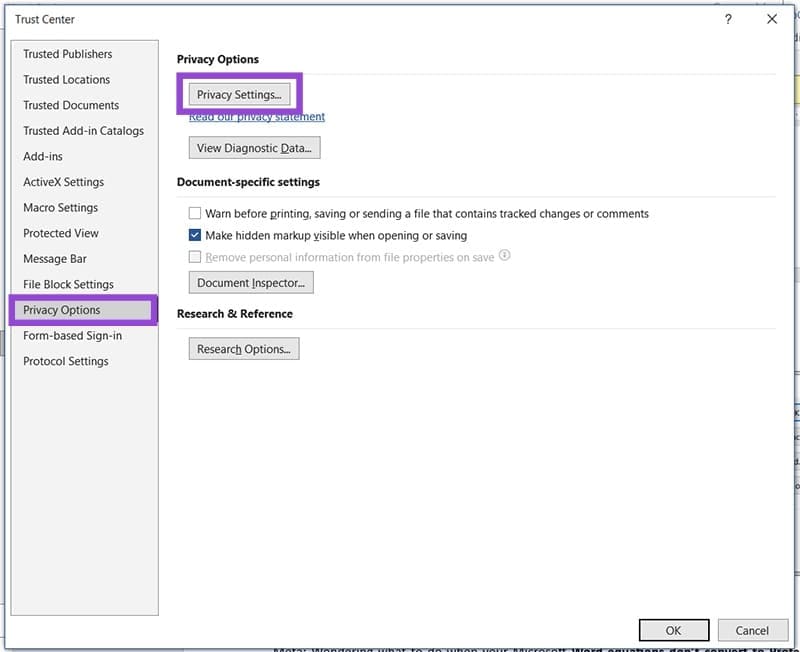
Step 4. Click the “Privacy Settings” button.
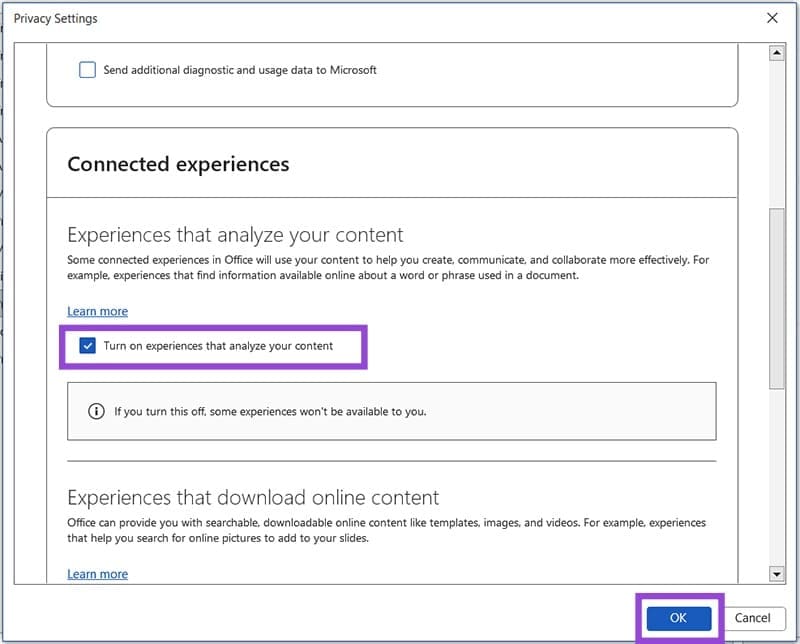
Step 5. Ensure that “Turn on connected experiences that analyze your content” is checked under “Connected experiences” and press “OK.”
Was this helpful?
Last updated on 07 November, 2025
Read Next
 5 Best Copilot AI Alternatives for MS Office
Microsoft Copilot is the tech giant’s proprietary AI tool that works as both a chatbot and document editor.
5 Best Copilot AI Alternatives for MS Office
Microsoft Copilot is the tech giant’s proprietary AI tool that works as both a chatbot and document editor.
 Steps for Personalizing Your Workflow Using Microsoft Copilot
Copilot can be a handy tool for generating ideas and quickly drafting content, but don’t sleep on its ability to tweak processes you’ve already created manually.
Steps for Personalizing Your Workflow Using Microsoft Copilot
Copilot can be a handy tool for generating ideas and quickly drafting content, but don’t sleep on its ability to tweak processes you’ve already created manually.
 How to Enable Dark Mode in Microsoft Office Apps
Is the bright white format of Excel burning holes in your eyes, or are you just looking for a theme that matches the rest of your desktop aesthetic?
How to Enable Dark Mode in Microsoft Office Apps
Is the bright white format of Excel burning holes in your eyes, or are you just looking for a theme that matches the rest of your desktop aesthetic?
 How to Remove Copilot From Microsoft Edge
Method 1.
How to Remove Copilot From Microsoft Edge
Method 1.
 6 Cool Things You Can Do with Telegram’s New Microsoft Copilot AI Bot
Telegram's latest addition is the integration of Microsoft’s Copilot AI bot.
6 Cool Things You Can Do with Telegram’s New Microsoft Copilot AI Bot
Telegram's latest addition is the integration of Microsoft’s Copilot AI bot.
 Microsoft CoPilot+ PCs: Why You Should and Shouldn’t Be Excited
Microsoft has officially taken its next big step in the AI race with its latest generation of devices: the Copilot+ PCs.
Microsoft CoPilot+ PCs: Why You Should and Shouldn’t Be Excited
Microsoft has officially taken its next big step in the AI race with its latest generation of devices: the Copilot+ PCs.
 Three Ways You Can Get More Accurate Responses From Microsoft Copilot
We love Microsoft Copilot but there’s also an uncomfortable truth you’ve probably seen yourself – it doesn’t always give the best results to prompts.
Three Ways You Can Get More Accurate Responses From Microsoft Copilot
We love Microsoft Copilot but there’s also an uncomfortable truth you’ve probably seen yourself – it doesn’t always give the best results to prompts.
 Fix: Microsoft Office Stuck on Getting Things Ready on Windows 11
Basic Fix Close other programs: This may be necessary, especially since other running programs may interfere with installation.
Fix: Microsoft Office Stuck on Getting Things Ready on Windows 11
Basic Fix Close other programs: This may be necessary, especially since other running programs may interfere with installation.
The article above may contain affiliate links which help support Guiding Tech. The content remains unbiased and authentic and will never affect our editorial integrity.