


Basic Fixes:
- Turn up the volume: You should use the volume button on your Android phone to increase the audio levels manually. Additionally, ensure the video you’re playing is not muted.
- Remove the case: The audio output may be low if your phone case blocks the speaker grills at the bottom. Remove the phone case and try playing the video or audio again to check.
- Turn off DND: Is your Android phone in active DND mode? Your phone’s speakers may not work for incoming calls and notifications. You must disable DND and any routine that enables DND automatically in the background.
- Restart the phone: Long-press the power button, tap on Restart, and wait for your device to finish restarting. Then, check again. This can help fix temporary device glitches.
- Disable Bluetooth: Is your Android phone connected to wireless earbuds or headphones? The system plays audio on the connected device and not on phone speakers. You should disable Bluetooth and try playing audio again.
Fix 1: Clean Phone Speakers
Your Android phone’s speakers collect dust and debris over time. You can clean the speakers with microfiber cloth and Iso Propyl Alcohol (Rubbing alcohol). Be careful and avoid using sharp objects or soapy water as it may permanently damage your phone’s speakers.
Fix 2: Try Using Safe Mode
If a third-party app interferes with your device speakers, use Android’s Safe mode to confirm the problem. Then, uninstall the app and check again. Here’s how to do it.
Step 1: Press the volume up and the Power button to open the power menu.
Step 2: Keep pressing the Power off button and tap OK to reboot your phone in Safe mode.

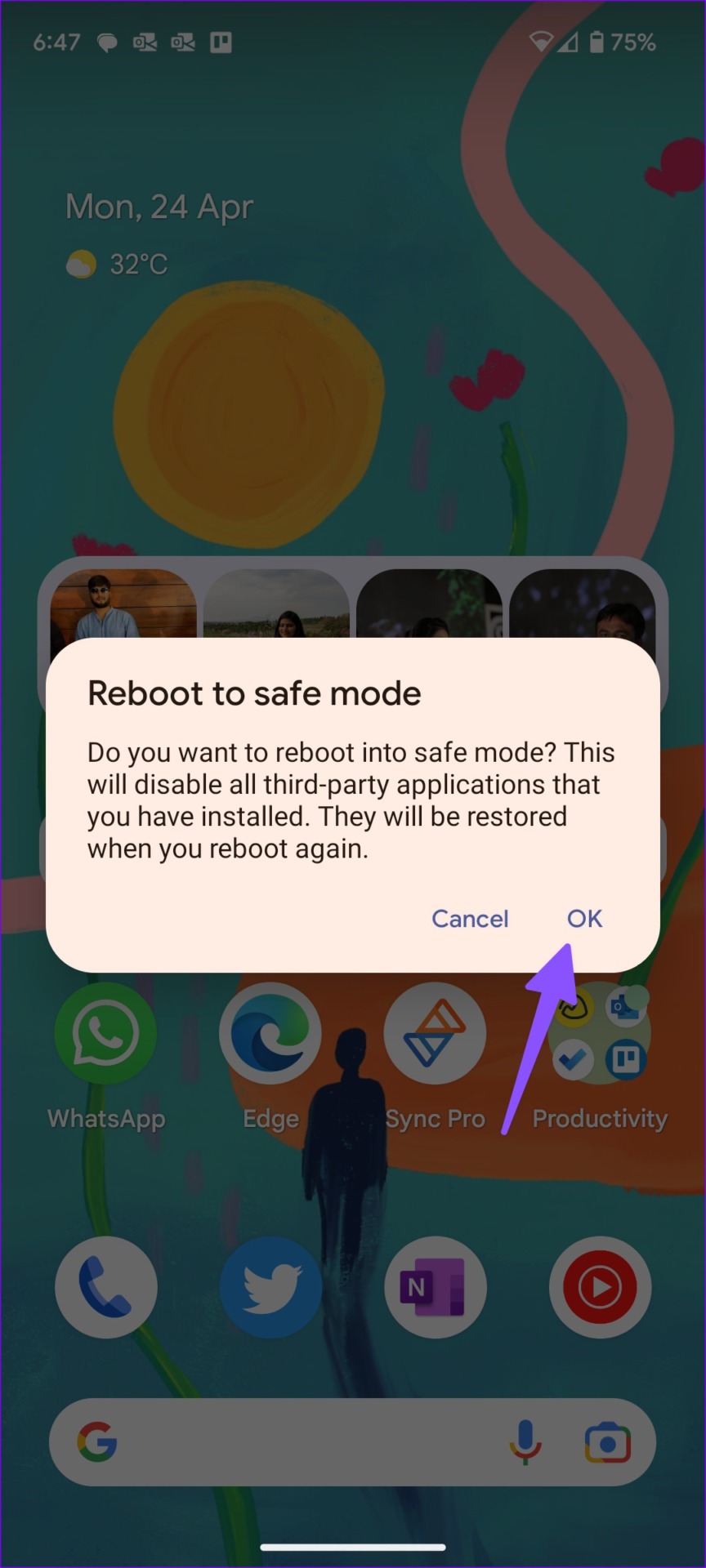
If your phone speakers are working fine, exit the Safe mode using the same steps and delete recently installed apps from your phone.
Tip: You can also check out our guide if your Android phone is stuck in Safe mode.
Fix 3: Adjust Sound Settings for the App
If a specific app’s notification setting is set to silent, your phone’s speakers won’t work for incoming alerts. Let’s take the Messages app as an example.
Step 1: Long-press the Messages app and tap i to open the app info menu. Select Notifications.


Step 2: Open a notification category. Select Default or pick a custom sound. Repeat these steps for all other categories.


Also Read: How to fix notification sound not working on Android
Fix 4: Reset All Settings
You can reset all settings on your Android phone to fix speaker issues. A wrong setting tweak may mess up your phone’s speakers. Here’s how to fix it by resetting all your Android phone’s settings using the steps below.
Step 1: Open Settings > tap on General management > Reset.


Step 2: Tap Reset all settings and confirm the same.


Follow the on-screen instructions to finish the process. Then, try playing a video at high volume to check if the issue has been fixed on your Android phone.
Was this helpful?
Last updated on 30 August, 2024
1 Comment
Leave a Reply
Read Next
 3 Ways to Fix Ear Speaker Not Working on Android
Try Basic Fixes Turn off Bluetooth: If your phone is connected to any Bluetooth headphones or earbuds, it might redirect the in-call audio to the connected device rather than the
3 Ways to Fix Ear Speaker Not Working on Android
Try Basic Fixes Turn off Bluetooth: If your phone is connected to any Bluetooth headphones or earbuds, it might redirect the in-call audio to the connected device rather than the
 3 Ways to Fix Speaker Not Working on Apple Watch
Basic Fixes Restart Your Mac: The go-to fix for any issue is the good old restart.
3 Ways to Fix Speaker Not Working on Apple Watch
Basic Fixes Restart Your Mac: The go-to fix for any issue is the good old restart.
 3 Ways to Fix iPhone Speaker Crackling
Fix 1: Clean the Speaker Grille and Earpiece Using the iPhone daily in different environments could make the speaker grille susceptible to dust particles and grime.
3 Ways to Fix iPhone Speaker Crackling
Fix 1: Clean the Speaker Grille and Earpiece Using the iPhone daily in different environments could make the speaker grille susceptible to dust particles and grime.
 3 Ways to Fix Telegram Calls Not Switching to Speaker on iPhone
Common Fixes Check volume levels - Go to Settings > Sounds & Haptics and maximize the Ringtone and Alerts volume slider.
3 Ways to Fix Telegram Calls Not Switching to Speaker on iPhone
Common Fixes Check volume levels - Go to Settings > Sounds & Haptics and maximize the Ringtone and Alerts volume slider.
 3 Fixes for iPhone Speaker Not Working During Calls
https://youtu.be/dTAtDgY5NPc Basic Fixes Disable Bluetooth devices: Disconnect Bluetooth devices from your iPhone.
3 Fixes for iPhone Speaker Not Working During Calls
https://youtu.be/dTAtDgY5NPc Basic Fixes Disable Bluetooth devices: Disconnect Bluetooth devices from your iPhone.
 3 Fixes for iPhone Not Connecting to a Bluetooth Speaker
Basic Fixes Check the Bluetooth speaker battery: Most Bluetooth speakers have an LED indicator suggesting its current charge.
3 Fixes for iPhone Not Connecting to a Bluetooth Speaker
Basic Fixes Check the Bluetooth speaker battery: Most Bluetooth speakers have an LED indicator suggesting its current charge.
 Bang & Olufsen Beosound A1 vs Marshall Emberton: Which Bluetooth Speaker is Better
The Beosound A1 (2nd Gen) is one of the premium portable speakers from the house of Bang & Olufsen.
Bang & Olufsen Beosound A1 vs Marshall Emberton: Which Bluetooth Speaker is Better
The Beosound A1 (2nd Gen) is one of the premium portable speakers from the house of Bang & Olufsen.
 Sonos Roam vs Bose SoundLink Flex: Which Bluetooth Speaker Should You Buy
The Bose SoundLink Flex is one of the popular portable Bluetooth speakers from Bose and is the successor to the highly popular Bose Soundlink.
Sonos Roam vs Bose SoundLink Flex: Which Bluetooth Speaker Should You Buy
The Bose SoundLink Flex is one of the popular portable Bluetooth speakers from Bose and is the successor to the highly popular Bose Soundlink.
The article above may contain affiliate links which help support Guiding Tech. The content remains unbiased and authentic and will never affect our editorial integrity.
Mine still isn’t working right., but thanks anyway for this! I’ve Googled and looked at different settings and nothing has worked. I only recently bought my Pixel 4a and the text notifcation sound has never worked at all.