Find Google Chrome Downloads on Mac
Step 1: Open Google Chrome and wait for the download process to complete.
Step 2: Click the up arrow beside the downloaded file and select Show in Finder. This will open the relevant folder directly in Finder.

If you have closed the downloads menu, head to Chrome Downloads to find your files.
Step 1: Click the three-dot icon at the top-right corner of Google Chrome.
Step 2: Select Downloads.

Step 3: Find a file you are looking for and select Show in Finder.

Find Google Chrome Downloads on Windows
Step 1: Find your downloaded files at the bottom and click the up-arrow icon > select Show in folder.
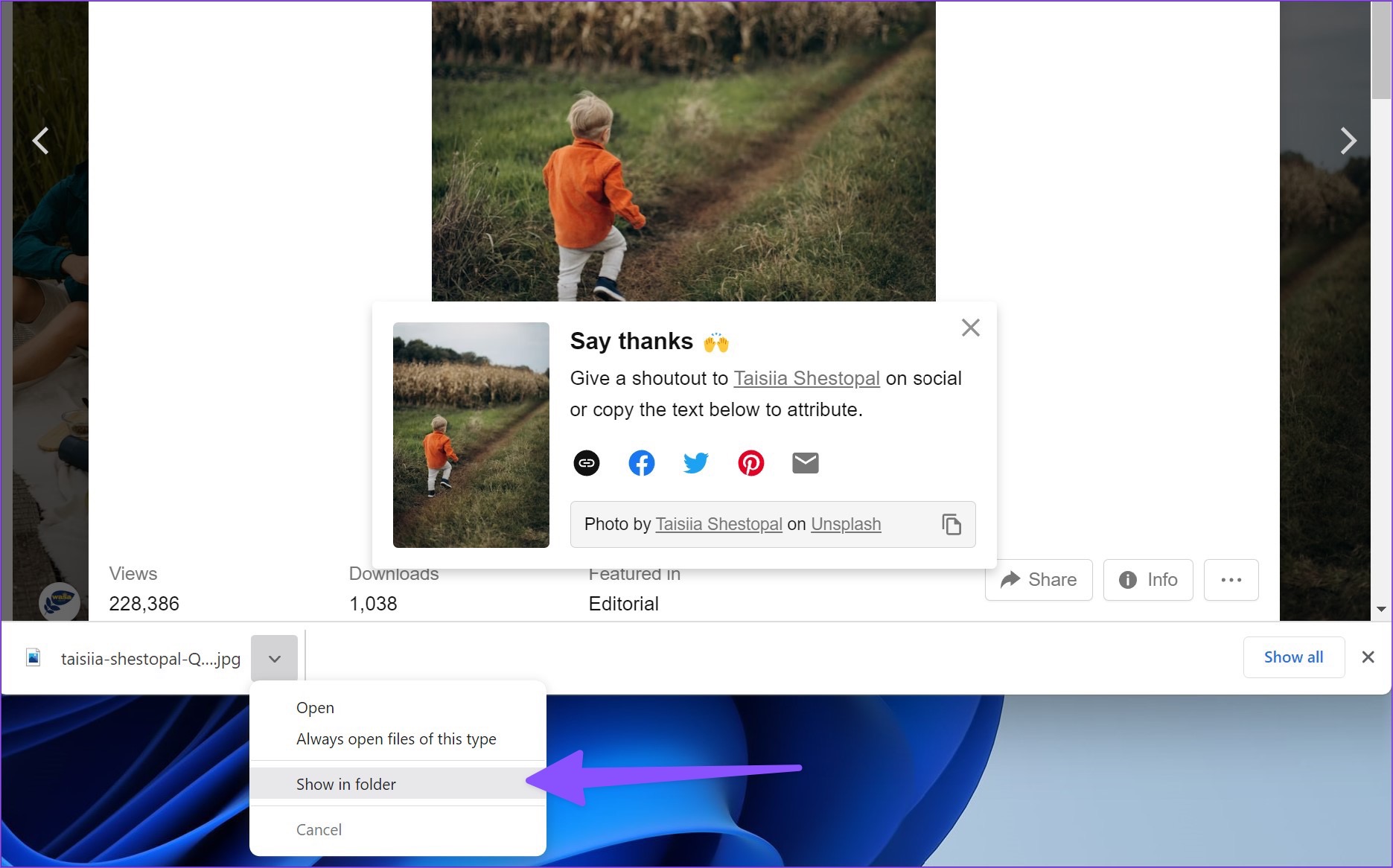
Step 2: Alternatively, you can open the Chrome Download folder on Windows (refer to the steps above).
Step 3: Find the file you are looking for and select Show in folder.

If you want to do the same on an Android device, continue reading.
Find Google Chrome Downloads on Android
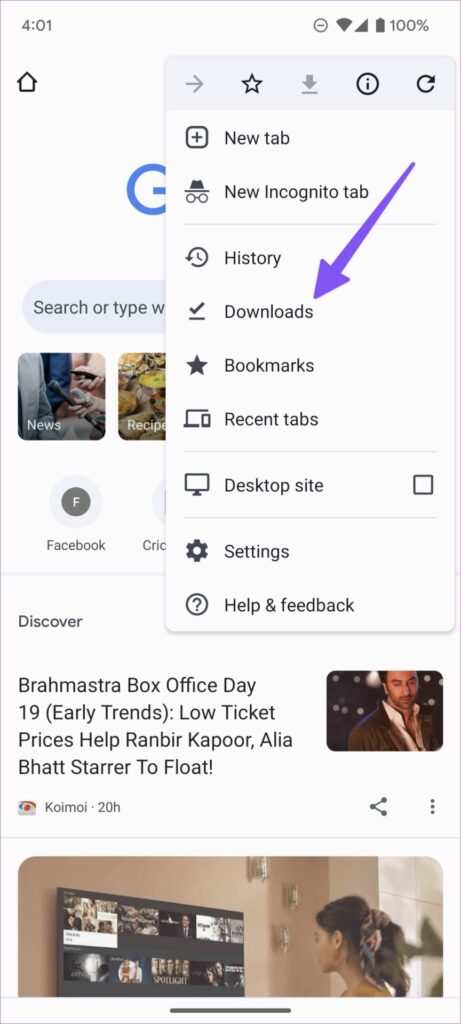
Step 1: Open Google Chrome and tap the three-dot menu icon at the top-right corner.
Step 2: Select Downloads and find all your files.

You can also use the default Files app or third-party file managers like Solid Explorer to find all the files.
Find Google Chrome Downloads on an iPhone
Step 1: Launch Google Chrome on your iPhone.
Step 2: Once you have downloaded several files, select the three-dot menu at the bottom-right corner.
Step 3: Open Downloads. It will take you to the Chrome folder in the Files app. You can check all your Google Chrome downloaded files in order.


Was this helpful?
Last updated on 31 May, 2024
Read Next
 4 Ways to Fix Chrome Downloads Keep Pausing on Android
Basic Fixes: Close and restart Chrome: You can open all background apps and close Chrome.
4 Ways to Fix Chrome Downloads Keep Pausing on Android
Basic Fixes: Close and restart Chrome: You can open all background apps and close Chrome.
 2 Ways to Stop Downloads From Opening Automatically in Chrome
Method 1: Uncheck Always Open This File Option Chrome lets you automatically launch certain file types as soon as they've finished downloading locally.
2 Ways to Stop Downloads From Opening Automatically in Chrome
Method 1: Uncheck Always Open This File Option Chrome lets you automatically launch certain file types as soon as they've finished downloading locally.
 How to Make Steam Downloads Faster in Windows 11
Try These Fixes First Close network hogging apps from the background: Unnecessary apps running in the background, especially those connected to the internet, can dramatically slow down your download speed
How to Make Steam Downloads Faster in Windows 11
Try These Fixes First Close network hogging apps from the background: Unnecessary apps running in the background, especially those connected to the internet, can dramatically slow down your download speed
 7 Ways to Fix Mozilla Firefox Downloads Failing on Windows 11
Basic Fixes: Pause and resume the download: After restarting a failed download, it can get stuck and fail again.
7 Ways to Fix Mozilla Firefox Downloads Failing on Windows 11
Basic Fixes: Pause and resume the download: After restarting a failed download, it can get stuck and fail again.
 How to Allow or Block Pop-ups in Chrome (Desktop and Mobile)
Enable or Disable Pop-up Blocker in Chrome for Desktop Enabling the pop-up blocker on Chrome ensures that Google screens every website you visit for pop-ups by default.
How to Allow or Block Pop-ups in Chrome (Desktop and Mobile)
Enable or Disable Pop-up Blocker in Chrome for Desktop Enabling the pop-up blocker on Chrome ensures that Google screens every website you visit for pop-ups by default.
 How to view and Manage Safari downloads on iPhone and iPad
Safari is usually easygoing, whether using Safari Tabs, Private browsing, or even changing the default search engine.
How to view and Manage Safari downloads on iPhone and iPad
Safari is usually easygoing, whether using Safari Tabs, Private browsing, or even changing the default search engine.
 Where to Find Downloads on Samsung Galaxy Phones
Where to Find Downloaded Files on Samsung Galaxy Phone If you're new to Samsung Galaxy phones, you may wonder where your downloaded files are.
Where to Find Downloads on Samsung Galaxy Phones
Where to Find Downloaded Files on Samsung Galaxy Phone If you're new to Samsung Galaxy phones, you may wonder where your downloaded files are.
 How to Manage Downloads in Telegram
Use Telegram Download Manager on iPhone It's easy to use the Telegram download manager on iPhone.
How to Manage Downloads in Telegram
Use Telegram Download Manager on iPhone It's easy to use the Telegram download manager on iPhone.
The article above may contain affiliate links which help support Guiding Tech. The content remains unbiased and authentic and will never affect our editorial integrity.