How to Enable Shared With You
If your iPhone runs iOS 15 or later, you can use the Shared With You feature. It helps organize content that your friends or contacts share with you in the Messages app. This includes content from Safari, Photos, Music, Apple TV, Podcasts, and News apps. The content shared with you will be labeled automatically in the relevant app, allowing you to see who shared it as well.
Open Settings > Messages > Shared With You > enable Automatic Sharing > enable for Safari.


How to View Links From Friends in Safari
Now that you have Shared With You enabled, you can view all web links from your Messages conversations on Safari. Here’s how to do so:
Step 1: Tap the Safari app from your iPhone home screen.
Step 2: On the Safari Start page, there will be a section for the Shared With You links.
Step 3: Tap the Show All beside Shared With You to view all links.
If you can’t see the Shared With You section on your start page, you may need to edit your start page. Here’s how to do so:
Step 1: On the Safari Start page, scroll to the bottom and tap the Edit button.
Step 2: Tap the toggle beside Shared With You to enable it.

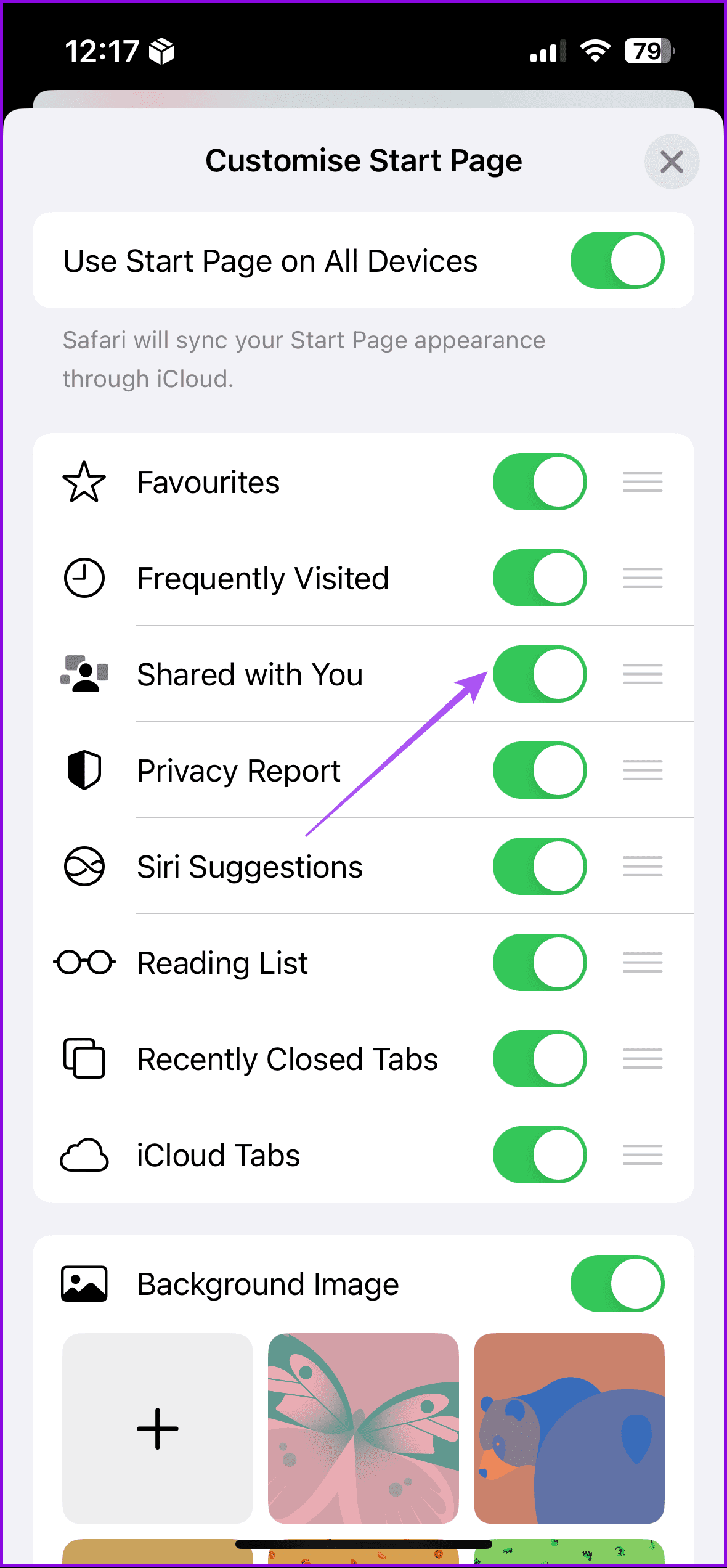
Step 3: Tap the X button at the top right to close the page. The Shared With You section should now feature on the start page.
How to Organize Shared Links in a Tab Group
You can group related shared web links into Tab Groups to make them easier to find. You can create a new Tab Group dedicated to a specific contact or interest or add the link to an existing Tab Group. Here’s how to do so:
Step 1: Tap the Safari app from your iPhone home screen.
Step 2: On the Safari Start Page, scroll to the section for the Shared With You links.
Step 3: Touch and hold down the image preview of a link you want to organize.
Step 4: Tap Open in Tab Group and tap New Tab Group to create one or add the link to an existing Tab Group.


How to Remove a Link From the Shared With You Section
If you do not want a particular link in your Shared With You Section, you can remove it.
Open Safari > Shared With You > touch and hold the link preview > tap on Remove Link.

How to Prevent Content From Particular Conversations in Shared With You
As explained previously, Shared With You typically aggregates content shared in your Messages Conversations. However, you may not want the content from certain conversations in your Shared With You. Here’s how to manage that.
Open Messages > select your chat > tap the contact’s name > disable Show in Shared With You > tap on Done.


Tip: Learn the best ways to refresh a page in Safari.
Was this helpful?
Last updated on 07 August, 2024
Read Next
 How to Manage Shared Photo Albums on Your iPhone
How to Create a Shared Album on Your iPhone To create a Shared Album on your iPhone, it'll need to run the latest version of iOS for iPhone, iPadOS for
How to Manage Shared Photo Albums on Your iPhone
How to Create a Shared Album on Your iPhone To create a Shared Album on your iPhone, it'll need to run the latest version of iOS for iPhone, iPadOS for
 2 Ways to Fix Apple Photos Not Showing Shared Albums
Basic Fixes Check Apple server status: You can visit Apple's official System Status support page to check if the Photos app is facing any issues in the backend.
2 Ways to Fix Apple Photos Not Showing Shared Albums
Basic Fixes Check Apple server status: You can visit Apple's official System Status support page to check if the Photos app is facing any issues in the backend.
 2 Ways to Share Webpage Links From Google Chrome
Method 1: Share a Webpage Link From Chrome Between Devices Chrome allows you to share webpage links across all your devices, provided that you’re using the same Google account on
2 Ways to Share Webpage Links From Google Chrome
Method 1: Share a Webpage Link From Chrome Between Devices Chrome allows you to share webpage links across all your devices, provided that you’re using the same Google account on
 4 Ways to Fix Links Not Opening in Telegram for Android and iPhone
Try Basic Fixes Check if Telegram is down: Telegram links may stop working if there’s an issue with its servers.
4 Ways to Fix Links Not Opening in Telegram for Android and iPhone
Try Basic Fixes Check if Telegram is down: Telegram links may stop working if there’s an issue with its servers.
 5 Ways to Fix Instagram Links Not Working on Android and iPhone
https://youtu.be/GiuTlMN5gsg Try Basic Fixes Turn Off VPN: At times, using a VPN connection may prevent Instagram links from opening since it routes your traffic through various servers.
5 Ways to Fix Instagram Links Not Working on Android and iPhone
https://youtu.be/GiuTlMN5gsg Try Basic Fixes Turn Off VPN: At times, using a VPN connection may prevent Instagram links from opening since it routes your traffic through various servers.
 4 Fixes for Links Not Opening in WhatsApp on iPhone and Android
Basic Fixes Check if the link is working: If the links you shared with your contact are not working, you should check whether the link is correct.
4 Fixes for Links Not Opening in WhatsApp on iPhone and Android
Basic Fixes Check if the link is working: If the links you shared with your contact are not working, you should check whether the link is correct.
 5 Fixes for Links Not Opening in Facebook Messenger for Android and iPhone
Fix 1: Allow Messenger to Open Supported Links (Android) Messenger may fail to open links on your Android phone due to a lack of relevant permissions.
5 Fixes for Links Not Opening in Facebook Messenger for Android and iPhone
Fix 1: Allow Messenger to Open Supported Links (Android) Messenger may fail to open links on your Android phone due to a lack of relevant permissions.
 How to Remove Shared Files from Google Drive
Remove Shared Files on Google Drive You may remove shared files on Google Drive from the web service or the mobile application.
How to Remove Shared Files from Google Drive
Remove Shared Files on Google Drive You may remove shared files on Google Drive from the web service or the mobile application.
The article above may contain affiliate links which help support Guiding Tech. The content remains unbiased and authentic and will never affect our editorial integrity.