

How to Enable or Disable Permissions for an App on Android
When you use an app for the first time, it requests permission to access your location, camera, contacts, and more. If you previously accepted all those prompts without much thought, you can always modify those permissions later. Here’s how:
Step 1: Open the Settings app on your phone > go to Apps.
Step 2: Find and tap the app for which you want to modify permissions.


Step 3: Tap on Permissions.
Step 4: Go through each permission and allow or disallow them as you see fit.


The options available when modifying permissions will vary based on the specific permission. Generally, you will find two standard options in most categories: Allow or Don’t allow.
For permissions such as camera, microphone, and location, you may see additional options like Allow only while using the app and Ask every time.
How to Enable or Disable Permissions for Multiple Apps at Once
If you need to manage specific permissions for multiple apps at once, your Android phone allows you to enable or disable app permissions based on categories. For example, this method will save you time if you want to manage location permissions for all your apps at once.
Step 1: Open the Settings app on your phone > tap on Privacy.
Step 2: Tap on Permission manager.


Step 3: You’ll find various app permissions such as Camera, Contacts, Microphone, and more. Tap the permission you wish to configure. For this example, we’ll select Contacts.
Step 4: Go through each app to allow or disallow permission to use contacts.


Bonus: How to Automatically Revoke Permissions for Unused Apps
Your Android phone allows you to revoke permissions for apps you haven’t used in a while. This feature is useful to prevent infrequently used apps from accessing sensitive information. Here’s how you can enable it:
Note: This option is only available for phones running on Android 11 or above.
Step 1: Open the Settings app > scroll down and tap on Apps.
Step 2: Select the app whose permission you’d like to revoke after prolonged inactivity. On the app info page, enable the toggle for Remove permission if app is unused.
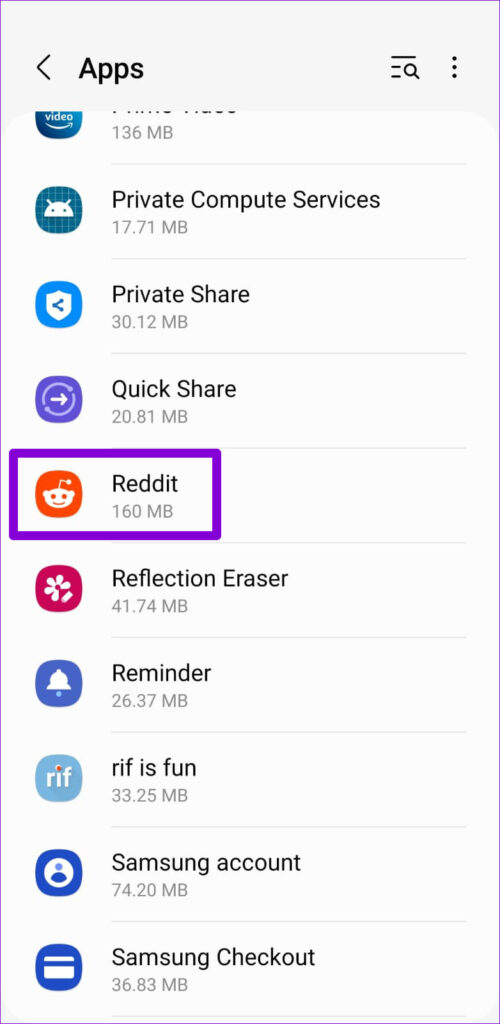

Once enabled, Android will automatically revoke app permissions if you don’t use the app for a few months. There isn’t a specific time frame to estimate or set for this action. Fortunately, Android sends a notification whenever permissions are revoked.
Was this helpful?
Last updated on 26 July, 2024
5 Comments
Leave a Reply
Read Next
 How to Enable, Disable, and Manage App Permissions on Windows 11
How to Enable or Disable Permissions for Individual Apps If you want to enable or disable permissions for a specific app, you must open its app settings on Windows.
How to Enable, Disable, and Manage App Permissions on Windows 11
How to Enable or Disable Permissions for Individual Apps If you want to enable or disable permissions for a specific app, you must open its app settings on Windows.
 How to Share Your Outlook Calendar and Manage Permissions
How to Share Your Microsoft Outlook Calendar Note: To share your Microsoft Outlook calendar, you must have a Microsoft 365 or Exchange account.
How to Share Your Outlook Calendar and Manage Permissions
How to Share Your Microsoft Outlook Calendar Note: To share your Microsoft Outlook calendar, you must have a Microsoft 365 or Exchange account.
 How to Enable or Disable Autostart for Android Apps
What is Autostart on Android Autostart means that apps will start themselves in the background after they are closed.
How to Enable or Disable Autostart for Android Apps
What is Autostart on Android Autostart means that apps will start themselves in the background after they are closed.
 How to Enable and Disable Autofill on Android
Note: The steps might differ for different Android devices and Android versions.
How to Enable and Disable Autofill on Android
Note: The steps might differ for different Android devices and Android versions.
 How to Enable or Disable Smart App Control in Windows 11
Have you ever downloaded an app that was more trouble than it's worth?
How to Enable or Disable Smart App Control in Windows 11
Have you ever downloaded an app that was more trouble than it's worth?
 Google Drive Sharing Permissions Explained: A Detailed Guide
Types of Sharing Permissions in Google Drive When you're not sharing the file/folder it is set to Restricted, i.e., only you can view and edit the file.
Google Drive Sharing Permissions Explained: A Detailed Guide
Types of Sharing Permissions in Google Drive When you're not sharing the file/folder it is set to Restricted, i.e., only you can view and edit the file.
 Google Photos Link Sharing Permissions and Settings Explained: A Detailed Guide
Recently, a controversial post appeared on the internet that said ‘photos in Google Photos are semi-public,’ which is both true and false.
Google Photos Link Sharing Permissions and Settings Explained: A Detailed Guide
Recently, a controversial post appeared on the internet that said ‘photos in Google Photos are semi-public,’ which is both true and false.
 5 Ways to Fix Background Apps Permissions Option Missing on Windows 11
Fix 1: Configure Background App Permissions via Battery Settings You can manage background app permissions in various ways in Windows 11.
5 Ways to Fix Background Apps Permissions Option Missing on Windows 11
Fix 1: Configure Background App Permissions via Battery Settings You can manage background app permissions in various ways in Windows 11.
The article above may contain affiliate links which help support Guiding Tech. The content remains unbiased and authentic and will never affect our editorial integrity.

I want to permanently DISABLE the automatic removal of permissions.
I Want all the permissions I give to my apps to be PERMANENTLY set.
I don’t want to set this option individually for each app I have installed.
Is there some option to do this? otherwise, to me this new feature is totally CRAP.
Hi Max1234 lta, there isn’t a universal way to disable the automatic removal of permissions for unused apps. As stated in the article, you’ll have to disable this option for each of your apps individually.
I have samsung galaxy12.pronlem in account statement load in pdf.
Required in pnbone app.storage permission needed.i have try 15 time but not solve this problem.
My xboyfriend stolen my indemnity he knows everything sbout me he is using permission controller so he can control my phone apps he turns on camara to watch me and get my code to my phone and turns on mivophone to listen to me.the green light stays on the corner right side of my phone even when I put not allowed he uses permission controller to turn back on
I have to be careful as I left an abusive marriage and get constant reminders to sign in to Samsung and I am very reluctant to as one of my sons is a Samsung phone and technology wizard