Is the bright white format of Excel burning holes in your eyes, or are you just looking for a theme that matches the rest of your desktop aesthetic? Whatever your reason, Microsoft Office comes with many different ways to change up your theme, as well as enable dark mode.
In this article, we’ll be showing you how to shake up the aesthetic of your workspace.
How to Enable Dark Mode in Microsoft Office
All modern versions of Microsoft Office, be it 365 or Office 2024, have built-in ways to change the overall theme and color palette of the interface. What’s more, you have quite a few options not only in the color, but in the time of day Dark mode kicks in. Below, we’ve included different ways to activate it.
Change via Your Account
The fastest way to change Office to Dark Mode is via your account settings. Making this change in one program will change the whole Office suite to Dark Mode. We’ll use Word as an example:
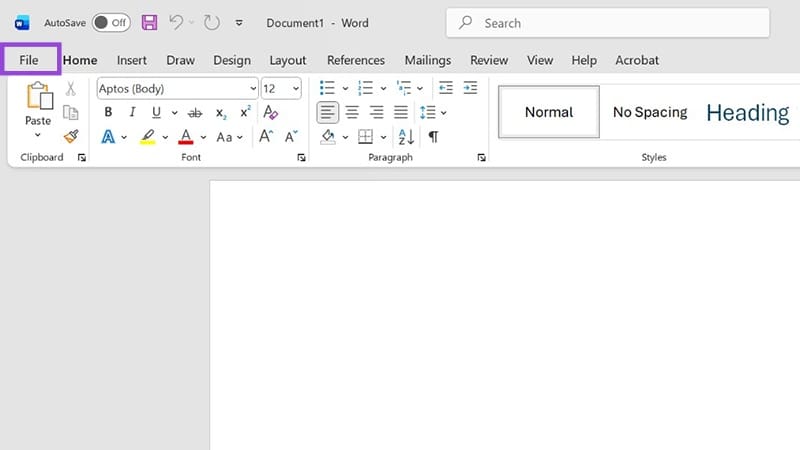
Step 1. Open Word and click “File” in the top menu.

Step 2. On the sidebar, click “Account.”

Step 3. Look for “Office Theme” in the main window and click the dropdown menu below it. Choose “Black” to enter Dark Mode.

Step 4. There’s no need to save your changes. All Office apps will now be in dark mode.
Enter Dark Mode via Options
Another way to do the same thing as above is to change the options on an Office app. Dark Mode will still apply to all other apps. Here’s what to do:
Step 1. Click the “File” tab in the top menu.
Step 2. In the sidebar, click “Options” at the bottom left of the screen.

Step 3. A new window will pop up. Stay in the “General” tab, and look under “Personalize your copy of Microsoft Office.”
Step 4. Click the dropdown menu next to “Office Theme” and choose “Black.”
Step 5. Hit “OK” to confirm changes.

A problem you might face with Dark Mode is that it changes the document, spreadsheet, etc., that you’re working on to match the theme. This might be problematic if you’re looking to print what you’re working on, for example. If you want to keep the document page free from the Dark Mode changes, be sure to check the “Never change the document page color” box next to the “Office Theme.”
Switch Out Modes Quickly
You might not mind the bright theme of Office during the day, but it may hurt your eyes at night. The good news is that if Dark Mode has been enabled, you can quickly disable it via the “View” tab in any Office app. Here’s how:
Step 1. Open your app (like Microsoft Word).
Step 2. Click the “View” tab in the top menu.

Step 3. If Dark Mode is enabled, you should see the “Switch Modes” button on the tab. Click it to quickly change between modes whenever you need.

Was this helpful?
Last updated on 01 November, 2025
Read Next
 How to Enable Dark Mode in Microsoft Edge on Desktop and Mobile
How to Enable Dark Mode in Microsoft Edge on Desktop There are multiple ways to enable dark mode in Microsoft Edge.
How to Enable Dark Mode in Microsoft Edge on Desktop and Mobile
How to Enable Dark Mode in Microsoft Edge on Desktop There are multiple ways to enable dark mode in Microsoft Edge.
 How to Turn off Dark Mode in Microsoft Excel, Word, and PowerPoint
Dark mode is savored by many.
How to Turn off Dark Mode in Microsoft Excel, Word, and PowerPoint
Dark mode is savored by many.
 How to Enable Dark Mode Everywhere in Safari on Mac
Enable Dark Theme for Safari on Mac On macOS Catalina, you have a built-in dark color scheme that renders the entire operating system along with native apps, including Safari and
How to Enable Dark Mode Everywhere in Safari on Mac
Enable Dark Theme for Safari on Mac On macOS Catalina, you have a built-in dark color scheme that renders the entire operating system along with native apps, including Safari and
 How to Enable OneNote Dark Mode on Any Device
How to Change OneNote to Dark Mode in the Windows App To turn on Dark Mode on the OneNote Windows app, go to the account settings and change the app's
How to Enable OneNote Dark Mode on Any Device
How to Change OneNote to Dark Mode in the Windows App To turn on Dark Mode on the OneNote Windows app, go to the account settings and change the app's
 4 Ways to Enable or Disable Dark Mode on Chromebook
Method 1: From Quick Settings Step 1: Click on the bottom right corner (on the time) of your Chromebook to open the Quick Settings panel.
4 Ways to Enable or Disable Dark Mode on Chromebook
Method 1: From Quick Settings Step 1: Click on the bottom right corner (on the time) of your Chromebook to open the Quick Settings panel.
 How to Repair Microsoft Office Installation Errors in Windows
Are you having trouble installing Microsoft Office on your Windows computer?
How to Repair Microsoft Office Installation Errors in Windows
Are you having trouble installing Microsoft Office on your Windows computer?
 Fix: Microsoft Office Stuck on Getting Things Ready on Windows 11
Basic Fix Close other programs: This may be necessary, especially since other running programs may interfere with installation.
Fix: Microsoft Office Stuck on Getting Things Ready on Windows 11
Basic Fix Close other programs: This may be necessary, especially since other running programs may interfere with installation.
 How to Turn Off the Office File Viewer in Microsoft Edge
Microsoft Edge might have some benefits over Chrome and Mozilla.
How to Turn Off the Office File Viewer in Microsoft Edge
Microsoft Edge might have some benefits over Chrome and Mozilla.
The article above may contain affiliate links which help support Guiding Tech. The content remains unbiased and authentic and will never affect our editorial integrity.