


Enable or Disable Pop-up Blocker in Chrome for Desktop
Enabling the pop-up blocker on Chrome ensures that Google screens every website you visit for pop-ups by default. However, when you disable it, you can decide for yourself subsequently if the pop-up from websites should be blocked or not. Here’s how to enable and disable the pop-up blocker on Google Chrome for Desktop:
Step 1: Open Google Chrome, click the three dots at the top right and choose Settings.
Step 2: Click on Privacy and Security on the sidebar and Site settings on the right.

Step 3: Under the Content section, choose Pop-ups and redirects.

Step 4: Under Default behavior, if you want to enable the pop-up blocker, select Don’t allow sites to send pop-ups or use redirects. If you want to disable it, choose Sites can send pop-ups and use redirects.

Enable or Disable Pop-up Blocker in Chrome Mobile App
Like on your computer, you can enable or disable the pop-up blocker in Chrome for both Android and iPhone. Here’s how:
On iPhone
Step 1: Launch the Google Chrome app > tap on the horizontal ellipsis at the bottom > choose Settings.


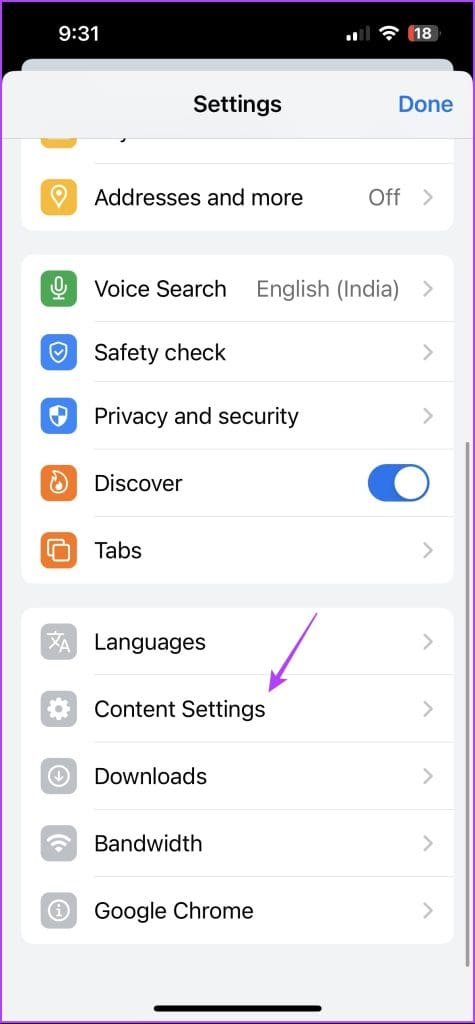
Step 2: Select Content Settings and choose Block Pop-ups. To enable the pop-up blocker, turn on the toggle for Block Pop-ups. To disable it, turn off the toggle.


On Android
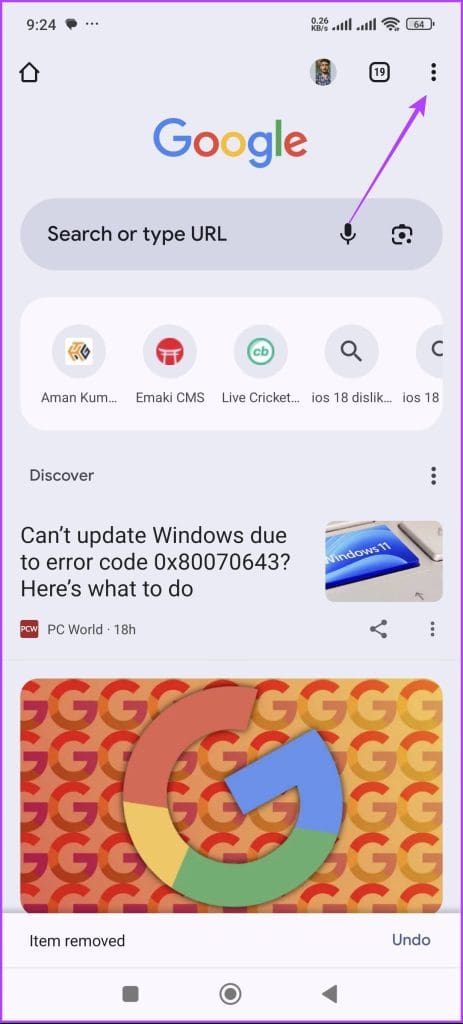
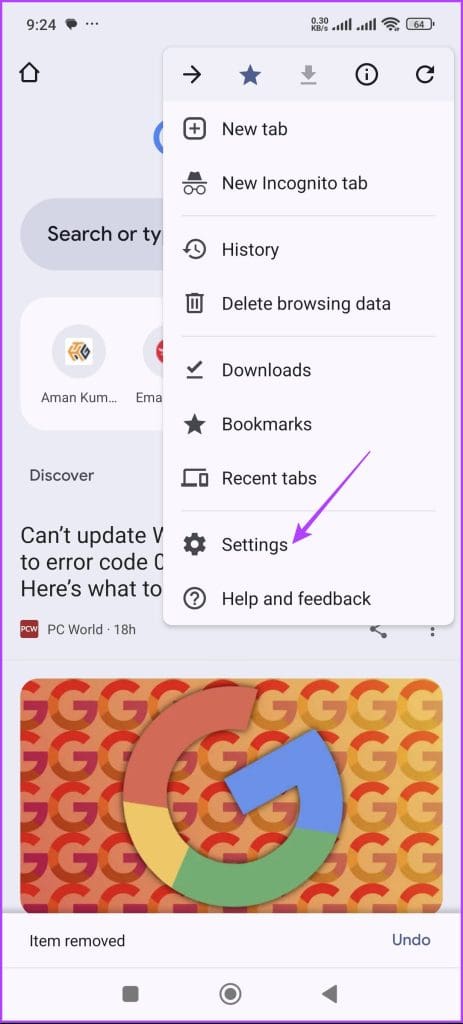
Step 1: Launch Chrome from your device’s home screen > tap the vertical ellipsis at the top > choose Settings.
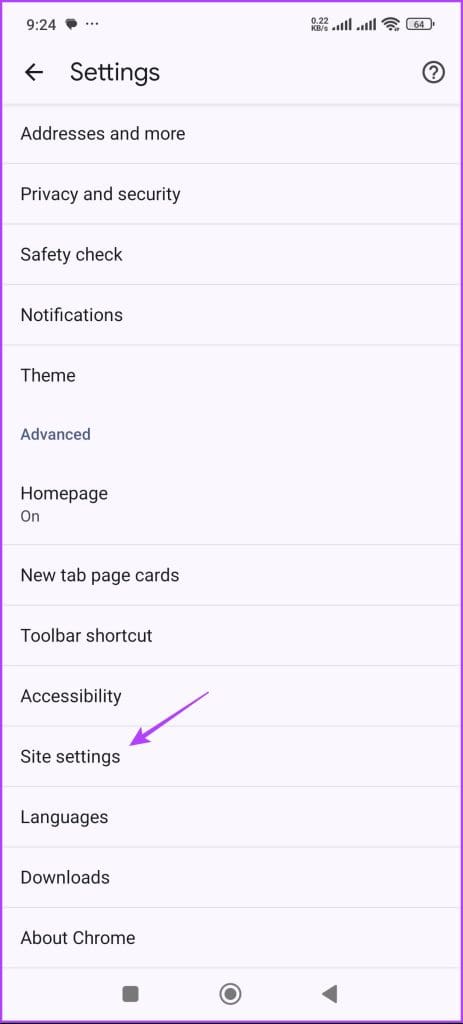
Step 2: Select Sites Settings > Pop-ups and redirects. To enable the pop-up blocker, turn on the toggle for Pop-ups and redirects. To disable it, turn off the toggle.


Also Read: How to block or allow pop-ups on Microsoft Edge
Was this helpful?
Last updated on 04 September, 2024
Read Next
 How to Block or Allow Pop-Ups on Microsoft Edge
How to Block Pop-Ups on Microsoft Edge Method 1: Block Pop Ups in Settings Step 1: Click on the three dots icon on the toolbar > select Settings.
How to Block or Allow Pop-Ups on Microsoft Edge
How to Block Pop-Ups on Microsoft Edge Method 1: Block Pop Ups in Settings Step 1: Click on the three dots icon on the toolbar > select Settings.
 How to Allow or Block Pop-ups and Redirects on Opera
How to Allow or Block Pop-Ups and Redirects on Opera By default, Opera does not require you to block ads and pop-ups as it protects you from these annoying contents.
How to Allow or Block Pop-ups and Redirects on Opera
How to Allow or Block Pop-Ups and Redirects on Opera By default, Opera does not require you to block ads and pop-ups as it protects you from these annoying contents.
 2 Ways to Block YouTube Channels on Desktop and Mobile
Method 1: Block a YouTube Channel From Appearing on Your Feed If you want to stop a YouTube channel from appearing in your feed without fully blocking it, you can
2 Ways to Block YouTube Channels on Desktop and Mobile
Method 1: Block a YouTube Channel From Appearing on Your Feed If you want to stop a YouTube channel from appearing in your feed without fully blocking it, you can
 6 Best UPS for Wi-Fi Routers and Modems
A dedicated UPS can prevent internet downtime if your home experiences short power cuts or voltage surges.
6 Best UPS for Wi-Fi Routers and Modems
A dedicated UPS can prevent internet downtime if your home experiences short power cuts or voltage surges.
 6 Best UPS for PS5 Under $150
The Sony PlayStation 5 is an excellent gaming console, although it is sensitive to power outages.
6 Best UPS for PS5 Under $150
The Sony PlayStation 5 is an excellent gaming console, although it is sensitive to power outages.
 6 Best UPS for Gaming PCs for Uninterrupted Gaming
A reliable UPS acts as your gaming PC's guardian angel, shielding it from power fluctuations, surges, and unexpected outages.
6 Best UPS for Gaming PCs for Uninterrupted Gaming
A reliable UPS acts as your gaming PC's guardian angel, shielding it from power fluctuations, surges, and unexpected outages.
 5 Best UPS for Synology NAS
Synology NAS (Network Attached Storage) is an excellent way to create a centralized location on the same network.
5 Best UPS for Synology NAS
Synology NAS (Network Attached Storage) is an excellent way to create a centralized location on the same network.
 How to Block Someone on Telegram on Desktop, Android, or iOS
What Happens if You Block a Telegram User? The blocked user can no longer send you direct messages.
How to Block Someone on Telegram on Desktop, Android, or iOS
What Happens if You Block a Telegram User? The blocked user can no longer send you direct messages.
The article above may contain affiliate links which help support Guiding Tech. The content remains unbiased and authentic and will never affect our editorial integrity.

