How to Edit a Scheduled Email in Gmail
During the time between scheduling and sending an email, you can edit or reschedule the content as needed. If you want to change things before it is sent, follow the below steps.
Modify Scheduled Emails on Gmail Using PC
Note: For the demonstration, we will use Chrome.
Step 1: Go to Gmail from your preferred browser.
Step 2: In the left pane, click on the Scheduled tab.
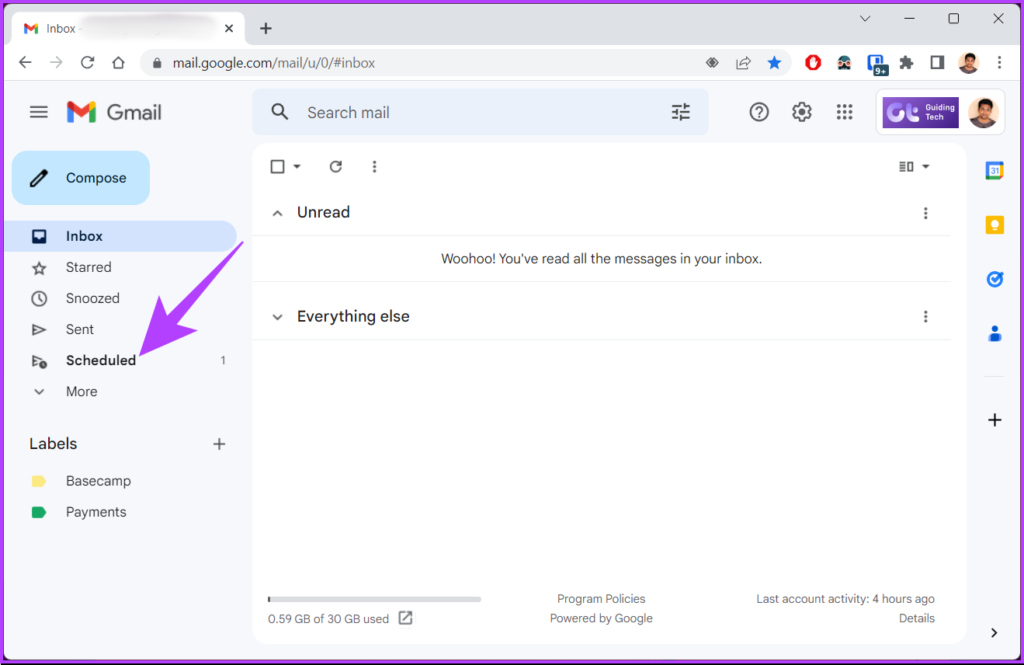
Step 3: Under the Scheduled tab, click on the email you want to edit or reschedule.
Step 4: Click on Cancel send.

It will cancel your scheduled email and turn it into a draft. You can edit and schedule it again. Once you’re done making the changes, move on to the next step.
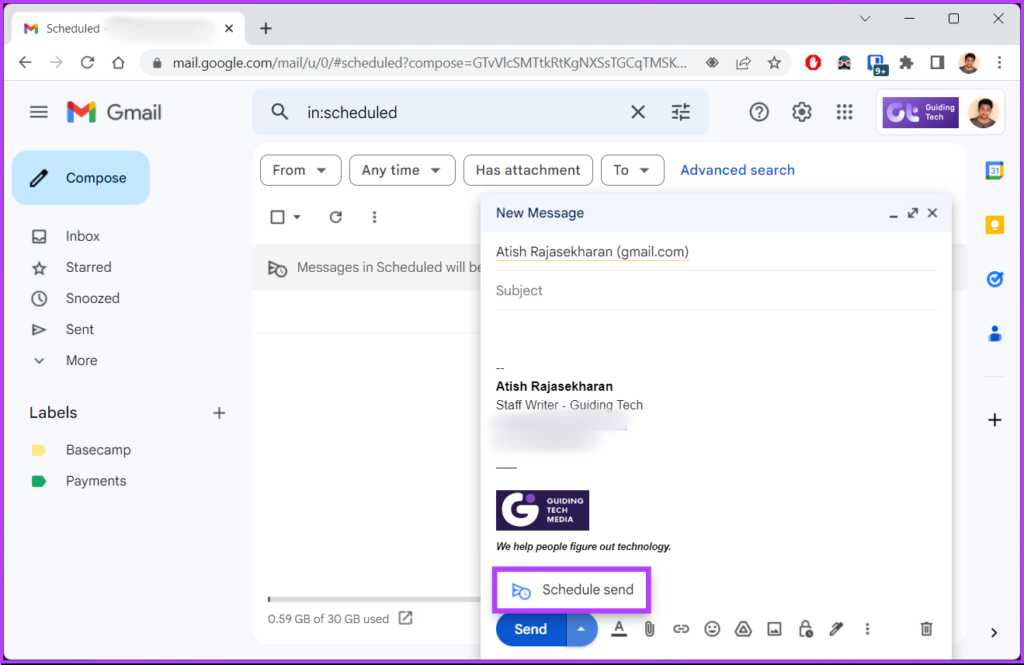
Step 5: Click the chevron (arrow) icon on the blue Send button.
Step 6: Now, select Schedule send.
Step 7: In the pop-up, select your schedule.
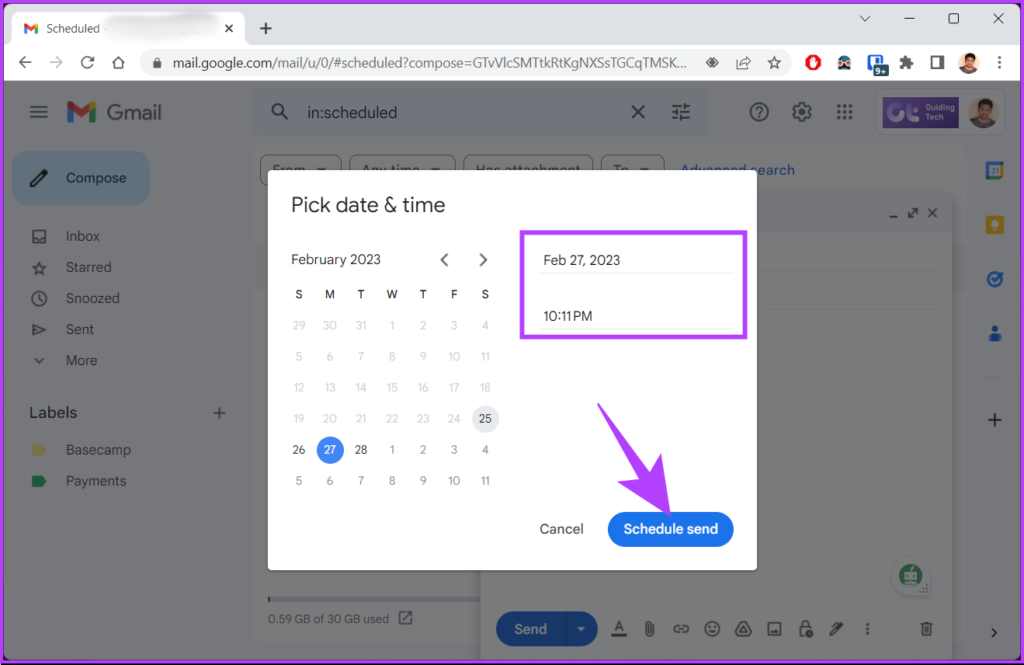
If you want to stick to the same schedule, click Last scheduled time. If you want to customize and select a specified date and time, click Pick date & time.
Step 8: Select the date and time and click Schedule send.
That’s it. You have edited and rescheduled your already scheduled email. If you don’t have access to your PC but still want to make the changes, check out how to do the same on a mobile device.
Change Scheduled Emails Using Gmail Mobile App
Step 1: Open Gmail on your Android or iOS device.
Step 2: Tap the hamburger (three horizontal lines) icon and select the Scheduled folder.

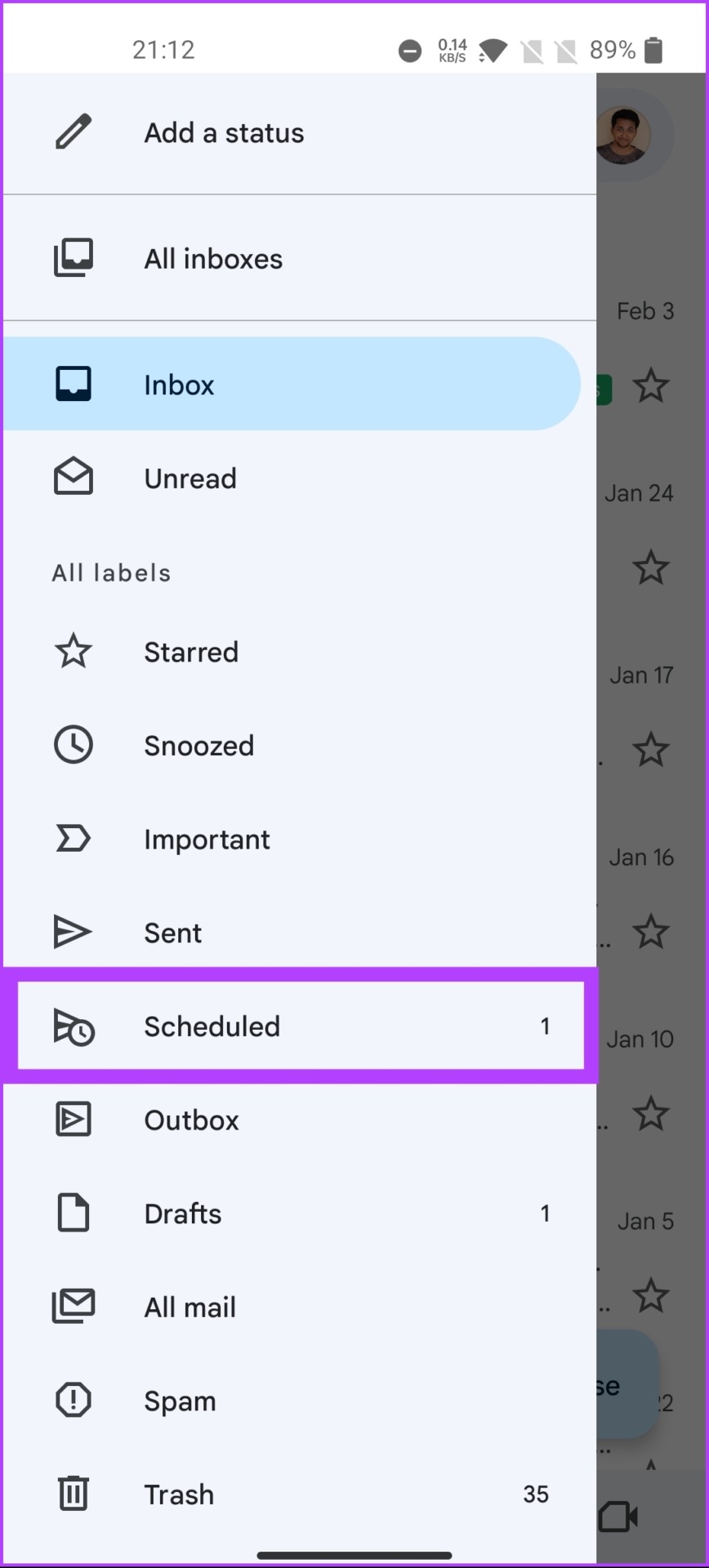
Step 3: Tap the scheduled email you want to edit or reschedule.
Step 4: Click Cancel send.
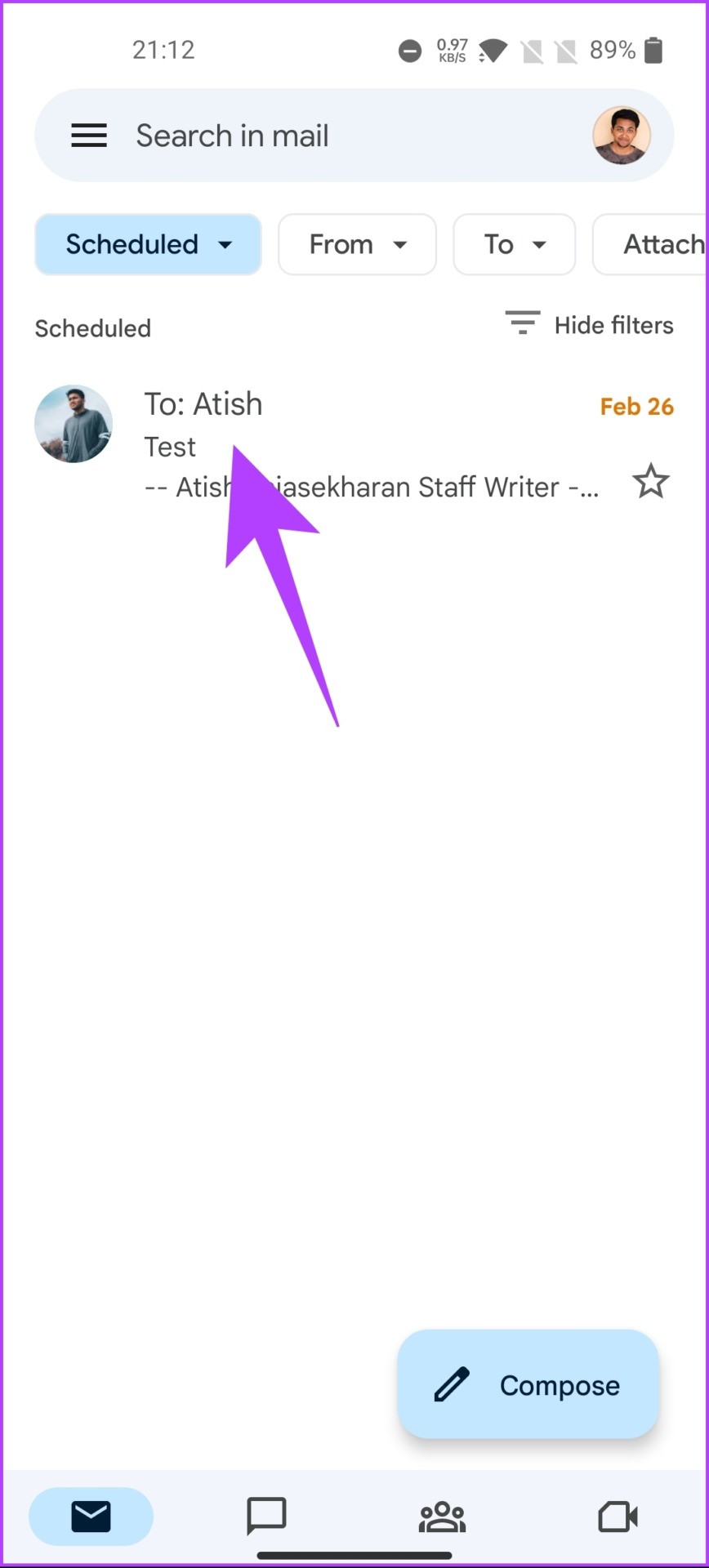

With this, the scheduled email gets cancelled and transferred to the Drafts folder.
Step 5: Hit the pencil icon to start editing the email.
Step 6: Make the edits to the email. Once done, click on the three-dot icon in the top-right corner.
Step 7: From the drop-down menu, select Schedule send.


Step 8: In the pop-up, select your schedule.
If you want to stick to the same schedule, tap Last scheduled time. If you want to customize and select a specified date and time, tap Pick date & time.
Step 9: Select the date and time and click Schedule send.


There you have it. You have rescheduled the mail after successfully editing it. In addition, you can also schedule it from the Mail app if your Gmail account is connected. If you don’t want to edit or reschedule but want to delete the scheduled email, move to the next method.
How to Delete Scheduled Emails in Gmail
Cancelling may not seem viable, but sometimes it can be the need of the hour. Deleting a scheduled email follows the same path as a normal one. Let’s get into it.
Delete Scheduled Emails on the PC
Step 1: Go to Gmail from your preferred browser.
Step 2: In the left pane, click on the Scheduled tab.
Step 3: Under the Scheduled tab, click on the email you want to cancel.
Step 4: Select Cancel send.
It will cancel your scheduled email and transfer it to the draft folder.
Step 5: To delete, click on the trashcan icon at the bottom right corner.

There you go. You have cancelled the scheduled mail and also deleted it. If you want to know how to do the same using mobile, move on to the next method.
On Mobile
Step 1: Open Gmail on your Android or iOS device.
Step 2: Tap the hamburger (three horizontal lines) icon and select the Scheduled folder.
Step 3: Choose the scheduled email you want to cancel.
Step 4: Hit Cancel send. It will cancel the scheduled email and turn the email into a draft.
Step 5: Tap on the trashcan icon at the top.


That’s about it. You have cancelled and deleted the scheduled email in Gmail.
By following the steps outlined in this article, you can easily modify or cancel your scheduled emails on Gmail.
Was this helpful?
Last updated on 02 September, 2024
Read Next
 3 Ways to Disable Scheduled Tasks in Windows
Method 1: Disable Scheduled Task Using Task Scheduler The steps to disable tasks on the Task Scheduler are similar to enabling them.
3 Ways to Disable Scheduled Tasks in Windows
Method 1: Disable Scheduled Task Using Task Scheduler The steps to disable tasks on the Task Scheduler are similar to enabling them.
 How to Cancel Telegram Premium Subscription on Any Device
Let's look at how to cancel Telegram Premium subscription on Android, iPhone, Mac, and Windows. Method 1: Cancel Telegram Subscription On Android Step 1: Open the Google Play Store on your
How to Cancel Telegram Premium Subscription on Any Device
Let's look at how to cancel Telegram Premium subscription on Android, iPhone, Mac, and Windows. Method 1: Cancel Telegram Subscription On Android Step 1: Open the Google Play Store on your
 How to Change or Cancel Netflix Plan on Any Device
How to Change Your Plan on Netflix If you've made your decision and wish to change your Netflix plan, here's how to do it.
How to Change or Cancel Netflix Plan on Any Device
How to Change Your Plan on Netflix If you've made your decision and wish to change your Netflix plan, here's how to do it.
 6 Ways to Attach an Email in Gmail
Method 1: Download and Send an Email as an Attachment You can download an email from Gmail, stored in the .eml file format.
6 Ways to Attach an Email in Gmail
Method 1: Download and Send an Email as an Attachment You can download an email from Gmail, stored in the .eml file format.
 How to Remove an Email Address From Gmail Autofill List
Method 1: Remove Saved Email Address From Gmail on Desktop You can’t view or modify saved Gmail contacts from the Gmail web.
How to Remove an Email Address From Gmail Autofill List
Method 1: Remove Saved Email Address From Gmail on Desktop You can’t view or modify saved Gmail contacts from the Gmail web.
 How to Recall an Email in Gmail Using App or Web Browser
While proofreading an email is a must, there are always times when you end up missing things.
How to Recall an Email in Gmail Using App or Web Browser
While proofreading an email is a must, there are always times when you end up missing things.
 How to Add Canva Email Signature to Gmail
Create a Gmail Signature Using Canva You can quickly create an email signature in Canva for free, as its intuitive user interface has drag-and-drop options.
How to Add Canva Email Signature to Gmail
Create a Gmail Signature Using Canva You can quickly create an email signature in Canva for free, as its intuitive user interface has drag-and-drop options.
 How to Add, Edit or Delete Contacts in Gmail
In today's interconnected world, managing your contacts efficiently is key to staying in touch with friends, colleagues, and acquaintances.
How to Add, Edit or Delete Contacts in Gmail
In today's interconnected world, managing your contacts efficiently is key to staying in touch with friends, colleagues, and acquaintances.
The article above may contain affiliate links which help support Guiding Tech. The content remains unbiased and authentic and will never affect our editorial integrity.