

How to Download Twitter (X) DM Videos On PC
1. Download Twitter (X) DM Videos on Chrome Using Extension
In this method, we will rely on a Twitter DM video downloader extension called Video Downloader Plus. Let’s begin.
Note: If you are a Firefox user, navigate to the Firefox add-ons and try the Twitter Video Downloader extension.
Step 1: Open Chrome and go to Chrome Store.
Step 2: In the search bar, type Video Downloader Plus to search for it, and click on it.
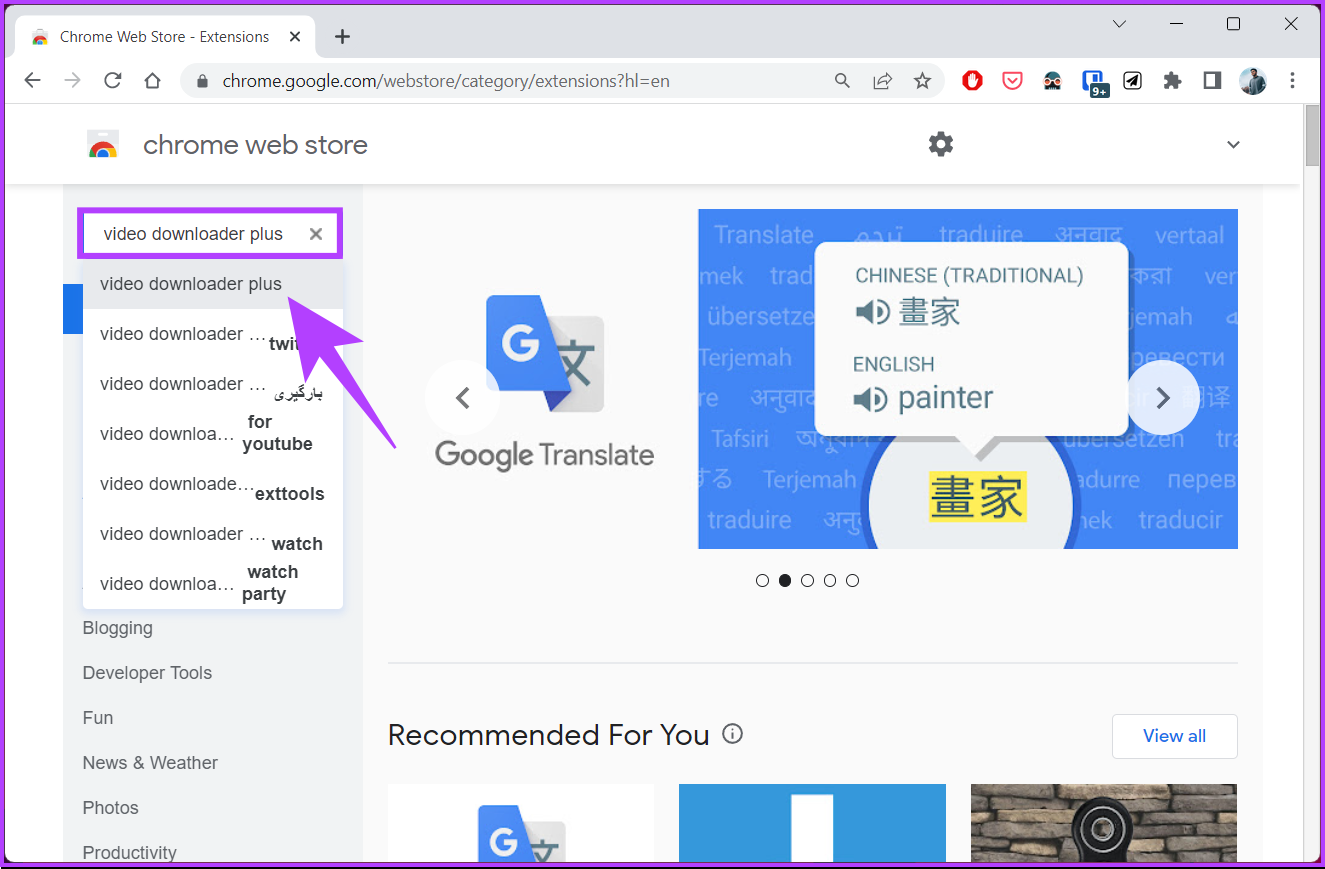
Step 3: Click on Add to Chrome.

Step 4: In the prompt, click Add extension.

Wait for it to download and install on your Chrome browser. Once downloaded, move to the next step.
Step 5: Go to X (Twitter) and log in with your credentials.
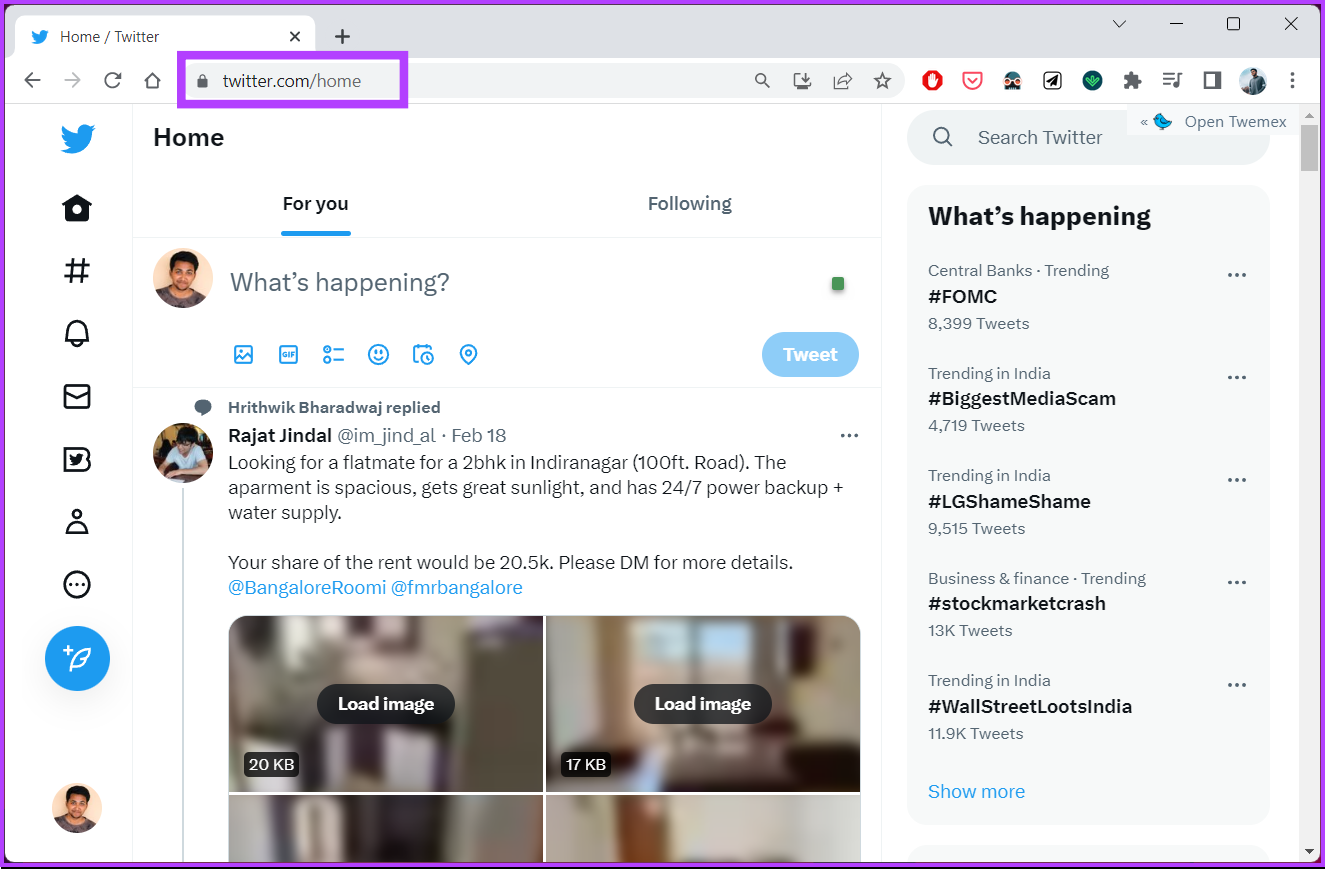
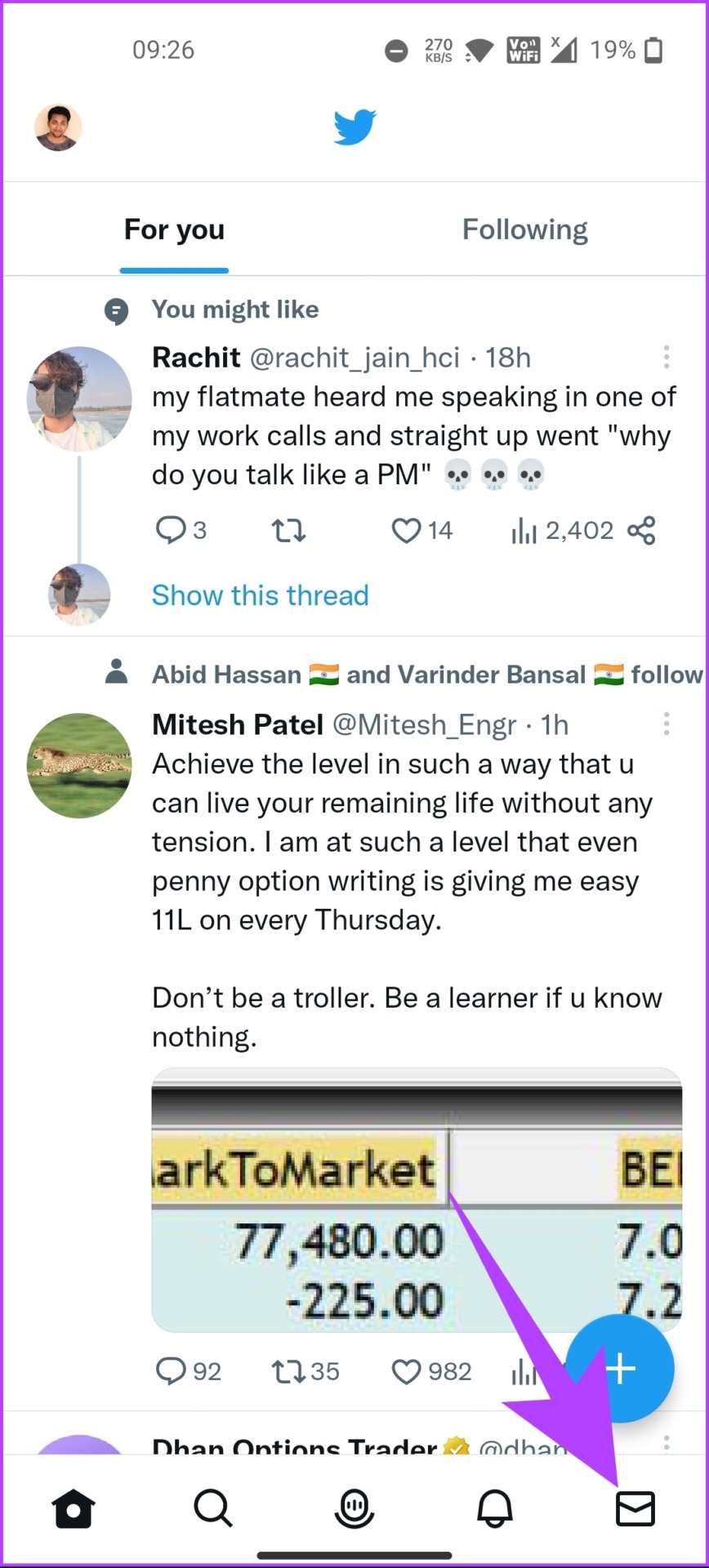
Step 6: Go to Messages from the left pane.

Step 7: Select the message you want to download the video from.
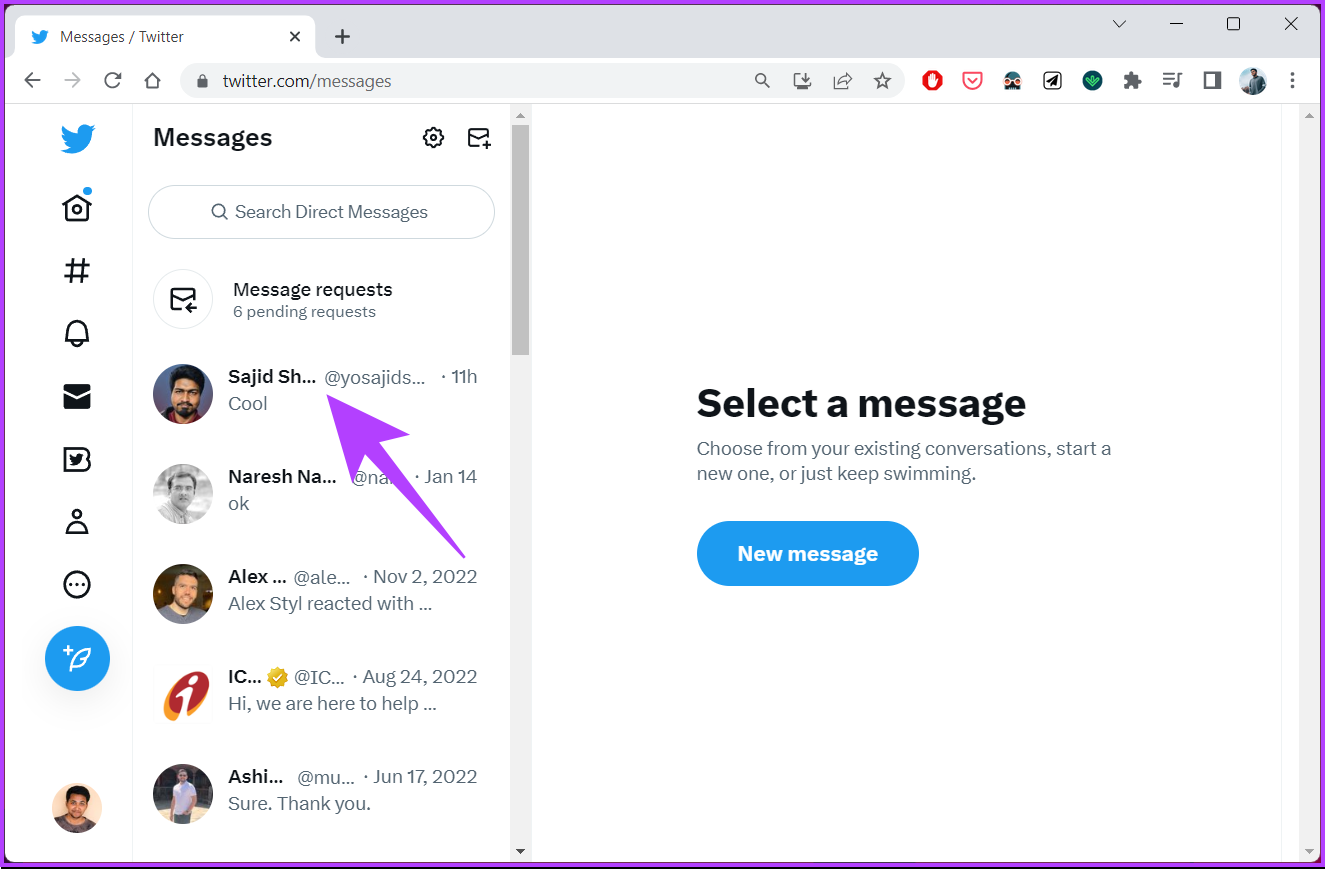
Step 8: Load and play the video you wish to download in your DM and click on the Video Downloader Plus extension.
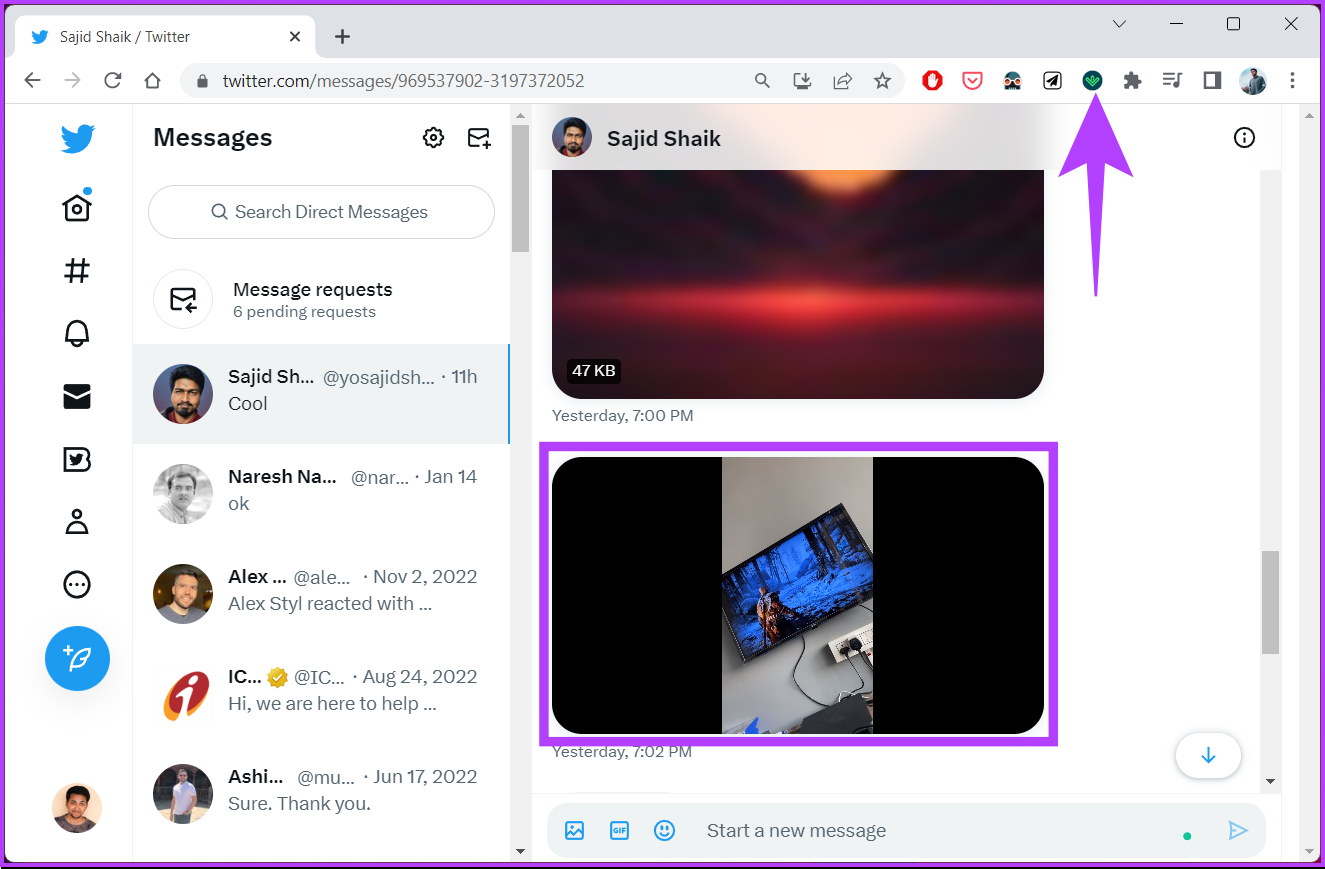
The extension will list different resolutions of that video you can download.
Step 9: Click on the file you want to download, and it will automatically download the video to your computer.
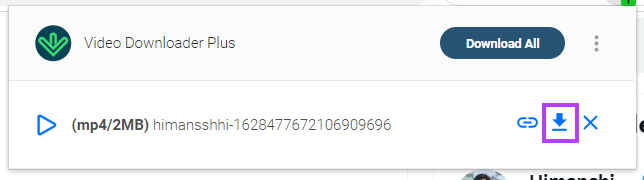
That’s it. You have successfully downloaded a Twitter video from DM. If you want to avoid downloading an extension, check out the next method.
2. Using VLC Player
We assume you downloaded and installed VLC Player on your computer. For demonstration purposes, we will be using Windows. However, the steps will also be the same for Mac.
Step 1: Open your X (Twitter) account on Chrome and copy the link to the DM video you want to download.

Step 2: Press the Windows key, type VLC, and click Open.
Step 3: Go to Media and select Convert / Save from the drop-down menu.

Step 4: In the Open Media window, go to Network.
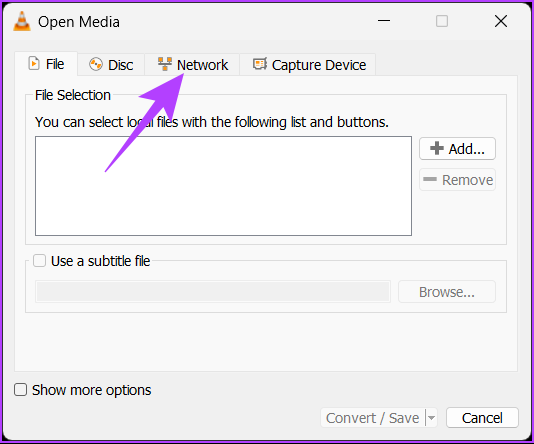
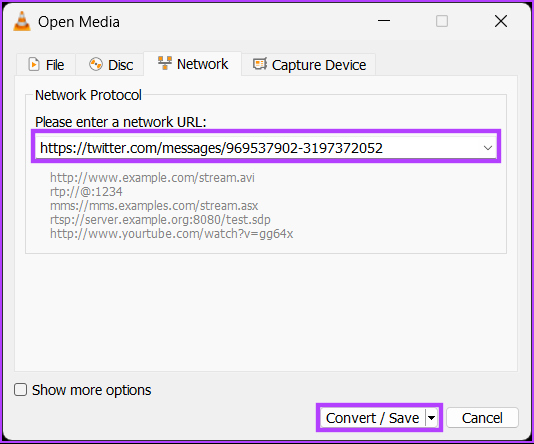
Step 5: Under Please enter a network URL, paste the copied link, and click Convert / Save.
Step 6: In the Convert window, click the chevron (arrow) icon under Profile and select MP4.

Step 7: Now, under Destination, click Browse and locate the destination to save.
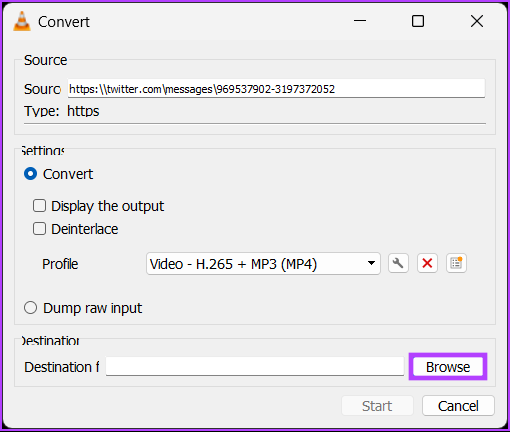
Step 8: Finally, click Start.
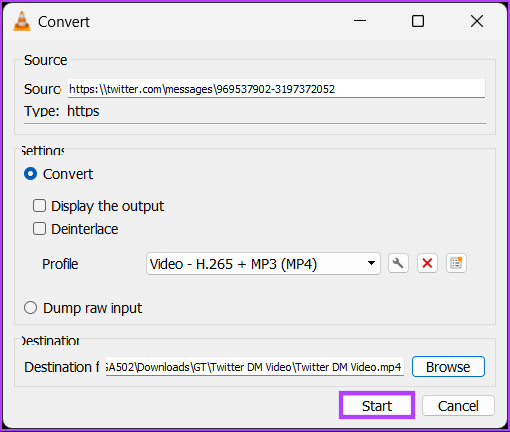
That’s it. VLC will take a few seconds to download and store the video at the destination. If you don’t have access to a PC but still want to download the video, you can do so using your mobile device. Continue reading.
How to Download Twitter (X) DM Videos On Mobile Using Screen Recorder
We’ll use the built-in screen recorder, but some Android devices may not have it. So, download a screen recorder from the Play Store and follow the instructions below.
On Android
Step 1: Open the X (Twitter) app and navigate to the Twitter DM.
Step 2: Now, select the video you want to download and open it in full-screen mode.

Step 2: Swipe down from the top of the screen > swipe right > tap on the Screen Recorder from the Quick Menu.
Step 3: You will find a tiny bar on your screen. Tap the red dot to start recording.


Step 4: Once the Twitter video is played, click on the white square to finish the recording.
Note: The recording will be saved in your gallery or Screen Recorder folder.
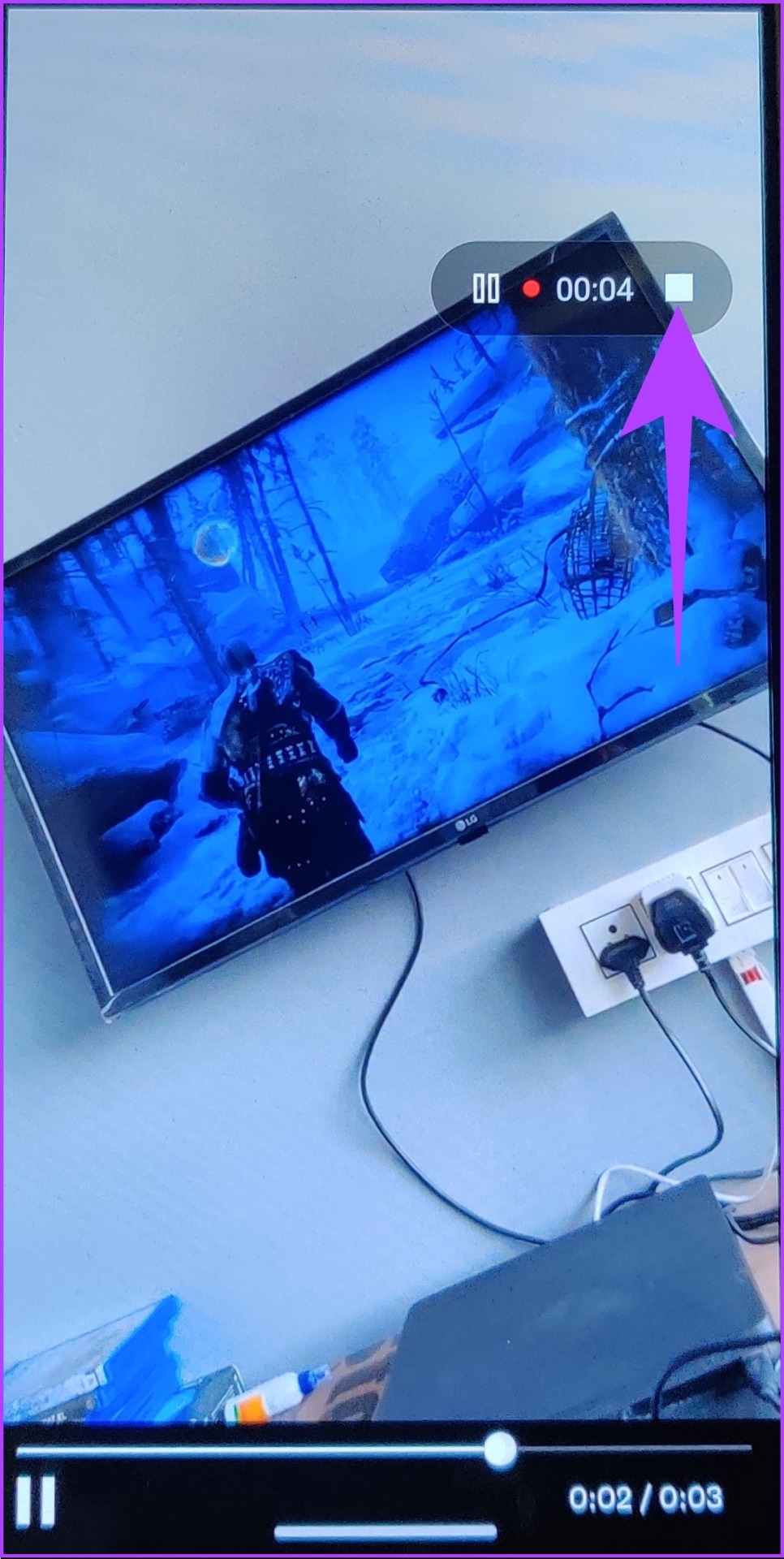
That’s it. You have downloaded the Twitter (X) DM with audio to your Android device. If you are on iOS, jump to the next one.
On iOS
Step 1: Open the X app, go to DM, navigate to the account from which you want to download the video, and open it in full-screen mode.


Step 2: Open Control Center and press the Record button to start recording.
Note: If you don’t see the record button, go to Settings and select Control Center. Next, move the Screen Recording option to the Included Controls section.
Step 3: Once the video is recorded, tap the red Record button at the top navigation bar to stop the recording.


Step 4: In the prompt, select Stop.
That’s it. With this, you have effectively downloaded the Twitter DM video onto your iPhone. If downloading video from Twitter DM through screen recording is time-consuming, check out the next method.
How to Download Twitter DM Videos Using Third-Party Tools
We will be using a third-party tool called TwiDropper. Follow the steps below.
Step 1: Go to TwiDropper using your preferred browser on your PC or mobile device.
Step 2: Click on DM in the top bar beside the User tab.
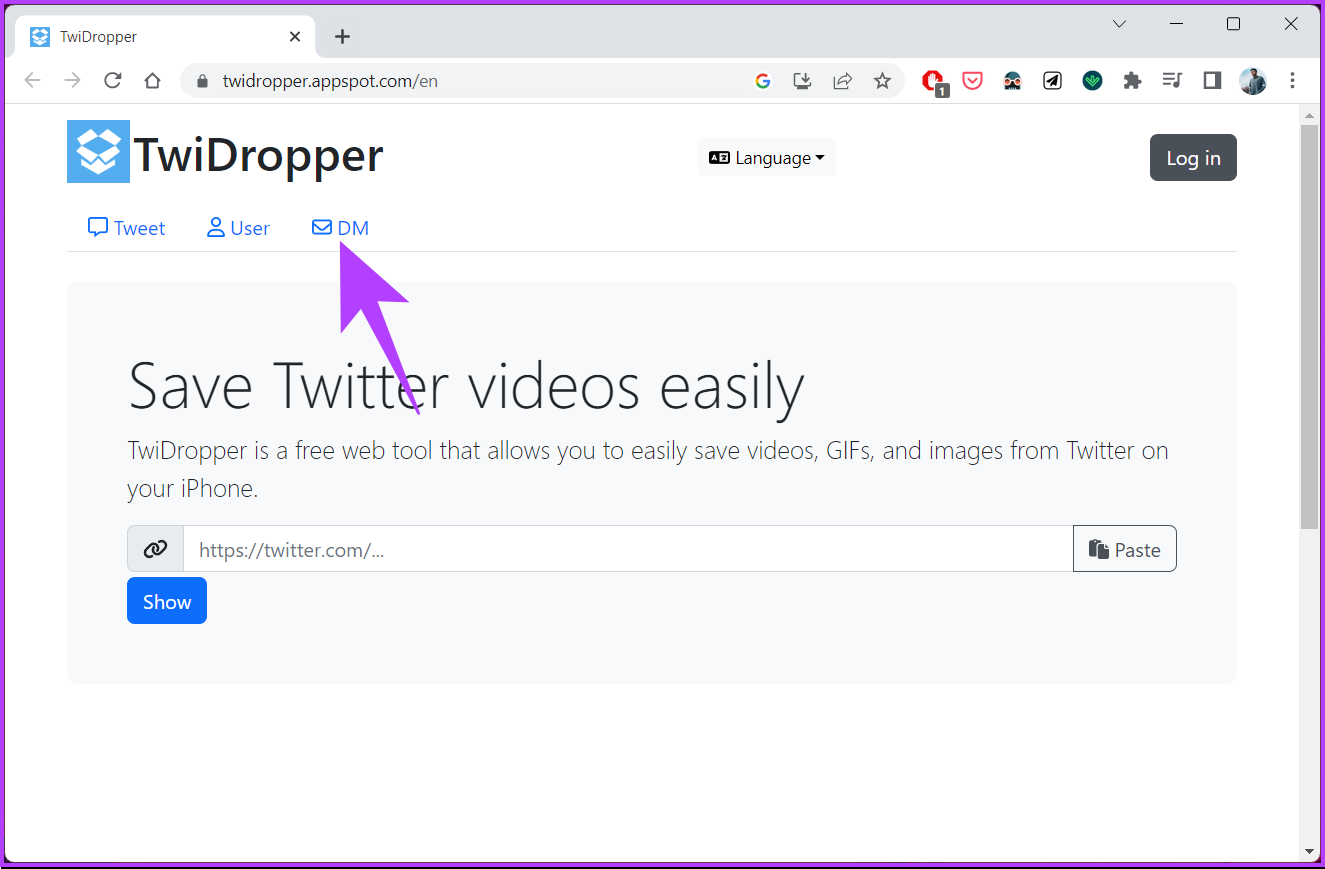
Step 3: Navigate to the Log in button.
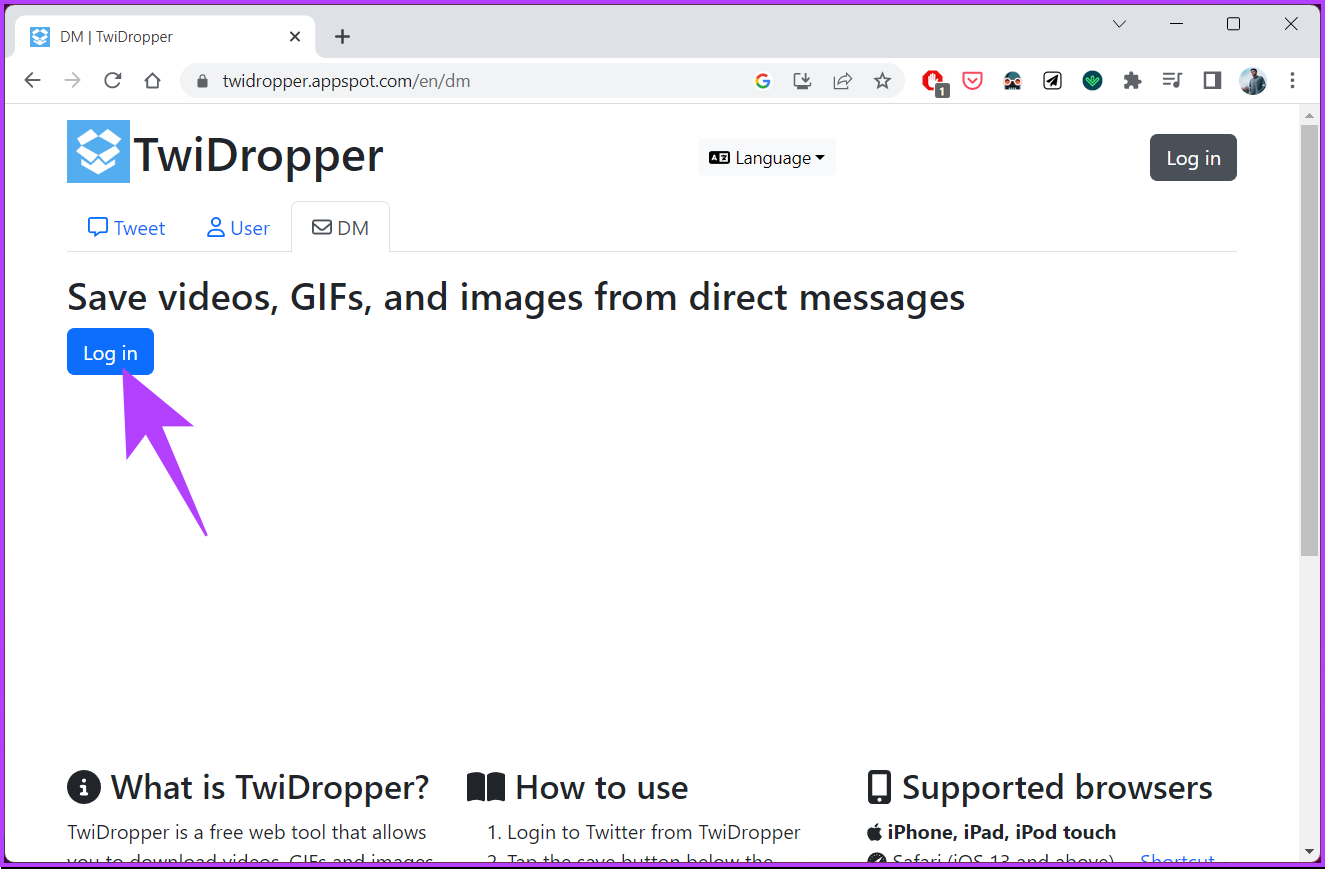
Step 4: Click on the Authorize app button.
Note: If you are not already logged into Twitter, you will see a sign-in button where you will need to enter your credentials.

Once Twidropper has access to your account, it will redirect you to a screen that displays all the images and videos you’ve received in your Twitter DMs.
Step 5: Select the quality of the video and click the Download button right below the video or image.
Note: You can share or save the file to Dropbox too.
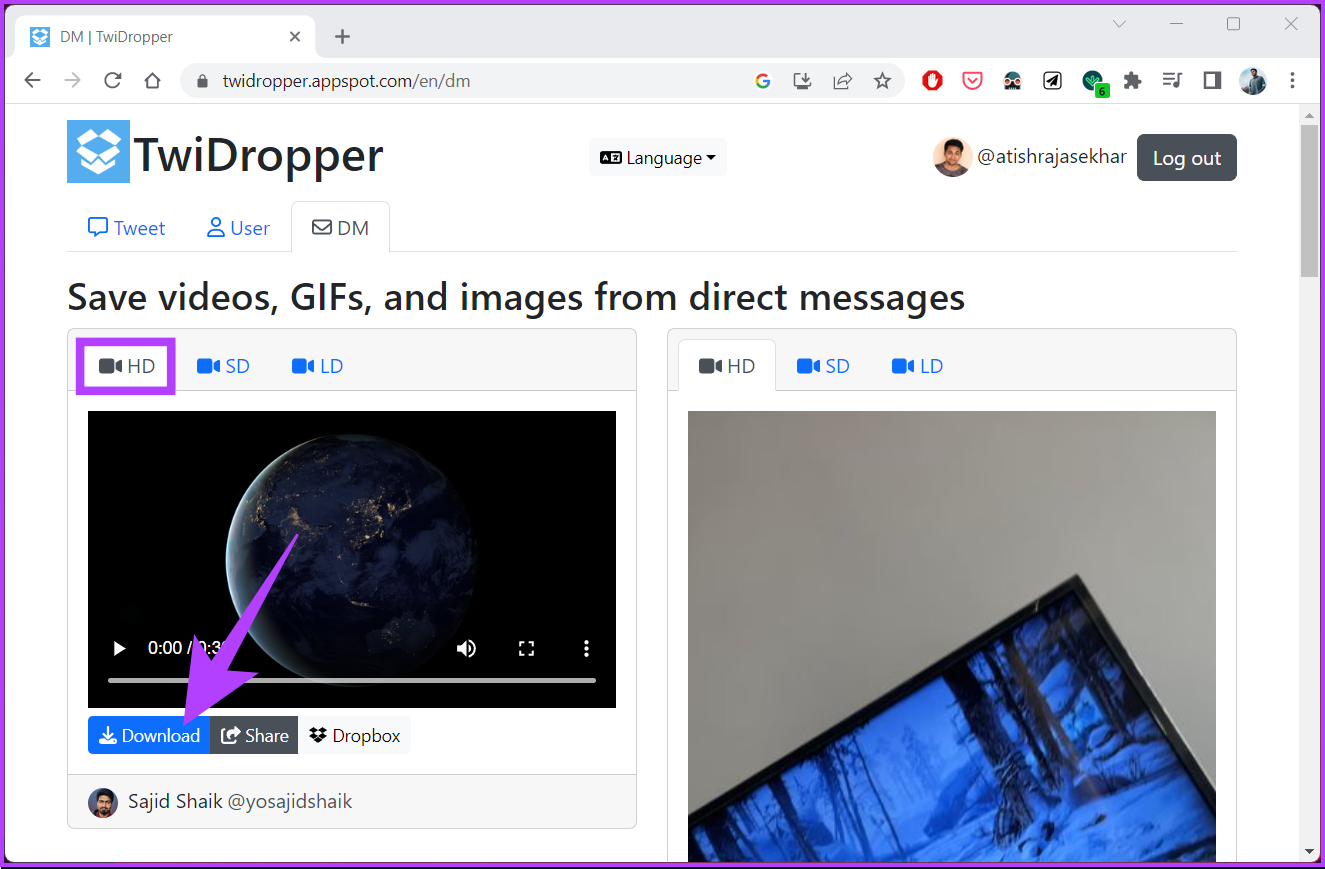
There you go. The video or image will be downloaded to your computer. You can execute these same steps on your mobile device, too. If you have any queries we missed addressing, check out the FAQs section below.
FAQs on Downloading Direct Message Videos on Twitter
Twitter direct message (DM) provides some level of security as it is a private messaging feature between two Twitter accounts. However, exercising caution and being mindful of the information shared in DMs, especially with individuals you do not know or trust, is essential.
Yes, deleting a Twitter DM will unsend it. If you delete a DM, it will be removed from both – your conversation history and the recipient’s. However, it is essential to note that if the other person has already seen the message, nothing can help.
Downloading a video from Twitter DM may seem daunting, but the process can be simplified with the correct methods and tools. While downloading the video from Twitter DM, ensure that you respect copyright laws and use the downloaded videos accordingly.
Was this helpful?
Last updated on 26 August, 2024
1 Comment
Leave a Reply
Read Next
 What is the Download Limit For Amazon Prime Video
Amazon’s relatively successful venture into the video streaming business alongwith few Original releases from their own production has found an audience across the globe and thanks to its Download and
What is the Download Limit For Amazon Prime Video
Amazon’s relatively successful venture into the video streaming business alongwith few Original releases from their own production has found an audience across the globe and thanks to its Download and
 2 Ways to Download Images from Pinterest on Desktop and Mobile
Method 1: Download Image On Mobile Open the image you want to download, tap on the three-dots icon at the top right, and select Download image.
2 Ways to Download Images from Pinterest on Desktop and Mobile
Method 1: Download Image On Mobile Open the image you want to download, tap on the three-dots icon at the top right, and select Download image.
 How to Download Emails From Outlook on Web, Desktop, and Mobile
How to Download an Email From Outlook’s Web Version Note: You may choose to skip this method if you have multiple emails you want to download.
How to Download Emails From Outlook on Web, Desktop, and Mobile
How to Download an Email From Outlook’s Web Version Note: You may choose to skip this method if you have multiple emails you want to download.
 How to Download Photos From Google Photos on Desktop and Mobile
If you save photos in Cloud services like Google Photos, you may want to download your precious memories to your local storage.
How to Download Photos From Google Photos on Desktop and Mobile
If you save photos in Cloud services like Google Photos, you may want to download your precious memories to your local storage.
 5 Ways to Fix Video Unavailable in Amazon Prime Video
Basic Fixes Check network connection: Playing Prime without any problems requires an optimum internet speed.
5 Ways to Fix Video Unavailable in Amazon Prime Video
Basic Fixes Check network connection: Playing Prime without any problems requires an optimum internet speed.
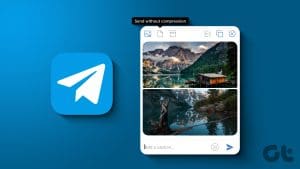 How to Send High Quality Photos and Video on Telegram
Send High-Quality Photos and Videos on Telegram on Mobile Let us show you the steps to send photos and videos without losing quality on your iPhone and Android using Telegram.
How to Send High Quality Photos and Video on Telegram
Send High-Quality Photos and Videos on Telegram on Mobile Let us show you the steps to send photos and videos without losing quality on your iPhone and Android using Telegram.
 How to Change Prime Video Account on Fire TV Stick, TV, and Mobile
https://youtu.be/bNKo63QN6gk Change Prime Video Account on Fire TV Stick Unfortunately, changing the Prime Video account on Firestick isn’t as easy as logging out from one account and signing in with
How to Change Prime Video Account on Fire TV Stick, TV, and Mobile
https://youtu.be/bNKo63QN6gk Change Prime Video Account on Fire TV Stick Unfortunately, changing the Prime Video account on Firestick isn’t as easy as logging out from one account and signing in with
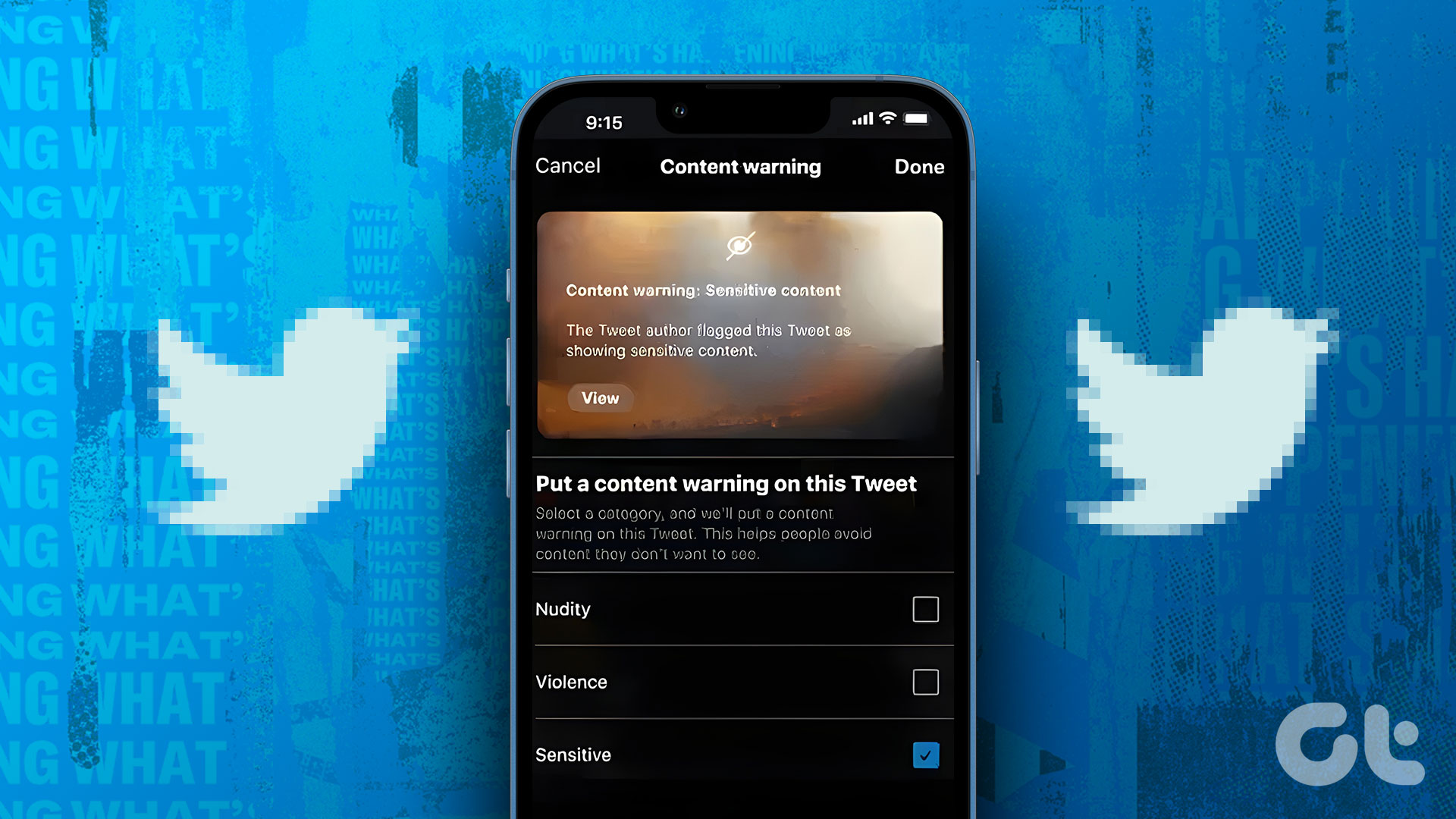 How to See Sensitive Content on X (Twitter)
While Twitter is quite an evolved social media app, it isn't fully free from inappropriate and NFSW content.
How to See Sensitive Content on X (Twitter)
While Twitter is quite an evolved social media app, it isn't fully free from inappropriate and NFSW content.
The article above may contain affiliate links which help support Guiding Tech. The content remains unbiased and authentic and will never affect our editorial integrity.

Hello, none of the propose methods worked, I only got errors and empty files, also the easiest and last method presented doesn’t allow to save files older than 30 days. Thanks for nothing.