

How to Download an Email From Outlook’s Web Version
Note: You may choose to skip this method if you have multiple emails you want to download.
Step 1: Open Outlook on your preferred browser and log in to your account.
Step 2: Select and open the email you want to download.
Step 3: Click on the three dots in the top-right corner of the email section.

Step 4: From the drop-down, click on Download.

That’s it. You have successfully saved an offline copy of your selected Outlook email on your computer. If you use Outlook for Windows and want to save your email offline, continue reading.
How to Save Outlook Emails to Hard Drive on Windows
Unlike Outlook web, Outlook’s desktop version lets you download multiple emails simultaneously. However, there’s a catch. If you download a single email, you can save it in text only, Outlook Template, Outlook Message Format, Unicode, HTML, or MHT file. On the flip side, if you download multiple emails, .txt is the only format available for you to use.
Step 1: Press the Windows key on your keyboard, type Outlook, and click Open.
Step 2: Select the email you want to download.
Note: You can bulk-select the email by holding the Ctrl button.

Step 3: Once selected, click on File in the top left corner.

Step 4: Click on Save As from the left pane.

Step 5: Type a name for the file, choose a file format from the Save as type, and click Save.

There you go. The selected emails get saved on your computer with ease. Keep reading if you are not a Windows user but have a Mac.
How to Export Emails from Outlook for Mac
You can only download one email at a time, and that too in only one format, i.e., .eml. Follow the below-mentioned steps.
Step 1: Press Command + Space on your keyboard, type Outlook, and press Return.
Step 2: Select the email you want to download.
Note: You can bulk-select the email by holding the Ctrl button.

Step 3: Once selected, click on File in the top left corner.

Step 4: From the drop-down menu, select Save As.

Step 5: In the pop-up, name the file, select the download location, and click Save.

That’s it. You have successfully saved the email on your Mac, which you can open using a text editor of your choice. If you can’t access your Mac or Windows PC and want to export an email from Outlook for mobile, move to the following method.
How to Download an Email from Outlook Mobile App
The official option for downloading your email on Outlook is limited to web and desktop application versions. On the mobile front, you must print your email as PDF to save your email for offline use. Follow the instructions below.
Step 1: Open the Outlook app on your Android or iOS device.
Step 2: Open the email that you want to save offline.
Step 3: Tap on the three-dot icon below the email’s subject and tap on Print.


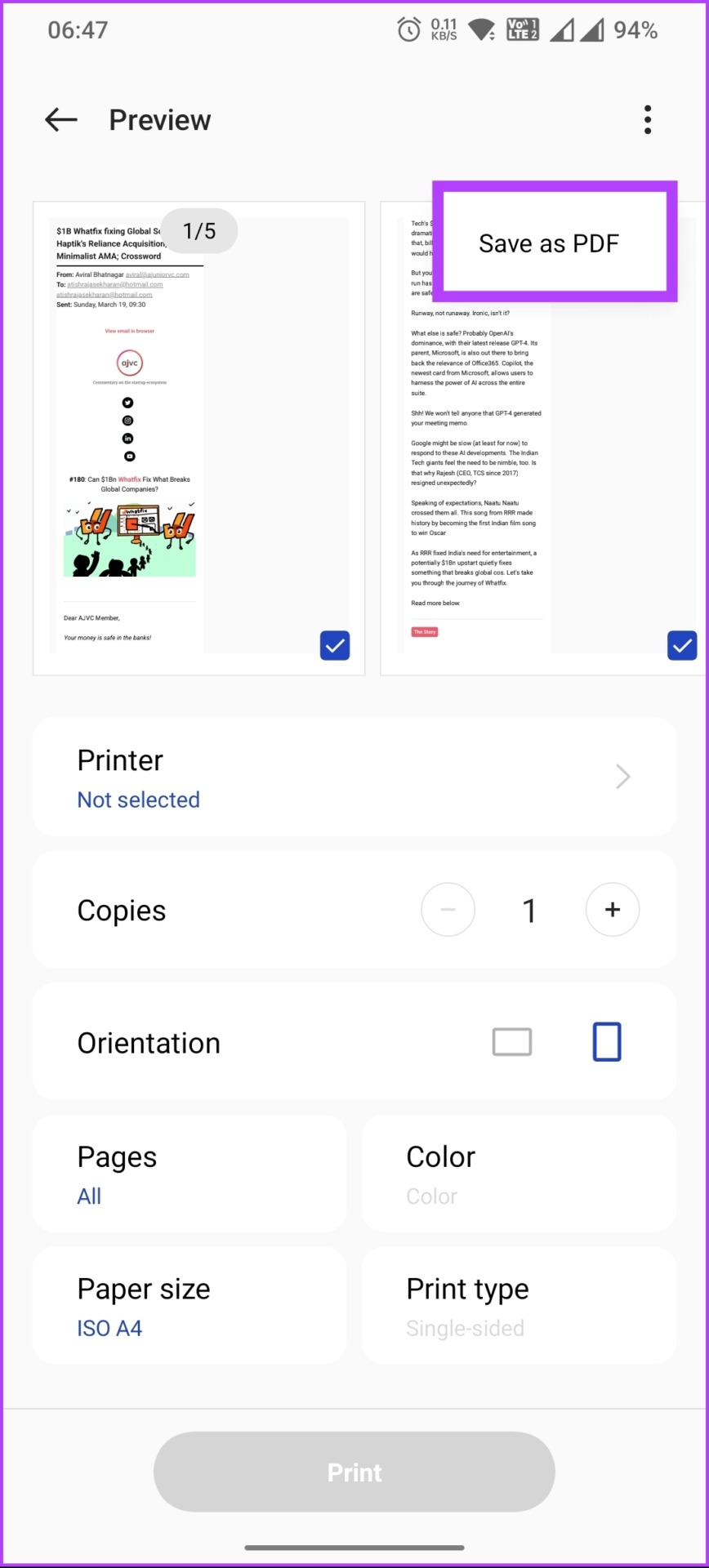
You will be taken to the print preview screen.
Step 5: Tap on the three-dot icon at the top-right corner and select Save as PDF.
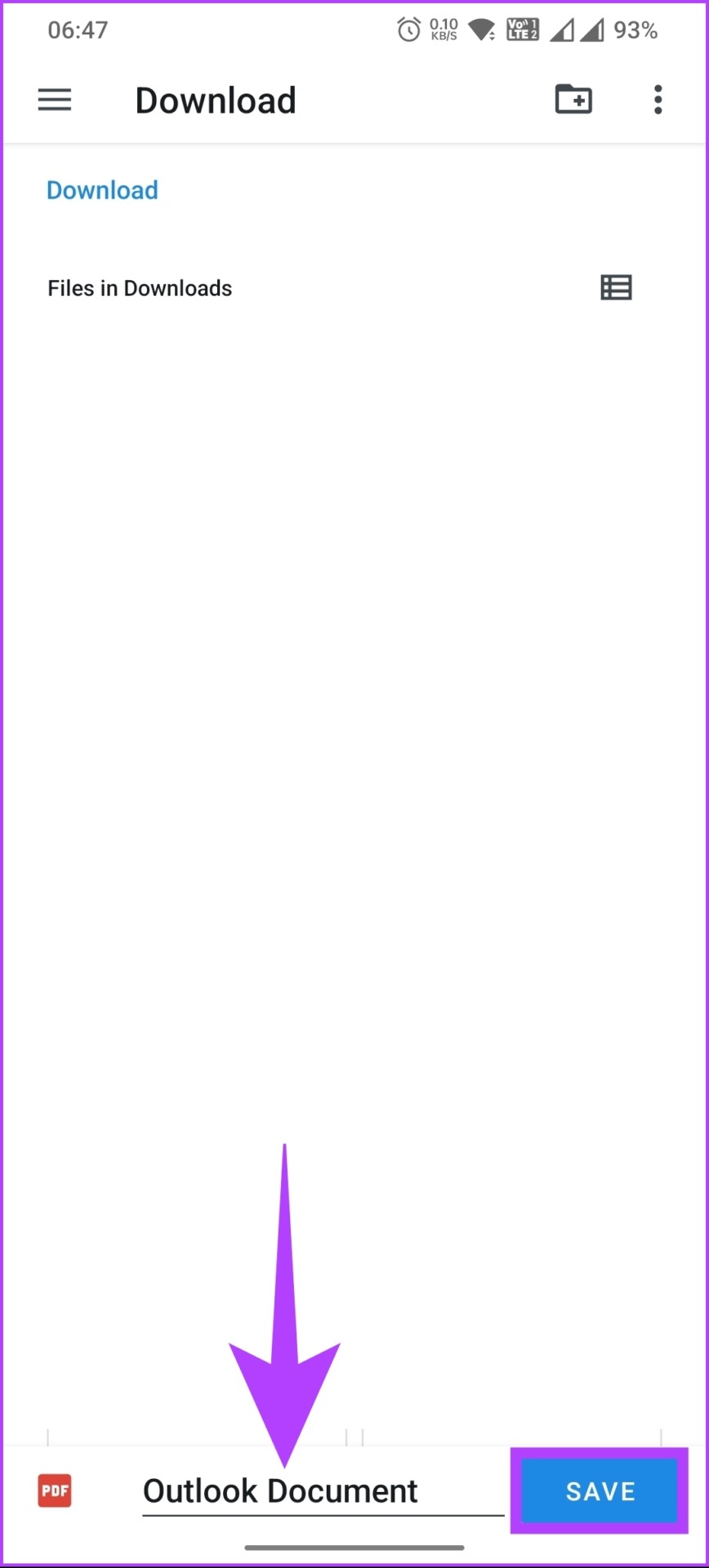
Step 7: Name the file and tap on Save.
There you have it. You have exported email from Outlook and saved it for offline work. If there are any questions we missed addressing in this article, check out the FAQ section below.
FAQs on Downloading Emails From Microsoft Outlook
When you download your Outlook emails, they are saved in the location you specify, which could be your computer’s hard drive or other local storage devices, such as a USB drive.
There are several reasons why you are not receiving emails in Outlook. One of the most common reasons, if not the internet, is that your mailbox may be full or have reached its storage limit. It prevents new messages from being delivered to you. You may need to clear junk emails and trash to free up your mailbox space or upgrade your storage plan.
Now that you know how to download emails from Outlook, you can save important emails for future reference, backup, transfer them to another platform, or export them to other email clients.
Was this helpful?
Last updated on 04 August, 2024
2 Comments
Leave a Reply
Read Next
 How to Mark Emails as Read in Outlook on Web, Desktop, or Mobile App
Outlook is a widely used email client for personal and professional purposes.
How to Mark Emails as Read in Outlook on Web, Desktop, or Mobile App
Outlook is a widely used email client for personal and professional purposes.
 How to Delete Multiple Emails in Outlook on Mobile and Web
How to Delete Multiple Outlook Emails on Mobile Let's first start with how you can mass delete emails from the Microsoft Outlook app on your mobile.
How to Delete Multiple Emails in Outlook on Mobile and Web
How to Delete Multiple Outlook Emails on Mobile Let's first start with how you can mass delete emails from the Microsoft Outlook app on your mobile.
 How to Turn Off Focused Inbox in Outlook on Web, Desktop, or Mobile
Not too long ago, Outlook introduced a Focused Inbox feature that automatically sorts your incoming email into two tabs.
How to Turn Off Focused Inbox in Outlook on Web, Desktop, or Mobile
Not too long ago, Outlook introduced a Focused Inbox feature that automatically sorts your incoming email into two tabs.
 How to Change Outlook Password on Mobile, Desktop, and Web
Change Password in Outlook Mobile App The Outlook client app on Android and iPhone doesn’t have the option to change your account password.
How to Change Outlook Password on Mobile, Desktop, and Web
Change Password in Outlook Mobile App The Outlook client app on Android and iPhone doesn’t have the option to change your account password.
 4 Fixes for Outlook Web Not Receiving Emails
Basic Fixes Check outlook server status: Visit DownDetector and check whether Outlook servers are responding in your region.
4 Fixes for Outlook Web Not Receiving Emails
Basic Fixes Check outlook server status: Visit DownDetector and check whether Outlook servers are responding in your region.
 How to Recall an Email on Microsoft Outlook for Desktop and Web
Have you experienced panic after sending an email because you noticed an error or you forgot to include an important attachment?
How to Recall an Email on Microsoft Outlook for Desktop and Web
Have you experienced panic after sending an email because you noticed an error or you forgot to include an important attachment?
 How to Find a Discord User ID on Web, Desktop, and Mobile
Check Discord ID on the Web or Desktop App Step 1: Go to Discord from your preferred browser on your Windows or Mac and log in to your account.
How to Find a Discord User ID on Web, Desktop, and Mobile
Check Discord ID on the Web or Desktop App Step 1: Go to Discord from your preferred browser on your Windows or Mac and log in to your account.
 How to Delete a Word Document on Desktop, Web, and Mobile
Deleting a Word document may seem straightforward, but the process can vary across platforms.
How to Delete a Word Document on Desktop, Web, and Mobile
Deleting a Word document may seem straightforward, but the process can vary across platforms.
The article above may contain affiliate links which help support Guiding Tech. The content remains unbiased and authentic and will never affect our editorial integrity.

Thank you for your support
It looks complex but let me try..